Got a tip for us?

You can have iPhone continuously listen for your name and notify you when it’s detected. You can also record how you or someone else says your name to help iPhone recognize it.

If you go by more than one name, iPhone can recognize multiple names. And to quickly turn Name Recognition on or off, you can add it to Control Center.

Here’s how to have iPhone notify you when your name is called.

Note: Name Recognition is available on iOS 26 and later. Name Recognition is only available in select languages. Don’t rely on your iPhone to recognize your name in circumstances where you may be harmed or injured or in high-risk or emergency situations.

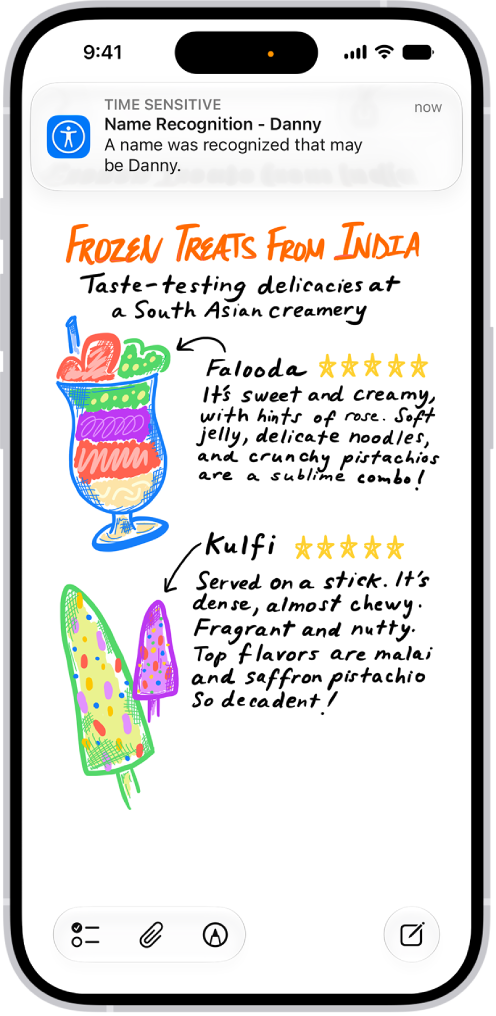
A notification is shown on iPhone that Name Recognition recognized a sound that may be a name.

Set up Name Recognition

  1. Start the Settings app on your iPhone.
  2. Tap Accessibility, tap Sound & Name Recognition, tap Name Recognition, and then tap Set Up Name Recognition.
  3. Follow the onscreen instructions.

Add more than one name to Name Recognition

Have more than one name you go by? You can have iPhone recognize multiple names.

  1. Start the Settings app on your iPhone.
  2. Tap Accessibility, tap Sound & Name Recognition and tap Name Recognition. Then tap Add Name.
  3. Follow the onscreen instructions.

Quick tip: Add Name Recognition to Control Center, and you can turn it on or off quickly.

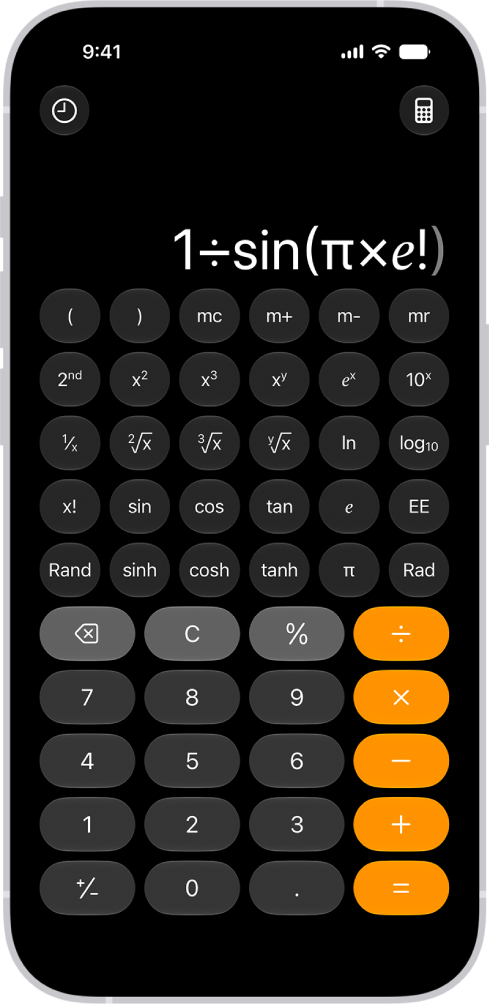
In the Calculator app, you can solve math problems in basic or scientific mode, convert units, or handwrite problems and generate graphs using Math Notes. The scientific calculator handles powers, roots, exponents, fractions, logarithms, trigonometry, and more. And you’ll even find conversions for currency.

iPhone showing the scientific calculator with memory, exponential, logarithmic, and trigonometric functions.

Choose the calculator for the task

Do basic math, or switch to the scientific calculator where you can perform advanced calculations involving powers, roots, exponents, fractions, logarithms, trigonometry, and more. Tap the Change Mode button, tap Basic or Scientific, then enter your expression.

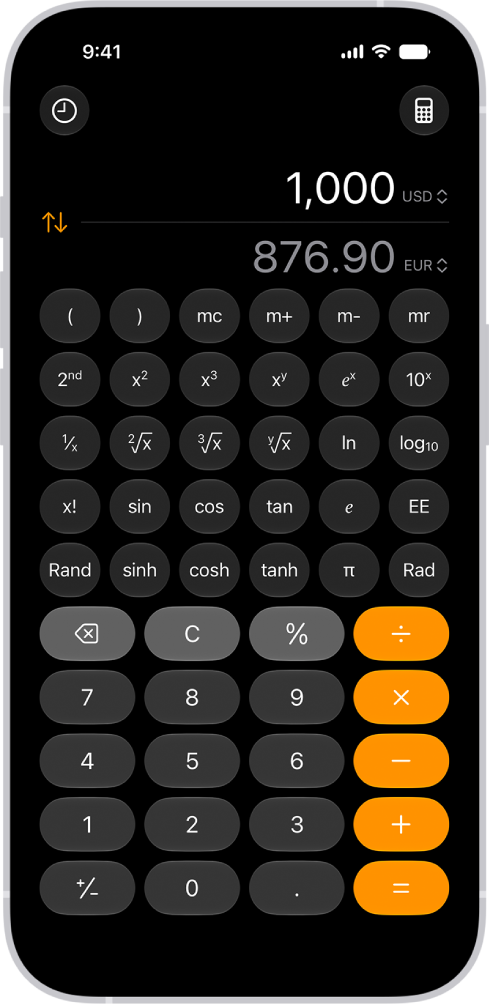
The basic calculator with a currency conversion on iPhone.

Convert units easily

Miles to millimeters? Yen to euros? Change units of length, weight, power, pressure, speed, currency, and more with the unit conversion mode. Tap the Change Mode button, tap Convert, then tap the Unit button to choose the units or currencies.

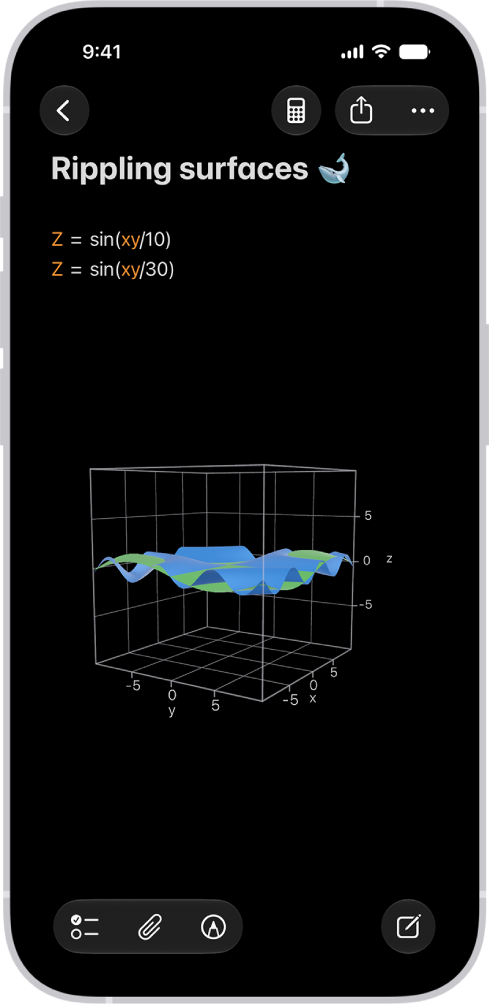
Math Notes in Calculator on iPhone showing two 3-variable equations and their corresponding 3D graphs combined in the same space.

Visualize your expressions with graphs

Evaluate expressions, assign variables, and plot graphs in Math Notes. Tap the Change Mode button, tap Math Notes, tap the New Note button to start a note, then write an equation with two or three variables. Tap the equal sign of the equation to design your graph.

You can use certain third-party products with the Find My app. You can pair these products with your Apple Account using your iPhone, and then use Find My to locate them if they’re lost or misplaced. You can also get notified if you leave your item behind.

If an item won’t add, the manufacturer can tell you whether it supports Find My. And if it’s an AirTag you’re adding, see how to add an AirTag to Find My instead.

Add a third-party item

  1. Start the Find My app on your iPhone.
  2. Follow the manufacturer’s instructions to make the item discoverable.
  3. Tap the Add button, then choose Add Other Item.
  4. Tap Connect, type a name and select an emoji and tap Continue.
  5. Tap Continue to register the item to your Apple Account. Then tap Finish.

Having trouble adding an item? Contact the manufacturer to find out if Find My is supported.

If someone else’s Apple Account has the item registered, they need to remove it before you can add it.

Change an item’s name or emoji

  1. Start the Find My app on your iPhone.
  2. Tap Items, tap the item whose name or emoji you want to change, and then tap the More button.
  3. Tap Change Name and Emoji.
  4. Choose a name from the list or choose Custom Name to type a name and select an emoji.
  5. Tap the Done button.

Keep your item up to date

To use all the features in Find My, keep your item up to date.

  1. Start the Find My app on your iPhone.
  2. Tap Items and tap the item you want to update. Tap the More button.
  3. Tap Update Available and then follow the onscreen instructions.

Note: Your item is up to date if you don’t see Update Available.

If the item is updating, you can’t use Find My features yet.

View details about an item

Find My shows more details about any item you register to your Apple Account, such as the serial number or model. It also shows whether the manufacturer has a third-party app available.

  1. Start the Find My app on your iPhone.
  2. Tap Items and tap the item you want more details about. Then tap the More button.
  3. Do either of the following:
    • View details: Tap Show Details.
    • Get or open third-party app: If an app is available, you see the app icon. Tap Get or the Download button to download the app. If you’ve already downloaded it, tap Open to open it on your iPhone.
Tag: Find My

You can customize how you activate Siri, change Siri’s language and voice, change how Siri responds, and more in Siri settings on iPhone.

For example, you can say “Siri” or “Hey Siri,” or type to Siri instead of speaking. If you don’t want your iPhone answering to “Siri” or “Hey Siri” when you don’t want it to, you can place it face down. You can also retrain Siri with your voice.

Customize how you activate Siri

You can change how you activate Siri. For example, you can say “Siri” or “Hey Siri,” click the side button on your iPhone, or type to Siri.

Note: The option to say just “Siri” is available on supported iPhone models in some languages and regions.

  1. Open the Settings app on your iPhone.
  2. Tap Siri.
  3. Tap Requests and then do any of the following:

    • Turn on “Siri” or “Hey Siri”: Tap Siri or Hey Siri (or Hey Siri) and then follow the instructions to set it up.

      Depending on your choice, iPhone listens for “Siri,” “Hey Siri,” or both to activate Siri. To retrain Siri with your voice, turn off “Siri” or “Hey Siri,” turn it back on again, then follow the onscreen instructions.

      Tip: To prevent iPhone from responding to “Siri” or “Hey Siri” when you don’t want it to, place your iPhone face down.

    • Turn off “Siri” or “Hey Siri”: Tap Off. iPhone doesn’t listen for Siri or Hey Siri to activate Siri.
    • Activate Siri using the side button on your iPhone: Turn on Press Side Button for Siri.
    • Type to Siri (Apple Intelligence supported devices): Turn on Type to Siri.

      When Siri AI (Beta) is on, you can always type to Siri.

      Note: Siri AI is available in beta on iOS 27 or later on an Apple Intelligence-enabled iPhone 15 Pro, iPhone 15 Pro Max, or iPhone 16 model or later with Siri and device language set to a supported language. Available in English to start. Siri AI will not initially be available in the EU on iOS. Usage limits may apply.*

Change Siri’s language

  1. Open the Settings app on your iPhone.
  2. Tap Siri.
  3. Tap Language, then select a language from the list.

Maps, Siri, turn-by-turn directions, and Listen to Page in Safari all use the language you choose.

Change Siri’s voice

Changing the variation and voice Siri uses changes the way Siri sounds.

  1. Open the Settings app on your iPhone.
  2. Tap Siri.
  3. Do any of the following:
    • Change the variation: Tap Voice and select an option below Variations.
    • Change the voice: Tap Voice, then select an option below Voices.
    • Use Siri Expressive Voices** (Siri AI only): Tap Voice and then adjust Voice, Pace, and Expressivity settings until they sound just right to you.

Note: Pace and Expressivity adjustments are currently available for American and British voices.

Change how Siri responds

When you provide voice input, Siri can always respond silently or speak back, whichever you choose. Messages can also go out automatically without Siri asking you to confirm, and Siri can read messages in a different language.

Note: Depending on the version of Siri you’re using, you may see different options.

  1. Open the Settings app on your iPhone.
  2. Tap Siri.
  3. Tap Responses and then do any of the following:

    • Have Siri respond aloud: Choose Prefer Spoken Responses or Speak Back for Voice Input. If Siri AI is turned on, choose Spoken Response.
    • Have Siri respond silently: Choose Prefer Silent Responses or Always Silent. If Siri AI is turned on, choose Silent Response.
    • See what Siri says onscreen: Turn on Always Show Siri Captions.
    • See your request onscreen: Turn on Always Show Request.
    • Have Siri send messages without confirming: Turn on Automatically Send Messages.
    • Have Siri read messages in a different language: Tap Add Language and select a language from the list.

      Tip: After languages download, you can choose the variety and voice Siri uses to read messages. Tap the language below Read Messages, then select from the options below Variety and Voice.

Tell Siri about yourself

For a more personalized experience, give Siri information like your name, home, and work addresses, and even your relationships. Then you’ll be able to say things like “Give me driving directions home” and “FaceTime Mom.” That information comes from your contact card, called My Card, in the Contacts app.

  1. Open the Settings app on your iPhone.
  2. Tap Siri.
  3. Tap Your Information, then tap your name.
  4. Go to the Contacts app to do any of the following:
    • Change or edit the information: Tap My Card at the top and tap Edit. Edit your information.
    • Tell Siri how to pronounce your name: Tap My Card at the top and then tap Edit. Scroll down and then tap “add field.” Select a pronunciation name field, then type how to say your name. You can also add pronunciations for other contacts.

You can teach Siri who other people are in relation to you. Saying “Sarah Milos is my sister” works, as does “Hey Siri, Ashley Kamin is my mom.”

On every device where you’re signed in to the same Apple Account, your personal information stays up to date, and it’s encrypted and remains private. What Siri learns about you on one device improves your experience with Siri on your other devices. To keep Siri personalization from updating across your devices, turn off Siri in iCloud settings.

Change Visual Intelligence settings

Using Apple Intelligence, Visual Intelligence can search for items similar to those around you. You can also choose whether highlighted objects are automatically sent to third parties to provide results.

  1. Open the Settings app on your iPhone.
  2. Tap Siri and then do any of the following:
    • Turn on Highlight to Search (Siri AI only): This setting automatically searches the web when you highlight using Siri mode in Camera or screenshots.
    • Turn on Automatic Visual Look Up: This setting automatically identifies objects and places that appear in screenshots.

Customize apps Siri has access to

Once Siri has access to an app or App Clips, it can find information and suggest what you might want to do next, even before you ask. When an invitation arrives in Mail, for instance, you’re asked whether to add it to your calendar. Suggestions are on by default, and you can customize which apps Siri can access at any time.

Note: Siri and Apple Intelligence are designed to protect your privacy and keep you in control of your personal data by giving you control over what you share.

  1. Open the Settings app on your iPhone.
  2. Tap Siri.
  3. Do any of the following:

    • Allow Siri to learn how you use an app to make suggestions: Tap App Access and select an app from the list. Then turn on Learn from this App.
    • Choose how Suggestions appear: Tap App Access, select an app from the list, and then turn on Show on Home Screen, Suggest App, or Suggestion Notifications.

      Note: The options you see may be different depending on the app you select and which version of Siri you’re using.

    • Allow Siri to learn from App Clips to make suggestions: Tap App Clips and then turn on Learn From App Clips.
    • Allow Search and Shortcuts to show App Clips: Tap App Clips and turn on Show in Search or Suggest App Clips.

Customize where suggestions appear

Suggestions can appear wherever you choose, like in an app, though not as notifications or on the Home Screen.

  1. Open the Settings app on your iPhone.
  2. Tap Siri.
  3. Tap Suggestions and then do any of the following:
    • Allow suggested apps to appear in search: Turn on Suggest Apps Before Searching.
    • Allow suggestions to appear in notifications: Turn on Allow Notifications.
    • Allow suggestions to appear in App Library: Turn on Show in App Library.
    • Allow suggestions to appear when sharing: Turn on Show When Sharing.
    • Allow suggestions to appear when you might want to listen to music: Turn on Show Listening Suggestions.

*Apple Intelligence is available with Siri and device language set to Chinese (Simplified), Chinese (Traditional), Danish, Dutch, English, French, German, Italian, Japanese, Korean, Norwegian, Portuguese, Spanish, Swedish, Turkish, or Vietnamese. Some features may not be available in all regions or languages. Some devices may not be available in all regions. Siri AI is available in beta in iOS 27, iPadOS 27, macOS 27, watchOS 27, and visionOS 27 and requires an Apple Intelligence–enabled device set to a supported language. Available in English to start. Siri AI will not be initially available in the EU on iOS, iPadOS, and watchOS. Certain Apple Intelligence features that rely on server-side models are subject to daily usage limits, including but not limited to Siri AI, Intelligent Photo Editing Tools, Image Playground, and AFM 3 Cloud models in Shortcuts. Daily limits may vary by feature, request complexity, system demand, system policies, and other factors. Expanded access to such features will be available for a fee in the future. Use of these features is subject to the Apple Intelligence Terms and Conditions.

**Siri Expressive Voices are available with Siri AI on iPhone 17 Pro, iPhone 17 Pro Max, iPhone Air, iPhone 18 Pro, and iPhone 18 Pro Max.


Tag: Siri

If you don’t want to miss important stories, you can use notifications and newsletters to stay on top of the latest news. Some channels you follow may send notifications, and you can also choose to receive newsletters from Apple News editors by email.

If you subscribe to Apple News+, you can also get notified when new issues of publications you follow are available.

Here’s how to get News notifications and newsletters on iPhone.

Turn on notifications

You may get notifications about important stories from some channels you follow.

  1. Open the News app on your iPhone.
  2. Tap Following and swipe to the bottom of the screen. Then tap Notifications & Email below Manage.
  3. Turn on notifications for your preferred channels, as well as notifications from Apple News, such as Apple News Top Stories, Apple News Spotlight, and more.

Once you subscribe to Apple News+, notifications can also tell you when publications you follow have new issues available. New Features & Tips notifications are another option.

Receive Apple News newsletters

Apple News editors can send newsletters to your email inbox, too, if you’d like. They feature top stories personalized based on your interests, and with an Apple News+ subscription, newsletters can also include new issues of your favorite magazines.

  1. Open the News app on your iPhone.
  2. Tap Following, swipe to the bottom of the screen, and tap Notifications & Email.
  3. Swipe to the bottom of the screen and then do any of the following:
    • Turn on Apple News Newsletters.
    • Tap Sign Up for Newsletters, then tap Sign Me Up.
  4. In the U.S., several different newsletters may be available. To choose which ones you want to receive, do one of the following:
    • Opt in: Tap Sign Up.
    • Opt out: Tap Subscribed.
  5. To stop receiving newsletters, return to the Notifications & Email screen and turn off Apple News Newsletters. In the U.S., tap Manage Newsletters and then unsubscribe from each newsletter you no longer want to receive.

Note: Personalized newsletters aren’t available in all countries or regions. To get the Sports newsletter, you need to first sync My Sports and follow a sports topic.

Tag: News

You can catch up on text messages you missed, mark messages as unread, and pin and unpin conversations to prioritize messages in the conversation list.

Away from your iPhone for a while? You can jump straight to the first message you haven’t seen in a conversation. And when you don’t have time to respond, marking a conversation as unread lets you return to it later.

Here’s how to keep track of messages on iPhone.

Catch up on messages you missed

Received messages while your notifications were paused or you were away from your iPhone? Jump to the first message you haven’t seen in the conversation.

  1. Start the Messages app on your iPhone.
  2. Open an unread conversation. Then tap the Catch Up button.

The conversation scrolls up to the first unread message.

Mark messages as unread

Mark conversations as unread when you don’t have time to respond, then return to them later.

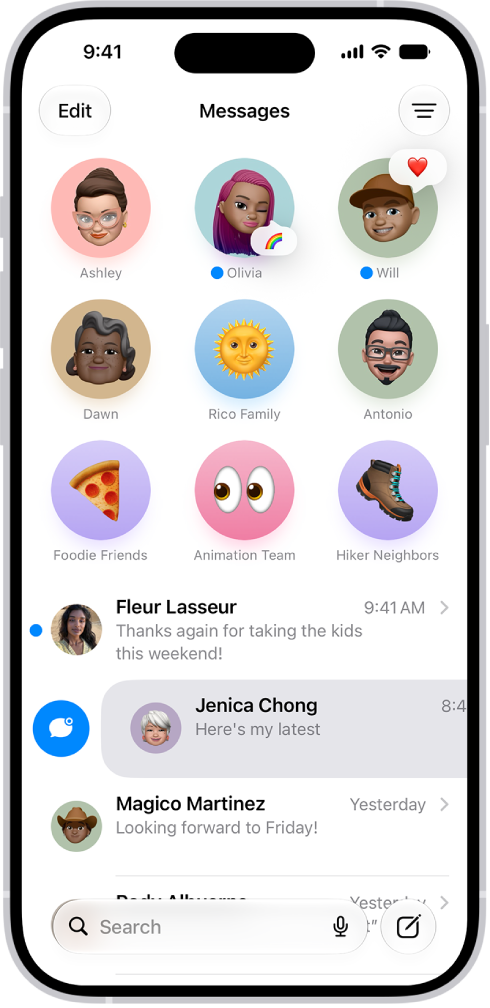
A Messages conversation list with two unread messages and one being marked as unread.

  1. Start the Messages app on your iPhone.
  2. In the conversation list, do one of the following:
    • Swipe right on a conversation to mark it as unread.
    • Drag right and tap the Mark as Unread button.

Quick tip: You can mark several messages as unread at once, too. In the conversation list, tap Edit and tap Select Messages. Select each conversation you want to mark as unread, and then tap Unread at the bottom left.

See a list of your unread messages

  1. Start the Messages app on your iPhone.
  2. In the conversation list, tap the Filter button and then tap Unread. A checkmark appears next to Unread, and the icon turns blue to indicate that filtering is on.
  3. To see both your read and unread messages again, tap the Filter button. Then tap to deselect Unread.

Quick tip: Tap Edit, tap Select Messages, then tap Read All to mark all your unread messages as read.

Pin a conversation

So the people you contact most always come first, you can pin specific conversations at the top of the conversation list, where they appear as larger icons.

  1. Start the Messages app on your iPhone.
  2. Touch and hold a conversation, then tap Pin.

Unpin a conversation

Pinned conversations can be unpinned so they no longer appear at the top of the conversation list.

  1. Start the Messages app on your iPhone.
  2. Touch and hold a pinned conversation and then do one of the following:
    • Drag the message to the bottom of the list, and let go.
    • Tap Unpin.

Pin shared items

Within a conversation, you can pin certain shared items, like links or collaboration invitations.

  1. Start the Messages app on your iPhone.
  2. Touch and hold a message and then tap Pin.
  3. To find pinned items, tap the contact or group icon at the top of the conversation and then tap a category (such as Links). Pinned items appear at the top.

To unpin a pinned item, touch and hold it in the message, then tap Unpin. If you’re in the Links or Documents tab, touch and hold the item, tap Show in Conversation, touch and hold it in the message, then tap Unpin.

Turn message summaries on or off

Apple Intelligence summarizes the key points of your conversations, and those summaries replace your message previews automatically. If you’d rather see the most recent message in each conversation, turn off summaries.

Note: Apple Intelligence on iOS 27 or later is available on an Apple Intelligence-enabled iPhone 15 Pro, iPhone 15 Pro Max, or iPhone 16 model or later. Apple Intelligence is not available in all languages or regions. Usage limits may apply.*

  1. Start the Settings app on your iPhone.
  2. Tap Apps, then tap Messages.
  3. Turn Summarize Messages on or off.
  4. To view message summaries, open the Messages app. Then look for the Summary icon below a name in the conversation list. The text following the symbol is a summary of unread messages in that conversation.

*Apple Intelligence is available with Siri and device language set to Chinese (Simplified), Chinese (Traditional), Danish, Dutch, English, French, German, Italian, Japanese, Korean, Norwegian, Portuguese, Spanish, Swedish, Turkish, or Vietnamese. Some features may not be available in all regions or languages. Some devices may not be available in all regions. Siri AI is available in beta in iOS 27, iPadOS 27, macOS 27, watchOS 27, and visionOS 27 and requires an Apple Intelligence–enabled device set to a supported language. Available in English to start. Siri AI will not be initially available in the EU on iOS, iPadOS, and watchOS. Certain Apple Intelligence features that rely on server-side models are subject to daily usage limits, including but not limited to Siri AI, Intelligent Photo Editing Tools, Image Playground, and AFM 3 Cloud models in Shortcuts. Daily limits may vary by feature, request complexity, system demand, system policies, and other factors. Expanded access to such features will be available for a fee in the future. Use of these features is subject to the Apple Intelligence Terms and Conditions.

In the Photos app, you can edit Live Photos, change the key photo, and add fun effects like Bounce and Loop.

In addition to the photo editing tools, you can trim a Live Photo’s length and mute the sound. You can even turn a Live Photo into a still of its key photo. Effects like Loop repeat the action in a continuous looping video.

Here’s how to edit Live Photos on iPhone.

Make Live Photo edits

Besides the photo editing tools, you can trim a Live Photo’s length, mute the sound, change its key photo, and turn it into a still photo.

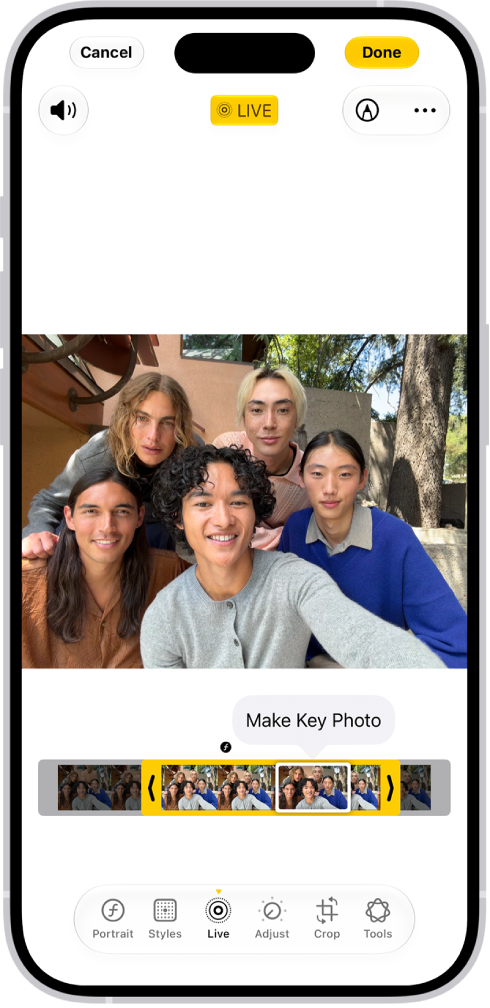
A Live Photo is open in the Photos app. Beneath the photo is the frame viewer with the Make Key Photo button active. On either end of the frame viewer are two arrows that allow you to trim the Live Photo. At the bottom of the screen are the Live, Adjust, Filters, and Crop buttons. The Live button is selected.

  1. Open the Photos app on your iPhone.
  2. Open a Live Photo, then tap the Edit button.
  3. Tap the Live Photo button. Do any of the following:
    • Set a key photo: Move the white frame on the frame viewer, tap Make Key Photo, and tap Done.
    • Trim a Live Photo: Drag either end of the frame viewer to choose the frames the Live Photo plays.
    • Make a still photo: Tap the Live button at the top of the screen to turn off the Live feature. The Live Photo becomes a still of its key photo.
    • Mute a Live Photo: Tap the Mute button at the top of the screen. Tap it again to unmute.

Note: On an iPhone 15 model or later, Live Photos taken with a portrait effect lose that effect if you change the key photo.

Add effects to a Live Photo

Adding effects to Live Photos turns them into fun videos.

  1. Open the Photos app on your iPhone.
  2. Open a Live Photo.
  3. Tap Live in the top-left corner. Choose one of the following:
    • Live: Applies the Live video playback feature.
    • Loop: Repeats the action in a continuous looping video.
    • Bounce: Rewinds the action backward and forward.
    • Long Exposure: Simulates a DSLR-like long exposure effect by blurring motion.
    • Live Off: Turns off the Live video playback feature or applied effect.
    • Portrait: Applies the Portrait effect.
    • Portrait off: Turns off the Portrait effect.

Turn a Live Photo into a video

To share a Live Photo with people who aren’t on Apple devices, for example, you can turn it into a short video to save or share.

  1. Open the Photos app on your iPhone.
  2. Open a Live Photo.
  3. Tap the More button in the top-right corner. Then tap Save as Video.
Tag: Photos

iCloud+ gives you everything iCloud offers plus premium features including Apple Invites, iCloud Private Relay, Hide My Email, HomeKit Secure Video support, and all the storage you need for your photos, files, and more.

You can subscribe to iCloud+ or to Apple One, which includes iCloud+ and other Apple services. You can also upgrade, change, or cancel your iCloud+ subscription, and share iCloud+.

Here’s how to subscribe to iCloud+ on iPhone.

Note: Some iCloud+ features have minimum system requirements. The availability of iCloud+ and its features varies by country or region.

What’s included with iCloud+

When you subscribe to iCloud+, here’s what you can do on iPhone:

  • Get 50 GB, 200 GB, 2 TB, 6 TB, or 12 TB (depending on your plan) of storage for photos, files, backups, and more.
  • Create and share custom invitations for your events.
  • Create unique, random email addresses that forward to your personal inbox with Hide My Email.
  • Browse the web in an even more secure and private way with iCloud Private Relay.
  • Set up home security cameras with HomeKit Secure Video so you can view your footage from anywhere while keeping it private and secure.
  • Use a custom email domain to personalize iCloud Mail.

Upgrade, change, or cancel your iCloud+ subscription

  1. Open the Settings app on your iPhone.
  2. Tap your name, then tap iCloud.
  3. Tap Storage and tap Manage Plan. Follow the onscreen instructions.

Note: Canceling your iCloud+ subscription means you’ll lose access to the additional iCloud storage and iCloud+ features.

Share iCloud+

With Family Sharing, you can share iCloud+ with up to five other family members. Once they accept your invitation to share iCloud+, they get instant access to the extra storage and features.

Note: Sharing iCloud+ with a family group stops if you cancel the subscription, leave the family group, or turn off or leave Family Sharing.

Tag: iCloud

Use the Wallet app to keep your eligible credit and debit cards, passes, transit cards, identity cards, keys, and more, all in a secure and convenient place. Add cards and passes directly from apps, emails, and websites, or add them right in Wallet, then arrange your stack the way you like.

Many cards and passes in Wallet on your iPhone are also available on your paired Apple Watch.

Here’s how to set up cards and passes in Wallet on iPhone.

Note: Apple Wallet requires eligible and supported cards and passes. Apple Wallet, Apple Pay, and their features aren’t available in all countries or regions.

What can I keep in Apple Wallet?

  • Payment cards
    • Credit and debit cards:
    • Apple Cash (U.S. only): Send money in Messages, in Wallet, or with Tap to Cash by simply holding your iPhone near someone else’s.
    • Apple Card (U.S. only): Track your spending, schedule payments, and get Daily Cash back on every purchase.
    • Connected accounts:
    • Flexible payments:
  • Identity cards
    • Government-issued IDs: Show proof of age or identity in person, online, and in apps at select businesses and venues.
    • Employee badges: Use your iPhone or Apple Watch to access your workplace.
    • Student IDs: Use your iPhone or Apple Watch to access your dorm and other places around campus.
  • Transit and tickets
    • Transit cards: On participating transit networks, you can conveniently check and top up the balance and breeze through transit gates by simply holding your iPhone or Apple Watch to the reader.
    • Tickets and boarding passes: Add tickets for movies, concerts, and events, or boarding passes for flights, directly from confirmation emails or supported apps. They can also appear on your Lock Screen automatically near your departure or event time.
  • Keys
    • Home: With a compatible smart lock and a home key in Wallet, you can unlock your door with just a tap of your iPhone or Apple Watch.
    • Apartment building or condominium: Follow the instructions from your property company to add a resident key for your apartment building, condominium, or other shared living space to your iPhone or Apple Watch.
    • Hotel room: Check in without going to the lobby and use your iPhone or Apple Watch to unlock your room with a room key from a participating hotel’s app.
    • Car: Lock, unlock, and start your compatible car with a car key in Wallet.
    • Scooter: Lock, unlock, and start your compatible scooter with a scooter key in Wallet.
  • Apple Account: Check the balance of your Apple Account, add money, and redeem Apple Gift Cards.
  • Physical card numbers: Easily fill in payment information at checkout.
  • Order tracking and receipts: View order details, track shipping, and link receipts to transactions when you make a purchase.

To learn more about all the things you can keep in Wallet, go to the Wallet app on your iPhone, tap the More button, then tap Discover.

Add a card or pass

Look for “Add to Apple Wallet” in an app, email, message, or web page.

You can also directly add flexible payment options, custom passes, identity cards, transit cards, and supported credit and debit cards in the Wallet app.

  1. Open the Wallet app on your iPhone.
  2. Tap the Add Card button. You may be asked to sign in to your Apple Account.
  3. Choose a category and then follow the onscreen instructions. This might include receiving a text message, answering security questions, or confirming through the card issuer’s app.

Rearrange your cards, keys, and passes

  1. Open the Wallet app on your iPhone.
  2. Touch and hold a card you want to move.
  3. Drag the card to a new position in the stack.

Quick tip: To make a credit or debit card your default payment card, drag it to the front of the card stack.

Tag: Wallet

You can customize the settings for the Journal app; for example, personalize the suggestions you receive, set a schedule for journaling, and more.

With Apple Intelligence, Journal can even suggest writing prompts based on what you write. You can add a title, date, or current location to new journal entries, save photos and videos taken in Journal to the Photos app, and turn Journal notifications on or off.

Here’s how to change your Journal settings on iPhone.

Turn Journaling Suggestions on or off

  1. Start the Settings app on your iPhone.
  2. Tap Privacy & Security and tap Journaling Suggestions.

Customize Journaling Suggestions

Journal can use Apple Intelligence to suggest customized writing prompts that draw on what you write and the photos or drawings you add to an entry.

Note: Apple Intelligence on iOS 27 or later is available on an Apple Intelligence-enabled iPhone 15 Pro, iPhone 15 Pro Max, or iPhone 16 model or later. Apple Intelligence is not available in all languages or regions. Usage limits may apply.* You must be an adult to use this feature.

If you want to fine-tune how Journal works, here’s what you can change:

  • Customize the privacy settings: Go to the Settings app , tap Privacy & Security, tap Journaling Suggestions, then turn any of the categories on or off.

    Suggestions use data from apps and services you turn on; data used for suggestions is private and stored on your iPhone.

  • Change the notification settings: Go to the Settings app , tap Notifications, then tap Journaling Suggestions.
  • Create new entries without viewing suggestions or prompts: Go to the Settings app , tap Apps, tap Journal, then turn off Show Suggested Moments or Get Writing Prompts.

Add a title, date, or current location to new journal entries

  1. Start the Settings app on your iPhone.
  2. Tap Apps, tap Journal, and do any of the following:
    • Add a title to new entries: Tap Add Entry Title and then choose Always, Only for Moments, or Never.
    • Use the date from the moment as the entry date: Turn on Always Use Moment Date.
    • Add current location to new entries: Turn on Add Current Location.

Save photos and videos taken in Journal to the Photos app

  1. Start the Settings app on your iPhone.
  2. Tap Apps and tap Journal.
  3. Turn on Save to Photos.

Turn Journal notifications on or off

  1. Start the Settings app on your iPhone.
  2. Tap Notifications, then tap Journaling Suggestions.

*Apple Intelligence is available with Siri and device language set to Chinese (Simplified), Chinese (Traditional), Danish, Dutch, English, French, German, Italian, Japanese, Korean, Norwegian, Portuguese, Spanish, Swedish, Turkish, or Vietnamese. Some features may not be available in all regions or languages. Some devices may not be available in all regions. Siri AI is available in beta in iOS 27, iPadOS 27, macOS 27, watchOS 27, and visionOS 27 and requires an Apple Intelligence–enabled device set to a supported language. Available in English to start. Siri AI will not be initially available in the EU on iOS, iPadOS, and watchOS. Certain Apple Intelligence features that rely on server-side models are subject to daily usage limits, including but not limited to Siri AI, Intelligent Photo Editing Tools, Image Playground, and AFM 3 Cloud models in Shortcuts. Daily limits may vary by feature, request complexity, system demand, system policies, and other factors. Expanded access to such features will be available for a fee in the future. Use of these features is subject to the Apple Intelligence Terms and Conditions.

Tag: Journal