Got a tip for us?

You can have iPhone play Background Sounds—such as ocean waves or rain—to help you focus or rest.

You can choose a sound and adjust the volume, use Background Sounds when other media is playing, and adjust the frequency ranges with the equalizer to hear wider frequency ranges with a richer sound. You can also set a timer, or turn off Background Sounds when iPhone locks. They’re in Control Center, too.

  1. Open the Settings app on your iPhone.

    Tip: Control Background Sounds with the click of a button or from Control Center.

  2. Tap Accessibility, tap Audio & Visual, tap Background Sounds, and then turn on Background Sounds.
  3. Do any of the following:

    • Choose a sound: Tap a sound. Select the name of a sound.
    • Adjust the volume: Drag the slider to increase or decrease the volume of the background sound.
    • Use Background Sounds when other media is playing: Turn on Use When Media is Playing.
    • Adjust the Background Sounds volume when other media is playing: Drag the Volume with Media slider to increase or decrease the volume of Background Sounds.
    • Adjust the frequency ranges: Tap Equalizer and then turn on Equalizer.

      Adjust the tone: Drag your finger across the grid to select specific frequency ranges. Select Broad to hear wider frequency ranges with a richer sound or select Focused to hear specific frequency ranges with less audio distraction.

      Adjust the sound balance: Drag the Balance slider left or right to adjust the sound balance.

      Note: You’ll see settings for Tone and Balance after you turn on Equalizer.

    • Set a timer: Tap Stop Sound with a Timer and then turn on Timer. Select At a specific time or After an amount of time and then choose an option.

      Tip: Turn on “Always use these settings” if you plan to use the settings you selected in your daily routine—like during downtime or focus time.

    • Turn off Background Sounds when iPhone locks: Turn on Stop Sounds When Locked.

In the FaceTime app, you can block FaceTime calls from unknown callers and report the calls as spam or junk. You can block a caller while the call is ringing, during a call, or after a call has ended, and report the call to Apple as spam. You can also unblock a caller later.

Block a FaceTime call

Getting an unwanted FaceTime call? You can block the caller.

Do one of the following:

  • While the call is ringing, tap the left side of the call notification, tap Join FaceTime at the top of the screen, then tap Block Caller.
  • During a call, tap the email address or phone number, tap Block Caller, then tap Block. (You may need to tap the FaceTime window for the email address or phone number to appear.)
  • In your FaceTime call history, tap the call, tap Block Contact, then tap Block.

Block a Group FaceTime call

If you receive an unwanted Group FaceTime call from unknown callers, you can block the call initiator (or all participants) by doing one of the following:

  • While the call is ringing: Tap the left side of the notification to expand the window, tap the people count at the top of the screen, then tap Block All Participants.
  • During a Group FaceTime call: Tap the people count at the top of the screen, then tap Block Unknown Participants or Block All Participants.
  • After a Group FaceTime call has ended: Tap the call in the call history, then tap Block All Participants.

Report a FaceTime call as spam

When an unwanted FaceTime call comes from an unknown caller, you can report it to Apple as spam.

Touch and hold the tile in your call history, then tap Report Spam.

Unblock a caller

Do one of the following:

  • In the FaceTime app: Tap the call in the call history.

    Tap the caller’s contact information (if the call was a Group FaceTime call), then tap Unblock Contact.

  • In the Settings app: Tap Apps, tap FaceTime, then tap Blocked Contacts.

    Swipe left on the contact information, then tap Unblock.

The icons in the Weather app indicate different weather conditions, like fog or haze. Some are easy to read, like Sunrise and Sunset. Here’s a list of some of the weather icons and what they mean, so you can tell them apart.

Icon Description
An icon symbolizing sunrise. Sunrise
An icon symbolizing sunset. Sunset
Clear / Mostly clear
An icon symbolizing partly cloudy. Partly cloudy
An icon symbolizing haze. Haze
An icon symbolizing fog. Fog
An icon symbolizing windy or breezy. Windy / Breezy
An icon symbolizing cloudy. Cloudy
An icon symbolizing thunderstorm. Thunderstorm
An icon symbolizing rain. Rain
Heavy rain
An icon symbolizing drizzle or freezing drizzle. Drizzle / Freezing drizzle
An icon symbolizing snow. Snow
Heavy snow / Blizzard
An icon symbolizing freezing rain or sleet. Freezing rain / Sleet / Wintry mix
Clear / Mostly clear (night)
An icon symbolizing nighttime partly cloudy. Partly cloudy (night)
An icon symbolizing nighttime drizzle. Drizzle (night)
Tag: Weather

By default, iCloud secures your information by encrypting it when it’s in transit, storing it in an encrypted format, and securing your encryption keys in Apple data centers. Advanced Data Protection goes further.

Many Apple services already use end-to-end encryption, where your information is encrypted using keys derived from your devices and your device passcode, which only you know. With Advanced Data Protection, you get the highest level of cloud data security, plus end-to-end encryption on more data categories, like device backup, iCloud Drive, Notes, and Photos.

For the highest level of cloud data security, you can turn on Advanced Data Protection (iOS 16.2 or later required). It uses end-to-end encryption on more data categories such as the following:

  • Device backup
  • Messages backup
  • iCloud Drive
  • Notes
  • Photos
  • Reminders
  • Safari bookmarks
  • Siri Shortcuts
  • Voice Memos
  • Wallet passes

With Advanced Data Protection, your protected data, Apple says, can be decrypted only on your trusted devices, protecting your information even in the case of a data breach in the cloud. Not even Apple can access your information.

Turn on Advanced Data Protection

  1. Open Settings, tap [your name], tap iCloud, and tap Advanced Data Protection.
  2. Tap Turn On Advanced Data Protection.
  3. If you haven’t set up a Recovery Contact or Recovery Key, tap Account Recovery, tap Set Up Account Recovery, and then follow the onscreen instructions.

WARNING: If you use Advanced Data Protection, you’re responsible for your data recovery. Because Apple won’t have the keys required to recover your data, you’ll need to have a Recovery Contact or Recovery Key set up on your account. You can use these additional recovery methods to regain access to your data if you ever forget your password or lose access to your account.

If you turn off Advanced Data Protection later, your iCloud data goes back to the standard level of security.

Tag: iCloud

Use CarPlay to make phone calls and listen to voicemail from your iPhone. You can also use your vehicle’s built-in controls to help make a call, and everything you need is in the Phone app in CarPlay, including your voicemail.

Note: Phone doesn’t always appear in the recent apps list on the left of CarPlay Dashboard. Tap the Home button, and you’ll find it among the pages of all of your CarPlay apps.

Tag: carplay

In the Magnifier app, you can use your iPhone like a magnifying glass to zoom in on text or objects around you. With Apple Intelligence,* you can also use Ask Magnifier to get information about your surroundings.

You can do more with what you capture, too. You can temporarily freeze the frame, view captured text in a format for easier reading, listen to it, or get live descriptions of your surroundings.

Here’s how to magnify or get information about things around you with Magnifier on iPhone.

Note: Apple Intelligence on iOS 27 or later is available on an Apple Intelligence-enabled iPhone 15 Pro, iPhone 15 Pro Max, or iPhone 16 model or later.

Apple Intelligence is not available in all languages or regions, Apple says.

Usage limits may apply.*

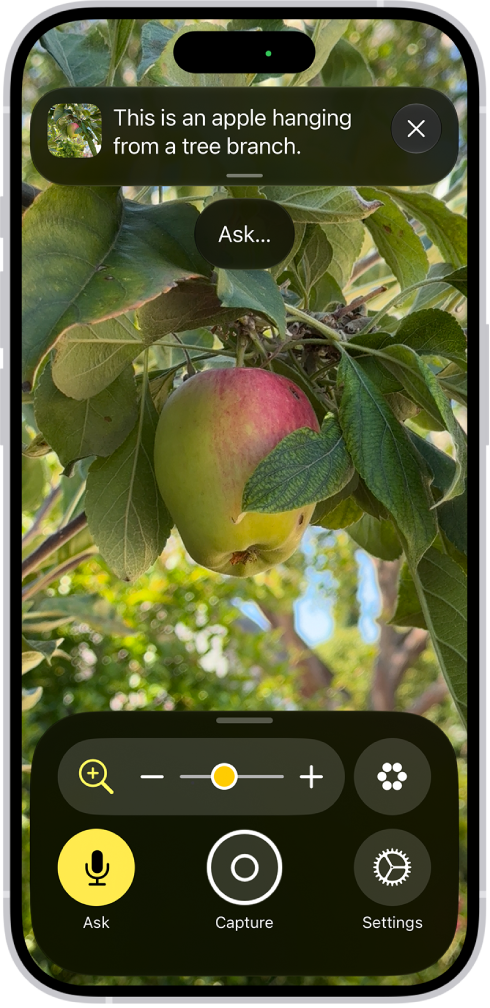
The Magnifier app showing a close-up of an unripe apple.

Magnify nearby text or objects

  1. Open the Magnifier app on your iPhone.
  2. Point the iPhone camera at the text or object you want to magnify and drag the slider to zoom in or out.

    You can also use any of the following controls: Tap the Activities button to switch between your default controls and custom sets of controls you’ve defined for recurring tasks or situations (called activities).

  3. Tap the Ask button, to get information about your surroundings.
  4. Tap the Freeze frame button to temporarily freeze the frame.
  5. Tap the Settings button to add more controls, including Detection Mode, or edit activities you’ve created.

    Tip: Set up a shortcut to quickly open Magnifier by clicking or pressing an iPhone button or tapping the back of iPhone, or from Control Center.

    On supported models, you can also customize the Camera Control to open Magnifier.

Ask questions and get information about your surroundings

Apple Intelligence can describe your surroundings and answer questions about what your camera sees, like the color of a shirt or the total on a bill.

You can choose a default question that gets answered automatically.

  1. Open the Magnifier app on your iPhone.
  2. Point the iPhone camera at the text or object you want to see, tap Ask. Do one of the following: Select a default question: Select What is this? or a default question you created in your Ask Magnifier settings.
    • Type or speak a question: Select Type or Speak and then ask a question about your surroundings.

Temporarily freeze the frame

Without saving it to Photos, you can temporarily capture what’s in the frame.

  1. Open the Magnifier app on your iPhone.
  2. Tap the Capture button and then do one of the following: Take one or more photos: Press and hold the Capture button, then select Single Photo or Multi-Photo to take a photo or multiple photos.

    If you select Multi-Photo, you’ll see a group of photos in the bottom right corner of the screen.

    Capture text and reframe it: Press and hold the Capture button, then select Document.

    Follow the written and spoken instructions to get the text in frame or drag the corners of the box that appear around the text, then tap Confirm.

    After you tap Confirm, tap the Reader button to view the text with Accessibility Reader.

    Customize and listen to text: If you’re magnifying text, tap the Reader button to view your captured text in a format for easier reading or to listen to your captured text.

    Share captured images: Tap the Share button for more options, such as sharing the captured frame or saving it to your photos.

    Stop viewing captured images: Tap the Close button to unfreeze the frame and return to the live Magnifier lens.

    To reset Magnifier, press and hold the Capture button anytime and select Document, Multi-Photo, or Single-Photo.

View your captured text in a format for easier reading

When you magnify a frame with text in it, you can view the text in a format adapted for easier reading.

Even fonts, layouts, and background colors can be adjusted.

  1. Open the Magnifier app on your iPhone.
  2. Tap the Capture button to capture the frame and then tap the Reader button.

    Magnifier alerts you if no text is detected in the frame you captured.

  3. Tap the More button, then tap Customize Reader.
  4. Select a theme, then tap Edit.

    Do any of the following: Text Color: Choose a color or tap Custom Color.

    Background Color: Choose a color or tap Custom Color.

    Text Size: Drag the slider left or right to make the text smaller or larger.

    Font: Choose a font.

    High Legibility Characters: Turn on High Legibility Characters.

    Note: This option is only available when using System Font.

    Bold Text: Turn on Bold Text.

    Line Spacing: Choose the Default button, the Loose button, or the Open button to customize the space between lines.

    Word Spacing: Choose the Default button, the Loose button, or the Open button to customize the space between words.

    Character Spacing: Choose the Default button, the Loose button, or the Open button to customize the space between characters.

    Hyperlinks: Turn Show Links on or off.

    When turned on, you can customize the color.

    Playback: Turn Highlighting on or off.

    When turned on, you can customize the style or highlight color.

    Rename: Enter a name for the settings you choose.

    Reset to Default: Reset all themes to their default settings.

    Tip: Rename a theme with your custom settings so you can easily find it and reuse it later.

    You can also use Accessibility Reader to customize the text in apps.

Listen to your captured text

  1. Open the Magnifier app on your iPhone.
  2. Tap the Capture button to capture the frame and then tap the Reader button.

    Magnifier alerts you if no text is detected in the frame you captured.

    Do any of the following: Listen to the text: Tap the Play button.

    Pause the text: Tap the Pause button.

    Skip backward or forward: Tap the Rewind button or the Forward button.

    Increase or decrease the speed: Tap the Speaking Rate One Times button, then select a speed.

  3. Go to a specific time: Drag the slider left or right.

    Note: You can hide or show audio controls: Tap the More button, then tap the Hide Audio Controls button.

Get live descriptions of your surroundings

If you’re blind or have low vision, Detection Mode in the Magnifier app on iPhone can scan your surroundings and give you live descriptions of the scenes detected in the camera view.

Live descriptions come as text or speech.

Important: Detection Mode should not be relied on in high-risk or emergency situations, in circumstances where you may be harmed or injured, or for navigation.

  1. Open the Magnifier app on your iPhone.
  2. Tap the Detection Mode button to start Detection Mode.

    If you don’t see the Detection Mode button, you can add it.

  3. Touch and hold the Detection Mode button, select Scenes, and do any of the following: On supported iPhone models, detect doors, people, and furniture near you.

    On all iPhone models, detect text in the camera frame and have it read out loud or point your finger at text to have it spoken.

  4. To temporarily pause detection, double-tap the screen with two fingers.

    Double-tap again with two fingers to resume detection.

  5. To stop Detection Mode, tap the Detection Mode button.

    If you use VoiceOver, you can turn on Live Recognition from any screen on iPhone and get descriptions of your surroundings without going to the Magnifier app.

    *Apple Intelligence is available with Siri and device language set to Chinese (Simplified), Chinese (Traditional), Danish, Dutch, English, French, German, Italian, Japanese, Korean, Norwegian, Portuguese, Spanish, Swedish, Turkish, or Vietnamese.

    Some features may not be available in all regions or languages.

    Some devices may not be available in all regions.

    Siri AI is available in beta in iOS 27, iPadOS 27, macOS 27, watchOS 27, and visionOS 27 and requires an Apple Intelligence–enabled device set to a supported language.

    Available in English to start.

    Siri AI will not be initially available in the EU on iOS, iPadOS, and watchOS.

    Certain Apple Intelligence features that rely on server-side models are subject to daily usage limits, including but not limited to Siri AI, Intelligent Photo Editing Tools, Image Playground, and AFM 3 Cloud models in Shortcuts.

    Daily limits may vary by feature, request complexity, system demand, system policies, and other factors.

    Expanded access to such features will be available for a fee in the future.

  6. Use of these features is subject to the Apple Intelligence Terms and Conditions.

With Siri AI (Beta), Siri can tap into Visual Intelligence to ask questions, take action, and search based on what’s on your iPhone screen.

You can ask something like “Explain this from my class notes” while a diagram is open in the Notes app, and then ask follow-up questions about Siri’s answer. It works with screenshots you take, too: you can ask a question about one, take an action, or search for similar images.

Siri AI is available in beta on iOS 27 or later on an Apple Intelligence-enabled iPhone 15 Pro, iPhone 15 Pro Max, or iPhone 16 model or later with Siri and device language set to a supported language. Available in English to start. Siri AI will not initially be available in the EU on iOS. Usage limits may apply.*

Ask Siri questions about what’s on your screen

  1. On your iPhone, activate Siri. Ask a question about something on your screen.

    For example, say something like “Explain this from my class notes” with a diagram from open in the Notes app, or “Which quarterly report grew faster?” with two documents selected in the Files app.

  2. Tap the Search button on your keyboard (if necessary).
  3. Swipe down on Siri’s answer to start a conversation with Siri and ask follow-up questions.

Ask questions about and take action on screenshots

  1. On your iPhone, quickly press and release the side button and the volume up button at the same time to take a screenshot.

    Tip: If you want Siri to focus on only part of the screenshot, drag the rectangle corners to enclose the area you want to ask Siri about.

  2. Use the Visual Intelligence tools at the bottom of the screen to do any of the following:

    • Ask a specific question about what’s in the screenshot: Tap the Ask button and then ask a question. For example, take a screenshot of a magazine and then say something like “What place is this and how do I get there?”
    • Take action: Tap an action if one appears. For example, take a screenshot of a photo of a recipe. Then tap Look up nutrition when it appears.
    • Search for similar images on the internet: Tap the Search button.

Screen Time settings let you choose which Siri features are available and which content Siri can access.

*Apple Intelligence is available with Siri and device language set to Chinese (Simplified), Chinese (Traditional), Danish, Dutch, English, French, German, Italian, Japanese, Korean, Norwegian, Portuguese, Spanish, Swedish, Turkish, or Vietnamese. Some features may not be available in all regions or languages. Some devices may not be available in all regions. Siri AI is available in beta in iOS 27, iPadOS 27, macOS 27, watchOS 27, and visionOS 27 and requires an Apple Intelligence–enabled device set to a supported language. Available in English to start. Siri AI will not be initially available in the EU on iOS, iPadOS, and watchOS. Certain Apple Intelligence features that rely on server-side models are subject to daily usage limits, including but not limited to Siri AI, Intelligent Photo Editing Tools, Image Playground, and AFM 3 Cloud models in Shortcuts. Daily limits may vary by feature, request complexity, system demand, system policies, and other factors. Expanded access to such features will be available for a fee in the future. Use of these features is subject to the Apple Intelligence Terms and Conditions.

Tag: Siri AI

Use the Fitness app on iPhone to help you meet your fitness goals. You can track your progress, view completed workouts, change your goals, and share your activity with others.

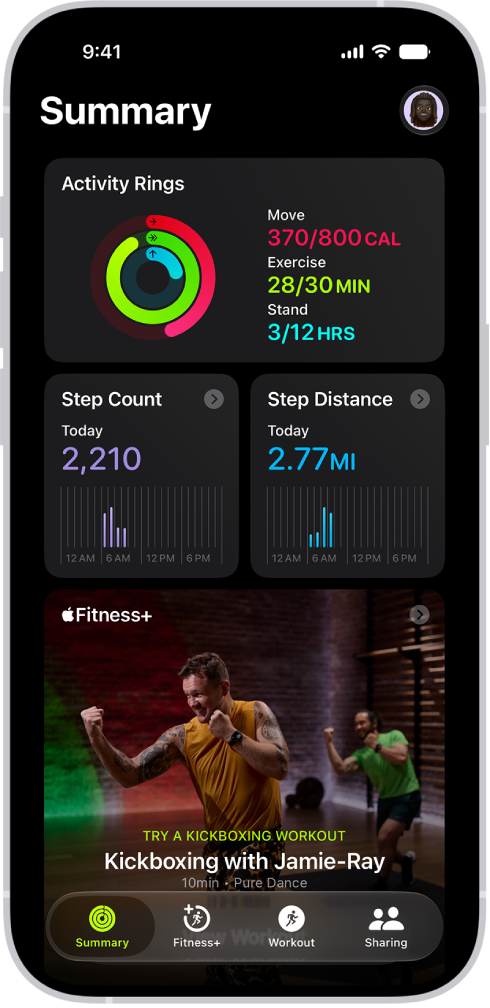
The Summary tab shows your Activity rings, steps, distance traveled, trends, and more, and you can customize it to include the metrics you want to see. You can also change your goals and start a workout.

Here’s how to get started with Fitness on iPhone.

The Summary screen in Fitness, showing the Activity Rings, Step Count, Step Distance, and Apple Fitness+ areas.

See your summary

Open the Fitness app to see a summary of your Activity rings, the number of steps you’ve taken, distance traveled, trends, and more. You can also customize the Summary tab to include the metrics that you want to see. Tap Summary , scroll down, then tap Edit Summary.

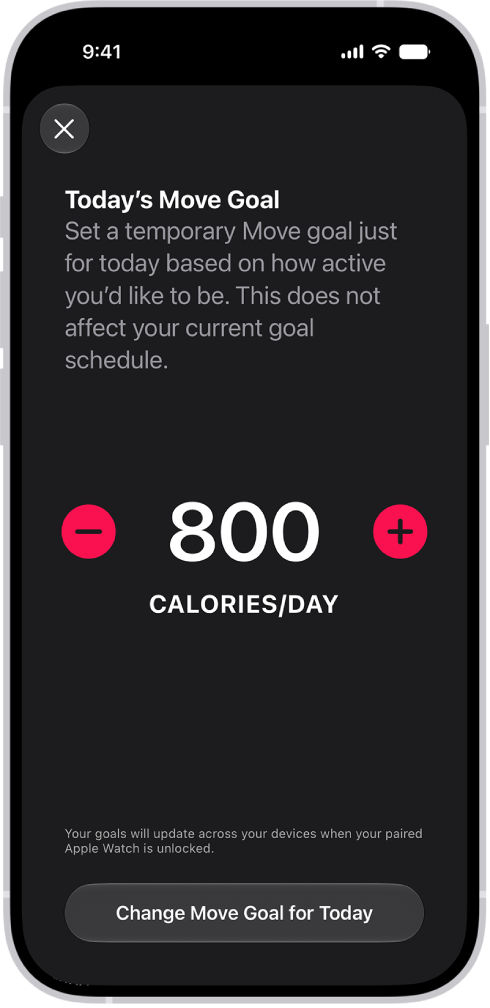
The Fitness Move Goal Schedule screen showing buttons to increase or decrease the Move goal.

Change your goals

You can change your daily goals for each of your Activity rings. You can also customize your Activity ring goals by the day of the week. In the Summary tab, tap the Activity rings, scroll down, then tap Change Goals.

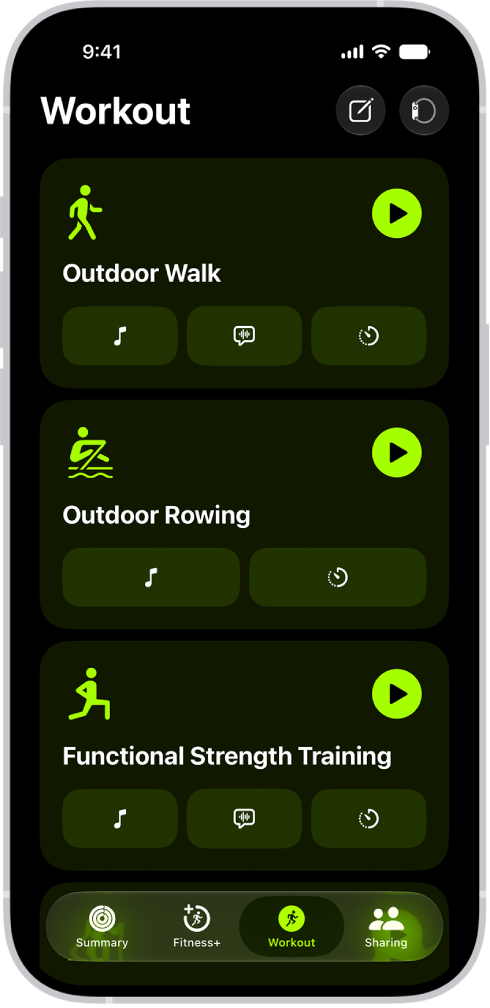
The Fitness workout screen showing three workouts.

Start a workout

You can start individual workout sessions—from cardio-focused activities such as High Intensity Interval Training (HIIT), Outdoor Run, and Outdoor Cycle, to strength-based workouts like Functional Strength Training, Core Training, and Kickboxing. Tap Workout , then tap the Start button next to a workout type.

With a compatible Bluetooth® enabled third-party heart rate monitor, Powerbeats Pro 2, AirPods Pro 3, or an Apple Watch connected, you can do a workout with your workout metrics on the screen.

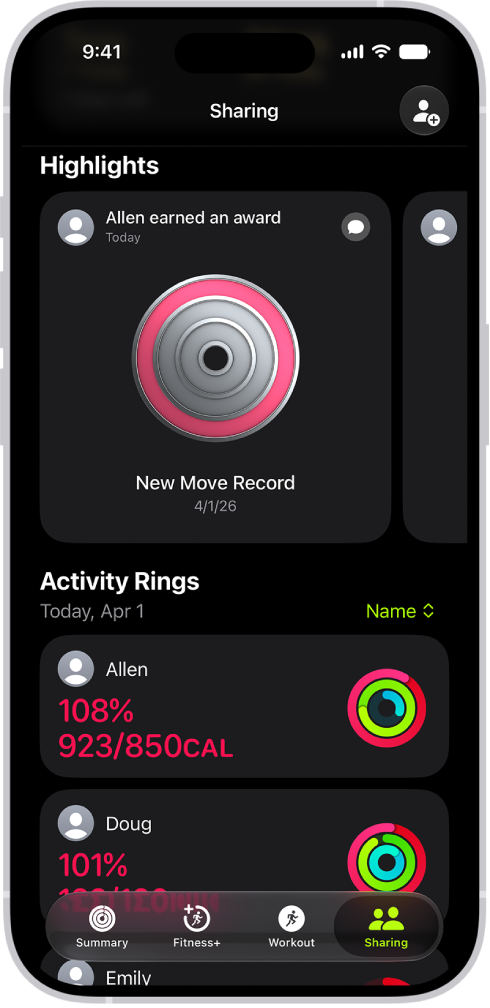
The Fitness Sharing screen, with activity rings and activity highlights shared between a person and their friends.

Share your activity with friends

Tap Sharing , then tap Invite a Friend to share the progress you’re making toward your fitness goals. You can view highlights of your friends’ activity and get notifications when they meet their goals, finish workouts, and more.

Tag: Fitness

You can see the websites you’ve excluded from saving passwords on iPhone. Each time you enter a password for a website, you’re asked whether to save it and enter it automatically in the future. Said no? You can see all the websites for which you’ve chosen to never save the password. You can remove a website from the list, or remove all of them, and the next time you enter your password for that website, you’ll be asked again.

  1. Open the Settings app on your iPhone.
  2. Tap Apps and tap Passwords.
  3. Below Save Passwords, tap Show excluded websites.

The list includes all websites for which you’ve opted not to save your password. Tip: You can remove a website from the list. Swipe left on the website, or tap Remove All. The next time you enter your password for the website, you’ll be asked if you want the password saved and automatically entered in the future.

Tag: Safari

Install extensions to customize the way your browser works, and they can find coupons when you’re shopping, block content on websites, and more.

With Apple Intelligence, Safari can even build an extension you describe, to customize or add to any webpage. You can also change Safari extension settings, and extensions that are available on other platforms show up on your other devices, too.

Here’s how to get extensions to customize Safari on iPhone.

Add Safari extensions

  1. Open the Safari app on your iPhone.
  2. Tap the Page Menu button and then tap Manage Extensions.
  3. Search for extensions, scan Recommendations, or tap Browse Extensions to look in the App Store.
  4. When you find one you want, tap the price, or if the app is free, tap Get, and follow the onscreen instructions.

Note: To make them easier to find and download, extensions you install for Safari on iPhone also show up in Safari settings on every iPhone, iPad, or Mac signed in to the same Apple Account, as long as they’re available on those platforms.

Create your own extension

With Apple Intelligence, Safari lets you describe and create an extension to customize or add to any webpage you visit. Note: Apple Intelligence on iOS 27 or later is available on an Apple Intelligence-enabled iPhone 15 Pro, iPhone 15 Pro Max, or iPhone 16 model or later. Apple Intelligence is not available in all languages or regions. Usage limits may apply.*

  1. Open the Safari app on your iPhone.
  2. Go to the webpage you want to create an extension for.
  3. Tap the Page Menu button, then tap Describe Extension.
  4. Enter a description of what you want to create, or select one of the suggested categories. Safari checks the App Store to see if a matching extension already exists.
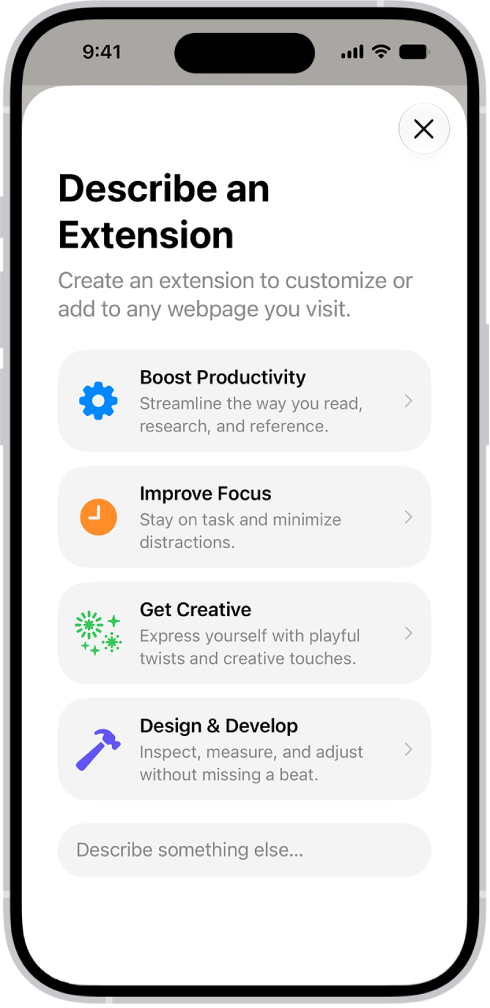
    Safari window showing Describe an Extension options.

  5. Choose an item from the list of matching App Store extensions; if there are no results, tap Create.
  6. Tap the resulting extension to make changes to it, or tap Try to try it out.
  7. While you’re trying out the extension, tap Edit to make additional changes, or tap the checkmark button to save it.

To delete a custom extension, tap the Page Menu button, tap Manage Extensions, select the extension, then tap Delete Extension.

Change Safari extension settings

An extension can customize the way your browser works. At any time, you can turn Safari extensions on or off.

  1. Open the Settings app on your iPhone.
  2. Tap Apps, then tap Safari.
  3. Tap Extensions and tap an extension.
  4. Turn on Allow Extension.

With Safari profiles set up, you’ll need to turn on the extension in each profile you want to use it with. Important: Check your installed extensions and make sure you’re familiar with what they do.

Change Safari extension settings for an individual website

Without changing your overall Safari settings, you can turn an extension on or off for a single website.

  1. Open the Safari app on your iPhone.
  2. Tap the Page Menu button on the left side of the search field and then tap Manage Extensions.
  3. Turn each extension on or off.

Remove an installed Safari extension

  1. Swipe down on the Home Screen and then search for the extension you want to remove.
  2. Touch and hold the extension icon, tap Delete app and then follow the onscreen instructions.

*Apple Intelligence is available with Siri and device language set to Chinese (Simplified), Chinese (Traditional), Danish, Dutch, English, French, German, Italian, Japanese, Korean, Norwegian, Portuguese, Spanish, Swedish, Turkish, or Vietnamese. Some features may not be available in all regions or languages. Some devices may not be available in all regions. Siri AI is available in beta in iOS 27, iPadOS 27, macOS 27, watchOS 27, and visionOS 27 and requires an Apple Intelligence–enabled device set to a supported language. Available in English to start. Siri AI will not be initially available in the EU on iOS, iPadOS, and watchOS. Certain Apple Intelligence features that rely on server-side models are subject to daily usage limits, including but not limited to Siri AI, Intelligent Photo Editing Tools, Image Playground, and AFM 3 Cloud models in Shortcuts. Daily limits may vary by feature, request complexity, system demand, system policies, and other factors. Expanded access to such features will be available for a fee in the future. Use of these features is subject to the Apple Intelligence Terms and Conditions.


Tag: Safari