Got a tip for us?

Refer to the following resources to get more iPhone-related software and service information. They cover the latest information about iPhone, getting personalized support, managing your Apple Account, using iCloud, finding your iPhone serial number or IMEI, obtaining warranty service, and viewing iPhone regulatory information.

To learn about Do this
iPhone service and support, tips, forums, and Apple software downloads See the iPhone Support website.
Service and support from your carrier Contact your carrier or go to your carrier’s website.
The latest information about iPhone See the iPhone website.
Getting personalized support (not available in all countries or regions) See the Apple Support website.
Managing your Apple Account Sign in to your Apple Account.
Using iCloud iCloud User Guide.
Using iTunes for Windows iTunes User Guide for Windows.
Manage app billing and subscriptions See the Billing and Subscriptions website.
Finding your iPhone serial number, IMEI, ICCID, or MEID You can find your iPhone serial number, International Mobile Equipment Identity (IMEI), Integrated Circuit Card Identifier (ICCID), or Mobile Equipment Identifier (MEID) on the iPhone packaging. Or, on iPhone, go to Settings > General > About. Find the serial number or IMEI on your iPhone, iPad, or iPod touch.
Obtaining warranty service First follow the advice in this guide, then see the iPhone Support website.
Viewing iPhone regulatory information On iPhone, go to Settings > General > Legal & Regulatory.
Battery service See the Battery Service and Recycling website.
Battery performance and health iPhone Battery and Performance.
Learn about iPhone compliance with power management requirements See the Environmental regulatory information website.
Using iPhone in an enterprise environment See the Apple at Work website.
Tag: iPhone

You can stream sound from the microphone on iPhone to your MFi hearing devices, AirPods, or supported Beats headphones. This can help you hear better in some situations, for example, when having a conversation in a noisy environment.

You can also start, stop, or jump back in on a Live Listen session from your paired Apple Watch or another nearby Apple device.

Here’s how to use iPhone as a remote microphone with Live Listen.

Note: Live Captions in Live Listen isn’t available in all languages, countries, or regions. The accuracy of Live Captions may vary and shouldn’t be relied upon in high-risk or emergency situations. To use Live Listen with your AirPods, AirPods Pro, AirPods Max, Powerbeats Pro, Beats Fit Pro, or Powerbeats Fit, you need an iPhone with iOS 14.3 or later. To use Live Captions with Live Listen, you need an iPhone with iOS 26 or later.

Use iPhone as a remote microphone with Live Listen

  1. Do one of the following:

    • If you’re using a hearing device: Wear your hearing device and make sure it’s paired to your iPhone.
    • If you’re using AirPods or Beats: Wear one or both of your AirPods or wear your Beats and make sure they’re connected to your iPhone.
  2. To turn on Live Listen, do one of the following:

    • Go to Settings > Accessibility > Audio & Visual > Live Listen > then tap Start Live Listen.
    • Open Control Center, then tap the Live Listen button.

      If you don’t see the Live Listen button, add it to Control Center.

    • Open Control Center, tap the Hearing Devices button, tap your hearing device or AirPods, then tap Live Listen.

      If you don’t see the Hearing Devices button, add it to Control Center.

    • If you’ve set up the Accessibility Shortcut, triple-click the side button or Home button, tap Hearing Devices, then tap Live Listen.
    • If you’re using hearing aids, go to Settings > Accessibility > Hearing Devices, then turn on Live Listen.
  3. Position iPhone near the sound source, then sounds around you will become louder.
  4. In Control Center, tap the Live Listen button and tap Live Listen. Then do any of the following:

    • View Live Captions: View captions of the Live Listen session in real time.
    • Rewind: Tap the Go Back 10 Seconds button to go back to something that may have been missed.
    • Skip forward: Tap the Skip Back to Live button to go back to the live audio.
    • Stop Live Listen: Tap the Live Listen switch button to stop the Live Listen session.

Control a Live Listen session with another nearby device

While you’re using Live Listen on your iPhone, you can start, stop, or jump back in on a session remotely from your paired Apple Watch or another nearby Apple device, like another iPhone or iPad, that’s signed in to the same Apple Account. As your iPhone picks up audio, the text shows up on the other device in real time, too, so you can follow along on either one.

To use Live Listen on multiple devices, start a Live Listen session, then start a session on your second device.

You can see when a company has an upcoming earnings report and add it as an event in the Calendar app.

The earnings report is saved as an all-day event, and Calendar sends you a reminder on the day of the report. You can add one for any stock with an upcoming earnings report, and delete the event later.

Here’s how to add earnings reports to your calendar in Stocks on iPhone.

Add an earnings report event to your calendar

When a stock has an upcoming earnings report, you can add it to the Calendar app.

  1. Open the Stocks app on your iPhone.
  2. Tap a ticker symbol in your watchlist, or use the search field to search for a symbol.
  3. If an earnings report is upcoming, tap Add to Calendar and tap the Done button.

In the Calendar app, the report shows up as an all-day event, with an event reminder from Calendar on the day of the earnings report.

Delete an earnings report event from your calendar

  1. Open the Stocks app on your iPhone.
  2. Tap the ticker symbol in your watchlist or use the search field to search for the symbol.
  3. Tap View to switch to the Calendar app.
  4. In the Calendar app, tap the event, tap Delete Event (you may have to scroll down), and confirm by tapping Delete Event again.

You can use Siri with CarPlay to access many of the apps on iPhone, including Reminders, Clock, Weather, and more.

CarPlay works with select third-party apps that you download to your iPhone, too. Compatible apps, including audio, navigation, messaging, and voice-calling apps, and apps made by your vehicle manufacturer, appear automatically on CarPlay Home and can be controlled with Siri. There are apps for fueling, parking, EV charging, and quick food ordering, too. Third-party navigation apps show up on CarPlay Dashboard while you’re using them.

Note: While you’re using them, compatible third-party navigation apps appear on CarPlay Dashboard. If you aren’t actively navigating, or you’re navigating with more than one app, Dashboard shows the last compatible navigation app you used.

Tag: carplay

You can duplicate a recording in the Voice Memos app (in the Utilities folder) on your iPhone, which is useful when you need another copy of it. You can make changes to the copy, save it, and give it a new name.

The duplicate shows up right below the original version in the list of recordings, with “copy” added to its name. You can change that name to a new one, too.

  1. Start the Voice Memos app (in the Utilities folder) on your iPhone.
  2. In the list of recordings, tap a recording, tap the More Actions button, and then tap Duplicate.

The duplicate appears right below the original version in the list and has “copy” added to its name. To change the name, tap it, then type a new one.

You can add details to your reminders such as notes, links, due dates, and photos. You can also flag important items, set a priority, or scan a document right into a reminder.

Reminders can even be tied to a place or a person. You can be reminded when you arrive home, get into a car with a Bluetooth connection to your iPhone, or the next time you chat with someone in Messages.

Here’s how to add details in Reminders on iPhone.

Note: You get every Reminders feature described in this guide when you use updated reminders in iCloud. With other accounts, some features aren’t available.

Add a note, URL, and other details to a reminder

  1. Start the Reminders app on your iPhone.
  2. Tap an item.
  3. Tap Add Note and then add more information.
  4. Tap the Edit Details button to edit the item details. For example, you can set a date and time, set a location-based reminder, flag an important item, or attach a photo.

Set when and where to be reminded

Reminders can show up on a certain date, at a specific time or location, or while you’re texting someone in Messages.

  1. Start the Reminders app on your iPhone.
  2. Tap an item and then do any of the following:

    • Schedule a date and time: Tap the Date and Time button, then choose an option.

      Tip: Reminders with a due date appear as an all-day event in Calendar. See Use Reminders in Calendar.

    • Mark a reminder as urgent: Tap the Edit Details button. Then turn on Urgent to get an alarm when the reminder is due. If Date and Time aren’t already set, they default to the next hour. You can edit Date and Time to change when the alarm activates.
    • Set a recurring reminder: Tap the Edit Details button, turn on Date or Time, tap Repeat, and choose the frequency.
    • Get an early reminder before the scheduled date and time: Tap the Edit Details button, tap Early Reminder, and choose when you want to be reminded. For example, “5 minutes before,” “2 days before,” or another choice.
    • Add a location: Tap the Location button. Then choose where you want to be reminded—for example, when you arrive home or get into a car with a Bluetooth® connection to your iPhone.

      Note: To receive location-based reminders, you must allow Reminders to use your precise location. Go to Settings > Privacy & Security > Location Services. Turn on Location Services, tap Reminders, choose While Using the App, then turn on Precise Location.

    • Get a reminder in Messages: Tap the Edit Details button and turn on When Messaging. Then choose someone from your contacts list. The reminder appears the next time you chat with that person in Messages.
  3. Tap the Done button.

Set a flag and priority

  1. Start the Reminders app on your iPhone.
  2. Tap an item.
  3. Do any of the following:
    • Flag an important item: Tap the Flag button.
    • Set a priority: Tap the Edit Details button, tap Priority, and then choose Low, Medium, or High.

Add a photo or scan a document

  1. Start the Reminders app on your iPhone.
  2. Tap an item, then tap the Photos button.
  3. Do any of the following:
    • Take a new photo.
    • Choose a photo from your photo library.
    • Scan a document.
    • Scan and insert text.

You can share a Tab Group and collaborate with people who use iCloud. Collaborators can add and remove tabs from the Tab Group, and everyone sees updates in real time.

Sharing starts from the Tabs button, and you stay in control of who’s in it. You can add and remove people from the Tab Group at any time, and even start a message conversation, FaceTime call, or phone call without leaving Safari.

Everyone you collaborate with must be signed in to their Apple Account, have Safari turned on in iCloud settings, and have two-factor authentication turned on.

Share a Tab Group

  1. Open the Safari app on your iPhone.
  2. Tap the Tabs button.
  3. Tap the More button and tap the Share button.
  4. Tap Messages. Choose the person or group you want to share it with.

You get activity updates in the Messages conversation when someone makes changes in the Shared Tab Group. Tap the updates to go to the Shared Tab Group.

Add and remove people from a shared Tab Group

  1. Open the Safari app on your iPhone.
  2. Tap the Collaborate button.
  3. Tap Manage Shared Tab Group and then do any of the following:
    • Remove someone: Tap a name, then tap Remove Access.
    • Add someone: Tap Share With More People, then invite them.
    • Stop Sharing with everyone: Tap Stop Sharing.

Start a Messages, audio, or video conversation from Safari

You can start a conversation with everyone who shares the Tab Group (using Messages, FaceTime audio, or FaceTime video) without ever leaving Safari.

  1. Open the Safari app on your iPhone.
  2. In Safari, tap the Collaborate button. Tap message, audio, or video to start the conversation.
Tag: Safari

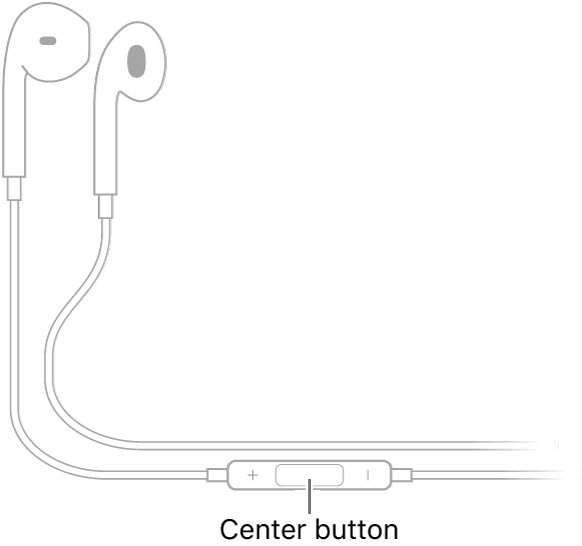
You can use EarPods (sold separately) to listen to music and videos and to make calls on iPhone. EarPods feature a microphone, volume buttons, and the center button.

The center button does most of the work. You use the center button to answer and end calls, control audio and video playback, and use Siri, even when iPhone is locked. With it, you can also pause, skip forward, skip backward, or fast-forward, and manage calls using your EarPods.

Apple EarPods; the center button is located on the cord leading to the earpiece for the right ear.

Control audio with your EarPods

  • Pause: Press the center button. Press again to resume playback.
  • Skip forward: Press the center button twice quickly.
  • Skip backward: Press the center button three times quickly.
  • Fast-forward: Press the center button twice quickly and hold.

Manage calls using your EarPods

  • Answer an incoming call: Press the center button.
  • End the current call: Press the center button.
  • Switch to an incoming or on-hold call, and put the current call on hold: Press the center button. Press again to switch back to the first call.

Ask Siri with your EarPods

Press and hold the center button until you hear a beep. Let go, then ask Siri to perform a task or answer your question.

Tag: AirPods

In the Photos app, you can find collections of photos and videos organized into different categories in Utilities. You can revisit photos that you captured, or recently edited, saved, or shared.

You can also find photos based on their content—like identity documents, receipts, handwriting, illustrations, and QR codes. And you can reorder the Utilities list to put the collections you use most at the top. For your privacy, some collections, like Hidden and Recently Deleted, are locked by default.

Find receipts, QR codes, and more in Utilities

  1. Open the Photos app on your iPhone.
  2. Tap Collections, scroll down, and tap Utilities.
  3. Tap the collection you want to view.

Note: Some Utilities collections, like Hidden and Recently Deleted, are locked by default for your privacy.

Reorder the Utilities list

To help you find the collections you access most often, you can reorder the Utilities list.

  1. Open the Photos app on your iPhone.
  2. Tap Collections, scroll down, and tap Utilities.
  3. Tap Edit, touch and hold the collection you want to move, and then drag it to a new position. To undo your changes, tap Reset.
  4. Tap the Done button.

Find recovered items and save or delete them

Couldn’t add a photo or video to your library because it wasn’t saved properly? You may find a copy of it in Recovered.

  1. Open the Photos app on your iPhone.
  2. Tap Collections, scroll down, and tap Utilities.
  3. Tap Recovered and then tap the photo or video you want to recover.
  4. Tap Permanently Delete or Restore to Library.

Important: When you delete a recovered photo or video, it’s deleted permanently. You can’t recover photos that you deleted from the Recovered collection in Utilities.

Tag: Photos