Got a tip for us?

Keep track of previous calculations in the basic or scientific calculators, and copy results from them to use in Calculator or other apps. They’re behind the Clock button, and when you reload a calculation, it appears where you left off earlier.

See previous calculations

  1. Start the Calculator app on your iPhone.
  2. Tap the Change Mode button and choose Basic or Scientific.
  3. Tap the Clock button and then do any of the following:
    • Reload the calculation: Tap the listing. The calculation appears where you left off earlier.
    • Copy the answer: Touch and hold the listing and tap Copy Expression or Copy Result.
    • Delete the calculation: Swipe left, then tap the Delete button.
    • Delete all previous calculations: Tap Edit, tap Clear All, and then tap Clear History.
    • Delete multiple calculations: Tap Edit and tap the calculations. Tap Delete.

While you’re on a call using the FaceTime app, you can use other apps, for example, to look up information, write a note, or perform a calculation. The call keeps going, and you can get back to it at any time.

  1. Go to the Home Screen on your iPhone.
  2. Tap an app icon to open the app.
  3. To return to the FaceTime screen, tap the green bar (or the FaceTime icon) at the top of the screen.

While using another app, you can also share your screen with the other people in your FaceTime call.

You can send text messages, images, and much more. You can reply within a conversation or to specific comments in a thread. You can even use Siri to listen and respond to your messages.

If you have more than one number, you can send a text message from your other number. And if you’ve ever wondered why some bubbles are blue and others green, there’s an answer for that, too.

Siri: Ask Siri something like, “Read my last message from Antonio.”

Make sure you set up Messages so you can fully use all the features in the Messages app.

Start a conversation

To start a new conversation, send a text message to one or more people.

  1. Open the Messages app on your iPhone.
  2. In the conversation list, tap the Compose button at the bottom of the screen.
  3. Tap the To field. Enter the phone number, contact name, or Apple Account of each recipient.

    To choose recipients from your contacts, tap the Add Contact button in the To field.

  4. Do any of the following:

    • Tap the text field above the keyboard, then type your message.
    • Tap the Emoji key or the Next Keyboard key to add emoji.
    • Tap the Dictate key to dictate text in the language of your keyboard.
    • Tap the Add button (to the left of the text field) to send photos, videos, stickers, polls, audio messages, your location, and more with iMessage apps.
  5. Tap the Send button to send.

If a message can’t be sent, an alert appears. Tap the Send Failure button to try sending the message again.

To return to the conversation list from a conversation, tap the Back button.

Reply to a message

In the conversation list, messages are grouped by conversation, and a dot means you haven’t read one or more messages in that conversation yet.

  1. Open the Messages app on your iPhone.
  2. Go to the conversation that you want to participate in.
  3. Tap the text field, create your message. Then tap the Send button to send your message.

Quick tip: Swipe left on the message bubble, and you’ll see timestamps for all messages in the conversation. That’s how you find out when a message was sent to you.

You can quickly craft a response with Apple Intelligence. Just tap a suggested reply above the keyboard.

Note: Apple Intelligence on iOS 27 or later is available on an Apple Intelligence-enabled iPhone 15 Pro, iPhone 15 Pro Max, or iPhone 16 model or later. Apple Intelligence is not available in all languages or regions. Usage limits may apply.*

Reply inline to a specific message

You can reply inline to a specific message, and the inline reply quotes the message you’re responding to, so it’s clear which response relates to which message in a busy conversation.
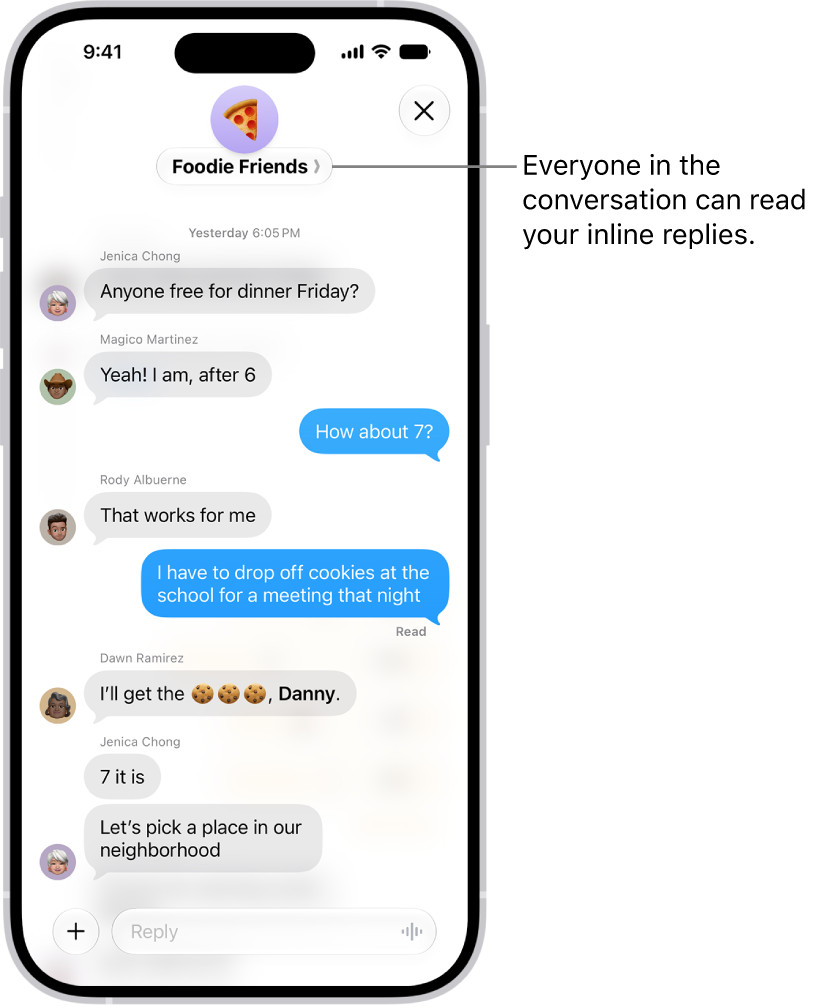
Composing an inline reply in a group conversation in Messages. Another person in the conversation is mentioned, so their name appears in bold.

  1. Open the Messages app on your iPhone.
  2. In the conversation list, tap the conversation that you want to participate in.
  3. Do one of the following:

    • Swipe right on the message bubble that you want to reply to.
    • Touch and hold the message bubble that you want to reply to, then tap Reply.
  4. Enter your message and then tap the Send button.

    Note: Everyone in a group conversation can see your inline reply. To reply privately, tap the group icon at the top of the conversation, touch and hold the icon of the person you want to message privately, then tap Message.

  5. To return to the main conversation, tap the blurred background.

Touch and hold a message to react with a Tapback, such as a thumbs-up or a heart.

Quick tip: To copy only part of a message, touch and hold it, tap Select, select the text you want, and then tap Copy.

Send a text message from your other number

With Dual SIM set up on your iPhone, you can switch which line a conversation uses.

  1. Open the Messages app on your iPhone.
  2. Open a conversation and then tap the contact or group icon at the top of the conversation.
  3. Tap Conversation Line and then tap a line or alias.

Why are some bubbles blue and others green?

A blue Send arrow means a message can be sent using iMessage, and it appears in a blue bubble.

If you can’t use iMessage, for example because a recipient isn’t using an Apple device, you can send with SMS, MMS, or RCS instead, and those messages appear in green bubbles.

Note: If your recipients are using non-Apple devices, content in your messages may not appear as expected.

*Apple Intelligence is available with Siri and device language set to Chinese (Simplified), Chinese (Traditional), Danish, Dutch, English, French, German, Italian, Japanese, Korean, Norwegian, Portuguese, Spanish, Swedish, Turkish, or Vietnamese. Some features may not be available in all regions or languages. Some devices may not be available in all regions.

Siri AI is available in beta in iOS 27, iPadOS 27, macOS 27, watchOS 27, and visionOS 27 and requires an Apple Intelligence–enabled device set to a supported language. Available in English to start. Siri AI will not be initially available in the EU on iOS, iPadOS, and watchOS. Certain Apple Intelligence features that rely on server-side models are subject to daily usage limits, including but not limited to Siri AI, Intelligent Photo Editing Tools, Image Playground, and AFM 3 Cloud models in Shortcuts.

Daily limits may vary by feature, request complexity, system demand, system policies, and other factors. Expanded access to such features will be available for a fee in the future. Use of these features is subject to the Apple Intelligence Terms and Conditions.


You can remove Freeform boards and folders you no longer need. You can also recover deleted items within 30 days if you change your mind.

If you delete a board that was shared with you directly, though, you lose access, while the owner and other participants still see it. A deleted board you own moves to Recently Deleted for everyone you share it with, where it stays for 30 days. You can also permanently remove an item.

Here’s how to delete and recover your Freeform boards and folders on iPhone.

Delete a board

  1. Start the Freeform app on your iPhone.
  2. While browsing All Boards, tap the More button, tap Select, and tap the boards you want to delete.

    (If you’re in a board, tap the Back button to browse All Boards.)

  3. Tap Delete, then tap Delete again to confirm.

You can also touch and hold the thumbnail or name of the board, then tap Delete.

You’ll lose access to a board that was shared with you directly if you delete it, though the owner and other participants still see the board.

A board you own, or one inside a folder someone shared with you, goes to Recently Deleted for you and everyone you share it with when you delete it, and it’ll stay there for 30 days.

Delete a folder

Important: To remove a folder but keep the boards inside it, move the boards before you delete the folder.

  1. Start the Freeform app on your iPhone.
  2. Tap the Back button until you see the folder list.
  3. Swipe left on the folder and tap the Delete Folder button.

Deleting a folder that contains boards deletes the boards, too. And with a shared folder, what other participants see depends on whether it’s yours or you were invited to it.

  • If you delete a folder you own: The folder moves to Recently Deleted, where you can recover it or permanently delete it within 30 days.

    Participants can’t recover a folder you shared with them, but they can recover subfolders you shared with them that weren’t the top-level shared folder.

    To make sure the folder is gone and no longer shared with anyone, permanently delete it from Recently Deleted.

  • If you delete a folder someone else shared with you: You no longer see the folder, and the folder is removed from your devices. Others keep the folder, but no longer see your name listed as a participant. The owner still sees your name, marked as Invited, and you can rejoin later with the link you originally received.
  • If you delete a subfolder within a folder shared with you: The subfolder moves to Recently Deleted for you and everyone it’s shared with.

Recover a recently deleted board or folder

Changed your mind about deleting a board or folder? You can still recover it.

  1. Start the Freeform app on your iPhone.
  2. While browsing All Boards, tap the Back button and then tap Recently Deleted.
  3. Do one of the following:

    • Recover a board or folder: Touch and hold the thumbnail or name of the recently deleted item and then tap Recover.

      Note: You can’t open a board from Recently Deleted, but you can review a deleted folder before you recover it—just tap it to see what’s inside.

    • Recover several boards or folders: Tap the More button, tap Select, and then tap the boards or folders you want to recover. Tap Recover at the bottom of the screen.

Boards and folders you delete stay in Recently Deleted for 30 days.

  • If you were the owner of a shared board or folder that you deleted: Recovering a board or folder from Recently Deleted restores everyone’s access. If you want to make sure a shared folder is permanently deleted, delete it from Recently Deleted.
  • If you delete a board or subfolder you don’t own: You can recover the board or folder from Recently Deleted.
  • If the owner deleted the top-level folder that was shared with you: The folder appears in your Recently Deleted. You can’t recover it, but you can make a copy.

Permanently remove a deleted board or folder

After deleting a board or folder, you can remove it permanently. Owners can do this with any shared board or folder they own, but participants can’t permanently remove a top-level folder someone shared with them, only a shared subfolder or board.

  1. Start the Freeform app on your iPhone.
  2. While browsing Recently Deleted, touch and hold the board or folder, tap Delete, and then tap Delete.

Permanently removing a shared folder that contains boards permanently removes the boards, too. And if the shared folder is yours, everyone you shared it with loses access.

You can create your own watchlists to organize the stocks you follow. For example, you could organize them according to categories such as entertainment or sustainability. You can switch between watchlists, and view them on your other devices.

It’s all up to you. You can add or remove symbols, rearrange or sort them, and change the value displayed in a watchlist, and you can reorder, rename, or remove watchlists whenever you like.

Here’s how to manage watchlists in Stocks on iPhone.

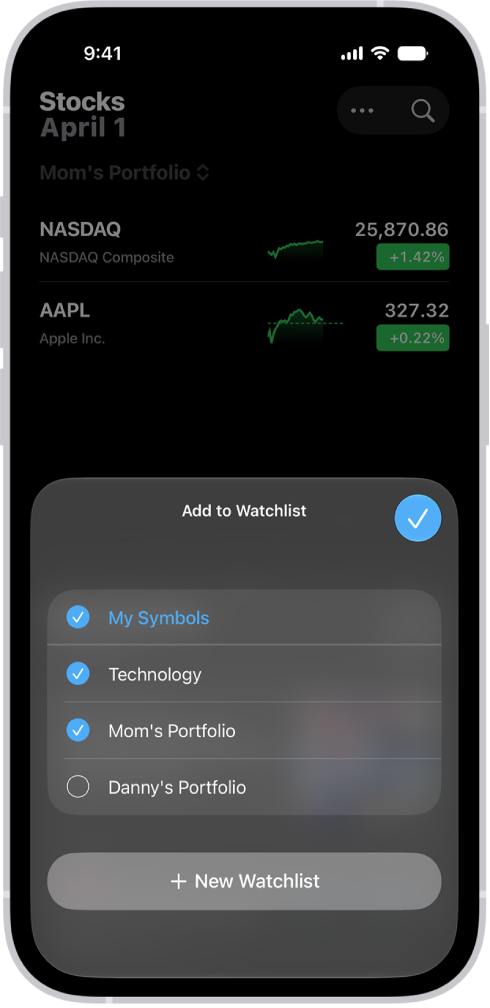
A list of customized watchlists in the Stocks app: My Symbols, Mom’s Portfolio, Sustainability, and Entertainment.

Create a new watchlist

  1. Start the Stocks app on your iPhone.
  2. Tap the More button, then tap New Watchlist.
  3. Name the watchlist, then tap Save.

To switch between watchlists, tap the Watchlist menu next to the name of the current watchlist you’re viewing, then tap the name of the watchlist you want to see.

Add symbols to a watchlist

  1. Start the Stocks app on your iPhone.
  2. In any watchlist, tap the Search button and then enter the name of a ticker symbol, company, fund, or index in the search field.
  3. Tap the Add button next to the symbol in the search results.
  4. Tap the Close button.

Quick tip: To add a symbol to another watchlist as well, swipe left on it, tap Lists, choose the watchlist you want, then tap the Done button.

Any symbol you add to a watchlist also goes into the My Symbols watchlist.

Remove symbols from a watchlist

  1. Start the Stocks app on your iPhone.
  2. In any watchlist, swipe left on the symbol and tap Remove.

Note: Removing a symbol from a watchlist you created leaves it in the My Symbols watchlist. But if you remove a symbol from the My Symbols watchlist, it’s also removed from your other watchlists.

Rearrange or sort symbols in a watchlist

The symbols in your watchlists can be sorted however you choose.

  1. Start the Stocks app on your iPhone.
  2. In the watchlist you want to sort, do any of the following:
    • Rearrange a watchlist manually: Touch and hold a symbol. Then drag to place it elsewhere in the list.
    • Sort a watchlist automatically: Tap the More button, tap Sort Watchlist By, and tap how you want to sort the list. To return to manual order after automatically sorting, tap Manual.

To reverse the order of the symbols in an automatically sorted watchlist, tap the More button, tap Sort Watchlist By, then tap Ascending or Descending.

Change the value displayed in a watchlist

Below each symbol’s price in a watchlist, you can change the value that’s displayed.

  1. Start the Stocks app on your iPhone.
  2. In any watchlist, tap the More button.
  3. Tap Watchlist Shows and choose one of the following options:
    • Price Change
    • Percentage Change
    • Market Cap

Tap Currency to show or hide the currency for each symbol in the watchlist.

Note: Any change you make to the currency display applies everywhere in the app.

Reorder, rename, or remove watchlists

  1. Start the Stocks app on your iPhone.
  2. Tap the Menu button next to the name of the watchlist and tap Manage Watchlists. Then do any of the following:
    • Reorder your watchlists: Touch and hold the Reorder button and then drag the watchlist to a new position.
    • Rename a watchlist: Tap the Pencil button, enter a new name, and then tap Save.
    • Remove a watchlist: Tap the Delete button, tap Delete Watchlist, and then tap Delete Watchlist to confirm.
  3. Tap the Done button.

View your watchlists on all your devices

Any iPhone, iPad, or Mac signed in to the same Apple Account can show your watchlists.

  • On your iPhone or iPad: Go to Settings > [your name] > iCloud, tap See All (next to Saved to iCloud), then turn on Stocks.
  • On a Mac with macOS 13 or later: Choose Apple menu > System Settings, click your name at the top of the sidebar, click iCloud, then turn on Stocks.
Tags: iCloud, Stocks

When you subscribe to iCloud+, you can use iCloud Private Relay to help prevent websites and network providers from creating a detailed profile about you. When it’s on, the traffic leaving your iPhone is encrypted and sent through two separate internet relays.

That keeps websites from seeing your IP address and exact location, and keeps network providers from collecting your browsing activity in Safari. You can turn it on or off for a specific Wi-Fi or cellular network, too, and set the specificity of your IP address location.

Note: iCloud Private Relay isn’t available in all countries or regions.

Turn iCloud Private Relay on

Go to Settings > [your name] > iCloud > Private Relay, then tap Private Relay.

Note: You need to turn on iCloud Private Relay on each device where you want to use it.

Turn iCloud Private Relay off

  1. Open Settings, tap [your name], tap iCloud, tap Private Relay, and tap Private Relay.
  2. Do one of the following:

    • Turn off iCloud Private Relay temporarily: Tap Turn Off Until Tomorrow.

      Within 24 hours, iCloud Private Relay will turn back on automatically. If you want it to resume sooner, follow the instructions for turning it on at any time.

    • Turn off iCloud Private Relay completely: Tap Turn Off Private Relay.

Turn iCloud Private Relay on or off for a Wi-Fi network

  1. Open Settings and then tap Wi-Fi.
  2. Tap the Actions Available button. Turn Limit IP Address Tracking on or off.

Turning off Limit IP Address Tracking on your iPhone for a Wi-Fi network turns off iCloud Private Relay for that network on every device where you’re signed in to the same Apple Account.

Turn iCloud Private Relay on or off for a cellular network

  1. Open Settings and tap Cellular. Do one of the following:
    • If your iPhone has a single line: Tap Cellular Data Options.
    • If your iPhone has multiple lines: Select a line (below SIMs).
  2. Turn Limit IP Address Tracking on or off.

On your iPhone, the network setting is specific to a physical SIM or eSIM. According to Apple, eSIM isn’t available in all countries or regions.

Set the specificity of your IP address location

Go to Settings > [your name] > iCloud > Private Relay > IP Address Location, then choose one of the following:

  • Maintain General Location (for example, to see local content in Safari)
  • Use Country and Time Zone (to make your location more obscure)
Tag: iCloud

With Undo Send, you can change your mind and unsend an email message in the Mail app. There’s a catch: you have 10 seconds. You can also set a delay for all emails to give yourself a little more time to unsend them.

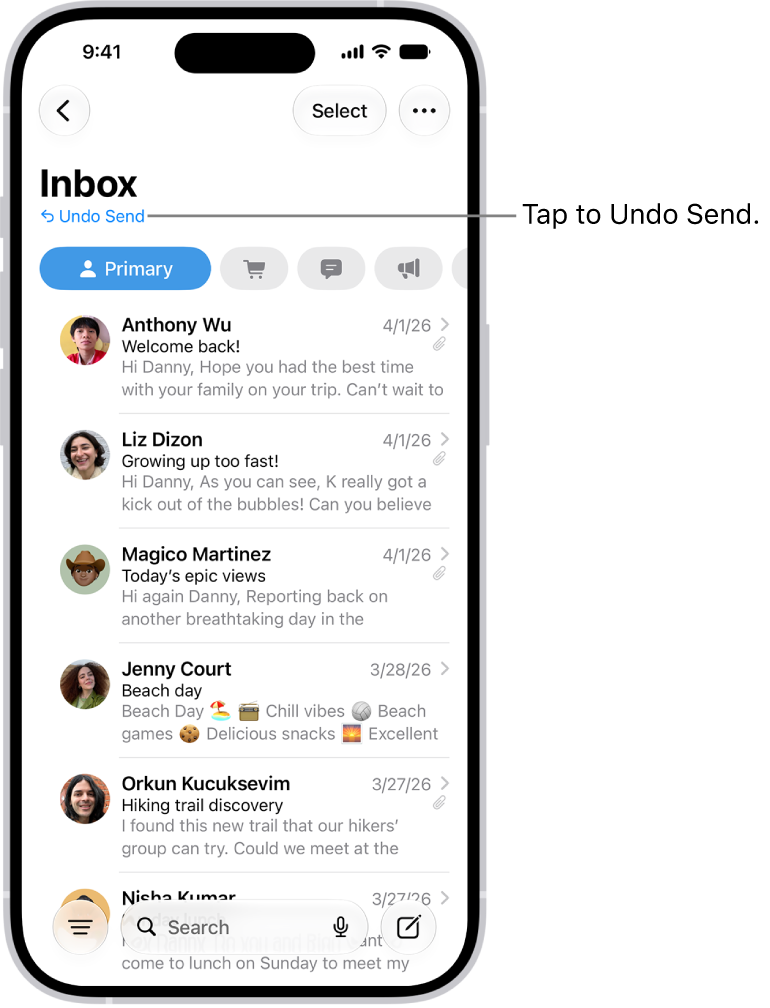
The inbox, showing a list of messages. The Undo Send button (for pulling back a recently sent message) is in the center of the bottom of the screen.

Undo a sent email

You have 10 seconds to change your mind after you send an email message.

  1. Tap Undo Send at the top of the inbox to pull back the message.

Delay sending emails

Setting a delay gives you a little more time to change your mind and unsend emails.

  1. Open Settings, tap Apps, tap Mail and tap Undo Send Delay. Choose a length of time to delay outgoing email messages.
Tag: Mail

In the Notes app, you can easily search and filter your notes across folders using Smart Folders. A Smart Folder can be created when viewing a list of tagged notes, or you can convert a folder, and its notes move to the Notes folder, tagged with the name of the Smart Folder.

Create a Smart Folder

  1. Start the Notes app on your iPhone.
  2. Tap the New Folder button, choose an account (if you have more than one) and enter a name. Tap Make Into Smart Folder.
  3. Choose one or more filters and then choose to include notes matching any or all of the selected filters. You can filter by tags, dates, mentions, and more. You can also create a Smart Folder when viewing a list of tagged notes. Tap the Folder Actions button and then tap Create Smart Folder.

Convert a folder to a Smart Folder

When viewing the folder you want to convert, tap the Folder Actions button, then tap Convert to Smart Folder. When you convert a folder, its notes are moved to the Notes folder and tagged with the name of the Smart Folder. Note: You can’t convert a shared folder, a folder with a subfolder, or a folder that contains locked notes.

Edit or delete a Smart Folder

There are two ways to edit or delete a Smart Folder:

  • In the folders list, tap Edit, tap the Folder Actions button, then choose an option. Tap the Done button.
  • Touch and hold a Smart Folder, then tap Edit Smart Folder or Delete. When editing a Smart Folder, you can change the name or filters.
Tag: Notes

You can take age-appropriate standardized mental health assessments to answer questions about how you’re feeling, and see your current risk for depression or anxiety. These questionnaires will help you understand if you should talk to your doctor, and you’ll have a PDF of the results that you can share.

The results and resources are provided for informational purposes only, and they’re not a substitute for advice provided by a doctor or other qualified health care professional. You can also manage mental health assessment settings.

Note: The Anxiety Risk assessment and the Depression Risk assessment are available for ages 13 and older.

Take a mental health assessment

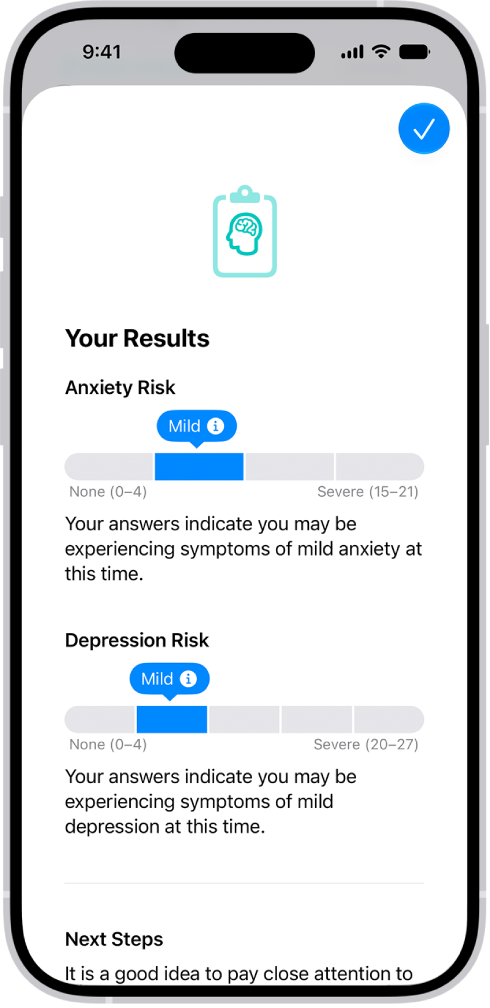
A screen in the Health app showing results of a mental health questionnaire.

  1. Start the Health app on your iPhone.
  2. Tap Browse and then tap Mental Wellbeing.
  3. Do one of the following:
    • Take an assessment for anxiety or depression: Tap Anxiety Risk or Depression Risk and tap Take Questionnaire.
    • Take an assessment for both anxiety and depression: Scroll down to Get More From Health. Tap Take Questionnaire.
  4. Tap Begin and then answer the prompts.
  5. When you’re finished, tap Done. Then you can do any of the following:
    • Learn more about your results: Tap the More Info button next to your results.
    • Export your results as a PDF: Tap Export PDF.
    • Get access to articles and crisis resources: Scroll down to Learn More and tap an option.
  6. When you’re finished viewing your results, tap Done.

Note: The Patient Health Questionnaire-9 (PHQ-9) and Generalized Anxiety Disorder-7 (GAD-7), developed by Drs. Robert L. Spitzer, Janet B. W. Williams, Kurt Kroenke and colleagues, with an educational grant from Pfizer Inc., can be useful tools to help identify if you are at risk for depression and/or anxiety. They are provided in Health for informational purposes only, and the results are not a medical diagnosis. The assessments are clinically validated only in certain countries and languages. If you have concerns about your mental health, you should consult a clinician.

Manage mental health assessment settings

  1. Start the Health app on your iPhone.
  2. Tap Browse and then tap Mental Wellbeing.
  3. Tap Anxiety Risk or Depression Risk, scroll down to the bottom of the screen, and then tap Options below Export PDF.
  4. Do any of the following:
    • Change how often you want to take mental health questionnaires: Tap Frequency, then choose an option.
    • Choose whether to be notified to take a questionnaire: Turn Notifications on or off.
    • Receive prompts to take a questionnaire after a pattern of unpleasant moods: Turn Unpleasant Logging on or off.

Turn on Periodic Questionnaires and Unpleasant Logging, and you’ll get a prompt to fill out a questionnaire a couple of times a year or when a pattern of unpleasant moods shows up.

Tag: Health

You can get detailed transit directions to your destination, including departure times, connection information, and fares.

Fares are listed for suggested routes in some countries and regions. By default, they reflect the cost with a transit card, though you can see the cash fare instead. You can also plan for a future departure or arrival time, and Siri can give you transit directions, too.

Here’s how to get transit directions in Maps on iPhone.

Note: Not all features are available in all countries or regions.

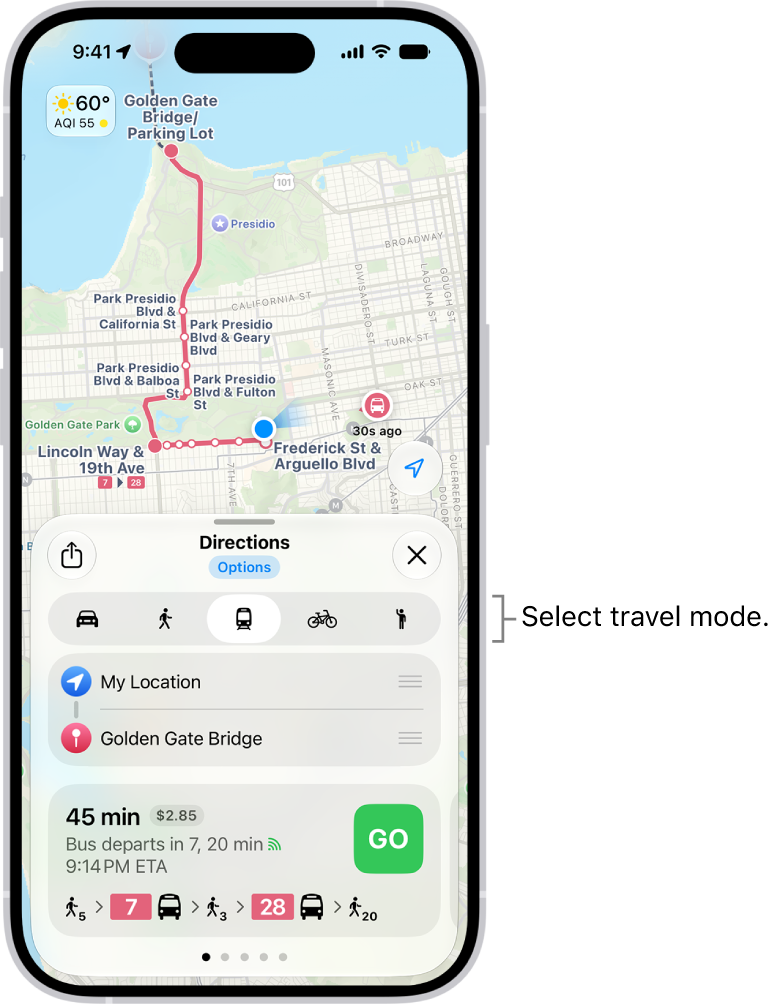
A map showing several route options between two locations, with buttons for choosing other travel modes, switching the starting point and destination, and viewing directions as steps.

Get transit directions

  1. Start the Maps app on your iPhone.
  2. Touch and hold anywhere on the map or enter an address in the search field and then tap the directions button.

If your preferred travel mode isn’t Transit, tap the directions button, then tap the Travel Mode button.

  1. Tap Go or Steps for the route you want to take.
  2. To see only the schedules of your preferred transit method, tap Options (below Directions) and then turn off any type you don’t want to use.

Siri: You can also ask Siri something like, “Give me transit directions to the Ferry Building.”

Plan for a future departure or arrival time

  1. Start the Maps app on your iPhone.

Get transit directions, as above.

  1. Tap Options (below Directions), tap Leave at or Arrive by, select a time and date, and then tap the Done button.

Show cash or transit card fares

Some countries and regions show fares for the suggested routes.

Fares default to the cost when using a transit card, though you can view the cash fare instead.

  1. Start the Maps app on your iPhone.

Get transit directions, as above.

  1. Tap Options (below Directions), tap Cash Fares, and then tap the Done button.
  2. To redisplay the fares when using transit cards, tap Cash Fares, tap Transit Card Fares, and then tap the Done button.

Get schedules for local transit

You can get one-tap access to the departure times for stops and stations near you.

  1. Start the Maps app on your iPhone.
  2. Swipe left on the icons below Places. Then tap the Add button.
  3. Tap Nearby Transit to add it to your Places.
  4. Below Places, tap Transit and tap a nearby stop to see schedules and delays.

Quick tip: To put a line at the top of the list, touch and hold it, then tap Pin.

See major transit lines

  1. Start the Maps app on your iPhone.

With a map showing, tap the Map Modes button, which appears as the Exploring Map Mode button, the Driving Map Mode button, the Transit Map Mode button, or the Satellite Map Mode button on the right.

  1. Tap Transit and tap the Close button.

Pay your fare with your iPhone

Many transit agencies let you pay your fare with your iPhone.

  • Use Apple Pay: With Apple Cash, credit cards, and debit cards in the Wallet app , you can make contactless transit payments with agencies that support Apple Pay.
  • Use transit cards: With participating transit systems, you can pay for your fare when you store your transit cards in Wallet.
  • Use transit apps: Many systems that don’t support Wallet have apps that allow you to add a card for payment.
  1. Go to the transit agency’s official website for more information or get apps in the App Store.
Tag: Maps