Got a tip for us?

Apple Music subscribers can use Apple Music Sing to view real-time, beat-by-beat lyrics for select songs, as well as adjust the volume of a song’s vocals, so you can sing along with the music while viewing the lyrics as they’re highlighted. You can even sing onscreen with Apple TV 4K.

Note: Apple Music Sing needs iPhone 11 or later with iOS 16.2 or later, and it doesn’t work on iPhone SE (2nd generation).

Adjust the volume of a song’s vocals

  1. Open the Music app on your iPhone.
  2. While a song is playing, tap the MiniPlayer to open the Now Playing screen. Tap the Lyrics button.
  3. Touch and hold the Apple Music Sing button. Then drag the slider up or down to adjust the vocal volume.

    When you need help pronouncing or translating the lyrics, tap the Translation and Pronunciation button then choose Show Pronunciation or Show Translation. The Translation and Pronunciation button only appears when a translation or pronunciation is available that matches your iPhone device’s Preferred Languages list. (You can view this list and add languages directly to it in Settings > General > Language & Region.) Not available in all languages.

    Tip: You can have either the lyrics or the pronunciation appear in larger text. Go to Settings > General > Apps > Music.

  4. To turn off Apple Music Sing for the song, tap the slider.

    If you’re listening to a song playing with Dolby Atmos and you turn on Apple Music Sing, Dolby Atmos turns off and the song plays without surround sound. If you turn off Apple Music Sing, the song plays with Dolby Atmos.
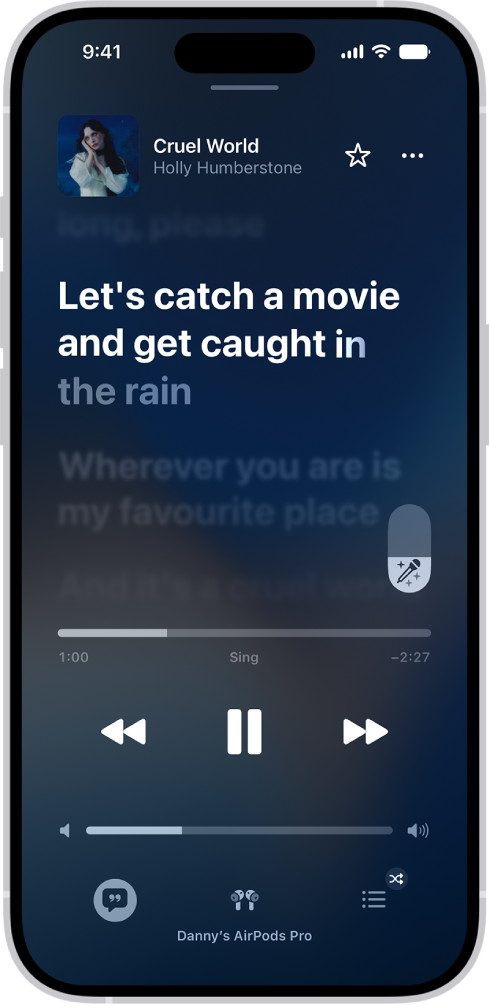
    The Now Playing screen showing the Apple Music Sing slider to the right of the lyrics. The currently playing lyrics are highlighted.

Sing onscreen with Apple TV 4K

Pair your iPhone with your Apple TV 4K, and you can enhance your singing experience with either of these features:

  • See visual effects: Your iPhone becomes a Continuity Camera to see yourself singing onscreen along with the lyrics. Add visual effects to your image and lyrics to enhance the singalong experience.
  • Sing with iPhone Mic: In iOS 26, your iPhone becomes a microphone to amplify your voice right through your Apple TV 4K (3rd generation).

“Cruel World” written by Holly Humberstone, Rob Milton, and Benjamin Francis Leftwich.
Tag: Music

Enjoy music stored on iPhone as well as music streamed over the internet. You can build a music library—your collection of songs and albums—in many ways, from subscribing to Apple Music to transferring music from other services or buying music.

With an Apple Music subscription, you can start listening to millions of songs right away, and everyone in your Family Sharing group can share a family subscription. After you subscribe, you can bring your music from other music services, or you can buy and download music from the iTunes Store.

Note: Services and features aren’t available in all countries or regions, and features may vary by region. Additional charges may apply when using a cellular connection.

Subscribe to Apple Music

When you subscribe to Apple Music, you can start listening to millions of songs from the Apple Music catalog right away. To access your music library on all your devices, turn on Sync Library (go to Settings > Apps > Music). Then, add and download songs so that you can play your favorites any time, even when you’re offline.

Quick tip: With an Apple Music family subscription, everyone in your Family Sharing group can share one Apple Music subscription.

Transfer existing music from other music services

After you subscribe, you can easily bring your music from other music services to Apple Music. Tap your profile icon, then tap Transfer Music from Other Services. Follow the onscreen instructions to transfer your existing library or playlists.

Buy music from the iTunes Store

Don’t subscribe to Apple Music but want to add your favorite songs or albums? You can buy and download music from the iTunes Store. Items you previously purchased from the iTunes Store can also be downloaded to your authorized computers and devices, up to 10 total.

Transfer music from your Mac or Windows device

To transfer and update music between your iPhone and your device, connect your Mac or Windows device. Syncing supported content works with Music on macOS 10.15 or later, and with iTunes on macOS 10.14 or earlier and Windows devices.

When you purchase access to movies, TV shows, music, music videos, ebooks, audiobooks, or ringtones from Apple, you also have the option to permanently download these items to a compatible iPhone, iPad, Mac, or PC. Apple cannot revoke your downloaded content, and you can always access your downloaded content without an internet connection.

Tag: Music

To keep your contact information up to date across all your devices where you’re signed in to your Apple Account, you can use iCloud. With iCloud, your contacts stay up to date automatically. You can also sync the information between iPhone and your Mac or Windows device instead.

  1. Open Settings, tap [your name], and then tap iCloud.
  2. Tap See All next to Saved to iCloud and turn on Contacts.

To keep the information current across iPhone and your computer, you can sync it between iPhone and your Mac or Windows device instead.

Using iCloud for Contacts keeps your contacts up to date automatically, so options for syncing them with your computer don’t appear.

In the Messages app, you can exchange texts, photos, videos, and more, with individuals, businesses, and groups. With iMessage, you and a friend can send each other unlimited messages from anywhere in the world, and you can also express yourself with backgrounds and animations, share TV shows and music, and collaborate with others.

You can chat as a group with your family or a work group, add media, polls, and location sharing, and even schedule a message to deliver later. And you can sync your messages across your devices.

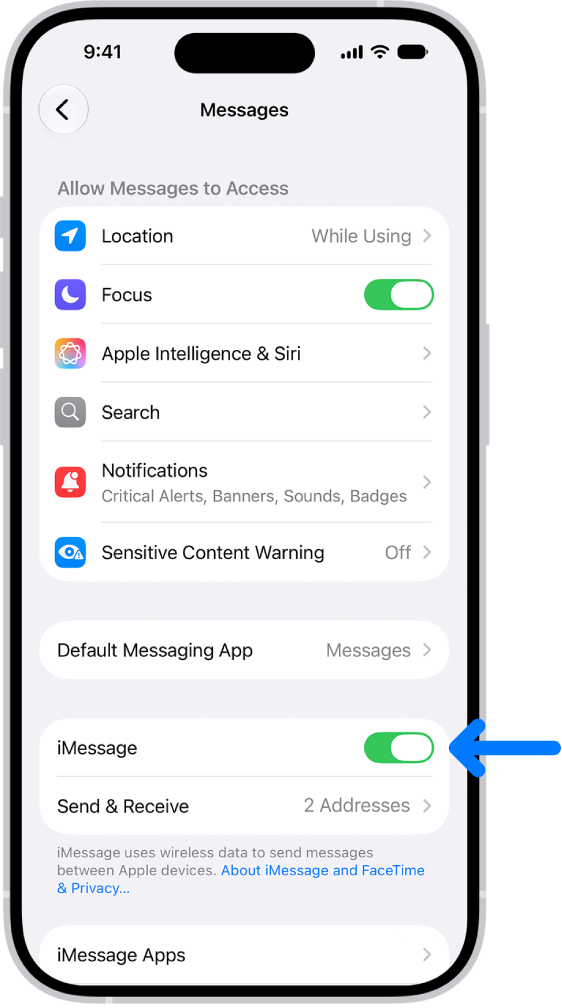
The Messages settings pane with iMessage turned on.

Set up iMessage and sync across devices

When you and a friend both sign in to iMessage, you can send each other unlimited messages, no matter where you are in the world. Go to Settings > Apps > Messages, then turn on iMessage. To see the same messages you get on your iPhone on your other Apple devices, tap Text Message Forwarding, then turn on your other devices in the list. Be sure to sign in to the same Apple Account on the other devices, too.

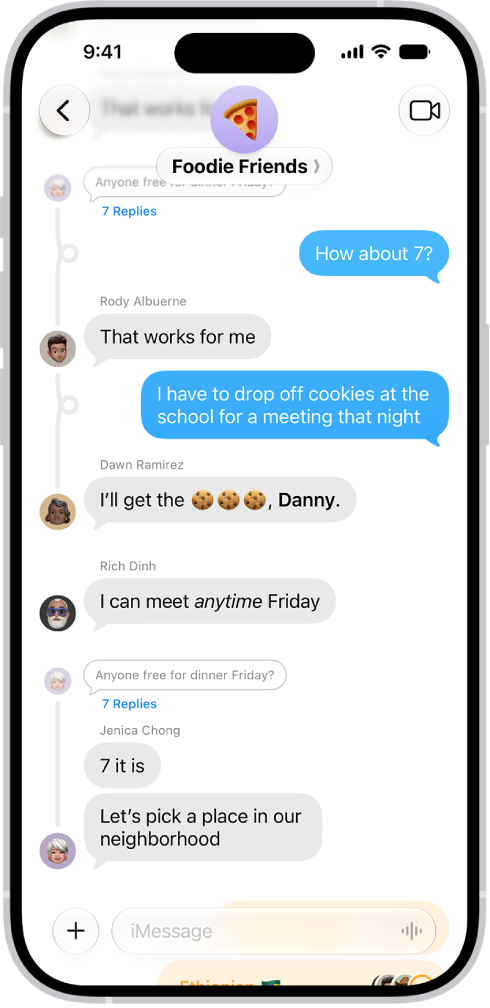
A group conversation in Messages.

Chat as a group

You can chat with several people at once—like your family or a work group. Tap the Compose button, enter the names of the people in the group, then enter your message, or tap the Dictate button to dictate it. To name the group, tap the group icons at the top of the conversation, tap Edit, then tap Edit Name & Photo.

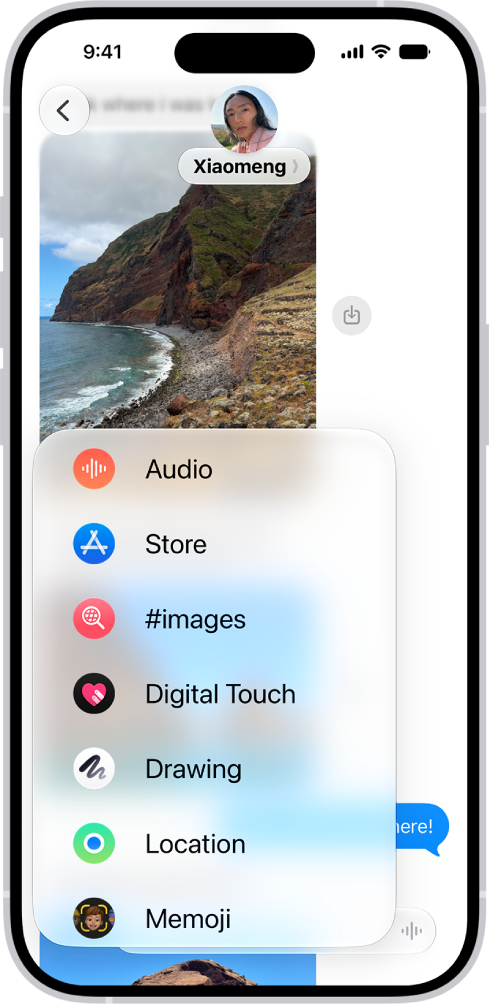
The Add menu in Messages on iPhone, listing several iMessage features: audio messaging, the App Store, GIF images, Check In, Digital Touch, location sharing, and Memoji.

Go beyond texting

You don’t have to limit your communication to text. To add emoji, tap the Emoji key or the Next Keyboard key on your keyboard. To add media, polls, location sharing, and more, tap the Add button next to the text field.

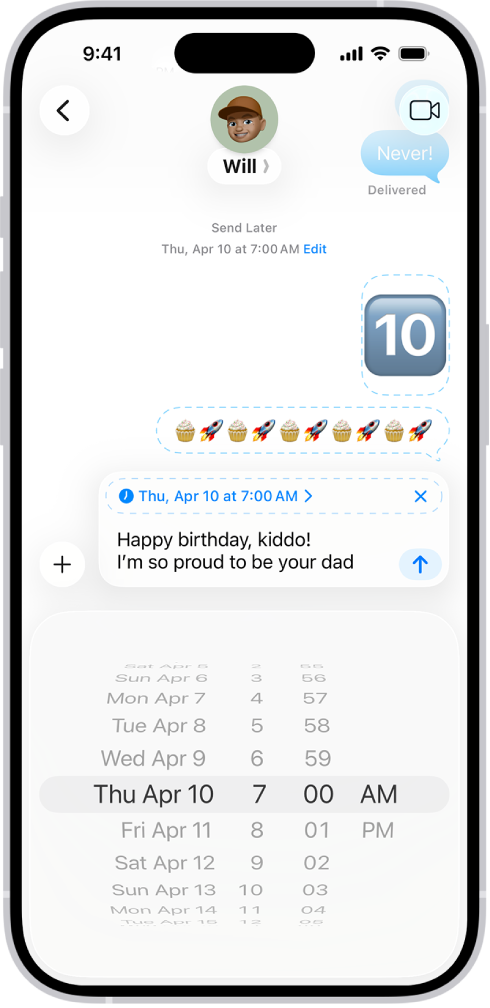
A Messages conversation with messages scheduled to be sent later.

Schedule a message to deliver later

If it’s too late at night or too important to forget, schedule your message for a future time, instead of sending it as soon as you finish it. Tap the Add button, tap Send Later, choose a time, then tap the Send button.

According to Apple, availability of Messages features may depend on your carrier, country, or region.

You can create playlists to suit specific moods or to organize songs with a certain theme.

In the U.S., you can use Playlist Playground to tell Apple Music what kind of music you want, by describing the mood or vibe. You can then customize a playlist by adding, reordering, or removing tracks, and delete it later. You can also add music to an existing playlist.

Here’s how to create, edit, and delete music playlists on iPhone.

Create a playlist with Playlist Playground (U.S. only)

  1. Start the Music app on your iPhone.
  2. Tap Library, then tap the New Playlist button.
  3. Do one of the following:

    • Use Playlist Playground: Tell Apple Music what kind of music you want to listen to by describing the mood, vibe, or providing details. For example, you can type something like “morning coffee music” and get 25 suggested tracks with a custom title.

      Customize the playlist by adding, reordering or removing tracks.

    • Create manually: Add the tracks you want by tapping Add Songs and selecting the tracks you want to add.
  4. Tap the More button for more customization options and tap the Done button.

Note: Playlist Playground is available in beta only to subscribers 13 and older in the U.S. and in English.

Create a playlist

  1. Start the Music app on your iPhone.
  2. Tap Playlists and tap the New Playlist button. Then tap Create New Playlist.
  3. Enter a playlist title.
  4. To give your playlist cover art, tap the Camera button and then take a photo, choose an image from your photo library, or choose a file on your device.
  5. Tap the Done button, then tap Add Music.

    You can search for music, select music from your library, or choose from the suggested songs listed at the bottom of the screen.

  6. Tap the Add button to add music to the playlist.

Quick tip: Songs you add to a playlist can go into your library automatically. Go to Settings > Apps > Music, then turn on Add Playlist Songs.

Add music to an existing playlist

You can add music to a playlist in several ways once you’ve created it.

  1. Start the Music app on your iPhone.
  2. Do one of the following:
    • Touch and hold an album, playlist, song, or music video, tap Add to a Playlist, then choose a playlist.
    • From the Now Playing screen, tap the More button, tap Add to a Playlist, then choose a playlist.

Edit a playlist

Besides renaming playlists, you can change the artwork, add and remove songs, and more.

Note: Only the owner of a collaborative playlist can make any change to it. Other participants can add, remove, or reorder songs in the playlist, and that’s all.

  1. Start the Music app on your iPhone.
  2. Tap the playlist, tap the More button and tap Edit. Do any of the following:

    • Rename the playlist: Tap the current name, then enter a new name.
    • Edit cover art: Select from a variety of Apple templates or tap the Camera button to add your own.
    • Show (or hide) the playlist in your Apple Music profile: Turn on (or off) the Show on My Profile and in Search option.
    • Add songs from your library: Tap the Add button, go to any place in your library and tap the Add button next to the song.

      You can also touch and hold an item (song, album, playlist, or music video), tap Add to a Playlist, then choose a playlist.

    • Add a Suggested Song: Tap the Add button, scroll below the Library options, and tap the Add button next to the song.

      Suggested Songs also appears at the bottom of your playlist song list. To refresh the list of suggestions, tap the Refresh Suggested Songs button.

    • Delete a song: Tap the song, then tap the Delete button.

      Note: Deleting a song from a playlist doesn’t delete it from your library.

    • Change the song order: Drag the Reorder button next to a song.

Changes you make to your music library are updated across all your devices when Sync Library is turned on (go to Settings > Apps > Music, then turn on Sync Library). If you’re not an Apple Music subscriber, the changes appear in your music library the next time you sync with your computer.

Sort a playlist

  1. Start the Music app on your iPhone.
  2. Tap a playlist, then tap the More button.
  3. Tap Sort By, then choose an option.

Delete a playlist

Deleting a playlist doesn’t remove its songs, which remain in your library and on your iPhone. But deleting a collaborative playlist you own ends the collaboration and removes the playlist from your library, though it remains in the participants’ library.

  1. Start the Music app on your iPhone.
  2. Touch and hold the playlist and tap Delete from Library.

You can also tap the playlist, tap the More button, then tap Delete from Library.

Tag: Music

During a video call in the FaceTime app or a third-party video conferencing app, you can use full-screen video effects and add reactions with hand gestures that fill the camera frame with 3D effects. Video effects include Center Stage, Portrait, and Studio Light, which dims the background and illuminates your face.

Use video effects in a video call

  1. During a video call on your iPhone in the FaceTime app, tap your tile.
  2. Do any of the following:
    • Keep yourself in the camera frame as you move around: On supported models, Center Stage is on by default. To turn it off, tap Camera Effects. Then tap Center Stage.
    • Blur the background: On supported models, tap Camera Effects and then tap Portrait. On other models, tap Portrait.
    • Dim the background and illuminate your face: On supported models, tap Camera Effects and then tap Studio Light. On other models, tap Studio Light.
    • Become an animated Memoji: On iPhone supported models, tap Camera Effects and tap Memoji. On other models, tap Memoji. You can use a built-in Memoji—or one that you created—to capture your movements, facial expressions, and voice.
    • Add visual effects with hand gestures: Tap Reactions. When Reactions is turned off in Control Center, you can’t use hand gestures to add reactions, but you can add reactions in FaceTime by tapping the icons that appear when you touch and hold your tile in the call.

To use video effects in third-party video conferencing apps, open Control Center, tap the app, then tap one or more effects.

Note: Memoji aren’t available in third-party video conferencing apps.

To adjust the amount of blur in Portrait mode or the intensity of Studio Light, open Control Center, then tap FaceTime (or the third-party video conferencing app). Tap Portrait or Studio Light, then adjust the slider.

Add reactions in a video call

In the FaceTime app (and third-party video conferencing apps), simple hand gestures can trigger reactions, filling the camera frame with fun, 3D augmented reality effects like hearts, balloons, fireworks, and more. You’ll need iPhone 12 or later to use hand gestures.

Note: Hand gestures need Reactions turned on. During a FaceTime call, tap your tile to check. In a third-party video conferencing app, open Control Center instead. When you use gestures, keep your hands away from your face, then pause for a moment or two so the effect activates.

(Only the front camera supports reactions and gestures.) You can also add reactions by touching and holding your tile in the call, then tapping the icons that appear.

Reaction Gesture Icon
Hearts the Hearts gesture the Hearts button
Thumbs-up the Thumbs-up gesture the Thumbs Up button
Thumbs-down the Thumbs-down gesture the Thumbs Down button
Balloons the Balloons gesture the Balloons button
Rain the Rain gesture the Rain button
Confetti the Confetti gesture the Confetti button
Laser burst the Laser Burst gesture the Lasers button
Fireworks the Fireworks gesture the Fireworks button

You can find your password for a website or app by searching or sorting your accounts on iPhone. Either way, it’s in the Passwords app, where you can search for the name of the account or sort your accounts to find it.

Find your password for a website or app by searching for the account

  1. Start the Passwords app on your iPhone.
  2. Enter the name of the account in the search field at the bottom of the screen.
  3. Tap the account and tap the Password field.

Find your password for a website or app by sorting your accounts

  1. Start the Passwords app on your iPhone.
  2. Tap All.
  3. Tap the Sort By button. Tap how you want to sort your accounts.
  4. Locate and tap the account and then tap the Password field.
Tag: Safari

You can use VoiceOver in all the built-in apps that come with your iPhone, such as Safari, Maps, and more. With VoiceOver Recognition, you can get descriptions of images and screen elements on webpages and in apps, even if they don’t provide accessibility information.

You can browse the web, read PDFs, take photos and videos, and even hear visual Weather data as sound.

Here’s how to use VoiceOver in apps on iPhone.

Browse the web in Safari

  1. With VoiceOver on, open the Safari app on your iPhone.
  2. Do any of the following:
    • Search the web: Select the address field, double-tap to show the keyboard. Then enter a search term, phrase, or URL. Double-tap Go, or select a search suggestion, then double-tap.
    • Skip to the next element on a webpage: Set the rotor to the element type—such as headings, links, and form controls—then swipe up or down.
    • Set the rotor settings for web browsing: Open Settings, tap Accessibility, tap VoiceOver, and then tap Rotor. Select or deselect items, or drag the Reorder button up or down to reposition an item.
    • Skip images while navigating: Open Settings, tap Accessibility, tap VoiceOver, and then tap Navigate Images. You can choose to skip all images or only those without descriptions.
    • Reduce page clutter for easier reading and navigation: In the Safari address field, select the Format Options button, double-tap, select Show Reader View (not available for all webpages), and then double-tap.

Quick tip: Single-key Quick Nav works for web browsing when you use Magic Keyboard with iPhone.

Navigate in Maps

  1. With VoiceOver on, open the Maps app on your iPhone.
  2. Do any of the following:
    • Control how the map tracks your current location: Select the Tracking button and then double-tap until you hear the tracking option you want.
      • Tracking on: The map automatically centers on your current location.
      • Tracking on with heading: The map automatically centers on your current location and rotates so that the heading you’re facing is at the top of the screen. In this mode, iPhone speaks street names and points of interest as you approach them.
      • Tracking off: The map doesn’t automatically center on your current location.
    • Explore the map: Drag your finger around the screen, or swipe left or right to move to another item.
    • Zoom in or out: Select the map, set the rotor to Zoom. Swipe up or down with one finger.
    • Pan the map: Select the map, then swipe with three fingers.
    • Browse locations and pins on the map: Select the map, set the rotor to Points of Interest and then swipe up or down with one finger.
    • Follow a road: Hold your finger down on the road, wait until you hear “pause to follow” and then move your finger along the road.
    • Get information about a location: Select the location (for example, a business, landmark, or pin). Then double-tap to open the information card. Swipe left or right to hear information such as directions, street address, phone number, business hours, and customer reviews.
    • Get guidance to the starting point: When you start walking directions in Maps, iPhone guides you in the direction of the starting point using sound and haptic feedback.
    • Get a description of the map: Tap the screen with three fingers to get information about nearby places, including directions and distances.

Read PDFs

VoiceOver can read PDFs in the Books and Files apps, and it even describes detailed information like forms, tables, and lists.

Make and receive phone calls

  1. With VoiceOver on, open the Phone app on your iPhone.
  2. Do any of the following:

    • Answer or end a call: Double-tap the screen with two fingers.

      When a phone call is established with VoiceOver on, the screen displays the numeric keypad by default, instead of showing call options.

    • Display call options: Select the Hide button in the lower-right corner. Double-tap.
    • Display the numeric keypad again: Select the Keypad button near the center of the screen and then double-tap.

Take photos and videos

  1. With VoiceOver on, open the Camera app on your iPhone.

    VoiceOver describes objects in the viewfinder.

  2. Select Camera Mode and swipe up or down with one finger to switch between modes, like Photo or Video.
  3. To take a photo or start or stop recording a video, double-tap the screen with two fingers.

Trim voice memo recordings

You can use VoiceOver to edit recordings in the Voice Memos app.

  1. With VoiceOver on, open the Voice Memos app on your iPhone.
  2. Select the recording you want to trim, then double-tap.
  3. Select the More button and then double-tap.
  4. Select Edit Recording and then double-tap.
  5. Select the More button and tap the Trim button.
  6. In the Waveform Overview, select Trim Beginning or Trim End, double-tap and hold. Then swipe up or down to adjust the start or end time.
  7. Select Trim, then double-tap.
  8. Select Save and then double-tap.
  9. Select Done, then double-tap.

Hear visual Weather data as sound

Some maps in the Weather app are encoded so you can hear the data as a changing tone or pitch. As the intensity of a weather condition changes in a visual animation on screen, for example, variations in sound can describe those changes for you.

  1. With VoiceOver on, open the Weather app on your iPhone.
  2. Open a location page with a precipitation, wind, or air quality map.
  3. Double-tap and hold the map until you hear a tone or the words “Weather Map Snapshot.” If you hear spoken instructions, follow them.

Run your finger or pointer over a sonified map, and the pitch shifts to represent the changing values.

Read math equations

In supported Apple apps like Numbers and Keynote, and on the web (encoded using MathML), VoiceOver can read math equations.

  • Hear an equation: Have VoiceOver read the text as usual. VoiceOver says “math” before it starts reading an equation.
  • Explore the equation: Double-tap the selected equation to display it in full screen and move through it one element at a time. Swipe left or right to read elements of the equation. Use the rotor to select Symbols, Small Expressions, Medium Expressions, or Large Expressions, then swipe up or down to hear the next element of that size. To drill down into the selected element, double-tap it, then swipe left or right to read one part of the element at a time.

VoiceOver can also output the equations it speaks to a braille device using Nemeth Code, along with the codes for Unified English Braille, British English, French, and Greek.

You can search for text messages and attachments, using different criteria to narrow your results. You can limit your search to one person or conversation, or to types of shared items, like Photo, Link, or Wallet, and combine search criteria.

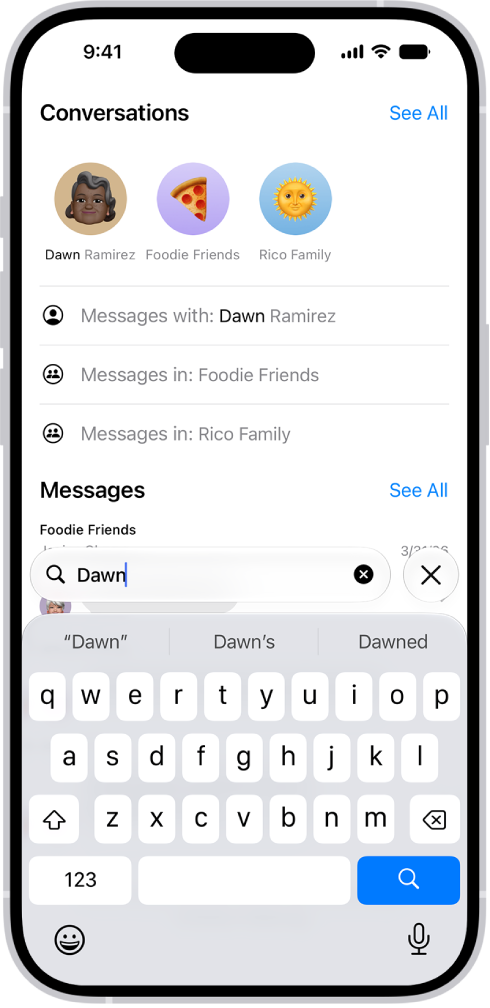
The search field in the Messages app appears at the bottom of the screen. The search field contains the name of a person, and several options matching the search appear above it.

  1. Open the Messages app on your iPhone.
  2. Tap the search field below the conversation list.
  3. Enter what you’re looking for (such as a word or phrase).
  4. To filter your search, do any of the following:
    • Limit your search to one person or conversation: Start by typing a person’s name, tap Messages with or Messages in and then tap other criteria that appear or add any text you want to find in your conversation.
    • Limit your search to types of shared items: Begin your search with a search term—such as Photo, Link, Wallet (for passes). When a filter appears near the top of the screen, tap it to add it to filter the search.
    • Combine search criteria: Add another search term or filter.
  5. Tap the Search button. Tap a message in the results list to read it.

The search field also opens suggestions—such as conversations, photos, locations, links, and more. Tap any suggestion to quickly jump to a conversation.

On iPhone 18 Pro models, you can take manual control of the camera. You can set the aperture, shutter speed, and white balance yourself, and use a histogram to check exposure.

You can add these tools above the camera frame, or open them with the Camera Controls button. If you don’t, the Main camera handles aperture, shutter speed, and white balance on its own.

Here’s how to use advanced camera tools on iPhone.

Adjust the aperture, shutter speed, and white balance

The Main camera automatically takes care of the aperture, shutter speed, and white balance. On iPhone 18 Pro models, you can set them manually instead in Photo, Video, Cinematic, Slo-mo, and Time-Lapse modes.

  1. Open Camera on your iPhone.
  2. Do either of the following:
    • Tap the Camera Controls button, then tap Lens Aperture, Shutter Speed, or White Balance.
    • Optionally, add the Lens Aperture, Shutter Speed, or White Balance control to the camera tools above the camera frame, then tap it.
  3. For Lens Aperture or White Balance, tap the value you want to use. For Shutter Speed, drag the slider.

Turning on Lens Aperture in Preserve Settings saves the aperture setting, so it isn’t reset the next time you open Camera.

Check exposure using the histogram

iPhone 18 Pro models can show you the exposure across the frame while you compose your shot.

  1. Open Camera on your iPhone.
  2. Do either of the following:
    • Tap the Camera Controls button, then tap Histogram.
    • Optionally, add the Histogram control to the camera tools above the camera frame, then tap it.
Tag: camera