












Got a tip for us?

The books and audiobooks you purchase in the Books app are saved in your library and automatically sorted into collections, such as Audiobooks, Want to Read, and Finished.

You can create your own collections, too, to organize and personalize your library, for example, Beach Reads or Book Club. Then you can add a book to a collection, organize your books, and remove books, audiobooks, and PDFs. And if a collection outlives its use, you can delete it.
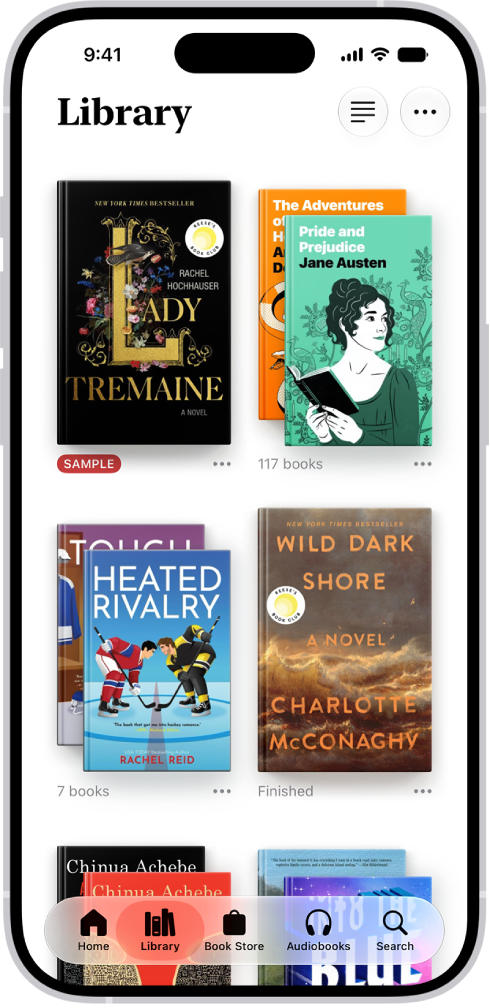
The Library screen in the Books app. At the top of the screen is the Collections button. In the middle of the screen are book covers. At the bottom of the screen are, from left to right, the Home, Library, Book Store, Audiobooks, and Search tabs. The Library tab is selected.

Note: Apple Books isn’t available in all countries or regions.

Create a collection

To organize and personalize your library, you can create your own collections.

  1. Start the Books app on your iPhone.
  2. Tap Library, tap the Collections button, and then tap New Collection.
  3. Name the collection—for example, Beach Reads or Book Club—then tap the Done button.

Add a book to a collection

The collections you create can include books from your library or from the Book Store.

  1. Start the Books app on your iPhone.
  2. Go to a book. Tap the More Info button below the cover.

Tap Add to Collection, then tap the collection you want to add it to.

Quick tip: You can add the same book to multiple collections.

Organize your books

You can choose how books are displayed and sorted in your library or a collection.

  1. Start the Books app on your iPhone.
  2. Tap Library or go to a collection.
  3. Tap the More button. Then do either of the following:
    • Change the book display: Tap Grid or List.
    • Sort your books: Tap Recent, Title, Author, or Manual.

If you choose Manual, touch and hold a book cover, then drag it to a new position.

Remove books, audiobooks, and PDFs

From Home, Library, and your library collections, you can remove or hide books, audiobooks, and PDFs.

  1. Start the Books app on your iPhone.
  2. Go to a book or audiobook you want to remove and tap the More Info button below the cover.
  3. Tap Remove and choose an option.

Note: Choose Remove Download, and the title’s content and data are no longer stored on your iPhone. To get it back, tap the More Info button and then tap Download. Choose Hide Book instead, and the book won’t show up in your library or collections. To unhide books and audiobooks later, tap Home and tap your account icon, then tap Manage Hidden Purchases.

You can automatically remove downloads from your iPhone after you finish a book. Tap Library, then tap the More button. Tap Remove Downloads, then tap Automatically When Finished.

Delete a collection

  1. Start the Books app on your iPhone.
  2. Tap Library, then tap the Collections button.
  3. Swipe left on the collection you want to delete and then tap Delete.

Note: Deleting a collection doesn’t delete the books or audiobooks in it. They’re still in your library.
To add an app to your iPhone, you can download it from the App Store. When you download an app, you can choose to add it to both your Home Screen and App Library, or to App Library only.

An app that lands in App Library isn’t stuck there, either. You can easily move it to the Home Screen. App Library is the page that comes after all your Home Screen pages.

Choose where apps get downloaded

  1. Start the Settings app on your iPhone.
  2. Tap Home Screen & App Library.
  3. Choose Add to Home Screen or App Library Only.

Move an app from App Library to the Home Screen

If you downloaded an app to App Library, it’s easy to move it to the Home Screen.

  1. Swipe left past all your Home Screen pages to get to App Library.
  2. Touch and hold the background until the apps begin to jiggle.
  3. Touch and hold the app you want to move and drag it to the left.

You can view how much charge remains in your iPhone battery in the status bar. You can also add a widget to the Home Screen to monitor the battery levels of your iPhone and connected accessories, including AirPods and other devices.

On an iPhone with Face ID, you’ll see the percentage inside the battery symbol, and Control Center can quickly show it, too.

See the iPhone battery percentage in the status bar

  1. Start the Settings app on your iPhone.
  2. Tap Battery and then turn on Battery Percentage.

On an iPhone with Face ID, you’ll see the battery percentage inside the battery symbol in the status bar.

Quick tip: On iPhone models with Face ID, the battery percentage also shows in Control Center, so you can swipe down from the top-right corner for a quick look.

Tag: Battery

You can make onscreen elements, like controls, buttons, and the Control Center, easier to see by adding a border around them. It’s a single setting called Show Borders, and you’ll find it in Display & Text Size, in your Accessibility settings.

  1. Start the Settings app on your iPhone.
  2. Tap Accessibility, then tap Display & Text Size.
  3. Turn on Show Borders.

Podcasts you follow are automatically downloaded to your Apple device. Episodes you’ve played are automatically deleted from your device. You can change these settings, and adjust other download options.

You can also change them for a single podcast, limiting automatic downloads to a certain number of episodes or a timeframe, or choosing whether to download video, and turn on Remove Played Downloads just for that show. Here’s how to change your download settings for Podcasts on iPhone.

Turn automatic downloads on or off

  1. Start the Settings app on your iPhone.
  2. Tap Apps and tap Podcasts.
  3. Tap Automatically Download and then tap an option.

Quick tip: You can set automatic downloads for a particular podcast. Go to the Podcasts app , tap Library , and then tap Shows. Touch and hold the show, and tap Settings. From there, tap Automatically Download to cap automatic downloads at a certain number of episodes or a timeframe, or tap Download Video to choose whether video downloads too.

Remove downloaded podcasts after you watch or listen to them

  1. Start the Settings app on your iPhone.
  2. Tap Apps and tap Podcasts.
  3. Turn on Remove Played Downloads.

To adjust this setting for a particular podcast you follow, tap Library , tap Shows, then touch and hold the show. Tap Settings, then turn on Remove Played Downloads.

Resume automatic downloads

New episodes of a show you follow stop downloading automatically when you haven’t watched or listened to it in a while, but you can resume automatic downloads at any time.

  1. Start the Podcasts app on your iPhone.
  2. Tap Library, tap Shows, and then tap a show.
  3. Tap the Resume Automatic Downloads button. Then tap Turn On Automatic Downloads.

Turn off automatic syncing across Apple devices

  1. Start the Settings app on your iPhone.
  2. Tap Apps and tap Podcasts.
  3. Turn off Sync Library.

You can review and change your settings for the Maps app, including travel mode and units. Maps defaults to your preferred travel mode when providing directions, whether that’s driving, walking, transit, or cycling, and you can change the units used for the scale on a 2D map.

Choose a default travel mode and preferences

When Maps provides directions, it defaults to your preferred travel mode.

You can choose cycling, transit, walking, or driving.

  1. Start the Maps app on your iPhone.
  2. Tap your picture or initials next to the search field, tap Preferences, and then tap options.

    (If neither your picture nor initials appear next to the search field, tap Cancel next to the field, or tap the search field, then tap Cancel.)

  3. To find more options, tap Maps Settings at the bottom of the screen.

Other route options may be available depending on the mode of travel, like choosing an arrival time when driving, choosing which transit method you prefer, or avoiding heavy traffic or hills when cycling or walking.

Change the units used in Maps

As you zoom out on a 2D map, a scale appears at the top.

You can switch the units used for the scale, too.

  1. Start the Settings app on your iPhone.
  2. Tap General and tap Language & Region.
  3. Tap Measurement System and select an option.
Tag: Maps

iPhone comes with built-in options to suit your cognitive needs, or those of someone you care for.

If someone you care for has a cognitive disability, you can set up an iPhone with a simplified interface, or lock iPhone to one app. You can also reduce sensory stimulus from the screen, like flashing lights or animated GIFs, and use tools such as Focus, Dictation, and Live Captions to help you focus or follow along.

To explore accessibility features on iPhone, go to Settings > Accessibility.

Adapt iPhone for someone you care for

  • Keep iPhone simple

    If someone you care for has a cognitive disability, set up an iPhone with a simplified interface. Choose and customize core features that work best for them.

  • Lock iPhone to one app

    When you let a child use your iPhone, limit their access to a single app.

To reduce sensory stimulus from the screen, you can pause the display of rapid animated images such as GIFs and automatically dim content that depicts flashing or strobing lights. Reformatting content for easier reading and summarizing text are options, too.

With features like Focus, Dictation, Read & Speak, and Live Captions, iPhone offers many additional tools that help you follow along with what you’re reading or listening to, make it easier to enter text, or focus.

Quick tip: Control Center and the click of a button both give you control over your go-to accessibility features and settings.

During a video call in the FaceTime app, you can turn on Live Captions to see the spoken conversation transcribed and displayed in real time.

On an iPhone with Apple Intelligence*, you can also turn on Live Translation. It shows the other person’s words translated from their language to your preferred language, right on your screen as they speak.

Here’s how to use Live Captions and Live Translation in FaceTime on iPhone.

Note: Live Captions aren’t available in all languages or regions.

Turn on Live Captions

  1. During a video call in the FaceTime app, tap the screen to show the FaceTime controls (if they aren’t visible).
  2. Tap the More button, then tap Live Captions.

    A Live Captions window appears, showing the automatically transcribed dialogue of the call near the top of the screen and who’s speaking.

  3. To stop showing the conversation on the screen, tap the screen, tap the More button, and then tap Stop next to Live Captions.

Important: The accuracy of Live Captions may vary and shouldn’t be relied upon in high-risk or emergency situations. Live Captions uses additional battery.

See translated captions in FaceTime

On a FaceTime call with someone who speaks a different language, Apple Intelligence can show you translated captions in your preferred language.

Note: Live Translation in FaceTime is available for one-on-one calls in English (UK, U.S.), French (France), German, Italian, Portuguese (Brazil), Spanish (Spain), Chinese (Simplified), Chinese (Traditional), Japanese, and Korean.

Before using Live Translation, you need to download the input and output languages.

  1. Go to the FaceTime app, on your iPhone.
  2. Turn on Live Captions.

If the caller speaks a different language, captions automatically show up translated into your preferred language.

Note: Apple Intelligence on iOS 27 or later is available on an Apple Intelligence-enabled iPhone 15 Pro, iPhone 15 Pro Max, or iPhone 16 model or later. Apple Intelligence is not available in all languages or regions. Usage limits may apply.*

*Apple Intelligence is available with Siri and device language set to Chinese (Simplified), Chinese (Traditional), Danish, Dutch, English, French, German, Italian, Japanese, Korean, Norwegian, Portuguese, Spanish, Swedish, Turkish, or Vietnamese. Some features may not be available in all regions or languages. Some devices may not be available in all regions.

Siri AI is available in beta in iOS 27, iPadOS 27, macOS 27, watchOS 27, and visionOS 27 and requires an Apple Intelligence–enabled device set to a supported language. Available in English to start. Siri AI will not be initially available in the EU on iOS, iPadOS, and watchOS. Certain Apple Intelligence features that rely on server-side models are subject to daily usage limits, including but not limited to Siri AI, Intelligent Photo Editing Tools, Image Playground, and AFM 3 Cloud models in Shortcuts.

Daily limits may vary by feature, request complexity, system demand, system policies, and other factors. Expanded access to such features will be available for a fee in the future. Use of these features is subject to the Apple Intelligence Terms and Conditions.

You can make a song or album a favorite so that you can easily find and play it again later. If you dislike a song or album, you receive fewer suggestions for similar music.

Letting Apple Music know what you like and dislike improves future recommendations, and you can also rate music in your library with one to five stars. Your ratings sync across devices signed in to the same Apple Account.

Tell Apple Music what you enjoy

  1. Open the Music app on your iPhone.
  2. Do any of the following:
    • Touch and hold an album, playlist, or song, then tap Favorite or Suggest Less.
    • On the Now Playing screen, tap the More button, then tap Favorite or Suggest Less.

Telling Apple Music what you like and dislike improves future recommendations.

Rate music in your library

  1. Open the Settings app on your iPhone.
  2. Tap Apps and tap Music.
  3. Turn on Show Star Ratings.

    Note: This option only appears if you already added a star rating to a song in your music library on your Mac or Windows device, and Sync Library is enabled on your iPhone (go to Settings > Apps > Music, then turn on Sync Library).

  4. Go to the Music app, touch and hold a song in your library, tap Rate Song, and then choose a rating from one to five stars.

Song ratings sync to all devices that are signed in to the same Apple Account.

Tag: Music

The Visited Places feature helps you keep track of places you’ve been, so you can easily revisit or share them later. Use it to find past locations, like restaurants from a recent trip, and organize them into guides or share them with others.

Visited Places are end-to-end encrypted, can’t be read by Apple, and appear on all your synced devices. You can also remove your visited places automatically, or clear them all.

Note: Visited Places isn’t available in all countries or regions.

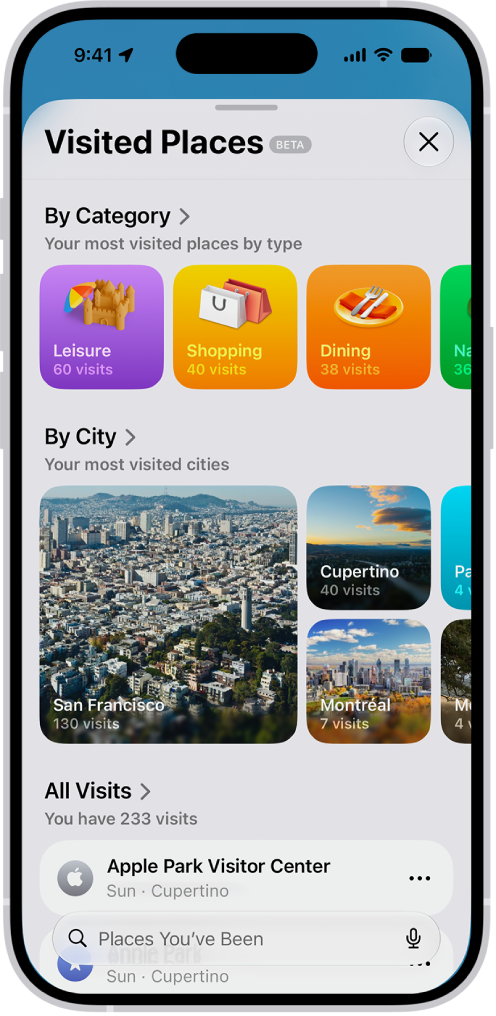
The Visited Places screen in the Maps app. Leisure, Shopping, Dining, and Nature appear as categories, each with a number indicating how many visits were made in that category.

View a visited place

Visited Places won’t show up in the Maps app until you turn it on and visit at least one place.

  1. Start the Maps app on your iPhone.
  2. Tap Places, tap Visited Places, and then do any of the following:
    • Search: Search for a place by name, category, address, or notes.
    • Filter: Search using a filter for date, category, or city.
    • Show all visits: Tap All Visits.
  3. Next to a place, tap the More button (on the right side of the place card). Do any of the following:

Automatically remove your visited places

  1. Start the Maps app on your iPhone.
  2. Tap Places and tap Visited Places.
  3. Scroll to the bottom, tap Keep Visits, and choose how long you keep them, or choose Forever if you don’t want them to be removed.

Clear all your visited places

  1. Start the Maps app on your iPhone.
  2. Tap Places and tap Visited Places.
  3. Scroll to the bottom and then tap Clear History.
Tag: Maps