Got a tip for us?

Check the weather for any location around the world and quickly access forecasts for locations you save to your list.

You can search for another location or add one from the weather map, then rearrange or remove locations in your list. Your Home and Work locations can show up in search results, too. And your list stays up to date across your devices, as long as you’re signed in to the same Apple Account.

Here’s how to check the weather in other locations on iPhone.

Search for another location

  1. Open the Weather app on your iPhone.
  2. Tap the Location List button.
  3. Tap the search field at the top or bottom of the screen. Then enter the name of the city, neighborhood, or location.

    Tip: To see your Home and Work locations in search results, go to Settings > Apps > Weather, then turn on Home and Work. Also make sure to turn on Location Services for Weather.

  4. Tap the location in the search results to display the forecast.
  5. Do one of the following:

    • Add the location to your list: Tap the Add button.
    • Return to the list without adding the location: Tap the Close button and tap the Close button again.

To check the weather in locations you added to your list, swipe left or right when viewing a location, or tap the Location List button, then tap a location.

When you’re signed in to the same Apple Account on your devices, your list of locations stays up to date on each one.

Note: Neighborhood search results aren’t available in all locations.

Add a location from the weather map

  1. Open the Weather app on your iPhone.
  2. While checking a forecast and conditions, tap the Weather Map button in the bottom-left corner of the screen. Then change the location of the weather map.
  3. Touch and hold where you want to add a location. Then tap the Add button.

Rearrange locations in your list

  1. Open the Weather app on your iPhone.
  2. Tap the Location List button to display your list.
  3. Touch and hold the location. Then move it up or down.

Remove a location from your list

  1. Open the Weather app on your iPhone.
  2. Tap the Location List button to display your list.
  3. Swipe left on the location, then tap the Delete button.
Tag: Weather

The iPhone display stays on while you’re looking at it, but it dims and eventually locks, for your security, when you look away for a while. If you need the display to stay on longer, for example when you’re navigating with Maps, you can change how long it takes iPhone to automatically dim and lock.

On supported models, there’s another option. With the Always-On display setting, a dimmed version of your Lock Screen stays visible, even when your iPhone is locked.

Change when iPhone automatically locks

You can decide how long it takes for iPhone to lock automatically.

  1. Open the Settings app on your iPhone.
  2. Tap Display & Brightness and then tap Auto-Lock.
  3. Choose a length of time.

Note: Delaying or preventing Auto-Lock may increase power consumption.

Keep your Lock Screen visible with Always-On display

On a supported model, the Always-On display setting keeps a dimmed version of your Lock Screen visible, even while your iPhone is locked. A quick glance at the dimmed screen shows essential information, like notifications, the date and time, and what’s in your widgets.

The display turns off automatically when iPhone is face down, obstructed from view, or not near a paired Apple Watch. It also turns off at your usual bedtime, while Low Power Mode or Sleep Focus is on, while Continuity Camera is in use, and when a CarPlay session begins.

Always-On display is on by default, but you can turn it off.

  1. Open the Settings app on your iPhone.
  2. Tap Display & Brightness, then turn off Always On Display.

Quick tip: With Always-On display turned on, you can choose whether your Lock Screen shows your wallpaper or notifications. Go to the Settings app and tap Display & Brightness, then tap Always On Display and turn Show Wallpaper or Show Notifications on or off.

Tag: iPhone

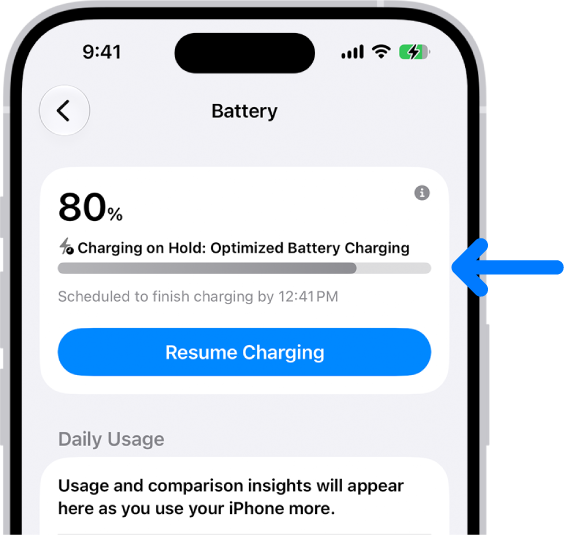
iPhone includes charging features that help extend your battery’s lifespan by reducing the time your battery stays fully charged. With Optimized Battery Charging, iPhone pauses charging at 80%, then finishes charging closer to when you usually unplug your iPhone.

For example, if you typically unplug your iPhone at 7 a.m., charging may pause at 80% overnight and finish just before that time. It needs a routine, though, and when you need a full charge sooner than scheduled, you can temporarily override it.

What to expect

  • It needs a routine: Optimized Battery Charging activates when your iPhone predicts it will be connected to a charger for an extended period, like overnight. The feature requires time to learn your charging habits, so it works most consistently in the locations where you spend the most time, such as your home and office. It may not activate when your charging habits are more varied, like when you’re traveling.
  • It may not always be active: If your charging schedule is inconsistent or you’re in a new place, Optimized Battery Charging may not activate. In these situations, your iPhone will charge to 100% without pausing.

Temporarily override Optimized Battery Charging

If your iPhone needs a full charge sooner than scheduled, you can temporarily override Optimized Battery Charging.

The charging information card in iPhone Battery settings. The card shows the battery at 80% with the message “Charging on Hold: Optimized Battery Charging.” It is scheduled to finish by 12:41 PM, with an option to “Resume Charging.”

  1. Open the Settings app on your iPhone.
  2. Tap Battery and tap Resume Charging.

Turn Optimized Battery Charging on or off

  1. Open the Settings app on your iPhone.
  2. Do one of the following:
    • On iPhone 14 or earlier: Tap Battery, then tap Battery Health & Charging. Turn Optimized Battery Charging on or off.
    • On iPhone 15 or later: Tap Battery and then tap Charging. Turn Optimized Battery Charging on or off.
Tag: Battery

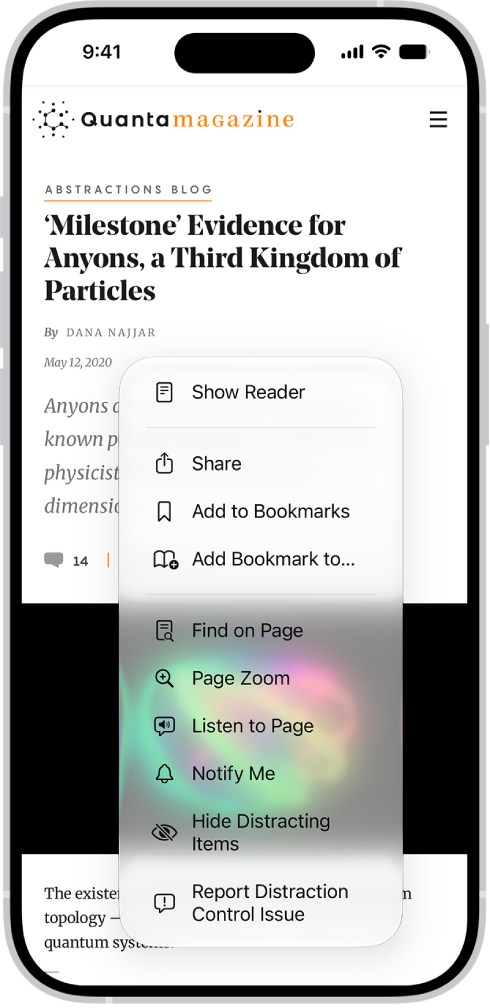
Use Distraction Control to hide menus and other diversions on a webpage. With Hide Distracting Items in the Safari app on your iPhone, you can hide as many items as you want from the webpage, and you’re free to stop hiding items later.

In Safari, the Page Menu button on a website has been tapped, revealing options including Hide Distracting Items.

  1. Start the Safari app on your iPhone.
  2. On a website, tap the Page Menu button and then tap Hide Distracting Items.
  3. Tap an item you want to hide from the webpage and then tap Hide. You can hide as many items as you want.
  4. Tap the Selected button.

To stop hiding items, tap the Clear button.

Tag: Safari

Sleep data provides insight into your sleep habits. To obtain sleep data, you can use a sleep tracker or monitor, or manually add the data on your iPhone.

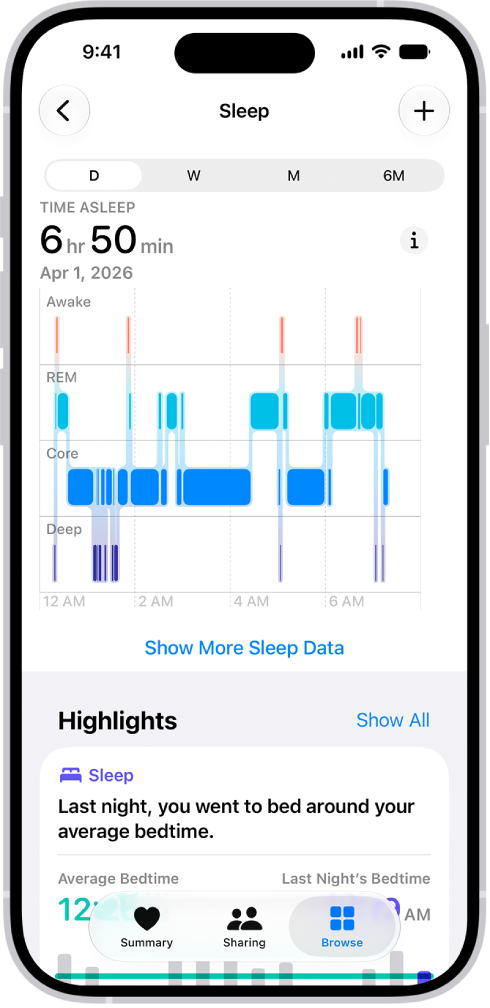
In the Health app, you can view sleep data by week or month, change the time span displayed in the graph, and view the details for a day. The Sleep screen shows the estimated time you spent awake and in REM, Core, and Deep sleep, and you can also get cumulative sleep data.

The Sleep screen in Health showing the estimated time spent awake and in REM, Core, and Deep sleep.

  1. Start the Health app on your iPhone.
  2. Tap Browse and tap Sleep. Tap Sleep again.
  3. Do any of the following:
    • View sleep data by week or month: Tap a tab at the top of the screen.
    • Change the time span displayed in the graph: Swipe the graph left or right.
    • View the details for a day: Tap the column for the day.
    • Manually add sleep data: Tap the Add button in the top-right corner of the screen.
    • Get cumulative sleep data: Tap Show More Sleep Data.
Tag: Health

You can search for email messages using different criteria.

Mail searches the address fields, the subject, the email body, plus documents and links, and the most relevant messages appear in Top Hits. You can narrow a search with a keyword, search by timeframe, or search by email attributes, like flagged or unread. And you can quickly find travel booking confirmations for flights and hotels with the three-letter airport code or the city name.

Here’s how to search for email in Mail on iPhone.

Quick tip: Search results in Mail can reflect what you mean, not just the words you type.

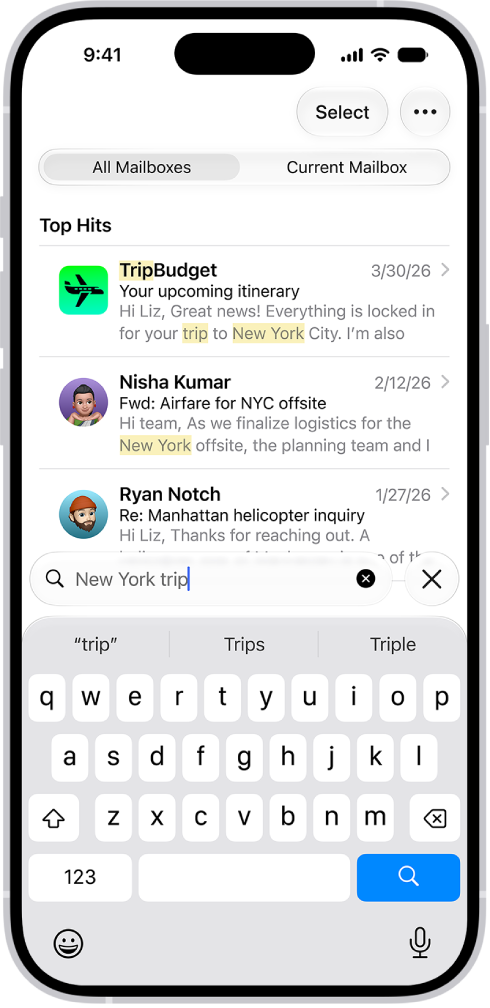
For example, a search for “NYC business trip” brings up emails about event locations, travel details, and your itinerary, plus other relevant messages.

Search results in the Mail app.

Search for text in an email

  1. Open the Mail app on your iPhone.
  2. Tap the search field and type the text you’re looking for.
  3. Choose between searching all mailboxes or the current mailbox above the results list.
  4. Tap a message in the results list to read it.

    Mail searches the address fields, the subject, the email body, documents, and links.

    The most relevant messages appear in Top Hits above the search suggestions as you type.

    Tip: To quickly find travel booking confirmations for flights and hotels, enter the three-letter airport code or the city name.

Search by timeframe

  1. Open the Mail app on your iPhone.
  2. Tap the search field of a mailbox list.
  3. Enter a timeframe, like “September” and then tap the calendar suggestion buttons to see all emails from that timeframe.
  4. To narrow the search, tap the search field again, then enter a keyword, like “meeting.” Tip: Refine your search by timeframe using the Date, Before, or After options above the message list.

Search by email attributes

  1. Open the Mail app on your iPhone.
  2. In an inbox, tap the search field.

    Before you begin typing, you may see suggested recent searches, recent documents, and links listed.

  3. Enter your search criteria and tap one of the listed items, or do any of the following: Find all flagged messages: Enter “flag” in the search field, scroll down, then tap “Message is flagged” below Suggestions.

    • Find all unread messages: Enter “unread” in the search field and scroll down. Tap “Message is unread” below Suggestions.
    • Find all messages with attachments: Enter “attachment” in the search field and scroll down. Tap “Messages with attachments” below Suggestions.
Tag: Mail

On supported models, Camera uses the Ultra Wide camera to capture macro photography, close-ups in sharp focus. You can take macro photos and Live Photos, and shoot macro slow-motion and time-lapse videos.

You don’t need a separate mode for it. In Photo or Video mode, you just get close to the subject. You can also control automatic macro switching.

Here’s how to take macro photos and videos with your iPhone camera.

Take a macro photo or video

  1. Open Camera on your iPhone.

    Make sure Camera is in Photo or Video mode.

  2. Get close to the subject—as close as 2 centimeters. Camera will automatically switch to the Ultra Wide camera to enable macro photography.
  3. Tap the Shutter button to take a photo or the Record button to start and stop recording video. On models with the Camera Control, click to take a photo or to start and stop recording.

Take a macro slow-motion or time-lapse video

  1. Open Camera on your iPhone.
  2. Swipe right to select Slo-mo or Time-lapse mode.
  3. Tap .5x to switch to the Ultra Wide camera and then move close to the subject.
  4. Tap the Record button or click the Camera Control on (supported models) to start and stop recording.

Control automatic macro switching

For macro photos and videos, you decide when Camera automatically switches to the Ultra Wide camera.

  1. Open Camera on your iPhone.
  2. Get close to your subject.

    When you get within macro distance of your subject, the Auto Macro On button appears on the screen.

  3. Tap the Auto Macro On button to turn off automatic macro switching.

Quick tip: If the photo or video becomes blurry, you can back up or tap .5x to switch to the Ultra Wide camera.

  1. Tap the Auto Macro Off button to turn automatic macro switching back on.

To turn off the manual Macro Control when taking photos and videos, go to Settings > Camera, then turn off Macro Control.

If you want to maintain your Macro Control setting between camera sessions, go to Settings > Camera > Preserve Settings, then turn on Macro Control.

Tag: Photos

You can search for events by title, invitees, location, and notes in the Calendar app on your iPhone, and Calendar shows you the events that match. You just enter the text you want to find in the search field. Siri can tell you what’s on your calendar, too.

  1. Start the Calendar app on your iPhone.
  2. Tap the Search button. Enter the text you want to find in the search field.

Siri: Ask Siri something like, “What’s on my calendar for Friday?”

If you use a pointer device with iPhone, you can adjust how it works with VoiceOver. You can set the pointer to ignore, follow, or move the VoiceOver cursor, and adjust the delay to speak the item under the pointer.

  1. Open Settings, tap Accessibility, and then tap VoiceOver.
  2. Below Pointer Control, tap any of the following:
    • Pointer: Set the pointer to ignore, follow, or move the VoiceOver cursor.
    • Speak Under Pointer: You can adjust the delay to speak the item under the pointer.

Use AirPrint to print wirelessly to an AirPrint-enabled printer from apps such as Mail, Photos, and Safari. Many apps available on the App Store also support AirPrint. First, though, confirm that your printer supports AirPrint.

Depending on the app, you’ll find Print with the Share, More, Reply, or Actions Menu buttons. After you print, you can see the status of a print job, too.

Here’s how to print from iPhone.

Note: Make sure your iPhone and the printer are on the same Wi-Fi network.

Choose an AirPrint-enabled printer

After confirming that your printer supports AirPrint and that your iPhone and printer are on the same Wi-Fi network, do the following:

  1. Open the app you want to print from.
  2. Tap the Share button, the More button, the Reply button, or the Actions Menu button (depending on the app).
  3. Tap Print, tap No Printer Selected, and choose an AirPrint-enabled printer.

Print a document

  1. Open the app you want to print from.
  2. Tap the Share button, the More button, the Reply button, or the Actions Menu button (depending on the app).
  3. Tap Print. (If you don’t see Print, swipe up.)

See the status of a print job

Open the App Switcher, then tap Print Center.

The icon’s badge shows how many documents are in the queue.

To cancel a print job, select it in Print Center, then tap Cancel Printing.

Tag: iPhone