Got a tip for us?

With the push of a button or flip of a switch, you can quickly silence alerts like phone calls, notifications, and system sounds.

Not everything goes quiet, though. Clock alarms, audio apps such as Music, and many games still play sounds through the built-in speaker.

Important: Clock alarms, audio apps such as Music, and many games play sounds through the built-in speaker, even when Silent mode is on. In some countries or regions, the sound effects for Camera, Voice Memos, and Emergency Alerts are played, even when the Ring/Silent switch is set to silent.

Turn Silent mode on or off

With Silent mode on, iPhone doesn’t ring or play alerts or other sound effects, though iPhone may still vibrate. Turn Silent mode off, and iPhone plays all sounds.

Depending on your model, do one of the following:

  • On models with an Action button: Press and hold the Action button to turn Silent mode on. Press and hold the Action button again to turn Silent mode off.

    If your Action button isn’t set to Silent mode, go to the Settings app on your iPhone, tap Sounds & Haptics, then turn Silent mode on or off.

  • On other models: Flip the Ring/Silent switch toward the back of your iPhone to turn Silent mode on. Flip it toward the front to turn Silent mode off.
Tag: iPhone

Your passes, cards, and keys saved in Wallet may show useful details, such as the account balance, recent activity, reward or loyalty points, or flight information. You can also search for transactions, adjust settings, and manage expired passes.

You can view, unhide, or delete expired passes, too. And if your iPhone is lost or stolen, you can remove your cards from Apple Pay.

Here’s how to manage passes, cards, and keys in Wallet on iPhone.

View and manage details

  1. Start the Wallet app on your iPhone.
  2. Tap an item to see its details. Then do any of the following (if available for the item):
    • Review your activity: On a supported card, scroll down to see recent activity. Some cards may show older transactions grouped by month and year.
    • See the card number: On a payment card, tap the Card Number button to see the last four digits of the device account number (the number transmitted to the merchant when you use Apple Pay), the physical card number (if you added the card information for AutoFill), or the virtual card number (if supported).
    • Manage more options: Tap the More button or the Info button. Choose an option.

Depending on the type of card or pass, you can add funds to your account balance, adjust notification settings, contact the issuer for support, and more. (Not all options are available on all cards and passes.)

Search for items and transactions

  1. Start the Wallet app on your iPhone.
  2. Tap the Search button. Enter what you’re looking for. You can search by merchant, date, transaction amount, location, and more.

View, unhide, or delete expired passes

  1. Start the Wallet app on your iPhone.
  2. Tap the More button and tap Expired.
  3. Tap a pass and then do any of the following:
    • See the details: Tap the Info button.
    • Unhide the pass: Tap the Unhide button.
    • Permanently delete the pass: Tap the Delete button.

Remove an item

  1. Start the Wallet app on your iPhone.
  2. Tap the item you want to remove. Tap the More button or the Info button.
  3. Do one of the following:

    • Remove a debit or credit card: Tap Card Details, then tap Remove Card.

      Note: If you remove a payment card on your iPhone, it’s not removed from Apple Wallet on your other devices. You can add the card again later.

    • Permanently delete a pass: Tap Remove Pass.

      Note: If you delete a pass on your iPhone, it’s permanently removed from Apple Wallet on your other devices.

Remove your cards from Apple Pay if your iPhone is lost or stolen

If you turned on Find My iPhone, it can help you locate and secure your iPhone.

Use another device or call the issuers of your cards to remove your cards from Apple Pay.

You can use the Home app to securely add, control, and automate HomeKit and Matter-enabled accessories, such as lights, locks, and thermostats. When you set up security cameras that support HomeKit Secure Video, you can capture video, and receive a notification when a camera recognizes someone or when a package is left at the door.

There’s more. You can open a compatible lock with a home key, group multiple speakers to play the same audio, and send and receive Intercom messages on supported devices. You can also create automations that run at certain times, or when you activate a particular accessory, like unlocking the front door.

And with a home hub, an Apple TV 4K or HomePod speakers, you and others you invite can securely control your home while you’re away.

Note: You’ll need a home hub, for example a HomePod speaker or Apple TV 4K, for Matter-enabled accessories. Thread-based accessories go a step further and require a Thread-enabled home hub, like Apple TV 4K, HomePod (2nd generation), or HomePod mini, or else a compatible third-party Thread border router. Thread-enabled iPhone devices can also pair and manage Thread accessories locally, though that may require an update from the accessory manufacturer.

Home overview

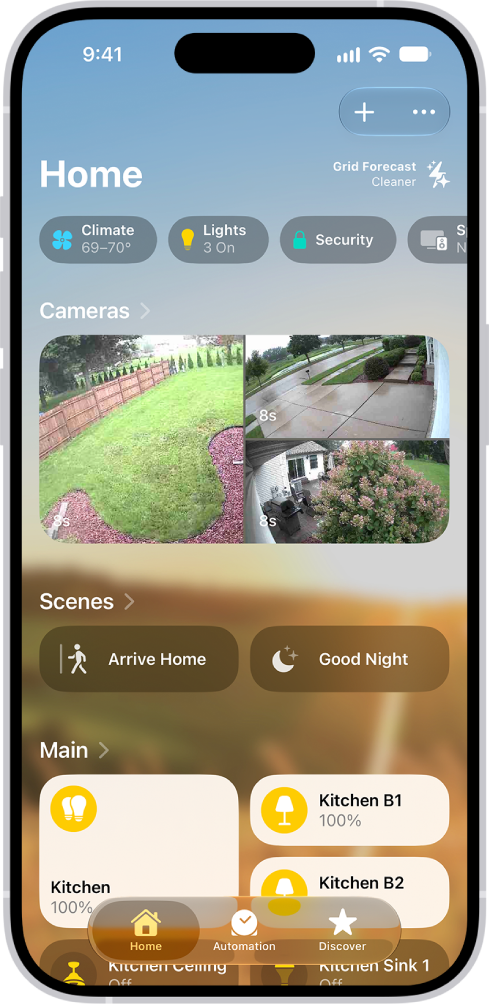
The Home app lets you easily navigate and control your accessories. In the Home app, tap the Home tab to show the following sections:

  • Categories: Tap a category such as Climate, Lights, Security, Speakers & TVs, or Water to show all related accessories on one screen, organized by room.
  • Cameras: Video from up to four cameras can appear below Cameras. Swipe left to see more cameras.
  • Scenes: Create scenes to control multiple accessories with a tap or Siri request—tap a scene to close the blinds and turn on the lights in the evening, for example.
  • Favorites: Add to Favorites the accessories you use most often to quickly control them from the Home tab.
  • Rooms: Accessories are organized by room, helping you find just the accessory you need.

The Home tab showing, from top to bottom, four categories, two scenes, three camera views, and the status of one room. Across the bottom are the tabs Home (which is selected), Automation, and Discover.

Edit the Home tab

Organize the Home tab in whatever ways suit you best.

Tap the More button, then do any of the following.

  • Rearrange items: Select Edit Home View, then drag tiles to a different position. Tap Done when you’re finished.
  • Reorder sections: To change the way sections such as Favorites or Scenes are ordered on the Home tab, choose Reorder Sections, then drag the Reorder button next to a section to a new position. Tap Done when you’re finished.
  • Resize icons: Select Edit Home View, tap a tile, tap the Resize button, then tap Done.

To learn more about how to create and accessorize a smart home with your Apple devices, tap Discover .

Tag: Home

You can mark items as “favorites” in Music to make them easier to find. If you subscribe to Apple Music, you can get notifications on new releases from your favorite artists, and easily get back to their music from the Home tab.

Artists you mark as favorites show up below Favorite Artists in Home, with their music recommended more often, and favorite songs go into the Favorite Songs playlist. You can remove favorites later.

Here’s how to mark items as favorites in Apple Music on iPhone.

Add favorite playlists, artists, albums, and songs

  1. Start the Music app on your iPhone.
  2. Do any of the following:

    • Add a favorite playlist: Touch and hold a playlist or tap the More button when viewing a playlist. Then tap Favorite.
    • Add a favorite artist: Go to an artist page and tap the More button. Tap the Favorite button at the top of the screen.

      When you mark an artist as a favorite, they appear below Favorite Artists in Home, and their music is recommended more often.

    • Add a favorite album: Touch and hold an album and then choose Favorite. Or tap an album, tap the More button, and tap Favorite.
    • Add a favorite song: Touch and hold a song or tap the More button next to a song. Tap Favorite. Or on the Now Playing screen, tap the Favorite button.

      When you mark a song as a favorite, it appears in the Favorite Songs playlist. To view that playlist, tap Library , then tap Playlists.

You can easily find favorite items in your music library. Tap Library , choose Playlists, Artists, Albums, or Songs, tap the Filter button, then choose Favorites.

Remove playlists, artists, albums, and songs as favorites

  1. Start the Music app on your iPhone.
  2. Tap Library, choose Playlists, Artists, Albums, or Songs, tap the Filter button, and choose Favorites.
  3. Touch and hold a playlist, artist, album, or song. Tap Undo.

Note: Deleting a song from your library leaves it in your favorites. To change this, go to the Settings app , tap Apps, tap Music, and turn on Add & Delete Favorite Songs.

Tag: Music

If your Magic Keyboard doesn’t include accents and other diacritical marks for the language you’re typing, you can use an Option key modifier or the onscreen keyboard to enter those marks.

With the Option key on Magic Keyboard, you can select a mark after you add a keyboard for another language that supports diacritical marks, like Spanish (Mexico). Or you can use the onscreen keyboard to enter those marks for the related letter, number, or symbol.

Use the Option key to enter a diacritical mark for a character

To enter a character with a diacritical mark, you can press the Option key on Magic Keyboard to select a mark.

  1. Do one of the following:

    • Add or remove a keyboard for another language that supports diacritical marks, then in an app, switch to that language keyboard.

      For example, add the Spanish (Mexico) keyboard, then in an app, press and hold the Control key on Magic Keyboard, then press the Space bar until you select Español (México).

    • Go to Settings > General > Keyboard > Hardware Keyboard, then choose an alternative keyboard layout that supports diacritical marks.

      For example, if you have the English (US) language keyboard, tap English (US), then choose U.S. International — PC or ABC — Extended.

  2. In an app, press and hold the Option key and then press a key that enters a diacritical mark.

    For example, the Spanish (Mexico) keyboard and the U.S. International — PC alternative layout support these diacritical marks:

    • Acute accent (for example, é): Option-E.
    • Grave accent (for example, è): Option-`.
    • Tilde (for example, ñ): Option-N.
    • Diaeresis or umlaut (for example, ü): Option-U.
    • Circumflex (for example, ê): Option-I.
  3. Press the letter.

    For example, to enter ñ using the Spanish (Mexico) keyboard or the U.S. International — PC alternative layout, press Option-N, then type an n.

    Note: The ABC – Extended alternative layout also allows you to enter tone marks for typing Mandarin Chinese in Pinyin orthography. For example, to type ǚ in lǚxíng (“travel”), press Option-V, then type a v. In addition, the ABC – Extended layout allows you to type diacritical marks and letters from several different European languages, such as Czech, French, German, Hungarian, and Polish.

Use the onscreen keyboard to enter a diacritical mark

  1. To show the onscreen keyboard, press the Eject key on Magic Keyboard.
  2. On the onscreen keyboard, touch and hold the letter, number, or symbol on the keyboard that’s related to the character you want.

    For example, to enter é, touch and hold the e key.

  3. Slide your finger to choose a variant.
  4. To hide the onscreen keyboard when you’re finished, press the Eject key on Magic Keyboard.

iPhone has accessibility features that you can turn on the first time you turn on your iPhone, to make it easier to set up and personalize other iPhone features. VoiceOver, a gesture-based screen reader, tells you what’s happening onscreen, and you can zoom in on part of the screen or turn on other features during setup.

Hear what’s onscreen with VoiceOver

VoiceOver—a gesture-based screen reader—tells you what’s happening onscreen.

  1. After iPhone is turned on, triple-click the side button (on an iPhone with Face ID) or triple-click the Home button (on other iPhone models) to turn on VoiceOver.
  2. Do any of the following and more:
    • Speak the entire screen: Swipe up with two fingers.
    • Find out what you’re touching: Touch the screen or drag your finger over it. VoiceOver speaks the name of the item your finger is on, including icons and text. Swipe right to select the next item. Tap with four fingers near the top to select the first item on the screen.
    • Select an item: Tap to select a button or link, and activate it by double-tapping.
    • Scroll to another page: Swipe with three fingers.
    • Open the onscreen rotor: Turn two fingers on the screen, as if rotating a dial.

Note: When VoiceOver is on, basic gestures don’t work as usual.

In VoiceOver settings, you can change the voice, language, speaking rate, audio options, how much detail VoiceOver provides, and more.

Zoom in on part of the screen

  1. Double-tap the screen with three fingers and then use the slider to set a magnification level.
  2. Use three fingers to scroll around the zoomed-in screen.

Turn on other features during setup

You can turn on additional accessibility features from the Quick Start screen.

Tap the Accessibility Options button to turn on or adjust settings for any of the following:

  • VoiceOver
  • Zoom
  • Display & Text Size
  • Motion
  • Read & Speak
  • Touch (such as AssistiveTouch and Touch Accommodations, Switch Control, or any external keyboard.)

Already set up accessibility features on a nearby iPhone or iPad? Quick Start can transfer your settings to your new iPhone. Just follow the onscreen instructions.

You can set up call waiting on iPhone if you have cellular service through a GSM network, and if your cellular service is through a CDMA network, your carrier has information about setting up call waiting. Without it, incoming calls go directly to voicemail while you’re on a call.

On models with Dual SIM, it works only for calls on the same line, except when the other line has Wi-Fi Calling on and a data connection is available.

  1. Start the Settings app on your iPhone.
  2. Tap Apps, then tap Phone.
  3. Tap Call Waiting, then turn on Call Waiting.

With call waiting turned off, incoming calls go straight to voicemail during a call. On an iPhone with Dual SIM, call waiting covers only incoming calls on the same line. The exception is when Wi-Fi Calling is turned on for the other line and a data connection is available.

Tag: Phone

In apps on iPhone, you can use gestures and the keyboard to select and edit text in text fields. You can also use built-in proofreading tools.

You can select a word, a paragraph, or a block of text, and then cut, copy, or paste the text you want to revise. You can also fix mistakes, undo or redo the last edit, place the insertion point, and move text without cutting or copying it.

Select, cut, copy, and paste text

  1. To select text, do any of the following:
    • Select a word: Double-tap with one finger.
    • Select a paragraph: Triple-tap with one finger.
    • Select a block of text: Double-tap and hold the first word in the block. Drag the grab points.
  2. After selecting the text you want to revise, tap the selection. Tap an editing option. You can also use these gestures:
    • Cut: Pinch closed with three fingers two times.
    • Copy: Pinch closed with three fingers.
    • Paste: Pinch open with three fingers.

Fix mistakes

If you spot a mistake while entering text, you can do any of the following:

  • Undo the last edit: Swipe left with three fingers, then tap the Undo button or Undo at the top of the screen.
  • Redo the last edit: Swipe right with three fingers, then tap the Redo button or Redo at the top of the screen.
  • Correct spelling and grammar: Tap a misspelled or misused word (underlined in red), then either tap a suggested correction to replace the word, or type the correction.
  • Undo autocorrect: As you enter text, misspelled words are automatically corrected and temporarily underlined so you know what was changed. To revert the autocorrection to what you entered, tap the underlined word, then tap your spelling (the first one listed and marked with the Undo button).

Turn on or off proofreading features

  1. Start the Settings app on your iPhone.
  2. Tap General, then tap Keyboard.
  3. Turn on or off any of the following:
    • Auto-Capitalization
    • Auto-Correction
    • Check Spelling and Grammar

Place the insertion point

  1. Do any of the following:

    • Tap where you want to add or edit text.
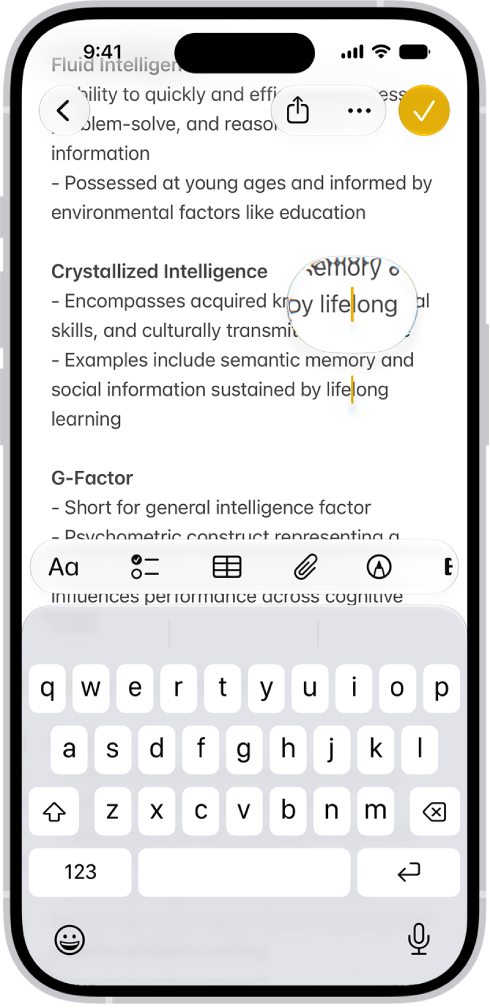
    • Touch and hold to magnify the insertion point, then drag it.

    A note showing the insertion point positioned where text will be inserted or edited. The surrounding text is magnified to make it easier to place the insertion point.

    Note: To navigate a long document, touch and hold the right edge of the document, then drag the scroller to locate the text you want to revise.

  2. Enter the text you want to add.

Move the insertion point with a trackpad

To move and place the insertion point easily, turn the onscreen keyboard into a trackpad.

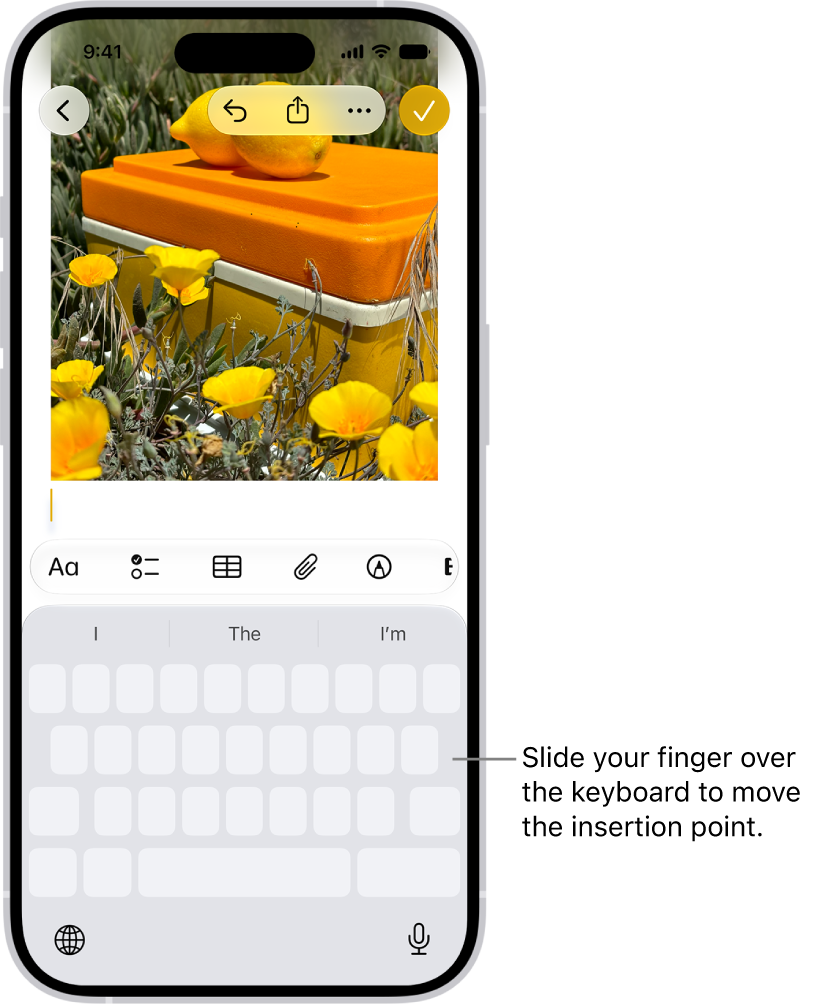
A document is open in the Notes app. The onscreen keyboard in the bottom half of the screen is in trackpad mode.

  1. Touch and hold the Space bar with one finger until the keyboard turns light gray and the characters on the keys disappear—now it’s a trackpad.
  2. Do either of the following:
    • Move the insertion point: Slide your finger around the trackpad.
    • Select text: Touch and hold the keyboard with a second finger and then adjust the selection by moving the first finger around the trackpad.

Move text without cutting or copying

  1. Select the text you want to move.
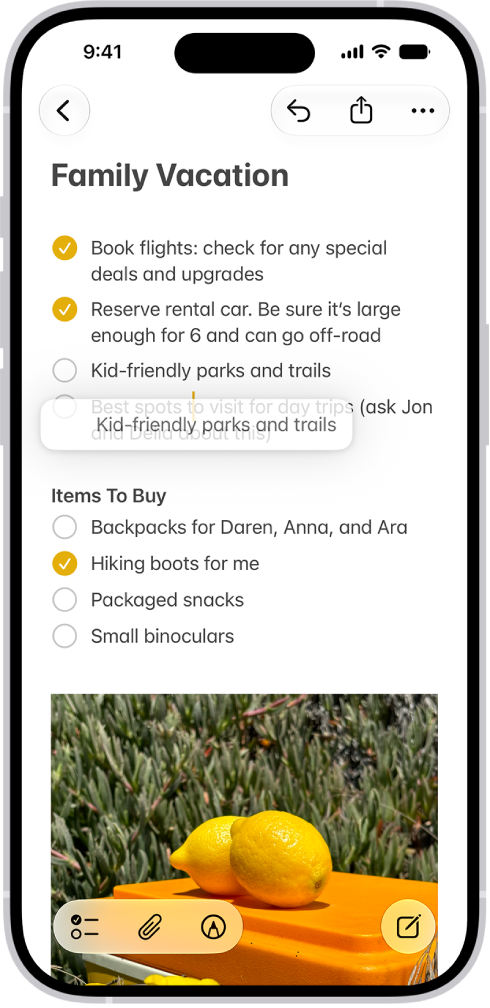
  2. Touch and hold the selected text until it lifts up and drag it to another location within the app.

    A document is open in the Notes app. The onscreen keyboard is in the bottom half of the screen. Selected text is lifted within the document to be moved to a new location.

If you change your mind while moving the text, lift your finger before dragging, or drag the text off the screen.

Quick tip: To paste something on iPhone that you cut or copy on another Apple device, use Universal Clipboard.

You can allow Apple Intelligence to work with ChatGPT from OpenAI, to help you get things done.

With the ChatGPT extension on, you can choose whether to sign in with a ChatGPT account, send requests to ChatGPT without confirming, and turn ChatGPT off whenever you want. To use it, you need to be at least 13, or the minimum age in your country.

Here’s how to turn on ChatGPT on iPhone.

Note: Apple Intelligence on iOS 27 or later is available on an Apple Intelligence-enabled iPhone 15 Pro, iPhone 15 Pro Max, or iPhone 16 model or later. Apple Intelligence is not available in all languages or regions. Usage limits may apply.* The ChatGPT extension is available only in regions where the ChatGPT app and service are available. **

Turn on ChatGPT

If the ChatGPT extension is off, you can turn it on in Settings.

Note: You must be at least 13 years old or the minimum age required in your country to consent to use ChatGPT.

  1. Start the Settings app on your iPhone.
  2. Tap Siri.
  3. Tap ChatGPT, tap Set Up, and then follow the onscreen instructions. If you’re using Siri AI (Beta), tap Set Up Extensions, tap ChatGPT, and then turn on Use Extension. Note: Siri AI is available in beta on iOS 27 or later on an Apple Intelligence-enabled iPhone 15 Pro, iPhone 15 Pro Max, or iPhone 16 model or later with Siri and device language set to a supported language. Available in English to start. Siri AI will not initially be available in the EU on iOS. Usage limits may apply.
  4. Choose whether to sign in with a ChatGPT account. If you want your requests saved to your ChatGPT chat history, you must be signed in to a ChatGPT account.

Send requests to ChatGPT without confirming

You control when ChatGPT gets used, and you’ll see a request for permission before any of your information is shared. You can also let Siri send requests to ChatGPT automatically, without asking.

  1. Start the Settings app on your iPhone.
  2. Tap Siri.
  3. Below Extensions, tap ChatGPT.
  4. Turn off Confirm Requests.

Note: This option isn’t available if you’re using Siri AI. You must first ask ChatGPT before a prompt, photos, or files are sent to ChatGPT.

Turn off ChatGPT

  1. Start the Settings app on your iPhone.
  2. Tap Siri.
  3. Tap ChatGPT and turn off Use ChatGPT.

If you’re using Siri AI, tap Extensions, tap ChatGPT, then turn off Use Extension. If you want to prevent Siri from suggesting ChatGPT when you make a request, turn off ChatGPT, then turn off Setup Prompts. (This option isn’t available if you’re using Siri AI.) You can also block access to the ChatGPT extension in Screen Time settings.

ChatGPT and privacy

With the ChatGPT extension, it’s your choice what content to send to ChatGPT. To answer your request and provide you accurate and relevant results, ChatGPT receives your request and attachments. It also gets limited data associated with the request, such as your language, country, current time zone, device type, and the feature being used when you make the request.

Your IP address stays obscured from ChatGPT, but ChatGPT does get your general location for purposes such as preventing fraud and complying with applicable law.

If you access the ChatGPT extension without an account, only the information described above will be sent to ChatGPT. OpenAI does not receive any information tied to your Apple Account. Apple says OpenAI must process your data solely for the purpose of fulfilling your request, and not store your request or any responses it provides unless required under applicable laws. OpenAI also must not use your request to improve or train its models.

Once you’re signed in to a ChatGPT account, OpenAI’s data privacy policies apply, along with your ChatGPT account settings.

For more information, go to the Settings app on your iPhone, then tap Siri. Tap ChatGPT, then tap About ChatGPT Extension & Privacy.

*Apple Intelligence is available with Siri and device language set to Chinese (Simplified), Chinese (Traditional), Danish, Dutch, English, French, German, Italian, Japanese, Korean, Norwegian, Portuguese, Spanish, Swedish, Turkish, or Vietnamese. Some features may not be available in all regions or languages. Some devices may not be available in all regions. Siri AI is available in beta in iOS 27, iPadOS 27, macOS 27, watchOS 27, and visionOS 27 and requires an Apple Intelligence–enabled device set to a supported language. Available in English to start. Siri AI will not be initially available in the EU on iOS, iPadOS, and watchOS. Certain Apple Intelligence features that rely on server-side models are subject to daily usage limits, including but not limited to Siri AI, Intelligent Photo Editing Tools, Image Playground, and AFM 3 Cloud models in Shortcuts. Daily limits may vary by feature, request complexity, system demand, system policies, and other factors. Expanded access to such features will be available for a fee in the future. Use of these features is subject to the Apple Intelligence Terms and Conditions.

**ChatGPT uses generative models and outputs may vary. Check important information for accuracy. When using the ChatGPT extension, you choose what content to send to ChatGPT. Your request and attachments, as well as limited data associated with the request, such as current time zone, country, device type, language, and feature being used when making the request, are sent to ChatGPT to answer your request and enable ChatGPT to provide you accurate and relevant results.


With GymKit, your iPhone can pair and sync data with compatible gym equipment such as treadmills, ellipticals, indoor bikes, and more, so you can get more accurate information about your workout. You can also choose media for a GymKit workout and use Workout Buddy.

Once GymKit is on and your iPhone is connected to the equipment, you can start a workout.

Here’s how to use gym equipment in Fitness on iPhone.

Turn on GymKit

  1. Start the Fitness app on your iPhone.
  2. Tap Summary, then tap your picture or initials.
  3. Tap GymKit, then turn on Detect Gym Equipment.

Connect and start a workout with gym equipment

  1. Hold your iPhone within a few centimeters of the contactless reader on the gym equipment.
  2. Tap Continue. Then tap the GymKit workout you want to start.

    Note: If you’re starting a workout from the Lock Screen, you may need to unlock your iPhone.

  3. Press Start on the gym equipment to begin.

To end the workout, go to the Fitness app, swipe up from the bottom of the screen, then tap End Workout.

Start a GymKit workout in the Fitness app

  1. Start the Fitness app on your iPhone.
  2. Tap Workout and scroll to the bottom of the screen. Then tap GymKit.
  3. Tap a workout. Then hold your iPhone within a few centimeters of the contactless reader on the gym equipment.
  4. Press Start on the gym equipment.
Tag: Fitness