Got a tip for us?

With Braille Access, you can turn your iPhone into a braille notetaker that can easily open any app by typing with a connected braille display. You can perform calculations, open Braille Ready Format (BRF) files, transcribe conversations with Live Captions, and more.

You navigate it from the Braille Access menu, and you can manage Braille Notes, BRF files, and Live Captions with Context Menus. And you can exit Braille Access whenever you want.

Note: Live Captions is available on iPhone 11 and later. Live Captions isn’t available in all countries or regions. The accuracy of Live Captions may vary and shouldn’t be relied upon in high-risk or emergency situations.
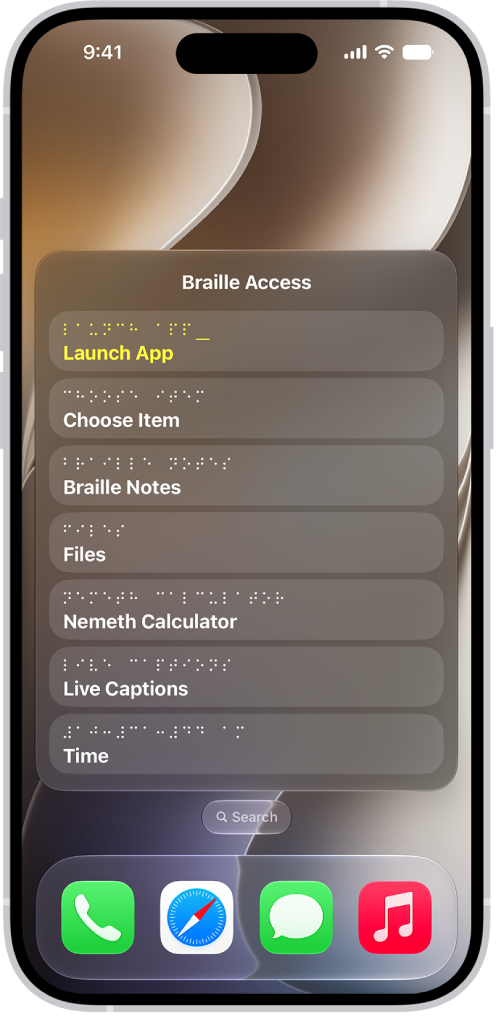
An iPhone with the Braille Access menu open, showing the following options: Launch App, Choose Item, Braille Notes, BRF Files, Nemeth Calculator, Live Captions, and Time.

Navigate the Braille Access menu

  1. Connect your braille display to your iPhone and turn on VoiceOver.
  2. Press dots 7 and 8 together or use the Toggle Braille Access command on your braille display.

    If you’re using an eight-dot table, press dots 7 and 8 and the Space bar together.

    To access the Toggle Braille Access command on your iPhone, go to the Settings app > Accessibility > VoiceOver > Braille > tap the information button next to your braille display (you may need to scroll down) > Braille Commands > Braille > Toggle Braille Access.

  3. Do any of the following:

    • Next item or line: Use the Next command (dot 4 + Space bar) or use the panning button on your braille display.
    • Previous item or line: Use the Previous command (dot 1 + Space bar) or use the panning button on your braille display.
    • Go to the first item on the menu: Use the First Item command (dots 1, 2, 3 + Space bar).
    • Go to the last item on the menu: Use the Last Item command (dots 4, 5, 6 + Space bar).
    • Go to the previous screen: Use the Back command (dots 1, 2, + Space bar).
    • Select a menu item: Use the Return command (dot 8).
    • Open a context menu: Use the Delete command (dot 7).
    • Search for text: Use the Search command (dots 1, 2, 4 + Space bar).
    • Exit Braille Access: Press dots 7 + 8.

Use Braille Access with a braille display

  1. Connect your braille display to your iPhone and turn on VoiceOver.
  2. Press dots 7 and 8 together or use the Toggle Braille Access command on your braille display.

    If you’re using an eight-dot table, press dots 7 and 8 and the Space bar together.

    To access the Toggle Braille Access command on your iPhone, go to the Settings app > Accessibility > VoiceOver > Braille > tap the information button next to your braille display (you may need to scroll down) > Braille Commands > Braille > Toggle Braille Access.

  3. Do any of the following:

    • Launch App: Choose an app to open—such as Mail, News, or Wallet.
    • Choose Item: Choose an item to open on the screen—such as dictate, compose, or edit.
    • Braille Notes: Enter New > New Note or New Folder to create a new note or folder. You can access your notes here after you create them.

      Note: Your braille notes will sync to iCloud.

    • BRF Files: Enter New > File name or New folder name to create a new BRF file or folder. You can open your BRF files here after you create them. You can also search for text and add bookmarks that sync with iCloud. To search for text, use the context menu or Text Search command (dots 1, 2, 4 + Space). After you search for text or move a bookmark, use the Return command (dot 8) to keep searching or moving to other bookmarks.

      Note: Opening Braille Access creates a BRF Files folder in iCloud Drive. You can’t change the location of BRF Files in iCloud.

    • Calculator: Use Nemeth or UEB Math to type calculations.

      Note: A visual representation of the formula appears on the screen if Show Visuals is enabled.

    • Live Captions: Enter Live Captions, and iPhone listens to your surroundings and transcribes what it hears in braille on your device.

      New transcriptions you haven’t read appear surrounded by full cells (dots 1, 2, 3, 4, 5, 6, 7, 8) on your braille display.

      Note: Press any router key to bring the focus to the latest caption line.

    • Time: Check the current time on your iPhone.
    • Close: Close the Braille Access menu.

      Note: In most pages of Braille Access, you can select Close or Back at the bottom of the menu.

If the menu item ends with a cursor, you can start typing right away.

Manage Braille Notes, BRF files, and Live Captions with Context Menus

Once you’ve created Braille Notes and BRF files in Braille Access, Context Menus help you organize them. In Live Captions, you can also pause and listen to audio.

  1. Connect your braille display to your iPhone and turn on VoiceOver.
  2. Press dots 7 and 8 together or use the Toggle Braille Access command on your braille display.

    If you’re using an eight-dot table, press dots 7 and 8 and the Space bar together.

    To access the Toggle Braille Access command on your iPhone, go to the Settings app > Accessibility > VoiceOver > Braille > tap the information button next to your braille display (you may need to scroll down) > Braille Commands > Braille > Toggle Braille Access.

  3. Do any of the following:

    • Braille Notes: Go to a note or folder and open the Context Menu by using the Delete command (dot 7). Do any of the following:

      • Move: Move the note or folder to a new location.
      • Delete: Delete the note or folder.
      • Pin: Pin the note or folder for easier access.
    • BRF Files: Go to a BRF file and then open the Context Menu by using the Delete command (dot 7). Do any of the following:

      • Find: Find a specific BRF file.
      • Previous Find: View your previous Find searches.
      • Add Bookmark: Add a bookmark for easier access.
      • Move: Move the file to a new location.
      • Delete: Delete the file.
      • Rename: Rename the file.
    • Live Captions: Open Live Captions and open the Context Menu by using the Delete command (dot 7). Do any of the following:

      • Pause: Pause Live Captions.
      • Listen to audio: Listen to audio descriptions of your surroundings.
      • Type to speak: Type on your braille device to have iPhone speak it aloud.
      • Summarize with Apple Intelligence: If you have Apple Intelligence turned on, you can get a summary of the audio in your surroundings.

      Note: Apple Intelligence on iOS 27 or later is available on an Apple Intelligence-enabled iPhone 15 Pro, iPhone 15 Pro Max, or iPhone 16 model or later. Apple Intelligence is not available in all languages or regions. Usage limits may apply.*

Exit Braille Access

To exit Braille Access on your iPhone, do any of the following:

  • Use the Home or Back command on your braille display.
  • Press dots 7 and 8 together on your braille display.
  • Select Close or Back at the bottom of the menu to exit Braille Access.

Change Braille Access settings

  1. Open the Settings app on your iPhone.
  2. Tap Accessibility, tap VoiceOver, tap Braille, and then tap Braille Access.
  3. Do any of the following:
    • Main Menu Items: To customize which menu items appear in Braille Access, tap an item. To change the order that the items appear in, tap the Reorder button and drag to the desired place.
    • Open to Last Position: Turn on Open to Last Position to allow previous settings to appear when Braille Access is reopened.
    • Speak List Items: To have iPhone speak items aloud, turn on Speak List Items.
    • Show Visuals: Turn Show Visuals on or off.
    • Typing Speech Feedback: Turn Typing Speech feedback on or off.
    • Braille Notes: Sort notes by the date edited or created. You can also sort the order of notes by oldest or newest.
    • BRF Files: Turn Fit BRF Content on or off. Turn Hide BRF Page Indicators on or off.
    • Calculator: Choose Nemeth or UEB Math as the math code.
    • Live Captions: Choose Microphone or iPhone Audio as the source for Live Captions.

*Apple Intelligence is available with Siri and device language set to Chinese (Simplified), Chinese (Traditional), Danish, Dutch, English, French, German, Italian, Japanese, Korean, Norwegian, Portuguese, Spanish, Swedish, Turkish, or Vietnamese. Some features may not be available in all regions or languages. Some devices may not be available in all regions. Siri AI is available in beta in iOS 27, iPadOS 27, macOS 27, watchOS 27, and visionOS 27 and requires an Apple Intelligence–enabled device set to a supported language. Available in English to start. Siri AI will not be initially available in the EU on iOS, iPadOS, and watchOS. Certain Apple Intelligence features that rely on server-side models are subject to daily usage limits, including but not limited to Siri AI, Intelligent Photo Editing Tools, Image Playground, and AFM 3 Cloud models in Shortcuts. Daily limits may vary by feature, request complexity, system demand, system policies, and other factors. Expanded access to such features will be available for a fee in the future. Use of these features is subject to the Apple Intelligence Terms and Conditions.
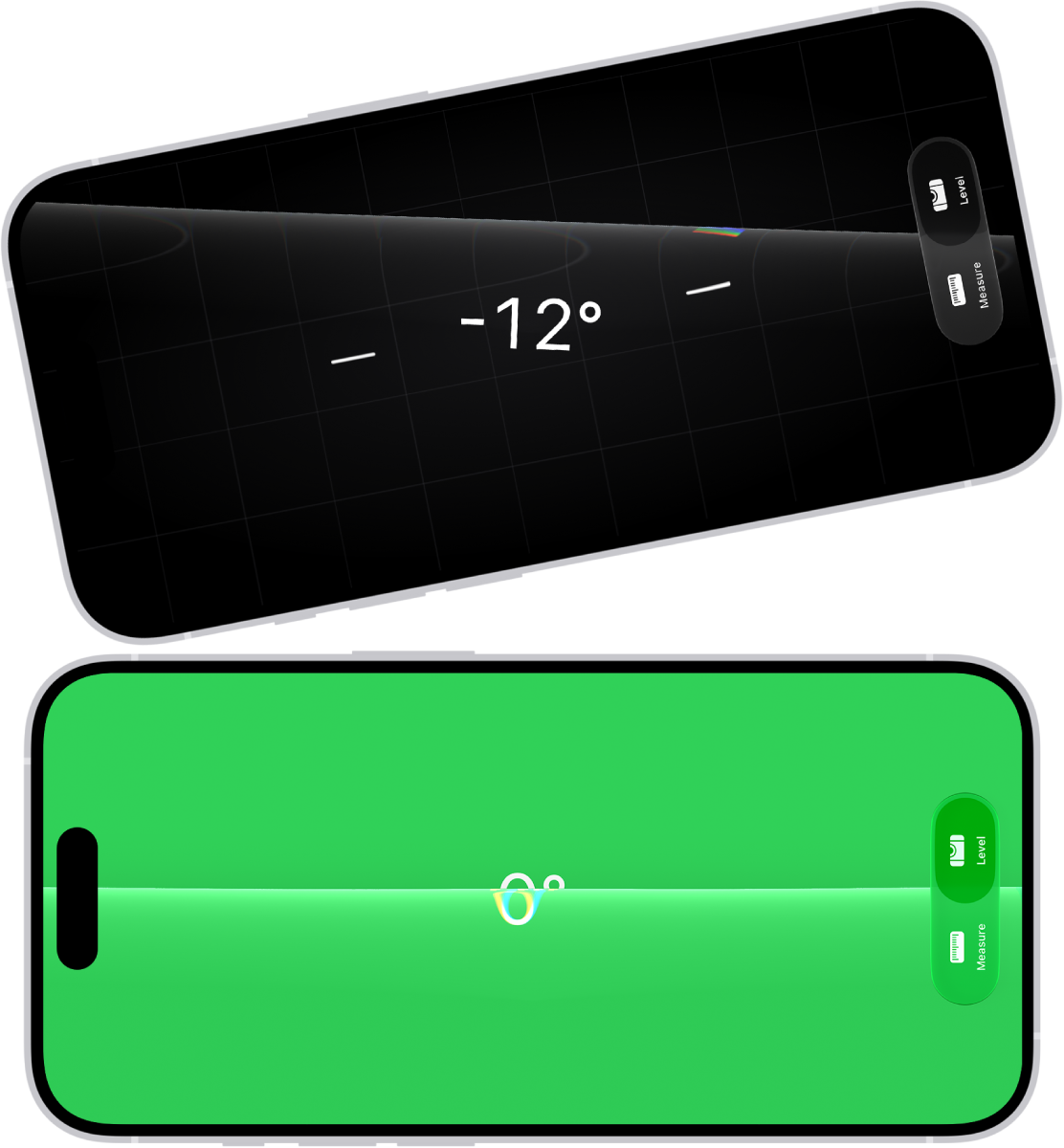
Use your iPhone to determine whether an object near you is level, parallel to the ground, or how many degrees it varies from level. Measurements are approximate. It’s in the Measure app, and you’ll see green when the object is level.

The level screen in the Measure app. On the top, iPhone is tilted at an angle of 10 degrees; on the bottom, iPhone is level.

  1. Open the Measure app (in the Utilities folder) on your iPhone.
  2. Tap Level. Hold iPhone against an object, such as a picture frame.
    • Make an object level: Rotate the object and iPhone until you see green.
    • Match the slope: Tap the screen to capture the slope of the first object. Hold iPhone against another object and rotate both of them until the screen turns green.

To reset the level, tap the screen again.

Tag: Measure

In the Clock app, you can use the stopwatch to measure the duration of an event. It keeps timing even when you open another app or iPhone goes to sleep, and you can record laps or splits. You can also switch between digital and analog stopwatch faces in portrait orientation.

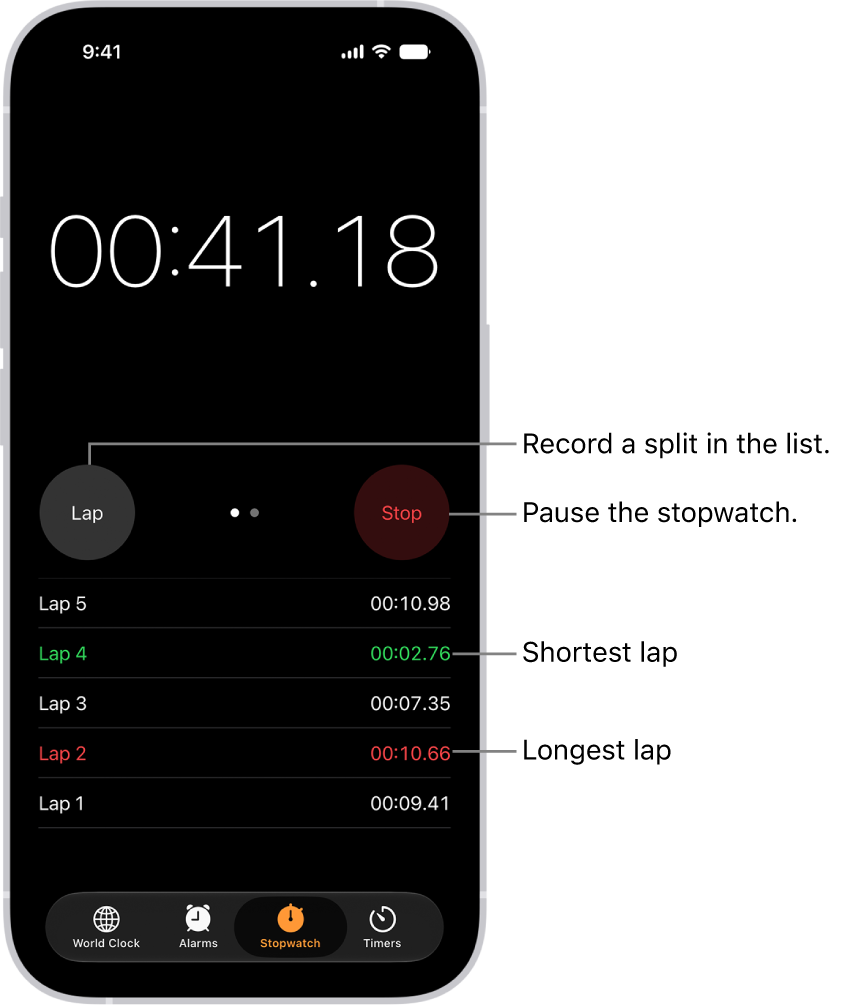
A stopwatch in the Clock app shows the overall time passed in an event, and below it are several laps listed within that event.

  1. Open the Clock app on your iPhone.
  2. Tap Stopwatch.

    To switch between the digital and analog faces, swipe the stopwatch.

  3. Tap Start.

    The timing continues even if you open another app or if iPhone goes to sleep.

  4. To record a lap or split, tap Lap.
  5. Tap Stop to record the final time.
  6. Tap Reset to clear the stopwatch.
Tag: Clock

Apple Reference Image lets you capture, view, and share reference images, which are like digital negatives, so you can verify exactly what the camera originally captured. On iPhone 18 Pro models, photos taken in Reference mode include reference data.

If a photo includes a reference image, you can develop, view, and share it in Photos to verify whether the photo has been altered or edited. You need an internet connection to develop a reference image, and you can include it when you share a photo or transfer photos to a Mac or PC.

Note: Apple Reference Image is not available in all countries or regions.

Develop a reference image

You need to develop a reference image from a photo taken in Reference mode before you can view or share it.

Note: You need an internet connection to develop reference images. If you’re not connected, it happens the next time you’re online.

  1. Start the Photos app on your iPhone.
  2. Open a photo taken in Reference mode. Tip: You can find all photos captured with reference images in the Reference album: tap Collections, tap Media Types, then tap Reference.
  3. Tap Reference at the top of the photo.

The reference image is developed automatically.

View the reference information

With a reference image developed, you can do either of the following:

  • Tap Reference to view the unedited image, then compare it with the photo to verify whether the photo has been altered or edited.
  • Tap Reference, then tap the View Reference Image Data button to view the Reference Image Data.

To view a reference image, you need a Mac, iPad, or iPhone with macOS 27, iPadOS 27, iOS 27, or later.

Share a reference image

You can choose whether to include a photo’s reference image when you share or export it. If you want it included every time you share, turn on Share Reference Image:

  • On iPhone 18 Pro models: Go to the Settings app , tap Camera, tap Reference Image, then turn on Share Reference Image.
  • On other iPhone models: Go to the Settings app , tap Apps, tap Photos, then turn on Share Reference Image.

To include or leave out the reference image for a single share, select the photo you want to share, then tap the Share button. Tap Options in the Share window, then turn Reference Image on or off. Then share the photo—for example, with AirDrop or Messages—or export it to an external device.

Note: Reference images can only be viewed on iOS 27, iPadOS 27, macOS 27, or later, on an iPhone, iPad, or Mac.

Share a reference image when you transfer photos

Turn on Transfer Reference Image if you want the reference image included when you transfer photos to a Mac or PC:

  • On iPhone 18 Pro models: Go to the Settings app , tap Camera, tap Reference Image, then turn on Transfer Reference Image.
  • On other iPhone models: Go to the Settings app , tap Apps, tap Photos, tap Transfer to Mac or PC, then turn on Transfer Reference Image.

Transferring photos includes the reference image data, but you can view a reference image only on an iPad, Mac, or iPhone with iPadOS 27, macOS 27, iOS 27, or later.

Tag: Photos

You can quickly turn many accessibility features on or off using an iPhone button or the back of iPhone. You can also use Control Center, Siri, or Vocal Shortcuts.

The Accessibility Shortcut is one example, and it turns the accessibility features of your choice on or off with the side button or Home button. On supported iPhone models, you can also use the Action button, and there’s Back Tap and the Shortcuts app, too.

Use the Accessibility Shortcut

Triple-click the side button or Home button to turn the accessibility features of your choice on or off.

  1. Open Settings, tap Accessibility, tap Accessibility Shortcut, and select the features you want.

If you select only one feature, the feature is immediately turned on or off when you click the button shortcut.

  1. Triple-click one of the following:
    • The side button (on an iPhone with Face ID)
    • The Home button (on other iPhone models)
  2. Tap the feature you want to turn on or off (if Accessibility Shortcut is set up with more than one feature).

Note: Some features, like Assistive Access or Guided Access, need to be set up before you can add them to the Accessibility Shortcut. The shortcut can enter and exit Assistive Access, but while Assistive Access is active, you can’t use it to turn on other features. And if you want the Accessibility Shortcut to work while Guided Access is on, turn on Accessibility Shortcut in Guided Access settings.

Press the Action button

On supported iPhone models, you can press the Action button to open the Magnifier app or an accessibility feature of your choice.

Tap the back of iPhone

You can double- or triple-tap the back of iPhone to open an accessibility feature of your choice.

Use Control Center

For quick access, add accessibility features to Control Center.

  1. To change the features available in Control Center, open Control Center, tap the Add button in the top-left corner, and then tap Add a Control at the bottom of the screen.
  2. Tap a control to add it to Control Center. Scroll down to see more controls, including categories of controls for accessibility, hearing, mobility, and vision.

You can change which features appear when you tap the Hearing button in Control Center. Go to Settings > Accessibility > Hearing Control Center, then add or remove features.

Use Siri

Siri: Ask Siri something like, “Turn on Voice Control.”

Use a Vocal Shortcut

Teach iPhone a word or another sound of your choosing, and it can turn on an accessibility feature when you speak it.

Use the Shortcuts app

You can create a shortcut to get one or more tasks done with your apps using just a tap or by asking Siri. For example, if you have short-term memory loss, you can use Remember This to log what happens throughout the day. You can also run the In Case of Emergency shortcut to send your location to your chosen emergency contacts, share a message with custom instructions, and display a message of your choice onscreen for first responders to see.

Apps installed by default on your iPhone are updated whenever you update iOS. Apps that you download from the App Store app are automatically updated by default, but you can manually update an app, or turn off automatic app updates. After an app is updated, it shows up below Updated Recently.

Turn off automatic app updates

  1. Start the Settings app on your iPhone.
  2. Tap Apps and then tap App Store.
  3. Turn off App Updates.

Manually update apps

  1. Start the App Store app on your iPhone.
  2. Tap the My Account button or your picture.
  3. Tap App Updates and then tap Update next to apps you want to update, or tap Update All.

After an app is updated, it appears in the list of apps below Updated Recently.

With Accessibility Reader on iPhone, you can read or listen to text in a full-screen view, and customize fonts, layouts, and background colors, and more. You can use Accessibility Reader with any app on your iPhone, too.

With Apple Intelligence, you can also format content for easier reading, summarize text, and translate it into one of your preferred languages. Accessibility Reader is built into the Magnifier app, too, so you can customize text around you, like in restaurant menus or books.

Note: Apple Intelligence on iOS 27 or later is available on an Apple Intelligence-enabled iPhone 15 Pro, iPhone 15 Pro Max, or iPhone 16 model or later. Apple Intelligence is not available in all languages or regions. Usage limits may apply.*

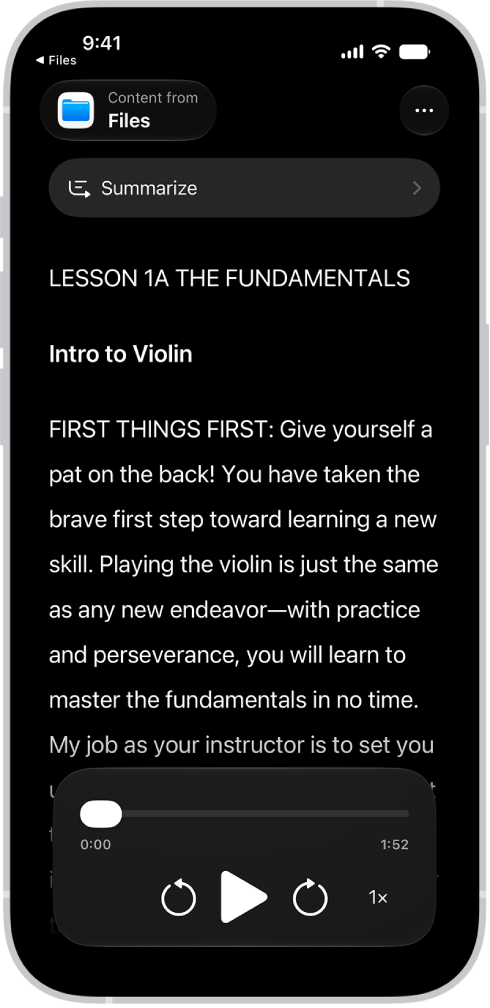
The Accessibility Reader screen showing content from Files in large white text on a black background.

Turn on and use Accessibility Reader

  1. Start the Settings app on your iPhone.
  2. Tap Accessibility and tap Read & Speak.
  3. Tap Accessibility Reader and turn on Accessibility Reader.
  4. To customize Accessibility Reader, do any of the following:
    • Set up autoplay: Turn on Autoplay in Accessibility Reader.
    • Automatically format and structure content for readability with Apple Intelligence: Turn on Content Cleanup.
  5. To start using Accessibility Reader, do one of the following:
    • Use the Accessibility Shortcut: Open an app, triple-click the side button on your iPhone, then tap Accessibility Reader.
    • Use Control Center: Open an app, open Control Center, then tap Accessibility Reader.
    • Use the share menu in any app to send content directly to Accessibility Reader: Tap the Share button, then select Accessibility Reader.

Use Apple Intelligence in Accessibility Reader

Apple Intelligence lets Accessibility Reader summarize long text, translate text into one of your preferred languages, and format content for easier reading.

Note: Apple Intelligence on iOS 27 or later is available on an Apple Intelligence-enabled iPhone 15 Pro, iPhone 15 Pro Max, or iPhone 16 model or later. Apple Intelligence is not available in all languages or regions. Usage limits may apply.*

  1. Open any app on your iPhone, then open Accessibility Reader.
  2. Do any of the following:

    • Summarize text: Tap Summarize at the top of the content to show a summary. To hide it, tap the summary again.
    • Translate text: Tap the Translate button. Choose one of your preferred languages. To see your content in the original language, tap the Translate button. Tap View Original.

      Note: Translation is available for the languages in your Preferred Languages list.

    • Reformat content: Tap the More button and tap Cleanup Content. When you do this, text and some visual elements that aren’t relevant to the content, such as ads, are removed. To remove Cleanup Content formatting, tap the More button again and tap Remove Formatting.

Customize text color, font, and spacing in apps

  1. Open any app on your iPhone, then open Accessibility Reader.
  2. Tap the More button and then tap the Customize Reader button.
  3. Select a theme, then tap Edit.
  4. Do any of the following:

    • Text Color: Choose a color or tap Custom Color.
    • Background Color: Choose a color or tap Custom Color.
    • Text Size: Drag the slider left or right to make the text smaller or larger.
    • Font: Choose a font.
    • High Legibility Characters: Turn on High Legibility Characters.

      Note: This option is only available when using System Font.

    • Bold Text: Turn on Bold Text.
    • Line Spacing: Choose the Default button, the Loose button, or the Open button to customize the space between lines.
    • Word Spacing: Choose the Default button, the Loose button, or the Open button to customize the space between words.
    • Character Spacing: Choose the Default button, the Loose button, or the Open button to customize the space between characters.
    • Hyperlinks: Turn Show Links on or off. When you turn on Show Links, you can customize the color.
    • Playback: Turn Highlighting on or off. When you turn on Highlighting, you can customize the style or highlight color.
    • Rename: Enter a name for the settings you choose.
    • Reset to Default: Reset all themes to their default settings.

Quick tip: If you rename a theme with your custom settings, you can easily find it and reuse it later.

Listen to spoken text in apps

  1. Open any app on your iPhone, then open Accessibility Reader.
  2. Do any of the following:
    • Listen to the text: Tap the Play button.
    • Pause the text: Tap the Pause button.
    • Skip backward or forward: Tap the Rewind button or the Forward button.
    • Increase or decrease the speed: Tap the Speaking Rate One Times button. Then select a speed.
    • Go to a specific time: Drag the slider left or right.

Note: Audio controls in Accessibility Reader can be hidden or shown. Tap the More button, then tap the Hide Audio Controls button.

*Apple Intelligence is available with Siri and device language set to Chinese (Simplified), Chinese (Traditional), Danish, Dutch, English, French, German, Italian, Japanese, Korean, Norwegian, Portuguese, Spanish, Swedish, Turkish, or Vietnamese. Some features may not be available in all regions or languages. Some devices may not be available in all regions. Siri AI is available in beta in iOS 27, iPadOS 27, macOS 27, watchOS 27, and visionOS 27 and requires an Apple Intelligence–enabled device set to a supported language. Available in English to start. Siri AI will not be initially available in the EU on iOS, iPadOS, and watchOS. Certain Apple Intelligence features that rely on server-side models are subject to daily usage limits, including but not limited to Siri AI, Intelligent Photo Editing Tools, Image Playground, and AFM 3 Cloud models in Shortcuts. Daily limits may vary by feature, request complexity, system demand, system policies, and other factors. Expanded access to such features will be available for a fee in the future. Use of these features is subject to the Apple Intelligence Terms and Conditions.
Use CarPlay to play the audiobooks that are on your iPhone. You can use your vehicle’s built-in controls to open Audiobooks and select a book to play, and control audiobook playback with your steering wheel controls, buttons on the Now Playing screen, and CarPlay Dashboard.

Note: From CarPlay Dashboard, tap the Home button, and you can see pages of all of your CarPlay apps, including Audiobooks.

Tag: carplay

Use CarPlay to listen to Apple News Today audio briefings and, if you’re an Apple News+ subscriber, audio versions of select news stories. If you aren’t a subscriber, you can listen to story previews.

Getting started is simple. You can use your vehicle’s built-in controls to open News and select a story to play.

Note: News doesn’t always appear in the recent apps list on the left of CarPlay Dashboard. In that case, tap the Home button, and you’ll see pages of all of your CarPlay apps there, News among them.

To control playback, you can also use CarPlay Dashboard, the buttons on the Now Playing screen, or the controls on your vehicle’s steering wheel.

Note: CarPlay isn’t available in all countries or regions.

Button Description
Pause playback.
Play the current story.
Skip to the next story.
Jump back 15 seconds.
Choose a faster or slower playback speed.
Tag: carplay

Use Reader to hide navigation menus and other distracting items. Longer pages include a summary and table of contents.

Reader formats a webpage to show only the relevant text and images, and you can return to the full page at any time. You can even automatically use Reader for a website, or for all websites that support it.

Here’s how to hide distractions when reading articles in Safari on iPhone.

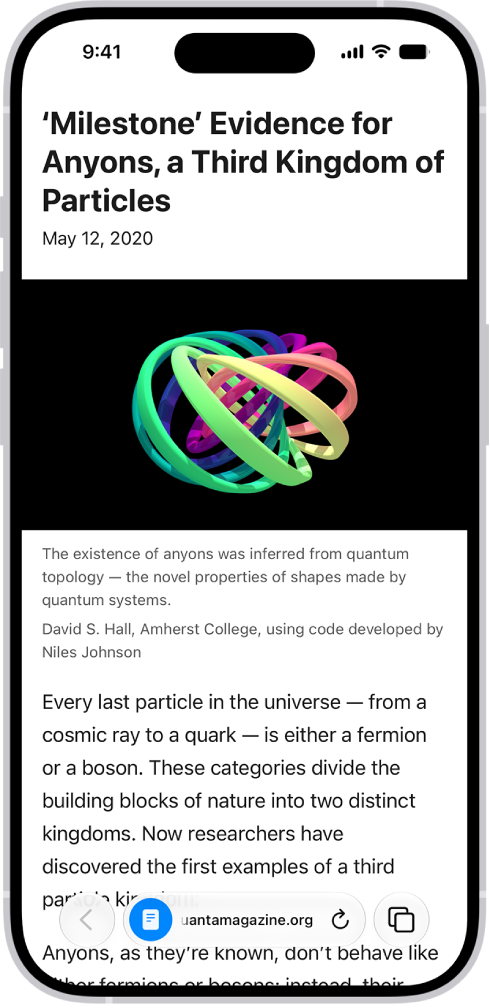
A website is open in Safari, with the address field showing that Reader is available for the website.

Show Reader

In Reader, a webpage is formatted to show just the relevant text and images.

  1. Open the Safari app on your iPhone.
  2. On a supported website, tap the Page Menu button. Then tap Show Reader.

To return to the full page, tap the Selected Page Menu button, then tap Hide Reader.

Automatically use Reader for a website

  1. Open the Safari app on your iPhone.
  2. On a supported website, tap the Page Menu button. Then tap Website Settings.
  3. Turn on Use Reader Automatically.
  4. Tap the Done button.

To automatically use Reader for all websites that support it, go to Settings > Apps > Safari > Reader, then turn on All Websites.

Tag: Safari