Got a tip for us?

On supported models, the Find My app can share your location via satellite when you’re outside cellular and Wi-Fi coverage. Most Find My features need a cellular or Wi-Fi network, though, so there’s some preparation before you leave coverage, and it requires an active SIM.

Note: Sharing your location via satellite isn’t available in all countries or regions and requires an active SIM.

Before you disconnect from cellular and Wi-Fi coverage

Without a cellular or Wi-Fi network, most Find My features aren’t available. If you want to send your location via satellite to friends, do the following before you head outside cellular or Wi-Fi coverage:

  • Set the iPhone you’re bringing with you as the iPhone that shares your location. On your iPhone 14 or later open the Find My app, tap Me , then make sure Share My Location is turned on. If your iPhone isn’t currently sharing your location, tap Use This iPhone as My Location.
  • Add the contacts you want to share your location with.

Send your location via satellite

If you’re not connected to a cellular or Wi-Fi network, you can still use the Find My app to share your location via satellite. To share your location with a friend via satellite, though, you’ll need to be sharing your location with that friend in Find My first.

  1. Start the Find My app on your iPhone.
  2. Make sure that you’re outside with a clear view of the sky and the horizon. If you’re under heavy foliage or surrounded by other obstructions, you might not be able to connect to a satellite.
  3. Tap Me.
  4. Tap Send My Location (below My Location via Satellite) and then follow the onscreen instructions.

Your iPhone provides guidance if connecting to a satellite means turning left or right. Just follow the onscreen instructions.

Note: Expect it to take a few minutes to send your location via satellite, and keep following the onscreen instructions until the message is sent.

There’s a limit, though: you can send your location once every 15 minutes. And when you send your location via satellite, you won’t see your friend’s location in the Find My app.

See a friend’s location sent via satellite

To see a friend’s location sent via satellite, your iPhone needs iOS 16.1 or later installed. An iPhone 14 or later isn’t required. A satellite icon appears next to a contact’s picture when they send you their location via satellite, and Satellite Location shows up in the text in the Find My app. For up to 7 days, you can view their most recent location.

Tag: Find My

Use albums in the Photos app to view and organize your photos and videos. You can also rename, rearrange, and delete albums and create folders to contain multiple albums.

If you use iCloud Photos, albums are stored in iCloud. They’re up to date and accessible on devices where you’re signed in to the same Apple Account. You can also sort and filter your albums, or put them in a custom order.

Create a new album

  1. Start the Photos app on your iPhone.
  2. Tap Collections.
  3. Tap Albums, then tap the Add button.
  4. Tap New Album and then name the album, add photos, and choose a key photo to represent the album.
  5. Tap Create.

Sort and filter albums

  1. Start the Photos app on your iPhone.
  2. Tap Collections.
  3. Tap Albums and tap the More button. Choose a sort option.

    If you choose Sort by Custom Order, touch and hold an album, then drag it to a new position.

  4. To show only albums or only folders, tap Filter and tap Albums or Folders.

To change the format of the albums list, tap the More button, then tap List View or Album Cover.

Update an album

  1. Start the Photos app on your iPhone.
  2. Tap Collections and tap Albums.
  3. Tap the album to open it, then tap the More button.
  4. Tap the current title and then do any of the following:
    • Change the name: Enter a new name in the text field.
    • Change the key photo: Tap the photo icon in the bottom-right corner of the current key photo. Then select a new photo in the photo grid.
    • Add or remove photos: Tap Add Photos and then tap the photos you want to add (tap All to see your entire library), or deselect photos to remove them from the album. Tap the Done button to save your changes.
  5. Tap the Done button to close the album.

Share photos from an album

  1. Start the Photos app on your iPhone.
  2. Tap Collections and tap Albums.
  3. Tap the album to open it and tap Select.
  4. Tap the items you want to share, or tap Select All to share everything in the album.
  5. Tap the Share button and then choose a sharing option such as AirDrop, Messages, or Mail.

Create a shared album from a personal album

Want to share an existing album with friends and family? You can copy all of its photos and videos into a new shared album.

  1. Start the Photos app on your iPhone.
  2. Tap Collections and tap Albums.
  3. Tap the album to open it, then tap the More button.
  4. Tap Create Shared Album, then tap the Done button.

Delete an album

  1. Start the Photos app on your iPhone.
  2. Tap Collections and tap Albums.
  3. Touch and hold the album you want to delete.
  4. Tap Delete Album.

Note: You can delete an album without losing the photos and videos within it. They stay in your photo library and in any other albums they were added to.

Organize albums in folders

Folders help you organize your albums, and once you create one, it appears in the Albums collection.

  1. Start the Photos app on your iPhone.
  2. Tap Collections and tap Albums.
  3. Tap the Add button, then tap New Folder.
  4. Name the folder in the text field, tap Add Albums, select the albums you want to add and tap the Done button.
  5. Tap the Done button to save and close the folder.

To remove an album from a folder, tap the folder to open it, touch and hold an album, then tap Remove from Folder.

Tag: Photos

You can create a custom workout on your iPhone to support your fitness goals. Add warmup and cooldown times; add work and recovery intervals; set time, calorie, and distance goals; set a pace; and more.

Each one starts from a workout type in the Fitness app, and you can include a warmup, repeating work and recovery intervals, and a cooldown. You’ll need an Apple Watch paired to your iPhone, too.

Here’s how to customize a workout in Fitness on iPhone.

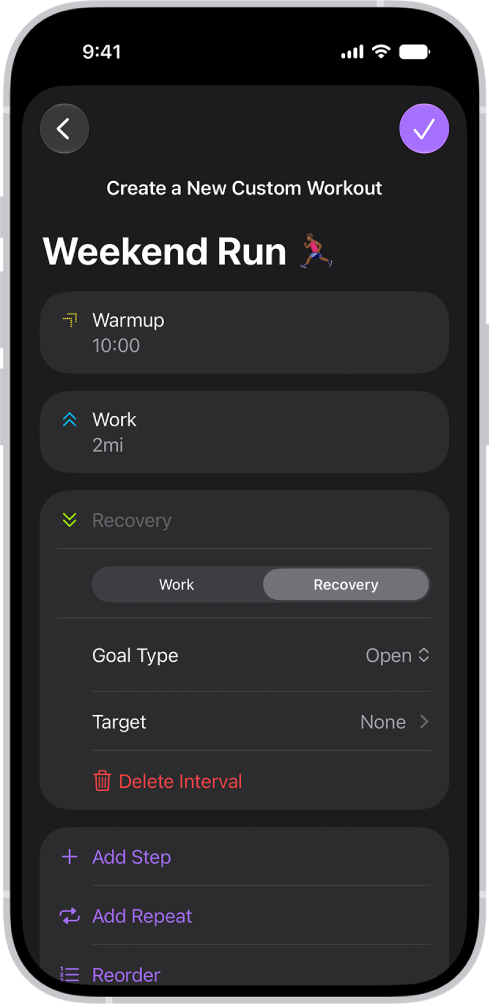
The Fitness Custom Workout screen showing warmup, work, and recovery intervals. At the bottom of the screen are buttons to add a step, repeat an interval, and reorder intervals.

Note: To use custom workouts, you need an Apple Watch with watchOS 26 or later that is paired to your iPhone. Any you create on your iPhone sync to your Apple Watch automatically.

Create a custom workout

You can tailor your workouts with a warmup period and a time to cool down, plus repeating work and recovery intervals.

  1. Open the Fitness app on your iPhone.
  2. Tap Workout, scroll to a workout type, and tap the Goals button.
  3. Tap Custom, then tap the Add button.
  4. Do any of the following:

    • Add a warmup or cooldown period: Tap Warmup or Cooldown and tap Goal Type. Tap Time, Distance, or Open.

      Note: If you want to skip a warmup or cooldown interval, tap Warmup or Cooldown, then tap Skip.

    • Add work and recovery intervals: Tap Add Step and tap Work or Recovery. Next to Goal Type, choose Time, Distance, or Open.

      Tip: You can also tap Add Repeat to repeat a work or recovery interval as many times as you want in your custom workout.

    • Reorder work and recovery intervals: Tap Reorder, touch and hold an interval, and reposition it. When you’re finished, tap the Done button.
    • Delete a work or recovery interval: Tap an interval, then tap Delete Interval.
    • Name the custom workout: Tap New Custom Workout, then enter a name.

      Note: Tap Target to add a goal to an interval. You can also name each interval of the workout.

  5. When you’re finished, tap the Done button.

Add a workout goal

For each workout type, you can set time, distance, and calorie goals.

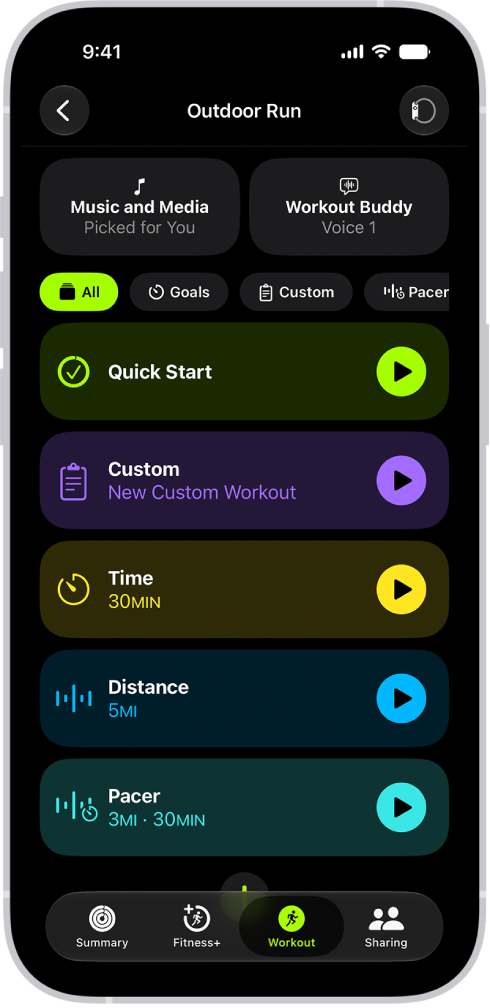
The Fitness Workout screen showing details for an Outdoor Run workout. Below Outdoor Run are options to choose media and set up Workout Buddy. In the center, from top to bottom, are options to start a workout, a custom workout, a pacer workout, and workouts with distance and calorie goals.

  1. Open the Fitness app on your iPhone.
  2. Tap Workout, scroll to a workout type, and tap the Goals button.
  3. Tap Goals, then tap the Add button.
  4. Do any of the following:
    • Set a calorie goal: Tap Calories, tap the number, and then choose an option.
    • Set a distance goal: Tap Distance, tap the number and unit of measure, and then choose an option.
    • Set a time goal: Tap Time and tap the time. Then choose an option.
  5. When you’re finished, tap the Done button. To immediately start your workout after setting a goal, tap Start Workout.

Create a Pacer workout

For a running or outdoor cycle workout, you can choose a target pace. Your iPhone and Apple Watch then show if you’re ahead of or behind it.

  1. Open the Fitness app on your iPhone.
  2. Tap Workout, scroll to Outdoor Run, Indoor Run, or Outdoor Cycle, and tap the Goals button.
  3. Tap Pacer and then tap the Add button.
  4. Do the following:
    • Set a distance goal: Tap the number and unit of measure next to Distance. Then choose an option.
    • Set a time goal: Tap the time, then choose an option.
  5. When you’re finished, tap the Done button. To immediately start your workout after setting your pace, tap Start Workout.

Your iPhone and Apple Watch show your average and current pace during your workout, along with a graph showing whether you’re ahead of or behind your chosen pace.

Use Race Route to race against your last or best time

If you run or cycle a route often, you can race against your last or best time. Once you’ve traveled the same route at least twice with little to no deviation, it’s automatically generated and available to you.

  1. Open the Fitness app on your iPhone.
  2. Tap Workout and scroll to Outdoor Run or Outdoor Cycle. Tap the Goals button.
  3. Swipe left below Music and Media, tap Race Route, and tap Personal Best or Most Recent.
  4. Tap Start Workout.

Share or delete custom workouts and goals

  1. Open the Fitness app on your iPhone.
  2. Tap Workout, scroll to a workout type, and tap the Goals button.
  3. Tap a workout goal, custom workout, or Pacer workout and tap the More button.
  4. Do one of the following:
    • Share an option: Tap Share Workout and choose a sharing option.
    • Delete an option: Tap Delete Workout.
Tag: Fitness

You can use the Home app to set up HomePod and control many HomePod settings.

You can send and receive Intercom messages, and choose when you can receive them and who is allowed to send them. use HomePod and HomeKit Secure Video to announce guests, and add and edit HomePod alarms and timers. You can also change HomePod settings right from Home.

Here’s how to set up HomePod in Home on iPhone.

Note: HomePod is not available in all countries or regions.

Use Home to send and receive Intercom messages

  1. Open the Home app on your iPhone.
  2. On the Home tab, tap the More button and then tap Home Settings.
  3. Tap Intercom, then configure these settings:
    • When you can receive Intercom messages
    • Who is allowed to send or receive Intercom messages
    • Which HomePod speakers can use Intercom

Note: Any member of the Home can choose when they receive Intercom messages. Only a home owner or admin can choose who can send or receive Intercom messages and which HomePod speakers can use Intercom.

  1. Tap Back, then tap Done.
  2. Tap the Intercom button, say something like “Who ate the last cookie?” then tap Done.

Intercom messages reach all the HomePod speakers in your home, as well as the iOS, iPadOS, and watchOS devices of home members who can send and receive Intercom messages.

Use HomePod and HomeKit Secure Video to announce guests

When someone you know is at the door, HomePod can notify you with a HomeKit Secure Video camera or doorbell, and it can send you a message if the person isn’t recognized.

Note: To start announcing guests, first turn on Face Recognition.

  1. Open the Home app on your iPhone.
  2. On the Home tab, tap the More button and then tap Home Settings.
  3. Tap Cameras & Doorbells and then tap your camera or doorbell.
  4. Tap Doorbell Chime and then choose which HomePod speaker or speakers to enable.

Use Home to add and edit HomePod alarms and timers

  1. Open the Home app on your iPhone.
  2. Tap the right side of a HomePod tile, swipe up, and do any of the following:
    • Add an alarm: Tap New Alarm, create the alarm, then tap Done.
    • Edit an alarm: Tap the alarm, change the time, then tap Done.
    • Turn alarms on or off: Tap the switch next to an alarm.
    • Delete an alarm: Tap the alarm and tap Delete Alarm.
    • Create a new timer: Tap New Timer, enter a timer label (optional) and choose the length of the timer. Tap Start.
    • Pause and restart a timer: Tap the Pause button; tap the Play button to restart the timer.
    • Remove a timer: Tap the Delete button.

Change HomePod settings

Two HomePod speakers of the same kind in the same room can become a stereo pair, and you can also assign HomePod to a different room, add an automation, and more.

  1. Open the Home app on your iPhone.
  2. Tap the right side of a HomePod tile.
  3. Tap the Settings button and then configure HomePod settings.

Use HomePod to listen for alarm sounds

If an alarm sound is detected in your home, HomePod can let you know.

  1. Open the Home app on your iPhone.
  2. Tap the right side of a HomePod tile.
  3. Tap the Settings button, then tap Sound Recognition.
  4. Turn on Smoke & CO Alarm, then choose which HomePods will listen for alarms.

Your HomePod listens for certain sounds and notifies you when alarm sounds may be recognized.

Important: Sound Recognition may detect smoke and carbon monoxide alarm sounds and send you notifications when recognized. Sound Recognition should not be relied upon in circumstances where you may be harmed or injured, or in high-risk or emergency situations.

Add a Siri-enabled accessory

By enabling Siri on compatible Apple Home accessories, you can extend access to HomePod throughout your home. With Siri on, you can play your favorite music and podcasts, get help with everyday questions or tasks, and control those accessories with your voice.

Tag: Home

Use tabs to help you navigate between multiple open webpages.

You can open a link in a new tab, view a tab’s history to see which webpages you previously visited in it, close tabs, and even open a recently closed tab. And to stay on the current webpage when you open new links, you can have them open in a separate tab in the background, right in Safari on iPhone.

Open a link in a new tab

  1. Open the Safari app on your iPhone.
  2. Touch and hold the link. Then tap Open in New Tab.

To stay on the current webpage when you open new links in a separate tab, go to the Settings app , tap Apps, then tap Safari. Tap Open Links, then tap In Background.

View a tab’s history

In this tab, you can see which webpages you’ve previously visited.

  1. Open the Safari app on your iPhone.
  2. Touch and hold the Back button or the Forward button.

Close tabs

  1. Open the Safari app on your iPhone.
  2. Tap the Tabs button. Then tap the Close button in the upper-right corner of a tab to close it.

Quick tip: You can close every tab in this Tab Group at the same time. Just touch and hold the Done button and tap Close All [number of] Tabs.

Open a recently closed tab

  1. Open the Safari app on your iPhone.
  2. Tap the Tabs button.
  3. Touch and hold the New Tab button. Choose from the list of recently closed tabs.

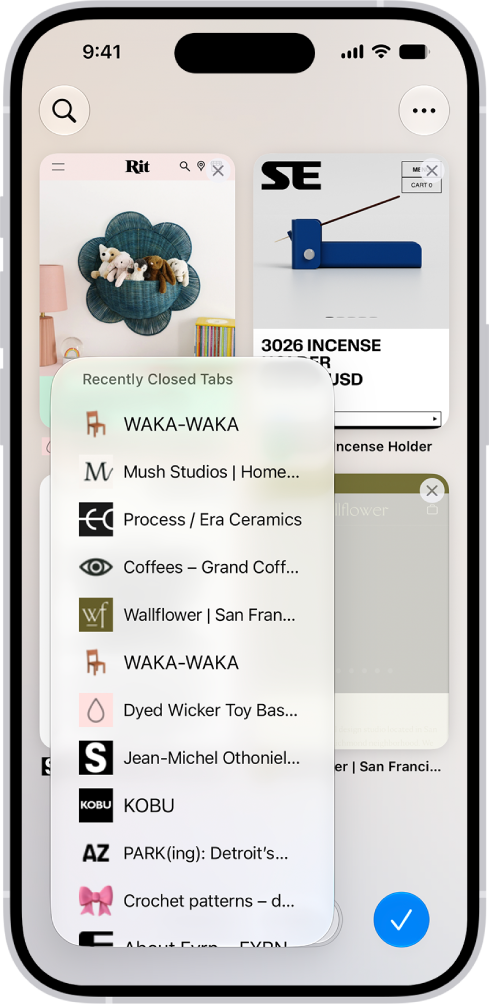
    Previews of open tabs are visible on the screen. At the bottom left of the screen, the New Tab button is selected, revealing a list of recently closed tabs.

Tag: Safari

You can download fonts from the App Store app and use them in documents you create on iPhone. It works through apps, so you get an app containing fonts from the App Store, it installs the fonts for you, and you can manage fonts later in the Settings app on your iPhone.

Install fonts

  1. Start the App Store app on your iPhone.
  2. Get an app containing fonts.
  3. Open the app to install the fonts.

Manage fonts

  1. Start the Settings app on your iPhone.
  2. Tap General, then tap Fonts.
Tag: iPhone

The electricity powering your home comes from different sources, which can include renewable energy, like solar and wind, or fossil fuels, like coal and natural gas. And those sources can change throughout the day.

In the Home app on your iPhone, you can see a forecast for your area that highlights cleaner times, which can help reduce carbon emissions, and less clean times, to help you choose when to use electricity. You can even receive Grid Forecast notifications. To see it, you need an internet connection and Location Services on for the Home app.

To view the Grid Forecast, you must be connected to the internet, and Location Services must be turned on for the Home app.

Note: Grid Forecast is available only in the contiguous United States; it’s not available in Alaska or Hawaii.

Show Grid Forecast

  1. Open the Home app on your iPhone.
  2. Tap Home.
  3. Tap the Energy category at the top of the screen to show the Grid Forecast widget.

The widget’s green bars show when cleaner energy is available in your area, such as from 4 p.m. until 10 p.m. No bars? Then cleaner energy isn’t forecast for the near future.

When you’re traveling, Grid Forecast shows energy information for your home location and for wherever your iPhone is.

Note: The Grid Forecast widget appears when you open the Home app if you haven’t added accessories to your home yet.

Receive Grid Forecast notifications

To receive notifications when the electricity powering your home is being generated by cleaner or more renewable sources of energy, tap the Notifications button in the Grid Forecast widget in the Home app, then tap Notify Me.

Turn off Grid Forecast

  1. Open the Home app on your iPhone.
  2. On the Home tab, tap the More button and then tap Home Settings.
  3. Tap Energy, then turn off Show Grid Forecast.
Tag: Home

Play music you added or downloaded from Apple Music, music and videos you synced to iPhone, and your iTunes Store purchases.

You can play songs from your library, stream recommended songs, or play music from the Lock Screen or when you’re using another app. You can even play music shared on a nearby computer, and sort your music the way you like. Siri can play music for you, too.

Here’s how to play music on iPhone.

Siri: You can use Siri to search for and play music, add music to your library, and more. For example, ask Siri something like, “Play something I like.”

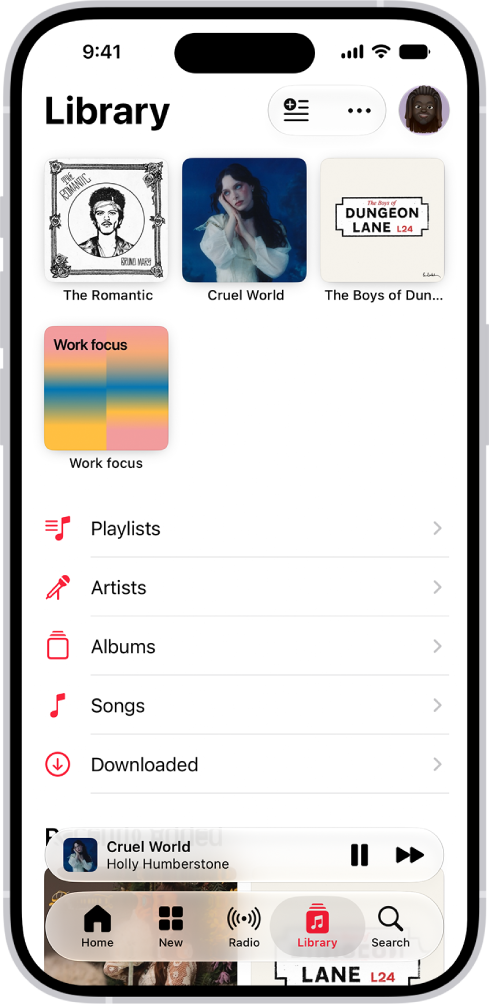
The Library tab showing a list of categories including Playlists, Artists, Albums, Songs, and Downloaded. The Recently Added heading appears below the list. The MiniPlayer showing the title of the current song and the Pause and Next buttons appear near the bottom.

Play songs from your library

  1. Start the Music app on your iPhone.
  2. Tap Library and tap a category, such as Albums or Songs; tap Downloaded to view only music stored on iPhone.

    Tip: To play songs across an artist’s catalog—mixing hits and deep cuts—go to an artist page, then tap the Play button next to the artist’s name.

  3. Scroll to browse—or type in the search field to filter your results—to find what you want to play.
  4. Tap an item, then tap Play, or tap Shuffle to shuffle an album or playlist.

    You can also touch and hold a playlist or album, then tap Play.

To change the list of Library categories, tap the More button, tap Edit Sections, then select categories you’d like to add, such as Genres and Compilations. Tap any existing categories to remove them.

Stream recommended songs

  1. Start the Music app on your iPhone.
  2. Do any of the following to find music you want to play:

  3. Tap an item, then tap Play, or tap Shuffle to shuffle an album or playlist.

    You can also touch and hold a playlist or album, then tap Play.

Play music from the Lock Screen or when using another app

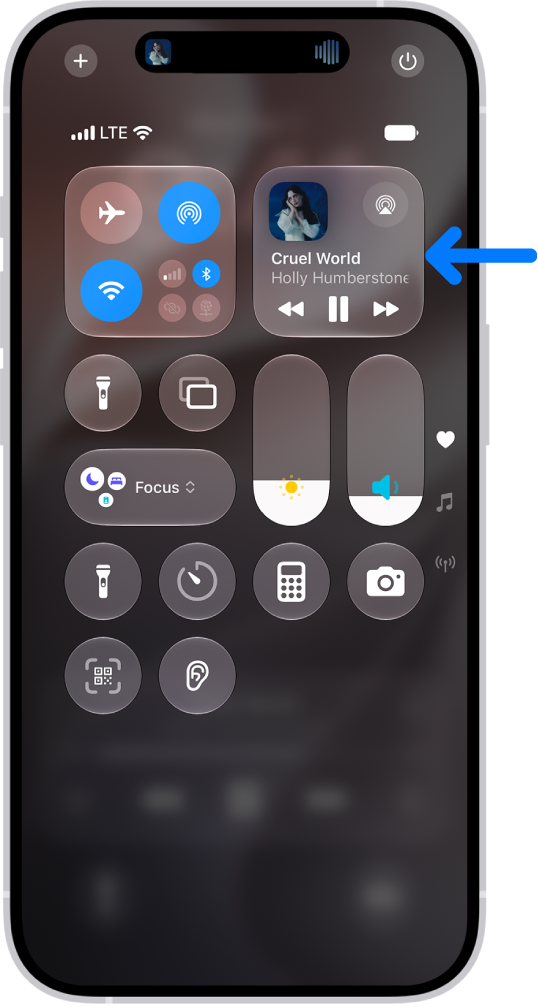
Open Control Center, then tap the audio card.

Quick tip: Add the Music Recognition control to Control Center, and you can identify a song playing on or near your iPhone. To add it, open Control Center and tap the Add button at the top left. Then tap Add a Control at the bottom and tap the Recognize Music control. Whenever a song is playing, open Control Center and tap the Recognize Music button.

The iPhone Control Center showing an arrow pointing to the audio card where you can control music from the Lock Screen or when using another app.

Play music shared on a nearby computer

Is a computer on your network sharing music through Home Sharing? You can stream it to your iPhone.

  1. Start the Settings app on your iPhone.
  2. Tap Apps and tap Music.
  3. Tap Sign In below Home Sharing. Then sign in to your Apple Account.
  4. Go to the Music app, tap Library, tap Home Sharing, and then choose a shared library.

Set content restrictions

In Music, you can restrict access to music profiles, music videos, and explicit content, and set restrictions for your child, too.

Sort your music

  1. Start the Music app on your iPhone.
  2. Tap Library. Then tap Playlists, Albums, Songs, TV & Movies, or Music Videos.
  3. Tap the More button and then choose a sorting method, such as Title, Artist, Date Added, or Release Date.

Shuffle and repeat songs, queue them up in a specific order, or transition between them with Crossfade or AutoMix.

When you purchase access to movies, TV shows, music, music videos, ebooks, audiobooks, or ringtones from Apple, you also have the option to permanently download these items to a compatible iPhone, iPad, Mac, or PC. Apple cannot revoke your downloaded content, and you can always access your downloaded content without an internet connection.

Tag: Music

Siri is an intelligent assistant that’s built into your iPhone. Once Siri is turned on, you can start using Siri to find the information you need and get things done—hands free. The more you use Siri, the better it knows what you need.

Siri AI (Beta) gives Siri entirely new capabilities, like personal context understanding, onscreen awareness, and broad world knowledge, so it’s easier to get more done and find what you need, when you need it. And you can get started with Siri AI anytime.

Use Siri to call, text, and email

Siri: On your iPhone, activate Siri, then see the ideas below for requests you can make.

  • Make and receive Phone and FaceTime calls

    • “FaceTime mom.”
    • “Call Ashley Rico.”
    • “Siri, hang up.”
  • Read and write text messages and emails

    • “Read my messages” or “Read me my emails.”
    • “Message Mom that I’ll be late” or “Send an email to Ashley.”

Quick tip: When you’re wearing supported AirPods, a nod or shake of your head responds to Siri announcements, like incoming calls and notifications, so you don’t have to speak out loud.

Play music and podcasts with Siri

Siri can play anything from the Apple Music catalog if you subscribe to Apple Music. It can also play your favorite podcast, follow shows, and control playback.

Siri: On your iPhone, activate Siri, then see the ideas below for requests you can make.

  • Play music

    • “Play ‘Choosin’ Texas’ by Ella Langley.”
    • “Play some ’80s music.”
    • “Play some mellow music.”
  • Tell Siri what you like and don’t like

    • “Favorite this song.”
    • “I don’t like this song.”
    • “Play more music like this.”
  • Find out what’s playing

    • “What’s playing?”
    • “Who sings this song?”
    • “What album is this on?”
  • Add music to your library or playlist

    • “Add this to my library.”
    • “Add this song to my Workout playlist.”
    • “Add this album to my Sunday Morning playlist.”
  • Play and follow podcasts

    • “Play the latest episode of ‘The Rest is History’ podcast.”
    • “Play the next episode.”
    • “Follow ‘The Rest is History’ podcast.”
  • Control playback

    • “Skip ahead three minutes.”
    • “Play this twice as fast.”
    • “Pause music” or “Resume music.”

Quick tip: Control Center can identify a song playing on or near your iPhone, too. First add the Music Recognition control to Control Center. Then, whenever a song is playing, open Control Center and tap the Recognize Music button.

Use Siri to get directions

When Location Services is on, Siri can also give you directions or information about places nearby.

Siri: On your iPhone, activate Siri, then see the ideas below for requests you can make.

  • Get directions

    • “Give me walking directions home.”
    • “Give me transit directions to the Ferry Building.”
  • Find places nearby

    • “Find coffee near me.”
    • “Find a gas station” or “Find a charging station.

Quick tip: Using Siri or searching in Maps? Just ask for directions to your home, work, or school address.

Use Siri to find information

Want to know who won last night’s game, or how to spell or translate a word? Use Siri to find information and get quick answers like that.

Siri: On your iPhone, activate Siri, then see the ideas below for requests you can make.

  • Get information from the web

    • “What causes a rainbow?”
    • “Who made the first rocket that went to space?”
  • Spell or translate

    • “How do you spell [X]?”
    • “How do you say ‘Thank You’ in Mandarin?”
  • Ask questions about time and place

    • “What time is it?”
    • “What time is it in London?”
  • Check the weather

    • “Hey Siri, what’s the weather for today?”
    • “What’s the weather like in San Francisco?”
  • Get sports updates

    • “What was the score of last night’s game?”
    • “How are the San Francisco Giants doing this season?”
  • Get calculations and conversions

    • “What’s 18 percent of 225?”
    • “How many centimeters are in an inch?”
  • Get information about your contacts

    • “When is my uncle’s birthday?”
    • “Show me Jane’s information.”
  • Get information about your Apple products

    • “Tell me how to connect my AirPods to iPhone.”
    • “How do I take a screenshot?”

Note: Available on supported iPhone models with Apple Intelligence. Apple Intelligence on iOS 27 is not available in all languages or regions.*

Use Siri to get things done

Hands free, Siri can quickly get things done and take action within your apps.

Siri: On your iPhone, activate Siri, then see the ideas below for requests you can make.

  • Add a reminder

    • “Add artichokes to my groceries list.”
    • “Remind me to pack an umbrella when I get home.”
  • Set an alarm or timer

    • “Set an alarm for 7 a.m.”
    • “Set the timer for 3 minutes.”
  • Create or change calendar events

    • “Set up a meeting with Gordon at 9.”
    • “What’s on my calendar for Friday?”
  • Adjust Accessibility settings on iPhone

    • “Speak screen.”
    • “Turn on [setting]”—for example Voice Control, VoiceOver, Assistive Touch, or Guided Access
  • Open apps and settings on iPhone

    • “Open Camera.”
    • “Open Accessibility settings.”
    • “Open Calculator.”
  • Adjust iPhone settings

    • “Siri, turn on the flashlight.”
    • “Turn up the volume.”
    • “Turn on the Work Focus.”

Use Siri to control your smart home accessories

Siri can control smart home accessories, too. To get started, look for accessories that work with Apple Home.

Siri: On your iPhone, activate Siri, then see the ideas below for requests you can make.

  • Turn smart home accessories on and off

    • “Turn on the lights.”
    • “Turn on the security system.”
  • Adjust a smart home accessory

    • “Set the temperature to 68 degrees.”
    • “Turn down the kitchen lights.”
    • “Set my reading scene.”
  • Control your smart home accessories remotely

    • If you have a home hub set up, you can ask Siri to control your home while you’re away.
    • “Turn off the lights in the Chicago house.”
    • “Lock the front door.”
    • “Close the garage.”
  • Play and control audio in your home

    • “Play a song I like in the kitchen.”
    • “Stop playing music everywhere.”
    • “Set the dining room volume to 10 percent.”

Siri is designed to protect your information, and you can choose what you share.

*Apple Intelligence is available with Siri and device language set to Chinese (Simplified), Chinese (Traditional), Danish, Dutch, English, French, German, Italian, Japanese, Korean, Norwegian, Portuguese, Spanish, Swedish, Turkish, or Vietnamese. Some features may not be available in all regions or languages. Some devices may not be available in all regions. Siri AI is available in beta in iOS 27, iPadOS 27, macOS 27, watchOS 27, and visionOS 27 and requires an Apple Intelligence–enabled device set to a supported language. Available in English to start. Siri AI will not be initially available in the EU on iOS, iPadOS, and watchOS. Certain Apple Intelligence features that rely on server-side models are subject to daily usage limits, including but not limited to Siri AI, Intelligent Photo Editing Tools, Image Playground, and AFM 3 Cloud models in Shortcuts. Daily limits may vary by feature, request complexity, system demand, system policies, and other factors. Expanded access to such features will be available for a fee in the future. Use of these features is subject to the Apple Intelligence Terms and Conditions.


Tag: Siri

You can change your Mail notification settings and choose which mailboxes and email threads to receive notifications from.

Busy email threads can be muted, and for the threads that matter, you can receive notifications about replies to an email or thread. You also get to specify what’s done with email messages you muted, and you can change your Mail notification settings whenever you like.

Here’s how to set email notifications on iPhone.

Mute email notifications

Muting notifications from messages in a conversation reduces interruptions from busy email threads.

  1. Open the Mail app on your iPhone.

    Open a message in the conversation.

  2. Tap the Reply button, then tap Mute.
  3. To specify what you want done with email messages you muted, open Settings, tap Apps, tap Mail, tap Muted Thread Action, and then select an option.

Receive notifications about replies to an email or thread

Mail notifications can let you know when email messages arrive in favorite mailboxes or from your VIPs.

  1. Open the Mail app on your iPhone.

    Do any of the following: When reading a message: Tap the Reply button, then tap Notify Me.

    When writing a message: Tap the Subject field, tap the Notify Me button in the Subject field, then tap Notify Me.

  2. To change how notifications appear, open Settings, tap Apps, tap Mail, and then tap Notifications.

Change your Mail notification settings

  1. Open the Settings app on your iPhone.
  2. Tap Apps and then tap Mail.
  3. Tap Notifications and then make sure that Allow Notifications is on.
  4. Tap Customize Notifications. Tap the email account you want to make changes to.
  5. Select the settings you want, like Alerts or Badges.

    When you turn on Alerts, you have the option to customize your sounds by changing the alert tone or ringtone.

    You can set times when you want to allow notifications from the Mail app.

Tag: Mail