Got a tip for us?

In the Notes app, you can add photos, videos, and information from other apps, such as maps, links, and documents.

That could be a location from Maps, a webpage from Safari, or a PDF from Files. You can change the preview size of attachments, and even draw on a photo. Photos and videos you take in Notes can be saved to the Photos app, too.

Here’s how to add photos, video, and more to notes on iPhone.

Add a photo or video

  1. Open the Notes app on your iPhone.
  2. In a note, tap the Attachments button and choose an option. Tip: To draw on a photo, tap the photo, then tap the Handwriting Tools button. To save photos and videos taken in Notes to the Photos app, go to Settings > Apps > Notes, then turn on Save to Photos.

Add info from another app to a note

Information from another app can go into a note as an attachment, such as a screenshot, a PDF in Files, a webpage in Safari, or a location in Maps.

  1. In the app you’re using, open the item you want to share (for example, a map or webpage).
  2. Tap Share or the Share button. Then tap Notes or Add to Quick Note.
  3. Save the item to a new note or choose an existing note.

Change the preview size of attachments

  1. Open the Notes app on your iPhone.
  2. In a note, you can change the preview size of the following:
    • A single attachment: Touch and hold the attachment or tap the More button, tap View As, and choose an option.
    • All attachments in a note: Tap the More button, tap Attachment View, and then choose Set All to Small or Set All to Large.

View all attachments in Notes

  1. Open the Notes app on your iPhone.
  2. Above the notes list, tap the Folder Actions button. Then tap View Attachments to see thumbnails of photos, links, documents, and other attachments. (Attachments in locked notes aren’t shown.) To go to a note with a specific attachment, touch and hold attachment thumbnail, and tap Show in Note.
Tag: Photos
On the Apple TV 4K Remote on iPhone, you can use buttons instead of swipe gestures. It’s a single accessibility setting called Directional Buttons, and once it’s on, the Apple TV Remote on your iPhone gives you buttons to use from then on.

Go to Settings > Accessibility > Apple TV Remote, then turn on Directional Buttons.

In the Journal app, you can print and export individual entries or your entire journal.

You can print a single journal entry or multiple entries, choosing all entries or a date range. You can also export a single journal entry or multiple entries as PDF files, and share them with an app such as Notes, Files, or Messages on your iPhone.

Here’s how to print and export entries in Journal on iPhone.

Print a single journal entry

  1. Start the Journal app on your iPhone.
  2. Choose a journal or tap All Entries.
  3. Scroll to the entry you want to print. Tap the More Options button.
  4. Tap Print.

Print multiple journal entries

  1. Start the Journal app on your iPhone.
  2. Choose a journal or tap All Entries.
  3. Tap the More button and tap Print.
  4. Choose All Entries or select a date range and then tap Print.

Export a single journal entry as a PDF file

  1. Start the Journal app on your iPhone.
  2. Choose a journal or tap All Entries.
  3. Scroll to the entry you want to export. Tap the More Options button.
  4. Tap Print and tap the Share button.

Choose an app such as Notes, Files, or Messages, or tap Save to Files.

Export multiple journal entries as PDF files

  1. Start the Journal app on your iPhone.
  2. Choose a journal or tap All Entries.
  3. Tap the More button.
  4. Tap Export and choose Export.
  5. Choose a location and then tap the Selected button.
Tag: Journal

You can use the FaceTime app to visit face-to-face with friends and family, over Wi-Fi or cellular. In a FaceTime call, you can also watch TV shows and movies, listen to music, and even work out together.

If you sign in to your Apple Account in FaceTime, you can move the call between your devices. And if someone doesn’t answer, you can leave a video message.

Here’s how to get started with FaceTime on iPhone.

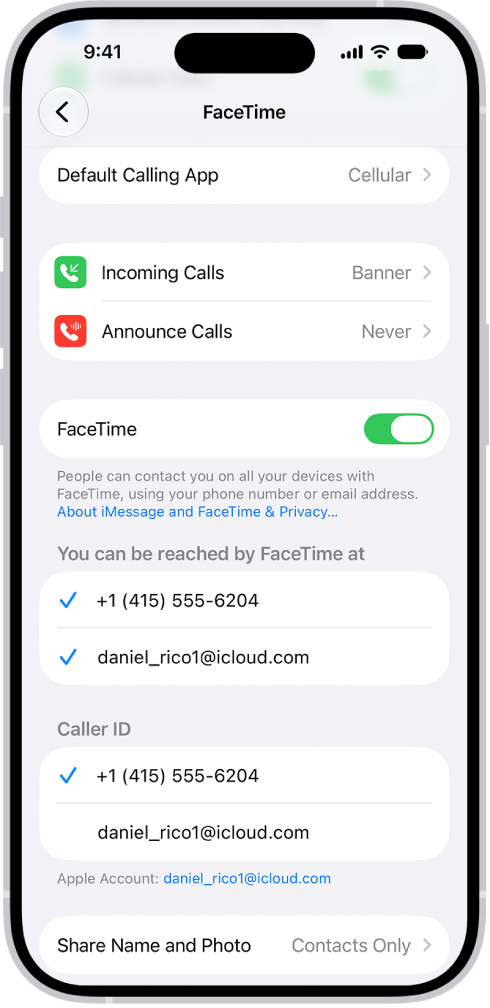
The FaceTime Settings screen, showing the Default Calling App option, the control to turn FaceTime on or off, and the Apple Account that is being used for FaceTime.

Set up FaceTime

Go to the Settings app , tap Apps, then tap FaceTime. Make sure FaceTime is turned on, and sign in to your Apple Account if you want to use it with FaceTime (so you can move the call between your devices, for example). You can choose a default calling option for audio calls below Default Calling App. If more than one contact method appears below “You can be reached by FaceTime at,” tap to select or deselect it.

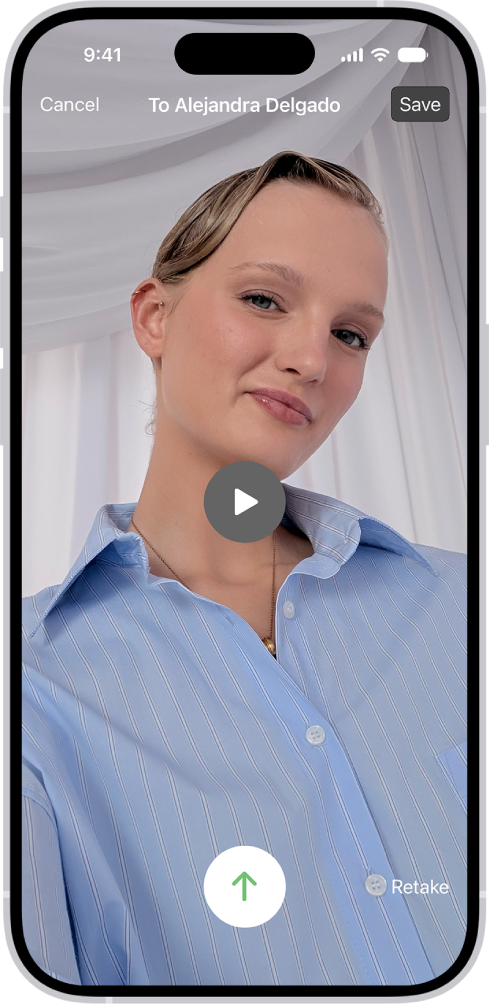
The screen for sending a recorded video message to the person who missed your call. At the top left is the Cancel button. At the top right is the Save button, which saves your video message to Photos. In the middle of the screen is the Play button, which allows you to preview the video message before sending. At the bottom is the Send button and the Retake button.

Leave a video message

If someone doesn’t answer your FaceTime video call, you can leave a video message. Tap Record Video, then record your message. When you’re finished recording, tap the Stop button, then tap the Send button to send the message.

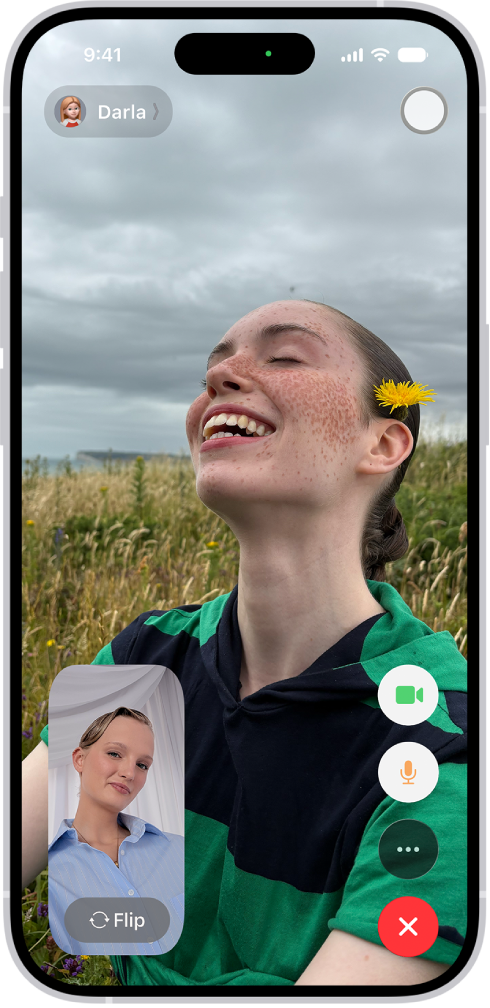
The FaceTime screen showing a call in progress. At the top of the screen is the name of the participant shown in the larger image. The other participant’s image appears in a small rectangle in the lower left, along with the Flip Camera button. The images of the other participants appear in tiles above it. Additional FaceTime controls are at the bottom right of the screen: Camera, Microphone, More, and End Call buttons.

Adjust your camera

While on a FaceTime call, tap your tile to switch cameras or apply Portrait mode. On supported models with iOS 27 or later, you can share both cameras when the other participant has iOS 27, iPadOS 27, macOS 27, or later. If you don’t see the controls, tap your screen.

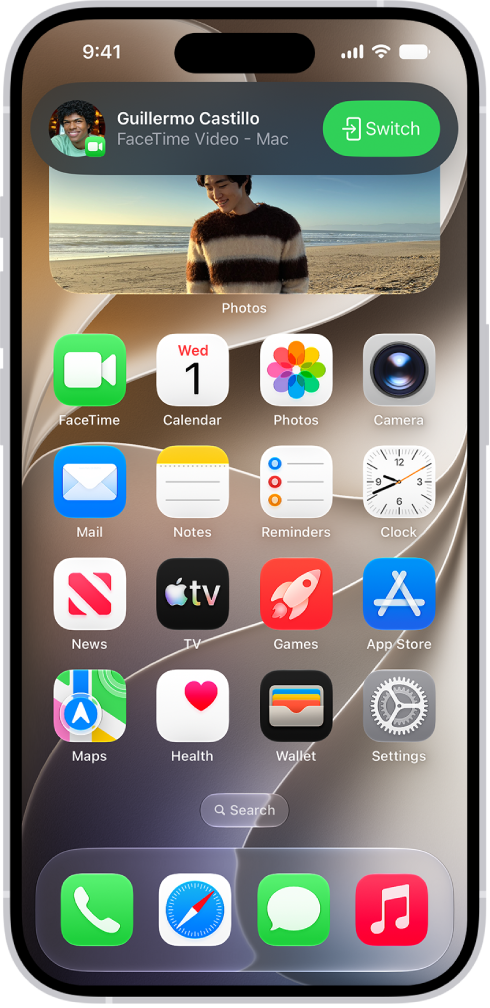
The iPhone Home Screen showing a FaceTime video call notification from an iPad at the top. Tap the Switch button to the right of the notification to move the call to your iPhone

Switch a FaceTime call to another device

When you’re signed in to your Apple Account on multiple devices, you can start a FaceTime call on one of them, then move it to your iPhone. You can also move your call from your iPhone to another device. On the device you want to switch to, tap the FaceTime video call button or the FaceTime audio call button at the top of the screen or the suggestion “Move call to this [device],” then tap Switch.

Note: Not all features and content are available in all countries or regions.

You can set up a shortcut to quickly start Live Recognition when VoiceOver is on. If VoiceOver is off, the shortcut opens the Magnifier app in Detection Mode instead. There’s more than one way to do it: you can use a VoiceOver gesture, assign a different gesture, or use the Accessibility Shortcut.

  • Use a VoiceOver gesture: When VoiceOver is on, triple-tap the screen with four fingers to turn Live Recognition on or off.
  • To assign a different gesture, go to Settings > Accessibility > VoiceOver > Commands > Touch Gestures.
  • Triple-click the side button or Home button: Go to Settings > Accessibility > Accessibility Shortcut, then select Live Recognition.
  • Tap the back of iPhone: Go to Settings > Accessibility > Touch > Back Tap, choose Double Tap or Triple Tap, then choose Live Recognition.
  • Press the Action button: Customize the Action button to start Live Recognition.

Note: The Action button is available on supported iPhone models.

When you have contacts from multiple sources, you might have multiple entries for the same person. In the Contacts app, link contact cards for the same person in different accounts so they appear only once in your All Contacts list.

Linked contact cards are displayed as a single unified contact. Contact cards with the same first and last name can also be merged, one at a time or all at once.

Resolve duplicate contacts

Have two or more contact cards with the same first and last name? Merge the duplicate contacts.

  1. Start the Contacts app on your iPhone.
  2. Below My Card, tap View Duplicates.
  3. Tap individual contacts to review and merge them, or tap Merge All to merge all duplicate contacts.

Link contacts manually

Two entries for the same person that aren’t linked automatically can be unified manually.

  1. Start the Contacts app on your iPhone.
  2. Tap one of the contacts, tap Edit, and then tap Link Contacts.
  3. Choose the other contact entry to link to and tap Link.

When you link contacts with different first or last names, the names on the individual cards don’t change, but only one name appears on the unified card. To choose which name appears on the unified card, tap one of the linked cards, tap the contact’s name on that card, then tap Use This Name For Unified Card.

Note: Linking contacts doesn’t merge them. Any changes or new information you add in a unified contact are copied to each source account where that information already exists.

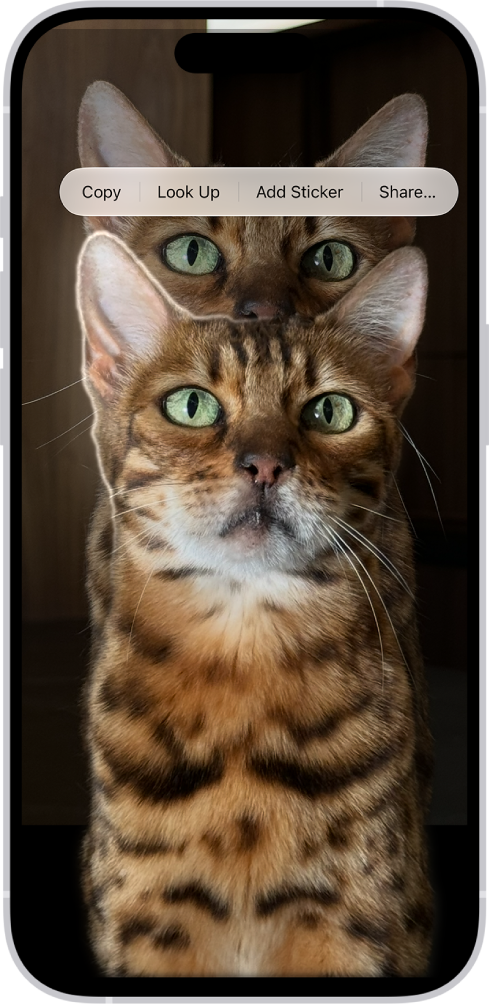
You can isolate the subject of a photo or video frame from its background, then copy or share it in other documents and apps. You can use this feature in Photos, Safari, Quick Look, and more.

Once the subject is lifted, you can paste it into an email, text message, or note, look it up to learn more about it, or add it as a sticker to use in Markup and Messages. You can also share it with AirDrop or Mail.

A photo is open in the Photos app library. The subject in the center of the photo is outlined and the Copy, Add Sticker, and Share buttons appear above it.

  1. Open a photo in full screen, or pause a video on any frame.
  2. Touch and hold the subject. When an outline appears around the subject, do one of the following:
    • Tap Copy or Copy Subject, then paste the subject into an email, text message, or note.
    • Continue to hold, then with another finger, open a document in another app and drag the subject into the document.
    • Tap Look Up to learn more about the subject.
    • Tap Add Sticker, then save the sticker to use in Markup, Messages, and more.
    • Tap Share, then choose a sharing option, such as AirDrop or Mail.
Tag: Photos

You can view traffic conditions and report accidents, hazards, and speed checks (where allowed), and you can report when they’re cleared.

On the map, yellow indicates slowdowns, and red indicates stop-and-go traffic. Apple evaluates incoming incident reports, and when there’s a high level of confidence in the reports, incident markers, such as for hazards and accidents, are displayed or cleared for other Maps users too.

Here’s how to check traffic conditions and report traffic incidents in Maps on iPhone.

Note: Not all features are available in all countries and regions.

Find out about traffic conditions

  1. Open the Maps app on your iPhone.
  2. Tap the Map Modes button at the right of a map, choose Driving or Satellite, and tap the Close button.

    Yellow indicates slowdowns, and red indicates stop-and-go traffic.

  3. To view a report, tap a marker on the map.

    Markers indicate incidents such as:

    • Road closure
    • Accident
    • Traffic
    • Roadwork
    • General alert or other hazard
    • Speed check

Report traffic incidents

Siri: Ask Siri something like, “Report an accident.”

Or without using Siri:

  1. Open the Maps app on your iPhone.
  2. Do one of the following:

    • When following turn-by-turn driving directions: Tap the Incident Reporting button and choose an option.

      You can also tap the route card at the bottom of the screen, then tap Report an Incident.

    • When not following directions: Tap your picture or initials next to the search field and tap Reports.

      Tap Report a New Issue, tap Report an Incident, then choose an option.

If neither your picture nor initials appear, tap Cancel next to the search field, or tap the search field, then tap Cancel.

Report on the status of a hazard or accident

In select countries or regions, you can report on the status of incidents when you’re near them.

Siri: Ask Siri something like, “Clear the accident.”

Or without using Siri:

  1. Open the Maps app on your iPhone.
  2. Tap the incident marker.
  3. Tap Cleared or Still Here.

You can’t clear reports of speed checks.

Tag: Maps

In the Notes app, you can attach, view, edit, and collaborate on PDFs, including documents you scanned into a note. You can also annotate or sketch directly on PDFs and scanned documents in your note.

You can even preview multiple PDFs in the same note, and change the viewing size. You can attach one from an app such as Files or Mail, too.

Here’s how to work with PDFs in Notes on iPhone.

Attach a PDF to a note

To attach a PDF from an app like Files or Mail, do either of the following:

  • Drag the file into a note.
  • Touch and hold the file, tap the Share button, tap Notes, choose a note, then tap Save.

View and edit a PDF in a note

  1. Open the Notes app on your iPhone.
  2. In the note with the PDF, tap the Menu button. Then do any of the following:
    • Change the viewing size: Tap View As and choose Small, Medium, or Large.
    • View in full screen: Tap Quick Look.
    • Copy, share, rename, or delete the PDF: Choose an action.
  3. When using the Medium or Large preview size, you can also do any of the following:
    • Show or hide thumbnails: Tap the Thumbnails button.
    • Zoom in and see more: Pinch the screen or swipe right to see more pages.
    • Edit a page: Tap the thumbnail for the page, tap the More button, and choose an action such as Rotate Left, Rotate Right, Filters, Crop Page, or Insert Blank Page. (Filters and Crop Page are supported only in scanned documents.)

Annotate a PDF in a note

  • Small preview size: Tap the PDF to open it, then tap the Handwriting Tools button.
  • Medium and large preview sizes: Tap the Handwriting Tools button.

Collaborate with others

When you collaborate on a note with other people, updates come through in real time. Mark up a document, draw a diagram, or add a sticker, and the people you share with see the changes on their devices.

Tag: Notes