Got a tip for us?

When you carry your iPhone in a pocket or holster near your waist, the Health app uses custom algorithms that assess your balance, strength, and gait. You can receive a notification if your steadiness becomes low or stays low, and you can automatically share the notification with someone close to you.

It can also help you do something about it. Health can show you exercises to help improve your walking steadiness, and you can view your walking steadiness data any time. It works on iPhone 8 or later.

Receive notifications when your steadiness is low or very low

  1. Start the Health app on your iPhone.
  2. Tap Summary, then tap your picture or initials.
  3. Tap Health Checklist.
  4. Tap Set Up for Walking Steadiness Notifications and then follow the onscreen instructions.

To review your notifications, tap Browse, tap Mobility, scroll down, then tap Walking Steadiness Notifications.

View your walking steadiness data

  1. Start the Health app on your iPhone.
  2. Tap Browse and tap Mobility.
  3. Tap Walking Steadiness (you may need to scroll down).
  4. Tap Show More Walking Steadiness Data.
  5. To learn about the three steadiness levels (OK, Low, and Very Low), tap the Show Information button.

Learn how to improve your walking steadiness

  1. Start the Health app on your iPhone.
  2. Tap Browse and tap Mobility.
  3. Scroll down. Then tap Exercises That May Improve Walking Steadiness.
Tag: Health

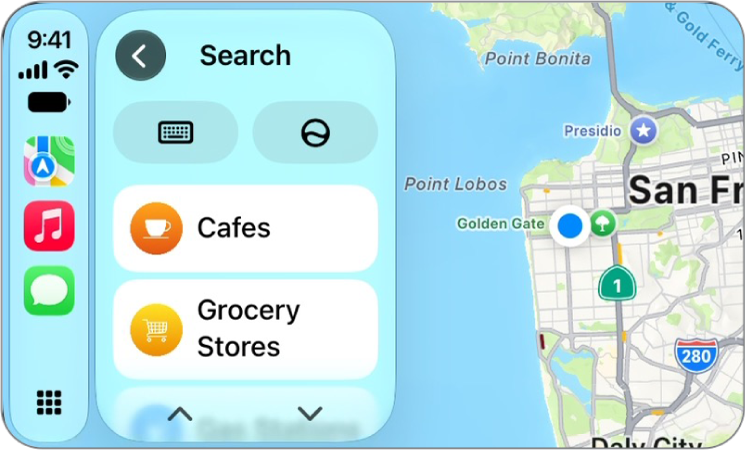
Find your location on a map, zoom in and out, and move the map to see the detail you need. While you’re following turn-by-turn directions, you can switch between a detailed 3D map and a 2D route overview, and when you’re not, you can show your current location.

A CarPlay screen showing a map of San Francisco.

When you follow turn-by-turn directions, you can tap the touchscreen or turn the rotary knob, then do one of the following:

  • Switch between detailed and high-level views: To see a detailed 3D map with your heading at the top of the screen, select the Detail button. To see the route overview in 2D with north at the top of the screen, select the Overview button.
  • Zoom in or out: Select the Zoom In button or the Zoom Out button.
  • Scroll the map: Select the Scroll button, then select a direction arrow on one of the edges of the screen. To return to turn-by-turn directions, tap Resume.

On some touchscreens, you can also drag the map to scroll it.

You can also change the map view when not following directions. Tap the touchscreen or turn the rotary knob, then do one of the following:

  • Show your current location: Tap the Tracking Off button. Your position is marked in the middle of the map.
  • View a 3D map: Tap 3D. To return to a 2D map, tap 2D.
  • Show your heading at the top of the screen: Tap the Tracking On button. To resume showing north at the top, tap the Tracking On Heading button.
  • Zoom in or out: Select the Zoom In button or the Zoom Out button.
  • Scroll the map: Select the Scroll button, then select a direction arrow at the edges of the screen. When finished, tap Done.
  • Switch between detailed and high-level views: To see a detailed 3D map with your heading at the top of the screen, select the Detail button. To see the route overview in 2D with north at the top of the screen, select the Overview button.
Tag: carplay

As soon as you subscribe to Apple Music, you can add and download songs and videos from Apple Music to your music library. You can stream music you add to iPhone when you have an internet connection. To play music when you’re not connected to the internet, you need to download it first.

Before you can download anything, Sync Library needs to be turned on. Once it is, music you add is also added to your other devices signed in to the same Apple Account.

Here’s how to add music to iPhone and listen offline.

Siri: Ask Siri something like, “Add this to my library” while playing something.

Add music from Apple Music to your library

  1. Open the Music app on your iPhone.
  2. Do any of the following:
    • Touch and hold a song, album, playlist, or video, then tap Add.
    • While viewing the contents of an album or playlist, tap the Add to Library button to add the album or playlist, or tap the More button next to a song, then tap Add to add that song.
    • On the Now Playing screen, tap the More button, then tap Add.

Music you add to iPhone is also added to other devices if you’re signed in to the same Apple Account and have Sync Library turned on (go to Settings > Apps > Music, then turn on Sync Library).

Download music from Apple Music to your iPhone

Before you can download music from Apple Music to your library, you need to turn on Sync Library. Go to Settings > Apps > Music, then turn on Sync Library. Then follow these steps to download music.

  1. Open the Music app on your iPhone.
  2. Do any of the following:

    • Download a song, album, or playlist: Touch and hold music you added to your library, then tap Download.

      After you add a playlist or album, you can also tap the Download button at the top of the screen.

    • Always download music: Open Settings, tap Apps, tap Music, and then turn on Automatic Downloads.

      Songs you add are automatically downloaded to iPhone.

    • See download progress: On the Library tab, tap Downloaded and tap Downloading.

Note: Music that’s available in Dolby Atmos shows the Dolby icon next to the item. You can then download it either in Dolby Atmos or in stereo. If you want Dolby Atmos downloads whenever they’re available, go to Settings > Apps > Music and turn on Download in Dolby Atmos.

Delete music from your library

  1. Open the Music app on your iPhone.
  2. Touch and hold the song, album, playlist, or music video. Tap Delete from Library.

Note: A song you delete from your library stays in your playlists. To change this, go to the Settings app , tap Apps, tap Music, and turn on Add & Delete Playlist Songs.

Manage storage space

If you’re running low on storage space, try any of the following:

  • Remove music and videos stored on iPhone: Go to the Music app on your iPhone, touch and hold an item that you downloaded, then tap Remove Download.

    The item is removed from iPhone, but not from your music library on your other devices.

  • Free up music storage: If iPhone is low on storage space, you can automatically remove downloaded music that you haven’t played in a while. Go to Settings > Apps > Music > Optimize Storage.
  • Remove all songs or certain artists from iPhone: Go to Settings > Apps > Music > Downloaded Music, tap Edit, then tap the Delete button next to All Songs or the artists whose music you want to delete.
  • Remove all Apple Music songs from iPhone: Go to Settings > Apps > Music, then turn off Sync Library.

    The songs are removed from iPhone but remain in your music library on your other devices. Music you purchased or synced also remains.

Choose cellular data options for Music

  1. Open the Settings app on your iPhone.
  2. Tap Apps and tap Music.
  3. Turn on Cellular Data. Do any of the following:

    • Turn Download over Cellular on or off.
    • Tap Audio Quality, turn on Lossless Audio, then tap Cellular Streaming to choose a setting (None, High Efficiency, High Quality, Lossless, or High-Resolution Lossless).

    High Quality, Lossless, and High-Resolution Lossless use significantly more cellular data than High Efficiency, which may incur additional charges from your cellular carrier. Songs may also take longer to start playing.

When you purchase access to movies, TV shows, music, music videos, ebooks, audiobooks, or ringtones from Apple, you also have the option to permanently download these items to a compatible iPhone, iPad, Mac, or PC. Apple cannot revoke your downloaded content, and you can always access your downloaded content without an internet connection.

Tag: Music

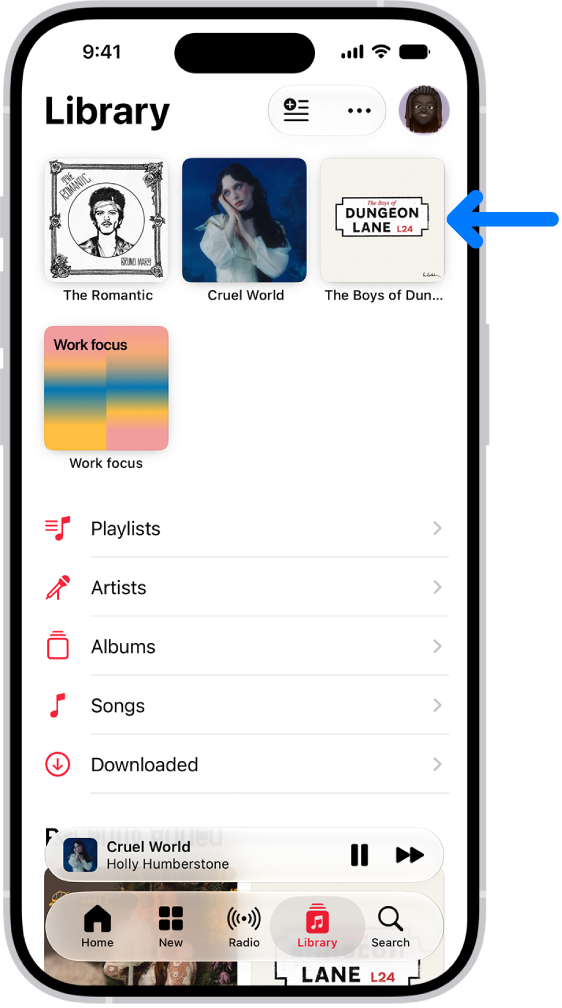
After you subscribe to Apple Music, you can pin your favorite music (including music videos) to the top of your library so it’s easily accessible. You can pin a playlist, an artist, an album, or a song, and unpin an item later. You can only pin content that’s in your library, though.

The Library tab with an arrow pointing out pinned items, such as an album and a playlist, at the top.

Pin music to the top of your library

  1. Open the Music app on your iPhone.
  2. Do any of the following:
    • Pin a playlist: Touch and hold a playlist or tap the More button when viewing a playlist. Tap Pin Playlist.
    • Pin an artist: Go to an artist page, tap the More button then tap Pin Artist.
    • Pin an album: Touch and hold an album, then choose Pin Album. Or tap an album, tap the More button, and tap Pin Album.
    • Pin a song or music video: Touch and hold a song or video or tap the More button next to a song or video and then tap Pin [item]. Or on the Now Playing screen, tap the More button and then tap Pin [item].

Pinning works only for content that’s in your library. To pin an artist, for example, you’ll need at least some of their content in your library. Pinned items show up at the top of your library.

Unpin an item in your library

  1. Open the Music app on your iPhone.
  2. Tap Library, touch and hold a pinned item, and tap Unpin [item].

Optionally, tap the More button, tap Edit Pins, then tap the Remove button.

Choose what happens when you tap a pinned item

When you tap a pinned item, you can customize what happens. For example, you can choose to open a pinned playlist page, play an album in its default order, or even play and shuffle songs for an artist.

  1. Open the Music app on your iPhone.
  2. Tap Library, touch and hold a pinned item, tap Tap Action, and then choose an action.

Choose Play or Shuffle, and the icon for that action appears next to the item name.

Quick tip: Items you pin can download to your library automatically. Go to Settings > Apps > Music, then turn on Download Pins.

Tag: Music

You can find street addresses and other information about places that appear on maps.

A place card can show its street address, phone number, website, and customer reviews. Many restaurants and other businesses even offer App Clips that let you order or make a reservation. You can get a route to the location, save information about a place, and stop sending restaurant notifications.

Here’s how to get information about places in Maps on iPhone.

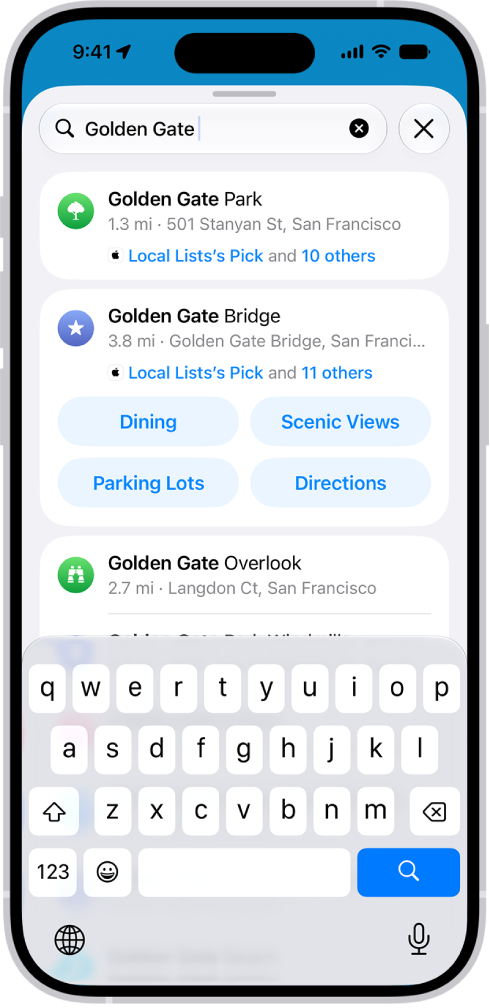
A location is entered in the Maps search field and results are listed below.

Get information about a place

  1. Start the Maps app on your iPhone.
  2. Tap a place (for example, a city or landmark on a map, a spot that you marked with a pin, or a search result in Maps). Do any of the following:
    • Get a route to the location: Tap the directions button.
    • View more information: Scroll down in the place card.

The information might include customer reviews, a phone number, the street address, a webpage link, and more.

Many restaurants and other businesses offer App Clips that allow you to order or make a reservation by tapping buttons on their place cards.

Save information about a place

You can save a place, add it as one of your contacts, or add it as a pin to one of your custom guides.

  1. Start the Maps app on your iPhone.
  2. Tap a place on a map or a search result, tap the More button, and then choose an option.

Stop sending restaurant names to a third party

Install an app that has a table-booking extension, and it can also help you make reservations at restaurants.

You can stop the extension from receiving the names of restaurants you view.

  1. Start the Settings app on your iPhone.
  2. Tap Apps, then tap Maps.
  3. Tap Restaurant Booking, then turn off the app extension.
Tag: Maps

For some large spaces like airports or shopping malls, you can look at detailed, interior maps to help you get around. You can look at an indoor map before you get there, or when you’re already at the airport or mall. Indoor maps aren’t available in all countries or regions, though.

Note: Indoor maps aren’t available in all countries or regions.

  1. Start the Maps app on your iPhone.
  2. Do one of the following:

    • Before you get there: Search for the airport or mall and then tap Indoor Map if it appears in the search result.

      Or drag the map to show it, zoom in, then tap Look Inside.

    • When you’re at the airport or mall: Tap the Tracking Off button, then tap Look Inside.
  3. To find nearby services, tap a category (like Food, Restrooms, or Gates).

    To get more information about a result, tap it.

  4. To get a map of a different floor, tap the button showing the floor level, such as L1 and then tap another level.

    If the button doesn’t appear, zoom in.

Tag: Maps

You can create multiple Safari profiles, like Personal, Work, and School, and use them to separate your internet browsing into different themes. Each profile has separate favorites, histories, tabs, and Tab Groups. You can add, edit, or remove a profile at any time.

Profiles also follow you: any iPhone, iPad, or Mac signed in to the same Apple Account shows them in its Safari settings. You can also choose a bookmarks folder for each profile’s favorites.

Create a profile

If you’re signed in to the same Apple Account on any iPhone, iPad, or Mac, the profiles you create on iPhone also appear there in Safari settings.

  1. Open the Settings app on your iPhone.
  2. Tap Apps, then tap Safari.
  3. Tap New Profile and tap Name.
  4. Enter a name for this profile, then choose an icon and color.
  5. Below Settings, tap Favorites to choose a bookmarks folder.

    If you have multiple folders of bookmarks, this option selects the folder of bookmarked websites that are recommended as you enter an address, search, or create a new tab. For example, if you have a folder of bookmarks related to work, you can create a work profile and use this field to ensure that those websites are suggested as you type in the address field.

  6. Tap Open New Tabs and choose the page you want new tabs to open to.
  7. Tap the Done button.

Use profiles in Safari

With a profile, you can easily browse the internet or move between profiles.

  1. Open the Safari app on your iPhone.
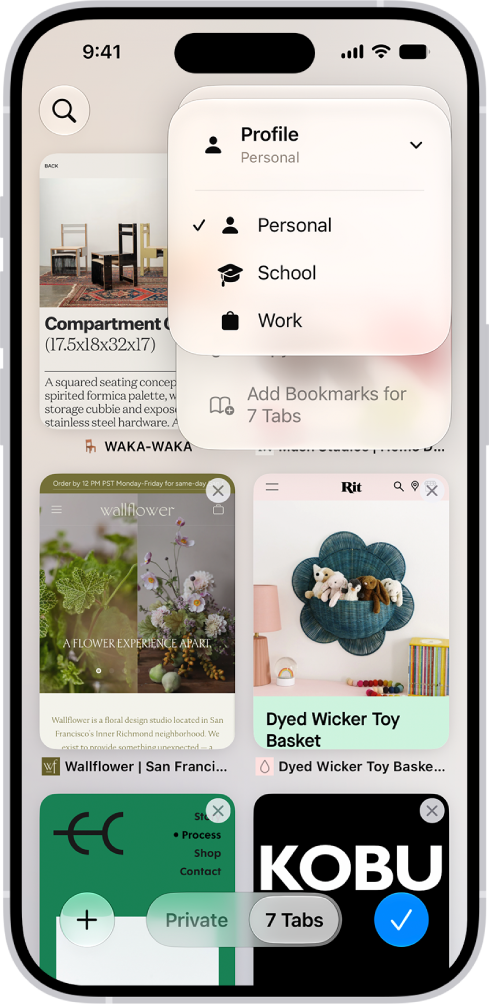
  2. Tap the Tabs button and tap the More button.
  3. Tap Profile. Select the profile you want to use.

Note: You’ll find your saved bookmarks and passwords in iCloud keychain in any profile.

An iPhone screen, showing currently open tabs and a menu of Personal, School, and Work profiles. The Personal profile is selected.

Edit a profile

  1. Open the Settings app on your iPhone.
  2. Tap Apps, then tap Safari.
  3. Tap the profile you want to edit.

Choose which extensions to use with a profile

To customize the way your browser works on iPhone, you can install extensions.

If you’ve installed extensions on your iPhone, you can customize which ones you’d like to use with each profile.

  1. Open the Settings app on your iPhone.
  2. Tap Apps, then tap Safari.
  3. Tap Extensions and tap an extension.
  4. Turn on the profiles you want to use with this extension (below Allow Extension In).

Remove a profile

Deleting a profile, which you can do at any time, also erases the favorites, history, and Tab Groups associated with it and closes all websites open in the profile.

Important: This action can’t be undone.

  1. Open the Settings app on your iPhone.
  2. Tap Apps, then tap Safari.
  3. Tap a profile.
  4. Tap Delete Profile, then tap Delete to confirm.
Tag: Safari

You can find your serial number, IMEI, and model information, including the name, iOS software version, model name, model number, and number of songs, videos, photos, and apps. You can also view cellular data usage, and see Legal & Regulatory information, like legal notices and license, warranty, and RF exposure information.

Find your serial number, IMEI, and model information

  1. Open the Settings app on your iPhone.
  2. Tap General and tap About. The items you can view include:
    • Name
    • iOS software version
    • Model Name
    • Model Number. To the right of Model Number, the part number appears. To see the model number, tap the part number. On supported models, you can also find the model number in the SIM tray opening.
    • Serial number
    • Number of songs, videos, photos, and apps
    • Capacity and available storage space
    • Wi-Fi and Bluetooth® addresses
    • Modem Firmware
    • Carrier Lock status
    • Network and carrier information. Tap Carrier to see IMS status (your carrier connection status). Contact your carrier for more details.
    • IMEI (International Mobile Equipment Identity), EID, and other cellular identifiers. On supported models, the IMEI is also printed on the SIM card tray.
    • Available SIM or SIMs

Quick tip: You can copy the serial number and other identifiers. Just touch and hold the identifier until Copy appears.

To see Legal & Regulatory information (including legal notices and license, warranty, and RF exposure information) and regulatory marks, go to the Settings app, tap General, then tap Legal & Regulatory.

View call time and cellular usage

  1. Open the Settings app on your iPhone.
  2. Tap Cellular.

View or turn off diagnostic information

To help Apple improve products and services, iPhone sends diagnostic and usage data based on the settings you turn on. Apple says this data is anonymous, but may include location information.

  1. Open the Settings app on your iPhone.
  2. Tap Privacy & Security and tap Analytics & Improvements.
Tag: iPhone

Use the Podcasts app to search for or browse shows about science, news, politics, comedy, and more. When you find a show you like, you can follow it to add it to your library.

Then you can watch or listen offline, get notified about new episodes, and access followed shows on your other Apple devices and on Apple Podcasts on the web. You can also find episodes within a show, and filter or sort them. Shows may offer paid subscriptions, too.

Note: Some shows offer paid subscriptions with perks like exclusive episodes, new releases, episodes without ads, and more. You can easily subscribe to a show or channel and manage your subscriptions. And if you’re already a subscriber to Apple Music, Apple News+, or an eligible third-party app, its subscriber content plays right in Podcasts.
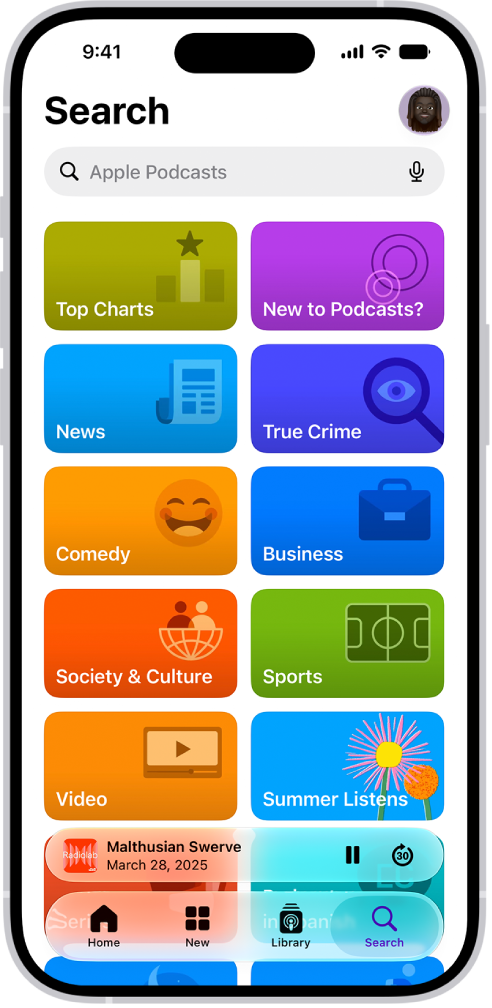
The Search tab in the Podcasts app, showing podcast categories. Toward the bottom of the screen is the MiniPlayer. Below that are the Home, New, Library, and Search buttons.

Find podcasts

  1. Open the Podcasts app on your iPhone.
  2. Do any of the following:

    • Search by category, title, person, or topic: Tap the Search button and then enter a word or phrase in the search field. Top hits appear as you type. Tap the Search button on the onscreen keyboard to view all results for the word or phrase you entered. Tap a show, channel, or episode to go directly to it.
    • Discover new shows: Tap New to see new and trending shows, and the Apple editorial collections. Or tap Search and get a personalized list of categories to choose from, as well as editorial collections.

      Tip: To quickly see the top shows and episodes for a specific category, tap Top Charts, tap the All Categories pop-up menu in the top-right corner, then tap a category.

    • Add shows by URL: Tap Library, tap the More button, and tap Follow a Show by URL. Enter the URL, then tap Follow.

      Note: The URL must be for a valid podcast RSS feed.

Find episodes within a show

  1. Open the Podcasts app on your iPhone.
  2. Search or browse for a show.
  3. Tap the show and then do any of the following:
    • Browse episodes: Scroll down to see recent episodes (or tap See All Episodes, if available).
    • Search for a specific episode: Scroll down and then tap See All Episodes. Tap the search field near the top of the screen and then enter a word or phrase. Suggested results appear as you type. To view all results, tap the Search button on the keyboard.

Filter episodes

  1. Open the Podcasts app on your iPhone.
  2. Search or browse for a show.
  3. Tap the show. Then tap the Filter button (available only if the show has Video or Subscriber-Only episodes).
  4. Choose one or more filters, such as All Episodes or Video.

Note: More filter options, such as Unplayed, Saved, or Downloaded, show up when you follow the show or add one or more of its episodes to your Library. If you don’t see them, follow the show and check the filters again. By default, shows you follow are filtered to Unplayed episodes, so remove that filter to see every episode. Filter changes you make for a followed show stay until you change them again, and they never stop you from finding any episode of the show using search.

Sort episodes

  1. Open the Podcasts app on your iPhone.
  2. Search or browse for a show.
  3. Tap the show, tap the More button, and then tap Sort.
  4. Choose Sort Newest to Oldest or Sort Oldest to Newest.

View podcasts shared with you

If a friend shares a show or episode with you in Messages, it’s easy to find in Podcasts.

  1. Open the Podcasts app on your iPhone.
  2. Tap Home. Then scroll down to the Shared with You section.

If you don’t see Shared with You, check to make sure your friend is in your contacts, and that Podcasts is turned on in Settings > Apps > Messages > Shared with You.

Get personalized recommendations

Personalized podcast recommendations are available based on your favorite channels and categories and your watching and listening activity.

  1. Open the Podcasts app on your iPhone.
  2. Tap Home.
  3. Do any of the following:
    • View recommended shows: Scroll left or right in the You Might Like row.
    • Refine your show recommendations: Tap a show in the You Might Like row, tap the More button, and tap Suggest Less.
    • View suggested episodes based on your watching and listening: Scroll down to the More to Discover row. Scroll left or right.
    • Opt out of personalized recommendations: Tap the My Account button or your profile picture, tap your name, and then turn off Personalized Recommendations.

Note: Your Personalized Recommendations setting applies to the App Store, Apple Books, and iTunes Store too, as well as Apple TV and subscriptions from Apple. You can also get other recommendations based on categories you watch and listen to, plus any subscriptions you already purchased.


You can log your state of mind in the Journal app. The time you spend journaling can even be added automatically as mindful minutes in the Health app.

As you reflect on how you’re feeling, you can log your momentary emotions, and your state of mind is added to Health, where you can review its history over time. And the Health app can access your state of mind and mindful minutes, too, if you allow it.

Here’s how to journal for your wellbeing on iPhone.

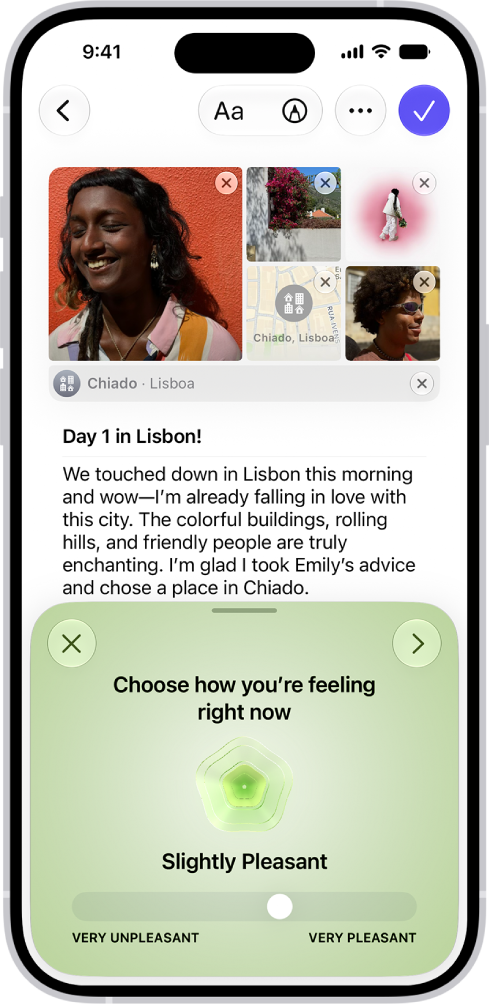
A screen in the Journal app showing an entry with a section at the bottom where you can log your state of mind.

Log your state of mind

Your journal is a place to log your momentary emotions and reflect on how you’re feeling.

  1. Start the Journal app on your iPhone.
  2. While composing an entry, tap the More button above the keyboard. Then tap the Add State of Mind button.

You may be asked to turn on Health access.

  1. Drag the slider to indicate how you’re feeling and then tap the Next button.
  2. Tap any words that describe how you’re feeling, swipe up to see more words, and then tap the Next button.
  3. Tap any words that describe what’s having the biggest impact on you. Then tap the Done button.

Your state of mind is added to Health. There, you can review its history over time.

Allow the Health app to access your state of mind and mindful minutes

The Health app can automatically log your journaling time as mindful minutes.

  1. Start the Settings app on your iPhone.
  2. Tap Apps and tap Journal.
  3. Tap Health Access, then turn on Mindful Minutes and State of Mind.
Tag: Journal