Got a tip for us?

In Settings in CarPlay, you can change the wallpaper, turn on Driving Focus, change how CarPlay looks on the display, turn suggestions in CarPlay Dashboard on or off, and show or hide album art.

Driving Focus is the one to know about. With Driving Focus on while your iPhone is connected to CarPlay, notifications and text messages are silenced or limited, so you can stay focused on the road while you drive.

Use the Driving Focus with CarPlay

To help you stay focused on the road, Driving Focus silences or limits notifications and text messages while it’s on and your iPhone is connected to CarPlay.

  1. Open Settings in CarPlay using your vehicle’s built-in controls.

    Note: If you’re viewing CarPlay Dashboard and Settings doesn’t appear in the recent apps list on the left, tap the Home button to see pages of all of your CarPlay apps, including Settings.

  2. Go to Driving Focus, then select Activate With CarPlay.

If you receive a Driving Focus notification when you’re not driving (for example, when you’re a passenger) you can turn it off—tap the notification, then tap “I’m not driving.”

Switch the appearance of CarPlay

CarPlay is set to dark appearance by default in most vehicles. If you prefer to have CarPlay automatically switch between dark and light appearance, do the following:

  1. Open Settings in CarPlay using your vehicle’s built-in controls.
  2. Select Appearance.
  3. Select Always Dark.

At night and in other low-light environments, the dark appearance is optimized for viewing.

Change the wallpaper in CarPlay

Open Settings in CarPlay using your vehicle’s built-in controls, select Wallpaper, then choose one of the available options.

Hide or show suggestions on CarPlay Dashboard

Open Settings in CarPlay using your vehicle’s built-in controls, then turn Suggestions in CarPlay off or on.

Hide or show album art

Open Settings in CarPlay using your vehicle’s built-in controls, then turn Show Album Art off or on.

Capture screenshots from CarPlay

  1. Open the Settings app on your iPhone.
  2. Tap General, then tap Screen Capture.
  3. Turn on CarPlay Screenshots.
  4. While connected to CarPlay, take a screenshot with iPhone to also capture a screenshot of CarPlay.
Tag: carplay

Background Security Improvements provides additional protection to your iPhone in between software updates. With Automatic Install on, these security improvements install on your iPhone on their own. In rare instances of compatibility issues, they may be temporarily removed, then installed in a future software update.

Important: In rare instances of compatibility issues, these security improvements may be temporarily removed and then installed in a future software update.

Turn on Automatic Install for Background Security Improvements

Go to Settings > Privacy & Security > Background Security Improvements, then turn on Automatically Install.

Learn more about Background Security Improvements

Go to Settings > Privacy & Security > Background Security Improvements, then tap Learn More.

While using headphones with iPhone, you can check the audio level by viewing the Hearing control in Control Center. In the Health app, you can review the history of your headphone listening habits.

If you listen to loud headphone audio long enough to affect your hearing, iPhone automatically sends you a notification that you should turn down the volume. The next time you plug in your headphones or connect them using Bluetooth®, your volume is automatically set to a lower level, though you can turn it up again if you choose.

Here’s how to check your headphone audio levels on iPhone.

Quick tip: You can review the details of any headphone notification in Health. Tap Browse at the bottom right, tap Hearing, and then tap Headphone Notifications.

Check your headphone levels while you listen

Control Center is where you can view your live headphone levels.

  1. Open Control Center.
  2. Tap the Add button at the top left of Control Center and then tap Add a Control.
  3. Scroll down to Hearing Accessibility, then tap Hearing.
  4. Tap the Hearing Devices button in Control Center.

The Headphone Level meter displays your headphones’ audio level in decibels.

Note: Tap Live Listen (below the Headphone Level meter) to turn it on or off. Typically, you won’t use it at the same time as headphone level monitoring, since the Headphone Level monitor is for listening to audio playback, while Live Listen is for listening to external sounds with the iPhone microphone.

Check your headphone levels over time

  1. Start the Health app on your iPhone.
  2. Tap Browse and then tap Hearing.
  3. Tap Headphone Audio Levels and then do any of the following:
    • See exposure levels over a period of time: Tap the tabs at the top of the screen. (All levels are measured in decibels.)
    • Learn about the sound level classifications: Tap the Show Information button.
    • Change the time span displayed in the graph: Swipe the graph left or right.
    • Display highlights: Scroll down to Highlights and then tap Show All.

To learn more about your headphone audio levels, tap Show More Data.

Reduce loud headphone sounds

  1. Start the Settings app on your iPhone.
  2. Tap Sounds & Haptics, scroll down, and then tap Headphone Safety.
  3. Turn on Reduce Loud Audio, then drag the slider.

By analyzing your headphone audio, iPhone reduces any sound above the level you set.

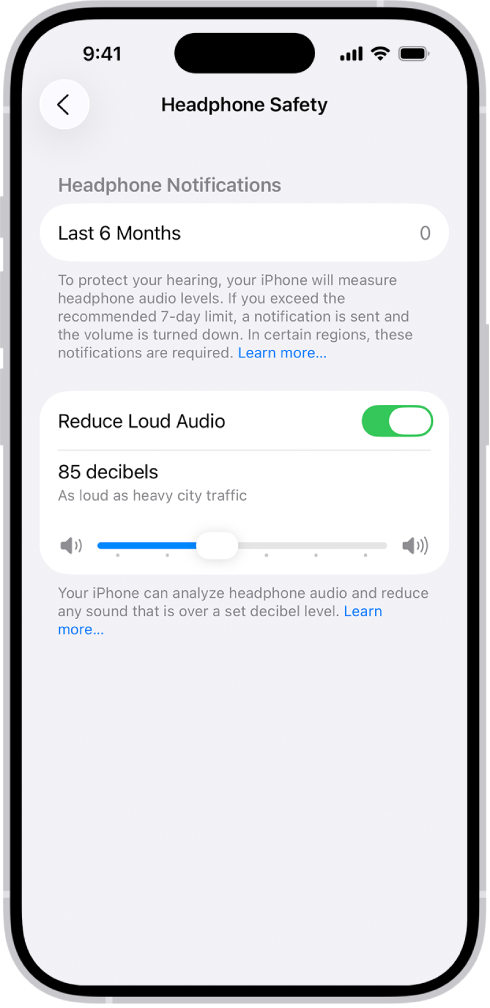
The Headphone Safety screen, showing the number of headphone notifications sent in the last 6 months, the Reduce Loud Audio option, a slider for changing the maximum decibel level, and the selected decibel limit of 85 decibels.

Note: You can prevent family members from changing the Reduce Loud Sounds level if you’ve set up Screen Time for them. Go to Settings > Screen Time > Content & Privacy Restrictions > Reduce Loud Sounds, and select Don’t Allow.

Get headphone audio notifications

Headphone notifications appear on the Summary screen of the Health app.

Note: Depending on your country or region, Headphone Notifications may be turned on by default, and in some countries or regions, you may not be able to turn it off. If allowed in your country or region, you can do the following:

  1. Start the Settings app on your iPhone.
  2. Tap Sounds & Haptics, then tap Headphone Safety.
  3. Turn Headphone Notifications on or off.

The Settings app can also set a maximum decibel level to keep your headphone audio at a comfortable level.

With Apple or Beats headphones, headphone audio measurements are most accurate. For other headphones, the audio played through them can be estimated based on your iPhone’s volume.

Tag: AirPods

You can make your own passes from a physical card, photo, or screenshot, which is useful for membership and loyalty cards that have a barcode or QR code but no digital pass, like a library card or gym membership.

With Apple Intelligence, you can create a pass straight from a photo or screenshot that includes the barcode or QR code. Without it, you can still create a pass manually in the Wallet app.

Make a pass from a photo or screenshot

You can create a pass with a barcode or QR code using Apple Intelligence.

Note: Apple Intelligence on iOS 27 or later is available on an Apple Intelligence-enabled iPhone 15 Pro, iPhone 15 Pro Max, or iPhone 16 model or later. Apple Intelligence is not available in all languages or regions. Usage limits may apply.*

  1. Take a photo or screenshot that includes the barcode or QR code.
  2. Tap Add to Wallet, then follow the onscreen instructions.

Quick tip: Tap View Original Photo to see the image after the pass is created.

Manually create a pass

  1. Open the Wallet app on your iPhone.
  2. Tap the Add Card button. Tap Create a Pass.
  3. Tap Create Pass Manually, then choose a template.
  4. To edit the details, tap any of the fields.
  5. When you’re done, tap the Done button.

Edit a pass

  1. Open the Wallet app on your iPhone.
  2. Tap the pass and tap the More button. Tap Edit Pass.

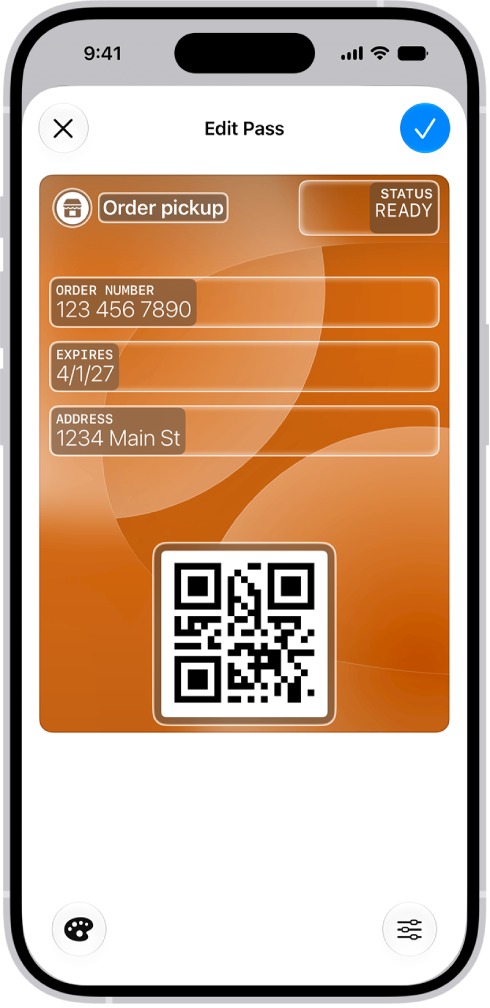
    A Wallet screen showing a custom pass with editable fields.

  3. Do any of the following:

    • Change the background and color: Tap the Paint Palette button.
    • Add or remove fields: Tap the Edit button, tap Add or Remove Fields, and select the fields.
    • Edit the details: Tap the fields.
  4. When you’re done, tap the Done button.

*Apple Intelligence is available with Siri and device language set to Chinese (Simplified), Chinese (Traditional), Danish, Dutch, English, French, German, Italian, Japanese, Korean, Norwegian, Portuguese, Spanish, Swedish, Turkish, or Vietnamese. Some features may not be available in all regions or languages. Some devices may not be available in all regions. Siri AI is available in beta in iOS 27, iPadOS 27, macOS 27, watchOS 27, and visionOS 27 and requires an Apple Intelligence–enabled device set to a supported language. Available in English to start. Siri AI will not be initially available in the EU on iOS, iPadOS, and watchOS. Certain Apple Intelligence features that rely on server-side models are subject to daily usage limits, including but not limited to Siri AI, Intelligent Photo Editing Tools, Image Playground, and AFM 3 Cloud models in Shortcuts. Daily limits may vary by feature, request complexity, system demand, system policies, and other factors. Expanded access to such features will be available for a fee in the future. Use of these features is subject to the Apple Intelligence Terms and Conditions.

Tag: Wallet

With Guided Access, you can temporarily restrict iPhone to a single app. This can be useful for parents, teachers, and caregivers, or when you want to stay focused on a task. You can set a time limit, and customize which features, hardware buttons, and areas of the screen are available.

You decide how a session ends, too. You can end a Guided Access session with a passcode, or with Face ID or Touch ID.

Here’s how to lock iPhone to one app with Guided Access.

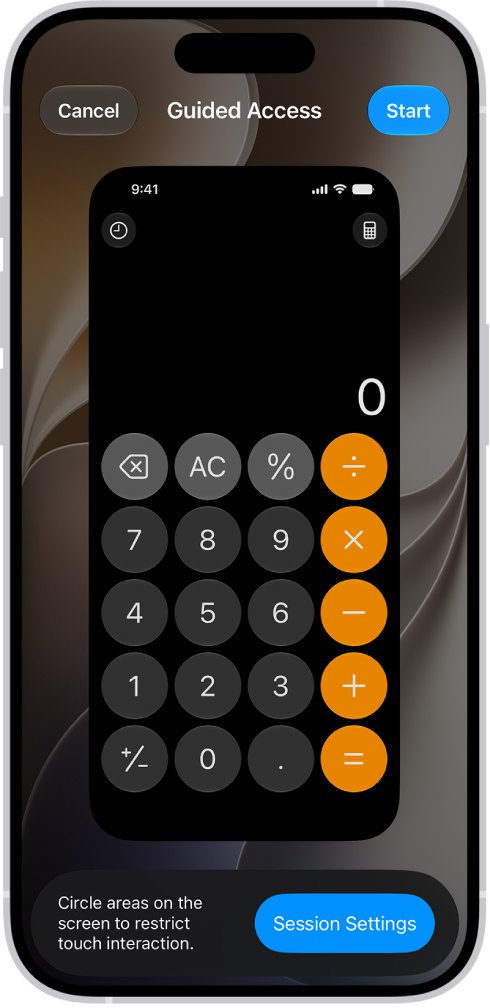
An iPhone screen showing Guided Access being set up. iPhone is being temporarily locked to just the Calculator app, and one of the buttons in the app has been disabled.

Set up Guided Access

  1. Open the Settings app on your iPhone.
  2. Tap Accessibility, tap Guided Access, and turn on Guided Access.
  3. Do any of the following for Guided Access sessions:
    • End a session with a passcode: Tap Passcode Settings, tap Set Guided Access Passcode, and enter a passcode.
    • End a session with Face ID or Touch ID: Tap Passcode Settings. Turn on Face ID (on an iPhone with Face ID) or Touch ID (on other iPhone models).
    • Play a sound to announce time limits: Tap Time Limits, tap Sound, and then select a sound or tap Tone Store to browse other options.
    • Hear time limits spoken: Tap Time Limits. Turn on Speak to hear the time remaining before a Guided Access session ends.
    • Allow Accessibility Shortcut during a session: Turn on Accessibility Shortcut.
    • Set how long it takes iPhone to lock automatically: Tap Display Auto-Lock, then select an option.

Start a Guided Access session

  1. Go to the app you want to use.
  2. To turn on Guided Access, do one of the following:
    • Siri: Ask Siri something like, “Turn on Guided Access.”
    • Use Control Center if you’ve added Guided Access there.
    • Use the Accessibility Shortcut.
  3. Circle any areas of the screen you want to disable. Drag the mask into position or use the handles to adjust its size.
  4. Tap Session Settings and then turn on or off any of the following:
    • Side Button
    • Volume Buttons
    • Motion (to prevent iPhone from switching from portrait to landscape or from responding to other motions)
    • Software Keyboards
    • Touch
    • Time Limit
  5. Tap Done and tap Start.

Important: Crash Detection and Emergency Services aren’t available while using Guided Access. Exit Guided Access to use Crash Detection or to make emergency calls.

End a Guided Access session

To end a Guided Access session, you’ll enter your Guided Access passcode or use Face ID, depending on which passcode options you chose when you set up Guided Access.

  • Use the passcode: Triple-click the side button (on an iPhone with Face ID) or Home button (on other iPhone models), then enter your Guided Access passcode.
  • Use Face ID or Touch ID: If you turned on the Face ID or Touch ID option in Guided Access Passcode Settings, triple-click the side button or Home button, then unlock your iPhone with Face ID or Touch ID (depending on your iPhone model).

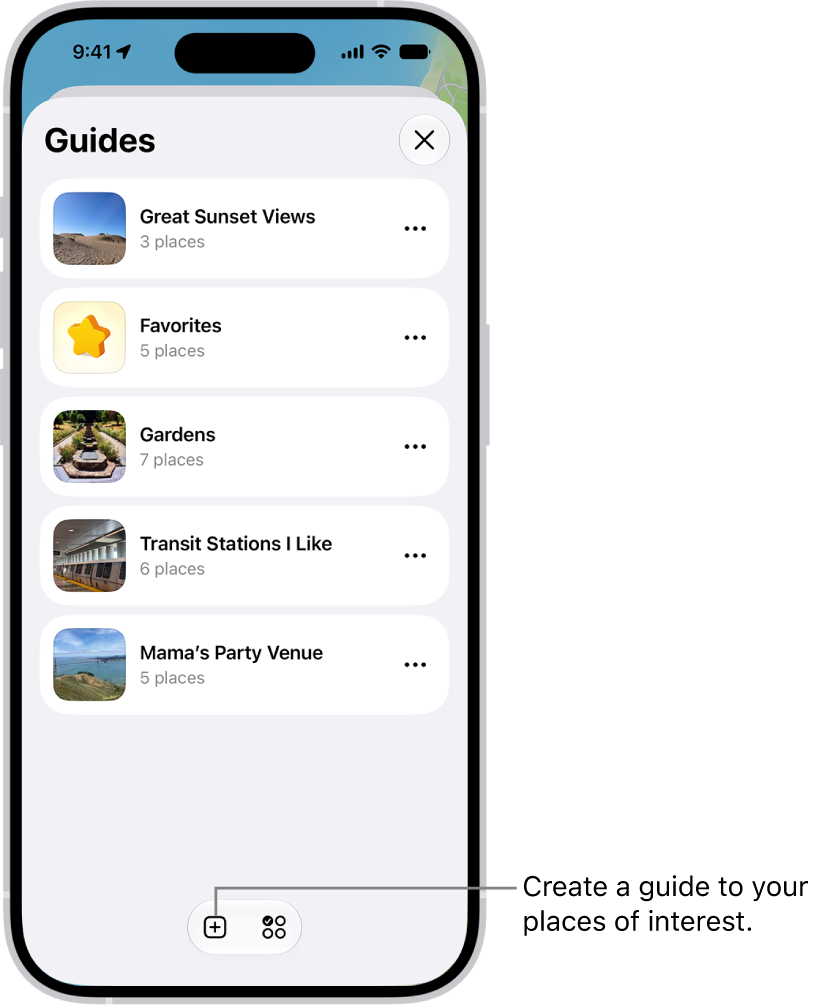
You can organize places into your own guides for easy reference, and you can share your guides with others.

There’s always one guide to start with. A guide called Favorites always appears in your guides, which makes it easier for you to save places. From there, you can create a guide, add places to it, edit it, or remove it.

Here’s how to organize places with custom guides in Maps on iPhone.

A list of several custom guides in Maps, including a Favorites category, and the New Guide button at the bottom right.

See your favorites

Your guides always include a guide called Favorites.

It makes saving places to a guide easier for you.

  1. Start the Maps app on your iPhone.
  2. Tap Your Guides, then tap Favorites.

Quick tip: To see certain places in your Places whenever you open Maps, you can pin any places you like.

Create a guide

  1. Start the Maps app on your iPhone.
  2. Tap Your Guides. Tap the Add to List button.
  3. Enter a name for the guide and then tap the Add Image button to add an image from your photo library (optional).
  4. Tap the Done button.

Add a place to a guide

  1. Start the Maps app on your iPhone.
  2. Tap a place on the map or a search result.
  3. In the place card, tap the More button, then tap Add to Guides.
  4. Choose one of your guides and tap the Done button.

You can save Publisher Guides to your guides, too.

Share a guide

  1. Start the Maps app on your iPhone.
  2. Tap Your Guides. Tap the guide you want to share.
  3. Tap the Share button, then choose an option.

Edit a guide that you created

  1. Start the Maps app on your iPhone.
  2. Tap Your Guides, then tap the guide you want to edit.
  3. Tap the Edit button. Then rename it or do any of the following:
    • Choose a cover image: Tap the Change Image button, tap another image, and tap Choose.
    • Remove places: Tap to select the places you want to delete from the guide and then tap the Delete button.
  4. Tap the Done button.

Remove a guide

  1. Start the Maps app on your iPhone.
  2. Tap Your Guides, tap the More button on the guide you want to remove, tap Delete from Places, and then tap Delete.
Tag: Maps

After you set up health record downloads from a healthcare provider, your records are securely and automatically downloaded to iPhone, where they’re available for viewing in the Health app.

You’ll find them under Browse, on the Health Categories screen, where you can search for a category like clinical vitals or a type of data like blood pressure. You can pin important lab results, share your health records with other apps, and delete an organization and its records from iPhone.

View your health records

  1. Open the Health app on your iPhone.
  2. Tap Browse to display the Health Categories screen, then do one of the following:
    • Tap the search field, then enter the name of a health record category (such as clinical vitals) or a type of data (such as blood pressure).
    • Scroll down, then tap a category (such as Allergies or Clinical Vitals) below Health Records.
    • Scroll down, then tap the name of a specific organization.

To see more details, tap any section where you see the Details button.

Note: If you don’t see health records that you expect from a healthcare provider, make sure that you’re signed in to your account with the provider. Tap Browse, scroll to your list of accounts, tap the name of your provider, then sign in if asked.

Pin important lab results

Pin results, and they stay at the top of the Lab Results screen for quick access.

  1. Open the Health app on your iPhone.
  2. Tap Browse, scroll down, and tap Lab Results.
  3. Do any of the following:
    • Swipe left on a result, then tap the Pin button.
    • Touch and hold a result, then tap Pin this Lab.

Share your health records with other apps

Third-party apps can ask for access to your health records, so make sure you trust an app with your records before you grant access.

  1. To grant access, choose which categories to share—such as allergies, medications, or immunizations—when asked.
  2. Choose whether to grant access to your current and future health records or to only your current records.

Share only your current records, and you’ll be asked to grant access each time new records are downloaded to your iPhone.

To stop sharing health records with the app, turn off its permission to read data from Health.

Delete an organization and its records from iPhone

  1. Open the Health app on your iPhone.
  2. Tap Summary, then tap your picture or initials.
  3. Tap Health Records, tap the name of an organization, and then tap Remove Account.
Tag: Health

You can enable cookies. Some websites use cookies to keep track of your activity, such as your settings, and enabling cookies allows websites that require cookies to work normally. It’s one setting, Block All Cookies, in Safari’s Advanced settings on your iPhone.

  1. Start the Settings app on your iPhone.
  2. Tap Apps, then tap Safari.
  3. Tap Advanced and turn off Block All Cookies.
Tag: Safari

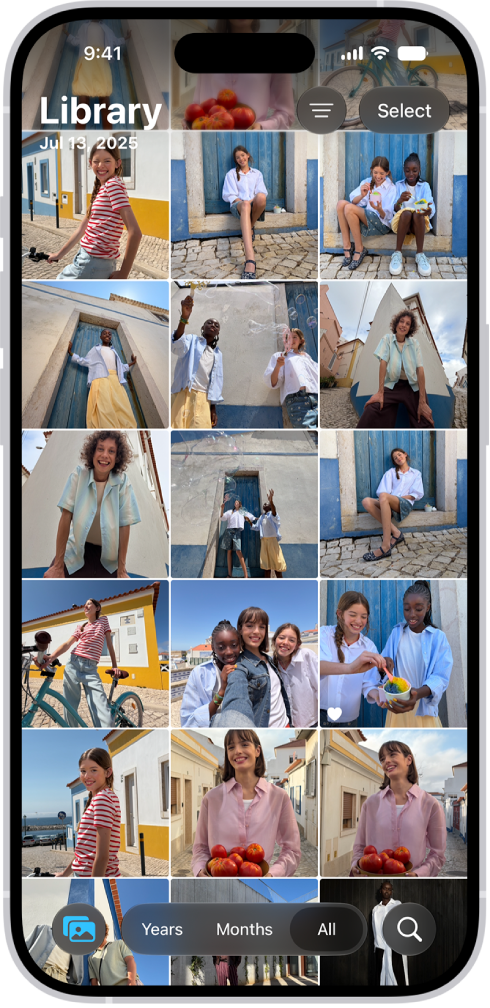
Browse the library in the Photos app to view your entire collection of photos and videos. You can go to a specific time in your library by year or month, and change the size and appearance of the photo thumbnails. You can also hide screenshots or photos shared with you in Messages.

The Photos app is open to the photo library grid. At the bottom of the screen, from left to right, are buttons to view the library by Years, Months, and All buttons. In the bottom-right corner is the Search button.

View your library

  1. Start the Photos app on your iPhone.
  2. Make sure Library is selected.
  3. Swipe down to browse photos and tap Years or Months to go to a specific time in your library.

Change the library display

In the library photo grid, you can change the size and appearance of photo thumbnails and manage what content is displayed in your library.

Quick tip: Pinch the screen to zoom in or out as you view the library.

  1. Start the Photos app on your iPhone.
  2. Tap the Sort and Filter button.
  3. Tap View Options, then do any of the following:
    • Enlarge the size of the photo and video thumbnails: Tap Zoom In.
    • Reduce the size of the photo and video thumbnails, to see more at the same time: Tap Zoom Out.
    • View each photo or video thumbnail in the dimension it was captured in: Tap Aspect Ratio Grid. To return to square thumbnails, tap Square Photo Grid.
    • Hide screenshots: Tap Screenshots.
    • Hide the shared library badge on thumbnails: Tap Shared Library Badge.
    • Hide photos and videos shared with you in Messages: Tap Shared with You.
    • Hide the thumbnail badge on items in your iCloud Shared Photo Library: Tap Shared Library Badge.
    • Hide photos and videos you manually added from your Mac: Tap From My Mac.
Tag: Photos