Got a tip for us?

Use star ratings to rank your photos and videos from 1 to 5 stars. After you apply ratings, you can filter your Photos library to quickly find your favorite shots.

Star ratings appear in the top-left corner of each image in your library grid, and you can change a rating, remove it, or apply one to an unrated image later. You can also filter by rating to see all items with that rating, or all items in your library without a rating.

Here’s how to apply star ratings to photos and videos on iPhone.

Turn on star ratings

  1. Start the Photos app on your iPhone.
  2. Tap Collections and tap your Apple Account profile at the top of the screen.
  3. Turn on Show Ratings Controls.

Rate a photo or video

  1. Start the Photos app on your iPhone.
  2. Open a photo or video.
  3. Tap the Unrated button. Then tap a star rating, from 1 through 5. Tip: Star ratings appear in the top-left corner of an image in your photo library grid. Touch and hold an image in the grid to change the star rating, remove it, or apply a rating to an unrated image.

Filter photos and videos by star rating

  1. Start the Photos app on your iPhone.
  2. Tap the Sort and Filter button, then tap Rating.
  3. Tap a rating level to see all items with that rating, or tap Unrated to see all items in your library without a rating.

To remove the rating filter, tap the star at the top of the library, then tap Remove Filters.

Tag: Photos

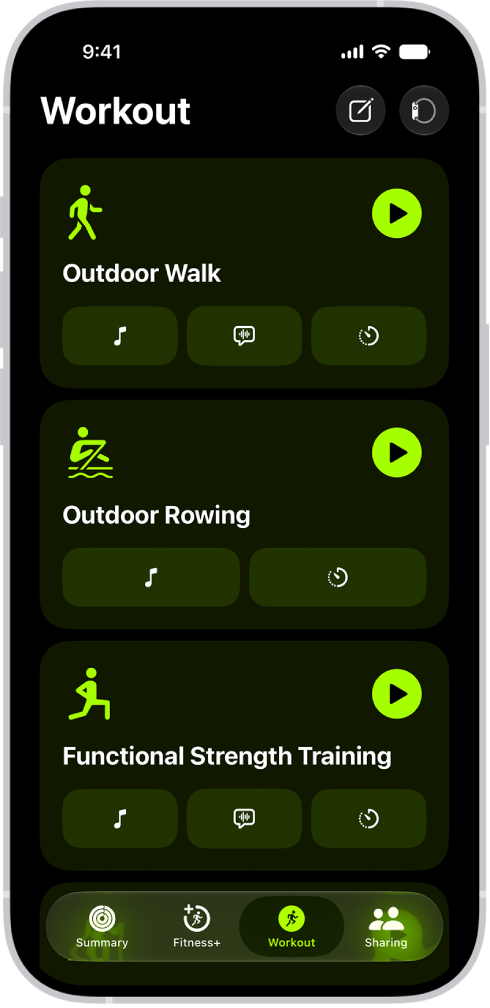
You can start individual workout sessions, from cardio-focused options such as High Intensity Interval Training (HIIT), Outdoor Run, and Outdoor Cycle, to strength-based workouts like Functional Strength Training, Core Training, and Kickboxing.

You can also set media to automatically play when you begin a workout type. If you subscribe to Apple Music, Apple Music selects media based on the workout type and the music you love, or you can choose media yourself. Workout metrics can appear on your iPhone screen, too, when it’s connected to an Apple Watch or a compatible heart rate monitor.

With just an iPhone, these are the workout types you can do:

  • Outdoor Walk
  • Outdoor Run
  • Hiking
  • Outdoor Push Walking Pace
  • Outdoor Push Running Pace
  • Outdoor Cycle

Connecting Powerbeats Pro 2, AirPods Pro 3, an Apple Watch, or a compatible Bluetooth enabled third-party heart rate monitor lets you see workout metrics on the screen during a workout.

Note: Connecting iPhone to AirPods Pro 3 or a third-party heart rate monitor gives you more workout types, like Kickboxing and Pilates. With an Apple Watch, you get all workout types.

The Fitness workout screen showing three workout types. Buttons to log a workout and connect a heart rate monitor are at the top of the screen.

Connect a heart rate device

Before you start a workout on your iPhone, check that you’ve connected Powerbeats Pro 2, AirPods Pro 3, an Apple Watch, or Bluetooth® enabled third-party heart rate monitors linked to the Health app.

If you do not have a heart rate device connected, do the following:

  1. Start the Fitness app on your iPhone.
  2. Tap Workout, then tap the Heart Rate Devices button.
  3. Tap Bluetooth Settings and then pair your iPhone with a Bluetooth accessory.

Start a workout

  1. Start the Fitness app on your iPhone.
  2. Tap Workout and scroll to the workout type you want to do.

    To see more workout types, tap the Add button.

  3. To start the workout, tap the Start button.

Choose audio for a workout

Media can play automatically when you begin a workout type, whether it’s media you choose yourself or media picked for you based on what you normally listen to.

  1. Start the Fitness app on your iPhone.
  2. Tap Workout, scroll to a workout type, and then tap the Media Playback Off button.
  3. Turn on Autoplay Media.
  4. If you subscribe to Apple Music, you can have media play automatically based on the workout type and the music you listen to. Tap Picked for You.
  5. To choose your own media, tap Choose Media and tap Add Media. Do one of the following:

    • Choose a suggested option: Tap an option below Suggestions.

      Tip: To view more suggestions, tap Music or Podcasts below Sources.

    • Choose a playlist: Tap Music, tap Playlists, and then choose a playlist.
  6. When you’re finished, tap the Done button.

Note: Music or other audio you’re already listening to keeps playing when you begin your workout.

Use the workout controls

During a workout, you can lock controls, send a Check In, mark a segment, pause, and more, then view a summary of how you did when you finish.

  1. Start the Fitness app on your iPhone.
  2. Start a workout, then do any of the following:

    • Pause the workout: Tap the Pause button.
    • Resume the workout: Tap the Resume button.
    • Mark a segment: Tap the Segments button.
    • Connect a heart rate device: Tap Connected Devices.
    • End the workout: Swipe up from the bottom of the screen and tap End Workout. Review the workout summary and tap the Done button.
    • Mute Workout Buddy: Swipe up from the bottom of the screen and then tap Mute.
    • Start a Check-In: Swipe up from the bottom of the screen, tap Check-In, then follow the onscreen instructions.
    • Stop viewing metrics on iPhone (Apple Watch required): Swipe up from the bottom of the screen. Tap Stop Viewing.

      Note: To start viewing again, swipe right on your Apple Watch, then tap View.

    • Lock the workout controls: Swipe up from the bottom of the screen, then tap Lock Controls.
Tag: Fitness

Siri is an intelligent assistant that’s built into your iPhone to help you get answers, find what you need, and get things done.

Siri needs to be on before you can use it. To ask a question or make a request, you then activate Siri with your voice or with the buttons on iPhone. Siri also needs an internet connection. There’s also Siri AI (Beta) to try, the new version of Siri powered by Apple Intelligence.

Note: Siri is designed to protect your information and to let you choose what you share.

Turn on Siri

Siri needs to be turned on before you can use it. If you didn’t set up Siri when you first set up your iPhone, do the following:

  1. Start the Settings app on your iPhone.
  2. Tap Siri.
  3. Tap Turn On Siri and then follow the onscreen instructions.

Quick tip: Tap Try Siri AI (Beta)* to get Siri AI, the new version of Siri powered by Apple Intelligence on iOS 27 or later.

Activate Siri and make requests

After you turn on Siri, there’s one more step: activate it before you ask a question or make a request.

Note: You must be connected to the internet to use Siri.

  1. Activate Siri by doing one of the following:

    • Use your voice: Say “Siri” or “Hey Siri.” This option is only available if “Siri” or “Hey Siri” is turned on.
    • Use the buttons on iPhone: Press and hold the side button on an iPhone with Face ID, or press and hold the Home button on an iPhone with a Home button.

      When you activate Siri with a button, Siri responds silently when iPhone is in Silent mode. When Silent mode is off, Siri responds out loud. When you activate Siri with your voice, Siri responds out loud.

    • Use headphones connected to your iPhone: Press and hold the center or call button on your EarPods.

    If you have Siri AI, you can also activate Siri by doing one of the following:

    • Use the Dynamic Island on iPhone: Swipe down from the top of the screen.
    • Use the shortcut menus on iPhone: Touch and hold something on your iPhone screen—a file or a photo, for example—then choose Ask Siri from the pop-up menu.
    • Use Siri mode in Camera on iPhone: Open Camera on your iPhone, tap Siri, then tap the Ask button, or click and hold the Camera Control on your iPhone.
    • Take a screenshot on iPhone: Quickly press and release the side button and the volume up button at the same time to take a screenshot, then tap the Ask button to ask a question, the Search button to search, or an action that appears in the middle.
  2. Ask Siri a question or make a request.

Turn off Siri

  1. Start the Settings app on your iPhone.
  2. Tap Siri.
  3. Tap Turn Off Siri at the bottom and then tap Turn Off Siri.
  4. If you have Siri AI, but want to use the previous version of Siri, tap Turn On Siri. Tap Use Siri Classic.

*Apple Intelligence is available with Siri and device language set to Chinese (Simplified), Chinese (Traditional), Danish, Dutch, English, French, German, Italian, Japanese, Korean, Norwegian, Portuguese, Spanish, Swedish, Turkish, or Vietnamese. Some features may not be available in all regions or languages. Some devices may not be available in all regions. Siri AI is available in beta in iOS 27, iPadOS 27, macOS 27, watchOS 27, and visionOS 27 and requires an Apple Intelligence–enabled device set to a supported language. Available in English to start. Siri AI will not be initially available in the EU on iOS, iPadOS, and watchOS. Certain Apple Intelligence features that rely on server-side models are subject to daily usage limits, including but not limited to Siri AI, Intelligent Photo Editing Tools, Image Playground, and AFM 3 Cloud models in Shortcuts. Daily limits may vary by feature, request complexity, system demand, system policies, and other factors. Expanded access to such features will be available for a fee in the future. Use of these features is subject to the Apple Intelligence Terms and Conditions.

Tag: Siri

Some websites and apps offer two-factor authentication (also known as multifactor authentication), which helps prevent other people from accessing your accounts even if they know your passwords. Passwords are the first authentication factor, and temporary, one-time verification codes are commonly a second factor.

iPhone can automatically generate these verification codes without your reliance on SMS messages or additional apps. Setting it up takes either a QR code from the website, scanned with your iPhone camera, or a setup key you enter in the Passwords app.

Here’s how to automatically fill in one-time verification codes on iPhone.

Set up automatic verification codes for a website or app by scanning a QR code

Another device with a screen, like a computer or iPad, can display a QR code from a website or app. Then you can scan the code with the iPhone camera.

  1. On your other device, sign in to the area of the website or app where you manage your account. Select options to enable two-factor authentication and an authenticator app. A QR code appears to help you set up an authenticator app.
  2. On iPhone, use the camera to scan the QR code.
  3. On iPhone, select your account for the website or app. A verification code appears below the User Name and Password fields.
  4. On your other device, enter the verification code that appears on your iPhone.

Set up automatic verification codes for a website or app by entering a setup key

If you can’t scan a QR code from another screen, enter a setup key manually instead.

  1. Sign in to the area of the website or app where you manage your account and then select options to enable two-factor authentication and an authenticator app.
  2. Choose the option to manually use a setup key (or setup code or similar) and select and copy the setup key.
  3. Start the Passwords app on your iPhone.
  4. Tap All, then tap your account for the website or app.
  5. Tap Edit, then tap Set Up Code.
  6. Visit the website to get a setup key, enter the setup key in Passwords and then tap Use Setup Key.

If the website offers a QR code, you can touch and hold it, then choose Add Verification in Passwords to do this automatically.

Use a verification code on a website or in an app

  1. Sign in to the website or app.
  2. If prompted, select the option to use an authenticator app.
  3. When asked for a verification code, tap the suggestion that appears above the keyboard.

If no suggestion appears, go to the Passwords app on your iPhone, select your account for the website or app, tap the verification code, then tap Copy Verification Code. Return to the website or app, then paste the verification code into the field.

Automatically delete one-time verification codes

Since one-time verification codes are filled in automatically, there’s no need to leave the website or app you’re signing in to. After Autofill enters the verification codes, you can keep them or choose to delete them automatically.

  1. Start the Settings app on your iPhone.
  2. Tap General, then tap Autofill & Passwords.
  3. Under Verification Codes, turn Delete After Use on or off.

You can customize how turn-by-turn directions are spoken by changing their volume, voice, language, and interaction with your other audio.

You can change the default volume, or hear a different language or voice, and you can preview each voice before you choose one. Directions that start somewhere other than My Location show a Steps button, though, and aren’t spoken.

Here’s how to change how you hear directions in Maps on iPhone.

Note: Turn-by-turn spoken directions only work when your iPhone is connected to the internet and Precise Location is turned on.

Cellular data rates may apply.

Spoken turn-by-turn directions aren’t available in all countries or regions.

Change the volume for spoken directions

  1. Open the Maps app on your iPhone.
  2. Get driving, cycling, or walking directions, then tap Go.

    Note: When directions start in a location other than My Location, you see a Steps button instead of Go, and no directions are spoken.

  3. Tap the Audio Control button on the map (for example, the Unmuted button) and then choose an option.

To change the default volume, go to the Settings app , tap Apps, then tap Maps.

Tap Spoken Directions, then choose an option below Voice Volume.

Hear a different language or voice for spoken directions

  1. Open the Settings app on your iPhone.
  2. Tap Siri and then change any of the following:
    • Language: Tap Language and tap a language to select it as your primary Siri language.
    • Voice: Tap Voice and tap to hear the different options.

Change how directions and other audio interact

  1. Open the Settings app on your iPhone.
  2. Tap Apps, then tap Maps.
  3. Tap Spoken Directions and then do any of the following:

    • Pause spoken word media for steps in the directions: Turn on Directions Pause Spoken Audio.

      When this feature is on, media like podcasts and audiobooks automatically pause as each step is spoken.

    • Play steps in the directions over the car speakers: Turn on Directions on Radio. (Supported cars only.)

Wake the display for steps in the directions

Your iPhone may go to sleep if there’s a long stretch of time in your route when nothing happens.

To see your progress, you can set the iPhone display to turn on.

  1. Open the Settings app on your iPhone.
  2. Tap Apps, then tap Maps.
  3. Tap Spoken Directions and then turn on Directions Wake Device.

When you start with a location other than My Location, a Steps button appears instead of Go, and no directions are spoken.

Tag: Maps

When you secure the data on your Mac with FileVault, you get a recovery key during setup. If you forget your Mac password, you can reset it by entering the recovery key, and you can see that key in the Passwords app on your iPhone.

You can copy the recovery key to use elsewhere, too. It shows up on your iPhone or iPad, as long as it’s signed in to the same Apple Account as your Mac.

  1. Open the Passwords app on your iPhone.
  2. Tap All, then tap the name of your Mac in the list.
  3. Tap the Recovery Key field.
  4. To copy the password to use elsewhere, tap Copy Recovery Key.

Note: You can see the recovery key for your Mac in the Passwords app on your iPhone or iPad where you’re signed in to the same Apple Account as your Mac.

In Settings, you can customize how screenshots and screen recordings work on your iPhone, including preview style, Visual Look Up features, and capture formats.

By default, a screenshot appears in full screen right after you take it, but you can switch to a temporary thumbnail preview in the lower left instead. On supported models, iPhone can also automatically identify objects and places that appear in your screenshots, and you can even capture screenshots from CarPlay.

Preview screenshots as thumbnails

After you take a screenshot, it appears in full screen by default. If you prefer a temporary thumbnail preview in the lower left, do the following:

  1. Open the Settings app on your iPhone.
  2. Tap General, then tap Screen Capture.
  3. Turn off Full-Screen Previews.

Use Visual Look Up in screenshots

Your iPhone can automatically identify and learn about objects and places in screenshots, on supported models and in some languages.

  1. Open the Settings app on your iPhone.
  2. Tap General, then tap Screen Capture.
  3. Turn on Automatic Visual Look Up.

Capture screenshots from CarPlay

  1. Open the Settings app on your iPhone.
  2. Tap General, then tap Screen Capture.
  3. Turn on CarPlay Screenshots.

Choose SDR or HDR format for screenshots and recordings

  1. Open the Settings app on your iPhone.
  2. Tap General, then tap Screen Capture.
  3. Choose one of the following:
    • SDR: This option captures less brightness and color. It’s standard for most computer displays and mobile devices. Screenshots use PNG format, and screen recordings use HEVC.
    • HDR: This option captures more brightness and color. It requires an HDR display to show the full quality. Screenshots use HEIF format, and screen recordings use HEVC (HDR10).

Note: Viewing HDR screenshots and recordings on standard displays? Screenshots appear in SDR format, and recordings play back with slightly reduced quality.

You can use the Home app to view video activity captured by your home’s cameras. With any Apple Home-compatible camera, you can view video streams, choose who can view them, and set up notifications when activity is detected. When you add a camera, you can choose streaming options and assign it to a room, such as your front porch. By default, up to four cameras show up as favorites on the Home tab.

With one or more HomeKit Secure Video cameras, you can also take advantage of these features:

  • Encrypted video: Video captured by your cameras is privately analyzed and encrypted on your home hub device (Apple TV 4K or HomePod) and securely uploaded to iCloud so that only you and those you share it with can view it.
  • Record video: If you subscribe to iCloud+, you can view the last 10 days of activity from one to an unlimited number of cameras. The 50 GB iCloud+ plan supports a single camera, the 200 GB iCloud+ plan supports up to five cameras, and the 2 TB, 6 TB, and 12 TB iCloud+ plans support an unlimited number of cameras.

Note: Video content doesn’t count against your iCloud storage limit.

  • Activity Zones: Create zones that focus your camera on the most important areas within its view.
  • Face recognition: Receive notifications when people you’ve tagged in the Photos app are within the camera’s view.

Camera options

When you add a camera in the Home app, you can choose streaming options and assign the camera to a room. With a HomeKit Secure Video camera, you can also choose recording options. By default, up to four cameras are marked as favorites and appear on the Home tab. To edit those settings later, tap the Camera tile, then tap the Settings button to see these options:

  • Room: A camera can be located in a room inside your home, or you can create a room for an outside location such as your front porch or back yard.
  • Notifications: Tap Status and Notifications, then choose to receive notifications when the camera detects activity, changes status, or goes offline.
  • Recording options for HomeKit Secure Video cameras: You can create separate recording settings for when you’re home and when you’re away. For example, when you’re home, you might choose to stop streaming and recording from a camera inside your home, but continue to stream and record from an outdoor camera.

Note: To switch between Home and Away modes, the Home app relies on the location of devices belonging to members of the home. So when you leave home with your iPhone, for example, the camera moves from the When Home settings to the When Away settings.

Set up notifications

  1. Open the Home app on your iPhone.
  2. On the Home tab, tap the More button and then tap Home Settings.
  3. Tap Cameras & Doorbells.
  4. Tap a camera and turn on Activity Notifications.

All Apple Home-compatible cameras can send a notification when motion is detected. HomeKit Secure Video cameras can additionally send notifications based on these factors:

  • The time of day
  • When someone is or isn’t home
  • When a clip is recorded
  • When any or a specific type of motion is detected

When you choose a specific motion, you get a notification when the camera detects vehicles, animals, or people, or when a package is delivered. For the camera to detect a package, it must be within the camera’s view after delivery.

Choosing a specific motion instead of any motion means fewer clips, fewer clip notifications, and less video to review. If you choose to detect people, for example, your camera won’t capture a squirrel leaping from branch to branch or leaves moving on a tree.

Create Activity Zones for HomeKit Secure Video cameras

Zones help your HomeKit Secure Video camera focus on the most important areas within its view, like your front walkway but not the sidewalk behind it, and you can be alerted when motion is detected in them.

Note: Only cameras set up to record when a specific motion is detected can use Activity Zones, and Activity Zones don’t affect motion detection automations.

  1. Open the Home app on your iPhone.
  2. On the Home tab, tap the camera tile. Then tap the Settings button.
  3. Tap Select Activity Zones. Tap the video to create a zone.

To have your camera detect motion only outside the zone you defined, tap Invert Zone.

  1. Create any additional zones you want within the camera’s view—one for the driveway and another for the mailbox, for example.
  2. Tap Done.

To remove an activity zone, tap Select Activity Zones, tap inside a zone, then tap Clear.

View video

  1. Open the Home app on your iPhone.
  2. On the Home tab, tap the camera tile.

Live video should play automatically.

  1. If you’ve chosen to record video with your HomeKit Secure Video camera, swipe through the timeline at the bottom of the screen to browse recorded clips.
  2. Tap a clip to play it.
  3. Tap Live to switch back to live video.

With the camera set up to detect specific motion, the timeline shows unique symbols for people, animals, vehicles, and packages.

Note: When your home has more cameras than Home Hubs that can analyze their video, video from some of the cameras may not be analyzed. Those clips are still recorded, but they’ll carry the Unanalyzed Video badge, meaning the video wasn’t analyzed for specific motion.

On a Mac with macOS 10.15.1 or later, the Home app shows live and recorded video, too.

Choose access options

To allow other people to view video from your cameras, follow these steps:

  1. Open the Home app on your iPhone.
  2. On the Home tab, tap the More button and then tap Home Settings.
  3. Below the People heading, tap a person.
  4. Tap Cameras and choose an option.
Tag: camera

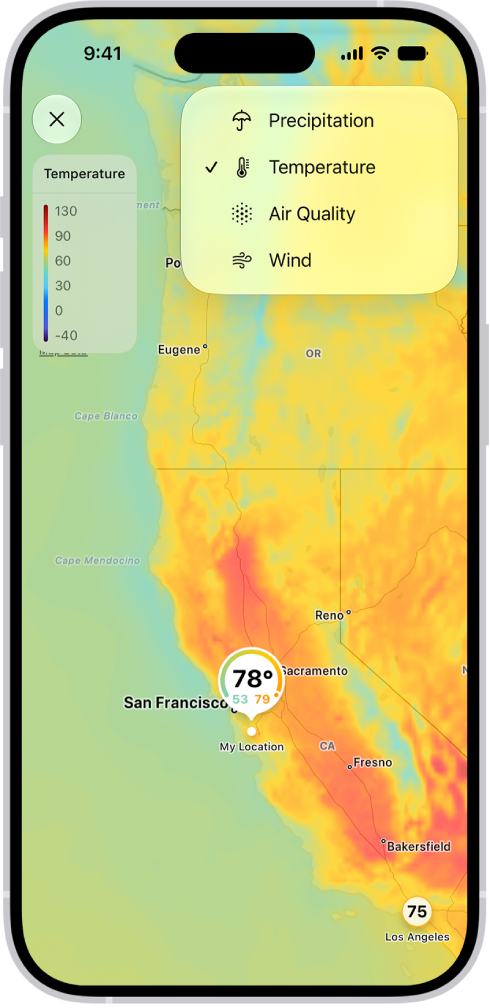
You can use the Weather app to view full-screen precipitation, temperature, air quality, and wind maps in your location or other areas.

The type of map you see can change depending on the weather conditions for the selected location, and on a precipitation or wind forecast map, you can show the timeline to see what’s coming. You can also move the map, zoom in and out, and view another location from your list.

Not all features are available in all countries or regions, Apple says.

Note: Not all features are available in all countries or regions.

A wind map of the ocean fills the Weather app screen. The Close Map button and the Wind Map Overlay Scale are in the top-left corner. In the top-right corner, from top to bottom, are the Overlay Menu, Current Location, and Locations buttons. Along the bottom is a timeline.

View a full-screen weather map

  1. Open the Weather app on your iPhone.
  2. Select a location. Tap the Show Map button at the bottom of the screen.

    Note: The type of weather map shown can change depending on the weather conditions for the selected location.

  3. To switch between a precipitation, temperature, air quality, or wind map, tap the Overlay Menu button.
  4. In a precipitation or wind forecast map, tap near the bottom of the screen to show the timeline.

    Tip: In a precipitation map, tap 1h or 12h to switch how much time the timeline covers.

  5. Tap the Close button to close the map.

Change the location of the weather map

  1. Open the Weather app on your iPhone.
  2. View a full-screen weather map. Do any of the following:
    • Move the map: Drag it.
    • Zoom in and out: Pinch the screen.
    • View another location from your list: Tap the Favorite Locations button and tap a location.
    • Return to your current location: Tap the Current Location button.
    • Add a location to your list, view its current conditions, or view it in Maps: Touch and hold the location on the map and then tap Add [location], View [location], or Open in Maps.
  3. Tap the Close button to close the map.
Tag: Maps

With Clean Energy Charging, iPhone uses a forecast of the carbon emissions in your local energy grid to charge during times of cleaner energy production. This feature is available only in the U.S. and is turned on by default. iPhone learns from your daily charging routine so it can reach full charge before you need to use it.

That means charging may sometimes be delayed when you plug in. If you need a full charge sooner than scheduled, you can temporarily override it.

What to expect

  • Charging may be delayed: When you connect your iPhone to a charger, it may wait to begin charging. iPhone does this automatically when cleaner energy is forecasted to be available soon. iPhone does this only when it knows your device will finish charging before you unplug it.
  • It isn’t always active: Clean Energy Charging happens only when a forecast for cleaner energy is available from your local grid. If a forecast isn’t available, your iPhone charges normally.

Temporarily override Clean Energy Charging

Need your iPhone charged to full sooner than scheduled? You can temporarily override Clean Energy Charging.

  1. Open the Settings app on your iPhone.
  2. Tap Battery and tap Resume Charging.

Turn off Clean Energy Charging

Clean Energy Charging is on by default when you set up your iPhone. To turn off the feature:

  1. Open the Settings app on your iPhone.
  2. Do one of the following:
    • On iPhone 14 or earlier: Tap Battery, then tap Battery Health & Charging. Turn Clean Energy Charging on or off.
    • On iPhone 15 or later: Tap Battery and then tap Charging. Turn Clean Energy Charging on or off and then choose an option.
Tag: Battery