Got a tip for us?

Use the Photos app to view photos and videos on your iPhone.

You can open a photo to view it in full screen, then keep browsing, or use the thumbnails below the photo to quickly jump forward or back. On iPhone 12 or later, you can view the photo with a 3D effect using Spatial Scene. To focus on the photo you’re viewing, you can hide the controls onscreen. Videos play right in Photos, too.

Here’s how to view photos and videos on iPhone.

View photos

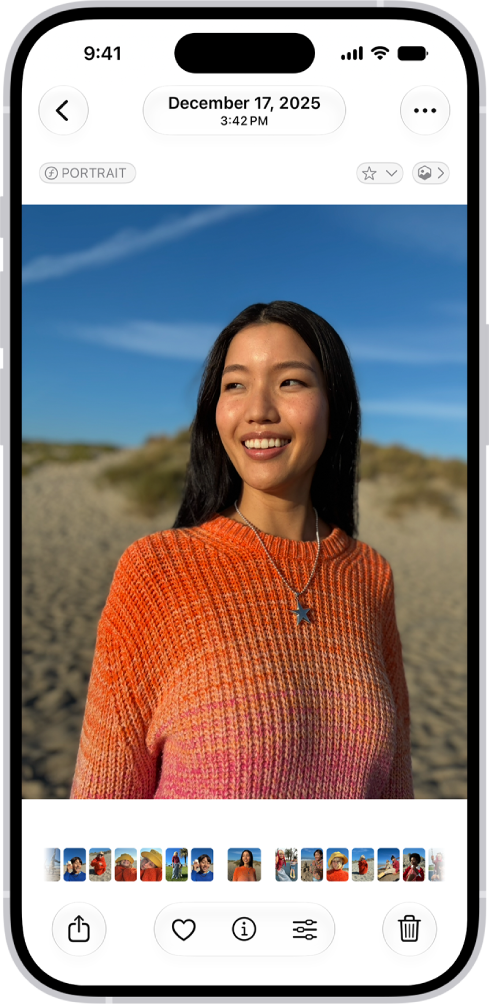
An open photo with thumbnails of other photos across the bottom of the screen. At the top left is a Back button to go back to browsing.

  1. Start the Photos app on your iPhone.
  2. Tap a photo to view it in full screen. Tip: Tap the Spatial Scene button, then move your iPhone in your hand to view the photo with a 3D effect (available on iPhone 12 or later).
  3. Swipe left or right on the photo to keep browsing, or swipe the thumbnails below the photo to quickly jump forward or back.
  4. Tap the Back button to close the photo and return to the library or collection.

Quick tip: Tap the photo you’re viewing to hide the onscreen controls and focus on it, then tap it again to show the controls.

Play videos

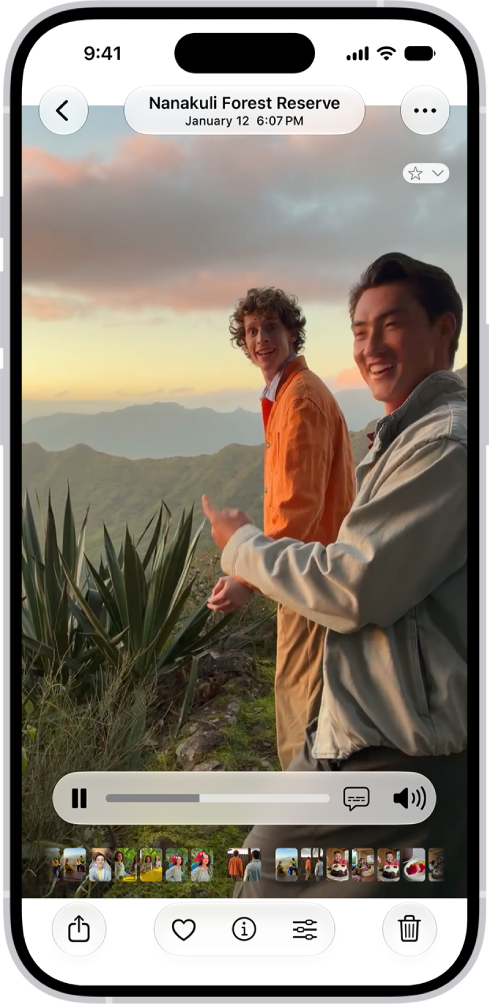
An open video with a Play/Pause button, a progress bar, and a Mute/Volume button along the bottom. At the top left is a Back button to go back to browsing.

  1. Start the Photos app on your iPhone.
  2. Tap a video to play it. As the video plays, you can pause the video, or drag the gray bar to go forward or back in the video.
  3. Tap the Back button to close the video and return to the library or collection.
Tag: Photos

If you subscribe to Apple Music and you join a collaborative playlist, you can react to songs in the playlist with emoji. It’s quick. From the Now Playing screen, you can choose a reaction, for example a thumbs up emoji, or find a specific emoji to add.

Note: Apple Music isn’t available in all countries or regions.

  1. Open the Music app on your iPhone.
  2. Tap a collaborative playlist. Tap the MiniPlayer to open the Now Playing screen.
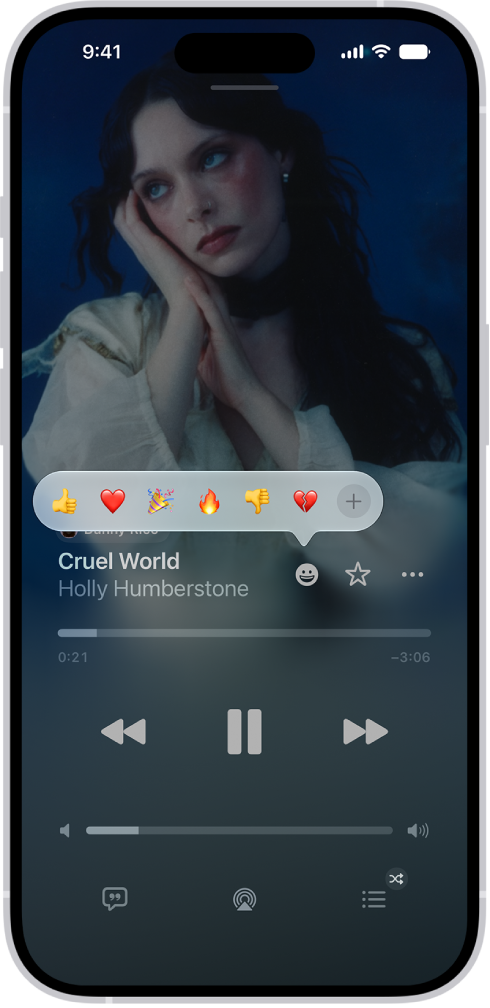
  3. Tap the Reaction button and choose a reaction (for example, a thumbs up emoji) or tap the Add button to find a specific emoji.

    The Now Playing screen with the Reactions button showing several emoji and an Add button that you can click to find more emoji.

Tag: Music

You can rate and review a show, read reviews from other listeners, and delete a review you wrote if you later change your mind. It all happens in Ratings & Reviews, for the show you want to rate or review, where you can rate the show from 1 to 5 stars or write a review.

Rate or review a show

  1. Open the Podcasts app on your iPhone.
  2. Search or browse for a show.
  3. Tap the show you want to rate or review and then scroll down to Ratings & Reviews.
  4. Do any of the following:
    • Rate a show: Tap a star to rate the show from 1 to 5.
    • Review a show: Tap Write a Review. Tap a star to rate the show and enter your review. Then tap the Submit button.
    • Edit a review: Tap Write a Review, make any changes and tap the Submit button.

Delete a rating or review

  1. Open the Podcasts app on your iPhone.
  2. Tap Home. Then tap the My Account button or your profile picture.
  3. Tap your name (you may need to sign in), then tap Ratings and Reviews.
  4. Tap Edit, then tap the Remove button.
  5. Tap Done.

The Today feed in the News app presents top stories selected by Apple News editors, the best stories from the channels and topics you follow, and stories and issues from Apple News+. The Today feed also includes stories suggested by Siri, trending stories that are popular with other News readers, My Sports, and more.

It can change with where you are. Depending on your location, the Today feed can also include Apple News Today audio briefings, puzzles, and local news, with your local weather conditions.

Note: Audio briefings, local news, and puzzles aren’t available in all countries or regions.

Access stories in the Today feed

  1. Start the News app on your iPhone.
  2. Do one of the following:
    • Open a story: Tap the story.
    • Read more stories within a group: Tap next to the name of the group.
    • Play a video: Tap the Play button in the thumbnail.
    • Get newer stories: Next to Top Stories, swipe down to refresh the Today feed with the latest stories.

Follow, unfollow, block, and unblock channels and topics

Following and blocking channels and topics influences what appears in the Today feed.

  1. Start the News app on your iPhone.
  2. Do any of the following:
    • Open a channel feed: Touch and hold a story, tap the channel name, and then tap Go to Channel. Or tap a story in the Today feed and tap the channel name at the top of the story.
    • Open a topic feed: Tap the topic title—Movies or Travel, for example.
  3. At the top of the feed, do any of the following:
    • Follow: Tap the Add button.
    • Unfollow: Tap the More button. Then tap Unfollow Channel or Unfollow Topic.
    • Block: Tap the More button and then tap Block Channel or Block Topic.
    • Unblock: Tap the More button and tap Unblock Channel or Unblock Topic.

Note: Top Stories are the same for everyone, so if one comes from a channel you blocked, you still see its headline, but that channel stays blocked in the rest of your feed.

Manage your favorites

Favorites holds the channels and topics you like best from your Following list, though you can have only a limited number of them. Channels and topics in Favorites are easier to access.

Note: Your Favorites can only include channels and topics you currently follow.

You won’t see any Favorites the first time you use the News app on your iPhone. To create your Favorites group, mark channels and topics as favorites, then customize the list at any time.

  1. Start the News app on your iPhone.
  2. Tap Following, tap Edit, and do any of the following:
    • Add a channel or topic to your Favorites: Tap the Add Favorite button next to a channel or topic.
    • Remove a favorite: Tap the Remove Favorite button next to a channel or topic you no longer want as a favorite.
    • Reorder favorites: Touch and hold the Reorder button and then drag favorites to the order you prefer. Tap the Done button.

Note: Your Favorites group stays in your Following list even if you tap Block from Today in the Today feed.

Tell News what kind of stories you prefer

  1. Start the News app on your iPhone.
  2. Tap Today.
  3. Tap the More button below a headline. Then tap Suggest More or Suggest Less.

See stories only from the channels you follow

  1. Start the Settings app on your iPhone.
  2. Tap Apps, then tap News.
  3. Turn on Restrict Stories in Today and then confirm your choice.

Note: Keep in mind that restricting stories significantly limits the variety you see in the Today feed, and Top Stories and Trending Stories no longer appear.

Tag: News

With Sound Recognition, your iPhone can continuously listen for certain sounds, such as a doorbell, siren, or crying baby, and notify you when it recognizes these sounds.

You can choose the sounds you want iPhone to recognize, and add your own, like a custom alarm, appliance, or doorbell, with a name you enter. Don’t rely on Sound Recognition in high-risk or emergency situations, or for navigation, though.

Here’s how to recognize sounds using iPhone.

Note: Don’t rely on your iPhone to recognize sounds in circumstances where you may be harmed or injured, in high-risk or emergency situations, or for navigation.

Set up Sound Recognition

  1. Start the Settings app on your iPhone.
  2. Tap Accessibility, tap Sound & Name Recognition, tap Sound Recognition, and turn on Sound Recognition.

    Note: After you turn on Sound Recognition, you may need to wait for iPhone to download the available sounds to your device.

  3. Tap Sounds and turn on the sounds you want iPhone to recognize.

Quick tip: Add Sound Recognition to Control Center to turn it on or off quickly.

Add a custom alarm, appliance, or doorbell

If iPhone doesn’t recognize a custom alarm, appliance, or doorbell automatically, you can set it up to recognize them.

  1. Start the Settings app on your iPhone.
  2. Tap Accessibility, tap Sound & Name Recognition and tap Sound Recognition. Tap Sounds.
  3. Tap Custom Alarm or Custom Appliance or Doorbell and enter a name.
  4. When your alarm, appliance, or doorbell is ready, place iPhone near the sound and minimize background noise.
  5. Tap Start Listening, then follow the onscreen instructions.

In the Podcasts app, you can share a podcast show or episode as a link. You can share while viewing show information or while viewing episode information, and you’ll even be able to specify the starting time for a shared episode.

  1. Start the Podcasts app on your iPhone.
  2. Do any of the following:
    • While viewing show information: Tap the More button and tap Share.
    • While viewing episode information: Tap the Share button.
    • To specify the starting time for a shared episode: From the Now Playing screen, tap the More button. Then tap Share. Tap From Start, choose From [time], and tap the Done button. The shared episode starts from the point where you’re watching or listening when you tap Share.
  3. Choose how to share the show or episode.

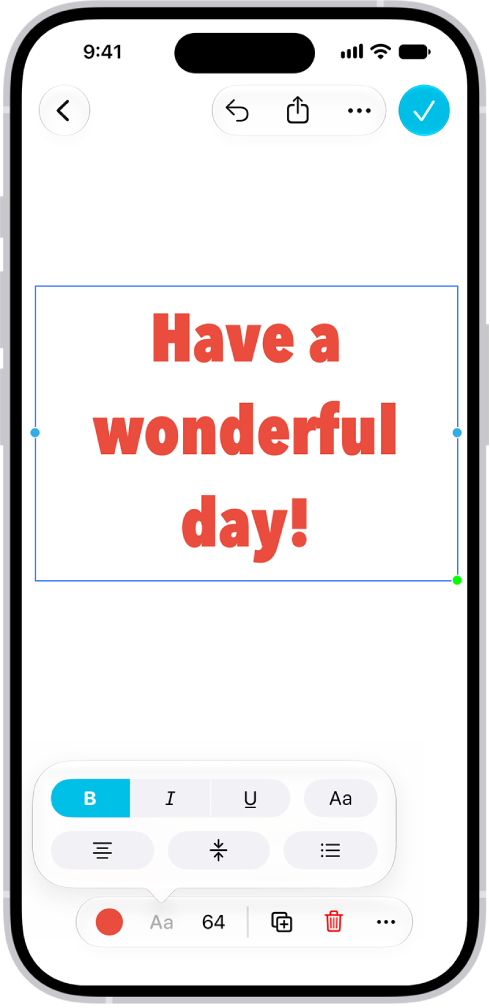
You can add text to a Freeform board using a sticky note or text box, or you can add text within a shape. With a keyboard connected, typing starts as soon as the item appears. You can also change the font, alignment, and more.

A Freeform board showing a text box selected and the text formatting tools below it.

  1. Open the Freeform app on your iPhone.
  2. Open a board, or tap the New Board button to start a new one and then do one of the following:
    • Add a text box: Tap the Add Text Box button.
    • Add text inside a shape: Tap the Content Hub button. Then tap the Add Shape button.
    • Add a sticky note: Tap the Media button, then tap Add Sticky Note.
  3. Double-tap the text box, shape, or sticky note. Enter text. (If you have a keyboard connected, you can start typing as soon as the item appears.)
  4. To change the font, alignment, and more, select the object and then tap the Text Formatting button in the formatting tools.
  5. Tap the Done button when you’re finished.

Siri AI (Beta) is your conversational AI assistant with entirely new capabilities, including personal context understanding, onscreen awareness, and broad world knowledge. These new capabilities make Siri a more capable assistant by allowing you to find what you need and get more done.

Siri AI also gives you Siri mode in Camera, which lets you ask questions, search, and take action based on what’s around you. And a dedicated Siri app brings all your conversations in one place.

Here’s how to get started with Siri AI on iPhone.

Siri AI is available in beta on iOS 27 or later on an Apple Intelligence-enabled iPhone 15 Pro, iPhone 15 Pro Max, or iPhone 16 model or later with Siri and device language set to a supported language. Available in English to start. Siri AI will not initially be available in the EU on iOS. Usage limits may apply.*

Turn on Siri AI

  1. Open the Settings app on a supported iPhone.
  2. Tap Siri and then do one of the following:
    • If Siri is off: Tap Turn on Siri and then tap Try Siri AI (Beta).
    • If Siri is on: Tap Try Siri AI (Beta).
  3. Follow the onscreen instructions.

An iPhone showing Siri finding content specified in the request.

Find what you need

Siri AI can search your photos, mail, messages, calendar, and more to find exactly what you’re looking for. Ask Siri to find a photo from years ago, a recommendation from a family member, and details about your friend’s flight itinerary from your email or calendar.

Siri AI: Activate Siri, then say something like, “Find photos from my trip to Lisbon” or “What time should I leave to pick up Antonio?”
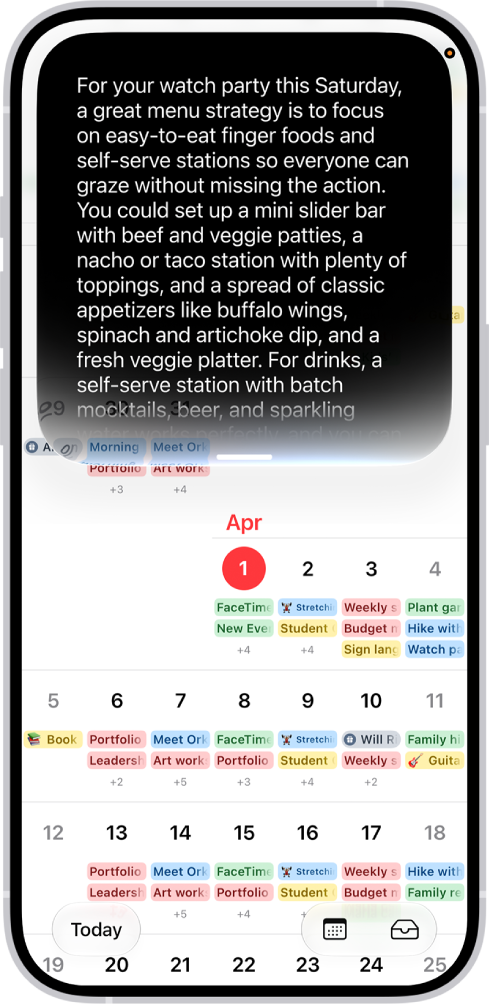
An iPhone showing Siri answering a request to plan a menu based on a calendar event.

Get more done

Siri AI helps you get more done with onscreen awareness and an understanding of your personal context. You can ask Siri to plan a menu for an event, for example, or add ingredients from a recipe to your shopping list. And Siri takes action in more apps, too, and can even suggest what you might want to do next.

Siri AI: Activate Siri, then say something like, “Plan a menu for my watch party on Saturday.” Swipe down on the Siri response to see the full menu and make follow-up requests, like “Send this to the fantasy league group chat.”
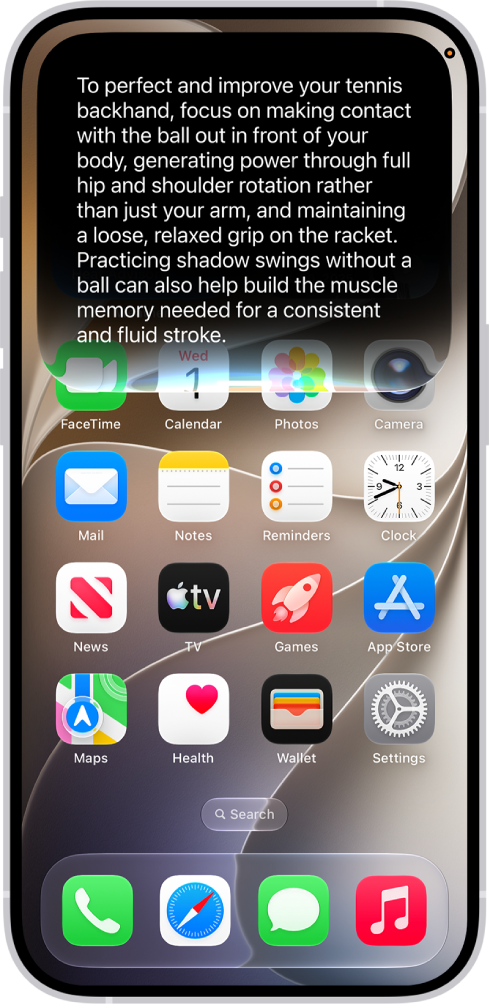
An iPhone showing Siri answering a request about how to improve a tennis backhand.

Ask about any topic

Siri AI has broad world knowledge, which is combined with your personal context to give you detailed, up-to-date, and relevant insights to your questions. Ask about virtually any topic—from finding the perfect weekend activity to do with family to details about the world around you.

Siri AI: Activate Siri, then say something like, “Give me some tips on how to improve my tennis backhand” or “When will cherry blossoms reach peak bloom this year?”
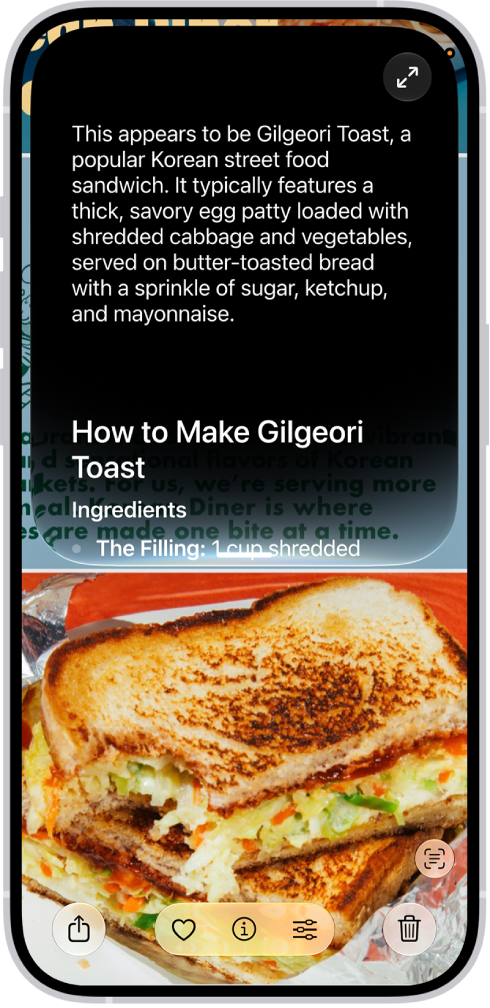
An iPhone screen shows a response from Siri identifying what's on the screen.

Learn about what’s on your screen

To get answers, search, or take action, ask Siri about an image, PDF, or other content on your iPhone screen.

Siri AI: Activate Siri, then say something like, “What is this and how do I make it?” Swipe down on the Siri response to see the recipe and make follow-up requests, like “Add the ingredients to my shopping list.”
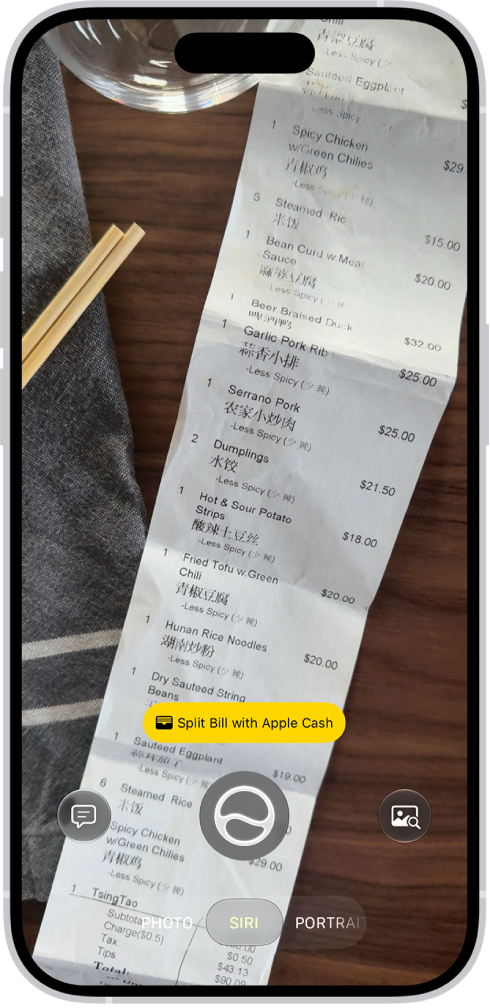
An iPhone with Siri mode in Camera showing a suggestion to split the bill with Apple Cash.

Discover and take action on the world around you

Siri mode in Camera uses Visual Intelligence to let you quickly identify something, ask questions, search based on what’s in your camera frame, or take quick actions—like splitting a bill with friends when you get the check or quickly importing a card to Apple Wallet.

Siri AI: On your iPhone with Camera open, tap Siri to switch to Siri mode, or click and hold the Camera Control when your iPhone is locked. Point your iPhone camera at something around you, then tap the Ask button to ask a question. You can also tap a suggestion—for example, while pointing the camera at a check, tap “Split Bill with Apple Cash” when it appears, then follow the onscreen instructions.
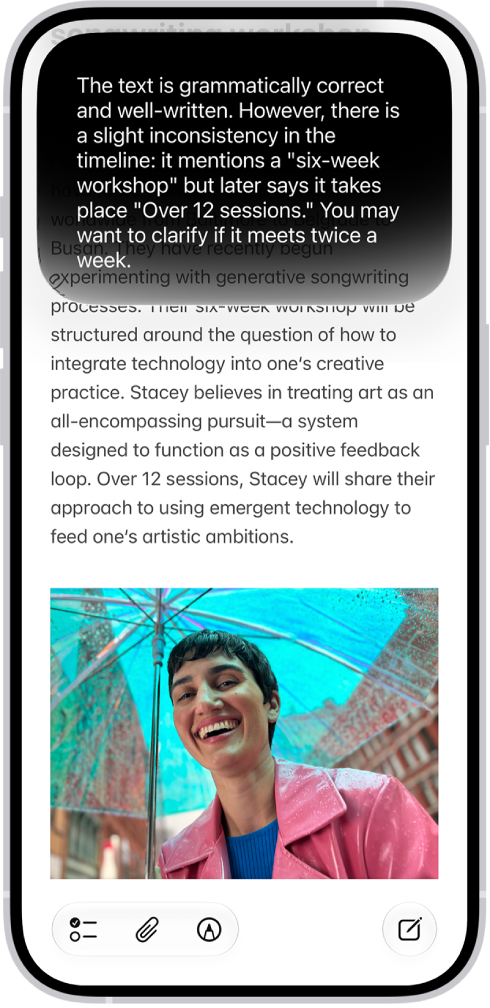
An iPhone showing Siri proofreading and giving feedback on text.

Write with Siri

Siri AI can generate a draft from scratch, summarize information, and provide feedback on what you’ve written—just describe what you want. For example, ask Siri to proofread a note or to write an itinerary for an upcoming trip.

Siri AI: Activate Siri, then say something like, “How’s this sound?” or “Write a day-by-day itinerary for a 3-day trip to New York.” Swipe down on the Siri response to continue to revise or ask follow-up questions.
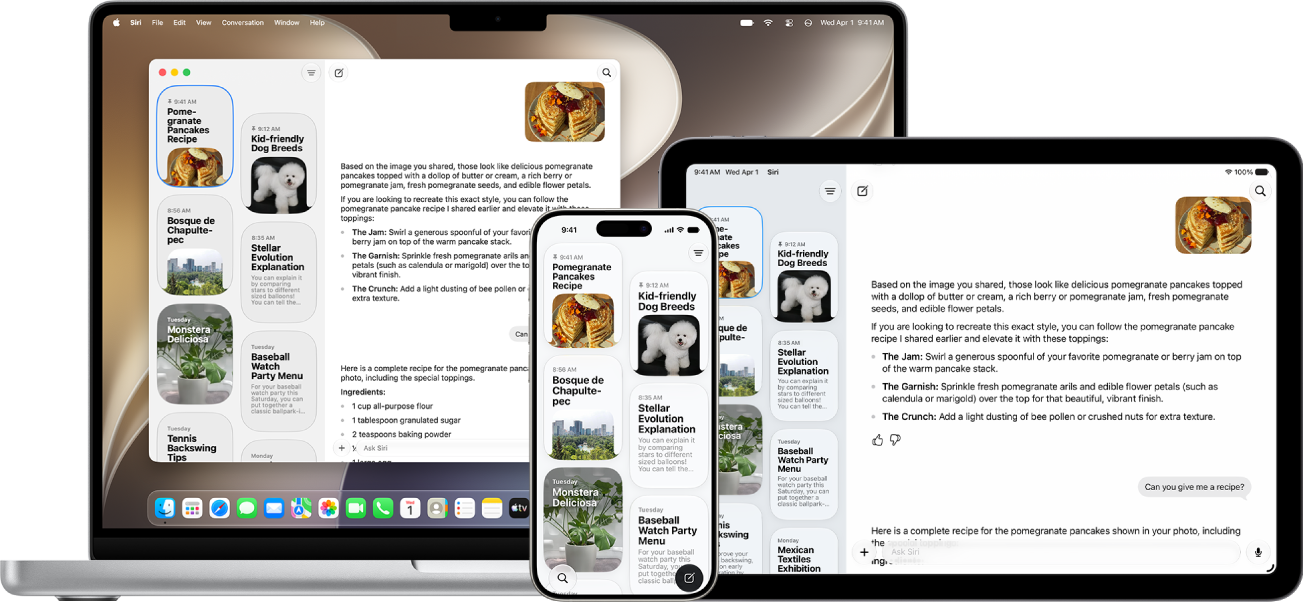
The Siri app on an iPhone, iPad, and Mac.

Keep the conversation going

In the Siri app, all your conversations are in one place, so you can pick up where you left off or start new ones.

Siri AI: Go to the Siri app on your iPhone, then select a conversation or tap the new conversation button to start a new one.

Want to learn more about Siri AI?

  • With Siri AI on supported iPhone models, you can use Siri Expressive Voices,** which allow you to pick a voice, then customize its expressiveness and pace until Siri sounds just right.

Siri is designed to protect your information, and you can choose what you share.

*Apple Intelligence is available with Siri and device language set to Chinese (Simplified), Chinese (Traditional), Danish, Dutch, English, French, German, Italian, Japanese, Korean, Norwegian, Portuguese, Spanish, Swedish, Turkish, or Vietnamese. Some features may not be available in all regions or languages. Some devices may not be available in all regions. Siri AI is available in beta in iOS 27, iPadOS 27, macOS 27, watchOS 27, and visionOS 27 and requires an Apple Intelligence–enabled device set to a supported language. Available in English to start. Siri AI will not be initially available in the EU on iOS, iPadOS, and watchOS. Certain Apple Intelligence features that rely on server-side models are subject to daily usage limits, including but not limited to Siri AI, Intelligent Photo Editing Tools, Image Playground, and AFM 3 Cloud models in Shortcuts. Daily limits may vary by feature, request complexity, system demand, system policies, and other factors. Expanded access to such features will be available for a fee in the future. Use of these features is subject to the Apple Intelligence Terms and Conditions.

**Siri Expressive Voices are available with Siri AI on iPhone 17 Pro, iPhone 17 Pro Max, iPhone Air, iPhone 18 Pro, and iPhone 18 Pro Max.


Tag: Siri AI

You can print a Freeform board from the Freeform app on your iPhone. If you saved scenes in your board, you can choose to print the entire board as a single page, or to print one scene per page instead.

  1. Open the Freeform app on your iPhone.
  2. Open the board you want to print, tap the More button, and tap Print.

    If you saved scenes in your board, choose to print one of the following:

    • The entire board as a single page: Tap Board.
    • One scene per page: Tap Scenes.

iPhone turns off the display to save power, locks for security, and goes to sleep when you’re not using it. You can quickly wake and unlock iPhone when you want to use it again.

You can wake iPhone with the side button or just by raising it, then unlock it with Face ID, Touch ID, or your passcode. And you can lock iPhone, too.

Here’s how to wake, unlock, and lock iPhone.

Wake iPhone

To wake iPhone, you can do one of the following:

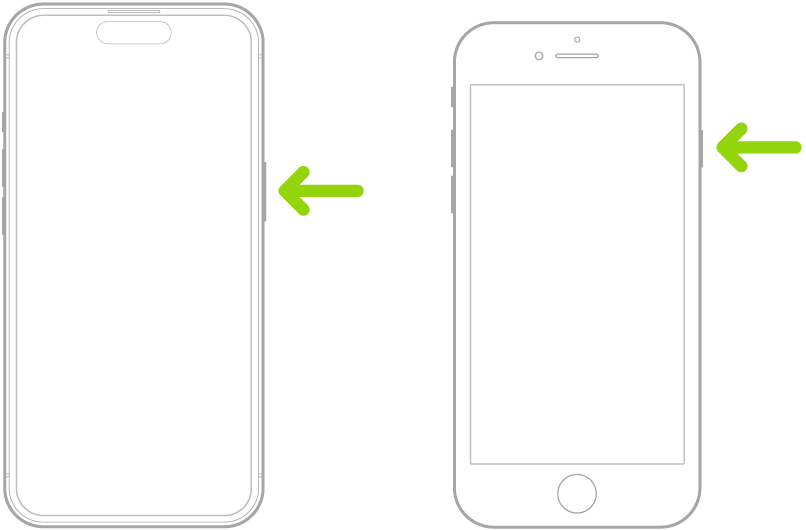
  • Press the side button.

    A green arrow pointing to the button on the right side of iPhone.

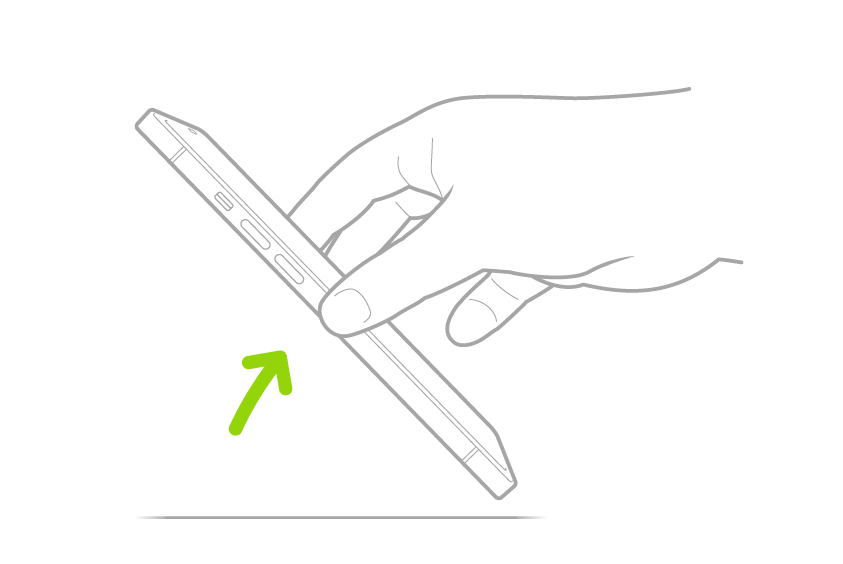
  • Raise iPhone.

    A hand lifting iPhone from a flat surface.

    Note: To turn off Raise to Wake, go to the Settings app , then tap Display & Brightness.

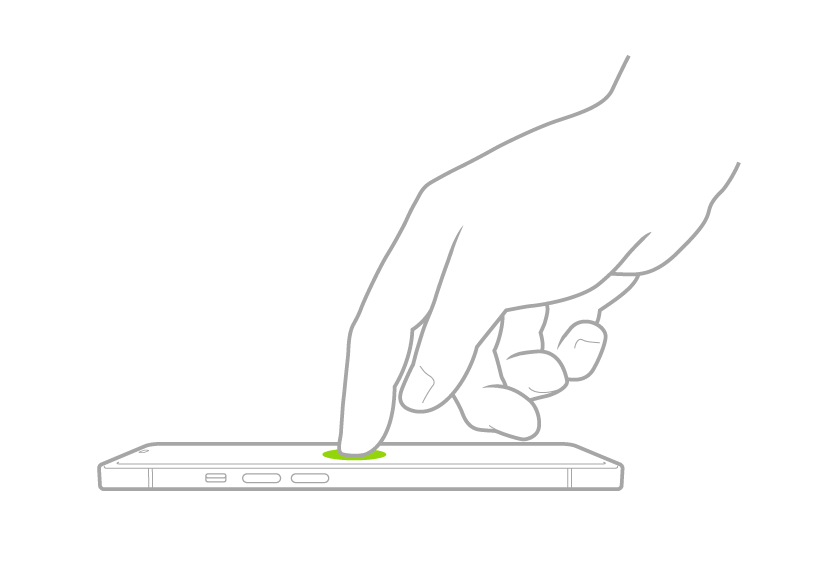
  • Tap the screen (not available on iPhone SE).

    A finger tapping the screen to wake iPhone.

Unlock iPhone with Face ID

Follow these steps:

  1. Tap the screen or raise iPhone to wake it. Then glance at your iPhone.

    The lock icon animates from closed to open to indicate that iPhone is unlocked.

  2. Swipe up from the bottom of the screen.

Note: Press the side button to lock iPhone again. iPhone also locks on its own if you don’t touch the screen for a minute or so. With Attention Aware Features turned on, though, iPhone won’t dim or lock while it detects attention. To turn Attention Aware Features on or off, go to the Settings app and tap Face ID & Passcode.

Unlock iPhone with Touch ID

Follow these steps:

  1. To unlock iPhone, press the Home button using the finger you registered with Touch ID.
  2. To lock iPhone again, press the side button.

Note: Leave the screen untouched for a minute or so, and iPhone locks automatically.

The Home button (Touch ID) at the bottom of iPhone.

Unlock iPhone with a passcode

Follow these steps:

  1. Swipe up from the bottom of the Lock Screen (on an iPhone with Face ID) or press the Home button (on other iPhone models).
  2. Enter your passcode.

Lock iPhone

You can lock iPhone in two ways, manually or automatically:

  • Manually: Press the side button.
  • Automatically: iPhone locks on its own if you don’t interact with it for a certain amount of time.

When iPhone locks, the display turns off unless you’ve turned on the Always On Display.

Tag: iPhone