Got a tip for us?

On supported models, the default for the 1x Main camera lens is 24 mm. On iPhone Air, the default is 26 mm. You can add 28 mm and 35 mm as secondary lenses, and change which lens is the default Main lens.

The 28 mm and 35 mm lenses need Photo Mode set to 24 MP, and once they’re added, you can pick which lens is the default for the Main camera.

  1. Start the Settings app on your iPhone.
  2. Tap Camera, tap Formats, and tap Photo Mode and make sure 24 MP is selected.
  3. Go back to Settings and tap Camera. Then tap Main Camera or Fusion Camera below Photo Capture (depending on your model).
  4. Below Additional Lenses, turn on the lenses you want to add as additional Main lenses.
  5. Below Default Lens, tap the option you want to use for the default Main lens.

When you open Camera, the Main lens will be either 1x (24 mm), 1.2x (28 mm), or 1.5x (35 mm). On iPhone Air, the Main lens will be either 1x (26mm), 1.1x (28 mm), or 1.4x (35 mm). Tap the Main camera lens to switch between the additional lenses you chose.

Tag: camera
Apple News+ subscribers can automatically download News content, then access it when there’s no Wi-Fi or cellular connection, for example, when taking a flight or riding the subway.

Downloads can include stories, issues, audio stories, recipes, and puzzles, ready for Offline Mode.

Here’s how to use Offline Mode to read downloaded News content on iPhone.

Note: Content that can be downloaded for Offline Mode may include stories, issues, audio stories, recipes, and puzzles. Not all content types are available in all countries or regions.

Turn on Automatic Downloads for Apple News+

  1. Sign in to your Apple Account.
  2. Start the Settings app on your iPhone.
  3. Tap Apps, then tap News.
  4. Turn on Background App Refresh.
  5. Tap Automatic Downloads, turn on Allow Automatic Downloads, and turn on any of the following:
    • Recent Stories: Downloads the latest stories in the Today feed, Best of News+ feed, Sports feed, Shared with You, and History.
    • Saved Stories: Downloads the latest stories in your Saved Stories list.
    • Magazine Issues: Downloads the latest issues of magazines you follow.
    • Food & Recipes: Downloads the Food feed, the Recipe Catalog, and Saved Recipes.
    • Puzzles: Downloads the Puzzles feed, the feed for each puzzle type, and the puzzles in these feeds.
    • Audio Stories: Downloads audio stories in the Today feed and Audio tab.

Note: Turn on Optimize Storage to download smaller versions of images in stories and recipes.

As long as your iPhone has enough storage space and is connected to Wi-Fi and power, it downloads News content. On a cellular connection without Wi-Fi, only Top Stories in the Today feed download automatically.

Use News in Offline Mode

If you don’t have a Wi-Fi or cellular connection, No Internet Connection appears at the top of the screen and any content in the app that isn’t downloaded is dimmed. To switch from the currently loaded version of each feed to the downloaded version, tap Show Stories Downloaded for Offline Mode. When you reconnect to the internet, tap Check for New Stories at the top of the screen. All feeds in the app are refreshed and display the latest content.

Tag: News

If you subscribe to Apple Music, you can share a playlist and collaborate on it with others. Everyone can add, remove, and reorder music and react with emoji to songs in the collaborative playlist.

You decide who gets in. With Approve Collaborators turned on, you approve people before they can join; if you don’t turn it on, anyone with the link can join the collaborative playlist.

Here’s how to collaborate on a playlist in Music on iPhone.

Note: Apple Music isn’t available in all countries or regions.

Invite others to collaborate on a playlist

  1. Open the Music app on your iPhone.
  2. Tap a playlist, then tap the Collaboration button.
  3. To approve people before they can join, turn on Approve Collaborators.

    If you don’t turn on this option, anyone with the link can join the collaborative playlist.

  4. Tap Start Collaborating. Choose a sharing method, such as AirDrop, Messages, or Mail, to send a link to the playlist.

    The person who receives the link must tap Join Playlist to start collaborating.

    If you’re the owner and you turn on Approve Collaborators, notifications appear in the top-right corner when a new person requests to join the collaborative playlist.

Add more people to collaborate on a playlist

You can share the link to a collaborative playlist with more people if you’re its owner, or if the owner hasn’t turned on Approve Collaborators.

  1. Open the Music app on your iPhone.
  2. Tap a collaborative playlist, tap the Manage Collaboration button, and then do one of the following:
    • Add someone who is nearby: Tap QR Code. Others can join the playlist by using the camera on their iPhone to scan the code displayed on your iPhone.
    • Add someone else: Tap generate a new link (if necessary) and tap Share Invite Link. Then follow the steps to invite others to collaborate on a playlist.

Manage shared settings for a collaborative playlist

Once you’ve started collaborating on a playlist, its owner can change access and permissions for everyone or for individuals.

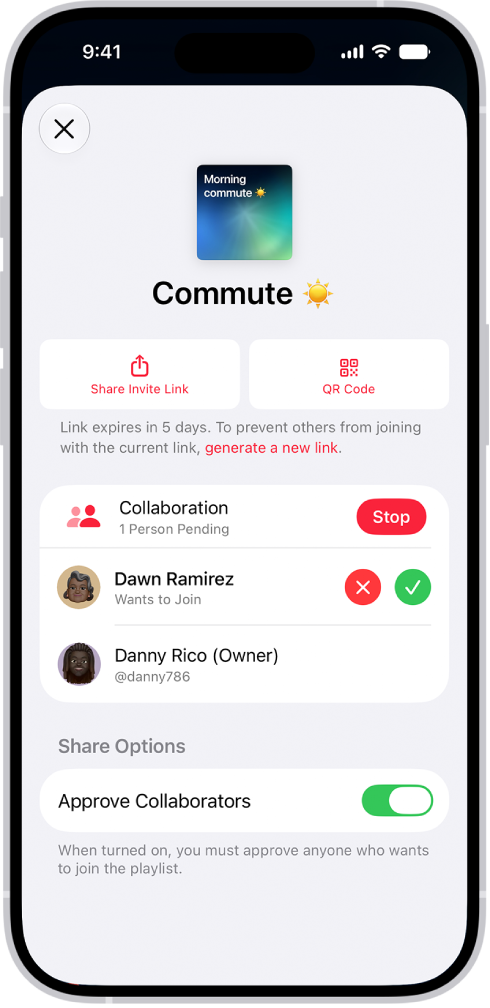
The Manage Collaboration screen in the Music app.

  1. Open the Music app on your iPhone.
  2. Tap a collaborative playlist, tap the Manage Collaboration button, and then do any of the following:

    • Invite others: See Add more people to collaborate on a playlist.

      Note: If you didn’t turn on Approve Collaborators, anyone collaborating on the playlist can share the link to the collaborative playlist.

    • Approve people before they can join: Turn on Approve Collaborators.
    • Accept request: Tap the Accept Request button to allow the person to join the collaborative playlist.
    • Decline request: Tap the Decline Request button if you don’t want the person to join the collaborative playlist.

Stop collaborating on a playlist with one or more people

Owners can also remove people from the playlist, or stop collaborating on it altogether.

  1. Open the Music app on your iPhone.
  2. Tap a collaborative playlist, tap the Manage Collaboration button, and then do any of the following:
    • Remove one person: Swipe left on the person’s name and tap Remove.
    • Stop collaborating on a playlist: Tap Stop.

Remove yourself from a collaborative playlist

  1. Open the Music app on your iPhone.
  2. Tap a collaborative playlist and tap the Manage Collaboration button. Tap Leave.
Tag: Music

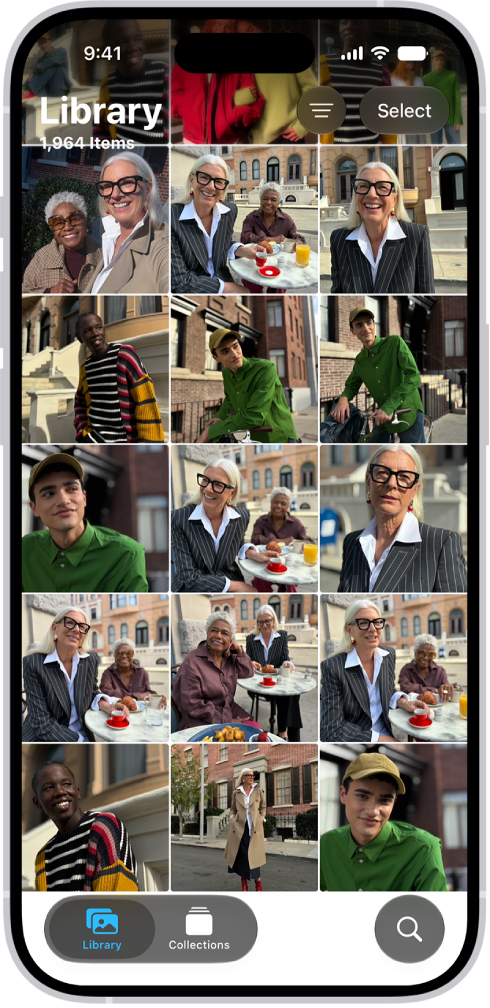
Use Photos on your iPhone to find your photos, enjoy your memories, and share your best shots. The Library tab shows all your photos organized by date, and memories turn your photos and videos into personalized collections set to music. You can also adjust light and color, crop, and add filters or styles.

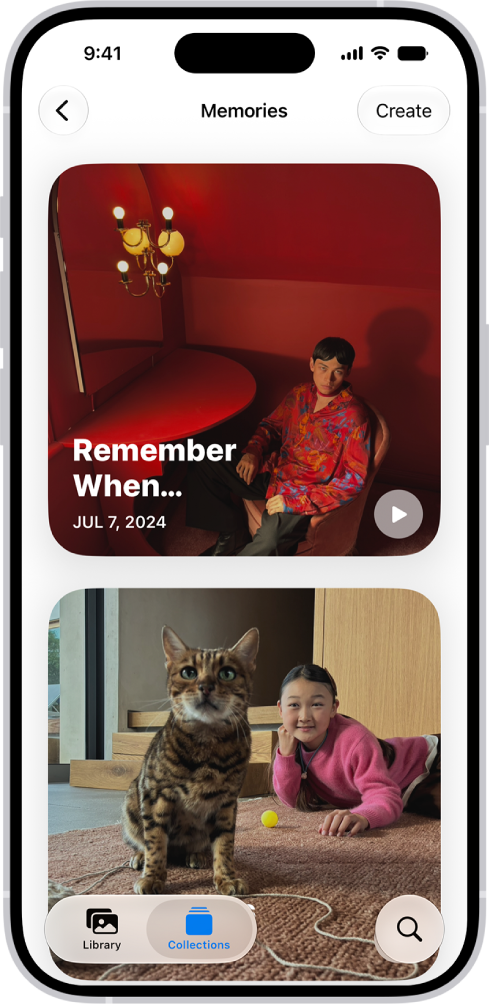
Each memory centers on a theme, like a person, pet, place, event, or activity. You can share photos with Mail, Messages, or AirDrop, or share all the photos and videos in a collection.

The Photos app is open and the Library tab is selected at the bottom of the screen.

Browse your photos

To get started viewing your photos and videos, go to the Photos app. The Library tab shows all your photos organized by date. To view collections of photos—like Albums, Recent Days, People & Pets, and more—tap Collections .

The Photos app is open to the Memories collection.

Enjoy your memories

Relive your favorite memories with personalized collections of photos and videos that are set to music and play like a movie. Tap Collections , tap Memories, then tap a memory. Each memory features photos from your library curated around a theme—like a person, pet, place, event, or activity.

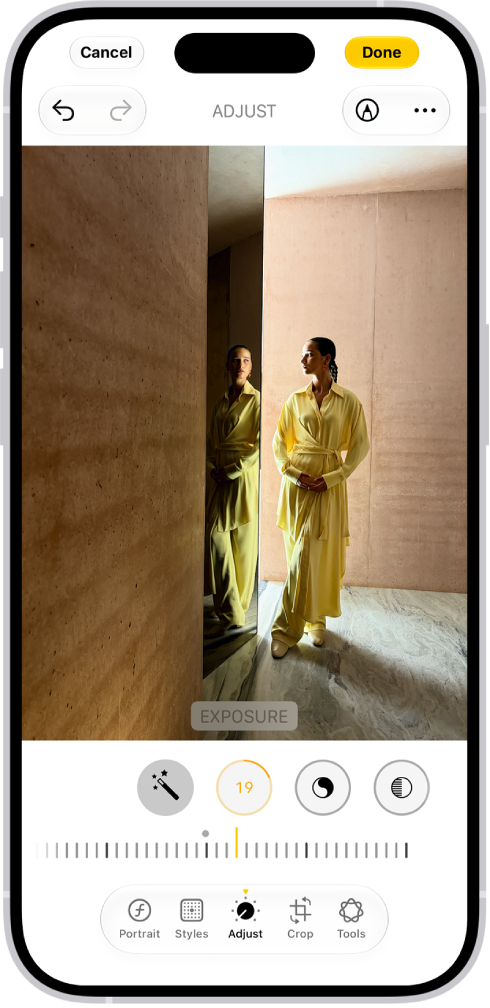
The Edit screen with a photo in the center. At the bottom of the screen, from left to right, are the Adjust, Filters, Crop, and Clean Up buttons. The Adjust button is selected and there is a slider to adjust Brilliance. The Cancel button is in the top-left corner of the screen and the Done button is in the top-right corner.

Edit your photos

To make your photos stand out, adjust light and color, crop, rotate, add a filter, and more. Open a photo or video, then tap the Edit button to start editing.

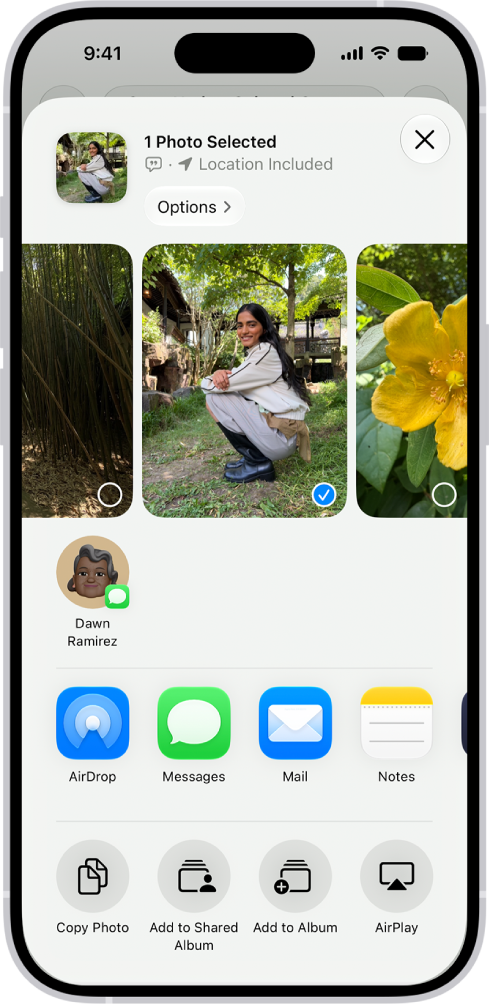
A selected photo is displayed in the top half of the iPhone screen, with a row of share options below. Additional options appear below those, including Copy Photo, Add to Shared Album, Add to Album, and Use as Wallpaper.

Share your photos

Open a photo or video, tap the Share button, then choose a sharing option like Mail, Messages, or AirDrop. To share all the photos and videos in a collection, tap the More button, then tap Share.

Tag: Photos

Use CarPlay to send, hear, and reply to text messages from your iPhone. You can hear unread messages, respond to a thread, or react with Tapbacks, and your vehicle’s built-in controls can help. Pinned conversations from Messages on iPhone show up in CarPlay, too.

Send and receive text messages

Your vehicle’s built-in controls can help you send and receive messages, too. Open Messages in CarPlay and do one of the following:

  • Hear unread messages or respond to a thread: Select a conversation.
  • Start a new conversation: Select the Compose button.
  • Automatically send messages: Skip the confirmation step when sending messages with Siri to send messages automatically, unless you ask to change or cancel it.

    In CarPlay, go to Settings > Siri, then select Automatically Send Messages.

React with Tapbacks

A Tapback, such as a heart or thumbs-up, gives you a quick and easy way to respond to a message.

When a message arrives in CarPlay, respond with “like that message” to give it a thumbs-up.

Or select the Tapback button and choose a different emoji.

Pin important conversations

Your pinned conversations from Messages on iPhone are now in the Messages app in CarPlay.

Note: If Messages doesn’t show up in the recent apps list on the left of CarPlay Dashboard, tap the Home button. Its pages show all of your CarPlay apps, along with incoming text messages with CarPlay.

Tag: carplay

Using the Home app and your compatible Matter thermostat, you can turn on automatic adjustments for comfort and cleaner energy guidance.

Adaptive Temperature uses settings and temperature ranges for your At Home, Night, Away, and Extended Away states, and with compatible occupancy sensors, it can adjust the temperature based on room occupancy. It can even predict arrivals. With Clean Energy Guidance, Home makes small thermostat adjustments to help reduce electricity usage while energy sources are less clean.

Adaptive Temperature

  1. Start the Home app on your iPhone.
  2. Tap Home, tap your thermostat, tap the Settings button, and tap Adaptive Temperature.
  3. Turn on Adaptive Temperature. Choose your settings and temperature range for your At Home, Night, Away, and Extended Away states.
  4. Turn on any of the following:
    • Switch Thermostat Modes: When enabled, your thermostat will switch between Heat, Cool, Auto, and Off based on your temperature preferences. When disabled, your thermostat will stay in its current mode.
    • Occupancy Detection: With compatible occupancy sensors, Adaptive Temperature can adjust the temperature based on room occupancy.
    • Predict Arrival: Use daily routines, Apple Maps, Calendar, and more to predict arrivals and automatically precondition to your chosen At Home temperature range.
    • Activity History: Adaptive Temperature changes are logged to Activity History.

Turn off Adaptive Temperature

  1. Start the Home app on your iPhone.
  2. Tap Home, tap your thermostat, tap the Settings button, and tap Adaptive Temperature.
  3. Turn off Adaptive Temperature.

Clean Energy Guidance

While energy sources are less clean, Home can adjust the thermostat by small amounts to help cut electricity usage.

  1. Start the Home app on your iPhone.
  2. Tap Home and tap your thermostat. Then tap the Settings button.
  3. Turn on Optimize for Clean Energy.

Turn off Clean Energy Guidance

  1. Start the Home app on your iPhone.
  2. Tap Home and tap your thermostat. Then tap the Settings button.
  3. Turn off Optimize for Clean Energy.
Tag: Home

You can delete text messages, attachments, and entire conversations from your iPhone anytime, without affecting what your recipients see. Deleted messages and attachments remain in your Recently Deleted folder for up to 30 days, and you can recover them.

It doesn’t have to be one at a time. You can select the messages or attachments you want to delete, delete multiple photos, videos, or other attachments, or delete a conversation entirely.

Quick tip: Sent a message accidentally? You have 2 minutes to retract it with Undo send, which deletes it from both your phone and your recipient’s phone.

Delete messages and attachments

  1. Open the Messages app on your iPhone.
  2. Open a conversation, touch and hold a message bubble or attachment, and then tap More.
  3. Select the messages or attachments you want to delete. Tap the Delete button.

You can also delete a conversation entirely.

Delete multiple photos, videos, or other attachments

  1. Open the Messages app on your iPhone.
  2. Tap the contact or group icon at the top of the conversation.
  3. Tap a category, such as Photos.

    Tip: To see only one kind of image, tap the Filter button, then tap Screenshots, Videos, or Photos.

  4. Tap Edit, then tap Select.
  5. Tap each attachment you want to delete, tap the Delete button, and tap the Delete button to confirm the number of attachments you want to delete.

Delete a conversation

  1. Open the Messages app on your iPhone.
  2. In the conversation list, do one of the following:
    • Swipe left on the conversation, then tap the Delete button.
    • Touch and hold the conversation, then tap Delete.

Delete multiple conversations

  1. Open the Messages app on your iPhone.
  2. At the top of the conversation list, tap Edit.
  3. Tap Select Messages and then select conversations you want to delete.
  4. Tap the Delete button and tap Delete.

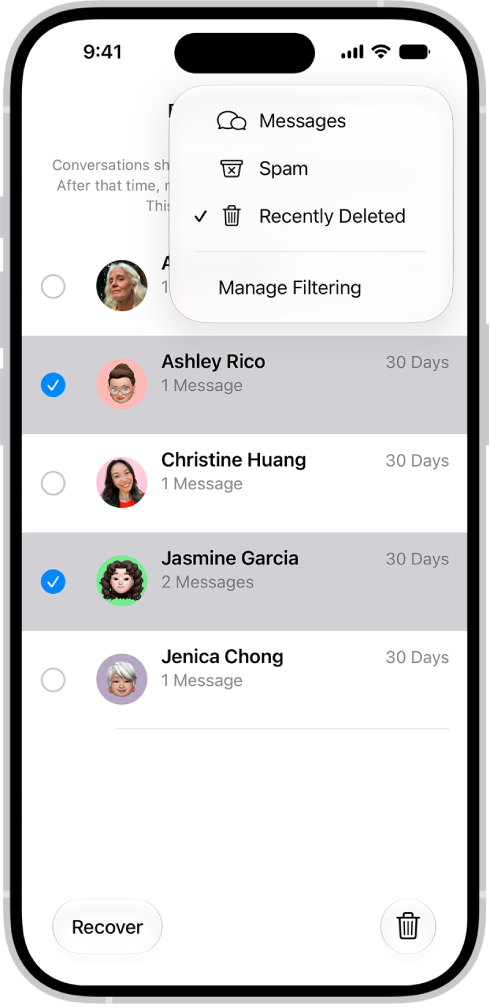
A list of recently deleted messages with two conversations selected, and two options available at the bottom of the screen: Recover and Permanently Delete.

Permanently remove recently deleted messages and attachments

You can permanently remove deleted messages and attachments before their 30 days in the Recently Deleted folder are up.

  1. Open the Messages app on your iPhone.
  2. In the conversation list, tap the Filter button and tap Recently Deleted.
  3. Select the conversations whose messages you want to delete permanently, tap the Delete button, and then tap Delete.

Important: This can’t be undone.

Automatically delete old messages

On an ongoing basis, you can delete messages and attachments once they’re older than 30 days or a year.

  1. Open the Settings app on your iPhone.
  2. Tap Apps, then tap Messages.
  3. Scroll down and tap Keep Messages (below Message History). Then choose an option.

Important: If you choose an option other than Forever, your conversations (including all attachments) are automatically removed after the specified time period elapses.

With Messages in iCloud, deleting a message or conversation on your iPhone also deletes it on all your devices that have Messages in iCloud turned on.

Note: Deleting messages only affects your iPhone and the other Apple devices that are signed in to the same Apple Account. There is no way to delete messages, attachments, and conversations for anyone else.

You can change the map view or distance units that appear in the Find My app. A button at the right of the map shows whether the current map is for exploring or viewing from a satellite, and you can choose another map type, or change the view to 2D or 3D in some locations.

Change the map view

The button at the right of the map tells you if the current map is for exploring or for viewing from a satellite.

  1. Start the Find My app on your iPhone.
  2. To choose a different map, tap the button at the right and then choose another map type.
  3. Tap the Close button.

You can also tap 2D or 3D at the right to change the view (not available in all locations).

Quick tip: Zoom in if you don’t see 2D or 3D. Or, to see the 3D view, swipe up with two fingers.

Change distance units

To change the default distance units, use Settings.

Tag: Find My

Configuration profiles define settings for using iPhone with corporate or school networks or accounts. You might be asked to install a configuration profile that was sent to you in an email, or one that’s downloaded from a webpage.

You’re asked for permission before the profile is installed, and when you open the file, you see information about what it contains. You can see all the profiles you’ve installed, too. If you delete a profile, all the settings, apps, and data associated with it are deleted as well.

If you delete a profile, all of the settings, apps, and data associated with the profile are also deleted.

Tag: Files

With Live Captions on iPhone, you can get a real-time transcription of spoken audio. Use Live Captions to more easily follow the audio in any app, such as FaceTime or Podcasts, as well as live conversations around you.

You can customize the text, size, and color of the captions, and choose how long to keep captions from your calls.

Here’s how to get live captions of spoken audio on iPhone.

Note: Live Captions is available on iPhone 11 or later. Live Captions isn’t available in all languages, countries, or regions. The accuracy of Live Captions may vary and shouldn’t be relied upon in high-risk or emergency situations.

Set up and customize Live Captions

  1. Start the Settings app on your iPhone.
  2. Tap Accessibility and tap Live Captions. Then turn on Live Captions.
  3. Tap Appearance to customize the text, size, and color of the captions.
  4. Tap Keep Call Captions and then choose an option:
    • 1 Minute: Select 1 Minute to save captions from calls for up to one minute during a call. All call captions are cleared after the call ends. If you select 1 Minute, you won’t be able to copy, take a screenshot, or take a screen recording of the call transcription.
    • 1 Hour: Select 1 Hour to save captions from calls for up to one hour after a call ends. If you select 1 Hour, you’ll be able to copy, take a screenshot, and take a screen recording of the call transcription.

Note: When you choose 1 Hour, all call participants hear a brief audio announcement (“This call is being transcribed”) at the start of the call. If Live Captions is paused or the Keep Call Captions option is changed from 1 Hour to 1 Minute during a call, all participants hear an audio announcement (“This call is no longer being transcribed”).

Use Live Captions

With Live Captions on, iPhone automatically transcribes the spoken audio in apps, or the dialogue around you, and you can do any of the following:

  • Transcribe an in-person conversation: Tap Live Captions, then tap Microphone.
  • Transcribe iPhone audio: Tap Live Captions, then tap iPhone Audio.
  • Pause the transcription: Tap Live Captions, then tap Pause Listening.
  • Copy the transcription: Tap the More Options button, then tap Copy Captions. You can paste your transcriptions in another app—like in Notes or Messages.
  • Clear the transcription: Tap the More Options button, then tap Clear All.
  • Move the Live Captions window: Drag the Live Captions window to reposition it on the screen.
  • Hide the Live Captions window: The Live Captions window is automatically hidden when no audio is detected. If the window is showing, swipe left or right on the window to hide it. To restore the window, tap the Live Captions Collapsed button.
  • Make the transcription window full-screen: Tap the Maximize button. To restore the window to the smaller size, tap the Minimize button.
  • Take a screenshot or screen recording of the transcription: Position the Live Captions window, then take a screenshot or take a screen recording.

Note: Screenshots, screen recordings, and copying transcriptions only work during and after a call if you chose 1 Hour while setting up Live Captions.