Got a tip for us?

In the Apple Games app, you can find your next game across dozens of categories including action, adventure, racing, puzzles, and more.

You can explore new releases, see top charts, or get personalized suggestions, and browse the curated collection of games from Apple Arcade, which requires a subscription but comes without ads or in-app purchases. You can also search for a specific game.

Here’s how to find and download games in the Apple Games app on iPhone.

Note: Game Center, Apple Arcade, and Apple One aren’t available in all countries or regions. The availability of Apple Arcade games across devices varies based on hardware and software compatibility. Some content may not be available in all areas.

Browse or search for games

  1. Open the Apple Games app on your iPhone.
  2. Do any of the following:
    • Explore new releases, see top charts, or get personalized suggestions: Tap Home.
    • View the curated collection of games from Apple Arcade (subscription required) without ads or in-app purchases: Tap Arcade.
    • Search or browse: Tap the Search button, browse by category or enter what you’re looking for. Then tap the Search button on the onscreen keyboard.
  3. Select a game to see information such as ratings, game controller support, leaderboards, achievements, and more.

To see additional information like reviews and privacy information, tap View in App Store.

Download or buy a game

  1. Open the Apple Games app on your iPhone.
  2. Go to the game you want and tap the price. If the game is free, tap Get.

    If you see the Redownload button instead of the price or Get, you purchased this game before. Tap the Redownload button to download it again for free.

  3. If required, authenticate with Face ID, Touch ID, or your passcode to complete your purchase.

Purchases are charged to the payment method associated with your Apple Account.

In a Family Sharing group, a child may need to ask permission before buying or downloading games.

Play a game

  1. Open the Apple Games app on your iPhone.
  2. Do any of the following:
    • Play a downloaded game: Tap Library and then tap Play next to the game you want to play.
    • Continue a game: Tap Home, then tap the game in the Continue Playing section.

Quit a game

To quit a game, open the App Switcher, swipe right to find the game, then swipe up on the game.

You can choose different color, text size, and motion settings for certain apps or for the Home Screen and App Library. In Per-App Settings, you add an app from the list, or the Home Screen and App Library. Each one gets its own settings.

  1. Open Settings, tap Accessibility, and then tap Per-App Settings.
  2. Tap Add App. Then choose an app from the list (or Home Screen & App Library).
  3. Tap the name of the app (or Home Screen & App Library) to access its settings.

You can forward one or more text messages in a conversation to a different recipient, and you can choose exactly which messages to forward. To show the message bubbles and timestamps as they appear in a conversation, though, you can send a screenshot instead.

  1. Start the Messages app on your iPhone.
  2. Open a conversation. Touch and hold a message bubble you want to forward.
  3. Tap More, tap to select one or more messages to forward, and then tap the Share button.
  4. Enter recipients, then tap the Send button.

Quick tip: Instead of forwarding messages, you can send a screenshot as an attached image, which keeps the message bubbles and timestamps exactly as they appear in a conversation.

You can write, send, and schedule email messages from any of your email accounts.

You can change the font style and color of text, or add a hyperlink, and Camera can even capture an email address. And with Send Later, you can schedule an email, or automatically send a copy to yourself. You can add recipients and edit a link in a draft, too.

Here’s how to send email in Mail on iPhone.
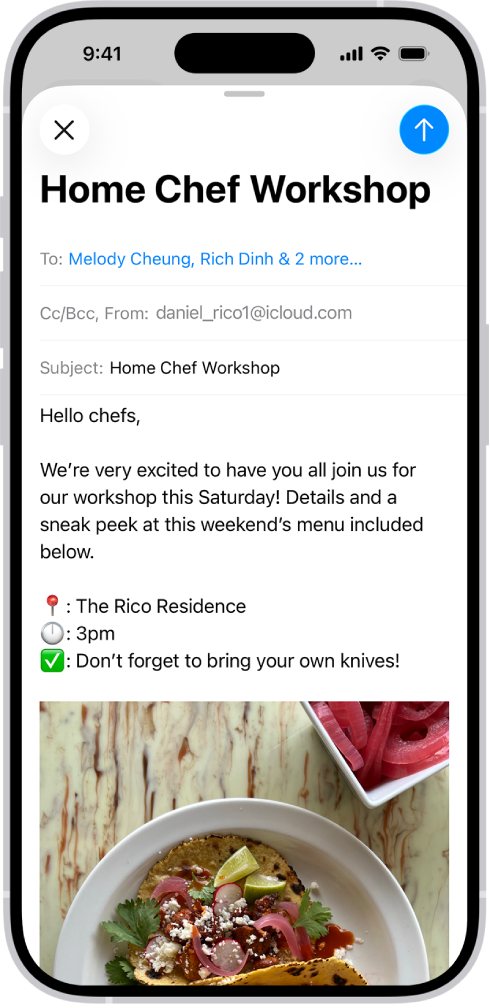
A draft email being composed.

Write and send an email

  1. Start the Mail app on your iPhone.
  2. Tap the Compose button.
  3. Tap in the email and type your message.

    To change the formatting, tap the Text Format button above the keyboard.

    You can change the font style and color of text, use a bold or italic style, add a bulleted or numbered list, and more.

  4. Tap the Send button to send your message.

    Tip: You can create and add stickers to messages as you compose them.

Add recipients

  1. Start the Mail app on your iPhone.
  2. Tap the Compose button and tap the To field. Then type the names of recipients.

    As you type, Mail automatically suggests people from your Contacts.

    You can also tap the Add Contact button to open Contacts and add recipients from there.

    If you want to send a copy to other people, tap the Cc/Bcc field, then do any of the following: Tap the Cc field, then enter the names of people you’re sending a copy to.

  3. Tap the Bcc field. Enter the names of people you don’t want other recipients to see.

    Tip: After you enter recipients, you can reorder their names in the address fields, or drag them from one address field to another—for example, to the Bcc field if you decide you don’t want their names to appear.

Add a hyperlink to an email message

In Safari or another web browser, copy the URL of a webpage.

As you compose a message in Mail , highlight the text you want to link.

  1. Tap Paste.

Edit a link in an email draft

  1. Start the Mail app on your iPhone.
  2. In a message you’re writing, tap a link or linked text and tap the down arrow.

    Do any of the following: Show Link Preview: Change the hyperlinked text to a rich embedded website preview image.

    Open Link: Go to that website in a web browser.

    Edit Link: Change the URL of the link.

    Remove Link: Delete the link from your message draft.

    Edit Text Description: Change the text that’s linked.

Use Camera to capture an email address

In the Mail app on iPhone, Live Text can scan an email address printed on a business card, a poster, and more.

This allows you to quickly begin emails without entering an address manually.

  1. Start the Camera app on your iPhone.
  2. Position iPhone so the email address appears within the camera frame.
  3. Tap the email address and tap the Detect Text button in the lower-right corner of the camera field.
  4. To draft a message, tap the email address in the lower-left side of the camera field.

    Tip: You can also capture an email address from a photo.

Schedule an email with Send Later

  1. Start the Mail app on your iPhone.
  2. In a message you’re writing, touch and hold the Send button. Then choose when you want to send the message.
  3. To see more options, tap Send Later.

Automatically send a copy to yourself

  1. Start the Settings app on your iPhone.
  2. Tap apps and then tap Mail.
  3. Turn on Always Bcc Myself (below Composing).

Send an email from a different account

With more than one email account, you can choose which one to send email from.

  1. Start the Mail app on your iPhone.
  2. In your message draft, tap the Cc/Bcc, From field.
  3. Tap the From field and then choose an account.

Use Writing Tools to summarize, proofread, and modify your email

With Apple Intelligence, you can use Writing Tools to summarize selected text with a tap, proofread your work, and create different versions of the same text to help you find the right wording and tone.

Note: Apple Intelligence on iOS 27 or later is available on an Apple Intelligence-enabled iPhone 15 Pro, iPhone 15 Pro Max, or iPhone 16 model or later.

Apple Intelligence is not available in all languages or regions, Apple says.

Usage limits may apply.* *Apple Intelligence is available with Siri and device language set to Chinese (Simplified), Chinese (Traditional), Danish, Dutch, English, French, German, Italian, Japanese, Korean, Norwegian, Portuguese, Spanish, Swedish, Turkish, or Vietnamese.

Some features may not be available in all regions or languages.

Some devices may not be available in all regions.

Siri AI is available in beta in iOS 27, iPadOS 27, macOS 27, watchOS 27, and visionOS 27 and requires an Apple Intelligence–enabled device set to a supported language.

Available in English to start.

Siri AI will not be initially available in the EU on iOS, iPadOS, and watchOS.

Certain Apple Intelligence features that rely on server-side models are subject to daily usage limits, including but not limited to Siri AI, Intelligent Photo Editing Tools, Image Playground, and AFM 3 Cloud models in Shortcuts.

Daily limits may vary by feature, request complexity, system demand, system policies, and other factors.

Expanded access to such features will be available for a fee in the future.

  1. Use of these features is subject to the Apple Intelligence Terms and Conditions.

Tag: Mail

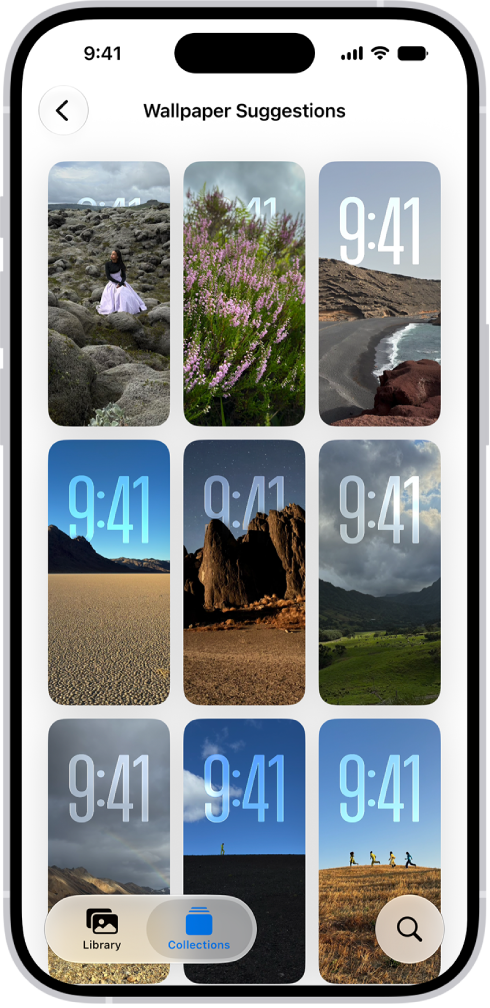
You can get wallpaper suggestions for your Lock Screen or Home Screen that stylize photos of your favorite people and pets. They’re in the Photos app, below Wallpaper Suggestions in Collections, and you can use any of them as your wallpaper.

Wallpaper Suggestions is open in the Photos app. Automatically generated combinations of photos, filter effects, and clock face fonts appear in a grid of suggestions.

  1. Open the Photos app on your iPhone.
  2. Tap Collections.
  3. Swipe up and tap a suggested wallpaper (below Wallpaper Suggestions).

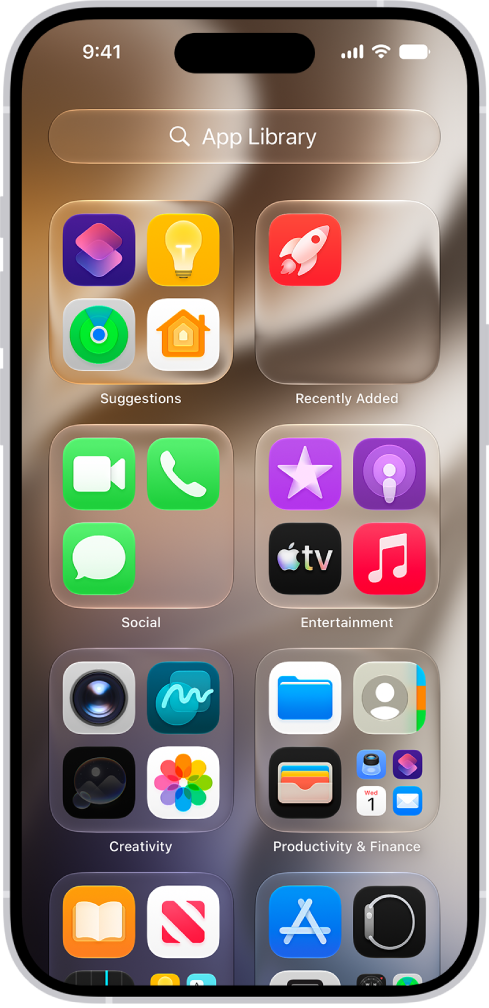
App Library shows your apps, including any you’ve removed from your Home Screen, organized into categories, such as Social, Entertainment, and Productivity & Finance. At the top of the screen, Suggestions shows the apps you use most, and Recently Added shows your newest apps.

App Library is always available, and you can bring it closer by hiding Home Screen pages. You’ll find it just past all your Home Screen pages.

App Library on iPhone showing the apps organized by category (Utilities, Social, Entertainment, and so on).

Note: The apps in App Library are sorted into categories intelligently, based on how you use them. You can add apps in App Library to your Home Screen, but there is no way to move them to another category in App Library.

Find and open an app in App Library

  1. Go to the Home Screen and swipe left past all your Home Screen pages to get to App Library.
  2. Tap the search field at the top of the screen and enter the name of the app you’re looking for. Or scroll up and down to browse the alphabetical list.
  3. To open an app, tap it.

If a category has a few small app icons, you can tap them to expand the category and see all the apps in it.

Move an app from App Library to the Home Screen

Downloaded an app to App Library? You can easily move it to the Home Screen.

  1. Go to App Library.
  2. Touch and hold the app until the app icons begin to jiggle and the app moves to the Home Screen and then lift your finger.

Hide and show Home Screen pages

Because you can find all of your apps in App Library, you might not need as many Home Screen pages. You can hide some Home Screen pages, which brings App Library closer to your first Home Screen page. (When you want to see the hidden pages again, you can show them.)

  1. Go to the Home Screen. Then touch and hold the Home Screen wallpaper until the app icons begin to jiggle.
  2. Tap the dots at the bottom of the screen.

    Thumbnail images of your Home Screen pages appear with checkmarks below them.

  3. To hide pages, tap to remove the checkmarks.

    To show hidden pages, tap to add the checkmarks.

  4. Tap the Done button, or press the Home button on an iPhone with a Home button.

Note: If you’ve hidden Home Screen pages, new apps you download from the App Store may end up in App Library instead of the Home Screen.

Reorder Home Screen pages

With multiple Home Screen pages, you can change their order. Gather your favorite apps on one Home Screen page, for example, and then make that page your first Home Screen page.

  1. Go to the Home Screen. Then touch and hold the Home Screen wallpaper until the app icons begin to jiggle.
  2. Tap the dots at the bottom of the screen.

    Thumbnail images of your Home Screen pages appear with checkmarks below them.

  3. To move each Home Screen page, touch and hold it. Drag it to a new position.
  4. Tap the Done button, or press the Home button on an iPhone with a Home button.

Change where new apps get downloaded

Once you download new apps from the App Store, you can add them to both the Home Screen and App Library, or to App Library only.

  1. Start the Settings app on your iPhone.
  2. Tap Home Screen & App Library.
  3. Choose Add to Home Screen or App Library Only.

Note: Turn on Show in App Library if you want app notification badges to appear on apps in App Library.

You can sync a compatible third-party workout app to the Fitness app on iPhone to help you meet your fitness goals. Fitness suggests workout apps that you can download from the App Store. Once it’s synced, any workout you complete in that app shows up in your activity summary and counts toward closing your Move ring.

  1. Open the Fitness app on your iPhone.
  2. Tap the Activity rings, then scroll down to Add To Your Rings.

    Note: You can also browse apps in the App Store.

  3. Choose an app. Then download it from the App Store.
  4. Open the app and if prompted, grant permission to share data with the Health app.

When you complete a workout in a compatible third-party app, it appears in your activity summary and adds to your progress toward closing your Move ring in the Fitness app.

Tag: Fitness

Apple Music features six world-class radio stations (Apple Music 1, Apple Music Hits, Apple Music Country, Apple Music Club, Apple Música Uno, and Apple Music Chill), as well as a collection of stations based on different genres. These stations provide a great way to explore and enjoy new music or keep up with your favorites.

And if you’d rather listen to traditional radio, you can play broadcast radio stations, too.

Siri: Ask Siri something like, “Play Apple Music 1.”

You can also base your own custom stations on your pick of artist, song, or genre.

Besides radio, you can play Apple Music TV. It’s a free, curated livestream of popular new music videos that runs 24 hours a day, with chart countdowns, live shows and events, exclusive premieres, music video blocks, and more.

Play Apple Music radio

To play live Apple Music radio stations and Apple Music TV, you need to be signed in to your Apple Account, though you don’t have to subscribe to Apple Music.

  1. Open the Music app on your iPhone.
  2. Tap Radio and tap one of the currently playing Apple Music radio stations.

Note: Apple Music radio stations are live radio, so you can’t rewind or skip songs.

Choose a radio station by genre

Curated radio stations, such as Stations by Genre, require an Apple Music subscription.

  1. Open the Music app on your iPhone.
  2. Tap Radio and scroll down. Then tap a genre listed below Stations by Genre.
  3. Tap a featured station.

Create a station

Like a particular artist or song? Create a radio station based on it, and chances are you’ll like the music the station plays.

  1. Open the Music app on your iPhone.
  2. Touch and hold an artist or song.
  3. Tap Create Station.

To create a station on the Now Playing screen, tap the More button, then tap Create Station.

Play broadcast radio stations

Siri: Ask Siri something like, “Play R&B Now Radio.”

  1. Open the Music app on your iPhone.
  2. Do any of the following:

    • Search for a station: Tap Search, enter the station in the search field, and then tap a result to play the station.

      You can search for stations by name, call sign, frequency, and nickname.

    • Choose a station in the Radio tab: Tap Radio, scroll up, and choose a station below the Local Broadcasters or International Broadcasters heading.

Note: You don’t need a subscription to Apple Music to play broadcast radio. Broadcast radio isn’t available in all countries or regions and not all stations are available in all countries or regions.

Tag: Music

On iPhone, you can easily block contacts from being able to communicate with you in the Phone, Messages, and FaceTime apps, and you can unblock a contact at any time. You just add a blocked contact and select a contact to block.

Block a contact

  1. Open the Settings app on your iPhone.
  2. Tap Privacy & Security and tap Blocked Contacts.
  3. Tap Add Blocked Contact and then select a contact to block.

Unblock a contact

  1. Open the Settings app on your iPhone.
  2. Tap Privacy & Security and tap Blocked Contacts.
  3. Select a Blocked Contact and scroll down. Tap Unblock Contact.

You can share a PDF or image from the Preview app on your iPhone. You can collaborate on the file, send a copy, or copy it to the Clipboard to paste it into another app. When you collaborate, you can allow only invitees to view and edit the contents, or allow anyone with the link to view the contents.

  1. Start the Preview app on your iPhone.
  2. Open a PDF or image.
  3. Tap the Share button. Then choose whether to collaborate on the file, send a copy of it, or copy it to the Clipboard. When you copy a file to the Clipboard, you can paste it into another app.
  4. If you choose Collaborate, tap the Forward button next to Only invited people can edit and then do one of the following:

    • Allow only invitees to view and edit the contents: Tap Only invited people and then tap Can make changes.

      Turn off “Allow others to invite” if you don’t want people you share the file with to invite others to view and edit it.

    • Allow only invitees to view the contents: Tap Only invited people and then tap View only.
    • Allow anyone with the link to view and edit the contents: Tap Anyone with the link and then tap Can make changes.
    • Allow anyone with the link to view the contents: Tap Anyone with the link and then tap View only.
  5. Tap the Done button.
  6. Choose a sharing method, such as Mail or Messages.
Tag: Preview