Got a tip for us?

You can connect iPhone to a power outlet using its charging cable (included) and a compatible power adapter (sold separately). You can use the following Apple USB power adapters to charge iPhone, and their size and style may vary depending on the country or region.

For fast charging, iPhone 17 models and iPhone Air need a power adapter with at least 40 watts of power output. The Apple 40W Dynamic Power Adapter with 60W Max is one of them.

Apple 40W Dynamic Power Adapter with 60W Max
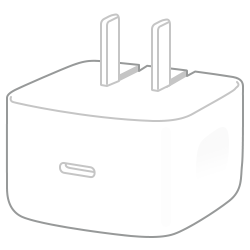
The Apple 40W Dynamic Power Adapter with 60W Max.

iPhone Air, iPhone 17, iPhone 17 Pro, and iPhone 17 Pro Max need at least 40 watts of power output from their power adapter for fast charging. The Apple 40W Dynamic Power Adapter with 60W Max is one option.

Third-party power adapters you use with iPhone Air, iPhone 17, iPhone 17 Pro, or iPhone 17 Pro Max should meet these recommended specifications:

  • Frequency: 50 to 60 Hz, single phase
  • Line Voltage: 100 to 240 VAC
  • Output Voltage/Current: (AVS) 15-20VDC/2A [3.0A DPS] or (AVS) 9-15VDC/2.67A [3.0A DPS] or 9VDC/3A or 5VDC/3A
  • Continuous Sustained Power: 40W
  • Maximum Power Output: 60W
  • Output Port: USB-C

Faster wired charging is supported on iPhone 18 Pro and iPhone 18 Pro Max. To fast charge them, you need a USB‑C charging cable rated for 60 watts or more, along with a power adapter with Adjustable Voltage Supply (AVS) that can supply 60 watts or more, such as the Apple 40W Dynamic Power Adapter with 60W Max.

Apple 20W USB-C power adapter

The Apple 20-watt USB-C power adapter.

Apple 18W USB-C power adapter

The Apple 18-watt USB-C power adapter.

Apple 5W USB power adapter

The Apple 5-watt USB power adapter.

You can also use Apple USB power adapters for iPad and Mac notebooks to charge iPhone, and you can use third-party power adapters that are compliant with applicable country regulations and international and regional safety standards.
Tag: Battery

You can share images, links, and other content using the Messages app. When someone shares content with you, you can find it in a Shared with You section in the corresponding apps, including Photos, Music, News, and more.

You can also find all the content someone shared with you, review and save photos or videos, and pin or hide shared content.

Here’s how to share content in Messages on iPhone.

Share content with others

  1. Open the Messages app on your iPhone.
  2. In a conversation, do one of the following:

    • Copy and paste an image or a link into the text field.
    • Tap the Add button, tap Photos to browse recent photos and videos, then tap to add.
    • Tap a message attachment, tap the Share button, then tap a contact or the Messages app icon.

      Tip: When you tap the Share button, you can also copy, save, or print your attachment.

  3. Add a message (optional), then tap the Send button.

From another app (like Podcasts, News, or Music), select the content you want to share, tap the More button, tap Share, then choose Messages.

Find all the content someone shared with you

  1. Open the Messages app on your iPhone.
  2. Open the conversation whose content you want to see.
  3. Tap the contact or group icon at the top of the conversation.
  4. Swipe left, then tap Photos, Links, Documents, Locations, or Wallet.

If a category doesn’t appear, you didn’t receive anything of that type in this conversation.

Note: Content only shows up in Shared with You when the person who sent it is in your contacts.

You can find a Shared with You section in Photos, Safari, Music, Podcasts, and other supported apps. If you don’t want items someone sends to you to appear in those other apps, tap the contact or group icon at the top of the conversation, tap Info, then turn off Shared with You.

Review and save photos or videos

When multiple photos or videos come in at the same time, they’re grouped automatically. Two to three items make a collage. Four or more make a stack.

  1. Open the Messages app on your iPhone.
  2. Do one of the following:
    • Look inside a stack: Tap to open. Then swipe through a stack to view, reply, or interact with each photo or video individually.
    • Save a photo or video: Tap the Save Photo button next to the photo or stack.

Pin shared content

If someone shares content that’s especially interesting, you can quickly pin it in Messages. This elevates it in the Shared with You section of supported apps, in Messages search, and in the conversation details (the info you see when you tap the contact or group icon at the top of the conversation).

  1. Open the Messages app on your iPhone.
  2. Open the conversation with the content you want to pin.
  3. Touch and hold the message bubble containing the attachment. Tap Pin.

Note: Photos can be saved to your library, but not pinned.

Hide shared content

You can adjust your settings to hide an app’s Shared with You section.

  1. Open the Settings app on your iPhone.
  2. Tap Apps, then tap Messages.
  3. Tap Shared with You. Turn off Automatic Sharing, or turn off Shared with You for a specific app.

Note: You can have your (or a family member’s) iPhone receive warnings about sensitive content and warn you before it’s sent or received.

When VoiceOver is on, you need to use special gestures to unlock iPhone, go to the Home Screen, open Control Center, switch apps, and more.

How you unlock depends on your model, whether it has a Home button, Touch ID in the top button, or Face ID. You can also enter your passcode silently using handwriting mode, switch to another app, or use the App Switcher.

Here’s how to operate iPhone when VoiceOver is on.

Unlock iPhone

  • On an iPhone with Face ID: Wake iPhone and glance at it, then drag up from the bottom edge of the screen until you feel a vibration or hear two rising tones.
  • On an iPhone with Touch ID: Press the Home button using the finger you registered with Touch ID.

If prompted, enter your passcode. To avoid having your passcode spoken as you enter it, enter your passcode silently using handwriting mode or type onscreen braille.

Go to the Home Screen

  • On an iPhone with Face ID: Drag one finger up from the bottom edge of the screen until you feel a vibration or hear two rising tones, then lift your finger.
  • On an iPhone with a Home button: Press the Home button.

Switch to another app

Swipe right or left with four fingers to cycle through the open apps.

Alternatively, you can use the App Switcher.

  1. To open the App Switcher, do one of the following:
    • On an iPhone with Face ID: Drag one finger up from the bottom edge of the screen until you feel the second vibration or hear three tones. Lift your finger.
    • On an iPhone with a Home button: Double-click the Home button.
  2. To browse the open apps, swipe left or right until the app you want is selected.
  3. Double-tap to open the app.

Open Control Center

  • On an iPhone with Face ID: Drag one finger down from the top edge of the screen until you feel a vibration or hear the second tone.
  • On all iPhone models: Tap any item in the status bar, then swipe up with three fingers. Or touch and hold the bottom of the screen until you hear a tone, then swipe up.

To dismiss Control Center, do a two-finger scrub (move two fingers back and forth three times quickly, making a “z”).

View notifications

  • On an iPhone with Face ID: Drag one finger down from the top edge of the screen until you feel the second vibration or hear the third tone.

    To dismiss the notifications screen, do a two-finger scrub (move two fingers back and forth three times quickly, making a “z”).

  • On all iPhone models: Tap any item in the status bar, then swipe down with three fingers. Or touch and hold the top of the screen until you hear a tone, then swipe down.

    To dismiss the notifications screen, do a two-finger scrub (move two fingers back and forth three times quickly, making a “z”).

Speak status bar information

  1. Tap the status bar at the top of the screen.
  2. Swipe left or right to hear the time, battery state, Wi-Fi signal strength, and more.

Rearrange apps on your Home Screen

To rearrange apps with VoiceOver, do one of the following:

  • Drag and drop: Tap an icon on the Home Screen, then double-tap and hold your finger on the screen until you hear three rising tones. The item’s relative location is described as you drag. Lift your finger when the icon is in its new location. Drag an icon to the edge of the screen to move it to another Home Screen.
  • Move actions: Tap an app, then swipe down to hear available actions. When you hear “Edit Mode,” double-tap to start arranging apps. Find the app you want to move, then swipe down to the Move action and double-tap. Move the VoiceOver cursor to the new destination for the app, then choose from the available actions: Cancel Move, Create New Folder, Add to Folder, Move Before, or Move After.

When you’re finished, tap Done, then double-tap.

Search from the Home Screen

  1. Tap anywhere on the Home Screen outside the status bar.
  2. Swipe down with three fingers.

In addition to subscribing to Apple News+, you can subscribe to individual publications from select publishers. You don’t even have to start in News. And when you subscribe to a channel, you automatically follow it, so stories from the channel show up in the Today feed.

You can access these subscriptions in News in three ways:

  • Subscribe within News: You can purchase a subscription directly in News. In a channel that offers subscriptions, tap the subscription button.
  • Access an existing subscription purchased from a publisher’s app: If you downloaded a publisher’s app from the App Store, and subscriptions you bought as in-app purchases are also available in News, you’re automatically granted access in News.
  • Access an existing subscription purchased from a publisher: If you purchased a subscription directly from a publisher’s website or from the publisher’s app on a non-Apple device, the publisher may allow you to sign in to your account in News to access your subscription there. To sign in, tap a story that requires a subscription to read, then tap the “Already subscribed” link. Enter the user name and password for your existing subscription.

Subscribing to a channel means you’ll follow it automatically, and its stories appear in the Today feed.

To cancel a subscription, tap Following, swipe up, tap Subscriptions (below the Manage heading), select the subscription, then tap Cancel Subscription.

Tag: News

With the Journal app, you can keep track of your journaling goals and build new habits.

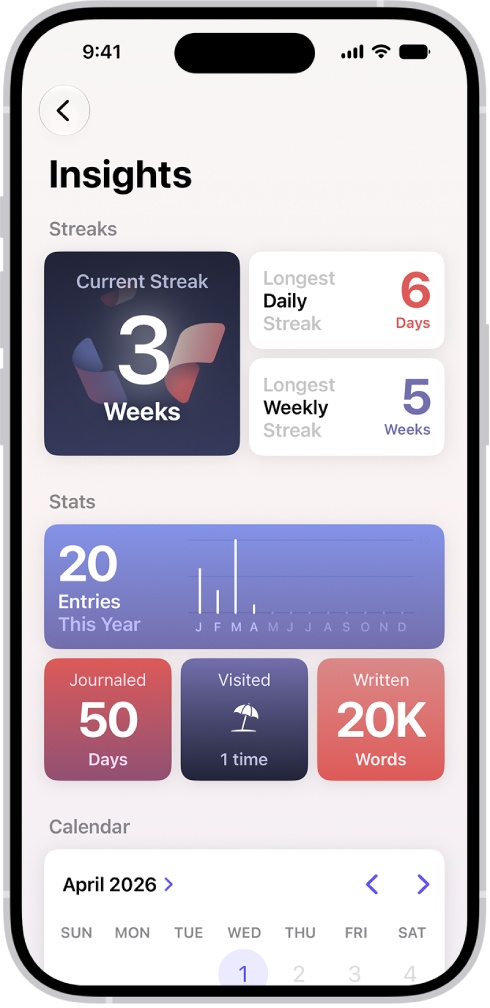
The sidebar shows your current streak, which is the number of consecutive days or weeks you’ve journaled, plus other insights. You can set a journaling schedule to be reminded to write, and add a Journal widget to your Home Screen or Lock Screen with your streak or writing prompts that change throughout the day.

Here’s how to build a habit with Journal on iPhone.

Track your journaling with Insights

  1. Open the Journal app on your iPhone.
  2. Tap the Journals Back button to see your current streak—the number of consecutive days or weeks you’ve journaled—along with other insights.
  3. Tap Insights. Then tap any tile to see more details.

    A screen in the Journal app showing the current streak and metrics like number of words written.

Set a journaling schedule

Journaling notifications can remind you to write.

  1. Open the Journal app on your iPhone.
  2. Above the Insights summary, tap the Journal More button and tap Notifications. You may need to tap the Journals Back button to see the Insights summary.
  3. Tap Custom to set a weekly schedule or tap Smart to receive notifications based on your routine and location.

Use the Journal widget

To reflect on what’s going on in the moment, put a widget on your Home Screen or Lock Screen that shows your current streak or writing prompts that change throughout the day.

  1. On the iPhone Home Screen or Lock Screen, add a Journal widget.
  2. To change the widget, touch and hold the widget and then tap Edit Widget.
  3. Tap the widget to select from different writing prompts, start a new entry, or see details about your current streak.
Tag: Journal

In the Apple Games app, you can browse Apple Arcade titles, view your downloaded games, check in-game events, and track your achievements in your library. You can also sort and filter your games to quickly find what you’re looking for.

You can see recent updates for a game, and delete a game you no longer play.

Here’s how to view and manage your game library in the Apple Games app on iPhone.

Note: Apple Arcade and Apple One aren’t available in all countries or regions.

View and organize your games

  1. Open the Apple Games app on your iPhone.
  2. Tap Library, then do any of the following:
    • Browse your games: Scroll through the list of games under Your Games.
    • Sort your games: Tap the Filter button. Choose a sort option (Recent Games, Name, or Size).
    • Filter your games: Tap the Filter button and then choose a filter option to show specific games (On This iPhone, Apple Arcade, Friends Playing, Controller Support, Support Challenge, or Categories). To clear a filter, tap the Filter button and then tap Clear Filter.

Quick tip: Select the On This iPhone filter, and you’ll see only the games currently installed on your iPhone.

See in-game events or recent updates

  1. Open the Apple Games app on your iPhone.
  2. Tap Library and then tap Events.
  3. Select the game you want to see in-game events or updates for.

Events and updates also appear when you search for a game, or on its game page in the Home or Search tab.

Check your achievements for a game

For supported games, you can track your Game Center achievements, check your progress, and see which goals you’ve completed.

  1. Open the Apple Games app on your iPhone.
  2. Tap Library, then tap Achievements.
  3. To organize your achievements, tap the Filter button. Choose an option.
  4. Select the game you want to check achievements for.

Browse Apple Arcade games

You can also browse Apple Arcade games in your Library if you subscribe to Apple Arcade or to Apple One.

  1. Open the Apple Games app on your iPhone.
  2. Tap Library, then tap Apple Arcade.
  3. Tap the Filter button, then do any of the following:
    • Turn Show Previews on or off.
    • Sort games by Release Date, Last Updated, Name, or Category.
    • Filter games by Controller Support, Multiplayer, or Age Ratings.

Delete a game

To free up space on your iPhone, delete games directly in the Apple Games app.

  1. Open the Apple Games app on your iPhone.
  2. Tap Library.
  3. Touch and hold the game you want to delete. Tap Delete Game.

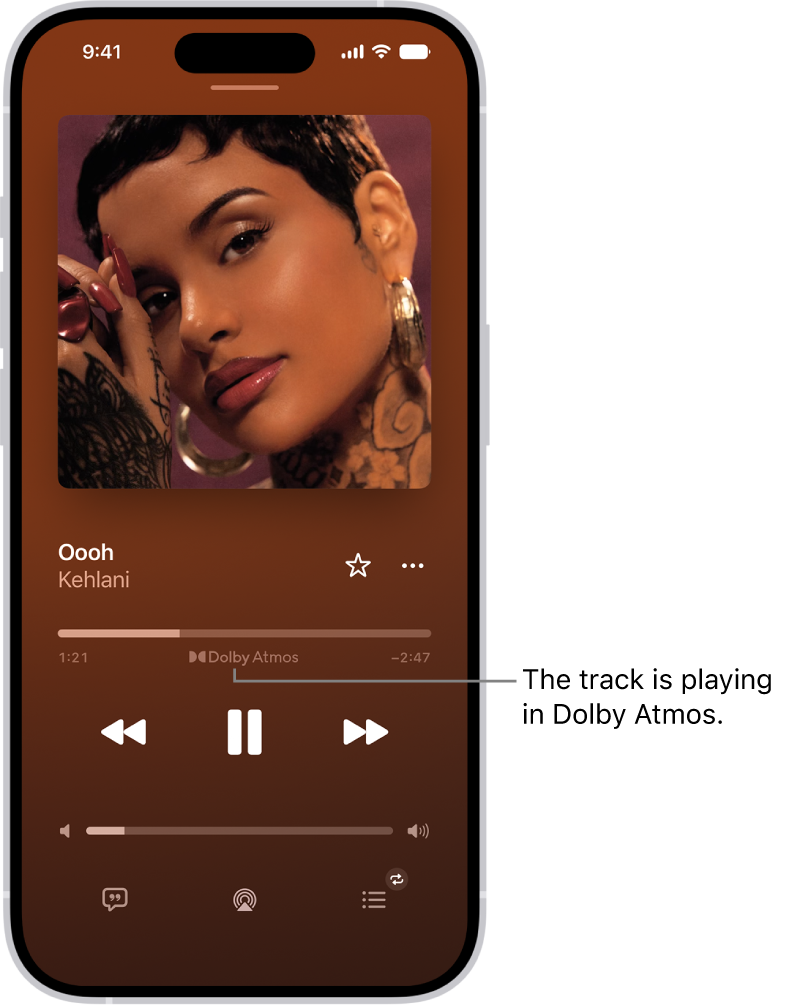
If you subscribe to Apple Music, you can play available tracks in Dolby Atmos, which creates an immersive, three-dimensional (spatial) audio experience on stereo headphones and speakers or receivers compatible with Dolby Atmos. Albums and songs available in Dolby Atmos have the Dolby icon next to them, and if a track is playing in Dolby Atmos, the icon also appears on the Now Playing screen.

You can also control Spatial Audio and head tracking on iPhone, and download songs in Dolby Atmos.

Note: Apple Music and Dolby Atmos aren’t available in all countries or regions.

The Now Playing screen showing the Dolby Atmos icon for the track that’s playing.

Turn on Dolby Atmos

  1. Open Settings, tap Apps, and then tap Music.
  2. Tap Dolby Atmos and then choose Automatic or Always On.
    • Automatic: Plays Dolby Atmos whenever iPhone is connected to compatible headphones such as AirPods 3, AirPods Pro, or AirPods Max, or to speakers or receivers compatible with Dolby Atmos.
    • Always On: Plays Dolby Atmos on any headphones or speakers. The Music app will attempt to play Dolby Atmos tracks on any headphones or speakers connected to iPhone. Dolby Atmos will play on any headphones, but not all speakers will play Dolby Atmos as intended.

Control Spatial Audio and head tracking on iPhone

With AirPods 3, AirPods Pro, or AirPods Max, Spatial Audio and head tracking can create an immersive, theater-like environment with sound that surrounds you when you play supported music on your iPhone. To control Spatial Audio and head tracking in Control Center, follow these steps.

  1. Wear your AirPods and open Control Center.
  2. Touch and hold the volume control. Then tap Spatial Audio at the lower right.
  3. Tap one of the following:
    • Off: Turns off both Spatial Audio and head tracking.
    • Fixed: Turns on Spatial Audio without head tracking.
    • Head Tracked: Turns on both Spatial Audio and head tracking. This setting allows the sound to follow the movement of your head.

The settings you choose are saved and applied automatically the next time you use that app. For example, if you tap Fixed while listening to a song in Apple Music, the Fixed setting is automatically used the next time you play a song in Apple Music.

Note: You can disable head tracking for every app on your iPhone. Go to Settings > Accessibility > AirPods, tap your AirPods, and then turn off Follow iPhone.

Download songs in Dolby Atmos

  1. Open Settings, tap Apps, and then tap Music.
  2. Turn on Download in Dolby Atmos.
Tag: Music

In the Home app on your iPhone, you can add more than one physical space—a home and a small office, for example. When you add a new home, you name the home and choose its wallpaper. You can switch to another home, too.

  1. Start the Home app on your iPhone.
  2. Tap the Add button and then tap Add New Home.
  3. Name the home, choose its wallpaper, then tap Save.
  4. To switch to another home, tap the More button and tap the home you want.
Tag: Home

On supported models, you can use your iPhone camera to record and edit videos in ProRes, which offers higher color fidelity and less compression. ProRes is available on all cameras, including the front camera.

It isn’t available everywhere, though. ProRes isn’t supported in Cinematic, Time-lapse, or Slo-Mo mode. You can also choose the ProRes Log format, and on iPhone 18 Pro models, configure Pro Video Storage. You can change or remove Pro Video Storage later, too.

Note: ProRes videos result in larger file sizes.

Turn on ProRes video recording

  1. Open the Settings app on your iPhone.
  2. Tap Camera, tap Formats, and turn on Apple ProRes.
  3. To turn on Apple ProRes on iPhone 18 Pro models, tap Configure Pro Video Storage, set the amount of storage to reserve and tap Update Pro Video Storage. Then tap the Close button. You only have to do this the first time you turn on Apple ProRes.

Repeat these steps when you want to turn off ProRes video recording.

Change or remove Pro Video Storage

On iPhone 18 Pro models, you can adjust how much storage is reserved for pro video recordings, or reclaim space by removing the reserved storage.

  1. Open the Settings app on your iPhone.
  2. Tap Camera, then tap Formats.
  3. Tap Configure Pro Video Storage, set the amount, tap Update Pro Video Storage, and then tap the Close button.

Choose the ProRes Log format

On iPhone 17 Pro models and iPhone 18 Pro models, the Log format used when you record ProRes video is up to you. First, though, iPhone 18 Pro and iPhone 18 Pro Max need Apple ProRes turned on and Pro Video Storage configured.

  1. Open the Settings app on your iPhone.
  2. Tap Camera, then tap Formats.
  3. Tap ProRes Log Video Encoding and tap Log or Log 2.

Record a video with ProRes

  1. Open Camera on your iPhone.
  2. Select Video mode and tap the resolution and fps values in the corner of the screen. Then tap a ProRes option.
  3. Tap the Record button, press either volume button, or click the Camera Control (on supported models) to start recording.

    While recording, you can pinch to zoom in or out, tap .5x, 1x, 2x, 3x, 4x, 5x, and 8x (depending on your model) to switch between lenses, or touch and hold the lens chooser, then slide the dial for more precise zoom control.

  4. Tap the Record button, press either volume button, or click the Camera Control (on supported models) to stop recording.

ProRes can record up to 4K at 30 fps. Connected to a compatible external storage device, iPhone 15 Pro Max and iPhone 15 Pro can record 4K at 60 fps, while iPhone 18 Pro models, iPhone 17 Pro models, and iPhone 16 Pro models can record 4K at 120 fps.

With 128 GB, iPhone 15 Pro models and iPhone 16 Pro models can only record to internal storage at 1080p at 30 fps. When connected to a compatible external storage device, you can record 4K at up to 60 fps on iPhone 15 Pro models, and at up to 120 fps on iPhone 18 Pro models, iPhone 17 Pro models, and iPhone 16 Pro models.

To maximize the amount of detail and information the camera system captures, you can record videos in ProRes RAW on iPhone 17 Pro models and iPhone 18 Pro models using applications such as Final Cut Camera.

Tag: camera

You can export some or all of your contacts to another device or app. You can export an existing list or create a new list, select the fields you want to include, and then send or save the exported contact cards, such as with Messages or Mail.

  1. Open the Contacts app on your iPhone.
  2. Tap the Lists button.
  3. Touch and hold an existing list (or create a new list by tapping Add List).
  4. Tap Export, select the fields you want to include, and tap the Done button.
  5. Choose a method to send or save the exported contact cards, such as Messages or Mail.