Got a tip for us?

You can use pins to mark places so you can more easily find those locations later.

You can drop a pin to share a location, or to start or end your route at a spot that isn’t already marked on the map. Only one pin shows at a time, unless you save your pins to your Places. You can also share a pin, or get the latitude and longitude of a pin.
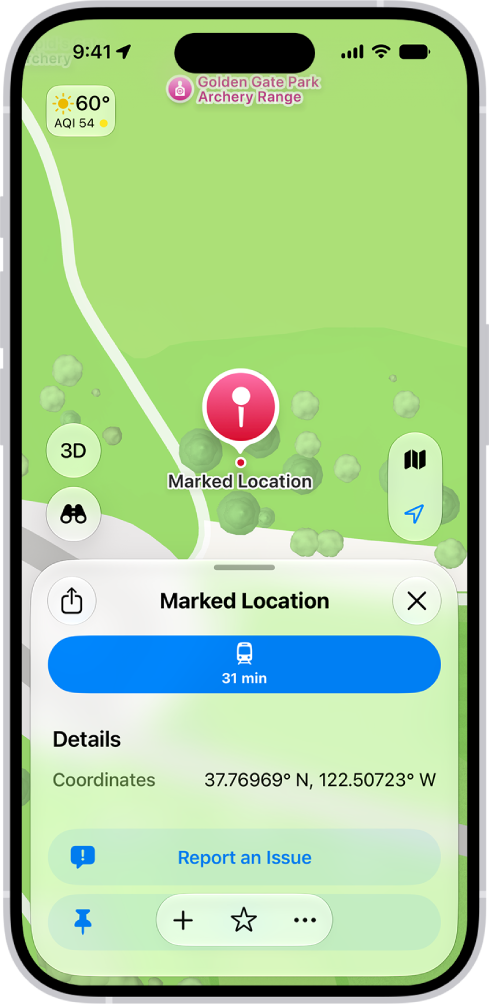
A map showing a dropped pin in a park. Below it, buttons to get directions to the pin, download its surrounding area, or move it appear.

Drop a pin

Drop a pin to start or end your route somewhere that isn’t already marked on the map, or to share a location with someone else.

Unless you save them to your Places, only one pin appears at a time.

  1. Open the Maps app on your iPhone.
  2. Touch and hold the map until a pin marker appears.
  3. To refine the location, tap Move and then drag the map.

    Tap Pin.

If you want to mark several places with pins, save each one as you drop it.

When you open the Maps app, your pins appear as a row of icons in your Places.

To get directions to the pin, tap the pin, then tap the directions button.

Quick tip: You don’t need the Maps app open to note your current location. Touch and hold the Maps icon on the Home Screen and choose Mark My Location.

Share a pin

  1. Open the Maps app on your iPhone.
  2. Do one of the following:
    • Touch and hold the map until a pin marker appears, then tap the Share button (at the top of the card).
    • Tap Places, tap Pinned, swipe left on the pin, then tap Share.
  3. Choose how you want to share it.

Get the latitude and longitude of a pin

  1. Open the Maps app on your iPhone.
  2. Tap Places, tap Pinned, and then tap the pin.
  3. Swipe up to Coordinates.
  4. Touch and hold the coordinates and then tap Copy.

Edit a pin

  1. Open the Maps app on your iPhone.
  2. Tap Places, then tap Pinned.
  3. Tap the Info button. Then do any of the following:

Note: If your Home, Work, or School address changes after you’re prompted to sync Maps to My Card, update it in both Maps and Contacts as needed.

Remove a pin

  1. Open the Maps app on your iPhone.
  2. Tap Places, then tap Pinned.
  3. Swipe left on the pinned location, then tap Delete.

You can also tap the Info button, then tap Unpin.
Tag: Maps

You can use Magic Keyboard, including Magic Keyboard with Numeric Keypad, to enter text on iPhone. Magic Keyboard connects to iPhone using Bluetooth®.

Make sure the keyboard is turned on and charged first. There’s one more thing to check. If Magic Keyboard is already paired with another device, you need to unpair them before you can connect it to your iPhone. And once it’s paired, you can reconnect Magic Keyboard to iPhone later.

Pair Magic Keyboard

  1. Make sure the keyboard is turned on and charged.
  2. On iPhone, open Settings and tap Bluetooth. Then turn on Bluetooth.
  3. Select the device when it appears in the Other Devices list.

Note: If Magic Keyboard is still paired with another device, you must unpair them first, then you can connect Magic Keyboard to your iPhone. Use one of these options:

  • On macOS 13 or later: Choose Apple menu > System Settings, click Bluetooth in the sidebar, Control-click the device, then choose Forget.
  • On macOS 12.5 or earlier: Choose Apple menu > System Preferences, click Bluetooth, Control-click the device name, then click Remove.

Reconnect Magic Keyboard to iPhone

If you turn its switch to Off, or move Magic Keyboard or iPhone out of Bluetooth range (about 33 feet, or 10 meters), the keyboard disconnects.

To reconnect, turn the keyboard switch to On, or bring the keyboard and iPhone back into range, then tap any key.

In the Photos app, you can find collections of photos and videos organized by media type. For example, browse all your Portrait mode photos or time-lapse videos in one place, in Media Types.

It’s easy to make it yours. The list of media types can be reordered, so the ones you access most often are easy to find, and to quickly locate your favorite media type, you can add it to the Pinned collection.

Browse photos and videos by media type

  1. Open the Photos app on your iPhone.
  2. Tap Collections, scroll down, and then tap Media Types.
  3. Tap the type of photo or video you want to view.

Quick tip: Add your favorite media type to the Pinned collection to locate it quickly.

Reorder media types

Reordering the list of media types makes the ones you access most often easier to find.

  1. Open the Photos app on your iPhone.
  2. Tap Collections, scroll down, and then tap Media Types.
  3. Tap Edit, touch and hold the collection you want to move, and then drag it to a new position. To undo your changes, tap Reset.
  4. Tap the Done button.
Tag: Photos

When you travel with iPhone, choose settings that comply with airline requirements. Some airlines let you keep your iPhone turned on if you switch to Airplane Mode.

Turning on Airplane Mode switches off Wi-Fi, Bluetooth®, and cellular networks at first, but you can turn them back on even while it’s on. That way, you can make or receive FaceTime calls or use features and accessories that require wireless communication. When Airplane Mode is on, its icon shows up in the status bar at the top of your screen.

Turn on Airplane Mode

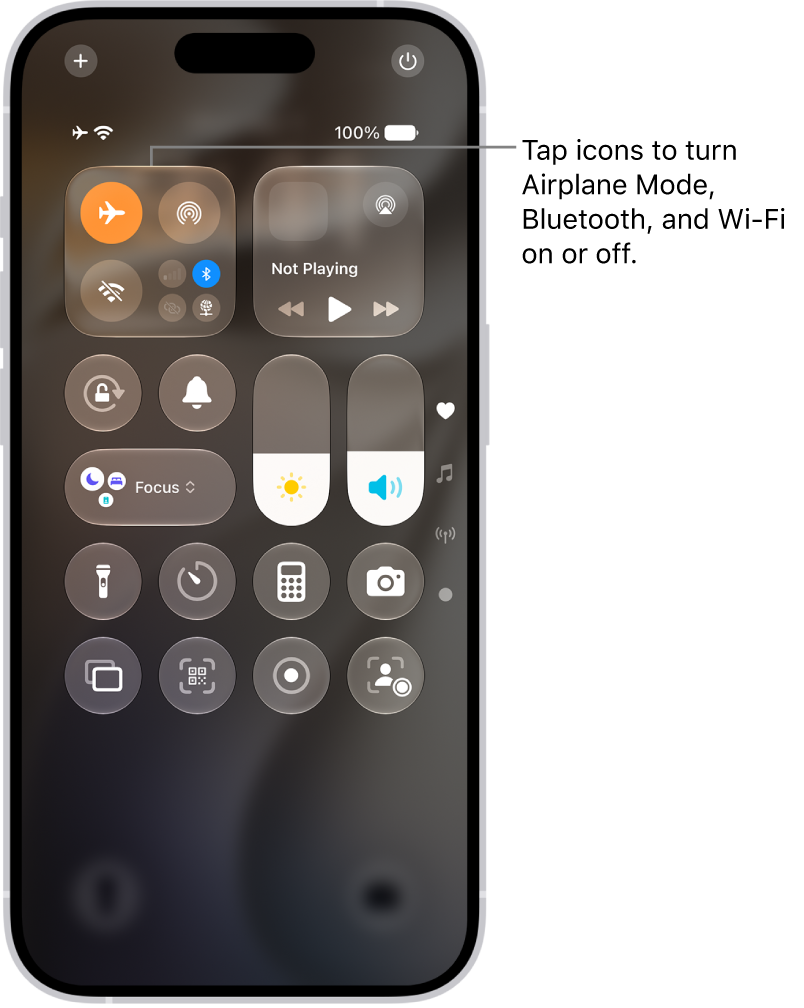
Open Control Center, then tap the Airplane Mode Switch button.

The Control Center screen showing that tapping the top-left button turns on Airplane Mode.

In Settings, you can also turn Airplane Mode on or off. The Airplane Mode icon appears in the status bar while it’s on.

Turn on Wi-Fi or Bluetooth while in Airplane Mode

Wi-Fi or Bluetooth can be used in Airplane Mode if your airline allows it.

  1. Open Control Center, then turn on Airplane Mode.
  2. Tap the Wi-Fi Switch button to turn on Wi-Fi or the Bluetooth Switch button to turn on Bluetooth.

Turning on Wi-Fi or Bluetooth in Airplane Mode means it may stay on when you next return to Airplane Mode. Control Center lets you turn it off again.

Tag: Phone

With your iPhone nearby, you’ll never miss a chance to take a photo, record a video, or snap a selfie. After you take photos, use the editing tools in the Photos app to crop, adjust the light and color, and much more.

You can open Camera right from the Lock Screen, and it automatically focuses the shot and adjusts the exposure for you. You can capture photos in low light, too.

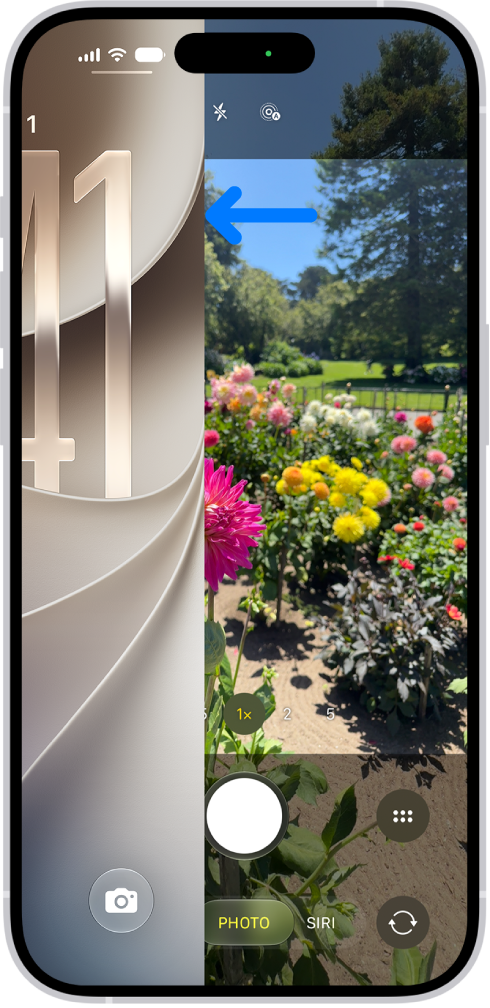
The iPhone screen showing the Lock Screen sliding to the left and the Camera open on the right side of the screen.

Capture the moment

To quickly open Camera , just swipe left on the Lock Screen. Camera automatically focuses the shot and adjusts the exposure. Tap the Shutter button to take a photo.

On supported models, click the Camera Control to open Camera, then click it again to take a photo.

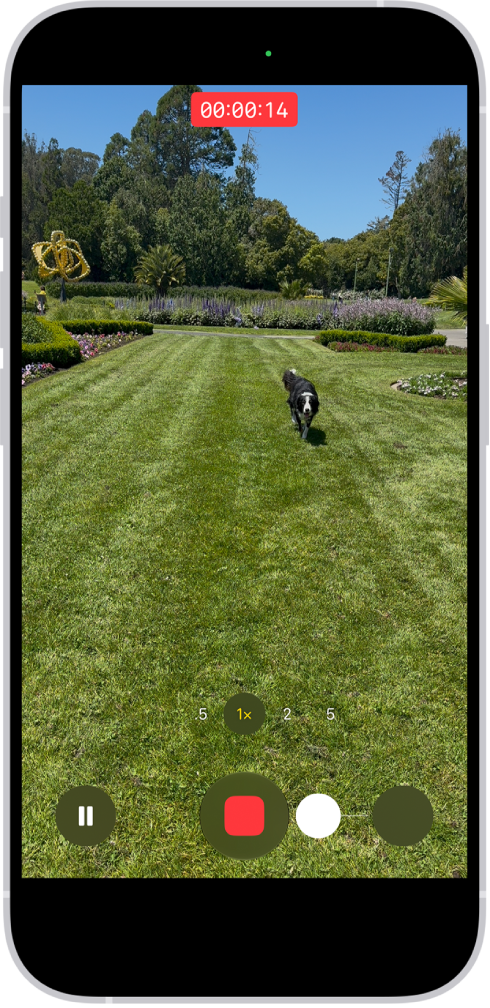
The camera frame fills the screen. At the bottom of the screen, the Shutter button moves to the right, demonstrating the movement of starting a QuickTake video.

Record video on the go

After you open Camera , tap Video to switch to Video mode, then tap the Record button to start a recording. Or stay in Photo mode and just touch and hold the Shutter button to start recording, then release the button to stop recording.

On supported models, click the Camera Control to open Camera, then click and hold the Camera Control to start a recording.

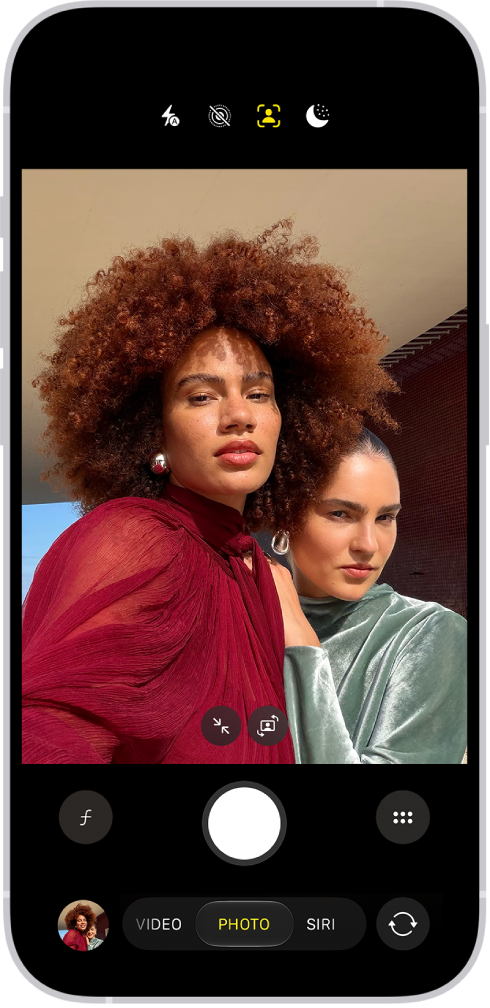
The Camera screen in Photo mode. Within the camera frame, the subjects are taking a selfie.

Snap the perfect selfie

To take a selfie, open Camera , then tap the Camera Chooser Back-Facing button. Hold your iPhone in front of you, then tap the Shutter button or press either volume button to take the selfie.

To fit more people in a selfie, the camera frame on supported models can automatically enlarge or rotate.

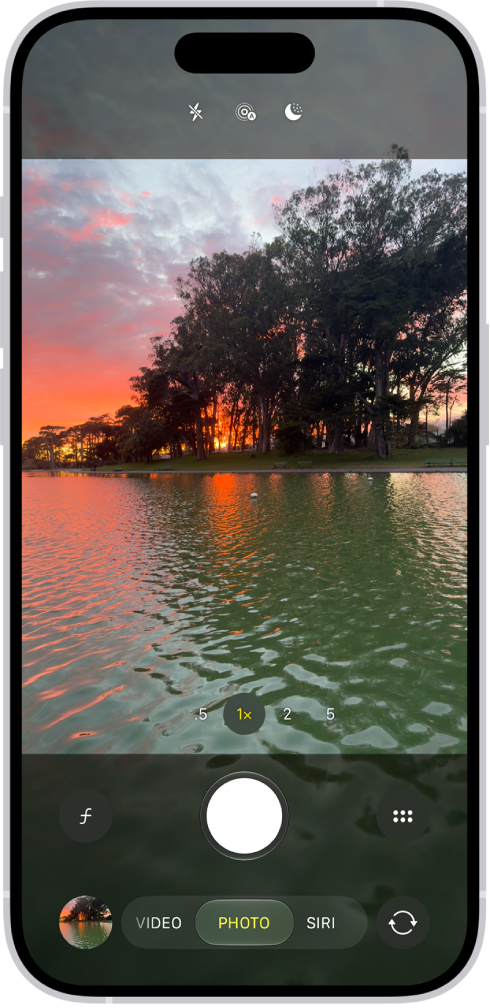
The Camera screen in Photo mode, with controls to capture a photo in low light.

Capture photos in low light

Night mode automatically improves photos taken in low light on supported iPhone models. When you see the Night Mode Off button, Night mode is on. Tap the Shutter button, then hold your iPhone steady for the best results.

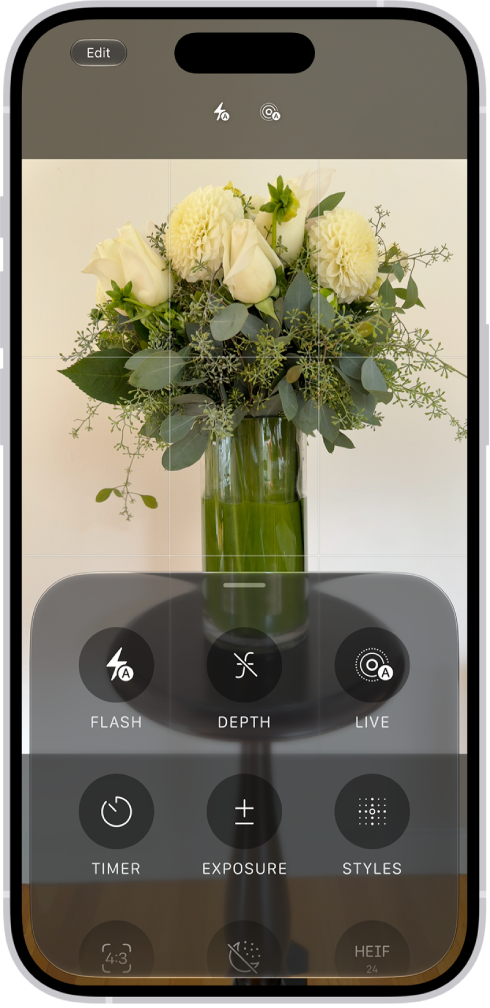
The Camera in Photo mode. At the bottom of the screen are buttons for the following camera controls: Flash, Live, Timer, Exposure, Styles, and Aspect.

Adjust camera controls

When Camera is open, you can quickly make adjustments to features like Flash or Exposure. Just tap the Camera Controls button, then tap any feature to adjust its settings and improve your shot.

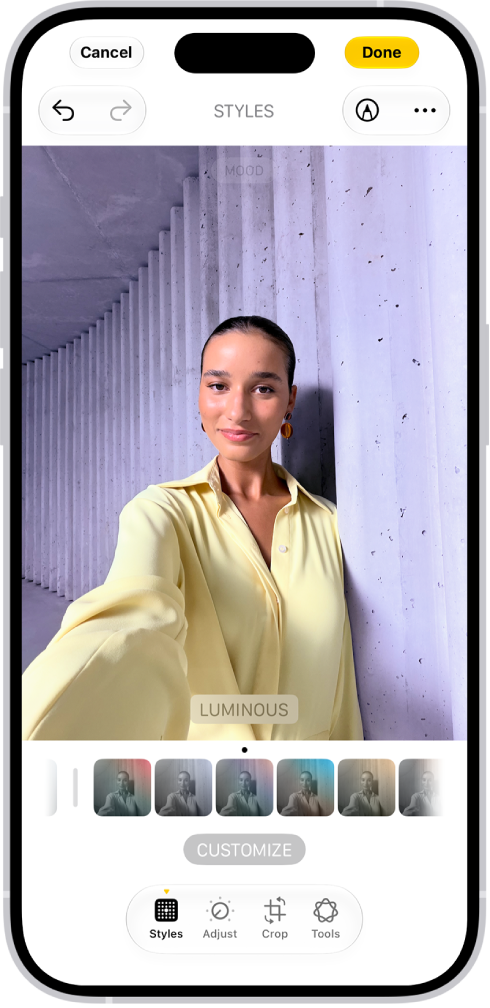
The edit screen in the Photos app.

Add the final touches

After you take a photo or video, use the editing tools in the Photos app to make it even better. Open a photo or video, tap the Edit button, then tap the buttons to adjust lighting, add a filter, crop, or rotate. As you make edits, tap the photo to compare your changes to the original.

If you want more, check out the Camera and Photos chapters.

Not all features, Apple says, are available for all iPhone models.

Tag: Photos

You can filter and sort photos and videos in the albums you create in the Photos app. For example, you can filter an album to show only photos, only videos, or photos and videos you marked as favorites.

Sorting works from the same button. You can sort photos and videos in an album by newest to oldest, oldest to newest, or in a custom order, and when you’re done with a filter, you can remove it from the album.

Here’s how to filter and sort photos and videos in albums on iPhone.

Filter photos and videos in an album

  1. Open the Photos app on your iPhone.
  2. Tap Collections and tap Albums.
  3. Tap an album to open it.
  4. Tap the Sort and Filter button, tap Filter, and choose an option.

To remove a filter from an album, tap the icon that replaced the Sort and Filter button at the bottom of the screen, then tap Remove Filter.

Sort photos and videos in an album

  1. Open the Photos app on your iPhone.
  2. Tap Collections and tap Albums.
  3. Tap an album to open it.
  4. Tap the Sort and Filter button. Choose a sort option.

If you choose Sort by Custom Order, touch and hold the photo or video thumbnail, then drag it into a new position.

Tag: Photos

The first time you use the Home app, the setup assistant helps you create a home, where you can add accessories and define rooms. If you’ve already created a home while setting up a different accessory, you won’t need to create one again.

Before you add an accessory, like a light or camera, make sure it’s connected to power and turned on. You can also show accessories in a room and change an accessory’s room assignment.

Add an accessory to Home

Before you add an accessory such as a light or camera, check that it’s connected to a power source, turned on, and connected to a network.

  1. Open the Home app on your iPhone.
  2. Tap Home, then tap Add Accessory.

You can also tap the Add button, then choose Add Accessory.

  1. If you’re pairing a Matter accessory that was previously paired to another app, tap More options and then select your accessory.

    Open the accessory’s app, then generate a pairing code, which will be used to complete pairing with the Home app.

  2. Follow the onscreen instructions.

Note: For Thread-based accessories, you need a Thread-enabled home hub like Apple TV 4K, HomePod (2nd generation), or HomePod mini, or else a compatible third-party Thread border router. Any Thread-enabled iPhone devices can pair and manage Thread accessories locally too, but that may require an update from the accessory manufacturer.

You might need to scan a QR code, or enter a code: an 8-digit Apple Home setup code, which you’ll find on the accessory itself or on its box or documentation, or an 11 or 21-digit code for Matter-enabled accessories. A QR code to scan appears on an Apple Home-supported smart TV. Once you assign the accessory to a room and give it a name, you can use that name when controlling the accessory with Siri. During setup, you can add suggested automations, too.

When you set up Apple TV 4K in tvOS, you can assign it to a room, and the Home app on iPhone then shows it in that room automatically.

Paired Matter accessories are synced across devices and stored in the Settings app using iCloud Keychain, regardless of which app you used to set them up. You can easily add a previously paired accessory that’s stored in Keychain to another Matter ecosystem app. To manage these accessories, go to Settings > General, then tap Matter accessories.

Show accessories in a room

Along with individual rooms and the scenes assigned to them, you can show a room’s accessories organized by category.

In Room View, do one of the following.

  • Tap > next to a room’s name.
  • Tap the More button, then choose a room.

Change an accessory’s room assignment

  1. Open the Home app on your iPhone.
  2. Touch and hold an accessory tile and tap Accessory Settings.
  3. Tap Room and choose a room.

Edit a room

Besides removing a room, you can change its name and wallpaper, and more. Remove the room, and the accessories assigned to it move to Default Room.

  1. Open the Home app on your iPhone.
  2. On the Home tab, tap > next to a room, or tap the More button and choose a room.
  3. Tap the More button and tap Room Settings.

Organize rooms into zones

Grouping rooms into a zone makes it easy to control different areas of your home with Siri. In a two-story home, for example, you could assign the rooms on the first floor to a downstairs zone.

  1. Open the Home app on your iPhone.
  2. Tap > next to a room on the Home tab or tap the More button and choose a room.
  3. Tap the More button and tap Room Settings.
  4. Tap Zone and then tap an existing zone, or tap Create New to add the room to a new zone.
Tag: Home

You can see the previous versions of a password for a website or app, along with the dates they were changed. You can also clear the history of changes. The history of changes also shows whether you shared the password with anyone using AirDrop, or if you shared or unshared it with a shared password group. You’ll find it in the Passwords app, under each website or app account in your list.

  1. Start the Passwords app on your iPhone.
  2. Tap All.
  3. Locate and tap the website or app account.
  4. Tap View History.

The history of changes also shows if you shared the password with anyone using AirDrop, and if you shared or unshared the password with a shared password group. To show the password, tap the Password button. To remove the list of changes, tap Clear, then tap Clear to confirm.

Tag: Safari

Using predictive text, you can write and complete entire sentences with just a few taps. As you type on the iPhone keyboard, you see choices for words, emoji, and information that you’d probably type.

It can fill in details about you, too. In Messages, for example, try typing something like:

  • “I’m at” followed by a space, your current location appears as an option
  • “My number is” followed by a space, your phone number appears as an option

Predictions that complete your word or phrase appear inline as you’re typing.

Note: Predictive typing and inline predictions may not be supported in your language.

Accept or reject inline text predictions

Predictions that complete the word or phrase you’re typing show up inline in gray text as you type. Then you can do one of the following:

  • Accept the prediction: Tap the Space bar.
  • Reject the prediction: Keep typing.
  • Change a prediction you accepted: Tap the Delete key, then tap the word you were in the process of typing.

Accept or reject suggested text and information

As suggested words, emoji, and information appear above the onscreen keyboard while you type, you can do one of the following:

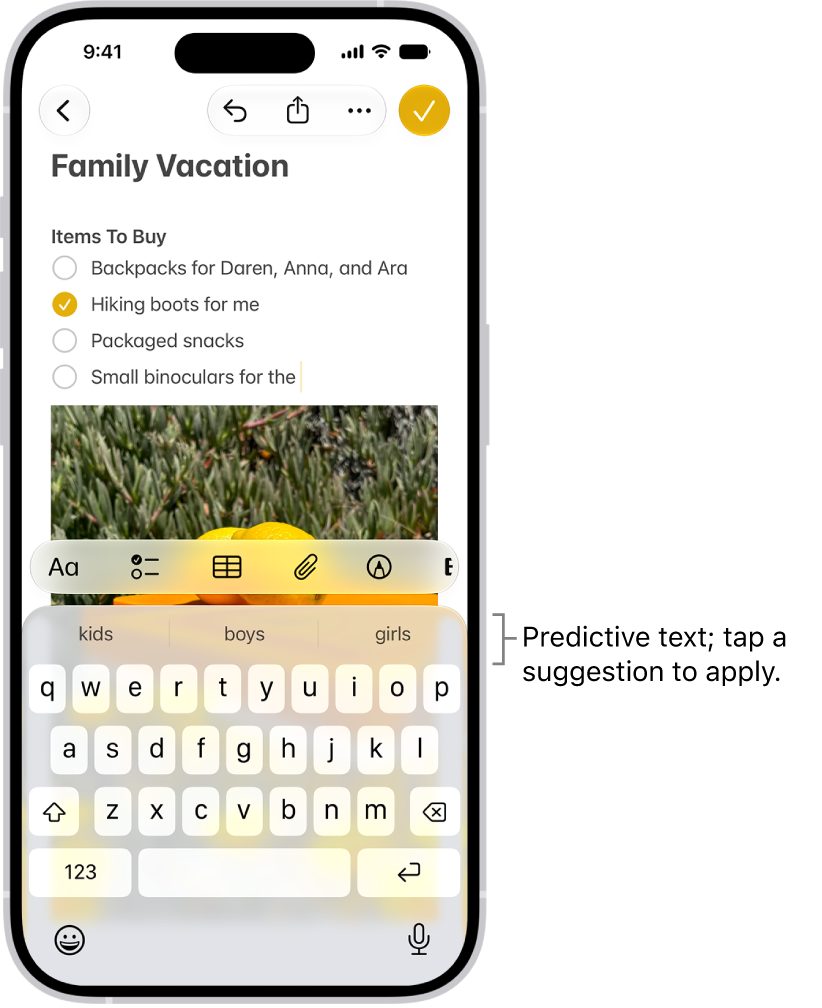
  • Accept a suggestion: Tap a suggestion to apply it.
  • Reject the suggestions: Tap your original word (shown as the option in quotation marks), or just continue to type.

The onscreen keyboard is open in the Messages app. Text is entered in the text field and above the keyboard are predictive text suggestions for the next word.

Turn suggestions and inline text predictions off or on

  1. While using the keyboard, touch and hold the Emoji button or the Switch Keyboard key.
  2. Tap Keyboard Settings and then do any of the following:
    • Stop (or start) seeing suggestions above the keyboard: Turn Predictive Text off (or on).
    • Stop (or start) seeing predicted text inline: Turn Show Predictions Inline off (or on).

Note: When you turn off the Predictive Text setting, both predictive text and inline text predictions turn off.

Accept and reject a correction

When you turn off Predictive Text, corrections for misspelled words may still appear. To handle them, do one of the following:

  • Accept a correction: Enter a space or punctuation, or tap Return.
  • Reject a correction: Tap the “x.”

If you reject the same suggestion a few times, iPhone stops suggesting it.

In the Notes app, you can organize your notes into folders and pin the important notes to the top of the notes list.

Folders can hold subfolders, too. You can nest one folder inside another, and create new folders whenever you need them. You can also rename, move, or delete folders, sort and change the folder view, and move a note to another folder.

Here’s how to organize your notes in folders on iPhone.

Create, rename, move, or delete folders

  1. Open the Notes app on your iPhone.
  2. In the folders list (if necessary, tap the Back button to show the folders list), do any of the following:

    • Create a folder: Tap the New Folder button, choose an account (if you have more than one), tap New Folder, and then enter a name.
    • Create a subfolder: Touch and hold a folder and then drag it onto another folder.
    • Rename a folder: Touch and hold a folder, tap Rename, and then enter a new name.
    • Move a folder: Touch and hold the folder and drag it to a new location. The folder becomes a subfolder if you drag it onto another folder.
    • Delete a folder: Swipe left on the folder and then tap the Delete Folder button. Or touch and hold the folder and then tap Delete.

    If you change your mind, open the Recently Deleted folder to recover the notes.

Pin notes

Pin an important note to keep it at the top of the notes list.

  1. Open the Notes app on your iPhone.
  2. In the notes list, touch and hold the note and then tap Pin Note. Or swipe right on the note and then tap the pin.

Sort and change the folder view

  1. Open the Notes app on your iPhone.
  2. In the notes list, tap the Folder Actions button and then do any of the following:

    • Change the folder view: Choose View as Gallery or View as List.
    • Sort the notes by title or date: Tap Sort By, then choose an option. By default, the notes are grouped by date. To turn this off, tap the Folder Actions button and tap Group By Date. Choose an option.
    • Reverse the sort order: Tap Sort By. Choose Oldest First (when sorting by date) or Descending (when sorting by title).

    To choose a default sorting method for all your folders, go to Settings > Apps > Notes, then tap Sort Notes By.

Move a note to another folder

  1. Open the Notes app on your iPhone.
  2. In the notes list, do one of the following:
    • Swipe left on the note, then tap the Move Folder button.
    • Touch and hold the note, tap Move, then choose a folder.

Delete a note

  1. Open the Notes app on your iPhone.
  2. In the notes list, do one of the following:

    • Swipe left on the note, then tap the Delete button.
    • Touch and hold the note, then tap Delete.

    If you change your mind, open the Recently Deleted folder to recover the note.

Tag: Notes