Got a tip for us?

You can assign distinctive ringtones to certain people, and turn the ringer on or off. A contact’s ringtone is set in Contacts, when you edit the contact. And on models with an Action button, you can turn the ringer on or off from Control Center.

Assign a different ringtone to a contact

  1. Open the Contacts app on your iPhone.
  2. Select a contact, tap Edit, tap Ringtone, and then choose a ringtone.

Turn the ringer on or off

  • On models with an Action Button: Open Control Center, then tap the Mute Switch button. You can also configure the Action Button to turn the ringer on or off.
  • On other models: Flip the Ring/Silent switch to turn Silent mode on or off.

Even with Silent mode turned on, Clock alarms still play. To silence incoming calls temporarily, turn on or schedule a Focus. And you can change the default sound for a call, text, voicemail, email, reminder, or other notification.

Lockdown Mode is an extreme protection feature for iPhone. Its protections include safer wireless connectivity defaults, media handling, media sharing defaults, sandboxing, and network security optimizations.

Lockdown Mode is optional and should be used only if you believe you might be targeted by a highly sophisticated cyberattack, such as by a private company developing state-sponsored mercenary spyware. When iPhone is in Lockdown Mode, apps, websites, and features are strictly limited for security.

Here’s how to harden your iPhone from a cyberattack with Lockdown Mode.

Important: Most people are never targeted by attacks of this nature.

When iPhone is in Lockdown Mode, it doesn’t function as it typically does. Apps, websites, and features are strictly limited for security, and some functionality isn’t available, including:

  • SharePlay
  • Shared Albums
  • FaceTime Live Photos
  • FaceTime Continuity Handoff

In addition, your iPhone must be unlocked to connect with wired accessories. (Some connections are permitted for a short time after going into Lockdown Mode.)

Turn on Lockdown Mode

Go to Settings > Privacy & Security > Lockdown Mode, then tap Turn On Lockdown Mode.

If you’ve set up an Apple Watch with your iPhone, the paired Apple Watch also gets Lockdown Mode when you turn it on. This requires watchOS 10 or later.

Important: For complete protection, all of your devices must have Lockdown Mode turned on.

Learn about Lockdown Mode

Go to Settings > Privacy & Security > Lockdown Mode, then tap Learn More.

Use Touch ID (supported models) to securely and conveniently unlock iPhone, authorize purchases and payments, and sign in to many third-party apps with your finger or thumb on the Home button.

You can choose when to use Touch ID, add a fingerprint, name or delete a fingerprint, or turn off Touch ID. You can add more than one fingerprint, too, such as both of your thumbs and forefingers.

Here’s how to set up Touch ID on iPhone.

To use Touch ID, you must also set up a passcode on your iPhone.

Turn on Touch ID

  1. Open Settings and then tap Touch ID & Passcode.
  2. Turn on any of the options below Use Touch ID For. Then follow the onscreen instructions.

With iTunes & App Store turned on, you’re asked for your Apple Account password the first time you buy something from the App Store, Apple Books, or the iTunes Store. After that, you’re asked to use Touch ID for your purchases.

Choose when to use Touch ID

To open password-protected apps, automatically fill in passwords, authorize payments, and unlock your iPhone, you can use Touch ID.

Go to Settings > Touch ID & Passcode, then turn on options below Use Touch ID For.

Add a fingerprint

You can add multiple fingerprints, like both of your thumbs and forefingers.

  1. Open Settings and then tap Touch ID & Passcode.
  2. Tap Add a Fingerprint.
  3. Follow the onscreen instructions.

Name or delete a fingerprint

  1. Open Settings and then tap Touch ID & Passcode.

If you added more than one fingerprint, place a finger on the Home button to identify its print.

  1. Tap the fingerprint and enter a name (such as “Thumb”) or tap Delete Fingerprint.

Turn off Touch ID

Go to Settings > Touch ID & Passcode, then turn off one or more of the options.

With an alternative keyboard layout, you can enter letters and marks that are different from the ones on Magic Keyboard. For example, with the ABC – Extended keyboard layout, you can type letters and enter diacritical marks for several different European languages. You can also enter tone marks for Mandarin Chinese in Pinyin.

  1. Open Settings, tap General, tap Keyboard, and then tap Hardware Keyboard.
  2. Tap a language, then choose an alternative layout from the list.

In the iTunes Store app, you can review and download music purchased by you or other family members. You can also customize content restrictions for the iTunes Store in Settings.

Family Sharing adds another layer: the family organizer can approve purchases made by younger family members. You can also view your entire iTunes Store purchase history, and see the music family members bought, too.

Here’s how to manage your iTunes Store purchases and settings on iPhone.

Approve purchases with Family Sharing

If you’ve set up Family Sharing, the family organizer can review and approve purchases from other family members under a certain age.

View and download music purchased by you or family members

  1. Start the iTunes Store app on your iPhone.
  2. Tap Purchased.
  3. If you set up Family Sharing, choose a family member to view their purchases.

Note: You can see purchases made by family members only if they choose to share their purchases.

  1. Tap Music, find the item you want to download. Then tap the Download button.

View your entire iTunes Store purchase history

Your iTunes Store purchase history shows a chronological list of everything purchased with your Apple Account, including apps, songs, books, and other items.

Your purchase history lets you do any of the following:

  • View when an order was billed to your account.
  • View the date of a purchase.
  • Resend email receipts.
  • Report a problem with purchased content.

Set content restrictions

In Music, you can restrict your child’s access to explicit content, music videos, and music profiles.

When you purchase access to movies, TV shows, music, music videos, ebooks, audiobooks, or ringtones from Apple, you also have the option to permanently download these items to a compatible iPhone, iPad, Mac, or PC. Apple cannot revoke your downloaded content, and you can always access your downloaded content without an internet connection.


Tag: Music

You can capture what’s on your iPhone screen, grab a full page beyond the edge of the screen, or save a specific portion. After you take a screenshot, you can crop it, annotate it with the Markup tools, or capture an entire webpage in Safari. Your screenshots are saved to your photo library automatically.

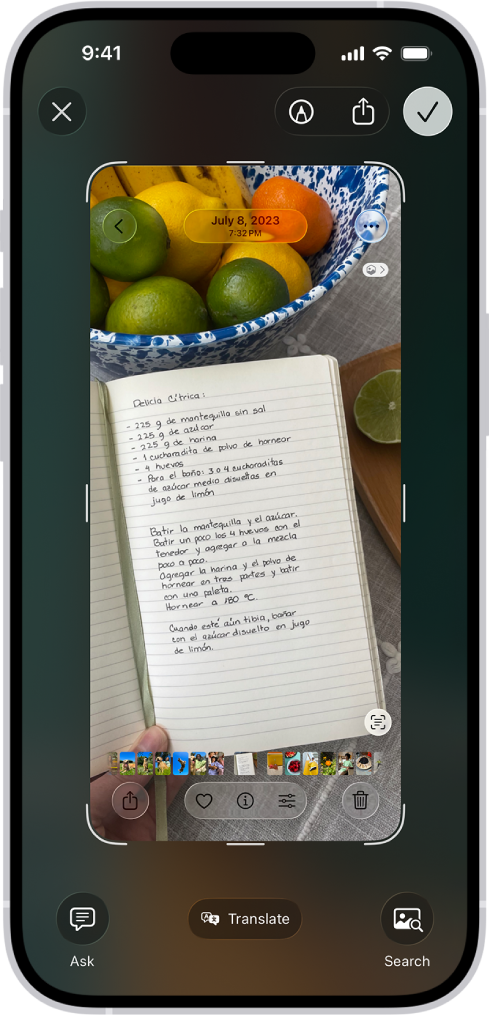
The screenshot screen, with buttons along the top (from left to right) for Close Window, Markup, Share, and Done. Along the bottom (from left to right) are buttons for Ask, Translate, and Search.

Take a screenshot

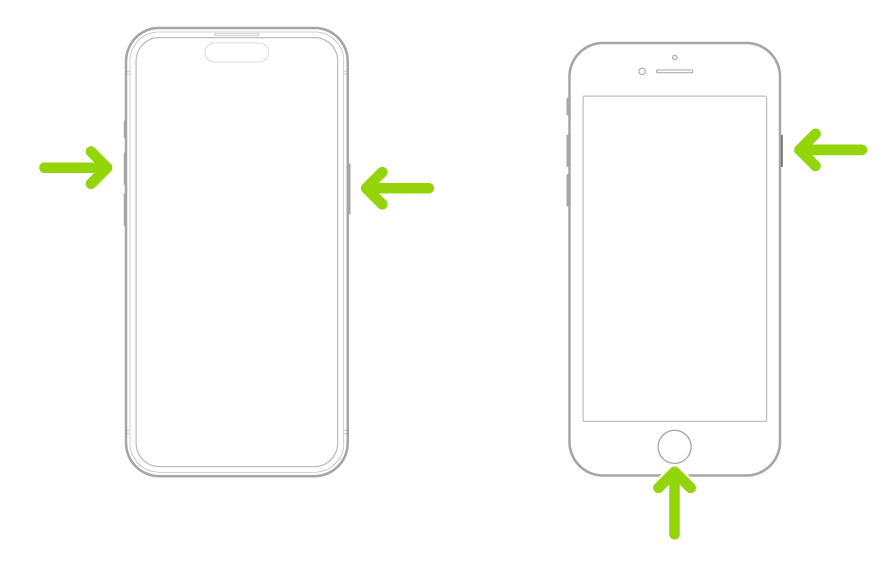
  1. Quickly press and release the side button and the volume up button at the same time.

    Note: If your iPhone has a Home button, quickly press and release it and the side button at the same time.

    Two iPhones, one with Face ID and the other Touch ID, with arrows pointing to the buttons for taking a screenshot. On the iPhone with Face ID, one arrow points to the side button and another arrow points to the volume up button. On the iPhone with Touch ID, one arrow points to the side button and another arrow points at the Home button.

  2. If one appears, tap the screenshot thumbnail in the lower left of the screen and then do any of the following:

    • Capture content beyond your iPhone screen: Tap Full Page. To see more of the screenshot, drag your finger on the preview image on the right. For example, you can capture an entire webpage in Safari.
    • Crop: Drag the handles. To save a smaller portion of a full-page screenshot, tap the Crop button. Drag the handles.
    • Annotate: Tap the Markup button and then use the Markup tools.
    • Cancel or delete: Tap the Close button.
  3. To save full-screen screenshots to your photo library, swipe up, or tap the Selected button and then choose an option. (Screenshots with thumbnails save automatically.)

To take a screenshot without the hardware buttons, you can use Siri, AssistiveTouch, or Back Tap.

Review your screenshots

Screenshots are automatically saved to your photo library.

  1. Start the Photos app on your iPhone.
  2. Tap Collections and scroll down to Media Types. Tap Screenshots.

Change the default settings for screenshots

You can adjust the screen capture settings so screenshots appear as temporary thumbnails in the lower-left corner or in full screen, and save them in SDR or HDR format.

iMessage is Apple’s end-to-end encrypted messaging service that you can use to send and receive text messages in the Messages app on your iPhone, iPad, Mac, Apple Watch, and Apple Vision Pro.

If someone sends a message to your email address or phone number using iMessage, you receive it on all your Apple devices that are set up to receive messages sent to that address or number. And when you view an iMessage conversation, you see all messages sent from any device, so you can keep in touch wherever you are.

You need an Apple Account to use some iMessage features. If you’ve made purchases from the iTunes Store or App Store, or you’ve signed in to iCloud, you already have one.

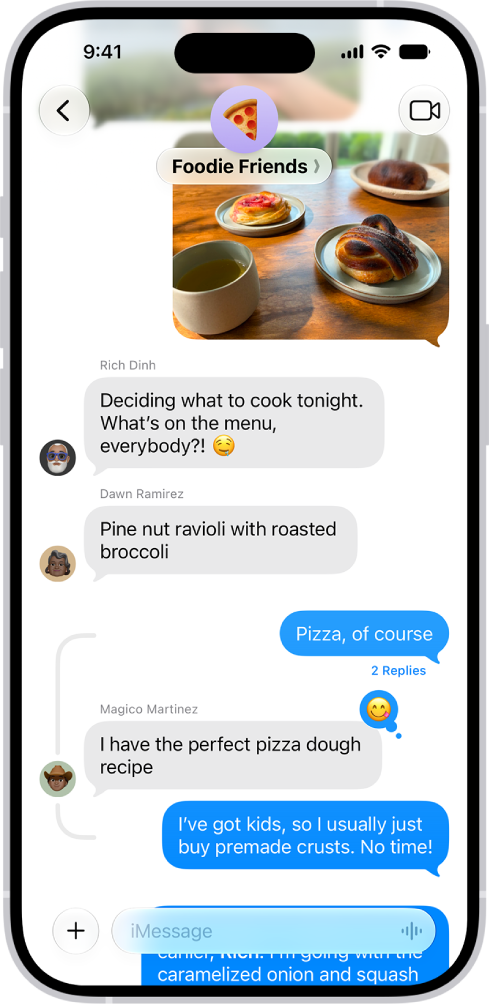
A conversation using iMessage.

Here’s what you should know about communicating with others in iMessage:

  • You can send texts over Wi-Fi or cellular service.
  • Texts you send and receive using iMessage don’t count against your SMS, MMS, or RCS allowances in your cellular messaging plan, but cellular data rates may apply.
  • When you communicate with others who also use iMessage on an Apple device, the texts appear in blue bubbles. (SMS, MMS, and RCS messages appear in green bubbles.)

    Messages are sent with iMessage when you see a blue send button. A green send button indicates the message is sent with SMS, MMS, or RCS.

  • In a conversation, you can see if someone’s writing a message. If someone has read receipts turned on, you can also see if they’ve opened your message.
  • You can use a wider range of apps and features, like text formatting, editing, unsending, scheduling, backgrounds, polls, Memoji, drawings, collaboration, group conversation management, and more.

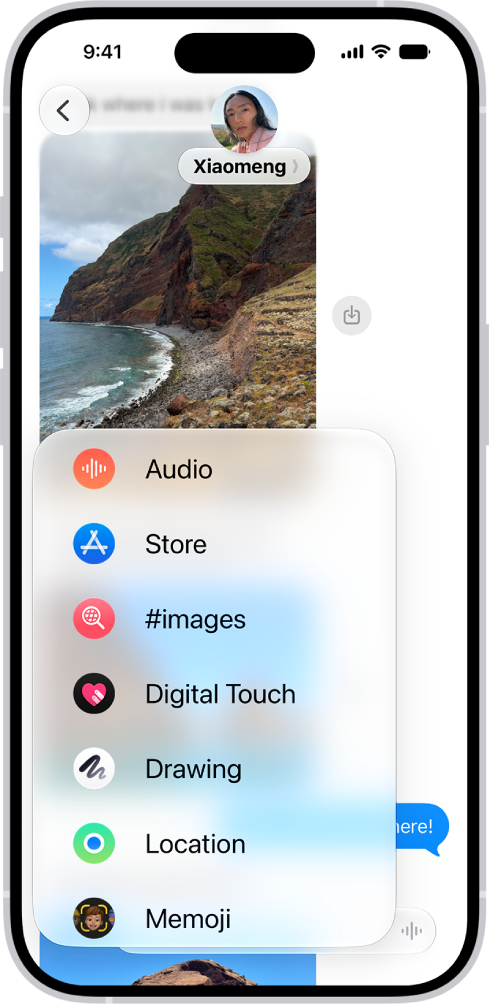
    The Add menu in Messages on iPhone, showing iMessage options like audio messaging, Check In, Digital Touch, location sharing, and Memoji.

  • When you use iMessage, you can report spam messages to Apple and screen unknown senders.
  • For security, messages sent using iMessage are end-to-end encrypted as they’re sent, and you can also use Contact Key Verification. When a conversation is end-to-end encrypted, you see Encrypted at the top of the conversation. If you don’t see this indicator—for example, in SMS or MMS conversations—messages in the conversation aren’t protected from being read by others as they’re sent.

About RCS

RCS is a carrier-provided messaging service. In the Messages app on your iPhone, you can use it to communicate with people on both Apple and non-Apple devices. If iMessage isn’t available, Messages can send your text as RCS instead, and those messages show up in green bubbles.

And here are a few things worth knowing about RCS messaging:

  • RCS is provided by your cellular carrier, not by Apple. To use RCS, you need a text-messaging plan from a carrier that supports it.
  • RCS supports read receipts, typing indicators, Tapbacks, inline replies, and high-resolution photos and videos.
  • RCS conversations can be end-to-end encrypted when both your carrier and your contact’s carrier support encrypted RCS.

When you subscribe to Apple News+, you can access hundreds of magazines and newspapers, along with recipes, puzzles, and audio stories. You can share issues with others or download them for offline reading.

You can subscribe to Apple News+ or to Apple One Premier, which includes Apple News+ and other Apple services. You can also share Apple News+ with family members. And you can cancel or change your Apple News+ subscription.

Note: Apple News, Apple News+, Apple One and puzzles aren’t available in all countries or regions.

Subscribe to Apple News+

  1. Open the News app on your iPhone.
  2. Do one of the following:
    • Tap the subscription button shown in a magazine, puzzle, recipe, or story.
    • Tap News+ , then tap the subscription button.
  3. Follow the onscreen instructions.

You may be asked to sign in to your Apple Account.

Share Apple News+ with family members

Once you subscribe to Apple News+ or Apple One Premier, you’re able to share Apple News+ with up to five other family members by using Family Sharing. Your family group members don’t have to do anything. Apple News+ becomes available to them the first time they open the News app once your subscription begins. Joining a family group with an Apple News+ or Apple One Premier subscription when you already subscribe means your subscription won’t renew on your next billing date, and you’ll use the group’s subscription instead. If the family group you join doesn’t subscribe, it uses your subscription.

Note: Apple News+ sharing with a family group ends when you cancel the subscription, leave a Family Sharing group, or remove a member from the Family Sharing group.

Cancel or change your Apple News+ subscription

  1. Open the News app on your iPhone.
  2. Tap Following, scroll down, tap Subscriptions (below Manage), and then do one of the following:
    • Apple News+ only: Tap Cancel Subscription and then follow the onscreen instructions.
    • Apple News+ and individual channels: Select Apple News+, tap Cancel Subscription, and then follow the onscreen instructions.
Tag: News

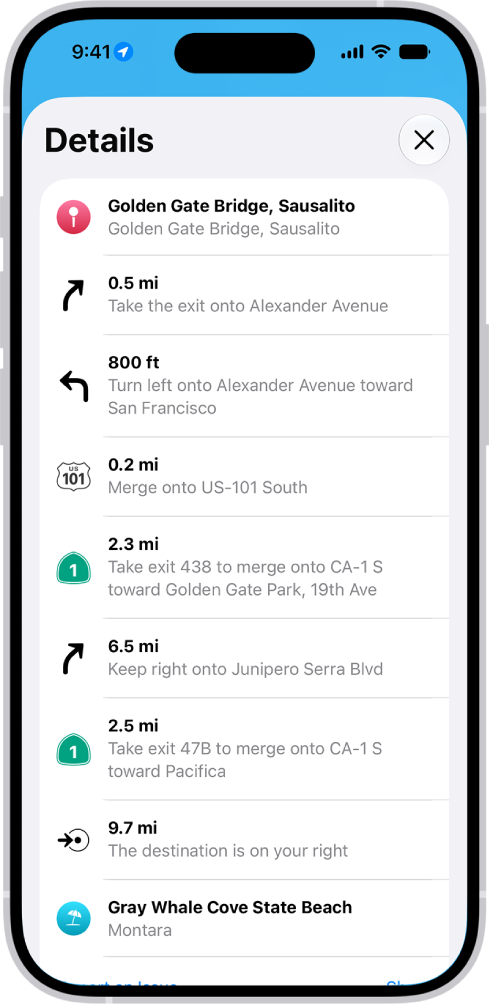
In Maps, while following driving, cycling, transit, and walking directions, you can zoom out to see your entire route on the screen, start to finish. You can also view a list of upcoming directions, and share a route with someone, too.

  1. While following driving, cycling, transit, and walking directions, you can get an overview of your route and a list of upcoming turns.

A route’s turn-by-turn directions shown in a list.

Get an overview of your route

You can zoom out to see your entire route onscreen, from the starting point to the destination.

  1. Open the Maps app on your iPhone.

Get directions.

  1. Tap the Overview Mode button.
  2. To return to turn-by-turn directions, tap the Turn-by-Turn Mode button.

View a list of upcoming directions

  1. Open the Maps app on your iPhone.

Get directions.

  1. Tap anywhere on the route card except the Go button.
  2. Scroll down to see more directions.

When finished, tap the Close button.

Share a route with someone

  1. Open the Maps app on your iPhone.

Get directions.

  1. Tap anywhere on the route card except the Go button.
  2. Scroll to the bottom of the card and tap Share. Then choose a way to share the route.
Tag: Maps

In select regions and countries, you can report traffic incidents like accidents, hazards, speed checks, and road work, though features vary by region and country. Apple evaluates incoming incident reports, and when there’s high confidence in them, markers appear in Maps for other users. You can also report on the status of a hazard or accident.

Report an incident

With turn-by-turn directions showing, select the Report button, then choose from one of the available options.

Apple evaluates incoming incident reports, and when it has a high level of confidence in them, Accident, Hazard, and Road Work incident markers appear in Maps for other users.

Note: You won’t see speed checks with incident markers. Notifications for them appear when you follow turn-by-turn directions instead.

Report on the status of a hazard or accident

Incident markers show information about hazards and accidents, and you can report their status when you’re near their locations.

  1. Select the incident marker.
  2. Select Cleared or Still Here.

Note: You can’t clear reports of speed checks.

After evaluating incoming incident reports, Apple removes an incident’s marker from Maps when there’s high confidence in reports that it has been cleared.

Note: Apple is committed to keeping personal information safe and private. To learn more, go to Settings > Apps > Maps, then tap “See how your data is managed.”

Tag: carplay