Got a tip for us?

You can find all the photos and videos you saved from other apps—like Messages, Safari, and Mail—in the Recently Saved collection. Photos and videos that were sent to you using AirDrop also appear here.

You can also sort your library by Recently Added, and see the photos you saved today in the Saved Today collection. The Recently Saved collection is also below Utilities, next to the Recently Viewed and Recently Shared collections.

  1. Start the Photos app on your iPhone.
  2. Do any of the following:
    • Tap Collections , then tap the Recently Saved collection below Pinned. Tip: You can also find the Recently Saved collection below Utilities along with the Recently Viewed and Recently Shared collections.
    • Tap Library , tap the Sort and Filter button, then tap Sort by Recently Added. Tip: To see photos you saved today, tap Collections , then tap the Saved Today collection below Recent Days.
Tag: Photos

The News app keeps track of a wide variety of channels, topics, stories, and recipes, which makes it easy to find content that interests you. In the Search tab, you can enter the name of a channel, a topic like fashion or politics, an event, or a recipe title.

  1. Start the News app on your iPhone.
  2. Tap the Search tab and tap the search field.
  3. Enter any of the following:
    • The name of a channel, such as Scientific American or Washington Post
    • A topic, such as fashion, business, or politics
    • An event, such as an upcoming meteor shower
    • A recipe title, ingredient, or keyword
  4. Tap the Search button.
Tag: News

With Siri AI (Beta), you can use Siri mode in Camera, which uses Visual Intelligence to let you search, ask questions, and take action based on what’s around you with just a tap.

Point your iPhone camera at something, and Siri can identify what’s in the frame, answer a specific question about it, or suggest an action, like splitting a bill with Apple Cash. You can even ask follow-up questions about Siri’s answer.

Siri AI is available in beta on iOS 27 or later on an Apple Intelligence-enabled iPhone 15 Pro, iPhone 15 Pro Max, or iPhone 16 model or later with Siri and device language set to a supported language. Available in English to start. Siri AI will not initially be available in the EU on iOS. Usage limits may apply.*

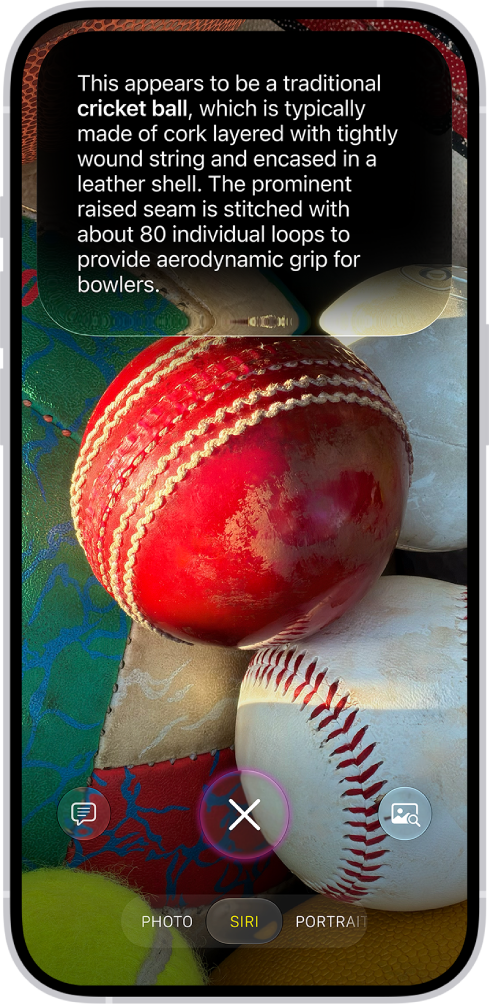
An iPhone screen shows a response from Siri identifying what's in the camera viewfinder.

  1. Click and hold the Camera Control (on supported iPhone models), or use an alternate option.
  2. Tap Siri to switch to Siri mode.
  3. Point your iPhone camera at something around you.
  4. Do any of the following:

    • Take action based on what’s in the frame: Tap an action if one appears. For example, when you point the iPhone camera at a check, tap Split Bill with Apple Cash and then follow the onscreen instructions to split the bill with friends.
    • Get quick information related to what’s in the frame: Tap the Siri button. For example, when you point the iPhone camera at an unknown object, like a cricket ball, Siri will identify what’s in the frame.

      Tip: Swipe down on Siri’s answer to continue the conversation and ask follow-up questions, like “How do you play cricket?”

    • Ask a specific question about what’s in the frame: Tap the Ask button, then ask a question. For example, when you point the iPhone camera at a bunch of ingredients, ask What can I make with these ingredients?
    • Search for similar images on the internet: Tap the Search button.
  5. Swipe up from the bottom to close the Siri conversation (if a Siri conversation is open) and then tap the Close button to close the results.

In Screen Time settings, you decide which Siri features you can use and what content Siri can access.

*Apple Intelligence is available with Siri and device language set to Chinese (Simplified), Chinese (Traditional), Danish, Dutch, English, French, German, Italian, Japanese, Korean, Norwegian, Portuguese, Spanish, Swedish, Turkish, or Vietnamese. Some features may not be available in all regions or languages. Some devices may not be available in all regions. Siri AI is available in beta in iOS 27, iPadOS 27, macOS 27, watchOS 27, and visionOS 27 and requires an Apple Intelligence–enabled device set to a supported language. Available in English to start. Siri AI will not be initially available in the EU on iOS, iPadOS, and watchOS. Certain Apple Intelligence features that rely on server-side models are subject to daily usage limits, including but not limited to Siri AI, Intelligent Photo Editing Tools, Image Playground, and AFM 3 Cloud models in Shortcuts. Daily limits may vary by feature, request complexity, system demand, system policies, and other factors. Expanded access to such features will be available for a fee in the future. Use of these features is subject to the Apple Intelligence Terms and Conditions.

Tag: camera

In your Phone settings on iPhone, you can hide your Caller ID on outgoing calls, prioritize caller identification apps, turn on Dial Assist, and change the default calling app. Dial Assist then automatically determines the correct international or local prefix when you’re dialing.

Change the Phone app layout

The Unified layout combines your Favorites, Recents, and Voicemails in a single tab, while the Classic layout sorts them into separate tabs. You can use either one.

  1. Open the Phone app on your iPhone.
  2. Tap Calls or Recents.
  3. Tap the Filter button and then choose one of the following:
    • Classic: Your favorite contacts, recent calls, and voicemails are sorted into separate tabs.
    • Unified: Your favorite contacts, recent calls, and voicemails are combined and displayed in the Calls tab.

Hide your Caller ID

Keep your Caller ID information from showing on outgoing calls on iPhone.

  1. Open the Settings app on your iPhone.
  2. Tap Apps, then tap Phone.
  3. Tap Show My Caller ID and turn it off.

Note: If Show My Caller ID doesn’t appear, your carrier may not let you turn off your caller ID information.

Prioritize caller identification apps

When a call comes in, your iPhone draws caller ID information mainly from these sources:

  • Contacts app: The people in your contacts app.
  • Name and Photo Sharing: Callers who have turned on Name and Photo Sharing in Settings > [their name] > Personal Information.
  • Carrier Call Directory: Caller information identified by supported carriers.
  • Business Call Identification: Caller information identified by Apple Business Connect or your cellular provider.
  • Call Identification apps: Any caller information identified by supported caller ID apps.

Additional caller identification apps you’ve installed can be prioritized for identifying incoming calls, and you can reorder them at any point. You might make one caller identification app the preferred one, for example, with the others coming into play only if the primary app can’t identify the caller.

  1. Open the Settings app on your iPhone.
  2. Tap Apps and tap Phone. Then tap Call Blocking & Identification.
  3. Tap Call Blocking & Identification. Tap Edit at the top of the screen.
  4. Drag the Sort button to reorder the priority of the apps.

Turn on Dial Assist

When you’re dialing, Dial Assist works out the correct international or local prefix automatically.

  1. Open the Settings app on your iPhone.
  2. Tap Apps, then tap Phone.
  3. Scroll down, then turn on Dial Assist.

Change the default calling app

Instead of the built-in Apple Phone app, an alternative, third-party app can be your default for making and receiving phone calls. Just check that the app you want to switch to supports these features, and if you aren’t sure, contact the app developer.

  1. Open the Settings app on your iPhone.
  2. Tap Apps, then tap Phone.
  3. Tap Default Calling App. Tap the app you want set as the default.
Tag: Phone

Review connection security details to determine whether a website is encrypted. Encrypted websites mask the data you exchange with them, so that only you and they can see it.

It’s important to use encrypted websites to prevent anyone from “eavesdropping” on you, and Safari on iPhone shows you the connection security details for any website you visit.

  1. Start the Safari app on your iPhone.
  2. Go to the website and tap the Page Menu button on the left side of the search field. Then tap Privacy & Security.
  3. Tap Connection Security Details.
Tag: Safari

With an Apple News+ subscription, you can download issues to read when you’re not connected to the internet.

You can download an issue from My Magazines, the Catalog, or a magazine channel you follow, then read it offline from the Downloaded section of News+. When you’re done, you can remove downloaded issues, or remove an issue from My Magazines entirely.

Here’s how to manually download Apple News+ issues on iPhone.

Note: Apple News and Apple News+ aren’t available in all countries or regions.

Download an Apple News+ issue

  1. Open the News app on your iPhone.
  2. Do any of the following:
    • Tap News+ , then tap My Magazines. You can also tap Catalog near the top of the screen, then tap a stack of magazines.
    • Tap Following , then tap a magazine channel you follow.
    • Tap the Search tab, enter the magazine channel name in the search field, then tap the channel.
  3. When you find the issue you want, tap the More button below the issue cover (or touch and hold the cover) and then tap Download Issue.

To download multiple issues, tap News+, tap My Magazines, tap the More button, then tap Select. Tap the issues you want to download, then tap the Download button.

Read a downloaded issue

  1. Open the News app on your iPhone.
  2. Tap News+.
  3. Tap Downloaded near the top of the screen and tap an issue.

Remove downloaded issues

  1. Open the News app on your iPhone.
  2. Tap News+, then tap Downloaded near the top of the screen.
  3. Tap the More button, tap Select and tap the issues you want to remove. Then tap the Delete button.

Removed an issue from the Downloaded tab? It’s easy to access it again in My Magazines.

Remove an issue from My Magazines

  1. Open the News app on your iPhone.
  2. Tap News+. Tap My Magazines near the top of the screen.
  3. Tap the More button below the issue cover (or touch and hold the cover), tap Remove, and tap Remove from My Magazines.

The issue’s cover and content are removed from iPhone, plus other devices signed in to the same Apple Account with News turned on in iCloud settings.

Tag: News

You can control how FaceTime handles calls from unknown numbers and suspected spam. Screening gets more information from callers before the call comes through, and with Silence Unknown Callers, calls from unknown numbers are sent to voicemail. FaceTime Spam filters calls identified as spam, too.

Screen unknown FaceTime audio calls

To get more information from callers before the call comes through, you can screen FaceTime audio calls from unknown numbers.

Silence or filter FaceTime calls

  1. Start the Settings app on your iPhone.
  2. Tap Apps, then tap FaceTime.
  3. Do any of the following:
    • Silence unknown callers: Turn on Silence Unknown Callers. Calls from unknown numbers are silenced, sent to voicemail, and displayed on the Recents list. Incoming calls will continue to ring from people in your contacts, recent outgoing calls, and Siri Suggestions.
    • Filter calls from unknown numbers: Turn on Unknown Callers. Missed calls and voicemails from unknown numbers are moved to the Unknown Callers list in your call history (tap the Filter button to see the list).
    • Filter calls identified as spam: Turn on FaceTime Spam. Spam calls are silenced and moved to the Spam list in your call history (tap the Filter button to see the list).

You pair Apple Watch with iPhone in the Apple Watch app. After that, you can use your Apple Watch to unlock your iPhone when you’re wearing a face mask, work out with Apple Fitness+, and collect health and fitness data.

Pair Apple Watch with iPhone

On your iPhone, tap the Apple Watch app , then follow the onscreen instructions. (Apple Watch sold separately.)

Unlock iPhone with Apple Watch

If you’re wearing a face mask, your Apple Watch (Series 3 and later) can securely unlock your iPhone (models with Face ID) while it’s on your wrist (watchOS 7.4 or later required).

Note: On iPhone 12 models or later, you don’t need Apple Watch to unlock iPhone while wearing a face mask.

To allow Apple Watch to unlock your iPhone, do the following:

  1. Open Settings and then tap Face ID & Passcode.
  2. Scroll down. Then turn on Apple Watch (below Unlock with Apple Watch).

If you have more than one watch, turn on the setting for each one.

To unlock your iPhone while you’re wearing your Apple Watch and a face mask, raise iPhone or tap its screen to wake it, then glance at your iPhone.

Note: Your Apple Watch needs a passcode to unlock your iPhone, and it must also be unlocked, on your wrist, and close to your iPhone.

Work out with Apple Fitness+

Used in conjunction with Apple Watch, Apple Fitness+ is a subscription service that lets you choose from a catalog of workouts led by expert trainers. While you follow a workout on your iPhone, in-session metrics like heart rate and calories burned (which are captured by your watch) appear on your screen. (watchOS 7.2 or later required; Apple Fitness+ availability varies by country or region.)

Note: You don’t need an Apple Watch to use Fitness on iPhone. It can still help you view your active calories and steps, set a move goal, and track your progress, plus see your movement trends over time.

Collect health and fitness data from Apple Watch

Your health and fitness data can go from Apple Watch to iPhone, where you can view it in Health. Apple Watch can also send your iPhone notifications about low heart rates, high heart rates, loud environmental sounds, and more.


With the appropriate cable or adapter, you can connect your iPhone to a secondary display, like a computer monitor, TV, or projector. The adapter you need depends on your iPhone model. The adapter works with an HDMI or VGA cable to reach the monitor, TV, or projector.

  1. Depending on your iPhone model, plug a Lightning Digital AV Adapter, Lightning to VGA Adapter, USB-C Display AV Adapter, or USB-C VGA Multi-port Adapter into the charging port on the bottom of iPhone.
  2. Connect an HDMI or VGA cable to the adapter.
  3. Connect the other end of the HDMI or VGA cable to the monitor, TV, or projector.
  4. If necessary, switch to the correct video source on the monitor, TV, or projector. If you need help, use the display’s manual.

Because the adapters have an extra port, you can also connect the charging cable to charge your iPhone while it’s connected to a monitor, TV, or projector.

Tag: iPhone

You can dictate text instead of typing it on Magic Keyboard. As you speak, iPhone automatically inserts punctuation for you, and you can insert emoji by saying their names, like “happy emoji.” Dictation may not be available in all languages or regions, though.

Note: Dictation may not be available in all languages or in all countries or regions, and features may vary. Cellular data charges may apply.

  1. Open Settings, tap General, tap Keyboard, turn on Enable Dictation, and then choose a dictation shortcut.
  2. To insert text by dictating, tap to place the insertion point and then press the dictation shortcut key twice.
  3. To use Magic Keyboard again, quickly press the dictation shortcut key twice.

iPhone adds punctuation automatically while you speak to insert text, and you can insert emoji by name. Saying “happy emoji” or “mind blown emoji” inserts those emoji, for example.