Got a tip for us?

If an app isn’t responding, you can quit it and then reopen it to try and resolve the issue. It’s quick. You quit it from the App Switcher, then reopen it from the Home Screen or App Library. If the app is still unresponsive after that, restarting your iPhone may help.

Note: Quitting apps you’re not using won’t prolong battery life, since iPhone automatically manages how apps run in the background.

  1. To quit the app, open the App Switcher and swipe right to find the app. Swipe up on the app.
  2. To reopen the app, go to the Home Screen (or App Library). Tap the app.

Note: If quitting and reopening the app doesn’t help, try restarting your iPhone.

Tag: iPhone

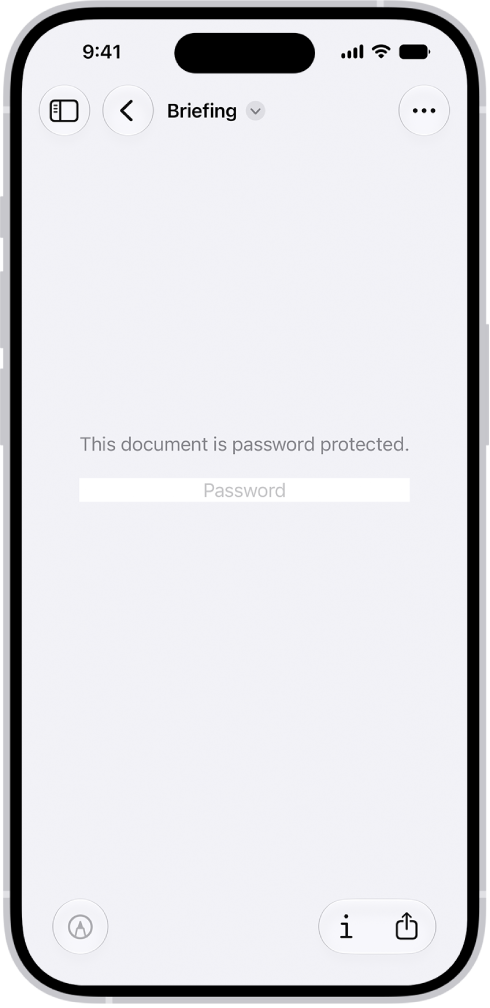
You can lock a PDF document with a password to prevent others from editing or deleting your work. Once you set a password, the Require Password toggle turns on by itself. To keep a copy that’s not password-protected, you’ll want to duplicate it first.

A locked PDF form showing a password field. At the bottom of the screen are the Markup, Info, and Share buttons.

  1. Start the Preview app on your iPhone.
  2. Open a PDF.

    Important: To keep a copy that’s not password-protected, tap the Actions Menu button, then tap Duplicate.

  3. Tap the Actions Menu button next to the filename and tap Lock.
  4. Enter the same password in the Password and Verify fields. The Require Password toggle turns on automatically.
  5. Tap the Done button to apply the change, or tap the Close button to cancel.
Tag: Preview

When you create an image in the Preview app, you can start with a blank image or with pasted content that was copied to the Clipboard. It can come from the Photos app, the Files app, or Preview. You can then annotate an empty image or an image from the Clipboard with a shape, sticker, or text.

Create an empty image

  1. Start the Preview app on your iPhone.
  2. Tap New Document and then choose New Empty Image.

Quick tip: From the Home Screen, touch and hold the Preview icon and tap New Empty Image.

Use an image from the Clipboard

  1. Do any of the following to copy an image to the Clipboard:
    • From the Photos app: Select an image, tap the Share button, and then tap Copy Photo.
    • From the Files app: Touch and hold an image file, then tap Copy.
    • From the Preview app: Touch and hold an image file and tap Copy. You can also open an image file, tap the Share button, and then tap Copy.
  2. Start the Preview app on your iPhone.
  3. Tap New Document, then choose New from Clipboard.

You can annotate an empty image or an image from the Clipboard. Tap the Markup button, choose a drawing tool, then draw with your finger. You can also tap the Add button, then choose an option such as a shape, sticker, or text.

Tag: Preview

You can manage your email in mailboxes on iPhone.

Right from a message list, you can move individual emails to the Trash or mark them as read, and you can choose the actions that appear in the menus. You can also choose which mailboxes to view, reorder them, create new ones, and rename or delete them, though some mailboxes can’t be changed.

Here’s how to organize email in mailboxes on iPhone.

Manage an email with a swipe

  1. While viewing a message list, you can use a simple swipe to move individual emails to the Trash, mark them as read, and more.
  2. Open the Mail app on your iPhone.
  3. In a message list, do any of the following: Reveal a list of actions: Slowly drag a message to the left until the menu appears. Tap an item.

    • Quickly use the rightmost action: Swipe all the way to the left.
    • Reveal other actions: Swipe right.

    To choose the actions you want to appear in the menus, go to Settings > Apps > Mail > Swipe Options (below Message List).

Organize your mail with mailboxes

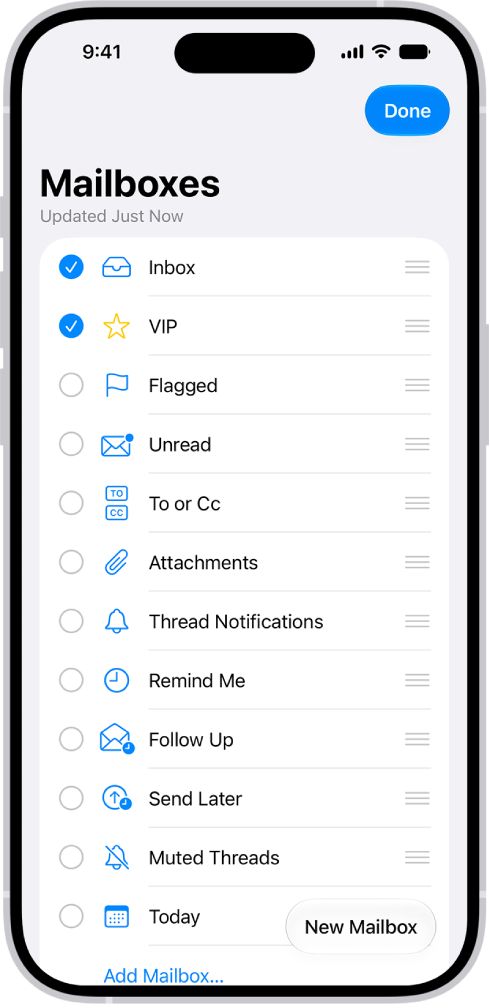
You can choose which mailboxes to view, reorder your mailboxes, create new ones, or rename or delete mailboxes. (Some mailboxes can’t be changed.) Go to the Mail app on your iPhone.

The Mailboxes edit screen. Optional Mailboxes are listed from top to bottom with a checkbox to the left of each option. At the bottom-right corner of the screen is a button labeled New Mailbox.

  1. To organize your mailboxes, tap the Mailboxes button until you see Mailboxes.
  2. Tap Edit and then do any of the following: View mailboxes: Select the checkboxes next to the mailboxes you want to include in the mailboxes list.

    • Reorder mailboxes: Touch and hold the Reorder button next to a mailbox until it lifts up and drag it to the new position.
    • Create a new mailbox: Tap New Mailbox in the lower-right corner. Then follow the onscreen instructions.
    • Rename a mailbox: Tap the mailbox and tap the title.

    Delete the name, then enter a new name.

    Delete a mailbox: Tap the mailbox, then tap Delete Mailbox.

Move emails to a mailbox

  1. Open the Mail app on your iPhone.

    Do any of the following: While viewing a Primary message: Tap the Mailbox button, then choose a mailbox.

  2. While viewing a message list: Tap Select, then select the messages you want to move by tapping their checkboxes.
  3. Tap the Mailbox button at the bottom of the message list and choose a mailbox.

    Important: When you select a Transactions, Updates, or Promotions message, you’re selecting all the messages in that category from the sender.

  4. While viewing a sender’s digest view: Swipe left on a message, tap the Reply Actions button, tap Move Message, and then choose a mailbox.

View emails from one account at a time

With multiple email accounts in the Mail app, the mailboxes list can show messages from one account at a time.

  1. Open the Mail app on your iPhone.
  2. Tap the Mailboxes button until you see Mailboxes. Then tap a mailbox below the email account you want to access.

    Each mailbox listed below a particular email account only displays messages from that email account.

    For example, to view only messages sent from your iCloud account, tap iCloud, then tap Sent.

Move emails to Junk

  1. Open the Mail app on your iPhone.

    Do any of the following: While viewing a Primary message: Tap the Reply button, then tap Move to Junk.

  2. While viewing a message list: Tap Select, then select the messages you want to move by tapping their checkboxes.
  3. Tap the Mark button at the bottom of the message list. Tap Move to Junk.

    Important: When you select a Transactions, Updates, or Promotions message, you’re selecting all the messages in that category from the sender.

  4. While viewing a sender’s digest view: Swipe left on a message, tap the Reply Actions button, and then tap Move to Junk.
Tag: Mail

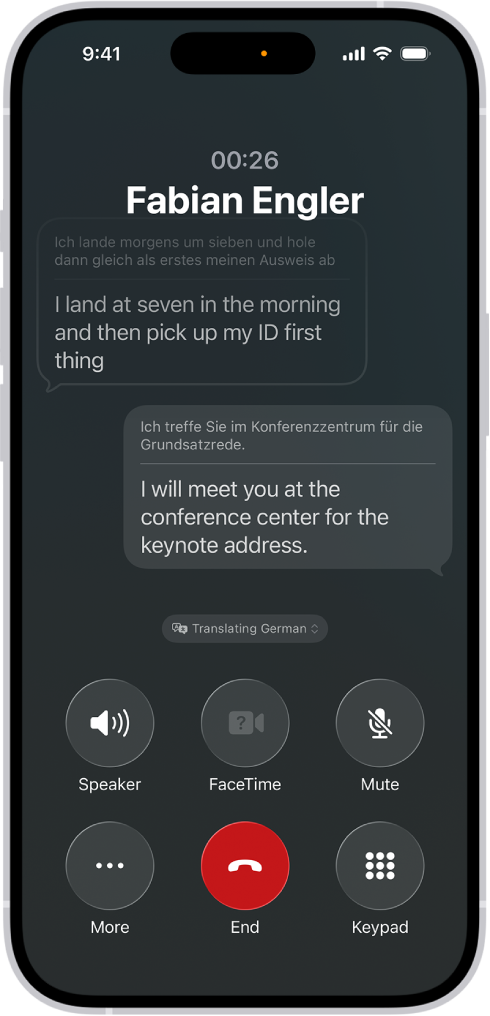
During a call in the Phone app with someone who speaks a different language, you can use Live Translation—powered by Apple Intelligence—to hear and read the translation in your preferred language.

Live Translation works for one-on-one calls in languages like English, French, German, Italian, Portuguese, Spanish, Chinese, Japanese, and Korean. Apple Intelligence on iOS 27 or later is available on iPhone 15 Pro, iPhone 15 Pro Max, and iPhone 16 models or later. It isn’t available in all languages or regions, and usage limits may apply.

A phone call in the Phone app showing a conversation translated from German to English.

  1. Start the Phone app on your iPhone.
  2. During a phone call, tap the More button and tap Live Translation.
  3. Choose the caller’s language and your preferred language.
  4. Tap Start Translation.

Note: Live Translation in the Phone app is available for one-on-one calls in English (UK, U.S.), French (France), German, Italian, Portuguese (Brazil), Spanish (Spain), Chinese (Simplified), Chinese (Traditional), Japanese, and Korean. Apple Intelligence on iOS 27 or later is available on an Apple Intelligence-enabled iPhone 15 Pro, iPhone 15 Pro Max, or iPhone 16 model or later. Apple Intelligence is not available in all languages or regions. Usage limits may apply.

*Apple Intelligence is available with Siri and device language set to Chinese (Simplified), Chinese (Traditional), Danish, Dutch, English, French, German, Italian, Japanese, Korean, Norwegian, Portuguese, Spanish, Swedish, Turkish, or Vietnamese. Some features may not be available in all regions or languages. Some devices may not be available in all regions. Siri AI is available in beta in iOS 27, iPadOS 27, macOS 27, watchOS 27, and visionOS 27 and requires an Apple Intelligence–enabled device set to a supported language. Available in English to start. Siri AI will not be initially available in the EU on iOS, iPadOS, and watchOS. Certain Apple Intelligence features that rely on server-side models are subject to daily usage limits, including but not limited to Siri AI, Intelligent Photo Editing Tools, Image Playground, and AFM 3 Cloud models in Shortcuts. Daily limits may vary by feature, request complexity, system demand, system policies, and other factors. Expanded access to such features will be available for a fee in the future. Use of these features is subject to the Apple Intelligence Terms and Conditions.

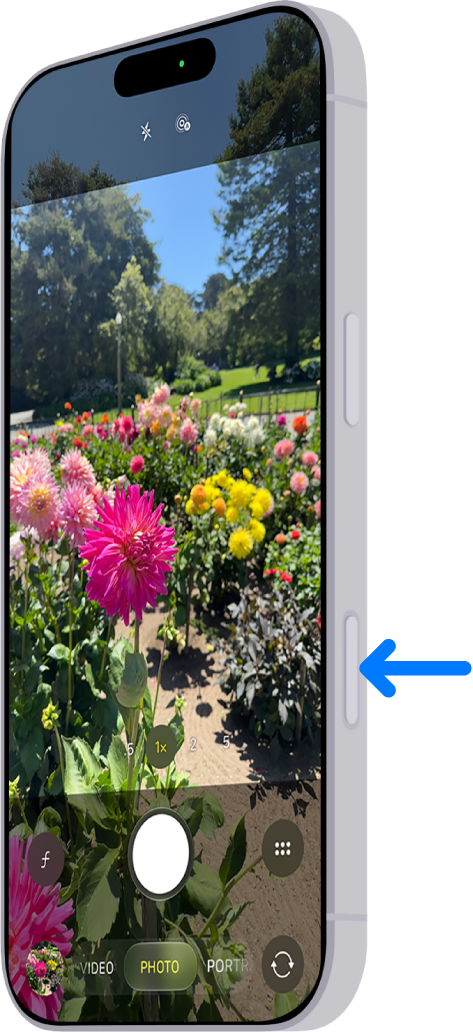
The Camera Control on supported models lets you quickly open your iPhone camera and access common camera settings.

The Camera Control can open Camera, take a photo, or record a video, and you can also select and adjust Camera Control settings like exposure and depth, where depth turns on Portrait mode if it wasn’t already selected, and lock the exposure and focus.

Here’s how to use the Camera Control on iPhone.

An arrow points to the location of the Camera Control on the side of iPhone.

Open Camera with the Camera Control

Click the Camera Control to open Camera .

Take a photo or video with the Camera Control

  1. Click the Camera Control to open Camera.
  2. Click again to take a photo, or click and hold to record a video.

Note: When Camera opens in Video mode, click to start recording.

Settings available with the Camera Control

The Camera Control lets you select and adjust any of these settings:

  • Exposure: Brighten or darken the scene by increasing or decreasing the exposure.
  • Depth: Increase or decrease the background depth-of-field effect (this setting turns on Portrait mode if it wasn’t already selected).
  • Zoom: Zoom in or out.
  • Cameras: Switch between cameras, including the front-facing camera.
  • Styles: Change the Photographic Style.
  • Tone: Lighten or deepen the mood by increasing or decreasing the tone.

Note: Not all controls are available in all camera modes.

Select and adjust the Camera Control settings

  1. Click the Camera Control to open Camera.
  2. Lightly press the Camera Control twice to open an overlay that shows the available settings for that camera mode.

The Camera Control menu is open in Camera. The Zoom control is selected.

  1. Slide your finger on the Camera Control to scroll through the settings choices. Then lightly press to select the setting you want.
  2. Slide your finger on the Camera Control to adjust the setting.

    The setting is saved and appears the next time you lightly press the Camera Control.

  3. Click the Camera Control to take your shot.

Quick tip: You can choose which Camera Control settings appear in the settings overlay and change their order. To do this, go to Settings > Camera > Camera Control > Customize.

Lock the exposure and focus with the Camera Control

As you take photos and record video, the Camera Control can lock the exposure and focus settings on a subject.

  1. Start the Settings app on your iPhone.
  2. Tap Camera and tap Camera Control. Turn on Lock Focus and Exposure.

    After you complete steps 1 and 2, you don’t need to repeat them.

  3. Click the Camera Control to open Camera.
  4. Lightly press and hold the Camera Control until you see AE/AF Lock above the frame.
  5. Keep your finger touching the Camera Control to maintain the AE/AF Lock.

    Note: If you release the Camera Control, the AE/AF Lock turns off.

  6. Click the Camera Control to take photos or click and hold to record video.
  7. Release the Camera Control to turn off the AE/AF Lock.

Customize how you open the Camera Control

You can change the number of clicks it takes to open Camera with the Camera Control from one click to two.

  1. Start the Settings app on your iPhone.
  2. Tap Camera and tap Camera Control. Then tap Single Click or Double Click.

You can also adjust accessibility options for the Camera Control, such as the pressure required to lightly press or the speed required to lightly double-press.

Use Visual Intelligence with Camera Control

If you have Apple Intelligence, Visual Intelligence with Camera Control helps you quickly learn more about the places and objects around you. You can find out where to buy something you see, translate text or have it read aloud, get details about a restaurant or business, and more.

Apple Intelligence on iOS 27 or later is available on an Apple Intelligence-enabled iPhone 15 Pro, iPhone 15 Pro Max, or iPhone 16 model or later. Apple Intelligence is not available in all languages or regions. Usage limits may apply.*

*Apple Intelligence is available with Siri and device language set to Chinese (Simplified), Chinese (Traditional), Danish, Dutch, English, French, German, Italian, Japanese, Korean, Norwegian, Portuguese, Spanish, Swedish, Turkish, or Vietnamese. Some features may not be available in all regions or languages. Some devices may not be available in all regions.

Siri AI is available in beta in iOS 27, iPadOS 27, macOS 27, watchOS 27, and visionOS 27 and requires an Apple Intelligence–enabled device set to a supported language. Available in English to start. Siri AI will not be initially available in the EU on iOS, iPadOS, and watchOS. Certain Apple Intelligence features that rely on server-side models are subject to daily usage limits, including but not limited to Siri AI, Intelligent Photo Editing Tools, Image Playground, and AFM 3 Cloud models in Shortcuts.

Daily limits may vary by feature, request complexity, system demand, system policies, and other factors. Expanded access to such features will be available for a fee in the future. Use of these features is subject to the Apple Intelligence Terms and Conditions.

You can sketch or jot a handwritten note with your finger. You can edit and work with handwritten text just as you do with typed text, and you can solve handwritten math problems.

As you draw in the Freeform app, your strokes are grouped together. You don’t have to keep them that way: you can separate or merge them, or delete, resize, or straighten parts of a drawing. You can even fill a closed shape with color.

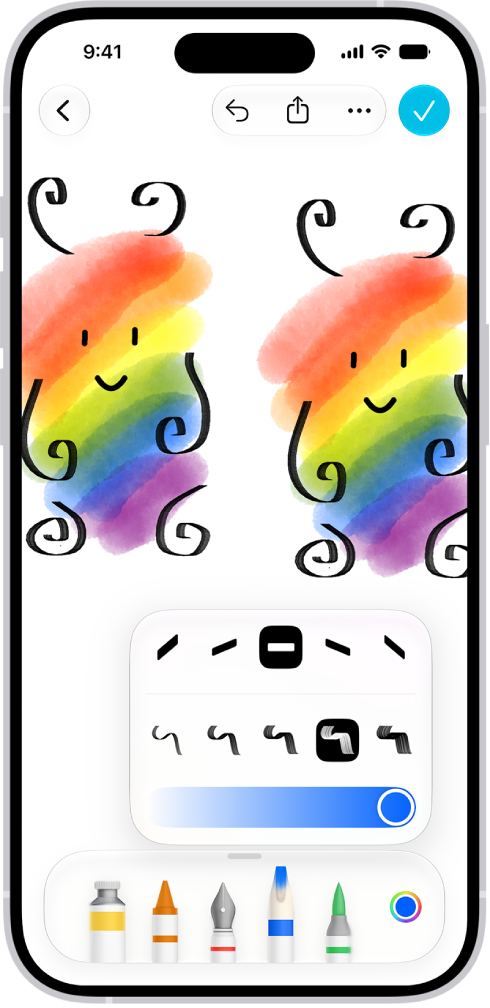
A drawing on a Freeform board with drawing tools visible.

Draw or handwrite

Your strokes are grouped when you draw in the Freeform app. You can break a drawing apart by separating your strokes, or merge them, and you can also delete, resize, or straighten parts of a drawing.

  1. Open the Freeform app on your iPhone.
  2. Open a board, or tap the New Board button to start a new one.
  3. Tap the Drawing and Handwriting Tools button and then draw with your finger.

    Tip: Hold your finger still for a moment when you finish the drawing to smooth or straighten its shape.

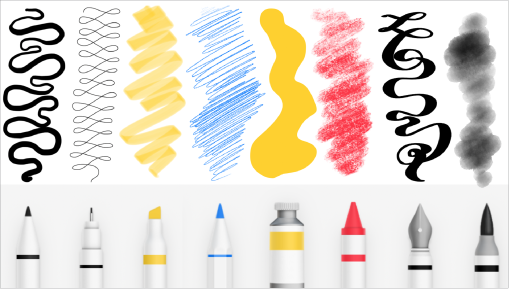
    Some Freeform drawing tools and their strokes: Marker, Pen, Highlighter, Pencil, Crayon, Fountain Pen, and Watercolor Brush.

  4. Do any of the following:

    • Switch tools: Tap a tool. Swipe to see other tools, such as Fill, Crayon, Fountain Pen, Reed Pen, or Watercolor Brush.
    • Change a tool’s qualities (such as angle, thickness, or opacity): Tap any tool a second time.
    • Fill a shape with color: Tap the Fill tool (the paint tube) and tap within a closed shape.
    • Draw a straight line: Tap the Ruler tool. Rotate the ruler by placing two fingers on it and turning your hand.
    • Select, edit, and straighten parts of your drawing: Tap the Lasso tool (between the Eraser and Ruler) in the drawing tools and tap or circle the part of the drawing you want to select. Tap an option or tap the More button to see other options.

    Tip: Choose Snap to Shapes to smooth or straighten hand-drawn lines.

  5. Tap the Done button when you’re finished drawing.

Work with handwritten text

Handwriting in the Freeform app is recognized as words, so you can search text you handwrite the same way you search typed text. And you can select your handwriting, straighten it, translate it, or copy and paste it as text.

  1. After you draw or write on your Freeform board with the drawing tools, tap the Lasso tool (between the Eraser and Ruler) in the drawing tools.
  2. To select text, tap, double-tap, or circle the words, tap the More button, and then do any of the following:
    • Make text more legible, smooth, and straight: Tap Refine.
    • Make your writing more level: Tap Straighten.
    • Correct spelling: Tap an underlined word and choose how you want to correct it. The fix appears in your own writing style.
    • Move handwritten text: Touch and hold the selected text and then drag it to a new position.
    • Drag and drop: Touch and hold the text.
    • Erase text: Strike through the writing. Then hold down your finger on your iPhone. (Supported when using a markup tool such as Pen, Mono line, or Marker.)

To see other options, tap the Forward button in the menu that appears above the selected text.

When you tap a handwritten link, address, phone number, or date, it may open a menu or another related app.

Solve handwritten math problems

  1. Open the Freeform app on your iPhone.
  2. Open a board, or tap the New Board button to start a new one.
  3. Tap the More button, tap Math Results, and choose how you want your iPhone to respond to the math problems you enter:
    • If you want it to solve them: Choose Insert Results. (The answer appears in writing that matches your own.)
    • If you want suggestions to appear: Choose Suggest Results. (A Solve button appears that, when tapped, adds the answer in writing that matches your own.)
  4. Tap the Drawing and Handwriting Tools button. Then start writing a math equation.
  5. Write an equal sign or draw a horizontal line below a stack of numbers and then do one of the following:
    • In Insert Results mode: Tap the answer to open the equation. You can tap the Close button to delete the answer. Tap the expression to show the hint again, or draw the equal sign again.
    • In Suggest Results mode: Tap Solve to add the answer in writing that matches your own.

Pick whichever mode you want to use, or turn off math hints.

You can also use variables, edit equations, and update results, the same as in the Calculator app.

Any text in sticky notes, shapes, and text boxes can include equations to be solved.

In the Notes app, you can search through all your notes for typed and handwritten text, objects in images, and text in scanned documents. You can also search for text within a note or attachment.

You can search for tags, too, and handwritten text in supported languages. Just know that a locked note shows up in the results by its title only.

Here’s how to search through your notes on iPhone.

Search for text, objects, and more in all your notes

Search covers tags, typed and handwritten text (in supported languages), objects in images, and text in scanned documents. Note: Only a locked note’s title appears in search results.

  1. Open the Notes app on your iPhone.
  2. Tap the Search button. Then enter what you’re looking for. You can also choose a suggested search, such as “Notes with Drawings” and then enter additional text to refine your search. If a note is locked, only its title appears in the search results. The search includes handwritten text (in supported languages), photos, and scanned documents.

Search within a note or attachment for typed and handwritten text

  1. Open the Notes app on your iPhone.
  2. Open the note you want to search.
  3. Tap the Note Actions button and then tap Find in Note.
  4. Tap the Search button and select any of the options. To search PDFs and other attachments, select Include Attachments.
  5. Enter the text you’re looking for in the search field.
Tag: Notes

When you’re on a phone call on iPhone, you can switch the audio to the speaker or a Bluetooth® device. With Apple Intelligence,* you can also get a wait time prediction and view relevant information during a call.

You can use another app while you’re on a call, too. And in the U.S., you can receive a notification when you’re no longer on hold.

Here’s what you can do while on a call on iPhone.

Adjust the audio during a call

To change the volume, press the volume buttons on the side of iPhone. Or swipe down on the call banner, then do any of the following:

  • Mute: Tap the Mute button.
  • Put the call on hold: Touch and hold the Mute button.
  • Talk handsfree: Tap the Audio button, then choose an audio destination.

Use another app while on a call

  1. Go to the Home Screen, then open the app.
  2. To return to the call, tap the green call indicator.

View relevant information during a call

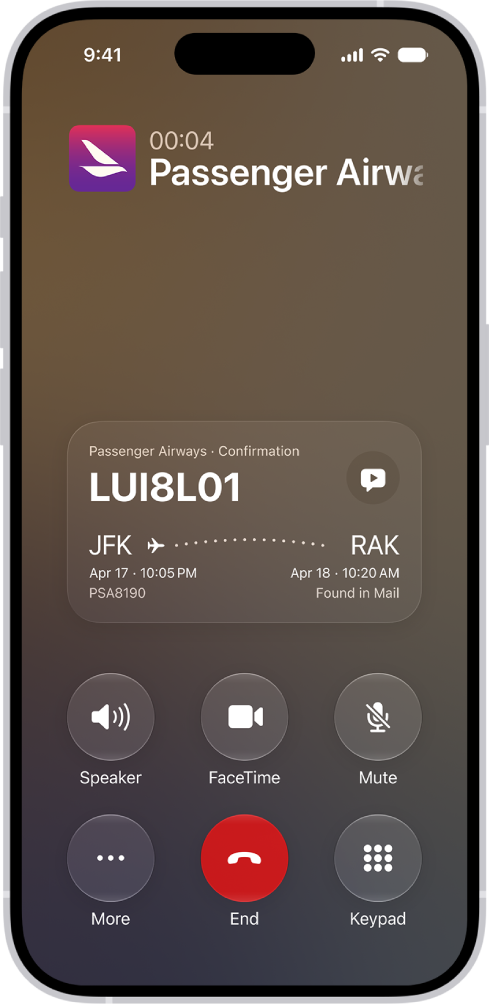
With Apple Intelligence,* a Call Context card with related information may appear during a call—like tickets, orders, confirmation numbers, or reservations. To turn Call Context cards on or off, do the following:

  1. Open Settings, then tap Apps.
  2. Tap Phone, then tap Siri.
  3. Turn Show When Calling on or off.

    The call screen, showing a Call Context card with a flight confirmation.

Note: Apple Intelligence on iOS 27 or later is available on an Apple Intelligence-enabled iPhone 15 Pro, iPhone 15 Pro Max, or iPhone 16 model or later. Apple Intelligence is not available in all languages or regions. Usage limits may apply.*

Get a wait time prediction (U.S. only)

With Apple Intelligence,* you can get predictions of how long you’re estimated to wait before your call is answered, based on average wait times in the past for some businesses.

Note: Apple Intelligence on iOS 27 or later is available on an Apple Intelligence-enabled iPhone 15 Pro, iPhone 15 Pro Max, or iPhone 16 model or later. Apple Intelligence is not available in all languages or regions. Usage limits may apply.*

Receive a notification when you’re no longer on hold

Hold Assist can tell you when a live agent is available if you’re placed on hold during a call, so you don’t have to stay on the line.

Note: Available on iPhone 12, iPhone SE (3rd generation), or later. Hold Assist isn’t available in all countries or regions.
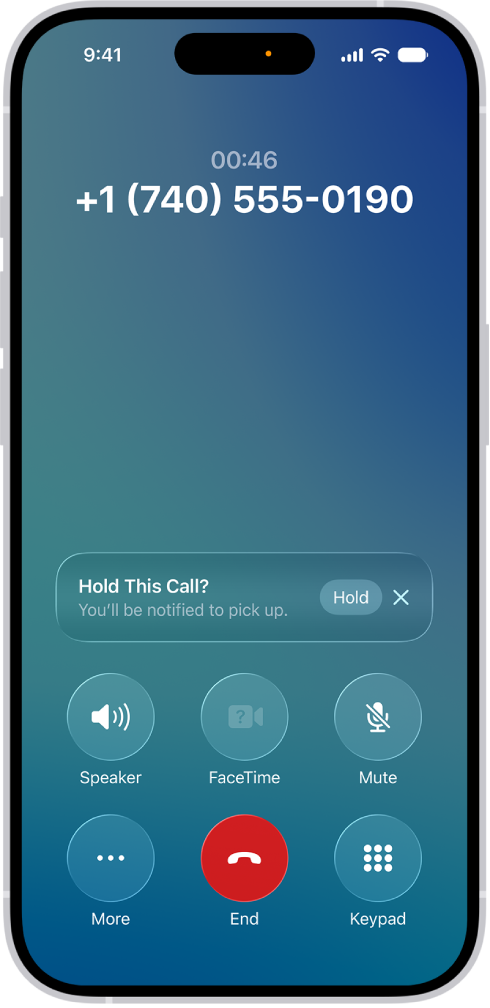
An ongoing call screen showing a banner that asks if the caller would like to use Hold Assist to receive a notification when they’re no longer on hold.

  1. Open the Phone app on your iPhone.
  2. When you’re in a call and put on hold, tap the More button. Then tap Hold Assist. Important: Check your ring settings before you step away from the call. If your iPhone is on silent or Do Not Disturb, you won’t hear the incoming call when an agent is available. Hold Assist will notify you when an agent is available and transcribe the part of the call you missed.
  3. Tap the Answer Call button to rejoin the call.

Note: Phone can also spot hold music automatically and prompt you to start Hold Assist. To set that up, go to Settings > Apps > Phone and turn on Hold Assist Detection.

Respond to a second call on the same line

If you’re on a call and

receive a second call, do one of the following:

  • Ignore the call and send it to voicemail: Tap Send to Voicemail.
  • Respond to the second call with a text message: Tap Message.
  • Set a reminder to return the call: Tap Remind Me, then choose when you want a reminder to return the call.
  • End the first call and answer the new one: When using a GSM network, tap End & Accept. With a CDMA network, tap End; when the second call rings back, tap Accept, or drag the slider if iPhone is locked.
  • Put the first call on hold and answer the new one: Tap Hold & Accept.

To switch between calls when you have a call on hold, tap Swap to switch between calls, or tap Merge Calls to talk with both parties at once.

Note: With CDMA, you can’t switch between calls if the second call was outgoing, but you can merge the calls. You can’t merge calls if the second call was incoming. If you end the second call or the merged call, both calls end. On models with Dual SIM, note the following: Wi-Fi Calling must be turned on for a line to enable that line to receive calls while the other line is in use for a call. If you receive a call on one line while the other is in use for a call, and no Wi-Fi connection is available, iPhone uses the cellular data of the line that’s in use for the call to receive the other line’s call. Charges may apply. The line that’s in use for the call must be permitted for data use in your Cellular Data settings (either as the default line, or as the non-default line with Allow Cellular Data Switching turned on) to receive the other line’s call. If you don’t turn on Wi-Fi Calling for a line, any incoming phone calls on that line (including calls from emergency services) go directly to voicemail (if available from your carrier) when the other line is in use; you won’t receive missed call notifications. If you set up conditional call forwarding (if available from your carrier) from one line to another when a line is busy or not in service, the calls don’t go to voicemail; contact your carrier for setup information.

*Apple Intelligence is available with Siri and device language set to Chinese (Simplified), Chinese (Traditional), Danish, Dutch, English, French, German, Italian, Japanese, Korean, Norwegian, Portuguese, Spanish, Swedish, Turkish, or Vietnamese. Some features may not be available in all regions or languages. Some devices may not be available in all regions. Siri AI is available in beta in iOS 27, iPadOS 27, macOS 27, watchOS 27, and visionOS 27 and requires an Apple Intelligence–enabled device set to a supported language. Available in English to start. Siri AI will not be initially available in the EU on iOS, iPadOS, and watchOS. Certain Apple Intelligence features that rely on server-side models are subject to daily usage limits, including but not limited to Siri AI, Intelligent Photo Editing Tools, Image Playground, and AFM 3 Cloud models in Shortcuts. Daily limits may vary by feature, request complexity, system demand, system policies, and other factors. Expanded access to such features will be available for a fee in the future. Use of these features is subject to the Apple Intelligence Terms and Conditions.


Tag: Phone

You can easily find and organize web links that friends share with you in Messages conversations. Links shared with you are added to the Safari start page, the page that first appears when you open a new Safari window, below Suggestions.

You can keep those links on your start page, remove them, or organize related links into Tab Groups. For it to work, Safari must be turned on for Shared with You in your Messages settings, and your friend must be in your contacts.

See links from friends in Safari

To find links shared with you, display them on your Safari start page. They’re then listed there every time you open a new page.

  1. Open the Safari app on your iPhone.
  2. Tap the Tabs button, then tap the Add button.

Links shared with you appear below Suggestions. If you don’t see a Suggestions section, scroll down, tap Edit, then turn on Suggestions. If you don’t see links shared with you, turn on Shared with You below Show In Suggestions. To change where Suggestions appears on your start page, drag the Reorder button. Tip: You can continue the conversation without leaving Safari. Tap the button below the link preview to open the Messages conversation where the link was shared.

Remove a link from the Shared with You section

  1. Open the Safari app on your iPhone.
  2. While viewing your shared links, touch and hold the preview image of a link.
  3. Tap Remove Link.

Organize shared links in a Tab Group

To make related shared web links easier to find, you can group them into Tab Groups.

  1. Open the Safari app on your iPhone.
  2. Touch and hold the preview image of the link you want to move. Tap Open in Tab Group.
  3. Tap New Tab Group to create one, or add the link to a Tab Group you already have.
Tag: Safari