Got a tip for us?

You can schedule regular times for going to bed and waking up to help meet your sleep goals. You can create multiple schedules, for example, one for weekdays and another for weekends.

To help you wake up on time, you can select an alarm sound, a vibration, and a snooze option, or choose to have no alarm at all.

For the sleep schedules you set, a Sleep Focus helps reduce distractions before and during bedtime. It can filter out notifications and phone calls, and signal to others that you’re not available. You can also schedule a wind down period to begin from 15 minutes to 3 hours before your bedtime, and your Sleep Focus begins at the start of your wind down time.

Set up your first recurring sleep schedule

When you set up a Sleep Focus, you can set your next bedtime and wake up time. This schedule repeats only once. To set up a recurring sleep schedule, do the following:

  1. Start the Health app on your iPhone.
  2. Tap Browse and tap Sleep. Tap Sleep again.
  3. Tap Get Started, then tap Continue.
  4. To set your sleep goal, tap Sleep Goal and then make a selection.
  5. To set your sleep schedule, tap Edit below Schedule and then do the following:
    • Set the days for your schedule: Tap a day to add or remove it from your schedule. The schedule applies only to days shown with solid-color circles.
    • Adjust your bedtime and wake up schedule: Drag the Bedtime button to change your bedtime, the Ringing Alarm button to change your wake up time, or the semicircle between the icons to shift both times simultaneously.
    • Set the alarm options: Turn Alarm on or off.

When Alarm is turned on, you can choose a sound, its volume, a vibration, the snooze option, and a snooze duration.

  1. When you’re finished, tap the Done button, tap Next, and tap Done.

Add, modify, or delete sleep schedules

After setting up your first sleep schedule, you can do the following:

  1. Start the Health app on your iPhone.
  2. Tap Browse and tap Sleep. Tap Sleep again.
  3. After setting up your first sleep schedule, you can do the following:
    • Set up additional schedules: For example, if you have a weekday schedule, you can add a weekend schedule.
    • Change schedules: You can adjust the bedtimes, wake up times, and alarm options for an entire sleep schedule or for only your next schedule.
    • Turn off alarms: You can turn off alarms for all sleep schedules, for a particular schedule, or for only your next scheduled wake up time.

Set up a Sleep Focus

When you’ve set up your sleep schedule, there’s also a Sleep Focus you can set up to help cut distractions before and during bedtime.

  1. Start the Settings app on your iPhone.
  2. Tap Focus and tap Sleep.
  3. Customize your focus.

You might allow interruptions from people important to you, for example, customize the Lock Screen and Home Screen, and choose how apps and your iPhone behave while a Sleep Focus is on.

Note: If you want alarms that don’t turn on a Sleep Focus, use the Clock app to set one-time and repeating alarms.
Tag: Health

In the Calendar app, you can send meeting and event invitations. iCloud, Microsoft Exchange, and some CalDAV servers also let you send meeting invitations, though not all calendar servers support every feature.

There’s one thing to check first. Before you can invite people to events you’ve scheduled, your calendar accounts need to be turned on. And once an event is scheduled, you can quickly email attendees.

Here’s how to send invitations in Calendar on iPhone.

Before you begin

To invite people to events you’ve scheduled, your calendar accounts need to be turned on first.

  1. Start the Settings app on your iPhone.
  2. Tap Apps and then tap Calendar.
  3. Tap Calendar Accounts and select an account. Then check to see if Calendar is turned on.

Invite others to an event

You can invite people to an event you’ve scheduled.

  1. Start the Calendar app on your iPhone.
  2. Tap the event, then tap Edit.
  3. Tap Invitees.
  4. Do any of the following:

    • Add a name from your contacts: Enter a contact’s name, tap the name, and then tap the Done button.

      You can also tap the Add button to select contacts.

      Note: The contact must have an email address or phone number (supported in China and India).

    • Add an email address: Enter an email address, tap Return, and tap the Done button.
    • Add a phone number: Enter a phone number, tap Return, and then tap the Done button.

      Note: Sending a calendar invitation to a phone number is supported only in China and India.

  5. To make an invitation optional, tap Invitees, swipe left on an invitee, and then tap Make Optional.
  6. When you’re finished, tap the Done button.

If you don’t want to be notified when someone declines a meeting, go to Settings > Apps > Calendar, then turn off Show Invitee Declines.

Note: Even if you’re not the one who scheduled an event, Microsoft Exchange and some other exchange servers let you invite people to it.

Quickly email attendees

If you want to share event details, for example, you can email all attendees of an event.

  1. Start the Calendar app on your iPhone.
  2. Tap an event that has attendees.
  3. Tap Invitees and tap the Send Mail to Invitees button.

Instead of opening the camera, you can set the Camera Control on supported models to open the Magnifier app, the Code Scanner, or your favorite third-party camera app. You can also turn off the Camera Control so it doesn’t open the camera or any other camera app when clicked. With None, no app opens when you click the Camera Control.

  1. Open the Settings app on your iPhone.
  2. Tap Camera, tap Camera Control, and choose one of the following options:
    • Camera: Opens Camera.
    • Code Scanner: Opens a QR code scanner.
    • Magnifier: Opens the Magnifier app .
    • None: No app opens when you click the Camera Control.

You can delete notes you no longer need. You can also recover recently deleted notes within 30 days.

A deleted note moves to the Recently Deleted folder in Notes, on iCloud.com, and on your other devices, and it stays there for 30 days before it’s permanently removed. If you don’t see Recently Deleted, there’s nothing to recover. Notes on iCloud.com and your other devices follow the same rules.

Here’s how to delete and recover notes in Notes on iPhone.

Delete a note

  1. Open the Notes app on your iPhone.
  2. In the notes list, swipe left on the note and then tap Delete. Or touch and hold the note and then tap Delete. When you delete a note, it’s moved to the Recently Deleted folder in Notes on your iPhone, on iCloud.com, and on your other devices where you’re signed in to the same Apple Account.

Recover or permanently delete recently deleted notes

A note you delete stays in the Recently Deleted folder for 30 days. After that, it’s permanently removed from iCloud, your iPhone, and other devices where you’re signed in to your Apple Account. Within those 30 days, you can recover deleted notes or delete them permanently at any time.

  1. Open the Notes app on your iPhone.
  2. In the folder list, tap Recently Deleted. If you don’t see Recently Deleted, you don’t have any notes in that folder, and there’s nothing to be recovered.
  3. Do one of the following:

    • Recover a note: Swipe left on the note, then tap Move. Move the note to a new or existing folder.
    • Permanently delete a note: Swipe left on the note, tap Delete, and tap Delete Note.

    Note: If you delete a shared note you don’t own, it’s removed from your list only, not from the owner’s or other participants’ lists, and it won’t appear in Recently Deleted. You can reopen it using the original shared link, unless the owner stopped sharing.

Tag: Notes

The Journal app makes it easy to capture your thoughts on everyday moments and special events. You can also get suggestions for topics to write about.

It’s simple to begin. You can start writing right away, or begin with a journaling suggestion or reflection prompt, and you can also use Writing Prompts while you write and create multiple journals.

Journaling Suggestions can even pull together outings, photos, and workouts to help you remember your experiences.

Here’s how to write in your journal on iPhone.

Create a journal entry

  1. Start the Journal app on your iPhone.
  2. Choose a journal and then tap the Create an Entry button.
  3. Start writing or choose a journaling suggestion or reflection prompt.

Use Journaling Suggestions

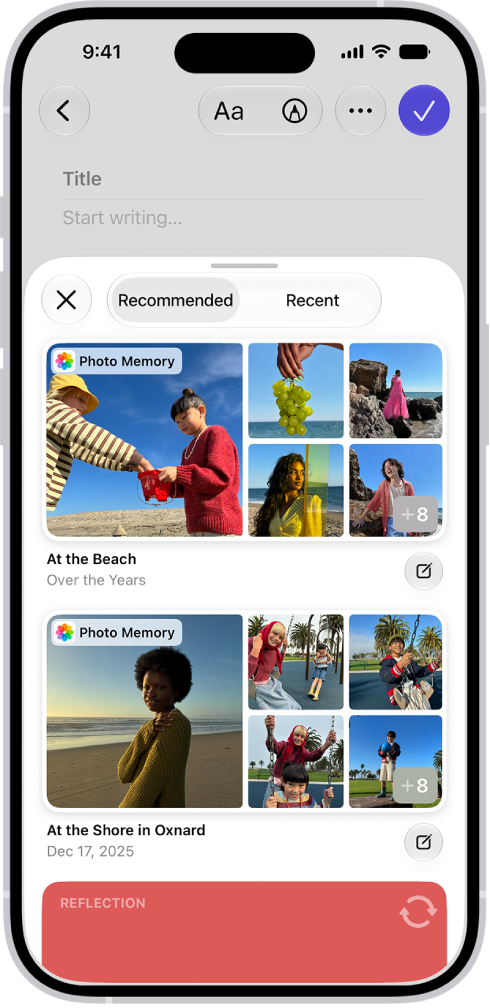
To help you remember and reflect on your experiences, Journaling Suggestions intelligently group outings, photos, workouts, and more.

A screen in the Journal app showing photos highlighted as journaling suggestions.

  1. Start the Journal app on your iPhone.
  2. Choose a journal and then tap the Create an Entry button.
  3. Browse the recommended suggestions or tap Recent to see suggestions sorted by date.
  4. To start a new entry with all the suggested attachments, tap the Journal Now button at the bottom-right corner of the suggestion.
  5. To preview the attachments before creating the entry, tap the suggestion. Do any of the following:
    • Browse the attachments: Swipe through the attachments.
    • Change to list view: To see the details for all attachments, tap the List View button.
    • Choose the attachments you want: Tap an attachment to select or deselect it.
  6. Tap Add to Entry to start writing or the Back button to return to the suggestions list.

To delete a suggestion, touch and hold the suggestion, then tap Remove.

Use Writing Prompts while you write

If you have Apple Intelligence, Journal can offer customized writing prompts based on what you write, plus any photos or drawings you add to your entry.

Note: Apple Intelligence on iOS 27 or later is available on an Apple Intelligence-enabled iPhone 15 Pro, iPhone 15 Pro Max, or iPhone 16 model or later. Apple Intelligence is not available in all languages or regions. Usage limits may apply.* You must be an adult to use this feature.

  1. Start the Journal app on your iPhone.
  2. While composing an entry, tap the Show Writing Prompts button in the toolbar.
  3. Swipe through the prompts. Then tap a prompt to add it to your entry. You can add up to three prompts to an entry.

Create multiple journals

  1. Start the Journal app on your iPhone.
  2. Tap the New Journal button and then name the new journal.
  3. To reorder journals, touch and hold the journal name and drag up or down.
  4. To edit the journal name, color, or icon, touch and hold the journal. Choose Edit Journal.

Take action from the Home Screen

  1. On the iPhone Home Screen, touch and hold.
  2. Choose New Entry, View Suggestions, Add Photos, or Record Audio.

Start a journal entry from another app

You can quickly capture your thoughts in a new journal entry while you’re doing something in another app, like reading an article in the News app or listening to a song in the Music app.

  1. In the app you’re using, tap the Share button or Share and tap Journal.

If you don’t see Journal, you may need to add it to the sharing options.

  1. Enter your thoughts, then tap the Done button.

You can review your entry and add more details later in the Journal app.

*Apple Intelligence is available with Siri and device language set to Chinese (Simplified), Chinese (Traditional), Danish, Dutch, English, French, German, Italian, Japanese, Korean, Norwegian, Portuguese, Spanish, Swedish, Turkish, or Vietnamese. Some features may not be available in all regions or languages. Some devices may not be available in all regions. Siri AI is available in beta in iOS 27, iPadOS 27, macOS 27, watchOS 27, and visionOS 27 and requires an Apple Intelligence–enabled device set to a supported language. Available in English to start. Siri AI will not be initially available in the EU on iOS, iPadOS, and watchOS. Certain Apple Intelligence features that rely on server-side models are subject to daily usage limits, including but not limited to Siri AI, Intelligent Photo Editing Tools, Image Playground, and AFM 3 Cloud models in Shortcuts. Daily limits may vary by feature, request complexity, system demand, system policies, and other factors. Expanded access to such features will be available for a fee in the future. Use of these features is subject to the Apple Intelligence Terms and Conditions.

You can change your personal health details, change your Activity ring goals, and customize your Activity ring goals by the day of the week. You can also pause your Activity rings and resume at any time.

When you need a break, your Activity rings can be paused for up to 90 days without breaking your award streak. Every Monday, you’re notified about the previous week’s achievements, and goals are suggested based on your performance in the previous week.

Change your Activity ring goals

You can change the daily goal for each of your Activity rings, and it’s even possible to customize your Activity ring goals by the day of the week.

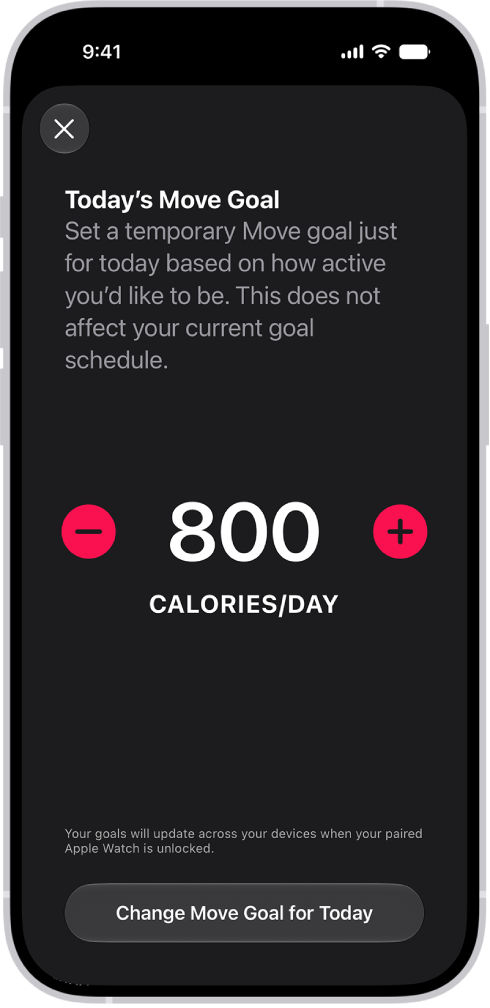
The Fitness Move Goal Schedule screen showing buttons to increase or decrease the Move goal by the day of the week.

  1. Start the Fitness app on your iPhone.
  2. Tap the Activity rings and tap the Edit Goal button next to an Activity ring.
  3. Tap one of the following:

    • Adjust Goal for Today: Set a temporary goal for your Activity ring for today.
    • Change Daily Goal: Set a goal based on how active you are, or how active you want to be, each day.

    Tip: To customize your Activity ring goal by the day of the week, tap Change Daily Goal, then tap the Schedule button.

  4. Tap the Delete button or the Add button to adjust the goal.
  5. When you’re finished, tap Change [activity] Goal for Today, Change [activity] Goal, or Set [activity] Goal Schedule.

Every Monday, you’re notified about the previous week’s achievements and can adjust your goals for the upcoming week. The suggested goals are based on your performance in the previous week.

Pause your rings

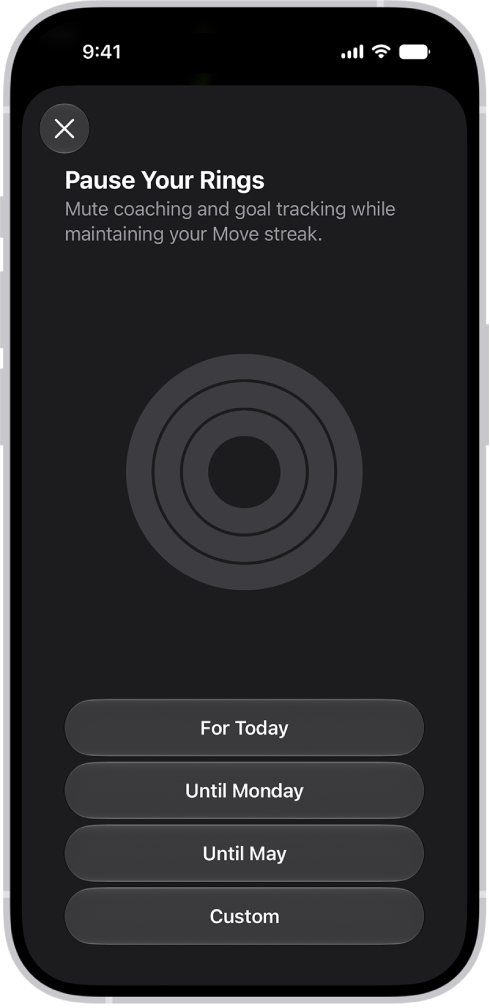
If you need to take a break, pause your Activity rings for up to 90 days, and your award streak won’t break. Resume them at any time.

The Pause Your Rings screen in Fitness, showing options to pause Activity rings.

  1. Start the Fitness app on your iPhone.
  2. Tap the Activity rings, scroll down, and tap Pause Rings.
  3. Do one of the following:
    • Pause for a preset duration of time: Tap a duration.
    • Pause for a custom duration of time: Tap Custom, select a duration, and then tap Set.

To resume your rings, tap the Activity rings, then tap Resume Rings. To edit the duration of your pause, tap Edit Pause, set a custom duration, then tap Set.

Tag: Fitness

You can save a draft to finish later and see all draft emails from all of your accounts. There’s a shortcut, too, since a message you’re writing can be saved for later and brought back from the bottom of the screen. Unfinished emails can even be handed off between your iPhone and your Mac.

Save a draft for later

  1. Start the Mail app on your iPhone.
  2. In a message you’re writing, tap the Close button. Then tap Save Draft.
  3. To resume work on a message you saved as a draft, touch and hold the Compose button and select a draft.

    You can also swipe down on the title bar of a message you’re writing to save it for later.

    When you’re ready to return to your message, tap its title at the bottom of the screen.

    Tip: You can also hand off unfinished emails between your iPhone and your Mac.

Show draft emails from all your accounts

If you have multiple email accounts, you can show draft emails from all of them.

  1. Start the Mail app on your iPhone.
  2. Tap the Mailboxes button in the upper-left corner until you see Mailboxes.
  3. Tap Edit at the top of the list.
  4. Turn on the All Drafts mailbox.
Tag: Mail

If an app isn’t responding, you can quit it and then reopen it to try and resolve the issue. It’s quick. You quit it from the App Switcher, then reopen it from the Home Screen or App Library. If the app is still unresponsive after that, restarting your iPhone may help.

Note: Quitting apps you’re not using won’t prolong battery life, since iPhone automatically manages how apps run in the background.

  1. To quit the app, open the App Switcher and swipe right to find the app. Swipe up on the app.
  2. To reopen the app, go to the Home Screen (or App Library). Tap the app.

Note: If quitting and reopening the app doesn’t help, try restarting your iPhone.

Tag: iPhone

You can lock a PDF document with a password to prevent others from editing or deleting your work. Once you set a password, the Require Password toggle turns on by itself. To keep a copy that’s not password-protected, you’ll want to duplicate it first.

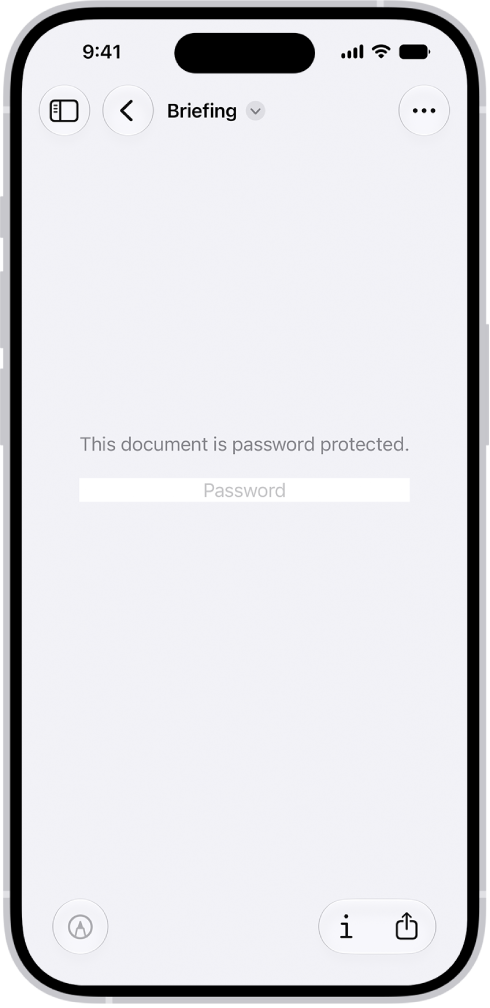
A locked PDF form showing a password field. At the bottom of the screen are the Markup, Info, and Share buttons.

  1. Start the Preview app on your iPhone.
  2. Open a PDF.

    Important: To keep a copy that’s not password-protected, tap the Actions Menu button, then tap Duplicate.

  3. Tap the Actions Menu button next to the filename and tap Lock.
  4. Enter the same password in the Password and Verify fields. The Require Password toggle turns on automatically.
  5. Tap the Done button to apply the change, or tap the Close button to cancel.
Tag: Preview

When you create an image in the Preview app, you can start with a blank image or with pasted content that was copied to the Clipboard. It can come from the Photos app, the Files app, or Preview. You can then annotate an empty image or an image from the Clipboard with a shape, sticker, or text.

Create an empty image

  1. Start the Preview app on your iPhone.
  2. Tap New Document and then choose New Empty Image.

Quick tip: From the Home Screen, touch and hold the Preview icon and tap New Empty Image.

Use an image from the Clipboard

  1. Do any of the following to copy an image to the Clipboard:
    • From the Photos app: Select an image, tap the Share button, and then tap Copy Photo.
    • From the Files app: Touch and hold an image file, then tap Copy.
    • From the Preview app: Touch and hold an image file and tap Copy. You can also open an image file, tap the Share button, and then tap Copy.
  2. Start the Preview app on your iPhone.
  3. Tap New Document, then choose New from Clipboard.

You can annotate an empty image or an image from the Clipboard. Tap the Markup button, choose a drawing tool, then draw with your finger. You can also tap the Add button, then choose an option such as a shape, sticker, or text.

Tag: Preview