Got a tip for us?

In the Calendar app, you can add multiple accounts such as iCloud, Google, Microsoft Exchange, and Yahoo. You can change default settings to make it easier to create new events and to display your calendar in a way that works best for you. For example, you can choose the default calendar for new events, change the duration of new events, and more.

You can also add a CalDAV account by entering your server and account information.

Here’s how to change your Calendar settings on iPhone.

Set up iCloud, Google, Exchange, or Yahoo calendar accounts

  1. Start the Settings app on your iPhone.
  2. Tap Apps and then tap Calendar.
  3. Tap Calendar Accounts and then tap Add Account.
  4. Tap a service (iCloud, Microsoft Exchange, or Google, for example). Sign in.

Add a CalDAV account

  1. Start the Settings app on your iPhone.
  2. Tap Apps and then tap Calendar.
  3. Tap Calendar Accounts and then tap Add Account.
  4. Tap Add Other Account, then tap CalDAV account.
  5. Enter your server and account information.

Note: For an account that doesn’t support Push notifications, set a Fetch schedule to update your calendar from it. First, go to Settings > Apps > Calendar. Tap Calendar Accounts, and then tap Fetch New Data. Under Fetch, choose a schedule, or choose Automatically to download new data when your iPhone is charging and connected to Wi-Fi.

Choose a default calendar

With multiple calendars, you can choose a default one, and new events you create land in that calendar automatically.

  1. Start the Settings app on your iPhone.
  2. Tap Apps and then tap Calendar.
  3. Tap Default Calendar, then select the calendar you want to use as your default calendar.

Note: Even after you create an event, you can always move it to a different calendar.

Set default event settings

Calendar events have default settings you can change, too, such as the duration for new events or getting an alert when it’s time to leave for an upcoming event.

  1. Start the Settings app on your iPhone.
  2. Tap Apps and then tap Calendar.
  3. Do any of the following:
    • Choose when to get alerts for different types of events: Tap Default Alert Times, tap Birthdays, Events, or All-Day Events, and choose an option.
    • Choose whether to be alerted when it’s time to leave for an upcoming event: Tap Default Alert Times. Turn Time to Leave on or off.
    • Change the default duration for new events: Tap Duration for New Events. Choose a length of time.
    • Choose whether Calendar suggests a location when you create a new event: Turn Location Suggestions on or off.

Change how your calendar is displayed

To help highlight the information that’s most important to you, customize the way your calendar is displayed. You might choose which day to start the week with, for example, or display the Chinese, Hebrew, or Hijri calendar alongside the Gregorian calendar.

  1. Start the Settings app on your iPhone.
  2. Tap Apps and then tap Calendar.
  3. Do any of the following:
    • Display the Chinese, Hebrew, or Hijri calendar: Tap Alternate Calendars and choose a calendar.
    • Display the week number next to every week of the year: Turn on Week Numbers.
    • Show the current day as the first day in Week view: Turn on Week View Starts On Today.
    • Choose a different day to start the week: Tap Start Week On, then tap a day.

You can allow Siri to make suggestions across apps based on the way you use Calendar. Go to Settings > Apps > Calendar, tap Siri, then turn on Learn from this App. You can also allow suggestions and content from Calendar to appear in Search, widgets, and as notifications.
With its deep understanding of language, Apple Intelligence can help condense the information most important to you. Notifications are summarized so you can scan them for key details, such as when a group chat is particularly active.

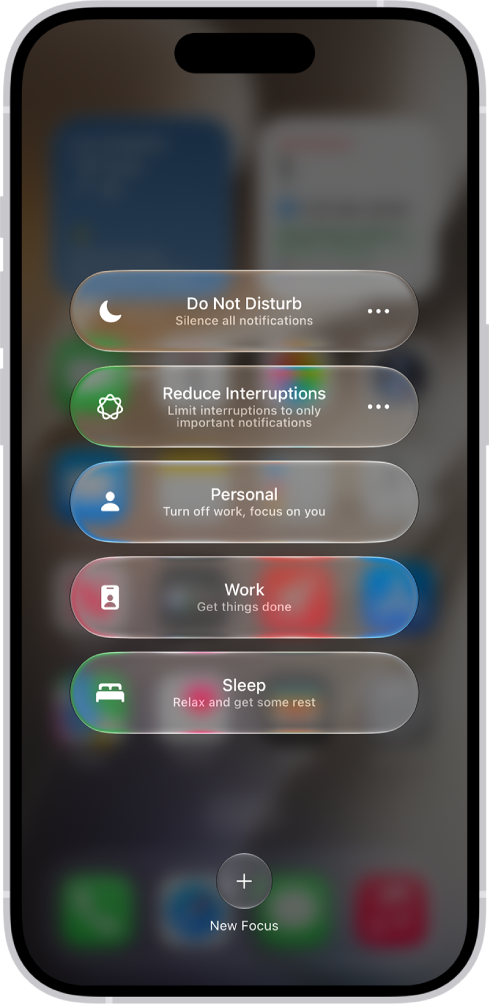
Your iPhone can also determine which notifications have priority over others. And the Reduce Interruptions Focus shows you only the notifications that might need immediate attention, like a text about an early pickup from daycare. You can customize notification summaries, or turn them off.

Note: Apple Intelligence on iOS 27 or later is available on an Apple Intelligence-enabled iPhone 15 Pro, iPhone 15 Pro Max, or iPhone 16 model or later. Apple Intelligence is not available in all languages or regions. Usage limits may apply.*

Customize notification summaries

To make long or stacked notifications easier to understand at a glance, your iPhone can summarize them.

  1. Start the Settings app on your iPhone.
  2. Tap Notifications.
  3. Tap Summarize Notifications, turn on Summarize Notifications, and then tap Choose Notifications to Summarize.
  4. Tap the notifications you want to summarize and tap Summarize Selected Notifications.

To change which notifications you want to summarize, tap the button next to an app.

Turn notification summaries on or off

  1. Start the Settings app on your iPhone.
  2. Tap Notifications.
  3. Tap Summarize Notifications. Turn Summarize Notifications on or off.

Turn priority notifications on

Your iPhone can work out which notifications have priority over others. Those priority notifications show up at the top of the stack, which helps you catch up on anything you may have missed.

  1. Start the Settings app on your iPhone.
  2. Tap Notifications.
  3. Tap Prioritize Notifications, then turn Prioritize Notifications on.

To turn off priority notifications, turn Prioritize Notifications off. To change which notifications you want to prioritize, tap the button next to an app. You can also change settings when you receive a priority notification on the Lock Screen. When a priority notification appears, do one of the following:

  • Turn off Priority Notifications for a specific app: Swipe left, tap Options, then tap Turn Off All [app] Notifications.
  • Turn off all Priority Notifications: Swipe left, tap Options, then tap Turn Off Prioritization.

Use the Reduce Interruptions Focus

The Reduce Interruptions Focus understands what’s in your notifications, so it shows you the most important ones and silences those that are less important.

You can customize a Reduced Interruptions Focus.

  1. Start the Settings app on your iPhone.
  2. Tap Focus.
  3. Tap the Add button at the top right. Then tap Reduce Interruptions.
  4. Tap Customize Focus and tap People or Apps.
  5. Choose the people and apps to allow notifications from.

Note: Notifications you’ve specifically allowed or silenced stay that way, even when you turn on Intelligent Breakthrough & Silencing for any Focus.

*Apple Intelligence is available with Siri and device language set to Chinese (Simplified), Chinese (Traditional), Danish, Dutch, English, French, German, Italian, Japanese, Korean, Norwegian, Portuguese, Spanish, Swedish, Turkish, or Vietnamese. Some features may not be available in all regions or languages. Some devices may not be available in all regions. Siri AI is available in beta in iOS 27, iPadOS 27, macOS 27, watchOS 27, and visionOS 27 and requires an Apple Intelligence–enabled device set to a supported language. Available in English to start. Siri AI will not be initially available in the EU on iOS, iPadOS, and watchOS. Certain Apple Intelligence features that rely on server-side models are subject to daily usage limits, including but not limited to Siri AI, Intelligent Photo Editing Tools, Image Playground, and AFM 3 Cloud models in Shortcuts. Daily limits may vary by feature, request complexity, system demand, system policies, and other factors. Expanded access to such features will be available for a fee in the future. Use of these features is subject to the Apple Intelligence Terms and Conditions.

After you pair AirPods with iPhone, you can use AirPods to listen to audio playing on iPhone, make and answer calls, listen and respond to messages, hear reminders when you need them, listen to conversations more easily in noisy environments, and more.

Pairing starts with Bluetooth turned on in Settings.

Pair AirPods with your iPhone

  1. On iPhone, open Settings and tap Bluetooth. Then turn on Bluetooth.
  2. Go to the Home Screen on your iPhone.
  3. Do one of the following:
    • AirPods (1, 2, 3, and 4) and AirPods Pro: Open the case with your AirPods inside. Then hold it next to your iPhone.
    • AirPods Max: Take your AirPods Max out of the Smart Case and then hold AirPods Max next to your iPhone.
  4. Follow the onscreen instructions, then tap Done.

Note: When the onscreen instructions for pairing your AirPods Max don’t appear, you can go to Settings > Bluetooth and select your AirPods Max. And if the status light on AirPods Max doesn’t flash white, press and hold the noise control button until it does.

With iOS 10, iPadOS 13, macOS 10.12, watchOS 3, or later, your AirPods pair automatically with all your supported devices signed in to your Apple Account.

Tag: AirPods

To use a Focus, you can turn it on directly in Control Center, or schedule it to turn on automatically. When you turn one on in Control Center, you can choose when it ends.

If another Focus is already on, it turns off when you turn on the new one. You can also turn a Focus on or off using Siri, and turn off or delete a Focus.

Here’s how to turn on or schedule a Focus on iPhone.

Turn on a Focus in Control Center

  1. Open Control Center, tap Focus, and then tap the Focus you want to turn on (for example, Do Not Disturb).

Note: If another Focus is already on, it turns off when you tap the new one.

Control Center showing the Focus options, with buttons for setting the duration of the Focus options.

  1. To choose an ending point for the Focus, tap the Do Not Disturb button and select an option (such as For 1 hour or Until I leave this location). Then tap the Do Not Disturb button again.

With a Focus on, its icon shows up in the status bar and on the Lock Screen (for Do Not Disturb, for example, that’s the Do Not Disturb button), and the Messages app automatically displays your status. Anyone who tries to send you a message sees that you’ve silenced notifications, though they can still notify you if something is urgent.

Note: Turning a Focus on or off also works from the Settings app, by tapping Focus, tapping the Focus, and then turning it on.

Schedule a Focus to turn on or off

You can schedule a Focus to turn on when you open a specific app, when you’re at a particular location, or at certain times.

  1. Open the Settings app on your iPhone.
  2. Tap Focus and then tap the Focus you want to schedule.

If a time appears below Set a Schedule, you can tap it to set a schedule for turning the Focus on and off.

  1. Tap Add Schedule and then set the times, a location, or an app you want to activate this Focus.

Note: A Sleep Focus follows the sleep schedule you set in the Health app once you set it up. Tap Open Sleep in Health to add or edit a sleep schedule, or to change your next bedtime and wake-up time.

Turn a Focus on or off using Siri

You can use Siri to turn a Focus on or off.

Siri: Ask Siri something like, “Turn on the Work Focus.”

Turn off a Focus

To allow notifications again once you’re finished using a Focus, you can turn it off quickly. Even after you turn it off, that Focus still appears in Control Center and can be reused.

  1. Do any of the following:
    • Touch and hold the Focus icon on the Lock Screen.
    • Open Control Center, then tap Focus.
  2. Tap the Focus that’s on to turn it off.

Delete a Focus

  1. Open the Settings app on your iPhone.
  2. Tap Focus, tap the Focus you no longer need, scroll to the bottom of the screen, and then tap Delete Focus.

If you delete a provided Focus, you need to set it up again by going to the Settings app, tapping Focus, then tapping the Add button.

Tag: Focus

In the Calendar app, you can share an iCloud calendar with other iCloud users. When you share a calendar, others can see it, and you can let them add or change events. You can also share a read-only version that anyone can view but not change.

You can change a person’s access to a shared calendar, and turn off notifications for shared calendars.

Here’s how to share iCloud calendars on iPhone.

Create an iCloud calendar

  1. Start the Calendar app on your iPhone.
  2. Tap the Calendars button.
  3. Tap Add Calendar.
  4. Tap Add Calendar, enter a name for the new calendar, and tap the Done button.

If iCloud isn’t your default calendar, tap Accounts, then tap iCloud.

Share an iCloud calendar

Share a calendar in iCloud with one or more people, and each person you invite receives an invitation to join it.

  1. Start the Calendar app on your iPhone.
  2. Tap the Calendars button.
  3. Tap the Info button next to the iCloud calendar you want to share.
  4. Tap Add Person and enter a name or email address, or tap the Add button to browse your contacts.

Note: To share an iCloud calendar with your contacts, they need an email address.

Tap the Done button.

Change a person’s access to a shared calendar

After you invite someone to share your calendar, you can turn their ability to edit the calendar on or off, or stop sharing the calendar with them entirely.

  1. Start the Calendar app on your iPhone.
  2. Tap the Calendars button and tap the Info button next to the shared calendar. Tap the person’s name.
  3. Do any of the following:
    • Turn Allow Editing on or off.
    • Tap Delete.

Turn off notifications for shared calendars

When someone modifies a calendar you’re sharing, you get notified of the change. You can turn off those notifications if you don’t want them.

  1. Start the Settings app on your iPhone.
  2. Tap Notifications and tap Calendar.
  3. Tap Customize Notifications, then turn off Shared Calendar Changes.

Share a read-only calendar with anyone

  1. Start the Calendar app on your iPhone.
  2. Tap the Calendars button then tap the Info button next to the iCloud calendar you want to share.
  3. Turn on Public Calendar. Then tap Share Link to copy or send the URL for your calendar.
  4. Choose a method for sending the URL—Messages, Mail, and so on.

Anyone you send the URL to can subscribe to the calendar in a compatible app, like Calendar for macOS.

Delete a calendar

  1. Start the Calendar app on your iPhone.
  2. Tap the Calendars button.
  3. Tap the Info button next to the iCloud calendar you want to delete.
  4. Tap Delete Calendar at the bottom of the list.

With Family Sharing, you and up to five other family members can share access to Apple services, eligible purchases, iCloud+ storage, and more. You can even help locate each other’s missing devices.

One adult—the organizer—invites the others, and each family member chooses the features they want to use. When they join, Family Sharing is set up on everyone’s devices automatically. Setting it up on one device is enough, since it’s then available on all your devices signed in to the same Apple Account. A Child Account is required for children under 13.

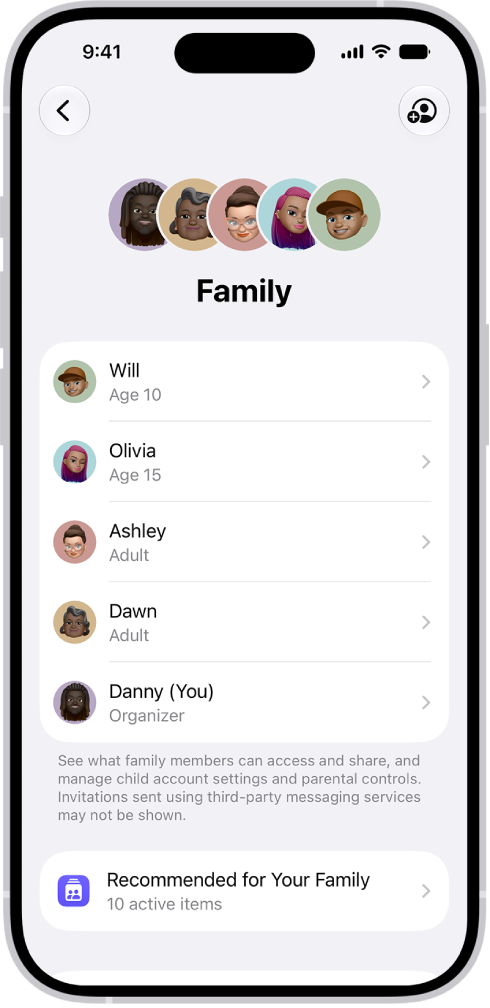
The Family Sharing screen in Settings. Five family members are listed with recommendations for the family.

Create a Family Sharing group

You only need one device to set up Family Sharing, and it’s then available on all of your devices signed in to the same Apple Account. If a child doesn’t have an Apple Account yet, the family organizer can create one for them, or invite family members who already have one.

Note: A Child Account is required for children under 13 and available for children up to 18. (This age varies by country or region.)

  1. Start the Settings app on your iPhone.
  2. Tap your name, then tap Family.
  3. Follow the onscreen instructions to set up your Family Sharing group.
  4. Tap Invite next to suggested family members (if any are listed), or tap Invite Others and then do one of the following:

    • Tap Create Child Account to create a Child Account for your kid.
    • Tap Invite People, then follow the onscreen instructions to invite family members and designate added adult members as parents or guardians.

    You can also add family members later.

  5. Tap a feature you want to set up for your Family Sharing group (for example, Subscriptions). Follow the onscreen instructions.

To set up parental controls or Apple Cash for a child, tap their name, tap the feature, then follow the onscreen instructions.

At any time, you can see what you’re sharing with your family and adjust your sharing settings.

What you can do with Family Sharing

Here’s what you can set up or share with your Family Sharing group:

  • Apple and App Store subscriptions: You can share Apple subscriptions, including iCloud+, and eligible App Store subscriptions.
  • Purchases: You can share items purchased in the App Store, Apple TV, and Apple Books. The family organizer pays for everyone’s purchases unless they turn off Purchase Sharing or other adult family members use their own payment method to make purchases.
  • Locations: When you share your location with your Family Sharing group, all family members, including any new members added later, can use the Find My app to see your location and help locate a missing device.
  • Passwords and passkeys: You can share passwords and passkeys with people in your family to access important accounts.
  • Payment methods: The family organizer can set a default payment method in their Apple Account, which can be used by others in the Family Sharing group. By default, all purchases are billed to the family organizer, unless family members add their own payment method for their purchases.
  • Parental controls, Apple Card and Apple Cash, and child device set up: You can manage your children’s purchases, how they use their Apple devices, and more. You can share Apple Card with trusted members of your Family Sharing group or set up an Apple Cash Family account for a child.

See recommendations for Family Sharing features

To see suggestions to help you get the most out of Family Sharing, go to Settings > Family, then tap Recommended For Your Family.

After you create an Apple Music profile, you can find and follow friends to see what they’re listening to.

First, you allow Music to access your contacts, so you can choose which friends to share music with. Then you can follow friends, see what they’re listening to, and stop following them whenever you want, all from the My Account button.

Here’s how to see what friends are listening to in Music on iPhone.

Choose how to find friends

Music needs access to your contacts before you can pick the friends you share music with.

  1. Open the Music app on your iPhone.
  2. Tap the My Account button or your profile picture.
  3. Do any of the following:
    • Allow Apple Music access to your contacts: Select the Contacts on Apple Music option so Apple Music can access your contacts and recommend new friends to you periodically.
    • Allow friends to find you by Apple Account: Select the Allow Finding by Apple Account option and friends who have your Apple Account information can see you as a recommended friend.

Follow friends

There are a few different ways to follow people:

  • Add friends when you set up a profile.
  • After you set up your profile, swipe to the bottom of the profile screen, tap Follow More Friends, then tap Follow next to those you want to follow.

    You can follow friends who are in your contacts list and who use Apple Music.

  • On the profile screen, touch and hold a profile picture, then tap Follow.
  • Tap Search, enter a friend’s name, tap it in the results, then tap Follow.

Note: You can only find friends who have an Apple Music profile using Search. Additionally, you must be 13 years or older to view Apple Music profiles. (Age restrictions vary by region.)

To see the people you’re following and those who follow you, open the profile screen, then swipe up.

A lock on a profile picture means you need to ask that person to follow them. Once your request is accepted, you’ll see their shared playlists and the music they’re listening to.

See what your friends are listening to

  1. Open the Music app on your iPhone.
  2. Tap Home and then do any of the following:
    • See what your friends are listening to: Scroll down to Friends Are Listening To and then tap an item to play it.
    • Listen to a mix of songs your friends are listening to: Swipe left on Made For You. Then tap Friends Mix.
    • See what a follower or person you follow is listening to: Tap the My Account button or your profile picture and tap Music Profile. Tap a person’s profile picture to see shared playlists and music they’re listening to. You also see their followers and the people they follow.

Stop following friends

If you no longer want to see what a friend is listening to, you can stop following them.

  1. Open the Music app on your iPhone.
  2. Tap the My Account button or your profile picture.
  3. Tap Music Profile and touch and hold the profile picture of a person you follow. Tap Unfollow.
Tag: Music

With sound and speech feedback, Magnifier’s Detection Mode can describe what’s around you, which helps if you’re blind or have low vision. Make sure Silent mode is off, or you won’t hear it. With the Magnifier app on iPhone, you can get helpful information about:

  • Doors, including their attributes and how to open them
  • People, and how close they are to help you maintain physical or social distance
  • Furniture, when chairs or sofas are detected, and whether they’re occupied

Important: Detection Mode should not be relied on in high-risk or emergency situations, in circumstances where you may be harmed or injured, or for navigation.

Only supported iPhone models can detect doors, people, and furniture.

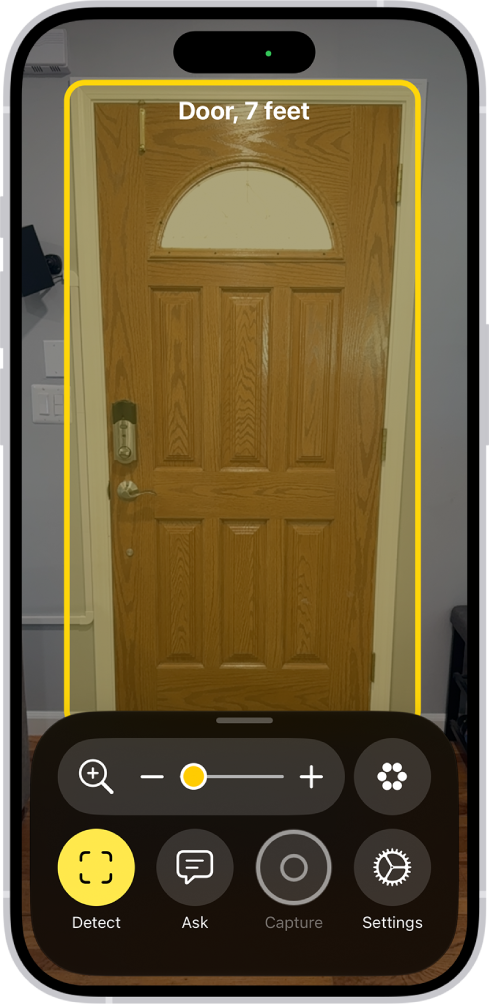
The Magnifier app is open and a door is being detected. A description shows how far away the door is.

Detect doors, people, and furniture near you

  1. Open the Magnifier app on your iPhone.
  2. Tap the Detection Mode button to start Detection Mode.

    If you don’t see the Detection Mode button, you can add it.

  3. Touch and hold the Detection Mode button, then select any of the following:

    • People
    • Furniture
    • Doors
  4. Position iPhone so the rear camera can detect your surroundings.

    When doors, people, or furniture are detected nearby, you’re notified with sounds, speech, or haptic feedback.

    The feedback becomes more frequent as you get closer.

    If you don’t hear sound or speech feedback, make sure Silent mode isn’t on.

  5. To temporarily pause detection, double-tap the screen with two fingers.

    Double-tap again with two fingers to resume detection.

  6. To stop Detection Mode, tap the Detection Mode button.

Customize the settings for detecting doors

  1. Open the Magnifier app on your iPhone.
  2. Tap the Settings button and then tap Detect.
  3. Tap Doors. Then customize any of the following: Units: Choose Meters or Feet.

    • Sound pitch distance: Tap the Decrement button or the Increment button to adjust the distance for sound feedback.

    When a door is detected within this distance, the pitch of the sound feedback increases.

    Feedback: Turn on any combination of Labels, Speech, Sounds and Haptics.

    If you turn on Speech, iPhone speaks the distance between you and the door.

    Color: Select a color to outline detected doors.

    Back tap: When you double-tap the back of your iPhone, you can hear more information about doors around you.

    Door Attributes: Turn on any combination of door attributes, such as the size of the detected door, how to open the door, and if the door is currently open.

    Door Decorations: Turn on Door Decorations to get information about text and signs on or near the detected door, such as a sign for an accessible entrance or a restroom.

    When you’re finished, tap the Back button, tap it again, then tap the Done button.

Customize the settings for detecting people

  1. Open the Magnifier app on your iPhone.
  2. Tap the Settings button and then tap Detect.
  3. Tap People. Customize any of the following: Units: Choose Meters or Feet.

    • Sound pitch distance: Tap the Decrement button or the Increment button to adjust the distance for sound feedback.

    When people are detected within this distance, the pitch of the sound feedback increases.

    Feedback: Turn on any combination of Labels, Speech, Sounds and Haptics.

    If you turn on Speech, iPhone speaks the distance between you and another person.

    People Detection Actions: Turn on People Detection Actions to get information about people holding the doors near you.

    When you’re finished, tap the Back button, tap it again, then tap the Done button.

Customize the settings for detecting furniture

  1. Open the Magnifier app on your iPhone.
  2. Tap the Settings button and then tap Detect.
  3. Tap Furniture and then customize any of the following: Units: Choose Meters or Feet.

    • Sound pitch distance: Tap the Decrement button or the Increment button to adjust the distance for sound feedback.

    When furniture is detected within this distance, the pitch of the sound feedback increases.

    Feedback: Turn on any combination of Labels, Speech, Sounds, and Haptics.

    If you turn on Speech, iPhone speaks the distance between you and the furniture.

    Announce Seat Occupancy: Turn on Announce Seat Occupancy to get information about the number of people occupying chairs and sofas.

    When you’re finished, tap the Back button, tap it again, then tap the Done button.

You can schedule regular times for going to bed and waking up to help meet your sleep goals. You can create multiple schedules, for example, one for weekdays and another for weekends.

To help you wake up on time, you can select an alarm sound, a vibration, and a snooze option, or choose to have no alarm at all.

For the sleep schedules you set, a Sleep Focus helps reduce distractions before and during bedtime. It can filter out notifications and phone calls, and signal to others that you’re not available. You can also schedule a wind down period to begin from 15 minutes to 3 hours before your bedtime, and your Sleep Focus begins at the start of your wind down time.

Set up your first recurring sleep schedule

When you set up a Sleep Focus, you can set your next bedtime and wake up time. This schedule repeats only once. To set up a recurring sleep schedule, do the following:

  1. Start the Health app on your iPhone.
  2. Tap Browse and tap Sleep. Tap Sleep again.
  3. Tap Get Started, then tap Continue.
  4. To set your sleep goal, tap Sleep Goal and then make a selection.
  5. To set your sleep schedule, tap Edit below Schedule and then do the following:
    • Set the days for your schedule: Tap a day to add or remove it from your schedule. The schedule applies only to days shown with solid-color circles.
    • Adjust your bedtime and wake up schedule: Drag the Bedtime button to change your bedtime, the Ringing Alarm button to change your wake up time, or the semicircle between the icons to shift both times simultaneously.
    • Set the alarm options: Turn Alarm on or off.

When Alarm is turned on, you can choose a sound, its volume, a vibration, the snooze option, and a snooze duration.

  1. When you’re finished, tap the Done button, tap Next, and tap Done.

Add, modify, or delete sleep schedules

After setting up your first sleep schedule, you can do the following:

  1. Start the Health app on your iPhone.
  2. Tap Browse and tap Sleep. Tap Sleep again.
  3. After setting up your first sleep schedule, you can do the following:
    • Set up additional schedules: For example, if you have a weekday schedule, you can add a weekend schedule.
    • Change schedules: You can adjust the bedtimes, wake up times, and alarm options for an entire sleep schedule or for only your next schedule.
    • Turn off alarms: You can turn off alarms for all sleep schedules, for a particular schedule, or for only your next scheduled wake up time.

Set up a Sleep Focus

When you’ve set up your sleep schedule, there’s also a Sleep Focus you can set up to help cut distractions before and during bedtime.

  1. Start the Settings app on your iPhone.
  2. Tap Focus and tap Sleep.
  3. Customize your focus.

You might allow interruptions from people important to you, for example, customize the Lock Screen and Home Screen, and choose how apps and your iPhone behave while a Sleep Focus is on.

Note: If you want alarms that don’t turn on a Sleep Focus, use the Clock app to set one-time and repeating alarms.

Tag: Health

In the Calendar app, you can send meeting and event invitations. iCloud, Microsoft Exchange, and some CalDAV servers also let you send meeting invitations, though not all calendar servers support every feature.

There’s one thing to check first. Before you can invite people to events you’ve scheduled, your calendar accounts need to be turned on. And once an event is scheduled, you can quickly email attendees.

Here’s how to send invitations in Calendar on iPhone.

Before you begin

To invite people to events you’ve scheduled, your calendar accounts need to be turned on first.

  1. Start the Settings app on your iPhone.
  2. Tap Apps and then tap Calendar.
  3. Tap Calendar Accounts and select an account. Then check to see if Calendar is turned on.

Invite others to an event

You can invite people to an event you’ve scheduled.

  1. Start the Calendar app on your iPhone.
  2. Tap the event, then tap Edit.
  3. Tap Invitees.
  4. Do any of the following:

    • Add a name from your contacts: Enter a contact’s name, tap the name, and then tap the Done button.

      You can also tap the Add button to select contacts.

      Note: The contact must have an email address or phone number (supported in China and India).

    • Add an email address: Enter an email address, tap Return, and tap the Done button.
    • Add a phone number: Enter a phone number, tap Return, and then tap the Done button.

      Note: Sending a calendar invitation to a phone number is supported only in China and India.

  5. To make an invitation optional, tap Invitees, swipe left on an invitee, and then tap Make Optional.
  6. When you’re finished, tap the Done button.

If you don’t want to be notified when someone declines a meeting, go to Settings > Apps > Calendar, then turn off Show Invitee Declines.

Note: Even if you’re not the one who scheduled an event, Microsoft Exchange and some other exchange servers let you invite people to it.

Quickly email attendees

If you want to share event details, for example, you can email all attendees of an event.

  1. Start the Calendar app on your iPhone.
  2. Tap an event that has attendees.
  3. Tap Invitees and tap the Send Mail to Invitees button.