Got a tip for us?

You can use Quick Notes to jot down information over any app or screen on iPhone. Add links, images, tags, and mentions to a Quick Note so you can get to important names, numbers, and ideas easily.

There’s a shortcut back, too. When you highlight text in Safari or add a link from an app, you see a Quick Note thumbnail next time you visit the site, taking you right to what you were viewing before.

You can access all your Quick Notes in the Notes app, and when you make a Quick Note on your iPhone, you can see the note on your iPad and Mac, too.

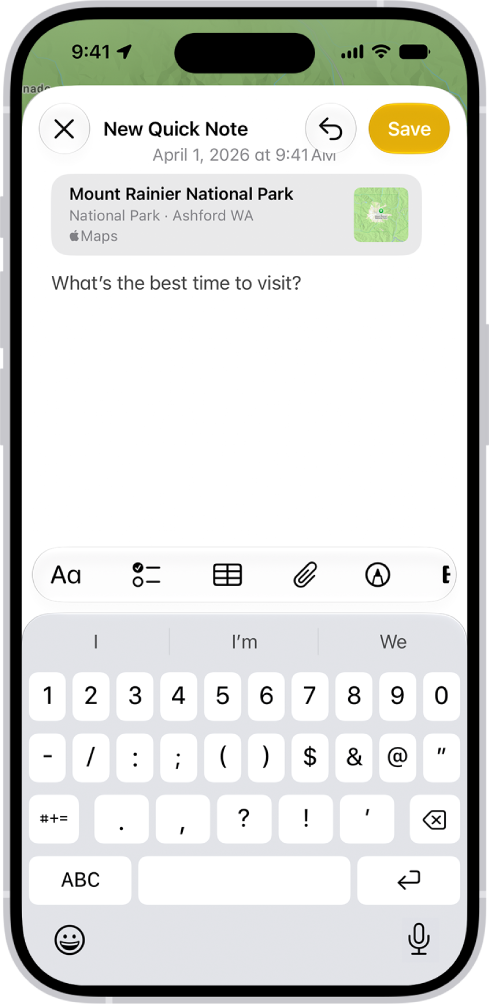
A Quick Note showing a link to a location in Maps and text underneath. The Save button is on the top left.

Take a Quick Note

You can make a Quick Note in either of these ways:

  • From any app or screen: Add to Control Center, then tap the Quick Note button in Control Center. Tap Save when you’re done.
  • From supported apps: Tap the Share button, then tap Add to Quick Note. Tap Save when you’re done.

View and organize Quick Notes

  1. Open the Notes app on your iPhone.
  2. Tap Quick Notes in the folders list. You may have to tap the Back button to see your folders. Note: You can’t lock a Quick Note unless you move it to a different folder. If you move an individual Quick Note to a different folder, it becomes a standard note and no longer appears as a Quick Note in other apps.
Tag: Notes

You can read and share News stories on iPhone.

While viewing a story, you can read the next story or the previous story, and tell News what stories you prefer with Suggest More or Suggest Less, so your feedback is taken into account. You can also read stories shared with you, and share a story with others in the News app. Apple News and Apple News+ aren’t offered in all countries or regions, though.

Note: Apple News and Apple News+ aren’t available in all countries or regions.

Read a story

  1. Start the News app on your iPhone.
  2. Tap a story to read it. While viewing a story, do any of the following:
    • Read the next story: Swipe left.
    • Read the previous story: Swipe right.
    • Return to the list of stories: Tap the Back button.
    • Tell News what stories you prefer: Tap the Suggest More button or the Suggest Less button. Your feedback is taken into account for future recommendations.
    • Change the text size: Tap the More button and tap Text Size. Then tap the smaller or larger letter to change the text size in the story and all other stories in the channel. (Not available in all channels.)
    • Share a story: Tap the More button. Choose a sharing option, such as Messages or Mail.
    • Report a concern: If you believe that a story you’re viewing is mislabeled, inappropriate, offensive, or doesn’t display properly, tap the More button, tap Report a Concern and then follow the onscreen instructions.

The Report a Concern, Save Story, Suggest More, and Suggest Less options aren’t available in Apple News+ issues in PDF format.

Read stories shared with you

When a friend shares stories with you using the Messages app, you can easily find them in the Shared with You section in Apple News. (Your friend must be in your contacts list in Contacts.)

  1. Start the Settings app on your iPhone.
  2. Tap Apps, then tap Messages.
  3. Tap Shared with You and then make sure News is turned on.
  4. Start the News app on your iPhone.
  5. Tap Following and tap Shared with You. Do any of the following:
    • Tap a shared story to read it in News.
    • Tap the name of the person who shared a story to reply to them in the Messages app. To reply while reading the story, tap the name shown below the channel’s logo.
Tag: News

After your iPhone joins a Wi-Fi network, you can change settings for that network, share its password with another nearby device, and choose how iPhone joins new Wi-Fi networks and nearby Personal Hotspots.

You can forget a network, use Low Data Mode, and turn on a private Wi-Fi address, which helps reduce tracking of your iPhone across networks. You can also hide your IP address from known trackers. You can’t share a password unless the other device is nearby, though.

Change settings for the connected network

  1. Start the Settings app on your iPhone.
  2. Tap Wi-Fi, tap the Info button, and do any of the following:
    • Forget the network: Tap Forget This Network.
    • Use Low Data Mode: Turn on Low Data Mode to help reduce iPhone’s data usage on the network.
    • Use a private Wi-Fi address: Turn on Private Wi-Fi Address to help reduce tracking of your iPhone across different Wi-Fi networks.
    • Limit IP address tracking: Turn on Limit IP Address Tracking to hide your IP address from known trackers.
    • Use cellular data in addition to Wi-Fi: Turn on Use Connectivity Assist.
    • Configure DNS, HTTP Proxy, and other network settings: Tap a setting, then enter the details.

Share a Wi-Fi password

When your iPhone is on a Wi-Fi network, you can share the Wi-Fi password with an iPhone, iPad, or Mac nearby.

  1. Make sure your iPhone is unlocked, connected to the Wi-Fi network, and signed in to your Apple Account.
  2. Make sure of the following: the person you’re with is signed in to their Apple Account on their device, they’re in your contacts list, and their device is nearby.
  3. On your contact’s device, choose the Wi-Fi network.
  4. On your iPhone, wait for the Wi-Fi Password notification to appear. Then tap Share Password.

Set whether iPhone asks to join networks

iPhone automatically joins known networks. When none are in range, iPhone can let you know that other networks are available.

  1. Start the Settings app on your iPhone.
  2. Tap Wi-Fi, then tap Ask to Join Networks.
  3. Choose Off, Notify, or Ask.

Set whether iPhone joins Personal Hotspots automatically

With no Wi-Fi network available, iPhone can connect to a nearby Personal Hotspot on another device that’s signed in to your Apple Account.

  1. Start the Settings app on your iPhone.
  2. Tap Wi-Fi, then tap Auto-Join Hotspot.
  3. Choose Never, Ask to Join, or Automatic.
Tag: Wi-Fi

You can send a poll, play a game, record audio messages, share songs, and more, all with iMessage apps, without leaving the Messages app.

You can customize your list of available apps by rearranging them, or add iMessage apps you find in the App Store. The Messages app comes with iMessage apps for polls, photos, videos, audio messages, stickers, and more.

Here’s how to use iMessage apps in Messages on iPhone.

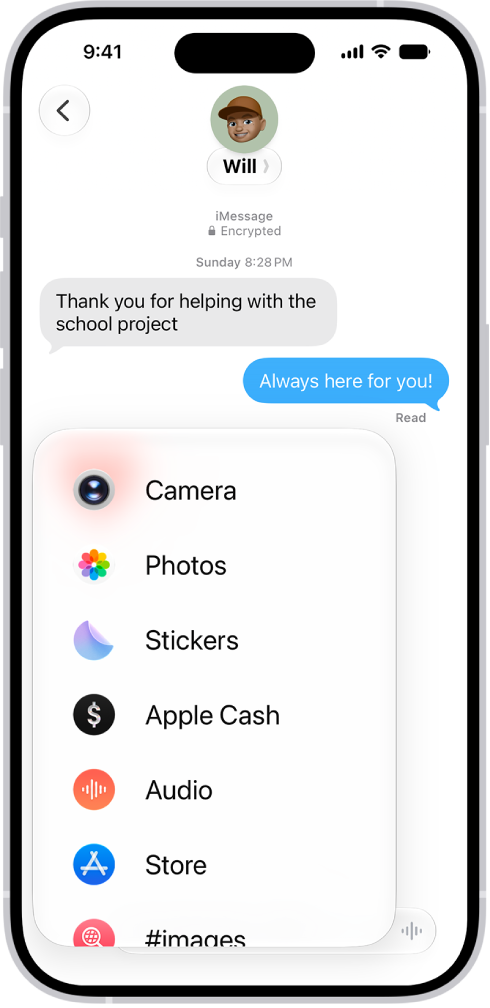
A list of features that appears after tapping the Add button in a Messages conversation.

Rearrange iMessage apps

  1. Start the Messages app on your iPhone.
  2. In a conversation, tap the Add button.
  3. Touch and hold any app icon in the list until it shrinks a little. Then drag it to the location where you want it.

To move the app icon to a different page, drag it to the top or bottom edge of the menu. You might need to wait a moment for the new page to appear.

Add iMessage apps

The Messages app includes iMessage apps you can use to send photos, videos, stickers, polls, audio messages, and more, and you can download additional iMessage apps for even more options.

  1. Start the Messages app on your iPhone.
  2. In a conversation, tap the Add button.
  3. Tap Store to open the App Store for iMessage.
  4. Tap an app to see more details and reviews and then do one of the following:
    • Purchase an app: Tap the price. Payments are made using the method associated with your Apple Account.
    • Download a free app: Tap Get.

To personalize your experience, add your name, date of birth, sex, blood type, and other basic information to Health Details. To help first responders and others in case you have a medical emergency, create a Medical ID that contains information about medical conditions, medications, allergies, blood type, emergency contacts, and more.

To better manage your health with the help of the Health app, periodically review the Health Checklist. And if you skipped any details when you first opened Health, you can add them later.

Fill out the Health Details screen

The first time you open Health, it asks you to provide basic health information about yourself. Anything you don’t supply then, you can add later on the Health Details screen.

  1. Start the Health app on your iPhone.
  2. Tap Summary, then tap your picture or initials.
  3. Tap Health Details and tap Edit.

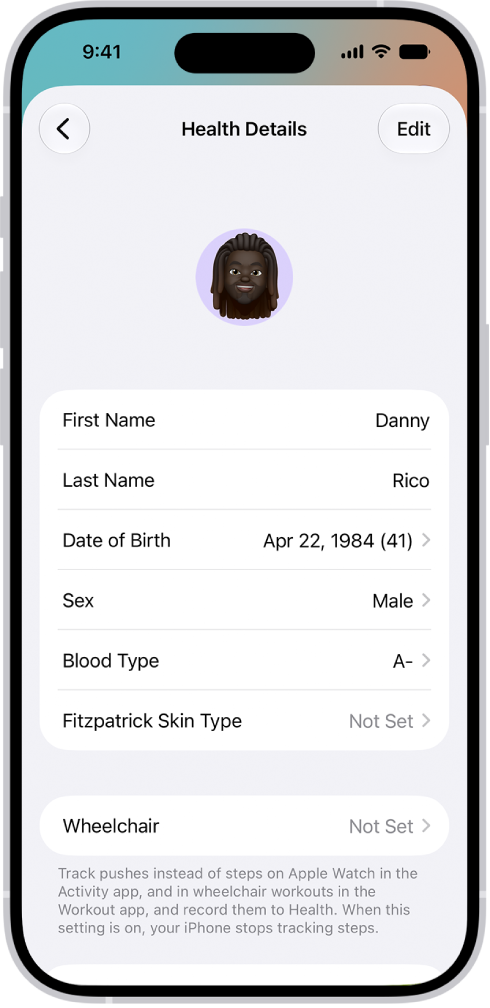
    The Health Details screen, which includes fields for name, birth date, blood type, and other information.

  4. To make a change, tap a field.
  5. When you’re finished, tap the Done button. Then swipe down to exit.

Create a Medical ID

Your Medical ID lets first responders and others view critical medical information about you, even while your iPhone is locked.

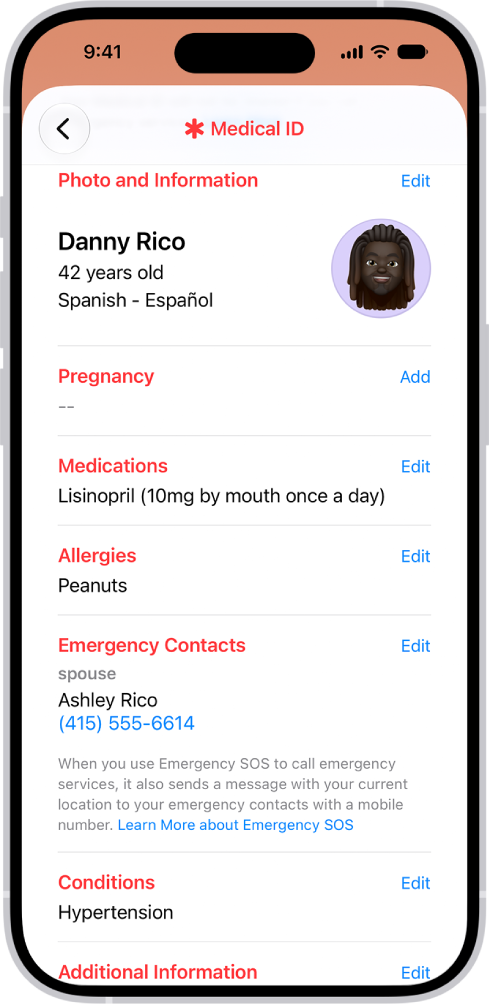
A Medical ID screen containing information including birth date, medications, allergies, emergency contacts, and medical conditions.

Review your Health Checklist

  1. Start the Health app on your iPhone.
  2. Tap Summary, then tap your picture or initials.
  3. Tap Health Checklist.
  4. To turn on or learn more about an item in the list, tap it.
  5. When you’re finished, tap the Done button.
Tag: Health

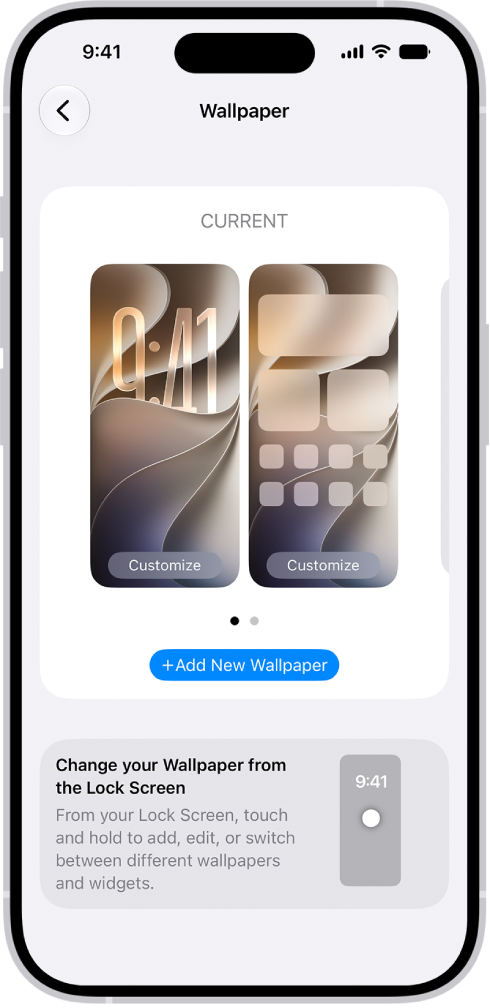
On iPhone, you can change the wallpaper on the Lock Screen and the Home Screen. You can set your wallpaper in Settings or through the wallpaper gallery from your Lock Screen. You can design your wallpaper with Photos, Emoji, or Color, or choose a wallpaper option from one of the featured sets, such as Nature. You can use the same wallpaper on both the Lock Screen and Home Screen as a wallpaper pair, or make changes to the Home Screen, like blurring the wallpaper.

The Wallpaper Settings screen, with buttons for customizing the current wallpaper on the Home Screen and Lock Screen, and the Add New Wallpaper button for changing the wallpaper.

  1. Start the Settings app on your iPhone.
  2. Tap Wallpaper, tap Add New Wallpaper, and then do any of the following:
    • Tap a button at the top of the wallpaper gallery—for example, Photos, Emoji, or Color—to design your wallpaper.
    • Choose a wallpaper option from one of the featured sets (for example, Nature).

Note: If you don’t see wallpaper options you want to use (for example, Weather or Astronomy), scroll down to see more options, then tap Get below the one you like.

  1. Tap Add, then do one of the following:
    • Choose to use the wallpaper on both the Lock Screen and Home Screen: Tap Set as Wallpaper Pair.
    • Make changes to the Home Screen: Tap Customize Home Screen. Tap a color to change the wallpaper color, tap the Select a Photo button to use a custom photo, or select Blur to blur the wallpaper so the apps stand out.

Quick tip: Link your Lock Screen to a particular Focus, and your wallpaper switches automatically whenever you switch to that Focus.

With AirDrop, you can wirelessly send photos, videos, documents, and more to a nearby iPhone, iPad, or Mac. AirDrop works for sending files to your own devices or sharing them with others.

It’s secure, too, since transfers are encrypted for security, and the recipient can accept or decline each transfer as it arrives. You can even share an item with an AirDrop code. And if you leave Bluetooth or Wi-Fi range after a transfer starts, it continues over the internet.

Here’s how to use AirDrop to send items to nearby Apple devices.

Note: After an AirDrop transfer starts, it continues over the internet if you leave Bluetooth or Wi-Fi range.
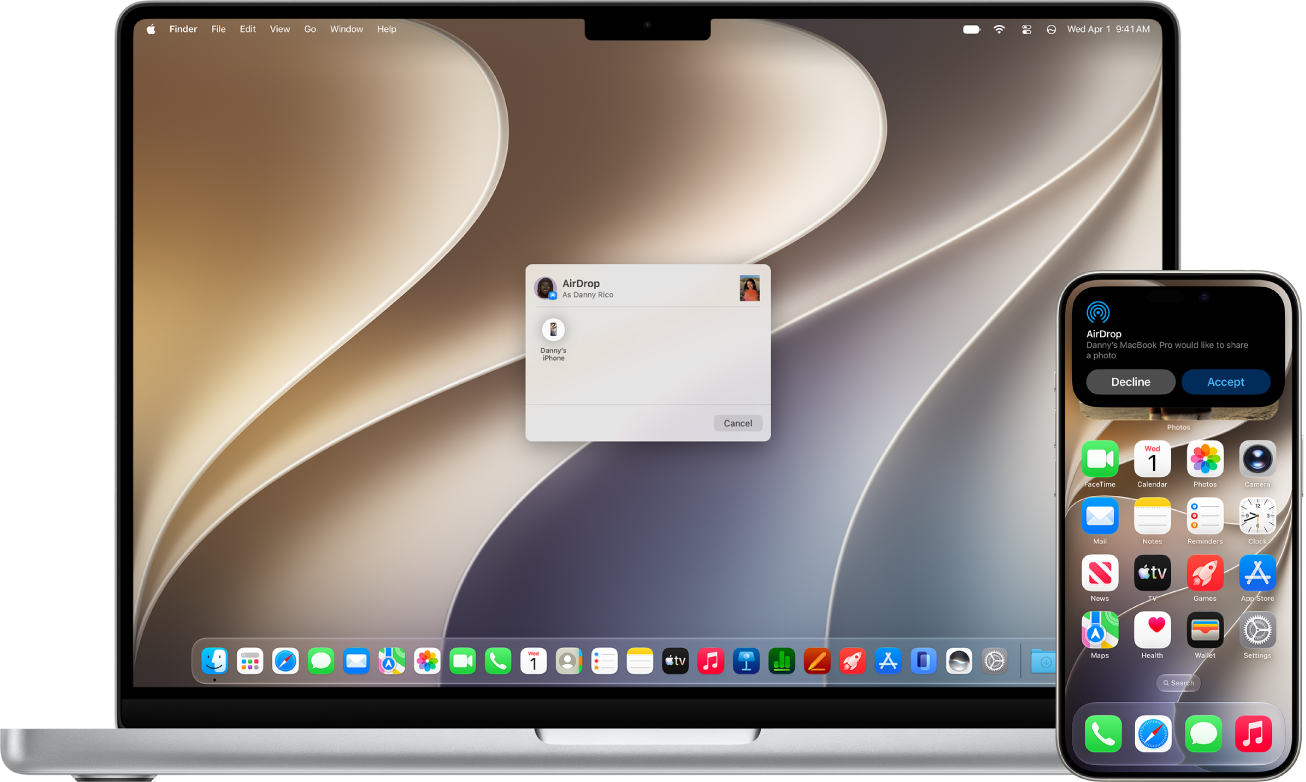
A Mac is next to an iPhone. The AirDrop dialog is open on the Mac desktop, ready to share a document with the iPhone. The iPhone screen has a notification about receiving the document.

Before you begin

Before you send anything with AirDrop, make sure both of these are true:

  • Both devices have Wi-Fi and Bluetooth® turned on.
  • The devices are within 30 feet (10 meters) of each other.

If you’re on a VPN, its configuration shouldn’t block local networking, since that may interfere with some Continuity features.

When you use AirDrop to send items between your Apple devices, signing in to your Apple Account means your devices accept and save them automatically.

Turn on AirDrop

  • On an iPhone or iPad: Open Control Center, touch and hold the top-left group of controls, then tap the AirDrop icon. Tap Contacts Only or Everyone for 10 Minutes to choose who you want to receive items from.

    Note: The Contacts Only and Everyone for 10 Minutes options are available only on devices with minimum system requirements for AirDrop.

  • On a Mac: Click the Control Center status menu in the menu bar, then click the AirDrop icon. When it’s blue, it’s on.

To choose who can send items to you, click the right arrow next to AirDrop, then click Contacts Only or Everyone.

Share an item with an AirDrop code

With iOS 26.2, iPadOS 26.2, macOS 26.2, or later, if someone tries to send you an item with AirDrop and they’re not in your contacts, they must use an AirDrop code. If you choose to receive the item, select Continue. The AirDrop code appears on your device. After you share the code with the sender and they enter it on their device, the item is shared. You can continue to share and receive items using AirDrop with that person for 30 days without needing to use another AirDrop code. If you no longer want to share items before the 30 days are up, go to the Contacts app , find the sender in your Other Known list, then select Forget This Person.

Send an item using AirDrop

To send an item to someone over AirDrop, you and your recipient both need AirDrop turned on.

Some people only accept items from a contact. To send items to them, you must be in their contacts list, and your contact card there needs to include your Apple Account email address or phone number.

  • On an iPhone or iPad: Open the item, then tap the Share icon, Share, the AirDrop icon, or another button (depending on the app). Tap the AirDrop icon, then tap the recipient you want to share with. The recipients you see are those who are nearby, have Wi-Fi and Bluetooth turned on, and are able to accept files from your device.

    Tip: If you’re within close range of someone in your contacts, you can initiate an AirDrop transfer by opening the file you want to share, then moving your iPhone close to your contact’s iPhone (on supported models with iOS 17 or later).

  • On a Mac: Open the item on a Mac, click the Share icon in the toolbar, then click AirDrop. Select the recipient you want to share with. The recipients you see are those who are nearby, have Wi-Fi and Bluetooth turned on, and are able to accept files from your device.

    Tip: You can also share items with AirDrop in the Finder. To open a Finder window, click the Finder icon in the Dock. Click AirDrop in the sidebar, then drag the item you want to share to the recipient you want to send it to.

When a notification asks you to enter a code to share the item, enter the AirDrop code that’s generated on the recipient’s device.

Receive items with AirDrop

On your device, tap or click Accept on the AirDrop notification.

If you see a notification that you need an AirDrop code in order to receive the item, tap or click Get AirDrop Code and share it with the sender. The sender enters the code on their device in order to send the item with AirDrop.

Note: Between devices where you’re signed in to the same Apple Account, items you send are accepted automatically.

Items usually land in the app they were sent from. Say someone uses AirDrop to send you a photo from their Photos app. It’s saved in the Photos app on your device.

Your files may also end up in other places, depending on the device. On an iPhone or iPad, the Files app may hold some items. On a Mac, some items end up in the Downloads folder automatically, though you may get the option to choose where to save items, like saving a photo in the Downloads folder or opening it in Photos.

Note: When you open AirDrop in the Finder on a Mac, you’ll see the notification to accept or decline here instead of in Notification Center.

Send items from one of your Apple devices to another, say from your Mac to your iPhone, and the receiving device automatically accepts and saves them, as long as you’re signed in to the same Apple Account on both.

Turn off cellular data for AirDrop

Cellular data charges may apply when you use AirDrop.

If you don’t want to use cellular data when you’re out of Bluetooth or Wi-Fi range, go to Settings > General > AirDrop, then turn off Use Cellular Data.

You’ll usually set this only once. But you might want to change it when you’re traveling and want to avoid roaming charges, for example.

If AirDrop isn’t working

  • Make sure that both the sender and recipient have Wi-Fi and Bluetooth turned on and that you’re both using an iPhone, iPad, or Mac.
  • Check that the recipient has their AirDrop settings set to receive from Everyone or Contacts Only.
  • If you’re having difficulty getting AirDrop to work, restart your device and try again.

AirDrop is best for sharing a small selection of files between devices.

Tag: AirDrop

You can set up call forwarding on iPhone if you have cellular service through a GSM network, though on a CDMA network, you’ll contact your carrier for information. When call forwarding is on, its icon appears in the status bar, and you need to be in range of the cellular network for calls to be forwarded.

If your carrier supports conditional call forwarding for when the line is busy or not in service, they have the setup information.

  1. Open the Settings app on your iPhone.
  2. Tap Apps, then tap Phone.
  3. Tap Call Forwarding and then turn on Call Forwarding. The Call Forwarding icon appears in the status bar when call forwarding is on.
  4. if your iPhone has Dual SIM, choose a line (below SIMs).
  5. Tap Forward To, enter the number you want to redirect to, and tap Back.

Calls won’t be forwarded unless you’re in range of the cellular network as you set iPhone to forward calls. Does your carrier support conditional call forwarding when the line is busy or out of service? If so, ask them for setup information.

Tag: Phone

You can scan text or a document to create a PDF in the Preview app on your iPhone. iPhone automatically captures the page, though you’ll be able to capture the scan yourself instead, and you can crop, rotate, or adjust the coloring of each scan.

  1. Start the Preview app on your iPhone.
  2. Tap Scan Documents.
  3. Position the iPhone camera so the text or document appears on the screen.

    iPhone automatically captures the page. To capture the scan yourself instead of automatically, tap Auto (the label changes to Manual), then tap the Shutter button.

  4. Repeat the step above to scan additional pages.
  5. Tap the thumbnails to crop, rotate, or adjust the coloring of the scan.
  6. Tap the Done button when you’re finished scanning.
Tag: Preview

Use the Find My app to let a friend know when your location changes. You can also get a notification when your friend’s location changes.

You choose when your friend hears from you, for example when you arrive at or leave a location. You can also see all notifications about you, and turn them off whenever you want.

Here’s how to notify a friend when your location changes in Find My on iPhone.

Notify a friend when your location changes

  1. Start the Find My app on your iPhone.
  2. Tap People, tap the name of the person you want to notify, and then tap the More button.
  3. Below Notify [your friend’s name], tap Add Location Alert.
  4. Choose whether you want to notify your friend when you arrive at or leave a location.
  5. Choose a location, or tap New Location to create a new location and set a location radius.

    With a larger radius, your friend is notified when you’re near the location instead of right at the location.

  6. Choose whether you want your friend to be notified only once or every time.
  7. Tap the Done button.

At any time, you can stop notifying friends when your location changes.

See all notifications about you

  1. Start the Find My app on your iPhone.
  2. Tap Me.

    A list of people who are notified when your location changes appears below Alerts on My Location.

    Note: If you don’t see the Alerts on My Location section, you aren’t notifying any friends when your location changes.

  3. Tap a name to see more details.

Turn off notifications about you

You can turn off any location notification about you, including notifications you set and notifications your friends create.

  1. Start the Find My app on your iPhone.
  2. Tap Me.

    Below Notifications About You, you see a list of people who are notified when your location changes.

    If you don’t see the Notifications About You section, you aren’t notifying any friends when your location changes.

  3. Select a name and tap a notification.
  4. Tap Delete Notification and tap Delete Notification again.
Tag: Find My