Got a tip for us?

In the Journal app, you can search for text in your entries and filter for details such as photos, drawings, and locations. You can also bookmark entries to revisit later.

You can sort entries by Entry Date or Moment Date, and see your entries based on their location with the map view. Any entry with a location, or with photos that have location information, shows up on the map. You can bookmark several entries at once, too.

Search your journal entries

  1. Start the Journal app on your iPhone.
  2. Choose a journal or tap All Entries.
  3. Do any of the following:
    • Find specific entries: Tap the Search button. Choose a category such as Photos or Reflections or type the text you’re looking for.
    • Sort entries: Tap the More button, tap Sort By, and then choose Entry Date or Moment Date.
    • Find entries for a specific day: Tap the Back button to show your insights, tap the Calendar button, and tap a date on the calendar.

View entries by location

You can see your entries based on their location with the map view.

  1. Start the Journal app on your iPhone.
  2. Tap the Journals Back button to show your insights. Then tap Places.
  3. To return to your journal, tap the Journals Back button.

Entries that include a location, or photos with location information, are added to the map.

Bookmark important journal entries

  1. Start the Journal app on your iPhone.
  2. Choose a journal or tap All Entries.
  3. Swipe right on an entry. Then tap the Bookmark button.

To bookmark multiple entries, tap the More button, tap Select Entries, tap entries to select them, then tap the Bookmark button.

Quick tip: Tap the Search button, then tap Bookmarked, and only bookmarked entries appear.
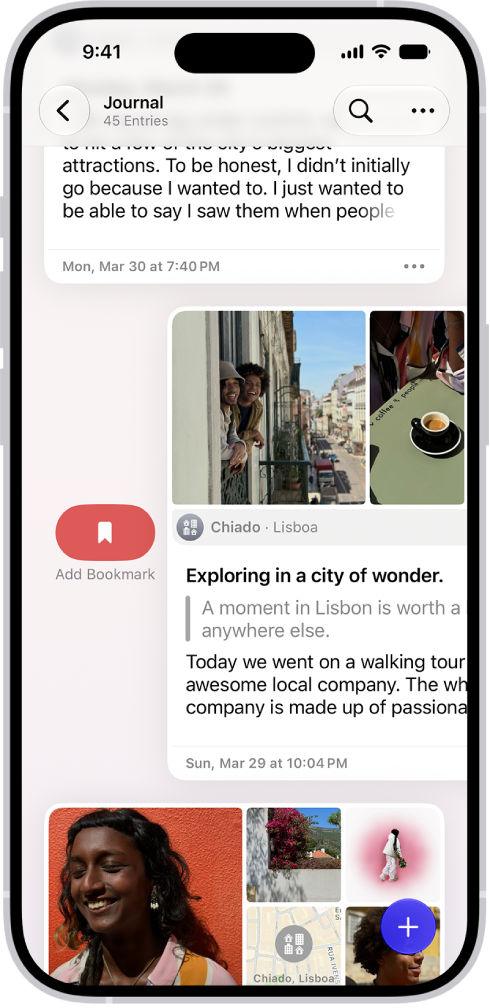
A screen in the Journal app showing journal entries. One entry is swiped right and shows the Bookmark button.

Tag: Journal

To send and receive email using the Mail app, you first need to add your email accounts. When you first open Mail, you’re asked to set up an account, and at any time, you can add additional email accounts or remove email accounts you no longer need.

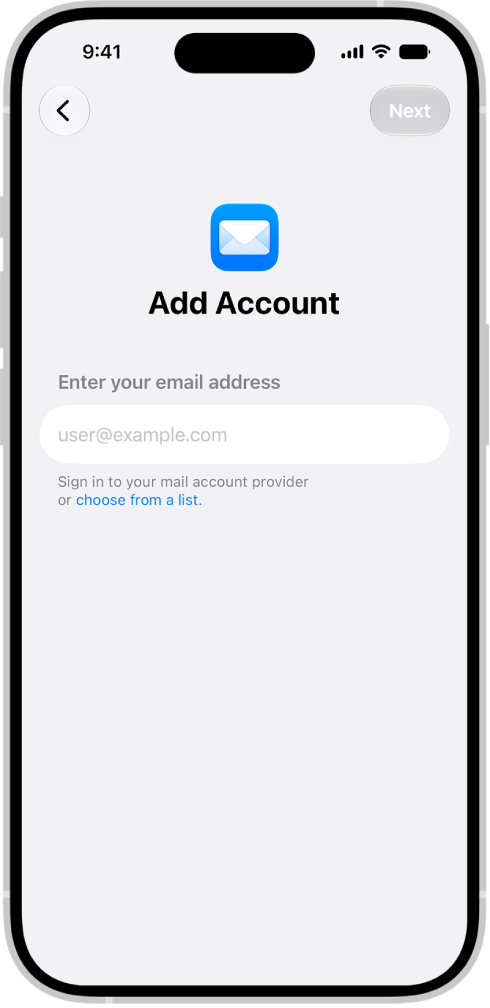
The Add Account screen with a field to enter your email address.

Add an email account

Adding one or more email accounts to the Mail app puts all your email in one place, and you can easily send email from any of your accounts.

  1. Open the Settings app on your iPhone.
  2. Tap Apps and then tap Mail.
  3. Tap Mail Accounts, then tap Add Account.
  4. Enter your email address, tap Next, and enter your email account information.

    Note: If you set up multiple accounts, you can choose which account you want to send from when composing your email message.

Set a fetch schedule for your email account

You can set a schedule to check for new emails if an account you add doesn’t support Push notifications.

  1. Open the Settings app on your iPhone.
  2. Tap Apps and then tap Mail.
  3. Tap Mail Accounts and then tap Fetch New Data.

    Under Fetch, choose a schedule.

    Automatically is the default selection, which means new data is downloaded when your iPhone is charging and connected to Wi-Fi.

    To fetch more often outside of these conditions, choose a timed schedule.

Temporarily stop using an email account

To stop sending and receiving email from an account on your iPhone for a while, turn it off in Settings. It’s easy to turn back on at any time.

  1. Open the Settings app on your iPhone.
  2. Tap Apps and then tap Mail.
  3. Tap Mail Accounts, tap the email account you want to turn off.

    Do one of the following: Turn off an iCloud email account: Turn off “Use on this iPhone.” Turn off another email account: Turn off Mail.

    Tip: You can use Focus filters to receive notifications only from specific email accounts during times that you choose.

    For example, you can silence notifications from your work email account on the weekends or when you are on vacation.

Delete an email account

When you remove an email account, it’s gone from the Mail app and from all the apps on your iPhone that use it.

Note: Don’t worry — this just removes the email account from your iPhone. It doesn’t cancel it.

You’ll need to visit your email account provider to close the account completely.

  1. Open the Settings app on your iPhone.
  2. Tap Apps and then tap Mail.
  3. Tap Mail Accounts, tap the email account you want to remove.
  4. Tap Sign Out or Delete Account.

    Note: If you change your mind later, you can add the email account back to your iPhone.

Add the Mail app back to your Home Screen

Can’t see the Mail app on your Home Screen? It’s in the App Library, and you can add it back from there.

  1. On the Home Screen, swipe left until you see the App Library.
  2. Enter “Mail” in the search field.
  3. Touch and hold the Mail app icon. Tap Add to Home Screen.
Tag: Mail

In the Photos app, you can delete photos and videos from your iPhone or hide them. You can also recover photos you recently deleted. Photos you delete and hide are saved in Recently Deleted and Hidden, which you unlock using Face ID, Touch ID, or your passcode.

When you use iCloud Photos, any photos you delete or hide are deleted or hidden on all your devices. You can delete or hide several at once, and stop hiding them later, so they reappear in your photo library.

Note: For 30 days, deleted photos and videos stay in the Recently Deleted collection, where you can recover or permanently remove them. After that, they’re permanently removed from all devices.

Delete or hide a photo or video

  1. Start the Photos app on your iPhone.
  2. While viewing a photo or video, do any of the following:
    • Delete: Tap the Delete button to delete a photo from your iPhone and other devices where iCloud Photos is turned on and you’re signed in to the same Apple Account.
    • Hide: Tap the More button, then tap Hide.

Hidden photos move to the Hidden collection, and you can’t view them anywhere else.

To keep the Hidden collection from appearing in the Photos app, turn it off. See Hide the Hidden collection.

Delete or hide multiple photos and videos

  1. Start the Photos app on your iPhone.
  2. View your library or open a collection.
  3. Tap Select and then tap the photos and videos you want to delete or hide.
  4. Do any of the following:

    • Delete: Tap the Delete button to delete the items from your iPhone and other devices where iCloud Photos is turned on and you’re signed in to the same Apple Account.

      Deleted photos and videos are kept in the Recently Deleted collection for 30 days. During that time, you can recover or permanently remove them from all devices.

    • Hide: Tap the More button, then tap Hide.

Stop hiding photos and videos

If you previously hid a photo or video, you can stop hiding it so that it reappears in your photo library.

  1. Start the Photos app on your iPhone.
  2. Tap Collections.
  3. Tap the Hidden collection (below Utilities), tap View Album, and unlock your iPhone.
  4. Tap the photo or video you want to stop hiding.
  5. Tap the More button, then tap Unhide.

Recover or permanently delete recently deleted items

Photos and videos you delete stay in the Recently Deleted collection for 30 days, and after that, they’re permanently removed from iCloud, your iPhone, and other devices associated with your Apple Account. During those 30 days, you can recover them or delete them permanently at any time.

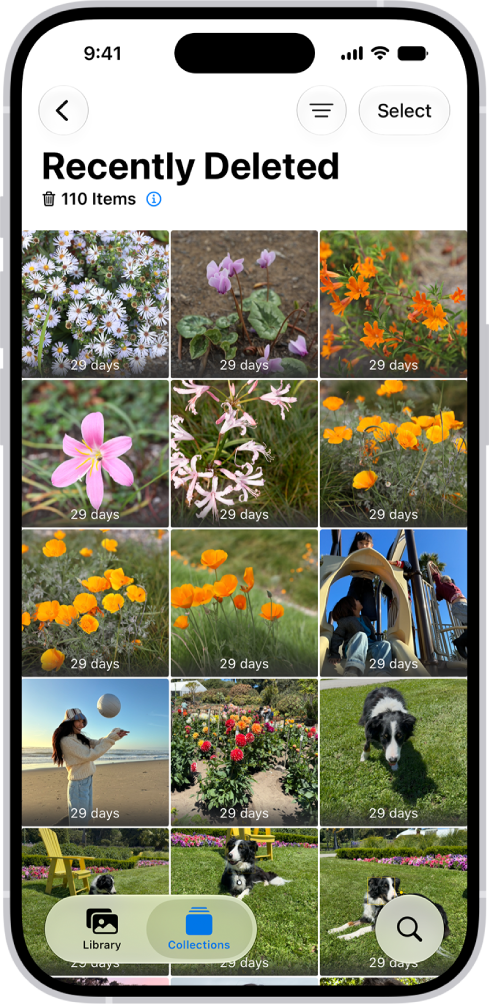
The Recently Deleted folder in the Photos app. Recently deleted photos appear in a grid on the screen.

  1. Start the Photos app on your iPhone.
  2. Tap Collections.
  3. Tap the Recently Deleted collection (below Utilities), tap View Album, and unlock your iPhone.
  4. Tap Select and choose the photos and videos you want to recover or delete.
  5. Tap the More button and tap Recover or Delete.

Note: Check the Recovered collection if the photos or videos you’re looking for aren’t in the Recently Deleted collection.

Lock and unlock the Recently Deleted and Hidden collections

The Recently Deleted and Hidden collections are locked by default. You can unlock these collections using Face ID, Touch ID, or your passcode. To change the default setting from locked to unlocked, do the following:

  1. Start the Settings app on your iPhone.
  2. Tap Apps and tap Photos.
  3. Turn off Use Face ID, Use Touch ID, or Use Passcode.

Hide the Hidden collection

The Hidden collection is locked by default, and for an extra layer of privacy, you can remove it from view.

  1. Start the Settings app on your iPhone.
  2. Tap Apps and tap Photos.
  3. Turn off Show Hidden Album.
Tag: Photos

In the FaceTime app, you can talk with up to 32 participants in a Group FaceTime call.

You can start one in the FaceTime app or from a group Messages conversation, and add another person to a call. Each participant appears in a tile on the screen, and when a participant speaks, verbally or by using sign language, that tile becomes highlighted or more prominent. You can also join a Group FaceTime call, or leave one at any time.

Note: Group FaceTime calls aren’t available in all countries or regions.

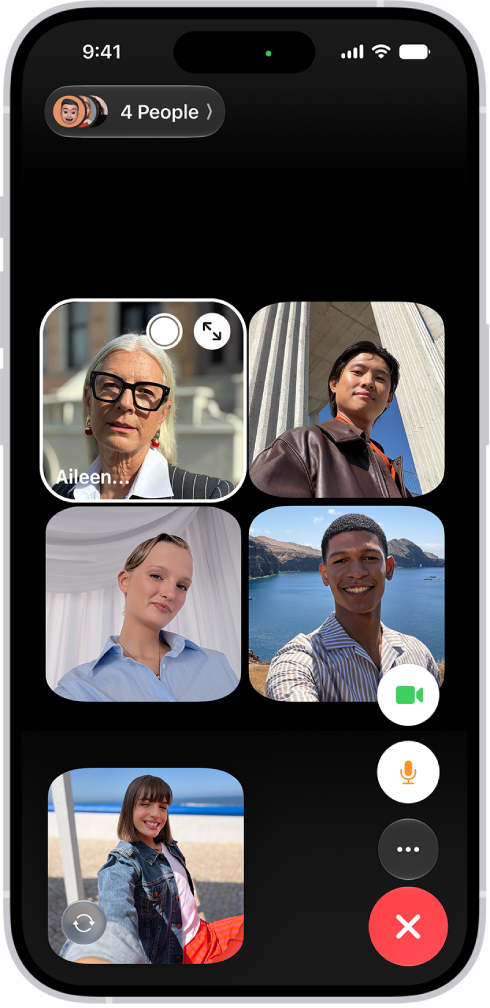
A Group FaceTime call showing five participants in separate tiles.

Start a Group FaceTime call

  1. Open the FaceTime app on your iPhone.
  2. Tap New Call.
  3. In the field near the top of the screen, enter the names, numbers, or emails of the people you want to call.

    You can also tap the Add Contact button to open Contacts and add people from there, or tap suggested contacts.

  4. Tap FaceTime to make a video call or tap the Call button to make a FaceTime audio call.

Each participant appears in a tile on the screen. When a participant speaks (verbally or by using sign language) or you tap the tile, that tile becomes highlighted or more prominent. Tiles that can’t fit on the screen appear in a row at the bottom. To find a participant you don’t see, swipe through the row. The participant’s initials may appear in the tile if an image isn’t available.

To prevent the tile of the person speaking or signing from becoming more prominent during a Group FaceTime call, go to the Settings app , tap Apps, tap FaceTime, then turn off Speaking below Automatic Prominence.

Note: For sign language detection, the presenter needs a supported model, and everyone on the call, presenter included, needs iOS 14, iPadOS 14, macOS 11, or later.

Start a Group FaceTime call from a group Messages conversation

Start a Group FaceTime call from a group iMessage conversation to include all the people you’re chatting with in Messages.

  1. Tap the FaceTime button at the top right of the iMessage conversation.
  2. Tap FaceTime Audio or FaceTime Video.

Add another person to a call

At any time during a FaceTime call, any participant can add another person.

  1. Do one of the following:
    • During a one-on-one FaceTime call: Tap the screen to show the FaceTime controls (if they aren’t visible) and tap the More button. Then tap Add People.
    • During a Group FaceTime call: Tap the people count at the top of the screen and tap Add People.
  2. Enter the name, number, or email of the person you want to add, or tap the Add Contact button to add someone from Contacts. You can add multiple people.
  3. Tap Add People.

Join a Group FaceTime call

If someone invites you to join a Group FaceTime call, you get a notification of the incoming call, and you can join or decline.

Leave a Group FaceTime call

To leave a group call at any time, tap the End button in the FaceTime controls, or tap Leave while viewing the list of participants.

The call stays active while one or more participants remain.

With Braille Screen Input in VoiceOver, you can use your fingers to type braille directly on the iPhone screen, without a physical braille keyboard. You can also use Braille Screen Input to enter braille commands for navigating and controlling your iPhone.

You can use it in tabletop mode, with iPhone flat in front of you, or in screen away mode, with the screen facing away from you. Gestures let you enter a space, delete the previous character, move to a new line, or cycle through spelling suggestions.

Enter braille on the screen

  1. With VoiceOver turned on, do one of the following to start Braille Screen Input:

    • Use a gesture: Place one finger from each hand at the top and bottom edges of the screen and double-tap. If the gesture doesn’t work, open Settings, tap Accessibility, tap VoiceOver, and then tap Braille. Tap Braille Screen Input and turn on Use Activation Gestures.
    • Use the rotor: When you’re in a text input area, set the rotor to Braille Screen Input. If Braille Screen Input isn’t in the rotor, go to Settings > Accessibility > VoiceOver > Rotor. Tap Rotor Items, then select Braille Screen Input.
  2. Place iPhone in one of the following positions:

    • Tabletop mode: Lay iPhone flat in front of you.
    • Screen away mode: Hold iPhone in landscape orientation with the screen facing away from you. Your fingers wrap around the sides of iPhone to tap the screen.
  3. Enter braille characters by tapping the screen with one or more fingers at the same time.

    Tip: To hear where each dot is located, touch and hold, then drag your finger around the screen. To move the entry dots to match your natural finger positions, tap and lift your right three fingers all at once to position dots 4, 5, and 6, followed immediately by your left three fingers for dots 1, 2, and 3.

    You can also use gestures to perform actions such as the following:

    Action Gesture
    Enter a space Swipe right with one finger; in screen away mode, swipe to your right
    Delete the previous character Swipe left with one finger
    Move to a new line Swipe right with two fingers
    Cycle through spelling suggestions Swipe up or down with one finger
    Enter a carriage return, or send a message (in Messages) Swipe up with three fingers
    Cycle through modes (like Braille Entry Mode and Command Mode) Swipe left or right with three fingers
    Translate immediately (if you’re typing contracted braille) Swipe down with two fingers
    Switch to the next braille table Swipe up with two fingers
  4. To exit Braille Screen Input, slide two fingers in opposite directions, or do a two-finger scrub (draw the letter “z” by quickly moving two fingers back and forth three times).

Quick tip: To view and edit the commands and gestures you can perform with Braille Screen Input turned on, go to Settings > Accessibility > VoiceOver > Commands > Braille Screen Input.

Type on the screen to enter braille commands

Braille Screen Input Command Mode lets you control iPhone by typing braille commands on the screen, using the same commands you’d use with a refreshable braille display.

  1. With VoiceOver turned on, place one finger from each hand at the top and bottom edges of the screen and double-tap to start Braille Screen Input.
  2. Switch to Command Mode by swiping left or right with three fingers.
  3. Type braille commands directly on the screen.

Change Braille Screen Input settings

  1. Open the Settings app on your iPhone.
  2. Tap Accessibility, then tap VoiceOver.
  3. Tap Braille, then tap Braille Screen Input.
  4. Set any of the following:
    • Use Activation Gestures: To start Braille Screen Input, place one finger from each hand at the top and bottom edges of the screen and double-tap. If this option is off, use the rotor to start Braille Screen Input.
    • Start Automatically when Editing Text: Have Braille Screen Input start automatically when you enter a text input area.
    • Keep Active until Dismissed: After you launch an app or choose an item in Braille Entry Mode, automatically switch to Command Mode and keep it active.
    • Customize Commands: Go to the command you want to customize and tap Assign New Braille Keys.
    • Learn Dot Positions: Have Braille Screen Input calibrate the positions of dots as you enter them. Reverse Dot Positions: For six-dot braille, swap the positions of dots 1 and 3, and dots 4 and 6.
    • Visual Text Feedback: As you type in braille, display a text translation of what you’re typing.
    • Typing Feedback: Get sound or haptic feedback as you enter text with Braille Screen Input.
    • Single Hand Mode Style: Choose one of the following options to type in Portrait orientation:
      • Right Hand or Left Hand: Type a column of dots and swipe right to enter an empty column. Double-tap to enter one braille cell. (Dots 1 and 4, dots 2 and 5, and dots 3 and 6 are oriented from left to right.) Right Hand is turned on by default.
      • Slate and Stylus: Your screen acts as a braille cell with 6 dots. (Dots 1, 2, and 3 are on the right side, and dots 4, 5, 6 are on the left side.)
      • Reversed Slated and Stylus: Your screen acts as a braille cell with 6 dots. (Dots 1, 2, and 3 are on the left side, and dots 4, 5, 6 are on the right side.)
    • Mode Announcements: When you switch Braille Screen Input modes, have VoiceOver speak, play sounds, or both.
    • Choose a Braille table: Select a braille format.

You can use Quick Notes to jot down information over any app or screen on iPhone. Add links, images, tags, and mentions to a Quick Note so you can get to important names, numbers, and ideas easily.

There’s a shortcut back, too. When you highlight text in Safari or add a link from an app, you see a Quick Note thumbnail next time you visit the site, taking you right to what you were viewing before.

You can access all your Quick Notes in the Notes app, and when you make a Quick Note on your iPhone, you can see the note on your iPad and Mac, too.

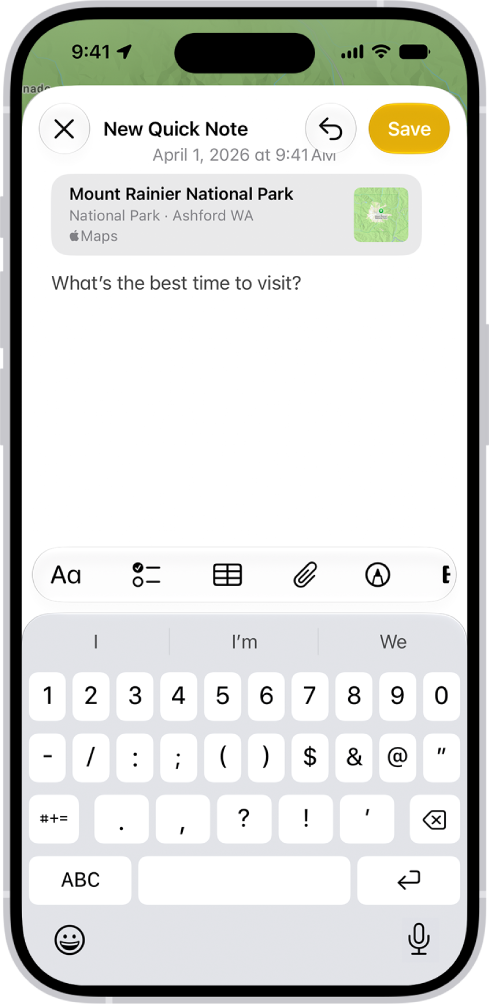
A Quick Note showing a link to a location in Maps and text underneath. The Save button is on the top left.

Take a Quick Note

You can make a Quick Note in either of these ways:

  • From any app or screen: Add to Control Center, then tap the Quick Note button in Control Center. Tap Save when you’re done.
  • From supported apps: Tap the Share button, then tap Add to Quick Note. Tap Save when you’re done.

View and organize Quick Notes

  1. Open the Notes app on your iPhone.
  2. Tap Quick Notes in the folders list. You may have to tap the Back button to see your folders. Note: You can’t lock a Quick Note unless you move it to a different folder. If you move an individual Quick Note to a different folder, it becomes a standard note and no longer appears as a Quick Note in other apps.
Tag: Notes

You can read and share News stories on iPhone.

While viewing a story, you can read the next story or the previous story, and tell News what stories you prefer with Suggest More or Suggest Less, so your feedback is taken into account. You can also read stories shared with you, and share a story with others in the News app. Apple News and Apple News+ aren’t offered in all countries or regions, though.

Note: Apple News and Apple News+ aren’t available in all countries or regions.

Read a story

  1. Start the News app on your iPhone.
  2. Tap a story to read it. While viewing a story, do any of the following:
    • Read the next story: Swipe left.
    • Read the previous story: Swipe right.
    • Return to the list of stories: Tap the Back button.
    • Tell News what stories you prefer: Tap the Suggest More button or the Suggest Less button. Your feedback is taken into account for future recommendations.
    • Change the text size: Tap the More button and tap Text Size. Then tap the smaller or larger letter to change the text size in the story and all other stories in the channel. (Not available in all channels.)
    • Share a story: Tap the More button. Choose a sharing option, such as Messages or Mail.
    • Report a concern: If you believe that a story you’re viewing is mislabeled, inappropriate, offensive, or doesn’t display properly, tap the More button, tap Report a Concern and then follow the onscreen instructions.

The Report a Concern, Save Story, Suggest More, and Suggest Less options aren’t available in Apple News+ issues in PDF format.

Read stories shared with you

When a friend shares stories with you using the Messages app, you can easily find them in the Shared with You section in Apple News. (Your friend must be in your contacts list in Contacts.)

  1. Start the Settings app on your iPhone.
  2. Tap Apps, then tap Messages.
  3. Tap Shared with You and then make sure News is turned on.
  4. Start the News app on your iPhone.
  5. Tap Following and tap Shared with You. Do any of the following:
    • Tap a shared story to read it in News.
    • Tap the name of the person who shared a story to reply to them in the Messages app. To reply while reading the story, tap the name shown below the channel’s logo.
Tag: News

After your iPhone joins a Wi-Fi network, you can change settings for that network, share its password with another nearby device, and choose how iPhone joins new Wi-Fi networks and nearby Personal Hotspots.

You can forget a network, use Low Data Mode, and turn on a private Wi-Fi address, which helps reduce tracking of your iPhone across networks. You can also hide your IP address from known trackers. You can’t share a password unless the other device is nearby, though.

Change settings for the connected network

  1. Start the Settings app on your iPhone.
  2. Tap Wi-Fi, tap the Info button, and do any of the following:
    • Forget the network: Tap Forget This Network.
    • Use Low Data Mode: Turn on Low Data Mode to help reduce iPhone’s data usage on the network.
    • Use a private Wi-Fi address: Turn on Private Wi-Fi Address to help reduce tracking of your iPhone across different Wi-Fi networks.
    • Limit IP address tracking: Turn on Limit IP Address Tracking to hide your IP address from known trackers.
    • Use cellular data in addition to Wi-Fi: Turn on Use Connectivity Assist.
    • Configure DNS, HTTP Proxy, and other network settings: Tap a setting, then enter the details.

Share a Wi-Fi password

When your iPhone is on a Wi-Fi network, you can share the Wi-Fi password with an iPhone, iPad, or Mac nearby.

  1. Make sure your iPhone is unlocked, connected to the Wi-Fi network, and signed in to your Apple Account.
  2. Make sure of the following: the person you’re with is signed in to their Apple Account on their device, they’re in your contacts list, and their device is nearby.
  3. On your contact’s device, choose the Wi-Fi network.
  4. On your iPhone, wait for the Wi-Fi Password notification to appear. Then tap Share Password.

Set whether iPhone asks to join networks

iPhone automatically joins known networks. When none are in range, iPhone can let you know that other networks are available.

  1. Start the Settings app on your iPhone.
  2. Tap Wi-Fi, then tap Ask to Join Networks.
  3. Choose Off, Notify, or Ask.

Set whether iPhone joins Personal Hotspots automatically

With no Wi-Fi network available, iPhone can connect to a nearby Personal Hotspot on another device that’s signed in to your Apple Account.

  1. Start the Settings app on your iPhone.
  2. Tap Wi-Fi, then tap Auto-Join Hotspot.
  3. Choose Never, Ask to Join, or Automatic.
Tag: Wi-Fi

You can send a poll, play a game, record audio messages, share songs, and more, all with iMessage apps, without leaving the Messages app.

You can customize your list of available apps by rearranging them, or add iMessage apps you find in the App Store. The Messages app comes with iMessage apps for polls, photos, videos, audio messages, stickers, and more.

Here’s how to use iMessage apps in Messages on iPhone.

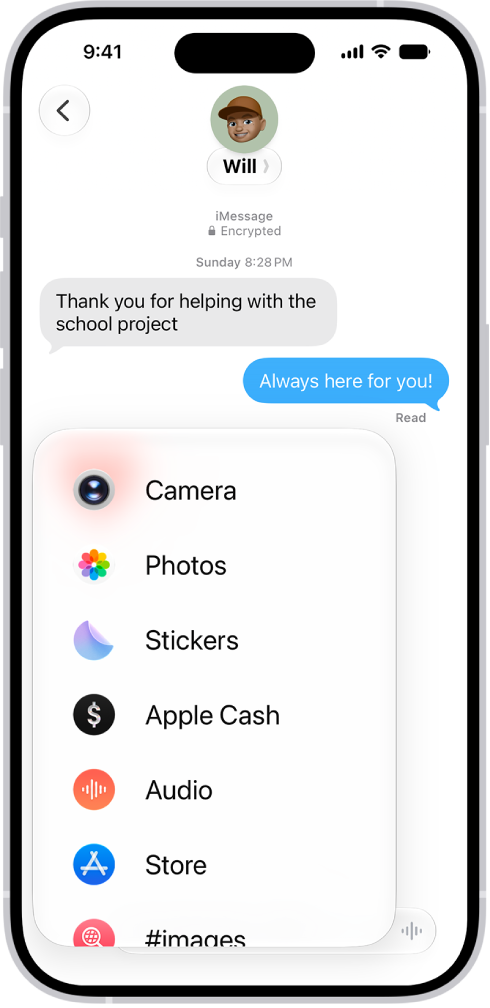
A list of features that appears after tapping the Add button in a Messages conversation.

Rearrange iMessage apps

  1. Start the Messages app on your iPhone.
  2. In a conversation, tap the Add button.
  3. Touch and hold any app icon in the list until it shrinks a little. Then drag it to the location where you want it.

To move the app icon to a different page, drag it to the top or bottom edge of the menu. You might need to wait a moment for the new page to appear.

Add iMessage apps

The Messages app includes iMessage apps you can use to send photos, videos, stickers, polls, audio messages, and more, and you can download additional iMessage apps for even more options.

  1. Start the Messages app on your iPhone.
  2. In a conversation, tap the Add button.
  3. Tap Store to open the App Store for iMessage.
  4. Tap an app to see more details and reviews and then do one of the following:
    • Purchase an app: Tap the price. Payments are made using the method associated with your Apple Account.
    • Download a free app: Tap Get.

To personalize your experience, add your name, date of birth, sex, blood type, and other basic information to Health Details. To help first responders and others in case you have a medical emergency, create a Medical ID that contains information about medical conditions, medications, allergies, blood type, emergency contacts, and more.

To better manage your health with the help of the Health app, periodically review the Health Checklist. And if you skipped any details when you first opened Health, you can add them later.

Fill out the Health Details screen

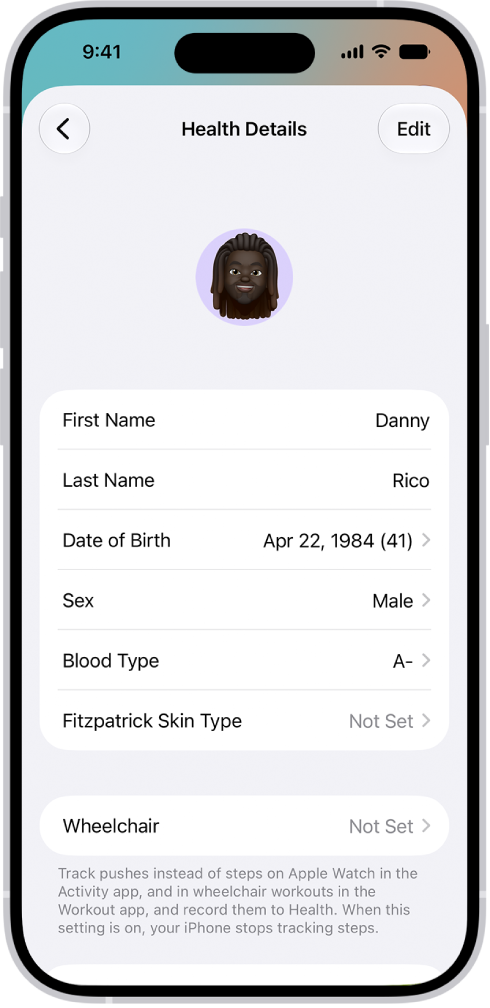
The first time you open Health, it asks you to provide basic health information about yourself. Anything you don’t supply then, you can add later on the Health Details screen.

  1. Start the Health app on your iPhone.
  2. Tap Summary, then tap your picture or initials.
  3. Tap Health Details and tap Edit.

    The Health Details screen, which includes fields for name, birth date, blood type, and other information.

  4. To make a change, tap a field.
  5. When you’re finished, tap the Done button. Then swipe down to exit.

Create a Medical ID

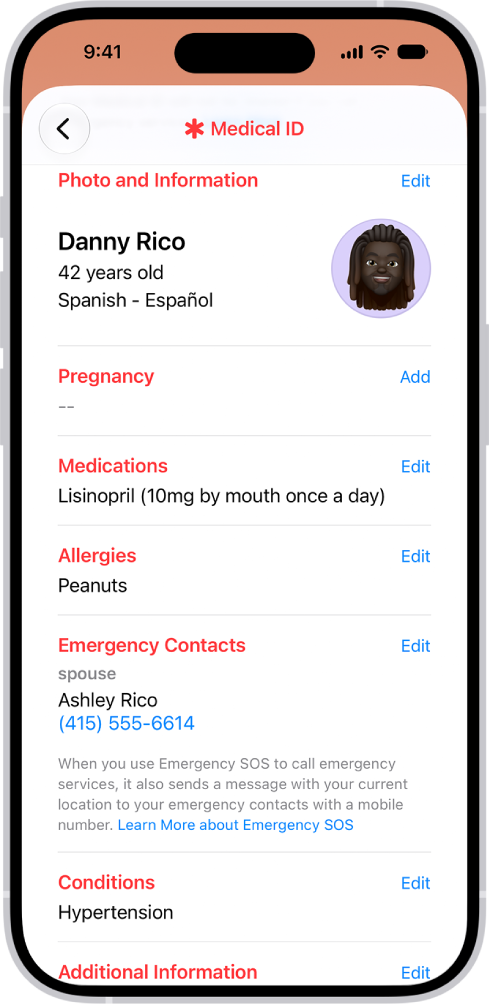
Your Medical ID lets first responders and others view critical medical information about you, even while your iPhone is locked.

A Medical ID screen containing information including birth date, medications, allergies, emergency contacts, and medical conditions.

Review your Health Checklist

  1. Start the Health app on your iPhone.
  2. Tap Summary, then tap your picture or initials.
  3. Tap Health Checklist.
  4. To turn on or learn more about an item in the list, tap it.
  5. When you’re finished, tap the Done button.
Tag: Health