Got a tip for us?

If FaceTime is not working on your iPhone, here are the steps you can take to troubleshoot and fix the problem.

FaceTime lets you make video and audio calls on your iPhone. At times, FaceTime on iPhone may not work or suddenly stop working due to wrong settings, temporary problems, or network issues. Once that happens, making video and audio FaceTime calls from your iPhone becomes impossible.

To fix this issue, here are 17 reliable solutions. Once you follow these, FaceTime not working, activating, or connecting on iPhone should be a thing of the past. Have a look.

How To Fix FaceTime Not Working On iPhone

1. Close And Reopen FaceTime

The first step to take when FaceTime is not working on your iPhone is to close and reopen it. FaceTime will get a fresh start, which will hopefully fix a minor crash or software bug.

If your iPhone has a Home button, double-press it to open the app switcher. If your iPhone doesn’t have a Home button, swipe up from the very bottom to the center of the screen until the app switcher opens.

Once the app switcher is open, use one finger to swipe the FaceTime app up and off the top of the screen. You’ll know the FaceTime is closed when it no longer appears in the app switcher. Now that you’ve closed FaceTime, tap on its icon on the Home screen to see if it is working again.

2. Sign out of FaceTime and sign in again

If the above solution did not fix the problem, this one should help.

Open the Settings app and go to FaceTime. Toggle off the switch next to FaceTime. After one minute, toggle the switch again to turn it on. See if this quick fix works for you or not.

If not, scroll down and tap on your Apple ID. Next, tap Sign Out.

Now restart your iPhone. Once that’s done, go to Settings > FaceTime and tap Use your Apple ID for FaceTime. FaceTime should start working perfectly.

3. Are You in a Country Where FaceTime is Restricted?

FaceTime is available in almost all countries around the world, with the exception of the United Arab Emirates. To use FaceTime in Saudi Arabia, an ‌iPhone must be running iOS 11.3 or later, and to use FaceTime in Pakistan, devices must run iOS 12.4 or later.

iPhones purchased in certain Middle Eastern countries will also block FaceTime if a SIM card from a non Middle Eastern country is inserted. FaceTime Audio is not available in China. All iPhones sold in China are limited to the standard FaceTime with video feature.

Note that if you purchase an ‌iPhone in China or the United Arab Emirates and then attempt to use it in another country, the FaceTime features listed above will be disabled. Purchasing an ‌iPhone‌ from China or the Middle East is not recommended unless you live in those places.

Finally, if your office or organization networks use firewalls, the are steps you must take to use FaceTime and iMessage behind that firewall.

4. Set the Correct Date And Time

For FaceTime to work on your iPhone, its data and time settings must be accurate. The easiest way to ensure your phone has the correct date and time is to set them to update automatically.

Start the Settings app on your iPhone and go to General > Date & Time. Make sure your iPhone is set to the correct Time Zone, and that the date and time are correct. Turn the switch next to Set Automatically if it isn’t already.

5. Restart Your iPhone

Restarting your iPhone has the potential to fix minor software problems that’s preventing FaceTime from working properly. All of its programs shut down naturally, giving them a fresh start when you turn your iPhone on again. The way to restart your iPhone varies based on which model you own.

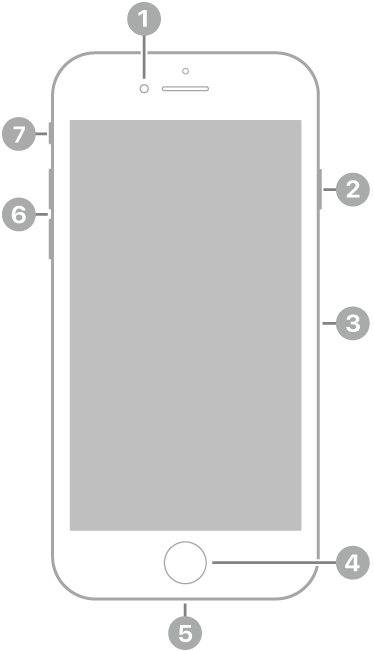
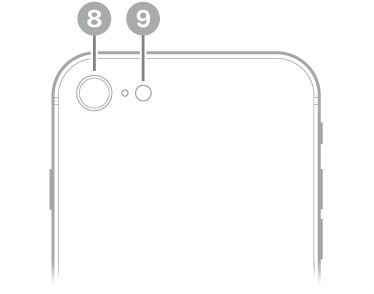
  • Restart an iPhone X or newer: Press and hold the side button and either volume button until slide to power off shows up on the screen. Swipe the power icon from left to right to shut down your iPhone. Wait 15–30 seconds, then press and hold the side button until the Apple logo shows up on the screen.
  • Restart an iPhone 8 or older: Press and hold the power button until slide to power off shows up on the display. Swipe the power from left to right to turn off your iPhone. Wait 15–30 seconds, then press and hold the power button again until the Apple logo shows up on the display.

6. Check Your iPhone’s Wi-Fi Connection

A weak internet connection is a common reason why video calling apps like FaceTime stop working on iPhone. There are a few different things you can try to troubleshoot your iPhone’s Wi-Fi connection.

Turn Wi-Fi Off And Back On

The quickest and easiest fix to try is to turn Wi-Fi off and back on on your iPhone. Open Settings and tap Wi-Fi. Tap the switch once to turn Wi-Fi off, then tap the switch again to turn it back on.

Restart Your Router

Restarting (or rebooting) your router will fix most issues of slow FaceTime calls, stuttering FaceTime video, and the like.

  1. Unplug the router. If your modem is separate from your router, unplug that as well. Wait 1 minute.
  2. Plug the modem back in (if it is separate). Wait another 1 minute.
  3. Plug the router back in. Wait 2 minutes.

Open the FaceTime app on your iPhone and try making a call to see if the problem is solved.

Forget Your Wi-Fi Network

Every time you connect to a new Wi-Fi network, your iPhone makes a record of how to connect to this network in the future. It’s for this reason you only need to enter a Wi-Fi password into your iPhone once. If the process changed, it may be preventing your iPhone from connecting to Wi-Fi. Forgetting the network and setting it up again like new will give your iPhone a fresh start.

Open Settings and tap Wi-Fi. Tap the Information button (blue i) to the right of your Wi-Fi network. Tap Forget This Network.

Go back to the Wi-Fi page in Settings and tap on your network again. Enter your Wi-Fi password to reconnect to the network. Try making a FaceTime call again to see if this fixed the problem.

More Advanced Wi-Fi Troubleshooting Steps

If you think your Wi-Fi network is the cause of FaceTime problem on your iPhone, check out our other article which goes more in-depth on how to fix iPhone Wi-Fi issues.

7. Make Sure Your Cellular Data is On

If you’re trying to use FaceTime on your iPhone over cellular data, make sure that’s switched on in your settings. Go into your Settings app and tap Cellular . Make sure that Cellular Data is enabled at the top of the page. Then scroll down to the Cellular Data section, and make sure FaceTime is enabled for cellular use in the list of apps.

8. Check Apple’s System Status When FaceTime Isn’t Working on iPhone

On rare occasions, it can happen that everything is working on your side. But the fault lies on Apple’s end, due to which FaceTime does not let you make calls.

To check this, visit Apple’s System Status page. If you see a green dot next to FaceTime, it means everything is ok. If you see an orange or red dot next to FaceTime, Apple ID, or iCloud Account & Sign In, please wait until Apple fixes the issue.

9. Update Your iPhone’s Software

One of the most common reasons why FaceTime is not working on iPhone is that the iOS is out-of-date.

To make sure your iPhone’s software is up-to-date, go to Settings > General > Software Update. If an update is available, install it. iOS updates always contain bug fixes, so with few exceptions, it’s always a good idea to update your software. If your software is already up-to-date, move on to the next step.

10. Test The Camera and Microphone on Your iPhone

If people can’t see or hear you on FaceTime, there might be a problem with the camera or microphones on your iPhone. The simplest way to test this is to open the Camera app and record a short video of yourself talking into the front-facing camera. Play the video back to find out if there are any problems with the audio or video you recorded. If there are, tap or click here to learn what to do when iPhone Camera is not working.

11. Turn On Your Camera and Microphone in FaceTime

If people can’t see or hear you in FaceTime, it might be because you’ve disabled your camera or microphone for that FaceTime call.

During a FaceTime call, reveal more controls by tapping the screen on an iPhone. Tap the Camera and Microphone icons to turn your camera or microphone on and off during the call.

12. Disable FaceTime Content Restrictions

If the FaceTime app is completely missing from your iPhone, you might have turned on Screen Time restrictions. People usually use these settings to keep young children from accessing certain features on a device.

Start the Settings app and go to Screen Time > Content & Privacy Restrictions. Go into Allowed Apps and make sure FaceTime and Camera are both turned on. If prompted, enter your Screen Time passcode, which may be different from your standard passcode.

13. Disable VPN

If you use a VPN, it could be preventing your iPhone from connecting to FaceTime.

While VPNs are great for protecting your personal identity online, they can cause internet connectivity issues when configured incorrectly. It’s also possible that your VPN is making it appear you’re trying to connect to FaceTime from a different country or region. Start the Settings app on your iPhone and tap the switch next to VPN to turn it off.

14. Reset Network Settings

If a poor Wi-Fi connection is the reason why Facetime is not working on your iPhone, it’s time to try resetting your phone’s network settings. This will reset all your device’s Wi-Fi, Bluetooth, Cellular, and VPN settings to their factory defaults.

When you connect to a Wi-Fi network after resetting network settings, it’ll be like you’re connecting to that network for the very first time. This completely fresh start will often fix the software problem that prevented your iPhone from connecting to Wi-Fi in the first place. It will also reset any settings you may have changed that could be interfering with your FaceTime calls without you knowing.

Note: Before resetting network settings, make sure to write down all your Wi-Fi passwords, as you’ll have to reenter them after the reset is complete.

To reset network settings on your iPhone, go to Settings > General > Transfer or Reset iPhone > Reset > Reset Network Settings. Enter your iPhone’s passcode, then tap Reset Network Settings when the confirmation alert appears on the screen.

15. Reset All Settings On Your iPhone

There isn’t a magic bullet that fixes all software problems on iOS devices, but the next best thing if FaceTime is not working on iPhone is Reset All Settings. Reset All Settings restores your iPhone’s settings to factory defaults, but it doesn’t delete any of your apps or personal information.

To reset all settings on your iPhone, go to Settings > General > Transfer Or Reset iPhone > Reset > Reset All Settings, enter your passcode, and tap Reset All Settings.

16. Delete And Reinstall The Facetime App

Although iOS apps are strictly vetted, they can still run into problems from time to time. When you’re experiencing problems with an app, deleting and reinstalling the app will usually fix the problem.

It’s possible that FaceTime is not working on your iPhone because a software file within the FaceTime app has become corrupted. To address this problem, delete the FaceTime app then reinstall it like new!

First, delete FaceTime by lightly pressing and holding the app icon until all of your apps begin to shake. Next, tap Remove App > Delete App. A pop-up message should appear asking you to confirm this action. To confirm, tap Delete.

Now that FaceTime has been deleted from your iPhone, go to App Store and search for the FaceTime app. Once you’ve found it, tap on the small cloud icon to its right to reinstall it.

17. Repair Options for your iPhone

Although it’s very unlikely, it’s possible the Wi-Fi antenna inside your iPhone is broken, which is preventing it from connecting to your Wi-Fi network. This same antenna connects your iPhone to Bluetooth devices, so if you’ve experienced lots of issues connecting to both Bluetooth and Wi-Fi recently, the antenna could be broken.

If your iPhone is experiencing a hardware problem, I’d recommend scheduling an appointment and taking it to your local Apple Store. There, you can get a diagnosis and repair quote from a licensed Apple technician!

Successfully Fixed FaceTime Not Working on Your iPhone

You’ve successfully fixed the problem and you can now use FaceTime to make video and audio calls on your iPhone . We hope you’ll share this article on other social media platforms so your friends and family can know what to do when FaceTime is not working on their iPhones!

Here are the best MacBooks for engineering students according to our testing

Apple MacBooks have always been an excellent choice for most students thanks to their power and durability.

We combined firsthand experience with research to determine our picks for the best laptops for engineering students. With that in mind, read on for our picks of the best MacBooks for engineering students.

Which is the best MacBook for engineering students now?

The best MacBook for engineering students remains the MacBook Air, which was updated for 2022. It’s also the best MacBook for computer science students and one of the best MacBooks for IT students. There are other noteworthy models we’ve gathered to help you choose the one that fits your needs best.

The best MacBooks for engineering students you can buy today

1. MacBook Air (2022)

The best MacBook for engineering students who want fresh design and excellent internals

MacBook Air in starlight showcasing M2 running multiple applications.  

Specifications

CPU: M2 GPU: M2 (Integrated) RAM: 8GB/16GB/24GB Size: 11.97 x 8.46 x 0.44 inches Display: 13.6-inches, 2560 x 1600 pixels Weight: 2.7 pounds Storage: 256GB/512GB/1TB/2TB

Why it’s the best MacBook for engineering students

The MacBook Air for 2022 has received an incredible design change and updated internals, making this the Apple laptop most engineering students should purchase to start the new school year. Featuring an Apple M2 chip, the MacBook Air (2022) offers a 13.6-inch Liquid Retina display for the first time and provides up to 18 hours of battery life between charges. It’s also available in two fabulous new colors, Starlight and Midnight, although it’s still available in Space Gray and silver.

The M2 chip makes this MacBook Air up to 1.4 times faster than the previous model. It features an 8-core CPU, up to 10-core GPU, and a 16-core Neural Engine. In addition, the entry-level model comes with 8GB of unified memory, which can be increased to 16GB or 24GB. On the storage side, you can purchase one with 256GB, 512GB, 1TB, or 2TB.

This MacBook Air also comes with a MagSafe port that connects easily and quickly releases if the charging cable is accidentally pulled. There’s also an all-new 1080p FaceTime HD camera for those critical video online presentations. At just 2.7 pounds, this is the lightest MacBook Air you can currently buy, making it easy to carry it to lecture halls and library.

If there’s one negative about the MacBook Air (2022) is its price. For many years, this model started at $999. However, the entry-level model is now $1,199, which pushes it very close to the entry-level MacBook Pro, which starts at $1,299.

The MacBook Air is a gorgeous machine and a practical choice for most engineering students today. It’s also our favorite Mac of the year.

Pros

  • Apple M2 chip
  • 13.6-inch Liquid Retina display
  • Up to 18 hours of wireless web between charges
  • MagSafe
  • Lightweight

Cons

  • Only two Thunderbolt 3 (USB-C) ports
  • Maximum storage is 2TB
  • No longer "cheap."

2. 13-inch MacBook Pro M2 (2022)

The best MacBook for engineering students who want an excellent battery life

The M2-powered 13-inch MacBook Pro.

Specifications

CPU: Apple M2 (8-core) GPU: Apple M2 GPU (10-core)RAM: 8GB/16GB/24GB sSize: 12 x 8.4 x 0.6 inches Display: 13.3 inches, 2560 x 1600 pixel Weight: 3.1 pounds Storage: 256GB/512GB/1TB/2TB

Why it’s the best MacBook for engineering students

Like the MacBook Air (2022), the 13-inch MacBook Pro (2022) includes an Apple M2 chip. It has an 8-core CPU, 10-core GPU, and 16-core Neural Engine. You can purchase one with 256GB, 512GB, 1TB, or 2TB of storage and up to 24GB of unified memory. This model also includes Apple’s Touch Bar, which can be viewed as a pro or con, depending on your preferences. It’s the last MacBook to have the Touch Bar.

The recently updated 13-inch MacBook Pro is very similar to the MacBook Air (2022) in terms of its internals. However, critical differences on the outside keep this from being our favorite MacBook for engineering students.

But unlike the MacBook Air (2022), the 13-inch MacBook Pro (2022) spots a 13.3-inch Retina display, a 720p FaceTime HD camera, and no MagSafe. It also weighs more at 3 pounds vs. the Air’s 2.7 pounds.

On the positive side, you’ll get up to 20 hours between battery charges on this model, so if you want a MacBook with an excellent battery life, you may opt for this one.

There’s much to love about this machine, which offers ever-so-slightly better internals than the MacBook Air.

Pros

  • Same internals as MacBook Air
  • Apple M2
  • 20 hours between battery charges

Cons

  • No MagSafe
  • Older design
  • Slightly smaller display

3. 16-inch MacBook Pro (2023)

The best MacBook for engineering students who want extremely powerful laptop

14 and 16 inch MacBook Pro devices are shown

Specifications

CPU: 3.3GHz Apple M2 Pro 12 cores (8P/4E) Gam: 32GB LPDDR5 Size: 0.66 by 14 by 9.8 inches Display: 16-inch 3,456×2,234 254ppi 3:2 aspect ratio; 500 nits SDR, 1,600 nits HDR Weight: 4.7 lbs/2.2kg Storage: 2TB Apple SSD AP2048Z, SD card slot

Why it’s the best MacBook for engineering students

Internally, the third-generation 16-inch MacBook Pro (2023) is the best MacBook engineering students can currently buy. Like the 14-inch MacBook Pro (mentioned below), this model offers an M2 Pro or M2 Max SoC with up to 96GB of unified memory and 8TB of SSD storage. That’s a lot of storage for your photos and videos. In addition, you get a 12-core CPU and up to 38-core GPU.

But there’s much more. The latest 16-inch MacBook Pro comes with a Liquid Retina XDR display (3456 by 2234 pixels) with ProMotion technology for adaptive refresh rates up to 120Hz. It’s also packed with up to 22 hours of battery life between charges and comes with an all-new 1080p FaceTime HD camera with an advanced image signal processor and computational video.

The 14-inch and 16-inch MacBook models (2023), some of the best MacBooks available, also include MagSafe, an HDMI port, and an SDXC card slot, besides its three Thunderbolt 4 (USB-C) ports. If you’re looking for any negatives, understand this is the heaviest MacBook Pro in many years (4.7 pounds). It’s also costly, even at the base level.

Pros

  • Class leading performance
  • Crisp retina display
  • Excellent battery life

Cons

  • Very expensive
  • Heavy (4.7 lbs)

4. 14-inch MacBook Pro (2023)

The best MacBook for engineering students who want versatility at a lower price

14 inch MacBook Pro device is shown

Specifications

CPU: M2 Pro (10-core CPU, 16-core GPU or 12-core CPU, 19-core GPU), with optional M2 Max with up to 12-core CPU and 38-core GPU GPU: 16GB to 96GB Size: 12.3 x 8.7 x 0.6 inches Display: 14.2-inch Liquid Retina XDR display (3024×1964 pixels, 254ppi) Weight: 3.5 pounds (M2 Pro) – 3.6 pounds (M2 Max) Storage: 512GB to 8TB

Why it’s the best MacBook for engineering students

The new MacBook Pro 14-inch 2023 raises the bar for laptop performance, with the M2 Pro chip delivering incredible speed in our testing. The M2 Max is even faster, especially when it comes to graphics performance. You also get a stellar mini-LED display, plenty of ports and over 14 hours of battery life. Yes, it’s pricey, but the new MacBook Pro cannot be beat.

This is the best MacBook for engineering students who want everything on the 16-inch MacBook Pro but with a smaller display. In addition, it offers similar internals for less. Nonetheless, it’s still an expensive computer, which is something to keep in mind.

Our best advice for students is to buy as much memory and storage as they can afford. And remember, you can’t change these options after purchase since upgrades aren’t possible. With this in mind, consider the option of an Apple M1 Pro with a 10-core CPU, 16-core GPU, and 16-core Neural Engine that comes with 1TB of storage and at least 32GB of unified memory.

The 14-inch MacBook Pro is nearly identical to the 16-inch model except for the smaller display and price.

Pros

  • Blistering performance
  • Vibrant mini-LED display
  • Superb battery life
  • Good port selection includes HDMI and SD Card
  • Faster Wi-Fi 6E

Cons

  • Expensive
  • Notch is distracting
  • No Face ID support

5. MacBook Pro 2021 (16-inch)

Best MacBook for engineering students who want a machine that delivers best-in-class performance

SPECIFICATIONS

CPU: M1 Pro (10-core CPU) | M1 Max (10-core CPU) GPU: Integrated 16-core GPU) RAM: 16GB to 64GB Size: 14 x 9.8 x 0.7 inches Display: 16.2 inches; 3456×2244 pixels Weight: 4.7 pounds (M1 Pro) | 4.8 pounds (M1 Max) Storage: 512GB to 8TB

Why it’s the best MacBook for engineering students

The MacBook Pro 2021 (16-inch) is an across-the-board improvement over its predecessor, so if you’ve been considering investing in a 16-inch Pro this is unquestionably the model to buy. With its remarkable battery life, outstanding speed, smartly redesigned chassis and big, beautiful screen, this is a versatile pro laptop that will serve you equally well in your engineering studies. And if you’re willing to pay the price, configuring it with one of Apple’s brawny new M1 Max chips will guarantee you some of the best performance you can buy in a MacBook.

The 2021 MacBook Pro replaces the Touch Bar with function keys, continues the resurgence of Mac keyboard with an excellent scissor-switch design, and adds more ports – including the long-absent SD card slot.

It even brings back MagSafe, and finally overhauls the 720p camera system we’ve had for far too long, all while expanding the power of the M1 with the M1 Pro or M1 Max – magnitudes more powerful than even last year’s laptops. Apple is even happy for the laptop to be a little on the heftier side, with increased thickness and weight.

All of this extra power makes it perfect for resource intensive tasks, which is why we’re it as one of the best MacBooks for engineering students.

It feels like a MacBook mea culpa, and it’s better for it – and that’s without getting to the gorgeous new display which absolutely blows away premium Windows models. It even makes the prior MacBook Pro’s screen look a little old-fashioned. Some will scoff at the notch that houses the camera, but as far as accuracy and vibrancy goes, it’s the best laptop display out there.

Pros

  • Gorgeous Liquid Retina XDR display
  • Outstanding battery life
  • Great speakers
  • Extremely powerful
  • Plenty of ports

Cons

  • Display is sub-4K
  • Camera notch
  • Expensive, especially with M1 Max

Engineering students pet

In 2023, our best MacBook for engineering students is the MacBook Air (M2, 2022). It’s the best choice for most students. This incredible device offers Apple’s new M2 SoC processor and includes Touch ID, Magic Keyboard, Force Touch trackpad, and two Thunderbolt 3 ports. There’s also a 1080p FaceTime HD camera and MagSafe. It’s also pretty lightweight and has 18 hours of battery life, so you can attend lectures uninterrupted.

If the Air doesn’t have you convinced, perhaps the 13-inch MacBook Pro (M2, 2022) is a an excellent choice. There’s a Touch Bar, two more hours of battery life, and a better GPU at the entry point. Finally, if money is less than an object and you want maximum internals, consider the 14-inch or 16-inch MacBook Pro models. They each feature a powerful M2 Pro or M2 Max chip.

How we test the best engineering students laptops

To find the best Apple laptop for engineering students, we run each through our gauntlet of benchmarks and real-world tests, and then use them as our main computer for as well. Only then are we comfortable recommending them (or not) for your purchase.

We use a Klein K-10A colorimeter to test each MacBook’s screen to find its average brightness and color quality (so we don’t just assume Apple’s ratings are correct). When it comes to general performance, we use the Geekbench 5 (CPU performance) benchmark, and time how long the Macs will take to transcode a 4K video to 1080p.

We also run the BlackMagic storage speeds test to see how fast these MacBooks’ SSDs are (spoiler alert: they’re all pretty fast). Then, we run our custom battery test to see how long each MacBook (at 150 nits of brightness) can last browsing the web over Wi-Fi until it runs out of juice.

We’ve also tested various computer games on MacBooks, with Civilization VI: Gathering Storm being one of our current favorites to run because it runs well on both macOS and Windows, giving us a good point of comparison.

No matter which Apple MacBook you buy, be sure to check out these MacBook Ventura tips and tricks to make the most of your Apple laptop.

These are the best MacBooks for media students according to our testing

Apple MacBooks have always been an excellent choice for media students thanks to their power and durability.

We combined firsthand experience with research to determine our picks for the best laptops for media students. With that in mind, read on for our picks of the best MacBooks for media students.

Which is the best MacBook for media students now?

The MacBook Air (M2, 2022) is the best MacBook for media students. It has enough power to face almost any academic challenge. There are other MacBooks to consider depending on your situation, as you can see below.

These are the best MacBooks for media students you can buy today

1. MacBook Air (M2, 2022)

The best MacBook overall for media students

MacBook Air in midnight displaying a wallpaper.  

Specifications

CPU: M2 GPU: M2 (Integrated) RAM: 8GB/16GB/24GB Size: 11.97 x 8.46 x 0.44 inches Display: 13.6-inches, 2560 x 1600 pixels Weight: 2.7 pounds Storage: 256GB/512GB/1TB/2TB

Why it’s the best MacBook for media students

In mid-2020, Cupertino announced Apple silicon, starting with an impressive M1 processor. The 2022 MacBook Air, which we gave five stars, is the first to house the second-gen M2 processor. The 2022 MacBook Air is the best MacBook for media students, along with being our favorite Mac for all users, because it packs a punch for anyone on a smaller budget, starting with its battery life — up to 18 hours between charges, depending on what you’re doing.

At 2.7 pounds, the MacBook Air is the lightest Mac on the market despite having the same screen size as the smallest MacBook Pro model. Besides being less weighty, the MacBook Air also contains the same essential internals, including Apple’s all-new M2 SoC. The laptop also features a backlit Magic Keyboard and a Touch ID sensor.

No doubt, the MacBook Air is appealing. However, it has drawbacks, including fewer Thunderbolt 3 ports, less display brightness, and more inferior speakers than most MacBook Pro models. It also offers two hours less battery life between charges than the 13-inch MacBook Pro (M2, 2022). None of the disadvantages should stop you from buying it, however.

Pros

  • Same screen size as 13-inch MacBook Pro
  • Up to 18 hours of wireless web battery between charges
  • Relatively low price
  • Apple M2!

Cons

  • Only two Thunderbolt 3 (USB-C) ports
  • Lower display brightness than other models

2. 16-inch MacBook Pro (2023)

Best MacBook for media students who need extremely powerful laptop

14 and 16 inch MacBook Pro devices are shown

Specifications

CPU: 3.3GHz Apple M2 Pro 12 cores (8P/4E) Gam: 32GB LPDDR5 Size: 0.66 by 14 by 9.8 inches Display: 16-inch 3,456×2,234 254ppi 3:2 aspect ratio; 500 nits SDR, 1,600 nits HDR Weight: 4.7 lbs/2.2kg Storage: 2TB Apple SSD AP2048Z, SD card slot

Why it’s the best MacBook for media students

Apple’s 2023 flagship, the MacBook Pro 16-Inch marries a proven, immaculate design with a fireball M2 Max CPU for fierce power in media creation, gaming, and high-end professional tasks. (Plus, it lasted nearly 27 hours on our battery test.)

The 16-inch MacBook Pro is the computer to get if you need the most power possible. You can configure it with several options, whether you need that M2 Max processor, 96GB Unified Memory or 8TB of storage.

Even at its base configuration, a 12-core M2 Pro with 16GB of RAM, 512GB of storage, and a 19-core GPU, the 16-inch model will handle any task a student throws at it. So if you want a no-doubt-about-it machine, get this MacBook Pro.

Pros

  • Unmatched laptop power
  • Exceptional battery life
  • Top-class mini LED display
  • Unbelievable speakers
  • Apple’s best laptop design

Cons

  • Expensive across the board
  • Limited upgradability
  • Camera notch still takes getting used to

3. 13-inch MacBook Pro (M2, 2022)

The best MacBook for media students who want long battery life

The Liquid Retina XDR display is shown on 14 Inch MacBook Pro.

Specifications

CPU: Apple M2 (8-core) GPU: Apple M2 GPU (10-core)RAM: 8GB/16GB/24GB sSize: 12 x 8.4 x 0.6 inches Display: 13.3 inches, 2560 x 1600 pixel Weight: 3.1 pounds Storage: 256GB/512GB/1TB/2TB

Why it’s the best MacBook for media students

The 13-inch MacBook Pro (M2, 2022) is a great middle-ground. It packs an M2 processor, excellent graphics, more ports, and a long battery life.

Three factors stand out when comparing the 13-inch MacBook Pro (M2, 2022) with the MacBook Air (M2, 2022). First, the Pro model offers a Touch Bar, while the Air only has a Touch ID. Second, the former offers up to two more battery life hours. The Pro model also offers more screen brightness and better speakers. You’ll pay at least $200 extra for these extras, but it may be worth it depending on your needs.

Pros

  • Comes with potential extras
  • Great battery life
  • Touch Bar included
  • Slightly better display than MacBook Air

Cons

  • Dated design
  • Touch Bar might not be for you
  • Price can rise quickly as you add components

4. MacBook Air (M1, 2020)

The best MacBook for media students on a budget

The M1-powered MacBook Air in rose gold.

Specifications

CPU: M1 GPU: M1 (integrated) RAM: 8GB/16GB Size: 12 x 8.4 x 0.6 inches Display: 13.3 inches, 2560 x 1600 pixel Weight: 2.8 pounds Storage: 256GB/512GB/1TB/2TB

Why it’s the best MacBook for media students

One of the first Apple silicon Macs, the MacBook Air (M1, 2020), still packs a punch, even though there’s a newer model now that’s a better choice for most media students. The No. 1 reason to get the 2020 model? Price — assuming you can find one with a huge discount.

The MacBook Air (M1, 2020) still contains plenty of power for the media students on a smaller budget, starting with its battery life. When we reviewed this device two years ago we were impressed with its up to 18 hours of battery life between charges, depending on what you’re doing. At 2.8 pounds, this model is one of the lightest laptops on the market. Besides an M1 chip, it offers a backlit Magic Keyboard and a Touch ID sensor.

Pros

  • Incredible performance-per-watt
  • Huge battery improvement over Intel-based MacBook Air
  • Classic design with new scissor-switch keyboard

Cons

  • Not that much cheaper than 2022 model
  • Older design
  • Poor webcam

5. 14-inch MacBook Pro (2023)

The best MacBook for media students who are looking for the most potent MacBook current available but need a slightly smaller display

14 inch MacBook Pro device is shown

← Back

Thank you for your response. ✨

Specifications

CPU: M2 Pro (10-core CPU, 16-core GPU or 12-core CPU, 19-core GPU), with optional M2 Max with up to 12-core CPU and 38-core GPU RAM: 16GB to 96GB Size: 12.3 x 8.7 x 0.6 inches Display: 14.2-inch Liquid Retina XDR display (3024×1964 pixels, 254ppi) Weight: 3.5 pounds (M2 Pro) – 3.6 pounds (M2 Max) Storage: 512GB to 8TB

Why it’s the best MacBook for media students

Powered by the new M2 Pro and M2 Max chips, the new MacBook Pro 14-inch is faster and more powerful than any 14-inch on the market. Throw in over 14 hours of battery life in you’ve got a nearly perfect laptop on your hands.

The current 16-inch and 14-inch MacBook Pro are identical inside and offer the same chip, RAM, and storage options. Therefore, the 14-inch MacBook Pro is an excellent choice for media students who are looking for the most potent MacBook current available but need a slightly smaller display. That’s a 14.2-inch Liquid Retina XDR display with 3024-by-1964 pixels.

No matter what your configuration, the MacBook Pro 14 is in a class of its own. The laptop retains its stunning good looks, powerful speakers, high-resolution camera, and comfortable keyboard. But the real stars of this story are the M2 Pro and M2 Max chips, which bring even more power and efficiency to the table.

There are a few noticeable negatives to consider regarding this MacBook, including the price (it’s still super expensive), weak color choices (just two), and the divisive notch that some might not like.

Still, if you want the best MacBook with a smaller screen, this is a good way of getting both without missing out too much.

Pros

  • Impressive performance
  • Over 14 hours of battery life
  • Great port selection
  • Beautifully vibrant display with crisp detail
  • Excellent audio

Cons

  • Expensive
  • Off-putting notch
  • Still no Face ID

Quite a few choices

Whether you need a new computer or want to upgrade from an existing one, the most recent MacBook Air is the best MacBook for media students this year. So whether you’re writing papers, putting together a Powerpoint, or even editing some images for a media class, the MacBook Air (M2, 2022) will be a reliable performer in your academic pursuits.

The current MacBook Air has a lot going for it, including the all-new M2 chip, a beautiful new design, fantastic color choices, and more.

If budget is your top concern, the MacBook Air (2020) is another excellent choice. It still includes a blazing-fast M1 chip, a backlit Magic Keyboard, and a Touch ID sensor. Plus, it can be found at great discounts depending on where and when you look. Although it’s not the newest Air on the market, it’s still powerful and will receive several macOS updates for years, including the latest macOS 13 Ventura.

For the media students who need the most power, consider the MacBook Pro range with the latest M2 Pro or M2 Max chip on the 2023 models, ensuring fantastic performance. It may be excessive for some, but it’s sure to last for the entirety of college years and beyond.

How we test the best media students laptops

To find the best Apple laptop for media students, we run each through our gauntlet of benchmarks and real-world tests, and then use them as our main computer for as well. Only then are we comfortable recommending them (or not) for your purchase.

We use a Klein K-10A colorimeter to test each MacBook’s screen to find its average brightness and color quality (so we don’t just assume Apple’s ratings are correct). When it comes to general performance, we use the Geekbench 5 (CPU performance) benchmark, and time how long the Macs will take to transcode a 4K video to 1080p.

We also run the BlackMagic storage speeds test to see how fast these MacBooks’ SSDs are (spoiler alert: they’re all pretty fast). Then, we run our custom battery test to see how long each MacBook (at 150 nits of brightness) can last browsing the web over Wi-Fi until it runs out of juice.

We’ve also tested various computer games on MacBooks, with Civilization VI: Gathering Storm being one of our current favorites to run because it runs well on both macOS and Windows, giving us a good point of comparison.

No matter which Apple MacBook you buy, be sure to check out these MacBook Ventura tips and tricks to make the most of your laptop.

Is your iPhone not making or receiving phone calls? Here is what you can do to fix the problem.

If your iPhone is not making or receiving phone calls, don’t worry! You can try a few fixes before turning to your cell carrier’s customer support line.

When you can neither make nor receive calls on an iPhone, the cause might be any number of issues. Here’s where to start when trying to get back on speaking terms with your phone.

There is nothing new about the problem of iPhone not making or receiving phone calls as it has existed on almost all iPhone models. The issue has affected many iPhone models, including iPhone 6, iPhone 6 Plus, iPhone 6S, iPhone 6s Plus, iPhone 7, iPhone 7 Plus, iPhone 8, iPhone 8 Plus, iPhone X, iPhone XR, iPhone XS, XS Max, iPhone 11, 11 Pro, 11 Pro Max, iPhone 12, 12 mini, 12 Pro, 12 Pro Max, iPhone 13, 13 mini, 13 Pro, 13 Pro Max, iPhone 14, iPhone 14 Plus, iPhone 14 Pro, iPhone 14 Pro Max and iPhone SE.

Getting a good hang of the problem is key to discovering the cause and finding a possible solution. In that regard, we have first discussed what could be the possible reason why some iPhones don’t make or receive phone calls before learning the different ways to resolve the issue.

Why Won’t My iPhone make or receive phone calls?

The first reason why your iPhone won’t make or receive phone calls may be due to a software glitch. Even a minor software bug could prevent you from making or receiving phone calls on your iPhone.

Finally, there’s also a possibility the cell service is to blame. Check the upper left-hand of your iPhone’s display. Does it show “No Service” error?

If your iPhone is displayinga “No Service” error, that may explain the reason why it can’t send or receive text messages. Our first troubleshooting steps in this guide will help you diagnose and fix network related problems your iPhone is experiencing.

What to Do When Your iPhone Isn’t making or receiving calls

1. Verify that you’re in network

While relatively rare, dead spots still exist. You might encounter this when underground (in a basement or on mass transit) or in a rural area. Reception issues can also happen if you’re near another country’s border and your phone thinks you’re roaming.

Sometimes, if you tried to make a call from your iPhone, you’ll find that it’s not going through, you can’t hear the outgoing dial tone, or the call attempt ends abruptly. Your iPhone may also show an error message, saying “Call Failed.” If this is happening to you, there’s a high chance that you’re in a spot that has bad cellular reception — good enough that your device thinks it has network coverage, and you’ll see a bar or two of signal strength at the top of your phone — but bad enough that it can’t actually complete a connection. If you’re indoors, go outside, or otherwise try moving to a different location and dial again.

2. See if Airplane mode is on

Airplane mode turns off all wireless antennas, including mobile data, Wi-Fi, and Bluetooth. It’s common to turn it on accidentally (or at least it happens to me all the time!). Go ahead and check if this happened to you. Swipe down from the top right of your iPhone’s screen to bring up Control Center, or go to Settings and look for Airplane mode. There will be a toggle next to it. Tap on it to turn it off.

Furthermore, turning airplane mode on and off can reset settings and bring everything back to normal. If your device wasn’t in Airplane mode, Turn on Airplane mode, wait a few seconds and then tap Airplane mode again to re-enable the wireless networks. Now check if that gets your iPhone making or receiving calls again.

3. Restart your iPhone

Sometimes the most obvious fix is the most reliable one. If your iPhone won’t make or receive calls, one of the first things you should try is turning your phone on and off.

On iPhone X and later models: Hold down the volume up/down button and the side button until the power off slider shows up. After that, drag the power off slider to shut down your device. Then, press and hold the side button until the Apple logo appears.

On iPhone 8 and earlier models: Press and hold the side/top button and then drag the power off slider to turn off your device. After that, press and hold the side/top button to reboot your device.

Alternatively, you can go to Settings > General > Shut Down.

Images of iPhone models showing buttons  

4. Force Restart Your iPhone

Force restart (also known as hard reset) flushes out the cache and deletes useless temporary files, which often works in fixing many software bugs, on your iPhone. Thus, you should give this nifty solution a chance if your iPhone is not making or receiving phone calls.

  • On iPhone 8 or later: Press the volume up button. Then, quickly press and release the volume down button. After that, press and hold the power button until you see the Apple logo on the screen.
  • On iPhone 7/ 7 Plus: Press and hold the power button and the volume down button simultaneously until you see the Apple logo on the screen.
  • On iPhone 6s/ 6 Plus or earlier: Hold down the power button and the home button at once until the screen goes black and the Apple logo appears.

5. Check Your Mobile Plan

As we’ve already pointed out, you need an active mobile plan with sufficient call credit or minutes to make a phone call using your iPhone’s phone app.

Therefore, check with your network to see if your mobile plan has expired or has insufficient credit. If this is the case, simply reload your account, switch to a more suitable plan if needed, and you should be able to start making calls again.

6. Take out and readjust your SIM card

If your iPhone still won’t make or receive calls even after trying the steps above, the problem might lie in an ill-positioned SIM card. Eject it using the SIM card removal tool and carefully reposition it in its tray. Be careful when inserting it back into your iPhone. Once you’re done, your iPhone should start making or receiving calls. If you see other SIM card issues, such as an “invalid SIM” or “no SIM card installed” error, it’s best to contact your network carrier and get a replacement SIM.

Image shows SIM on left side of iPhone  

7. Make sure the number isn’t blocked

Is your iPhone not receiving calls from a specific phone number? If this is the case, it’s possible you’ve blocked that particular phone number. Here’s how to check for any blocked contacts on your iPhone:

  1. Go to Settings.
  2. Scroll down and tap on Phone.
  3. Tap Blocked Contacts.
  4. Scroll through the list of blocked numbers (if there are any) and look for the phone number you are not receiving calls from.

8. Check for a carrier settings updates

If you’ve tried everything up to this point in the article and you’re still not able to make or receive calls on your iPhone, you might want to update your carrier Settings, if you haven’t already. This will fix fix network related glitches on your iPhone.

Start by connecting your iPhone to Wi-Fi or enable cellular data. Then, follow the steps below to update carrier Settings on your iPhone:

  1. Open the Settings app on your iPhone.
  2. Head into General.
  3. Select About.
  4. If an update is available, you’ll see a Carrier Settings Update prompt. Simply hit Update to begin the installation.

9. Check for iOS updates

While unlikely, it’s possible that an iOS update could fix your call problem. Check if there are any updates that need to be installed on your iPhone.

  1. Start the Settings app on your iPhone.
  2. Go into General.
  3. Hit Software Update and install any available updates.

10. Reset network settings

If you tried all of the above but your iPhone isn’t making or receiving calls, it’s time to take a slightly more drastic step. Resetting your network settings. Remember that this step will erase all network settings, including saved Wi-Fi networks, paired Bluetooth devices, and so on.

Here is how to reset network settings on your iPhone:

  1. Open Settings, then go into General.
  2. Find Transfer or reset iPhone. Tap on it.
  3. Select Reset.
  4. From the list, tap Reset network settings.
  5. You will be asked to enter your Passcode if you have one. Do so and tap Reset Network Settings to confirm.

11. Reset All Settings to fix iPhone not making or receiving calls issue

If you’ve tried everything else in this list and you still can’t make or receive calls on your iPhone, it might be time to reset all your phone’s settings.

Resetting iOS settings can be a pain, however, this might get your iPhone to start making and receiving calls again.

Here’s how to reset all settings on your iPhone:

  1. Open the Settings app.
  2. Select General.
  3. Go into Transfer or Reset iPhone.
  4. Tap Reset.
  5. Hit Reset All Settings and follow instructions to complete the process.

12. Perform a factory reset

A hard reset can take care of issues that a simple restart doesn’t, but make sure you’ve backed up important data before doing so.

13. Contact your cell carrier

Have you paid your bill? Even if you have auto-pay set up, that can fail due to problems with your bank or a technical glitch. Your carrier should alert you to this, but it may be via snail mail. If there isn’t a payment issue, technical support can help you check for other problems and alert you to area outages.

You can always contact your carrier through social media, but sometimes a good old-fashioned call might address your concerns better.

Here are the customer support numbers of the major US providers:

  • Verizon Wireless: 800-922-0204
  • AT&T: 611 from an AT&T phone or 800-331-0500
  • T-Mobile: 611 from a T-Mobile phone or 1-877-746-0909 from another phone
  • U.S. Cellular: 611 from a US Cellular phone or 1-888-944-9400 from another phone

14. Get your iPhone checked out for hardware problems

Sometimes, iPhone not making or receiving calls is due to a faulty hardware. If you’ve recently dropped your iPhone, that could have damaged the antenna or other internal components. Take it to an Apple authorized repair shop to get it checked out.

If your device is brand new, on the other hand, but still experiencing consistent call issues, you might have a faulty unit. Contact Apple support or carrier you bought it from immediately. You will have to send in your device to get it checked out. Make sure to backup your iPhone before handing it in. If faulty, you should get a replacement unit in a reasonable amount of time in most cases.

This is how to fix iPhone not making or receiving calls issue

iPhone call issues may be brought about by problem with your cellular provider or your phone. To fix the problem, you should toggle Airplane mode, restart your phone, and reset your SIM card. You can also reset your iPhone’s network settings, but that will erase passwords.

Did we manage to help you solve your iPhone call issue? Let us know in the comments section below.

Staying in touch with friends and family isn’t easy if your iPhone is not sending or receiving text messages!

Despite many modern alternatives, SMS messaging apps are still a standard tool. This is why we can understand how frustrating it can be when iPhone is not sending or receiving text messages. Thankfully, most problems can be solved with some troubleshooting, and we’re here to help with that.

There is nothing new about the problem of iPhone not sending or receiving text messages as it has existed on almost all iPhone models. The issue has affected many iPhone models, including iPhone 6, iPhone 6 Plus, iPhone 6S, iPhone 6s Plus, iPhone 7, iPhone 7 Plus, iPhone 8, iPhone 8 Plus, iPhone X, iPhone XR, iPhone XS, XS Max, iPhone 11, 11 Pro, 11 Pro Max, iPhone 12, 12 mini, 12 Pro, 12 Pro Max, iPhone 13, 13 mini, 13 Pro, 13 Pro Max, iPhone 14, iPhone 14 Plus, iPhone 14 Pro, iPhone 14 Pro Max and iPhone SE.

Getting a good hang of the problem is key to discovering the cause and finding a possible solution. Hence, we have first talked about what could be the possible reason why some iPhones don’t send or receive text messages before learning the different ways to resolve the issue.

Why Won’t My iPhone send or receive text messages?

The reason why your iPhone won’t send or receive text messages may be due to a software glitch. Even a minor software crash could prevent you from sending or receiving messages from your family and friends!

If your iPhone won’t send SMS but will make phone calls, you might need to check your mobile plan. To send a SMS using your iPhone’s Messages app, you need an active mobile plan with sufficient SMS credit or texts.

Some plans may state they include unlimited SMS, but the catch is that this feature may not apply to all types of phone numbers, or you can only use it during certain times of the day.

There’s also a possibility the cell service is to blame. Check the upper left-hand of your iPhone’s display. Does it show “No Service” error?

If your iPhone is displayinga “No Service” error, that may explain the reason why it can’t send or receive text messages. Our first troubleshooting steps below will help you diagnose and fix network related problems your iPhone is experiencing.

13 ways to fix iPhone not sending or receiving text messages issue

1. Check Your Phone Signal

While very uncommon, there is a chance your carrier network is having an outage. This could be why you have problems sending or receiving text messages on your iPhone. Some carriers may have status pages, and they often send announcements when there are any widespread issues.

Another way to check is by using an online tool like DownDetector.com. Just enter the website and search for your carrier name. This website collects user reports and lets you know if there is an outage. You can even check out their live maps, which show if any local outages are going on.

If your iPhone won’t send or receive text messages, there’s also a good chance that you’re in a location that has poor service — good enough that your phone thinks it has cellular service, and you’ll see a bar or two of signal strength at the top of your phone — but bad enough that it can’t actually enable you to send or receive text. If you’re indoors, go outside, or otherwise try to change your location and check if you can send or receive text messages.

2. Is Airplane mode on?

It may seem like a silly suggestion, but you have no idea how often we accidentally switch settings on and off. Maybe you inadvertently turned Airplane mode on, which will obviously stop your iPhone from sending or receiving text messages.

Here’s how to turn Airplane mode on/off:

  1. Open the Settings app on your iPhone.
  2. Toggle off Airplane mode.

Furthermore, turning airplane mode on and off can reset settings and bring everything back to normal. If your iPhone wasn’t actually in Airplane mode, then go ahead and turn the feature on and off and see if that gets your iPhone sending or receiving text messages again.

3. Restart the device to fix iPhone messaging problems

This is a very common troubleshooting step. While it might sound a bit silly, it very often fixes iPhone messaging issues! We don’t know what kind of magic happens when you restart an iPhone, but it’s worth giving a try.

Here’s how to restart your iPhone:

On iPhone X and later models: Hold down the volume up/down button and the side button until the power off slider shows up. After that, drag the power off slider to shut down your device. Then, press and hold the side button until the Apple logo appears.

On iPhone 8 and earlier models: Press and hold the side/top button and then drag the power off slider to turn off your device. After that, press and hold the side/top button to reboot your device.

Alternatively, follow the steps below to restart your iPhone:

  1. Start the Settings app.
  2. Go into General.
  3. Tap Shut Down.
  4. Wait for a few minutes then press the power button to turn your iPhone back on.

Images of iPhone models showing buttons  

4. Force Restart Your iPhone

Force restart (also known as hard reset) flushes out the cache and deletes useless temporary files, which often works in fixing many software glitches, on your iPhone. Thus, you should give this nifty solution a try if your iPhone is not sending or receiving SMS.

  • On iPhone 8 or later: Press the volume up button. Then, quickly press and release the volume down button. After that, press and hold the power button until you see the Apple logo on the screen.
  • On iPhone 7/ 7 Plus: Press and hold the power button and the volume down button simultaneously until you see the Apple logo on the screen.
  • On iPhone 6s/ 6 Plus or earlier: Hold down the power button and the home button at once until the screen goes black and the Apple logo appears.

5. Check your mobile plan

Did you try to send a text message from your iPhone, but it’s not going through? If you see an error message saying “message send failure,” or “not delivered,” there is a good chance you forgot to pay your monthly cellphone bill. It happens to the vast majority of us. Additionally, automatic payments can sometimes be declined for no apparent reason. This may have happened to you.

As we’ve already pointed out, you need an active mobile plan with sufficient call credit or texts to send SMS using your iPhone’s Messages app.

Therefore, check with your network to see if your mobile plan has expired or has insufficient credit. If this is the case, simply reload your account, switch to a more suitable plan if needed, and you should be able to start sending SMS again.

6. Inspect the SIM card

Sometimes SIM card pins can get out of line. If your iPhone is not sending or receiving text messages, it’s always a good idea to check the SIM card and see if that gets your messaging app up and running again. Pull it out and reinsert it. Maybe try to clean it a bit? It won’t hurt to try!

Image shows SIM on left side of iPhone  

7. Make sure the number isn’t blocked

Make sure that the number that’s trying to text you isn’t blocked. If it is, you will need to unblock it in order to receive texts messages from this number.

Here’s how to check for any blocked contacts on your iPhone:

  1. Go to Settings.
  2. Scroll down and tap on Phone.
  3. Tap Blocked Contacts.

8. Check for a carrier settings updates

If your iPhone won’t send or receive text messages after trying the above solutions, go ahead and check if your carrier provider has network-related updates. First, connect your iPhone to Wi-Fi or enable cellular data. Then, follow the steps below:

  1. Go to the Settings app.
  2. Select General.
  3. Tap About.
  4. If an update is available, you’ll see a Carrier Settings Update prompt. Tap Update to begin the installation.

9. Check for an iOS software update

A common but effective fix for most tech issues is to simply update your device. Apple’s iOS software updates often come with bug fixes that fix minor software bugs. Sometimes, you can resolve your iPhone’s messages issues by simply keeping your iPhone up to date.

Here’s how to update your iPhone:

  1. Open the Settings app on your iPhone.
  2. Select General.
  3. Tap Software Update.
  4. If an update is available, hit Download & Install.

10. Reset the network settings to fix iPhone messaging problems

Sometimes resetting the network settings may fix the problem of iPhone not sending or receiving text messages. This is because SMS messaging operates directly through your carrier network instead of mobile data. Resetting the network settings will get everything back to default and undo any discrepancies.

Here’s how to reset network settings:

  1. Open the Settings app on your iPhone.
  2. Select General.
  3. Go into Transfer or Reset iPhone.
  4. Hit Reset.
  5. Tap on Reset Network Settings.

11. Reset All Settings to fix iPhone not sending or receiving SMS issue

If your iPhone still can’t send or receive messages, it’s time to reset all the settings on your iPhone. This process can be time consuming especially if you have a lot of data on your device. Before trying this solution, please consider whether the problem could actually be with the network glitch in your location before spending more time resetting settings on your own device.

Here’s how to reset all settings on your iPhone:

  1. Open the Settings app.
  2. Select General.
  3. Go into Transfer or Reset iPhone.
  4. Tap Reset.
  5. Hit Reset All Settings and follow instructions to complete the process.

12. Factory reset your iPhone

This is an extreme measure, but it fixes most issues, and it might get your iPhone sending and receiving text messages again. A factory data reset will clean your device and bring it back to how it was when you first turned it on. All your files and apps will be deleted, so make sure to back up all your important data before proceeding.

Here’s how to factory reset your iPhone:

  1. Open the Settings app.
  2. Select General.
  3. Go into Transfer or Reset iPhone.
  4. Hit Erase all Content & Settings.
  5. Follow instructions to finish the process.

13. Seek professional help

If you’re still having issues sending or receiving texts messages on your iPhone, maybe it’s time you let a professional help you out. The best option is likely to go with your carrier. They will provide both network and hardware support, and also have access to their systems, which probably have more in-depth information that could help.

Here are the customer support numbers of the major US carriers:

  • Verizon Wireless: 800-922-0204
  • AT&T: 611 from an AT&T phone or 800-331-0500
  • T-Mobile: 611 from a T-Mobile phone or 1-877-746-0909 from another phone
  • U.S. Cellular: 611 from a US Cellular phone or 1-888-944-9400 from another phone

If the problem is not on your carrier side, your iPhone may be having a hardware problem. Contact Apple Support if the iPhone is still under warranty, or your insurance provider if you have one.

If you don’t have an official Apple store near you, there are also third-party options. You can seek help from any Apple authorized repair shop.

Your iPhone is sending and receiving text messages Again

If you’ve been stuck wondering why you can’t send or receive text messages on your iPhone, we hope this list of fixes and suggestions has helped you to fix the messaging problems you were experiencing. If the issue persists, it’s always a good idea to contact your mobile carrier or Apple Support for further help.

If you want to take charge of the music on your HomePod, we’ve broken down the most useful Siri commands to know below.

Whether you have a HomePod Mini or a second-gen HomePod, you can use Siri as a personal DJ to control song playback, queue up songs, find song facts, add songs to your library, play your favorite playlists, or even play something new.

Getting results on HomePod depends on using the right phrases, so here’s a look at some of the most important Siri commands that works with Apple Music.

Playback commands

  • "Hey Siri, play some music"
  • "Hey Siri, next/previous song"
  • "Hey Siri, pause this song"
  • “Hey Siri, resume playing”
  • "Hey Siri, repeat this song"
  • "Hey Siri, play this song from the start"
  • "Hey Siri, skip this song"
  • "Hey Siri, shuffle songs"
  • “Hey Siri, increase the volume by 10%”

Song commands

  • "Hey Siri, play [title] by [artist]"
  • "Hey Siri, play the newest song by [artist]"
  • "Hey Siri, play [radio station]"
  • "Hey Siri, play my favorites mix"
  • "Hey Siri, play something new"
  • "Hey Siri, play more like this"
  • Hey Siri, play the song that goes…." and insert the bit of lyrics you recall at the end
  • "Hey Siri, play something [mood]"
  • "Hey Siri, play the number one song right now"
  • "Hey Siri, play a live version of this song"
  • "Hey Siri, after this song, play [name] by [artist]"
  • "Hey Siri, play the top songs from 1991"
  • "Hey Siri, add this song to my [name] playlist"
  • "Hey Siri, add this song to my library"
  • "Hey Siri, love this song"
  • “Hey Siri, never play this song”

Song queries

  • "Hey Siri, who sings this song?"
  • "Hey Siri, who’s the drummer in this song?"
  • "Hey Siri, when was this song recorded?"
  • "Hey Siri, what album is this from?"
  • "Hey Siri, what song is this?" or "What’s this song?"

Have any useful ‌Siri‌ commands that work with ‌Apple Music‌ on HomePod that we should add to the list? drop a comment to let us know.

More about Siri and the HomePod

Tag: HomePod

These are the best MacBooks for teachers based on our testing

Choosing the best MacBook for teachers isn’t easy. Though there are only two MacBook lines right now — the MacBook Air and MacBook Pro — each contains a range of models. But depending on your needs, there’s a MacBook that’s most suitable for you. We’re here to help you pick the best one.

We’ve compiled a list that includes everything from relatively affordable Apple laptops suitable for most teachers to more expensive machines for heavy workloads. While these MacBooks may serve different purposes, they all have excellent battery life – which is important when you are teaching all day.

All the Apple laptops included on this list also pack the powerful Apple M1 or M2 chips. And since even older MacBooks receive the latest macOS updates, the machines we’ve listed should last you for many years.

We combined firsthand experience with research to determine our picks for the best laptops for teachers. With that in mind, read on for our picks of the best MacBooks for teachers.

What’s the best MacBook for teachers now?

The MacBook Air M2 may hold the top spot in the best laptops and best MacBooks lists, but for this particular buying guide, the MacBook Air M1 reigns supreme. Though it runs on the older M1 chip, it’s still a solid laptop with more than enough power and energy efficiency to suit your needs. Plus, it’s the cheapest MacBook, making it ideal for teachers.

But if you can afford it, the MacBook Air M2 makes an excellent choice. It’s more powerful than its predecessor and boasts a redesigned chassis that’s akin to 2021’s MacBook Pros. Plus, it has MagSafe support for charging.

Speaking of power efficiency, no Apple laptop we’ve tested outdoes the MacBook Pro M2, which lasted well over 18 hours in our testing. It’s the longest-lasting battery of any laptop on the market.

If you need an Apple laptop with power to rival a workstation, you should go for the 2021 MacBook Pros. The MacBook Pro 14-inch and MacBook Pro 16-inch are the most pricy laptops on this list, but you get what you pay for as they deliver unprecedented power with outstanding performance thanks to their respective M1 Pro and M1 Max chips. Again, they’re expensive but they will definitely last you for a long time.

The best MacBooks for teachers you can buy today

1. MacBook Air with M1

The best MacBook Air for teachers on a budget

The M1-powered MacBook Air in rose gold.

Specifications

CPU: M1 GPU: M1 (integrated) RAM: 8GB/16GB Size: 12 x 8.4 x 0.6 inches Display: 13.3 inches, 2560 x 1600 pixel Weight: 2.8 pounds Storage: 256GB/512GB/1TB/2TB

Why it’s the best MacBook for teachers

The MacBook Air M1 is still one of the best laptops even two years after its release. Though it’s been somewhat overshadowed by its latest iteration, it’s still a great Apple laptop for teachers. This is especially true for teachers who are on budget since this machine is the most affordable MacBook on the market.

Apple’s decision to replace its Intel processors with its own Apple Silicon, starting with the M1 chip in the MacBook Air, was a blessing. This laptop’s 14 hours and 41 minutes of battery life in our battery test is incredible.

The MacBook Air’s webcam has also received a notable upgrade, as the M1 chip provides signal processing tricks to improve clarity and color accuracy. And, of course, the Magic Keyboard is still here, which provides a comfy typing experience. Dolby Atmos audio support makes some movies and TV shows sound even better than before.

Though the MacBook Air M2 is our top pick, the MacBook Air M1 is still a great Apple laptop for teachers.

Pros

  • Super-fast performance
  • Excellent battery life
  • Slim unibody aluminum chassis
  • Great speakers
  • Comfortable keyboard

Cons

  • Still has thick bezels
  • Few ports

2. Apple MacBook Air M2 (2022)

The best overall MacBook for most teachers

Side profiles of MacBook Air opened up in silver, starlight, space gray, and midnight.  

Specifications

CPU: M2 GPU: M2 (Integrated) RAM: 8GB/16GB/24GB Size: 11.97 x 8.46 x 0.44 inches Display: 13.6-inches, 2560 x 1600 pixels Weight: 2.7 pounds Storage: 256GB/512GB/1TB/2TB

Why it’s the best MacBook for teachers

The MacBook Air M2 is arguably the best overall MacBook for most teachers. And that’s not to say the previous MacBook Air M1 wasn’t great — it helped introduce the world to the power of Apple silicon. It’s just that cramming revolutionary performance in the same old chassis didn’t feel (or look) like a leap forward.

This new Air lives up to its name by shrinking down the design 20% by volume and measuring just 0.44 inches thick. And it’s pretty light at 2.7 pounds. And yet the M2 chip inside this laptop delivers power that outperforms most Windows machines by far. It’s a multitasking superstar, and if you ever need more graphics might you can upgrade to a 10-core GPU.

We are also astounded by the beautiful bright display on the new MacBook Air M2, which rivals the MacBook Pro M2, and it’s now bigger at 13.6 inches with slimmer bezels. Other notable features include a sharp 1080p webcam, MagSafe charging and four color options.

Lasting over 14 hours on our web surfing battery test, the MacBook Air M2 should last you most of the day on a charge. The only strikes against this system are the somewhat distracting notch and somewhat slow SSD.

Pros

  • Fast M2 performance
  • Bright, colorful display
  • 1080p webcam
  • Comfortable keyboard
  • Very long battery life

Cons

  • Notch distracting
  • SSD somewhat slower than M1 Air

3. MacBook Pro 13-inch M2 (2022)

The best MacBook for teachers who want long battery life

The M2-powered 13-inch MacBook Pro.

Specifications

CPU: Apple M2 (8-core) GPU: Apple M2 GPU (10-core)RAM: 8GB/16GB/24GB sSize: 12 x 8.4 x 0.6 inches Display: 13.3 inches, 2560 x 1600 pixel Weight: 3.1 pounds Storage: 256GB/512GB/1TB/2TB

Why it’s the best MacBook for teachers

The 13-inch MacBook Pro 2022 was the very first M2-powered Apple laptop to hit the market. While the design hasn’t changed, it’s a solid laptop with epic battery life.

And based on our tests, the M2 chip delivers, offering performance that destroys many competing Windows laptops. The M2 also beats the M1 chip by a huge margin in various benchmarks. Plus, the new MacBook Pro 2022 delivers among the longest battery life we’ve seen from a modern laptop, surpassing 18 hours of runtime.

However, while this machine features a new slice of Apple silicon, the design shows its age. You get the same form factor, same ports, same display and same webcam. Meanwhile, the new MacBook Air 2022 offers a larger display with thinner bezels, a 1080p webcam and a thinner, lighter design.

It’s arguably easy to say the new MacBook Pro isn’t worthwhile and that it’s better to get the MacBook Air instead. There’s some element of truth to that sentiment, but it wouldn’t be wise to dismiss this product, which is still one of the best laptops for teachers who want extra power.

Pros

  • Blazing-fast performance
  • Excellent battery life
  • Great webcam
  • Sharp, vibrant display
  • Comfortable keyboard

Cons

  • Stagnant design
  • Few ports

4. MacBook Pro 14-inch 2021

The best MacBook for teachers who need more ports

The Liquid Retina XDR display is shown on 14 Inch MacBook Pro.

Specifications

CPU: Apple M1 Pro/Apple M1 Max GPU: Apple M1 Pro (Integrated) RAM: 16GB/32GB/64GB Size: 14.1 x 9.7 x 0.6 inches Display: 16-inch, 3072 x 1920-resolution Weight: 4.3 pounds Storage: 512GB/1TB/2TB/4TB/8GB

Why it’s the best MacBook for teachers

The 14-inch MacBook Pro is the Mac to get if you have 1) the budget and 2) the need for more ports. Its Liquid Retina XDR display with a 120Hz refresh rate is stunning, so your favorite movies, and everything else, will simply look amazing. Oh, and the M1 Pro (and pricier M1 Max) chips deliver even more speed than ever before, while still enabling all-day battery life.

On top of that, Apple’s brought MagSafe charging, HDMI-out and a SD memory reader back to the MacBook Pro. This means you won’t need to bring a USB-C dongle to connect to a display or use external memory. That said, there’s still no USB-A, which is something we’re starting to realize Apple has no plans of bringing back.

Other notable changes include the death of the Touch Bar (which never proved its worth), which has been swapped out for physical F1-F12 keys. Apple’s also bumped up the internal webcam to 1080p, from 720p. The MacBook Pro definitely feels like a Pro-level laptop again.

Pros

  • Sleek, stunning design
  • Plenty of ports
  • Amazingly fast
  • Beautiful mini-LED display
  • Excellent battery life

Cons

  • No USB-A port
  • Expensive entry point

5. MacBook Pro 16-inch 2021

Best MacBook for teachers who want powerful processor

Specifications

CPU: M1 Pro (10-core CPU) | M1 Max (10-core CPU) GPU: 16-core to 32-core integrated GPU RAM: 16GB to 64GB Size: 14.01 x 9.77 x 0.6 inches Display: 16.2 inches; 3456×2244 pixelsC Weight: 4.7 pounds (M1 Pro) | 4.8 pounds (M1 Max) Storage: 512GB – 8TB

Why it’s the best MacBook for teachers

Want it all? Then you may want to consider the beastly 16-inch MacBook Pro, which features either M1 Pro or M1 Max chips, that deliver shocking amounts of performance. An upgrade over the previous intel-based model, this laptop features thinner bezels to give more space to the gorgeous mini-LED Liquid Retina XDR displays. Once you get over the notch, you’ll be wowed by its contrast and smoothness, especially with its 120Hz refresh rate.

This model’s battery life lasts up to 21 hours, which is incredible for a laptop of this size and compute power. It has a a ton of ports—including three Thunderbolt 4 USB Type-C ports, an HDMI port an SDXC card slot and a MagSafe 3 port—so you won’t be stuck using an adapter or hub to plug in your camera and other external devices, either. On top of that, you’ve got a 1080p webcam, a trio of improved microphones and a stellar six-point speaker system.

Pros

  • Stunning Liquid Retina XDR display
  • Incredible performance trounces competition
  • Apple’s design at its best
  • Incredibly long battery life

Cons

  • Display still isn’t 4K
  • No Touch Bar
  • Expensive with M1 Max

How to choose the best teaching laptop for you

Performance: If you know you don’t push your laptops to their limits, get the MacBook Air M1 and get the entry-level model. Its 8-core M1 chip and 8GB of RAM are going to surprise you with their speed. Upgrade that RAM to 16GB if you keep a lot of applications open at once. Teachers who work with more demanding applications will either want to get the M1 MacBook Pro (check with your favorite applications to see if they’re updated for Apple silicon) with 16GB of RAM, or consider getting an Intel-based MacBook with 32GB of RAM. Storage is fast up and down the lineup. The new M2-powered MacBooks provide somewhat of a middle-ground between the original M1 MacBooks and the M1 Pro and M1 Max laptops.

Graphics and gaming: For M1-based MacBooks, you either get a 7-core or 8-core integrated GPU, and we’ve seen amazing results on the 8-core version. The M2-powered MacBook Pro comes with 10 GPU cores as standard. So upgrade if you want to game on your Mac. Yes, you can play serious video games on the Mac now. It’s impressive.

Size and weight: The 13-inch MacBook Air and Pro are only distinguished by the Air’s wedge shape and slightly lighter weight. The MacBook Pro (3.0 pounds for M1, 3.1 pounds for Intel) is 0.2 – 0.3 pounds heavier than the 2.8-pound MacBook Air. Unsurprisingly, the 16-inch MacBook Pro — which is a heavier 4.3 pounds — is best for teachers who either don’t mind the heft in their bag or don’t move around as often.

Battery life: The 13-inch M2 MacBook Pro is the longest-lasting MacBook there is, rocking battery test time of 18:20. This beats the M1 Air (14:41) and the 16-inch MacBook Pro 2021 (15:31) by a solid margin.

How we test the best teacher’s laptops

To find the best MacBook for teachers, we run each through our gauntlet of benchmarks and real-world tests, and then use them as our main computer for as well. Only then are we comfortable recommending them (or not) for your purchase.

We use a Klein K-10A colorimeter to test each MacBook’s screen to find its average brightness and color quality (so we don’t just assume Apple’s ratings are correct). When it comes to general performance, we use the Geekbench 5 (CPU performance) benchmark, and time how long the Macs will take to transcode a 4K video to 1080p.

We also run the BlackMagic storage speeds test to see how fast these MacBooks’ SSDs are (spoiler alert: they’re all pretty fast). Then, we run our custom battery test to see how long each MacBook (at 150 nits of brightness) can last browsing the web over Wi-Fi until it runs out of juice.

We’ve also tested various computer games on MacBooks, with Civilization VI: Gathering Storm being one of our current favorites to run because it runs well on both macOS and Windows, giving us a good point of comparison.

No matter which Apple MacBook you buy, be sure to check out these MacBook Ventura tips and tricks to make the most of your laptop.

Here are the best Apple laptops for law students

Unlike laptop for IT students, the best laptop for law students isn’t necessarily the most expensive or the most technologically advanced. The best MacBook for law school will vary depending on how much time is spent lugging the laptop around campus, and how long it needs to go on a single charge. Other important factors to consider include screen size, and the types of ports and inputs it offers. We won’t ignore value either as some of Apple’s laptops can get expensive and unfortunately, none of them will pay your tuition for you.

With the transition to Apple Silicon now complete for Apple’s MacBook lineup the MacBook Air and MacBook Pros are all outstanding when it comes to performance and battery life with either M1 or M2 chipsets inside. The major differences come in the design and the top-end performance, which will only matter to a handful of law students who want extra power.

How did we choose the best MacBooks for law students?

To choose among the best MacBooks for law students, we started with extensive personal experience: All the MacBooks here have been road-tested and reviewed in some way. Then, we added in-depth research by cross-referencing third-party reviews with specs sheets, first-party benchmarks and user experiences. Rest assured, we know the ins and outs of all these machines, so you can choose the perfect one for you.

With that in mind, let’s take a closer look at the best Macbooks for law students and find the most suitable for you.

1. MacBook Air (M1, 2020)

The M1-powered MacBook Air in rose gold.

The best MacBook for most law students

Specifications

CPU: M1 GPU: M1 (integrated) RAM: 8GB/16GB sSize: 12 x 8.4 x 0.6 inches Display: 13.3 inches, 2560 x 1600 pixel Weight: 2.8 pounds Storage: 256GB/512GB/1TB/2TB

Why it’s the best MacBook for law students

The MacBook Air M1 remains the best MacBook for most law students. For the majority of students the upgrades found in the more recent Air aren’t necessary and the M1 maintains that sub-$1,000 starting price with discounts bringing it to $899 or less.

The performance still outclasses every comparably priced thin-and-light Windows laptop and it manages to deliver 14 hours and 41 minutes of battery life in our testing. For any typical computing tasks, the MacBook Air M1 is more than equal to the challenge and will outlast its successor on a single charge.

So why buy the MacBook Air instead of the Pro? While the Pro has better-sustained performance, the MacBook Air is cheaper and is pin-drop silent because it doesn’t have a fan. And, of course, Apple’s least expensive 13.3-inch model is the most portable, coming in at only 0.6 inches thick and 2.8 pounds.

As long as you don’t mind the older design, the MacBook Air M1 remains one of the best laptop deals even when it’s not discounted and should draw strong consideration from any law student considering a new MacBook.

Pros

  • Breathtaking performance
  • Excellent battery life
  • Slim unibody aluminum chassis
  • Great speakers and Magic keyboard

Cons

  • Limited ports

2. MacBook Air (M2, 2022)

Side profiles of MacBook Air opened up in silver, starlight, space gray, and midnight.  

The best MacBook for law students who want the latest hardware

Specifications

CPU: M2 GPU: M2 (Integrated) RAM: 8GB/16GB/24GB Size: 11.97 x 8.46 x 0.44 inches Display: 13.6-inches, 2560 x 1600 pixels Weight: 2.7 pounds Storage: 256GB/512GB/1TB/2TB

Why it’s the best MacBook for law students

While most law students will be happy with the MacBook Air M1, there’s no denying the appeal of the new design and chip inside the Air M2. The notch in the display takes a minute to get used to, but the rest of the changes are welcome with the addition of MagSafe charging freeing up those two Thunderbolt 4 ports for other purposes.

The M2 offers you a reasonable performance bump, bringing it roughly on par with the M1 Pro and it still delivered 14 hours and 6 minutes in our battery life test. The fact that it does all this while staying whisper quiet and cool without fans remains astounding.

The list of upgrades also includes a brighter display, a quad-speaker array and a new 1080p webcam. That first will be particularly welcome to law students that are using the Air M2 in lecture halls, coffee shops or a corner of the library with less than optimal lighting conditions.

The biggest consideration with the Air M2 is the price if you need to upgrade much from the $1,199 base model. As I mentioned, the Air M1 is Apple’s trick for keeping the $999 price point, so you are paying a premium for the M2 model. If you find yourself cresting the $1,499 mark for your configuration then you may want to consider the base 14-inch MacBook Pro, which can regularly be found for $1,799.

Pros

  • Elegant redesign
  • Great performance
  • Bright, colorful display
  • Comfortable keyboard
  • Amazing battery life

Cons

  • SSD somewhat slower than M1 Air

3. MacBook Pro (14-inch, 2021)

The Liquid Retina XDR display is shown on 14 Inch MacBook Pro.

The best MacBook for law students who want more power

Specifications

CPU: Apple M1 Pro/Apple M1 Max GPU: Apple M1 Pro (Integrated) RAM: 16GB/32GB/64GB Size: 14.1 x 9.7 x 0.6 inches Display: 16-inch, 3072 x 1920-resolution Weight: 4.3 pounds Storage: 512GB/1TB/2TB/4TB/8GB

Why it’s the best MacBook for law students

The MacBook Pro 14 combines a little bit of old with a whole lot of new for a tantalizing product that MacBook fans were waiting years for. The performance is going to be more than the law student needs, but for those who want powerful machine, this is the right choice for you.

The MacBook Pro 14 is lightweight and sleek while still offering a full HDMI and an SDXC card reader. And the M1 Pro or M1 Max chips can handily defeat most of the Intel and AMD competition. Add to this the more than 14 hours of battery life, quick charging, a gorgeous display, a robust quad-speaker array and it’s easy to see how this laptop will win over a lot of law students.

Waiting for the other shoe to drop? It’s the price. While you can now find the base model for around $1,799, for well-specced models you will quickly cross $2,500 and can land north of $3,000 in a hurry for M1 Max configurations. Ultimately it’s a worthwhile investment for law students that need this level of performance, but at least consider your options carefully before the price creeps up on you.

If you are willing to spend even more you can opt for the larger-screened 16-inch MacBook Pro starting at $2,499 With the exception of the display size and the battery, there is no difference in the hardware options between the two. If battery life is your biggest concern the 16-inch MacBook Pro with the M1 Pro will outlast anything in its class with remotely similar performance. For those that need every last bit of processing power they can get their hands on the 16-inch MacBook Pro with M1 Max is basically unbeatable right now.

Pros

  • Sleek, beautiful design
  • A ton of ports
  • Outstanding performance
  • Stellar battery life
  • Stunning screen

Cons

  • Expensive entry point
  • No USB-A port

4. MacBook Pro (13-inch, M2, 2022)

The M2-powered 13-inch MacBook Pro.

The best MacBook for law students who need endless battery-life

Specifications

CPU: Apple M2 (8-core) GPU: Apple M2 GPU (10-core)RAM: 8GB/16GB/24GB sSize: 12 x 8.4 x 0.6 inches Display: 13.3 inches, 2560 x 1600 pixel Weight: 3.1 pounds Storage: 256GB/512GB/1TB/2TB

Why it’s the best MacBook for law students

The MacBook Pro M2 is an excellent laptop that is a bit overshadowed by its siblings. The internal upgrade with the M2 gave it a more significant performance boost than many expected, which keeps it well ahead of the Windows 11 competition at this price point and well beyond.

The design, while admittedly a bit dated, it’s hard to get too mad at the classic look. While the redesigned Air and larger MacBook Pros may look sleeker, you could have the last laugh when their owners are looking for an outlet to charge while you have hours to go as the Pro lasted for an almost unbelievable 18 hours and 20 minutes on our battery test. That was enough to land it atop our list of laptops with the best battery life, a feature that is sure to come in handy at some point in your law career.

The M2 does more than improve speeds and endurance. With a yet again improved image processing unit, the webcam (sadly, still 720p) is better than before and since it runs on Apple’s ARM-based architecture, iPad and iPhone apps are available on Mac. Yep, you can run all your favorite iOS games and apps on your laptop.

Everything else about the MacBook Pro should feel familiar. This is the same design Apple has used for years and the Magic Keyboard is a pleasure to type on (and reliable, too!). We’re disappointed to see the TouchBar back, but it does have its fans and the notch-less screen will absolutely be a welcome sight for some buyers.

Pros

  • Stellar overall and gaming performance
  • Excellent battery life
  • Lightning-fast SSD
  • Great webcam
  • Comfortable keyboard

Cons

  • Stagnant design
  • Limited ports

These are the best MacBooks for IT students you can buy right now.

If you’re an Information Technology student (or will soon become one!), it’s vital to remember that not all MacBooks are created equal. While having the best laptop or tablet of some description has become a practical necessity for every student worldwide, many learners can get by on a cheap, low-powered MacBook capable of word processing and web browsing. If you’re in a IT field, that likely isn’t the case.

Just like MacBooks for computer science students, the best MacBooks for Information Technology students should be powerful enough to handle the computationally intensive coursework that such studies require, while still being light and efficient enough to carry through a day of classes without running out of juice on you mid-lecture.

Fortunately, we’ve tested many student MacBooks over the years, so we know which will suit different disciplines without breaking the bank. We gathered the best MacBooks for Information Technology students here; some are great value, while some cost a bit more but tout a powerful graphics card.

What makes a MacBook for Information Technology students special?

A MacBook great for IT students has a few areas that need to be a focus that might not matter as much for a MacBook designed for journalism or business students, for example.

IT students’ MacBooks must operate high-powered applications in many windows. This could be a CAD window, a large mapping service, and a large Excel sheet, all open and running simultaneously.

Because of this, the demand for high-end graphics cards, powerful processors, and increased RAM are higher than in the average MacBook. Where most MacBooks focus on a lightweight frame, long battery life or other specifications, these MacBooks need to be able to perform advanced operations with ease even if it means that they don’t have all day battery life.

How did we choose the best MacBooks for Information Technology students?

To choose among the best MacBooks for.IT students, we started with extensive personal experience: All the MacBooks here have been road-tested and reviewed in some way. Then, we added in-depth research by cross-referencing third-party reviews with specs sheets, first-party benchmarks and user experiences. Rest assured, we know the ins and outs of all these machines, so you can choose the perfect one for you.

1. Apple MacBook Air (M2, 2022)

Side profiles of MacBook Air opened up in silver, starlight, space gray, and midnight.  

Specifications

CPU: Apple M2 with 8-core CPU, 8-core GPU | Display: 13.6-inch, 2,560 x 1,664 pixels, 500 nits | Memory: 8GB | Storage: 256GB | Battery life: Up to 18 hours | Weight: 2.7 pounds (1.24kg) | Dimensions: 11.97 x 8.46 x 0.44 inches | Colors: Silver, Space Gray, Midnight, Starlight

Why it’s The Best MacBook For IT Students

The Apple MacBook Air (M2, 2022) isn’t just one of the best MacBookss Apple has ever made, it’s one of the best MacBooks for IT students. While it might not pack a powerful AI-assisted GPU, Apple’s own silicon represents serious competition in the lightweight laptop space.

Thanks to the revolutionary ARM-based Apple M2 chip – an update from the previous M1 chip – that powers the new MacBook Air, this is a stunning achievement: a thin and light laptop that offers great performance while also offering incredible battery life. During our time with the MacBook Air, the laptop performed incredibly well, whether we were playing around with GarageBand or editing 4K home movies in iMovie.

Easily managing over 11 hours on a single charge, this is a laptop efficient enough to carry through a day of classes without running out of juice on you mid-lecture. Its screen is gorgeous, and the new-and-improved keyboard means you can happily carry out IT tasks for hours.

Pros:

  • 11-hour battery life
  • Lightweight for carrying
  • Silent to use

Cons:

  • Hardware refresh rather than new design

2. MacBook Air (M1, 2020)

The M1-powered MacBook Air in rose gold.

Specifications

CPU: Apple M1 with 8-core CPU, 7-core GPU | Display: 13.3-inch, 2,560 x 1,664 pixels, 400 nits | Memory: 8/16GB | Storage: 256GB | Battery life: Up to 18 hours | Weight: 2.7 pounds (1.24kg) | Dimensions: 11.97 x 8.36 x 0.16-0.63 inches | Colors: Silver, Space Gray, Gold

Why it’s The Best MacBook For IT Students

The M2 model might now top our list, but the M1 MacBook Air is still a force to be reckoned with – and it’s better value than the newer model now, too. Switching over from Intel processors to Apple’s own silicon was a bold move that paid off, providing snappy performance and excellent battery life too.

Apple’s best IT student MacBook takes everything that made the M1 model such an improvement over the Intel models up a notch. Performance is snappy even when we used it to do some 4K video editing, although the gorgeous screen is just a little bit smaller at 13.3 inches – as well as 100 nits dimmer – than the upgraded 13.6-inch display of the newer M2 model. It’s also a little heavier, but still undeniably an impressively thin and lightweight laptop given the performance on offer.

Though the M2 Air beats it for weight and size, it is still an exceptionally thin and light machine. With its ideal size and weight, you can quickly bring M1 MacBook Air to the lecture hall, library, practice office, or anywhere you want.

As a fun bonus, this MacBook Air actually has a wider range of color options than its newer M2 sibling. For the IT students who want a MacBook but can’t quite spring for the high price of the 2022 Air, this laptop will serve them well, potentially even beyond college.

Pros:

  • Great price
  • Fast and effective
  • Thin and lightweight

Cons:

  • Only two USB-C ports
  • Below-par webcam quality

3. Apple MacBook Pro 2021 (16-inch)

Specifications

CPU: Apple M1 Pro with 10 core CPU, 16-core GPU| Display: 16.2-inch, 3,456 x 2,234 pixels, 1,000 nits, 1,600 nits peak for HDR | Memory: 8GB | Storage: 512GB | Battery life: Up to 21 hours | Weight: 4.7 pounds (2.1kg) | Dimensions: 14.01 x 9.77 x 0.6 inches | Colors: Silver, Space Gray

Why it’s The Best MacBook For IT Students

Studying IT, you will often have to deal with algorithms and complex software. To work at the highest level, your laptop needs to have a powerful enough processor. 16-inch MacBook Pro is such a laptop model.

The 16-inch MacBook is a beast thanks to the M1 Max chip, which pushes graphics performance on the Mac to a whole new level. On top of that, its amazing redesign helps improve its display (everyone will get over the notch, trust us), with thinner bezels than ever. That screen, too, is better than ever, with mini-LED technology and improved picture quality thanks to fantastic contrast and a 120Hz refresh rate for excellent smoothness.

And that’s just the start of the story. The 2021 MacBook Pros see a realignment on ports for MacBooks, moving back from the “USB-C or bust” situation of the past 5 years. Now, you’ve got HDMI-out for connecting to displays and an SD memory reader for pros with real cameras. Apple’s basically put the “pro” back in MacBook Pro. Oh, and that Touch Bar? The little OLED strip of a touch screen? It’s been ripped out, likely because it never got to the point where the simple physical function keys (F1-F12) would be better.

Pros:

  • Stunning display
  • Outstanding performance
  • Apple’s design at its best

Cons:

  • Pricey
  • No Touch Bar

4. Apple MacBook Pro 13-Inch With M2 Processor

The M2-powered 13-inch MacBook Pro.

Specifications

CPU: Apple M2 with 8 core CPU, 10-core GPU | Display: 13.3-inch, 2,560 x 1,600 pixels, 500 nits | Memory: 8GB | Storage: 256GB | Battery life: Up to 20 hours | Weight: 3.0 pounds (1.4kg) | Dimensions: 11.97 x 8.36 x 0.61 inches (30.41 x 21.24 x 1.56 cm) | Colors: Silver, Space Gray

Why it’s The Best MacBook For IT Students

Apple MacBook Pro 13-Inch With M2 Processor is one of the few MacBooks that can help you handle the heaviest tasks, including multitasking.

This 2022 laptop is identical to 2021 13-inch MacBook Pro, so the design, though good, is no longer cutting-edge. It’s identical save for one important feature: The processor. It has a more powerful version of the M2 chip than the one that comes as standard in the new MacBook Air (it has a GPU with 10 cores, where the default Air M2 has seven cores), which improves the performance. Like the other Pro models, a cooling fan means it can run at pace and for longer than the Air.
It is the only MacBook with the Touch Bar, which is a controversial addition for some, but also has many admirers. Essentially, it replaces the row of function keys with a thin touchscreen, whose functions change according to context: Email address suggestions in Mail, previous web pages in Safari and so on. It’s a very effective system but not very widely supported by developers.
Like the Air (old and new), there are two USB-C ports but, this being the older design, there’s no MagSafe on board. Audio sounds good here thanks to a combination of upward-facing grill speakers and Spatial Audio compatibility. The display is not as good as the other Pro laptops but a deal-breaker for some is that there’s no cut-out at the top to house the webcam which sits in the wider bezel. That’s a 720p model, by the way, so not the best.

Pros:

  • Searingly fast performance
  • Long battery life
  • No notch in display

Cons:

  • Pricier than the Air
  • Older design
  • No MagSafe

5. Apple MacBook Pro 14-Inch

The Liquid Retina XDR display is shown on 14 Inch MacBook Pro.

Specifications

CPU: Apple M1 Pro with 10 core CPU, 16-core GPU| Display: 16.2-inch, 3,024 x 1,964 pixels, 1,000 nits, 1,600 nits peak for HDR | Memory: 8GB | Storage: 512GB | Battery life: Up to 17 hours | Weight: 3.5 pounds (1.6kg) | Dimensions: 12.31 x 8.71 x 0.61 inches (31.26 x 22.12 x 1.55 cm) | Colors: Silver, Space Gray

Why it’s The Best MacBook For IT Students

The workload that a IT student needs to handle can’t be challenging for the Apple MacBook Pro 14-Inch.

If you don’t need the extra real estate of the 16-inch Pro or simply can’t run to the price of that machine, this is an excellent MacBook for IT student. It has the same outstanding high-contrast, super-bright display as its bigger sibling. The miniLED backlighting makes watching a movie a joy, and the speakers ensure it sounds good too. On the other hand, the 14.2-inch size makes this laptop that bit more manageable. It also has the customization options that only this and the bigger Pro do: Storage up to 8TB and RAM up to 64GB.
Performance matches that of the 16-incher, which features the most potent Apple-built chips yet in a MacBook. Choose from the fast M1 Pro and even faster M1 Max. Oh, and it has MagSafe (including an attractive braided cable), plus three USB-C connectors, an HDMI port and an SDXC card slot. Those last two are exclusive to the 14-inch and 16-inch MacBook Pro. Battery life here is up to 17 hours—way more than the M1 MacBook Air’s 12 hours but shorter than the others in the range. And, of course, there’s that handsome new look with a bigger Apple logo on the lid and the words “MacBook Pro” stenciled on the base.

Pros:

  • Blazing speed
  • Latest design
  • MagSafe

Cons:

  • Notch in display
  • Battery life not Apple’s best

6. MacBook Pro 13-inch (M1, 2020)

The M1-powered 13-inch MacBook Pro.

SPECIFICATIONS

CPU: Apple M1 chip with 8-core CPU Graphics: Integrated 8-core GPU RAM: 8GB – 16GB unified memory Display: 13.3-inch 2560 x 1600 LED-backlit Retina display Storage: 256GB – 2TB SSD

Why it’s the best MacBook for IT students

Don’t knock off the MacBook Pro 13-inch (M1, 2020)’s integrated graphics card. It might not be a discrete GPU, but it sure beats budget and lower mid-range mobile GPUs in graphical prowess and obliterates Intel’s UHD integrated graphics. Thanks to Apple’s groundbreaking M1 chip, the new MacBook Pro 13-inch delivers excellent performance and exceptional battery life.

Its performance is so impressive that it can easily handle coding tasks which is great news for IT students. And it’s not just a little bump in power over the model it replaced; when we tested it, it blew its Intel-based predecessor out of the water with an almost 70% increase in multi-core tests. It also lasted five hours longer in our battery tests as well.

But performance isn’t everything. It’s also a comfortable laptop to use; its keyboard is great, something that needed correcting in older models of the MacBook Pro. Like most of the smaller MacBook Pros, it’s extremely portable. So, if you’re looking for a powerful laptop that keeps things small and lightweight, this is the best information technology student MacBook money can buy.

Pros:

  • Great performance
  • Impressively long battery life
  • Magic Keyboard feels great

Cons:

  • Design remains the same
  • Limited port selection

How we test the best MacBookss for IT students

To find the best MacBook for IT student we run every machine through a rigorous suite of benchmarks and real-world tests to gauge how it will perform during everyday use.

We measure the average brightness and color quality of each laptop’s display using our in-house light meter and colorimeter. For general performance, we run our machines through tests that include Geekbench 5 (CPU performance), as well as various 3DMark tests to measure graphics capabilities. We also run a file transfer test to measure how fast a machine’s hard drive is, and a custom battery test that has the machine browse the internet over Wi-Fi until it runs out of juice.

Plus, we run the graphics benchmark test in Sid Meier’s Civilization VI: Gathering Storm to get a sense of how well a laptop can handle basic games.

Here are the best HomePod (2nd generation) tips and tricks to help you make the most of your smart speaker.

Apple is taking another crack at smart speakers with the HomePod 2 (a.k.a the HomePod 2nd generation). This updated version of the original, which was discontinued in 2021, looks mostly the same on the outside, but has some features, tricks and hacks that you need to know about.

HomePod is packed with Apple innovations, Siri intelligence, and smart home capabilities, while delivering a truly groundbreaking listening experience.

Your HomePod (2nd generation) can really do it all. Whether you want to read messages, read news, stream music, or control your smart home — your HomePod (2nd generation) has you covered. With all of these neat tricks and the list of Siri commands ever-growing, it can be easy to overlook the basic — yet useful — things your Apple smart speaker can do for you. If you’re one of the many to have picked up an HomePod (2nd generation), but don’t know if you’re making the most of its functionality, or you’re simply wondering what to ask Siri next, here’s everything you’ll want to try.

31 Tips and Tricks to get the most out of your HomePod 2

Here’s a list of the best HomePod 2 tips and tricks that will help you get the most from Apple’s new smart speaker. Have fun!

1. Pair Two HomePod (2nd generation) for Stereo Sound

Two HomePod speakers are shown as a stereo pair.

There’s no doubt the new HomePod sounds great and is better than the vast majority of smart speakers. This time around, it has a cleaner, purer sound, with deft handling throughout, no matter what you play and the vocals are crystal clear.

Stereo pairing of two HomePods, however, lifts the audio from great to stunning, with room-filling sound that is just amazing. Of course, you’re talking about an investment of almost $600. On the other hand, two HomePods give the benefit of stereo separation.

Setting this up is fairly straightforward, just make sure the two HomePods are in the same room in the Home app, then tap on one of the HomePods and scroll down until you see ”Create Stereo Pair’. The app will then walk you through the rest of the setup. Note that you’ll get the Stereo Pair option automatically if you add a new HomePod to the same room as an existing one. Please also note, you can only pair two original HomePods or two ‌‌HomePod (2nd Generation)as stereo speakers. It’s also worth bearing in mind that when two ‌HomePod speakers are joined, only one responds to Siri requests, plays alarms, and acts as a speakerphone.

2. Send and read messages through HomePod (2nd generation)

Beyond music controls, there is a cool HomePod 2 trick that lets you send, read, and reply to text messages. Try saying, “Hey Siri, send a message to [contact name]” or “Hey Siri, send a message to [phone number].” Don’t worry; Siri will read back the message so you can make sure it heard you correctly before sending.

You can even have Siri on new HomePod read your latest text messages to you, but you’ll need to have set up Siri to handle Personal Requests. Head into the Home app, go into the settings for the home in which the HomePod lives. Tap on the icon with your name on it under People then select Personal Requests at the bottom. You’ll be able to ask Siri things like, ”Read the latest message from Monica”.

Note that below it there’s a second option for adding authentication. You can switch this on to stop other people sending messages and causing other havoc with your account.

3. Make calls on HomePod with Siri

This HomePod (2nd generation) trick lets you ask Siri to make and take calls on the speaker. First you’ll need to enable Personal Requests. Go to your HomePod settings and scroll down, you’ll find Personal Requests under Siri. Switch it on.

To make a call with HomePod (2nd generation), just say, “Hey Siri, call [contact name]” or “Hey Siri, call [phone number].” Your iPhone will handle the call using your regular number while routing audio through the HomePod (2nd generation).

You can also transfer calls in-progress from your phone to the HomePod and back. Just open the call menu from your iPhone, press the “audio” button, and select your HomePod from the source list.

When you’re finished with a call, say, “Hey Siri, hang up,” double-tap the top of the HomePod, or just hang up from your phone.

One more phone-related HomePod (2nd generation) trick: If you miss a call and your phone isn’t in reach, try saying, “Hey Siri, who just called me?” Siri will read out your most recent caller and offer to call them back.

4. Use Siri as a HomePod translator

Wondering how to say something in another language? Wonder no more – Siri can translate English to French, German, Italian, Spanish and Mandarin.

Simply ask, ”Hey Siri, how do you say [word] in [language]?” to expand your vocabulary.

5. Change Siri’s voice on your HomePod (2nd generation)

You already know you can change Siri’s voice on your iPhone, iPad, or Mac. So it stands to reason that you can make Siri sound different on HomePod, too. You have similar voice options on HomePod, but you find the settings in a different place.

If you want to give Siri on HomePod a man’s voice or a British accent, here’s what you do:

  1. Open the Home app and look for your HomePod
  2. Tap Settings at the bottom of the screen.
  3. Scroll down to the Siri section. Here you’ll find Siri’s Language and the Siri Voice menu.
  4. Tap Siri Voice and choose the accent and gender you wish to use.

6. Grow your music trivia knowledge

Siri’s musicologist skills aren’t limited to skipping tracks, rewinding and fast forwarding. Apple’s digital assistant is quite the music buff – it’s got all the knowledge (well, it’s got a direct link to Wikipedia, at least).

While listening to a song, you can ask things like, “Hey Siri, who plays the drums in this band?”… “What year was this album released?”… “Tell me something about this artist” and so on. Every day is a school day with Siri.

7. Automate your smart home with Siri

Siri can control your HomeKit enabled kit from your HomePod (2nd generation), that’s a given. But a much more natural, and cool, way of getting Siri working harder in your smart home is to create scenes that it can control.

For example, set up a bedtime routine in which Siri turns off all the lights, activates the alarm and locks the front door – where a simple, “Hey Siri, it’s bedtime,” gets the scene started. Any scenes created in the Home app can be activated using Siri on your new HomePod.

8. Control your HomePod with your iPhone instead of Siri

One of the big selling points of HomePod (2nd generation) is obviously voice control for music playback, however, not everyone likes to call out, “Hey Siri” when listening to music or podcasts on a speaker. Maybe you don’t want to have to ask Siri every time you want to know the name of the song your listening to, or maybe you feel silly asking Siri to turn up the volume. You can control playback of HomePod audio (even if you’re not AirPlaying from another device) from your iPhone or iPad. Here’s how.

From within the iOS Music app, choose the song you want, click the AirPlay logo and choose your HomePod. Or, from the lock screen, you’ll see the Music widget – again, just tap that AirPlay icon and do the same as above.

Finally, from the Control Center, either long-press or 3D Touch the music tile and you’ll get a screen with all your current music playbacks on your Apple devices. Again, just hit the AirPlay button to transfer a song over to your HomePod, or choose the HomePod section if something is already streaming on your smart speaker.

Remember, with AirPlay 2 you can pair two HomePods together easily from the AirPlay menu or even pair the HomePod with another AirPlay 2-supporting speaker.

9. Use HomePod (2nd generation) as a TV speaker

TV speakers are crap – that’s a fact. And while a HomePod (2nd generation) isn’t necessarily designed to be a TV speaker, it does a pretty good job of room-filling sound for your movies and TV shows.

Until now this has only been available with the Apple TV, but with AirPlay 2 landing on TVs from the likes of Samsung, LG, Vizio and Sony – the new HomePod can be paired with third-party sets.

When watching something from your Apple TV, you can hold down the play/pause button on the Apple TV remote and choose the HomePod option. If you want it to be the default speaker permanently, go to your Apple TV settings, select the Video and Audio section, choose Audio Output and pick your HomePod.

It gets even better when using the Apple TV 4K though – As part of Apple’s new ‘Home Theater with Apple 4K’ the first-gen HomePod can be used to form an immersive surround sound experience, with virtual 2.1, 5.1, 7.1 and Dolby Atmos all on offer.

The caveat here is you only get that surround sound action when you’re watching stuff via your Apple TV 4K; you can’t just plug your HomePod directly into your TV and get Atmos action on everything.

However, with Apple TV now supporting pretty much all the major streaming services – Netflix, Prime, HBO, Disney , Hulu and more – it’s a pretty compelling argument to make that single HDMI input switch for your AV setup.

10. Get the headlines from your HomePod (2nd generation)

Siri can also read news headlines to you from several sources, including CNN, NPR, or the BBC. Simply say, “Hey, Siri, what’s the news today?” for a personal broadcast. If you want sports, just ask Siri, ”what’s the sports news?” instead.

11. Get help with your spelling from Siri

Can’t remember how to spell a word? No problem. Siri, Apple’s personal digital assistant, can help. To ask for help on your new HomePod, simply say, ”Hey Siri, how do you spell [word]?” and your smart speaker will tell you what’s what.

12. Find your iPhone using HomePod

Misplaced your iPhone in the morning rush? Your HomePod (2nd generation) can help you find it. Just say, “Hey, Siri, where’s my iPhone?” Siri will then say, “Should I try to make it play a sound?” Say yes, and you’ll hear a ping from your phone if it’s nearby.

13. Check temperature and humidity

There’s a new sensor in the second-gen HomePod that measures temperature and humidity. This means it can now work with compatible devices so, for instance, close your smart blinds when the temperature reaches a certain level. Improved smart capabilities come from compatibility with Thread, which lets devices talk to each other even if wi-fi isn’t available.

The easiest way to check the temperature and humidity information being collected by the new HomePod is simple—just ask Siri. You can say “Hey Siri, what’s the temperature” or “Hey Siri, what’s the humidity.”

Apple’s virtual assistant will then tell you the most up-to-date reading.

Smart home users can also find the data in the Home app. Open up the app and select the three dots surrounded by a circle in the top-left side of the app. Then you’ll select the room where the speaker is located.

At the top of the page, under the name of the room should be a temperature and humidity reading. To confirm it is from the new HomePod, tap the reading and see more information including the speaker’s name.

Finally, you can also choose the speaker in the room view and scroll down to the bottom of its information page. Select the Settings icon on the bottom right part of the page. Choose Accessories to see the temperature and humidity.

14. Factory reset your Apple HomePod (2nd generation)

Whether you are looking to sell your HomePod (2nd generation) or give it away, you should reset it to factory settings first. This will delete all your personal information and data linked to the device. Resetting your HomePod (2nd generation) can also fix most issues you are having with your device, such as WiFi connectivity problems.

You’ve got two methods for resetting your HomePod (2nd generation). Firstly, on the Home app, press and hold the HomePod tile, tap ’Details’, scroll to the bottom and select ’Remove Accessory’.

To reset your HomePod (2nd generation) without a Mac or iOS device, unplug it and wait 10 seconds. Then plug it back in and wait for 5 seconds. Next, press and hold the middle button on top of the device until you hear three beeps. Finally, let go when Siri tells you that your device is about to reset. You will know your HomePod has been reset when you hear it sound a chime.

15. Add a song to a Apple Music playlist

When you’re listening to Apple Music or Beats Radio you can simply say, ”Hey Siri, add this song to [name of playlist]” and it’ll be added on to the end of that playlist.

16. Turn on a HomePod (2nd generation) Siri tone

The Siri waveform animation is a visual indicator that Siri is listening to you and working to answer your questions or commands. The sound tone is an audio indicator that Siri has heard you. If you have your HomePod on a shelf above your eye level, the chances are you’ll struggle to notice that Siri has heard you. If that’s the case, the Siri tone may be useful.

To turn it on, head into the HomePod’s settings menu within the Home app on your iPhone and check the Sound When Using Siri option.

17. Stream sound from Mac to HomePod

The Spotify app itself doesn’t list AirPlay speakers in the devices list, and the Mac AirPlay option in the menu bar only lists Apple TVs. But you can play any sound from your Mac – Spotify and more – over AirPlay to your HomePod. Dive into your System Preferences. From there, choose Sound and select your HomePod as the device for sound output.

18. Control Your Smart Home

You can also use HomePod as a smart-home hub for Apple HomeKit devices. In fact, when you first set up your HomePod, it automatically becomes a hub for your home. From there, you can use voice commands to control all sorts of HomeKit-enabled devices.

To take control of your hub, launch the Home app, and then tap the “house” icon in the top-left corner. Here, you can invite people to your hub, so they can also control your smart home. This is great for family members and guests, but be careful to whom you give access.

You can also change the “Allow Speaker and TV Access” setting to lock down your HomePod in case of abuse. If you choose “Everyone,” anyone in your home (regardless of whether they’re on the same Wi-Fi network) can control it.

The “Allow Speaker and TV Access” menu in the Home app for iOS.

If you limit the setting to “Only People Sharing This Home,” you’ll need to manually add people to your Home hub before they can use the HomePod on their own devices.

19. Enable VoiceOver on HomePod (2nd generation)

VoiceOver has long been a fine gesture-based screen reader. With this Accessibility feature, you can hear the description of what is currently going on on the device’s screen. What could be music to the ears of the blind and sight impaired is that they can enable and use VoiceOver on Apple’s smart speaker, HomePod as well?

To enable it, head into the HomePod settings, scroll down to Accessibility and select VoiceOver.

20. Reset the HomePod’s Sound Calibration

The HomePod (2nd generation) can calibrate itself to sound its best, given the current conditions. This happens every time the HomePod is moved, so if you want to force a manual recalibration, simply pick up the speaker and put it down again.

21. Share your HomeKit access for HomePod

Having a HomePod is well and good, but you might want to make sure that other people in your home can take advantage of it, too.

If you’re using your HomePod as a smart home hub, you can also add other users in your ‘Home’ app, allowing them to control the smart speaker and all its paired devices just like you might. You’ll practically feel the responsibility slipping off your shoulders.

22. Prevent other HomePod users from affecting your Apple Music recommendations

If you’re concerned that other people in your household will skew your Apple Music recommendations by using HomePod to play songs that don’t align with your tastes, then there’s a setting you’ll want to disable as soon as possible. It’s called “Use Listening History”, and here’s how to find it.

Launch the Home app and long-press your HomePod. Tap the Settings button, and then tap the “Update Listening History” option to turn it off.

If it’s too late and your recommendations have already been impacted, launch Music on your iPhone. Next, long-press any artists, albums, or songs you don’t like, and then tap “Suggest Less Like This” from the context menu.

23. Tell Siri what you like, and what you don’t

When a song’s playing, let Siri know if it’s something you like and Siri will recommend more stuff like it in the future. Just say “Hey Siri, I like this,” when it plays something you’re into, or “Hey Siri, I don’t like this band,” if it ever plays something you don’t like. Siri will take your taste into account and adjust what music it plays for you based on your likes and dislikes.

24. Set up multiple users

The HomePod (2nd generation) can now recognize individual voices from up to six users, so you always get your own information – like calendars and playlists – when interacting with it.

You should actually get a prompt to set this up automatically, provided you’ve met certain criteria that Apple has set out here (updating your iPhone to the latest iOS, having Bluetooth and “Hey Siri” turned on, and so on).

To customize how your HomePod interacts with your personally, head to the Home app on your phone, and tap the Home icon, Home Settings, then your home setup and your user profile under People.

25. Rename your HomePod (2nd generation)

You can customize settings for an individual HomePod (2nd generation), including changing its name from the default “HomePod” to something more descriptive, by using the Home app on your iPhone.

To rename your HomePod (2nd generation) – just long press on the device in the Home app, then tap on Settings, then tap on the current title.

26. Understanding HomePod (2nd generation) touch gestures

Along with Siri voice control, you can use gestures to control your smart speaker.

If your HomePod is in reach you can use tap gestures to control it, too. HomePod supports tap and touch for Siri and music playback. Single tap to Play/Pause, double-tap to skip to the next Track, triple-tap to jump to the previous Track, touch and hold to activate Siri, tap or hold the plus symbol to increase the volume, tap or hold the minus symbol to lower the volume.

27. Find songs by their lyrics

Have you recently found yourself singing some song lyrics only to discover that you’re unable to remember the actual name of the song they belong to? With Siri on your HomePod (2nd generation), you can quickly search the entire ‌Apple Music‌ catalog using just a short lyric phrase, allowing you to find the song in question and add it to your library or your favorite playlist for safekeeping.

Say ”Hey Siri, what’s that song that goes…” followed by a line or two to get a match – you can then ask to hear the song straight away as well, if you like.

28. Use your HomePods in multiple rooms

If you have multiple HomePods, you can move with your music or podcast from room to room, play the same music on all speakers and generally control audio in multiple places with ease. Multiple HomePods let different members of your household enjoy different music on different devices.

Go to Control Center on your phone and long press on the music playing tile, and you’re able to configure the multiple room setup further.

29. Play Ambient Sounds on HomePod (2nd generation)

To start streaming one of the sounds on your ‌HomePod‌, simply ask Siri.

  • “Hey Siri, play white noise sounds”
  • “Hey Siri, play rain sounds.””
  • “Hey Siri, play fireplace sounds.”
  • “Hey Siri, play forest sounds.”
  • “Hey Siri, play night sounds.”
  • “Hey Siri, play stream sounds.”

You can also get ‌HomePod‌ to play a random ambient sound by saying ”Hey Siri, play sounds.”

30. Update HomePod (2nd generation)

First things first, make sure to update iOS on your iPhone. Updates for the HomePod (2nd generation) depend on the most recent version of iOS on your iPhone.

  1. Open the Home app and tap the Home tab at the bottom. If a software update is available, you’ll see this at the top of the Home screen. Tap Update Available.

Alternatively, tap the Home icon on the top left. You can do this from either the Home or Rooms tab at the bottom. Choose Home Settings.

Scroll down and select Software Update.

If you have more than one HomePod, you can view which will receive the update by tapping More. All HomePods in the list will receive the update at the same time.

Tap either Update All next to Update Available or Update next to the HomePod at the bottom and follow the onscreen instructions.

31. Turn off Hey Siri on HomePod (2nd generation)

There’s isn’t a physical button on the HomePod to turn off Siri like the Echo, Sonos One, and Google Home, but you can still turn off the function if you are worried about Siri listening in on your conversation. To turn Siri off on the HomePod you have to do it via the Home app on your iPhone.

  1. Go to the Home app
  2. Select HomePod speaker in Favourite Accessories
  3. Long press on HomePod icon
  4. Tap Details
  5. Scroll down to Siri
  6. Toggle Listen for "Hey Siri"
Tag: HomePod