Got a tip for us?

You can invite people to collaborate in Freeform boards and folders in iCloud, and everyone sees the latest changes when they’re online and signed in to their Apple Account. To make sure the board is accessible to all, you can add descriptions for visual items.

Boards are stored only in the owner’s iCloud, so participants’ iCloud storage isn’t affected. You can also see others in a board as they edit.
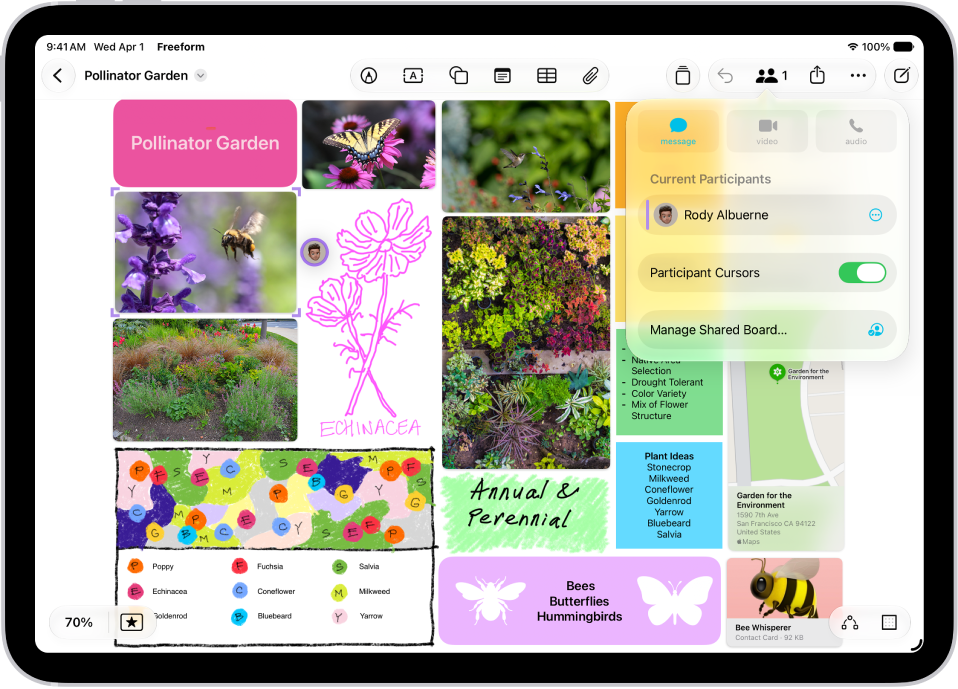
A Freeform board with two other participants whose selections are marked with color tick marks.

Invite others to collaborate on a board

When you’re working on a shared Freeform board, you see edits as others make them. Because changes are saved in iCloud, anyone with access to the board sees the latest version each time they open it.

Note: Items in a board don’t affect participants’ iCloud storage, since boards are stored only in the owner’s iCloud.

  1. Go to the Freeform app on your iPad.
  2. Do one of the following:
    • While browsing All Boards: Touch and hold the board you want to share and tap Share.
    • From inside a board: Open the board you want to share (or tap the New Board button to start a new one). Tap the Share Board button.
  3. The current sharing setting is described below the name of the board, such as People you choose can edit. Tap the setting to change it. See Change access and permissions for boards and folders.
  4. Choose how you want to share the board—such as in Messages or Mail—or tap the icon of anyone you communicated with recently to share with them.

You can add people after you start sharing a board. Tap the Collaborate button, tap Manage Shared Board, then tap Share With More People. When you share with others in Messages, the Collaborate button tap may change to reflect who shares the board with you.

Note: Everyone you share the board with has to be signed in to their Apple Account on iOS 16.2, iPadOS 16.2, macOS 13.1, or later before they can edit or view it. For collaborating in Messages, you and anyone you invite must also turn on iMessage.

Share a folder

Share a folder of Freeform boards so you can work with others on them.

Note: You can only share a top-level folder.

  1. Open the Freeform app on your iPad.
  2. Create a folder.
  3. Touch and hold the folder, then tap Share.
  4. In the share sheet, choose how to send the invitation, set permissions and then send. Anyone you invite gets access to all the boards and subfolders in the folder, including ones added later.
  5. To set permissions, do any of the following:
    • Let others add and edit boards in the folder: Choose Can Make Changes.
    • Let others open boards without editing or adding new ones: Choose View Only.
  6. To add participants, touch and hold the shared folder, tap Manage Shared Folder, and then tap Add People.

If you’re not the owner of the folder, you won’t see Manage Shared Folder.

View others in a board

You can see in real time where others are working on your board, or follow a participant as they move around it. If someone is presenting a design proposal on a Freeform board, for example, following them shows you where they are on the board and what they see.
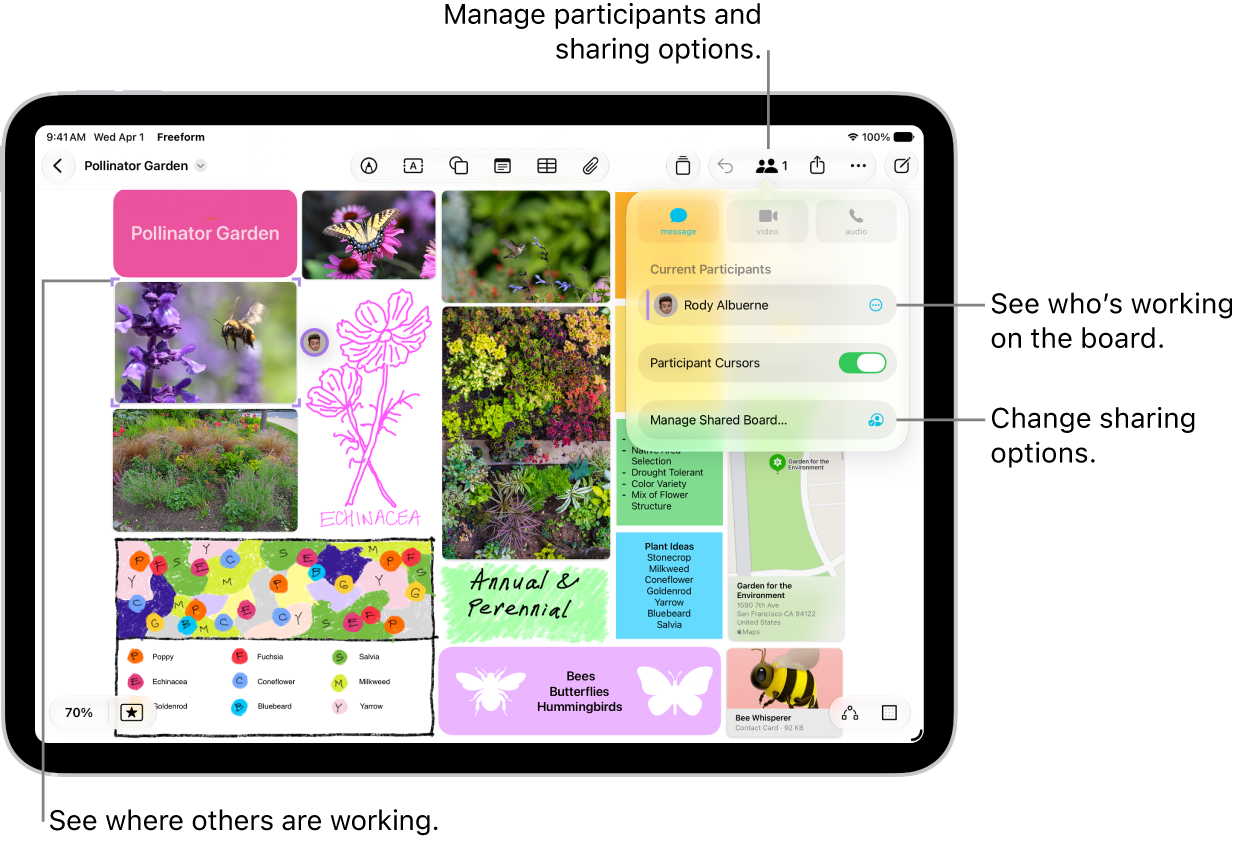
A shared Freeform board on iPad with the collaboration menu open and the location other participants on the board marked with color tick marks.

  1. Open the Freeform app on your iPad.
  2. Open the shared board where you want to see others at work. Tap the Collaborate button.
  3. Turn on Participant Cursors if the setting is off.
  4. Do any of the following:

    • Jump to where they’re working: Tap the name of a participant.
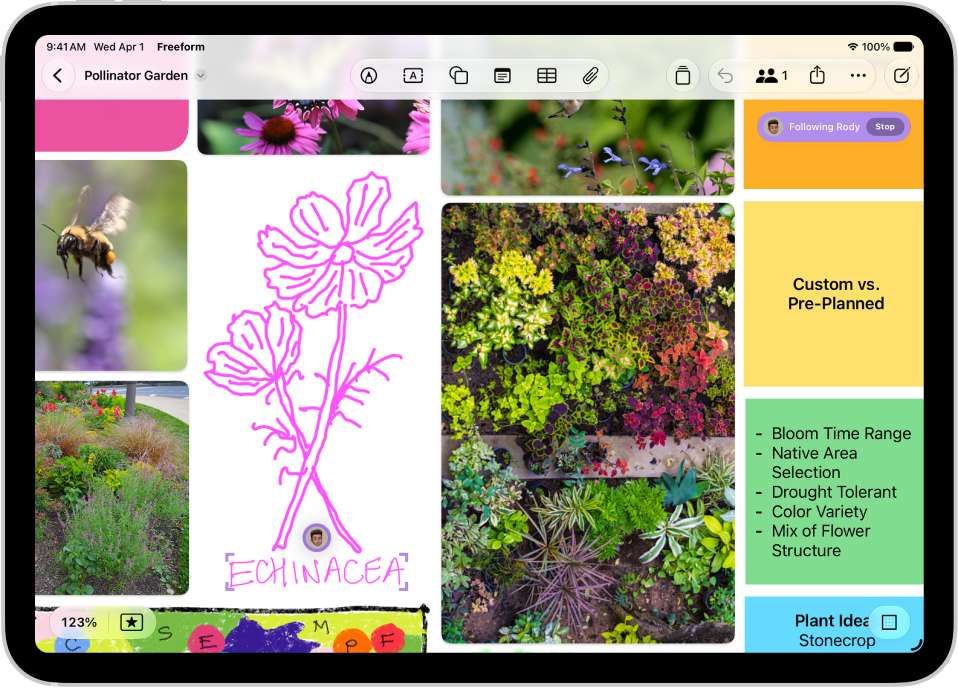
      The color next to the participant’s name matches the color marking their place on the board.

    • Follow their board view as they work or present: Tap the More button next to the name of a participant. Tap Follow Along. Or you can just tap the person’s avatar wherever they are on the board. Tap Follow.

      Anything you’d selected before entering the mode is deselected. A border (with a color matching the cursor of the person you’re following) frames what they see on the board.

      Both you and the presenter you’re following need to be online.

Someone is following another person’s Freeform board. The other person’s selection is marked with and avatar and color tick marks.

As you follow along, the zoom level is based on the other person’s view, and you can’t select anything on the board.

To stop following along, tap Stop in the top-right corner—or just scroll, zoom, or edit.

Note: While the board is open, others working with you on it can only undo and redo their own changes. The Undo button moves through the changes you made on your own iPad, and to redo a change you’ve undone, touch and hold the Undo button and tap Redo.

Add accessibility descriptions

You can add a description of your visual content to any item on your board. That way, people who use assistive technology such as VoiceOver can hear the visual content described aloud. (Descriptions aren’t visible on the board itself.)

  1. Open the Freeform app on your iPad.
  2. Open the board where you want to add accessibility descriptions.
  3. Tap to select the item you want to describe and tap the More button in the formatting tools. Then tap Description.
  4. Enter a description of the visual content. Tap the Done button.
  5. To hear the description, turn on VoiceOver and then tap the item.

Stop sharing or collaborating

  1. Open the Freeform app on your iPad.
  2. Touch and hold the shared board or folder. Then tap Manage Shared Folder.

    If you’re already in a board, tap the Collaborate button, then tap Manage Shared Board.

  3. Do any of the following:

    • Remove individuals: Tap the name of the participant you want to remove. Then tap Remove Access.
    • Remove yourself from someone else’s board or folder: Tap your name, then tap Remove Me.
    • Stop sharing with everyone: Tap Stop Sharing and then tap Stop Sharing.

      When you choose this option, the board no longer appears on the devices of the other participants, even though you still have access to it.

      When you stop sharing a folder, the people you shared with lose access to all the boards and subfolders inside it.

You can change access and permissions for individuals or for everyone after you start sharing a board.

To use the collaboration features fully, all participants must be online, signed in to their Apple Account, have Freeform turned on in iCloud, and have set up two-factor authentication.

See also

You can customize the settings for the Freeform app.

You can change access and permissions for boards and folders you share, change a board’s background, and align items more easily. A list of participants shows who has access to a board or folder, and you can grant individuals access, permissions, or even co-ownership. You can also use a dark canvas for a board.

Here’s how to change your Freeform settings on iPad.

Change access and permissions for boards and folders

You can change access and permissions for individuals or for everyone after you start sharing or collaborating on boards and folders.

  1. Open the Freeform app on your iPad.
  2. While viewing All Boards or the folder list, touch and hold the shared board or folder and then tap Manage Shared Board (or Folder).

    A list of participants appears, showing who has access to the board or folder.

  3. Do any of the following:

    • Grant individuals access, permissions, or co-ownership: Tap a participant’s name and then adjust their settings.
    • If you own the board, change access or permissions for all: Tap Sharing Options and then adjust settings for everyone.
    • Invite others with a link: Tap Sharing Options and tap Anyone with the Link, tap the Back button. Then tap Copy Link.
      • Note: Anyone can copy the link to send to others, but if you select People You Choose, then only those invited to open the board can use the link. If you don’t want to review individual requests to view or edit the board or folder, turn off Access Requests.

Quick tip: You can manage any board while you’re working on it: Tap the Collaborate button, then tap Manage Shared Board.

Change a board’s background

If Dark Mode is on, a board can have a dark canvas with controls to match. And to see more easily whether items line up, you can show a grid of gray dots on your board.

  1. Open the Freeform app on your iPad.
  2. Open a board, or tap the New Board button to start a new one.
  3. Tap the More button and then do any of the following:
    • Use a dark canvas: Tap Show with Dark Background. If you don’t see it, make sure you turned on Dark Mode.
    • Use another color in the background: Freeform boards have a black or white background. To define a workspace within your board that has a different background color, add a large rectangle of any color and then send it to the back and lock it. See Position items on a Freeform board.
    • Add or remove the dot grid background in full-screen view: Tap the View Options button in the lower-right corner.
    • Add or remove the dot grid background in smaller windows: Tap the More button and tap View Options. Then tap Hide Grid or Show Grid. See Work with multiple windows at once.

Align items more easily

You can make edges and points align to the nearest dot on the grid as you resize or move an item. You can also use alignment guides to help you place items more precisely. When guides are on, they appear as you drag an item on a board and it aligns with another item.

  1. Open the Settings app on your iPad.
  2. Tap Apps, then tap Freeform.
  3. Turn on Snap to Grid, or turn on or off any of the following:
    • Center Guides: These appear when the midpoints of items align.
    • Edge Guides: These appear when the edges of items align.
    • Spacing Guides: These appear when three or more items are equally spaced in a line.

You can also access these settings when you’re working in a board. Tap the More button, tap Alignment Settings, then tap Snap to Grid or turn on the guides you want to use. Or turn them off if you don’t want them appearing as you move items near one another on the board.

Get math hints

You can choose how you want your iPad to respond to the math problems you enter.

  1. Open the Settings app on your iPad.
  2. Tap Apps, then tap Freeform.
  3. Tap Math Results, then select one of the following:
    • If you want problems to be solved automatically: Choose Insert Results. (The answer appears in writing that matches your own.)
    • If you want suggestions to appear: Choose Suggest Results. (A Solve button appears that, when tapped, adds the answer in writing that matches your own.)
    • If you don’t want to see math results: Choose Off.

You can also access these settings when you’re working in a board. Tap the More button, then tap Math Results.

Store your Freeform boards in iCloud

  1. Open the Settings app on your iPad.
  2. Tap your name, then tap iCloud.
  3. Tap See All, then turn on Freeform.

Sort your boards or folders

  1. Open the Freeform app on your iPad.
  2. Tap the Grid View button or the List View button to switch between grid and list view.
  3. Tap the More button and then do any of the following:
    • List boards alphabetically (instead of by most recently updated): Tap Sort by Name.
    • Change how boards and subfolders are listed: Choose Sort by Date, Name, Kind, or Shared By. To switch to descending order, tap the Sort Order button next to the sort name.
    • Categorize boards by how long ago they were last opened: Tap Sort by Date, then tap Use Groups.
    • Categorize boards by board owner: While viewing Shared, tap Use Groups.

Change Freeform privacy and analytics settings

Apple collects a variety of data, some of which is associated with your Apple Account. You can limit the use of certain analytics data or reset your identifier specifically used by apps in Apple Creator Studio.

  1. Open the Settings app on your iPad.
  2. Tap Apps, then tap Freeform.
  3. Turn on or off either of the following:
    • Share Analytics Data
    • Reset Identifier

If you use iCloud Passwords & Keychain, turning off analytics or resetting your identifier affects your devices with iCloud Passwords & Keychain turned on.

See also

You can move, rotate, or resize items on your Freeform board. You can align, distribute, or group them, and move them to the background or foreground. You can also lock items when you want to prevent any further changes.

You can move an item in a straight line, resize it, and even match its size to another item on your board.

Here’s how to position items on a Freeform board on iPad.

Move, rotate, or resize an item

  1. Go to the Freeform app on your iPad.
  2. Open a board, select an item you want to position by tapping it, and then do any of the following:

    • Reposition it: Drag from the center of the item.
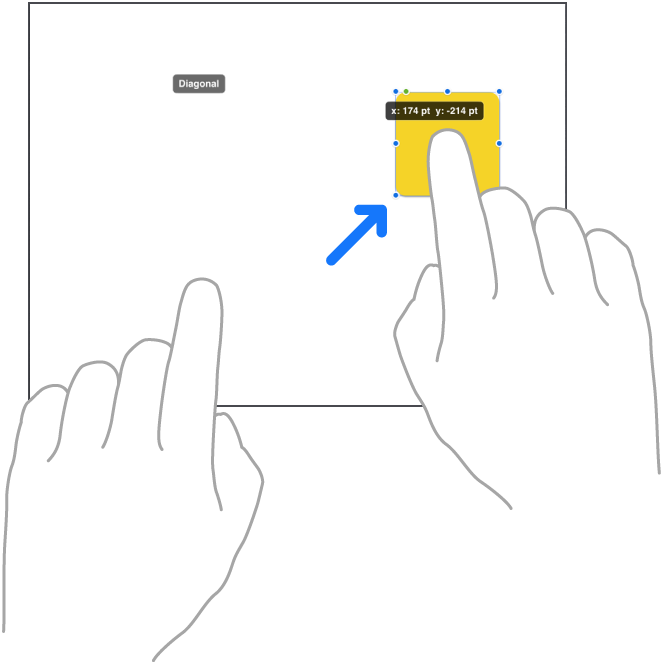
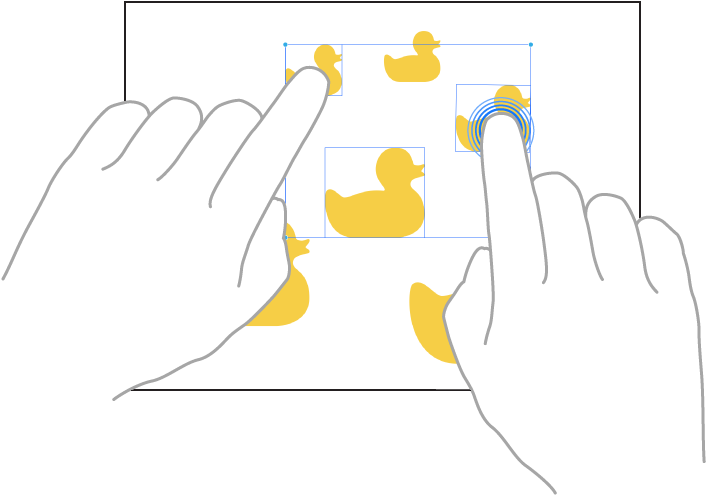
    • Move it in a straight line: To constrain an item’s movement horizontally, vertically, or diagonally, drag the item with one finger while you use another finger to touch and hold anywhere on the board.

      Two fingers of a hand moving an item in a straight line in Freeform.

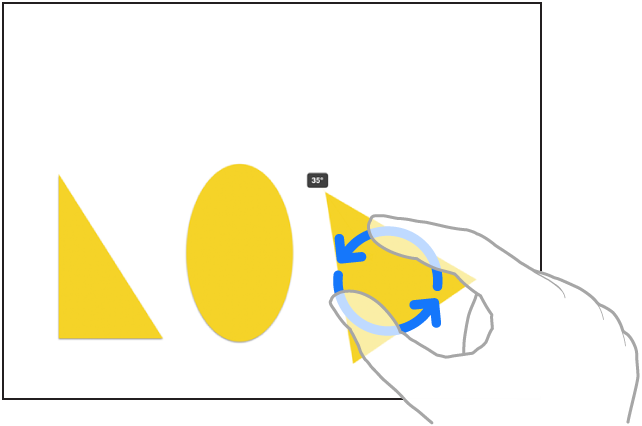
    • Rotate it: Place two fingers on the item and turn your hand in the direction you want to rotate it.

      Two fingers of a hand selecting and rotating an item in Freeform.

    • Put it in the background or foreground: Tap the More button in the formatting tools and tap Back or Front.
    • Resize it: Drag a blue dot.

      In text boxes, drag a green dot to resize both the box and the text within it.

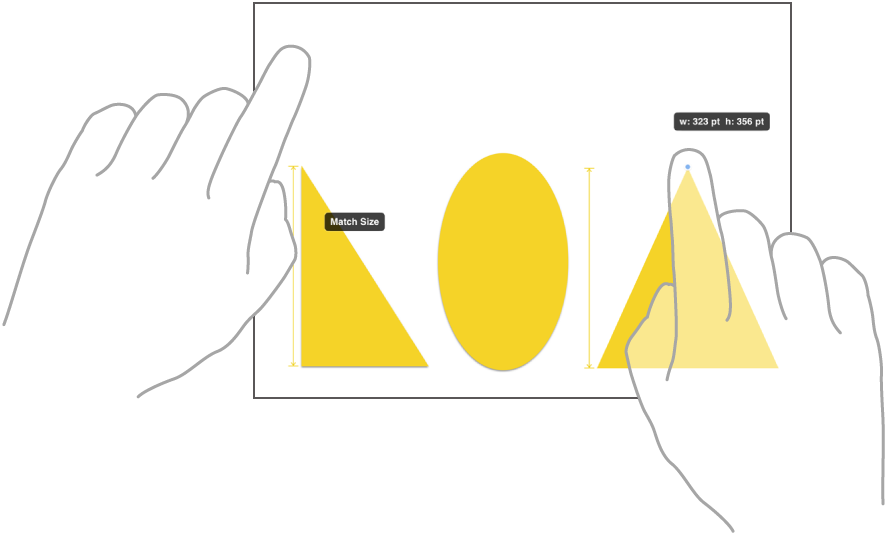
    • Match its size to another item: Start resizing and then use a second finger to touch and hold the item whose size you want to match. When the words Match Size appear, lift both your fingers at the same time.

      Two fingers on two hands selecting and matching the sizes of two items in Freeform.

Select, align, and group multiple items on a board

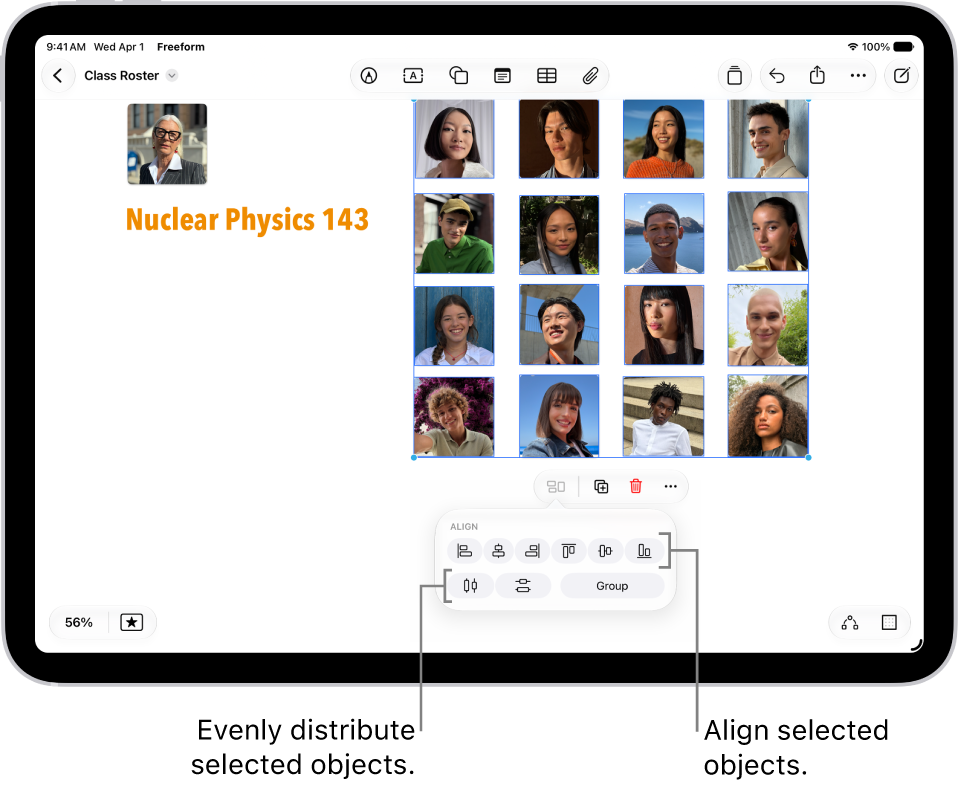
With items on a Freeform board, you can select multiple items and line them up relative to one another. Group several items, and you can move, rotate, or resize them together as a single unit.

A Freeform board filled with a grid of photos. Several photos are selected, and the alignment and grouping tools appear below them.

  1. Open the Freeform app on your iPad.
  2. Open a board. Select multiple items by doing one of the following:

    • Touch and hold an item on your board, then, with another finger, tap other items.

      Two fingers selecting items in Freeform.

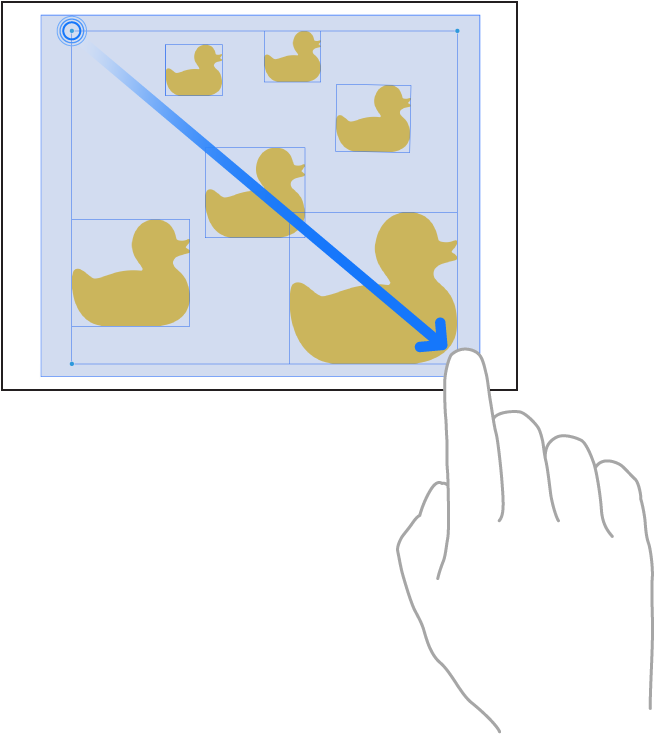
    • Touch and hold the canvas, then drag the box that appears around the items you want to select.

      A finger dragging to select items in Freeform.

    • Tap an empty space on the canvas, then tap Select Objects. Tap each item you want to select. To deselect an item, tap it again.
  3. Move, rotate, or resize the selected items, or tap the Arrange button. Tap an alignment option or Group.

    Some items—such as 3D objects—can’t be grouped.

Arranging items gets easier when you turn on the background dot grid and automatically align items to it.

Select items and scroll with Apple Pencil

In Freeform, Apple Pencil works as a drawing and writing tool by default. If you’d also like to use Apple Pencil to select items and scroll, you can change this setting.

  1. Open the Settings app on your iPad.
  2. Tap Apps, then tap Freeform.
  3. Below Apple Pencil, turn on Select and Scroll (green is on).

After you change this setting, tap the Drawing and Handwriting Tools button in the toolbar to draw. Tap the button again to use Pencil to select and scroll.

Lock an item on a board

After you add an item to a Freeform board, you can lock it so you don’t inadvertently move, modify, or delete it. For example, you might lock one or more text boxes to serve as headings. (This could help set off areas on a board where participants can share items.)

  1. Open the Freeform app on your iPad.
  2. Open a board. Tap a drawing, shape, text box, or other item on your board to select it.
  3. Tap the More button in the formatting tools and tap Lock.

Quick tip: To define a workspace for your participants instead of a wide open canvas, try adding a large rectangle shape. Then select the shape and tap the More button in the formatting tools before you tap Back and lock it.

See also

The Freeform app gives you a boundless canvas for creativity. You can bring photos, drawings, links, and files together on an online whiteboard, invite others to work with you in real time, and brainstorm, sketch ideas, or take notes by yourself or with a group.

You can put just about any kind of file in a board without worrying about layouts or page sizes, and add sticky notes to brainstorm or provide feedback. Boards you store in iCloud are on your iPhone or Mac, too, so you can keep working there.

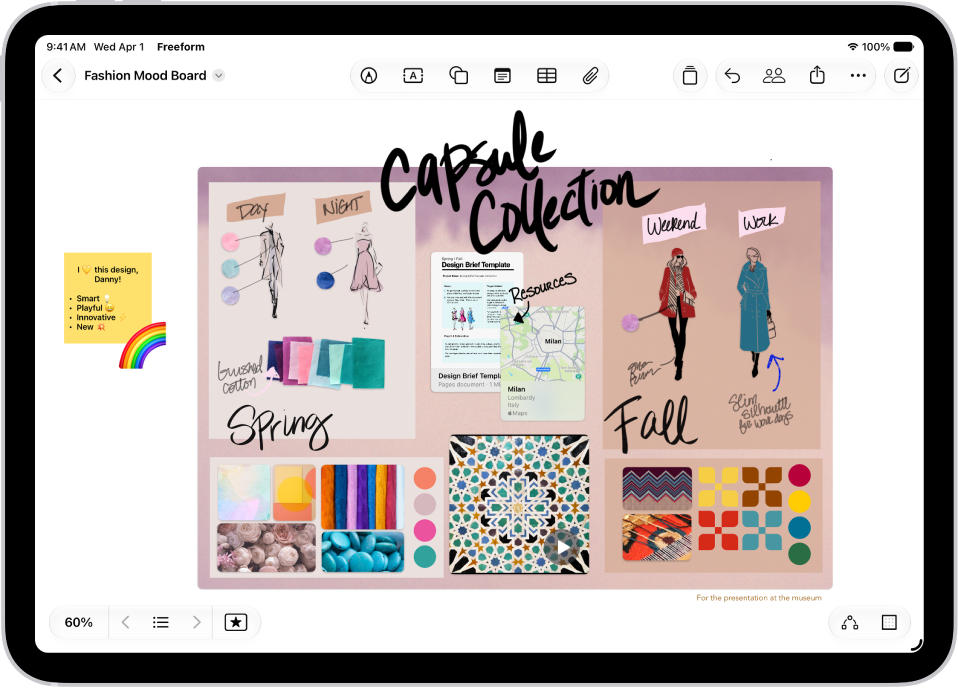
An iPad with the Freeform app open. The board includes handwriting, text, drawings, shapes, photos, videos, sticky notes, links, and other files.

Gather ideas freely

You can put just about any kind of file in a Freeform board without worrying about layouts or page sizes. To create a board, tap the New Board button, then tap the Insert button or another option at the top of the screen to start adding your ideas.

A Freeform board with two other participants whose selections are marked with color tick marks.

Collaborate with others

Tap the Share Board button to invite people to start working together in real time on a board. To conduct a brainstorming session or provide feedback, add a sticky note—tap the Add Sticky Note button.

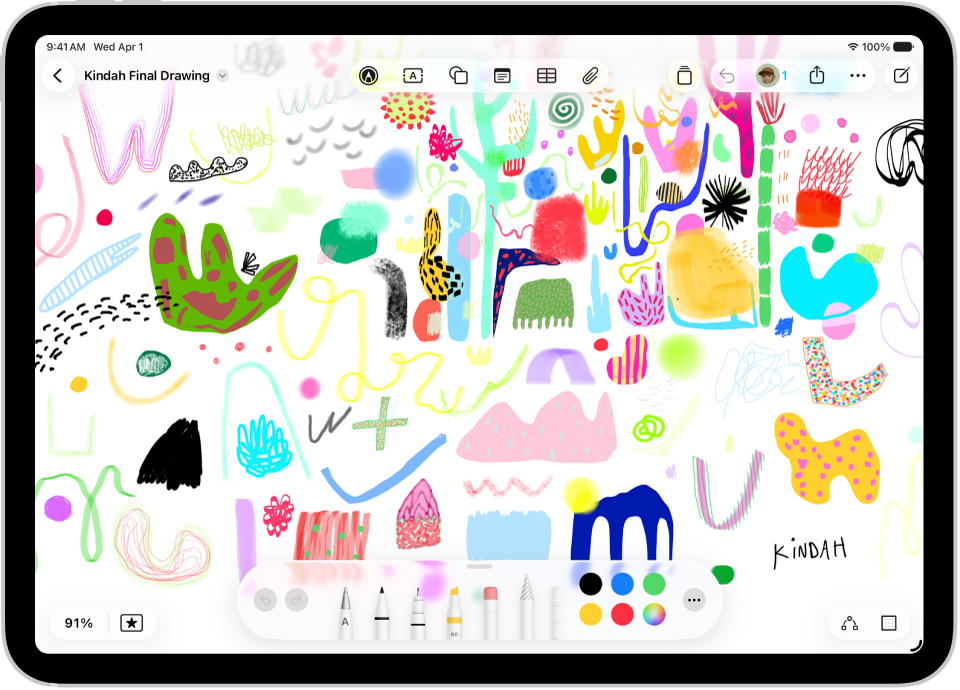
An iPad with a Freeform board that includes handwriting and drawings.

Get creative with the drawing tools

Tap the Drawing and Handwriting Tools button (or just use your Apple Pencil) to start drawing. Tap a tool to adjust the line’s thickness, transparency, color, and more. Pinch to zoom in and out as you work.

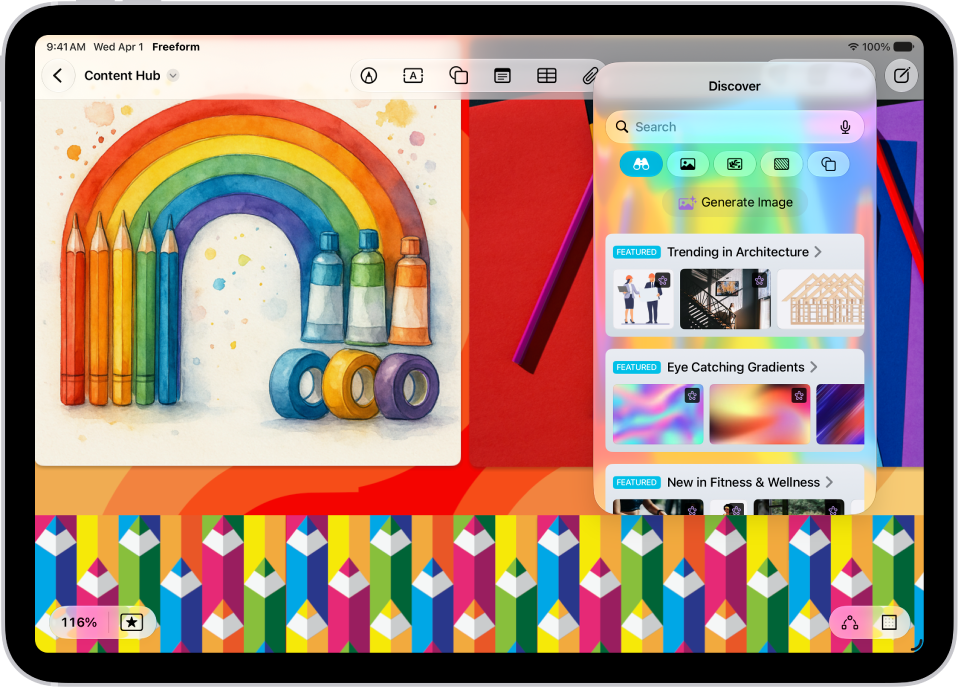
An iPad with the Freeform app open to the Content Hub in Apple Creator Studio. Premium and generated images are placed on the board.

Everything you need in one place

An Apple Creator Studio subscription unlocks a rich library of premium content, along with AI-powered features like automatic cropping and photorealistic image generation.

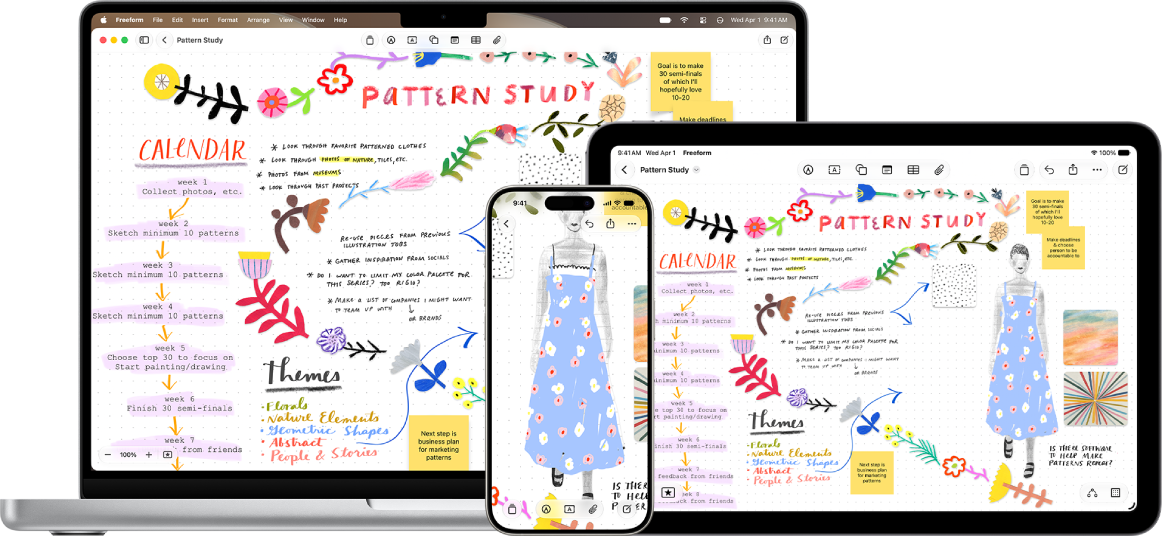
A Mac, iPad, and iPhone with the same Freeform board open.

Start on your iPad, keep working on your iPhone or Mac

The Freeform boards you store in iCloud—and any changes you make to them—stay up to date on all your Apple devices when you’re signed in to the same Apple Account. To use iCloud with Freeform, go to the Settings app, then tap your name. Tap iCloud, tap See All (in the Saved to iCloud section), then turn on Freeform.

There’s plenty more you can do with Freeform, and these guides are a good place to start:

When you want the text in your sticky notes, shapes, or text boxes to have a consistent look in Freeform, like the font, size, and color, you can copy the style from one item and paste it in another.

Depending on the item you paste into, fonts, line weight, or color are matched. If you like an item’s style, you can also save it, and every new item like that on your board uses the saved style.

  1. Go to the Freeform app on your iPad.
  2. Tap an item on a board and make any adjustments to the formatting—so it has the style you want to copy.
  3. When you have an item that’s formatted in a style you like, tap it to show its formatting tools.
  4. Tap the More button and tap Style. Tap Copy Style.
  5. Tap to select and show the formatting tools for an item whose style you want to change.
  6. Tap the More button, tap Style, and then tap Paste Style.

    Depending on the item you’re pasting a style into, fonts, line weight, or color are matched.

    For linked or placed files, pasted styles update corners and shadows.

Quick tip: When you like an item’s style, you can save it, and every similar item you add to your board afterward uses the saved style. To save it, tap to select the text box, tap the More button, and tap Style, then choose Save as Insert Style.

See also

On supported models, you can save a list of all the measurements you take in a single session, complete with screenshots, so you can easily share and access them whenever you need them. You can copy them into another app, like Notes, though people’s height measurements aren’t included in the list.

  1. Go to the Measure app (in the Utilities folder) on your iPad.
  2. Tap the History button to see a list of your recent measurements.

    Swipe up from the top of the list to see more measurements.

  3. To save the measurements, tap Copy, open another app (for example, Notes), tap in a document, and then tap Paste.

    Note: People’s height measurements aren’t included in this list. To save a person’s height measurement, see Measure a person’s height.

See also

Tag: Measure

You can use your iPad camera to measure nearby objects and surfaces. You can manually set the start and end points of a measurement, have iPad automatically detect the dimensions of rectangular objects, and more.

For best results, use Measure on well-defined objects 0.5 to 3 meters (2 to 10 feet) from iPad. Measurements are approximate. While you’re measuring, a green dot appears at the top of the screen to show that the camera is in use.

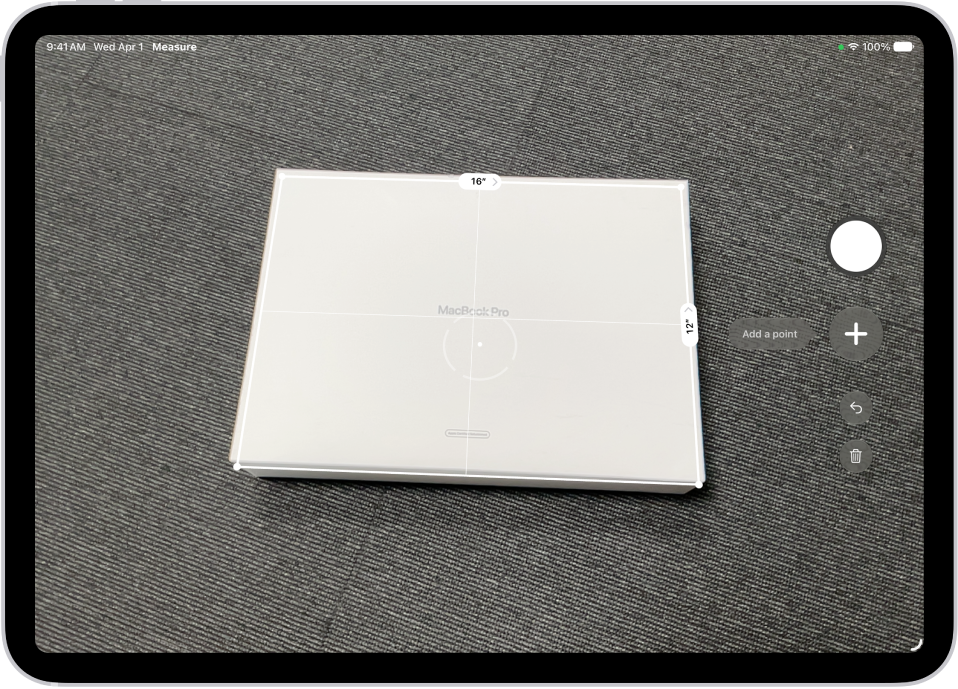
A screen showing the measurement of the dimensions of a box in the Measure app. The area of the box is calculated from the measurements of the dimensions.

Note: Measure works on external displays without turning on mirroring in Control Center, and the image you see on your iPad appears larger on the external display.

Start a measurement

  1. Start the Measure app (in the Utilities folder) on your iPad.
  2. Use the iPad camera to slowly scan nearby objects.
  3. Position iPad so that the object you want to measure appears on the screen.

Note: For your privacy, when you use Measure to take measurements, a green dot appears at the top of the screen to indicate your camera is in use.

Take an automatic rectangle measurement

  1. Start the Measure app (in the Utilities folder) on your iPad.
  2. Use the iPad camera to slowly scan nearby objects.
  3. When iPad detects the edges of a rectangular object, a box frames the object; tap the box to see the dimensions.
  4. To take a photo of your measurement, tap the Take Picture button.

Take a manual measurement

  1. Start the Measure app (in the Utilities folder) on your iPad.
  2. Align the dot at the center of the screen with the point where you want to start measuring. Tap the Add button.
  3. Slowly pan iPad to the end point. Then tap the Add button to see the measured length.
  4. To take a photo of your measurement, tap the Take Picture button.
  5. Take another measurement, or tap Clear to start over.

    To start over on supported models, tap the History button, then tap Clear All.

Use edge guides

Guide lines that appear automatically on supported models help you measure the height and straight edges of countertops, furniture, and other objects.

  1. Start the Measure app (in the Utilities folder) on your iPad.
  2. Position the dot at the center of the screen along the straight edge of an object until a guide appears.
  3. Tap the Add button where you want to begin measuring.
  4. Slowly pan along the guide and tap the Add button at the endpoint to see the measured length.
  5. To take a photo of your measurement, tap the Take Picture button.

Use Ruler view

Supported models also offer Ruler view, for more detail in your measurements.

  1. Start the Measure app (in the Utilities folder) on your iPad.
  2. After measuring the distance between two points, move iPad closer to the measurement line until it transforms into a ruler, showing incremental units of length.
  3. To take a photo of your measurement, tap the Take Picture button.

See also

Tag: Measure

On supported models, you can instantly measure a person’s height from the floor to the top of their head, hair, or hat, and even measure a person’s seated height in the Measure app.

A line appears at the top of the person’s head, with the height measurement just below it, and you can take a photo of the measurement. You can access and share that image from Photos or Files whenever you want, and reset the height to take the measurement again.

  1. Go to the Measure app (in the Utilities folder) on your iPad.
  2. Position iPad so that the person you want to measure appears on the screen from head to toe.

    A line appears at the top of the person’s head (or hair, or hat), with the height measurement showing just below the line.

  3. To take a photo of the measurement, tap the Take Picture button.
  4. To save the photo, tap the screenshot in the lower-left corner, tap Done, and choose Save to Photos or Save to Files.

    You can easily access and share the height measurement image from Photos or Files on iPad whenever you want.

To reset the height and take the measurement again, turn iPad away for a moment.

Tag: Measure

You can add and delete photos and videos in a shared album. You can also save photos and videos from a shared album to your photo library.

When you add new photos, everyone you share the album with is notified automatically, and everyone can react with emoji and comments. Those comments and reactions are visible to all participants, and you can view shared album activity, too.

Here’s how to contribute to a shared album on iPad.

Add photos and videos to a shared album

  1. Start the Photos app on your iPad.
  2. Tap Collections.
  3. Tap Shared Albums and tap an album.
  4. Tap the More button and then tap Add Photos.
  5. Select the photos and videos you want to add, then tap the Done button.

When you add new photos, the people you share the album with are automatically notified.

Comment and react to shared album content

You can react to content in a shared album with emoji and comments that all participants can see.

  1. Start the Photos app on your iPad.
  2. Tap Collections.
  3. Tap Shared Albums and tap an album.
  4. Tap a photo or video and then tap the Reactions button to react with an emoji, or tap the Comment Lines button to enter a comment.

To delete a comment, touch and hold it, then tap Delete. You can delete only your own comments, unless you’re the album organizer, who can delete any comment.

View shared album activity

  1. Start the Photos app on your iPad.
  2. Tap Collections.
  3. Tap Shared Albums and tap Activity.
  4. The latest contributions to your shared albums are shown here.

    Tap the Updates button to see a detailed feed of all activity in your shared albums.

Tap the Reactions button or the Comment Lines button below a contribution to leave a reaction or comment. Tap the More button to save content someone else contributed or to delete content that you contributed.

To view activity for a specific shared album, tap the album, then tap the Conversation button.

Filter shared album content

  1. Start the Photos app on your iPad.
  2. Tap Collections.
  3. Tap Shared Albums and tap an album.
  4. Tap the Sort and Filter button, tap Media Types or Shared By, and tap a filter option.

To remove the filter, tap the Sort and Filter button, then tap Remove Filter.

Delete photos, videos, and comments from a shared album

An organizer can delete any photos, videos, or comments in a shared album, while participants can’t delete anything but the content they personally added. Anything deleted disappears automatically from the shared album on all your devices and on every participant’s devices.

  1. Start the Photos app on your iPad.
  2. Tap Collections.
  3. Tap Shared Albums and tap an album.
  4. Do either of the following:
    • Delete multiple items: Tap Select, tap the items to delete and tap the Delete button. Then tap Delete from All Devices.
    • Delete a single item: Tap the photo or video, tap the Delete button, and then tap Delete from All Devices.

To delete a comment, touch and hold it, then tap Delete. You can only delete your own comments unless you’re the album organizer, who can delete any comment.

Save photos and videos from a shared album to your library

  1. Start the Photos app on your iPad.
  2. Tap Collections.
  3. Tap Shared Albums and tap an album.
  4. Tap the More button. Then tap Save All Shared Items or Save Remaining Items.

To save a single photo or video, tap the image to open it, then tap the Save button.

See also

Tag: Photos

If you created a shared album, you can invite more participants to join the album. You can also remove participants, manage album notifications, let other participants manage the album, and turn posting for participants off and on.

By default, all participants can view and comment on album content, but you can change each person’s permissions to Can Manage Album and Photos, Can Add Photos, or Can View and Comment.

Here’s how to add and remove people in a shared album on iPad.

Add participants to a shared album

  1. Open the Photos app on your iPad.
  2. Tap Collections.
  3. Tap Shared Albums and tap an album.
  4. Tap the Manage Shared Album button and tap Invite Participants.
  5. Tap a share method, enter the recipients’ details, and then send the invite.

Manage participant permissions

The organizer of a shared album can manage participant permissions. By default, all participants can view and comment on album content, contribute photos and videos, and remove any content they contributed. You can change these permissions:

  1. Open the Photos app on your iPad.
  2. Tap Collections.
  3. Tap Shared Albums and tap an album.
  4. Tap the Manage Shared Album button, tap a participant, and then tap one of the following:
    • Can Manage Album and Photos: The participant can invite other participants, rename the album, update permissions, and delete photos or videos added by others.
    • Can Add Photos: The participant can share photos and videos and remove content they contributed.
    • Can View and Comment: The participant can view and comment on photos and videos.
  5. Tap the Done button.

When participants post or comment in a shared album you’re a part of, notifications about the activity appear in the Albums Activity tab.

Remove participants from a shared album

  1. Open the Photos app on your iPad.
  2. Tap Collections.
  3. Tap Shared Albums, then tap an album you created.
  4. Tap the Manage Shared Album button.
  5. Tap the participant you want to remove.
  6. Tap Remove Participant at the bottom of the screen.

See also

Tag: Photos