Got a tip for us?

The vast majority of people love Android phones because of the different options of hardware and software customization that they have. However, if you happen to ask someone to recommend a good smartphone in 2024, they will probably ask you to buy an iPhone over an Android phone. So the big question is, what are the advantages of an iPhone over an Android phone? In this article, i’m going to explain 10 benefits of having an iPhone over Android smartphone in 2024.

If you traverse across the Internet, you are likely to come across loads of Android fanboys making some pretty unflattering statements about iPhone users, or iPhone fans saying negative things about Android users.
But frivolous altercation aside, what are the advantages of iPhones over Android phones?
The short answer: The iPhone is user-friendly, has a sleek design, and it is very fast as far as its browsing speed is concerned.

Having said that, certain Android fanboys can’t really understand why people like Apple’s operating system, iOS.

what are benefits of iPhones over android phones?

If you ask iPhone users this question, they will most likely point out Apple’s Cleaner interface and design, data privacy, security or how simple it is to get an iPhone working right out of the box, or that they don’t need to take the time to customize a new phone extensively. They also love features such as iMessage, or they like some of the native apps that come pre-installed on a new iPhone, such as Books or Health. Now, let’s look at the major advantages of iPhones over Android phones.

10 Advantages of an iPhone over an Android Phone

Here are ten advantages of having an iPhone over Android:

#1. iPhone is more user-friendly

Even though most Android phone creators try their best in producing these phones, iPhones remain to be the easiest phone to use until now. The look and feel of iOS has not changed over the years. This has been one advantage of iPhone over android phones because it works pretty much the same way in 2024 it did in 2008. You just pick up, switch it on, and touch the app you want to open. Despite Apple making some improvements over the years like Control Center, the iPhone is still very easy to learn.   

#2. iPhones have extreme security

Another advantage of iPhone over Android phones is security. If you use your phone to access your email or social networks, log on to your bank’s website or mobile app, send texts, store contacts or take selfies, Then security should be of concern, as this data could be valuable to cybercrooks and potentially harmful to you or your loved ones.And then the US Federal Bureau of Investigations (FBI) revealed to the world that even with physical possession of someone’s iPhone, it takes the assistance of an exceptionally skilled hacker to break into it and access the data. And that’s on a 32-bit phone. Apple doesn’t even make 32-bit phones anymore. They don’t expect iPhones to get infected. One of the biggest myths about iOS is that the operating system is immune to malware. However, iOS apps can still be infected with malware – there was the XcodeGhost debacle where hundreds of apps were found to include a counterfeit version of Xcode, the platform used by developers to build their apps.And using free wi-fi networks is just as big of a risk on iOS as it is on Android. However, Apple does take security seriously, releasing updates to all iOS devices directly, which helps contain any breaches upon becoming aware of them, and disinfecting everybody’s devices, regardless of who their carriers are. Google can’t do that for Android users, unless they have a Pixel or Nexus.

#3. iPhones works beautifully with Macs

If you’re shopping for a new smartphone and already have Apple products, like a Mac or an iPad, it makes sense to consider buying an iPhone. There are a variety of third-party apps you can use across your devices from different manufacturers. In addition, the Continuity feature in Apple products is really nice too. One good example is Handoff. If you own a mac, you can start working on a note on your iPhone and hand it off to your Mac to continue working on it. Also, you can send or receive messages from your mac even if your iPhone is 1000 miles away or turned off. How about that? Androids don’t get those.

There’s also AirDrop, which allows you to easily transfer photos, Videos and other files over Wi-Fi from your iPhone to a MacBook. And with iCloud keeping everything in sync, you have access on your Mac to the photos on your iPhone, and any notes or documents you create.They don’t want bloatware added by the carrierOn most Android phones, the carrier you purchase your phone through can add all kinds of apps and bloatware, and some can’t be uninstalled.This may not be a big problem when you have a brand new phone, but a year or two in when you need more storage space, you won’t be looking at those unwanted apps kindly.An iPhone, however, allows you to delete any unwanted apps when you set up your new phone. and starting with iOS 12, you can easily disable built-in apps you don’t need.

#4. You can update iOS in iPhone whenever you want

Another major advantage of iPhone over android is that you can update iOS in iPhone whenever you want. As detailed on the Apple Developer website, almost 80% of all iOS devices are running the latest version of the operating system introduced last year. When considering only iPhones introduced in the last four years, iOS 17 is installed on 86% of devices. On the other hand, Android 14 is installed on 28.08% of the Android devices.

#5. Resale Value: iPhone Keeps Its Worth.

iPhones tends to hold their value pretty well. It’s easier to resell an iPhone than an Android phone if you want an upgrade. Though some Android devices also hold their value quite well, the cost of the upgrade is less painful for iPhone users.

#6. Apple Pay for mobile payments

Although Android manufacturers are trying to make Android Pay work, Apple Pay is the most popular method for making mobile payments. It is also very easy to use.
You can use Apple Pay by bringing your iPhone near the supported payment terminal at the checkout corner and then authenticate the payment with your phone’s Face ID or touch ID sensor. Apple Pay also supports reward cards and store issued credit card from a wide-range of companies. All of these are stored in the new Apple Wallet app.

#7. Family Sharing on iPhone saves you money

Family Sharing feature lets you share your purchases from App Store, iTunes, and iBooks with other people, even if they have their own separate accounts. Ideally, these other people are your family members, but there’s nothing to prevent you
from sharing your purchases with, say, your friends or roommates.
You can share these with your family with up to six people. By the way, when children want to make a purchase, you will receive an alert so you can also keep control on the stuff they buy in order to keep the bill under control. Other family sharing features include a shared calendar, shared photo albums and the ability to see where your kids are on a map at any time. Google still doesn’t offer these easy family sharing on Android devices.

#8. iPhones are generally faster than Android phones

Having used both platforms daily for years, I can say I’ve experienced way fewer glitches and slow-downs using iPhone. Performance is one of the area iOS beats Android most of the time. This seems ridiculous considering iPhone internals. The iPhone 15 Pro Max is currently the most powerful Apple smartphone and it features 6GB of RAM. Those specifications would be considered mid-range at best in the current Android world.

#9. Accessibility: iPhone is the king

iPhones are also preferred more over Android because of the accessibility features. In a head to head comparison, Apple is the accessibility king. Its built-in accessibility features, the many adaptive and assistive apps available, and ease of use make it the most preferred smartphone for the vast majority of people with disabilities.

For example, Apple’s iOS comes with a number of accessibility features (black on white, larger text sizes for default apps, interface zoom, etc.) that continue to be improved upon. Also, apple’s voiceover is acknowledged as one of its most useful accessibility feature. Voiceover is an accessibility feature that makes the iPhone and iPad easier to operate for the blind and visually impaired. With VoiceOver, anyone with a sight impairment can have their iPhone or iPad’s screen read to them, including buttons, icons, links, and other interface elements, and use gestures to navigate and select their options.through which they can easily operate and work through efficiently. It also has the feature of getting the light of the screen getting dimmed at night for the users who basically love to read the things at night.

#10. Apple provides the best Support

In general, both iPhone and Android phones work pretty well and, for day-to-day use, don’t usually malfunction. However, everything breaks down once in a while, and when that Happens, how you get support is very important.
If you have a problem with Android phone, you can search online forums or reach out to your carrier. But with the iPhone, you can tap into a vast database of useful help articles on Apple’s website itself and can get help via live chat or you can even make a genius bar reservation at your favorite Apple Store and get help from an Apple expert. Google still doesn’t offer this sort of direct relationship with its customers.

Advantages of an iPhone over Android? Now you know

With numerous benefits of having an iPhone over Android, it’s easy to figure out why iPhones are preferred more over Android device when it comes to recommending A friend or family member which phone to buy. iPhone provides much better technical support and it’s easy to update the latest iOS than in Android phones. Moreover, iPhone is preferred more than Android device when creating a new mobile app.
Thanks for reading.

Who doesn’t like tricks? We are not talking about the tricks in life, rather not a witty thing to do. But what you can do on your iPhone to improve productivity. Here are the best hands-on iPhone tips and tricks you can use to make your life easier. These iPhone hacks, tips and tricks will help you to use your iPhone in a most efficient way possible in 2023.

Best iPhone tips and tricks for 2023

Here are the best iPhone tips and tricks for 2023.

1. Your headphone can capture your photos

Yes, if those shaky hands fail to capture good photos , you can use the volume up and down buttons on your headphone to do the work for you.
Here’s how to capture an iPhone photo with your Apple EarPods or older earbuds.

  1. Plug your Apple earbuds into your iPhone.
  2. Launch the Camera app. …
  3. Choose a photo subject and steady your hand. …
  4. use either the volume up or down button on your earbud cable to capture the photo.

Read, How to use Apple EarPods like a pro

2. Shake and Undo

Why to bother fingers to delete a written text! Shake your
iPhone
and Undo typing to delete your message. Changed your mind? Shake again and tap on Redo
typing to get the original message back

3. Use Headphone Cord to Take picture

Shaky hands not getting you good pictures? Well you can trigger a snapshot using the volume up or down buttons on your headphone.

4. Save your data by deleting it

Do you know the iPhone feature that automatically deletes its data if an incorrect passcode is entered 10 times in a row? Sounds good, right? Simply follow these steps to enable this feature:

  1. Start the Settings app on your iPhone
  2. Scroll down and tap Face ID & Passcode
  3. Enter your passcode
  4. Switch on Erase Data

Read on for more iPhone tips and tricks.

5. Move cursor with space bar

Yeah, You heard it right.let your thumb rest and move the cursor while typing. You just have to long press the keyboard’s space bar, and then you can move the cursor wherever you want.

6. Set timer for Music

Don’t you sometimes fall asleep before turning off the music? Here’s how your Clock can set a timer to turn off anything you’re watching or listening to on your iPhone and iPad:

  1. Start the clock app on your iPhone
  2. Tap on Timer tab located at the bottom of the screen
  3. Choose the length of time
  4. Tap on When Timer Ends.
  5. Scroll down and tap Stop Playing.
  6. Tap Set in the upper right hand corner of the display

7. Calculate on the go!

Without having to open the Calculator, swipe right on your iPhone Home Screen and type in the search bar.

8. Battery draining?

Put your iPhone on Airplane Mode and then charge, it will speed up your iPhone’s charging process.

9. Stop Apps asking for Feedback

Disable those annoying Rating & Review Popups for App on your iPhone. Head over to Settings> Tap iTunes & App Store> Switch off App Ratings & Reviews

10. Get rid of annoying advertisements

Don’t allow the advertisements look at your personal stuff based on your search history. Head over to Settings> Privacy> Advertising> Switch on Limit Ad Tracking.

11. Silence unknown callers

stop pesky robocalls with this must-install trick.

  1. Start the Settings app on your iPhone
  2. Scroll down and tap Phone
  3. Toggle Silence Unknown Callers

12. Automatically close browser tabs

Want to automatically close Safari browser tabs to keep your web browser running more efficiently? Simply follow these steps:

  1. Start the Settings app on your iPhone
  2. Scroll down and tap Safari
  3. Tap Close Tabs
  4. You can set it to close your tabs after one day, week, month, or leave it on manual mode.

13. Start a group facetime call

You’ve probably FaceTimed a thousands times with your friends and family, but have you ever FaceTimed several of them simultaneously? Here’s how:

  1. Start the FaceTime app on your iPhone
  2. Tap the + button located at the top right hand corner of your screen
  3. Enter the name or number of the person you want to call first
  4. Enter up to 30 additional contacts
  5. Tap on Video or Audio to make your FaceTime call

14. Customize text messages when you ignore a call

We get it — you’re busy and sometimes you may want to ignore a call. But instead of leaving your friends or family members hanging, the least you can do is send
a text message. Sometimes you don’t have time for that. Thankfully, your iPhone has three pre-written options (“Sorry, I can’t talk right now,” “I’m on my way,” and
“Can I call you later?”), and of course the button that lets you type your own text. You may not have noticed you can customize and overwrite the other three
options. Simply follow these steps:

  1. Start the Settings app on your iPhone
  2. Scroll down and tap “Phone”
  3. Tap “Respond with Text”
  4. Choose the field you want to edit
  5. Type in new text

15. Add Multiple faces to Face ID

Want to register multiple faces to unlock your iPhone? Well, here’s how to do it!

  1. Start the Settings app on your iPhone
  2. Scroll down and tap Face ID & Passcode
  3. Enter your passcode
  4. Tap on Set Up an Alternate Appearance
  5. Scan your face and follow the on-screen instructions

16. Measure objects with your iPhone

It seems like any time you need to measure something, you can never find the tape measure to do it. Thankfully, you can use built-in measuring tool on your iPhone to measure rooms and objects. It’s not completely accurate, but it’s a useful tool to use when you need to measure an object or the distance between two things in a pinch. Simply follow these steps:

  1. Launch the Measure App
  2. Move your iPhone around so the device can scan the area
  3. Hold your iPhone so the camera is aiming at the object you want to measure
  4. Move your iPhone around until a white circle with a dot appear in the middle
  5. Line the white dot up with the edge of the item you want to measure
  6. Press the white button with the + sign
  7. Drag to opposite edge of item
  8. Press the white button with the + sign
  9. The app will show the approximate measurement

17. LIMIT IPHONE USAGE WITH SCREEN TIME

Guilty of using your iPhone too much? You can easily cut back on time spent on social media, online shopping, or scanning headlines with the help of
Screen Time. Here are the instructions for how to enable Screen Time:

  1. Start the Settings App on your iPhone
  2. Now, tap on Screen Time
  3. Next, tap on App Limits
  4. Next on, tap Add Limit
  5. Tap a Category
  6. Tap Add
  7. Choose the Time
  8. Tap the Top Left Arrow to Save

18. One-Handed Keyboard

iPhones displays are getting bigger, which makes typing challenging , particularly with one hand. Thankfully, you can enable one-handed keyboard feature on your iPhone
so you can use one hand to type and the other to do whatever else it is that you need to do. Simply follow these steps:

  1. Hold down the emoji or globe icon on the bottom left of the keyboard
  2. Choose the left- or right-handed keyboard icon
  3. Tap the arrow in the blank space that’s created by the keyboard shift to go back to normal

19. Mute text message threads

Getting multiple short texts from a friend? Here’s a super tip for you. You can hide text-message alerts so you won’t get disrupted with alerts every time you receive texts from a particular person or group. Simply follow these steps:

  1. Start the Messages app
  2. Swipe left on the text chat you want to mute
  3. Tap on Hide Alerts button

20. Type to Siri

Talking to Siri in public is somewhat crazy. Thankfully, you can use your finger rather than your voice to ask Siri questions. Here’s how:

  1. Start the Settings app on your iPhone
  2. Now, tap Accessibility
  3. Scroll down and tap Siri
  4. Toggle on Type to Siri

Also ensure your phone is on silent mode, or Siri will announce your answer to everyone.

21. Use the document scanner in the notes app

Want to scan a document quickly right from the Notes app? Simply follow these steps:

  1. Launch the Notes app
  2. Now, start a new note or open an existing one
  3. Next, tap on the + icon that’s located above your iPhone’s keyboard in the center
  4. Next on, tap Scan Documents
  5. Use the shutter button or one of your iPhone’s volume buttons to take a picture of your document
  6. Adjust the corners of the document by tapping and dragging them, if the need be
  7. Finally, tap Save

22. Edit Screenshots

Did you know your iPhone allows you to edit your screenshots before saving or sharing them? Simply follow these steps:

  1. Capture a screenshot by pressing the side button and the volume up button at the same time
  2. Quickly tap the thumbnail of the screenshot that appears at the bottom left of your display
  3. You can now crop the screenshot, doodle on it, highlight parts, and more.
  4. When you’re done editing, simply tap Done in the top left, or tap the share icon in the top right to send it to a friend or family

23. Offload unused apps

You’ve probably gotten a “Storage Almost Full” pop-up numerous times, and you may have even deleted some apps and photos to free up some space to install iOS
13, particularly if you are running a 16 GB device. If you are one of those people, this little hack will save you a ton of stress and space over time. It automatically deletes apps that you don’t
use without deleting their documents and data. Simply follow these steps to offload unused apps and save precious storage space:

  1. Start the Settings app on your iPhone
  2. Scroll down and tap on iTunes & App Store
  3. Switch on Offload Unused Apps
  4. The deleted apps will be grayed-out on your home screen, and they can be reinstalled with a simple tap

24. Customize control center

Did you know that your Control Center settings are fully customizable? You can easily place the settings and features you use a lot
right where you want them. Simply follow these steps:

  1. Start the Settings app on your iPhone
  2. Now, tap on Control Center
  3. Next, tap on Customize Controls
  4. Next on, tap the green “+” icon next to any item you want to add and the red “-” icon to delete items you want to remove from control center
  5. Tap, hold, and slide the icon with three bars to reorganize the controls
  6. When you are finished, tap Back button at the top left hand corner of your screen
  7. Finally, swipe up from the bottom of your screen to view your customized Control Center

25. Do not disturb while driving

This feature aims to prevent accidents and cut down on distractions while driving. Do not disturb feature blocks incoming calls, text messages, and other notifications when
your iPhone detects acceleration or connects to your vehicle’s Bluetooth. When someone tries to contact you, your iPhone will send an auto-reply text to notify the person that you are driving. Simply follow these steps to turn on do not disturb wile driving:

  1. Start the Settings app on your iPhone
  2. Now, tap on Do Not Disturb
  3. Under “do not disturb while driving,” tap Automatically if you want the setting to be enabled when your iPhone detects movement
  4. Tap While Connected to Car Bluetooth if your car is Bluetooth enabled
  5. Tap Manually if you don’t want the feature to enable itself automatically, and then add “Do Not Disturb While Driving” to Control Center (Refer to the previous tip above)
  6. Tap Auto-Reply to customize and change the message, if you find it necessary
  7. Tap Auto-Reply To if you want to change who gets sent the auto-reply message. You can select All Contacts, Favorites, Recent Contacts, or No-One

26. Text replacement

Your iPhone has a text-replacement feature that lets you
type just a few characters rather than spending forever typing a complete phrase or sentence. Simply follow these steps to set up text replacement feature on your iPhone:

  1. Start the Settings app on your iPhone
  2. Now, tap on General
  3. Next, tap Keyboard
  4. Next on, tap Text Replacement
  5. Tap the + on the top right corner
  6. In the Phrase field, enter the word or phrase you want to create a shortcut for
  7. In the Shortcut field, enter the text you want to be replaced by the phrase
  8. Finally, tap on Save located at the top right hand corner

Now, any time you type the shortcut on any text field, your iPhone will replace it with the phrase after you hit the space bar.

27. Hey Siri

Want to use Siri without pressing any button? Well, simply enable Hey Siri feature. Simply follow these steps:

  1. Start the Settings app on your iPhone
  2. Scroll down and tap Siri and Search
  3. Toggle on “Listen for Hey Siri!”

Super tip: If you ever misplace your iPhone at home, just shout “Hey Siri” and you should hear a bip. Keep doing it until you locate your phone.

28. Teach Siri how to correctly pronounce names

Siri may not be pronouncing your friend’s name properly, but you can fix that! Simply follow these steps:

  1. Press the side button or say, “Hey, Siri” to activate Siri
  2. Say, “That’s not how you pronounce [name.]”
  3. Say your friend’s name
  4. Siri will suggest four pronunciation options
  5. Pick the right pronunciation

29. Set custom vibrations

You may already have custom ringtones for when certain folks call, but that doesn’t come in handy when you have your phone on silent mode. Thankfully, you can create and assign custom vibrations to particular contacts. Simply follow these steps:

  1. Start the Settings app on your iPhone
  2. Tap on Sounds & Haptics
  3. Tap on Ringtone
  4. Tap on Vibration
  5. Choose Create New Vibration
  6. Create a new vibration by tapping and holding however you want
  7. Tap Stop button at the bottom right hand corner
  8. Tap on Save at the top right hand corner
  9. Finally, name your vibration

After you create the custom vibration, simply follow these steps to assign it to a contact:

  1. Launch the Contacts app
  2. Select the contact you want to assign the custom vibration.
  3. Tap on Edit button located the top right hand corner
  4. Select Vibration
  5. Select the new vibration that you created earlier

30. Use your iPhone as a level

Did you know you can use your iPhone as a level? Well, within your iPhone is tool you may not have known about: a spirit level.
Simply follow these steps to access it:

  1. Launch the Measure app
  2. Tap Level located at the bottom right
  3. place your phone flat against the surface you want to check levelness for

If you tap the screen, you can measure the difference between the two surfaces. The red margin shows how much the two angles vary.

31. BACKSPACE ON THE CALCULATOR

The Calculator app on the iPhone just doesn’t work as well as the original thing. Because there’s no tactile feel to it, you may accidentally press a key
you didn’t mean to. So, you click the C or AC button to start over, right? WRONG. The iPhone calculator app has had a backspace button all along! It’s
as easy as a single step:
Just swipe to the left or the right at the top of the screen where the numbers are displayed. Your swipe will delete the number you tapped last.

32. Hide Photos

Sometimes you have photos in your camera roll that no one would be proud of. Thankfully, you can stop that from happening by hiding specific photos. Simply follow these steps:

  1. Launch the photos app
  2. Tap the album where the photo(s) you want to hide is located
  3. Tap Select button at the top right hand corner
  4. Select the photo(s) you need to hide
  5. Tap the share button at the bottom left hand corner
  6. Tap the hide button at the bottom right hand corner
  7. Tap Hide Photo

That’s all folks!

Best iPhone tips and tricks? Now you know

We hope these iPhone tips and tricks work for you and make your life easy. Have we missed some amazing iPhone tips and tricks here? We’d love to know in the comments section below.

This article will explore Apple’s consistent attention to accessibility, and how other tech companies with commitments to accessibility, like Microsoft and Google, compare to Apple in their accessibility efforts. It also shows where these companies can improve their consistency, and that no company is perfect at being an Assistive Technology provider yet.

Introduction

Apple has shown a commitment to accessibility since the early days of the iPhone, and since mac OSX Tiger. Its VoiceOver screen reader was the first built-in screen reader of any usability on a personal computer and smart phone. Now, VoiceOver is on every Apple product, even the HomePod. It is so prevalent that people I know have begun calling any screen reader “VoiceOver.” This level of consistency should be congratulated in a company of Apple’s size and wealth. But is this a continual trend, and what does this mean for competitors? This will be an opinion piece. I will not stick only to the facts as we have them, and won’t give sources for everything which I show as fact. This article is a testament to how accessibility can be made a fundamental part of a brand’s experience for effected people, so feelings and opinions will be involved.

The trend of accessibility

The following sections of the article will explore companies trends of accessibility so far. The focus is on Apple, but I’ll also show some of what its competitors have done over the years as well. As Apple has a greater following of blind people, and Applevis has documented so much of Apple’s progress, I can show more of it than I can its competitors, whose information written by their followers are scattered, thus harder to search for.

Apple

Apple has a history of accessibility, shown by this article. Written just under a decade ago, it goes over the previous decade’s advancements. As that article has done, I will focus on little of a company’s talk of accessibility, but more so its software releases and services. Apple is, by numbers and satisfaction, the leader in accessibility for users of its mobile operating systems, but not in general purpose computer operating systems. Microsoft’s Windows is used far more than Apple’s MacOS. Besides that, and services, Apple has made its VoiceOver screen reader on iOS much more powerful, and even flexible, than its competitor, Google’s TalkBack.

iOS

As iPhones were released each year, so were newer versions of iOS. In iOS 6, accessibility settings began working together, VoiceOver’s Rotor gained a few new abilities, new braille displays worked with VoiceOver, and bugs were fixed. In iOS 7, we gained the ability to have more than one high quality voice, more Rotor options, and the ability to write text using handwriting. Next, iOS 8 was pretty special to me, personally, as it introduced the method of writing text that I almost always use now, Braille Screen Input. This lets me type on the screen of my phone in braille, making my typing exponentially faster. Along with typing, I can delete text, a word or character, and now, send messages from within the input mode. I can also change braille contraction levels, and lock orientation into one of two typing modes. Along with this, Apple added the Alex voice, its most natural yet, which was only before available on a Mac. For those who do not know braille or handwriting, a new “direct touch typing” method allows a user to type as quickly as a sighted person, if they can memorize exactly where the keys are, or have spell check and autocorrection enabled.

In iOS 9, VoiceOver users are able to choose Siri voices to speak using VoiceOver, as an extension of the list of Vocalizer voices, and Apple’s Alex voice. One can now control speech rate more easily, and the speed of speech can be greater than previously possible. One can control the time a double tap should take, a better method of selecting text, braille screen input improvements, and braille display fixes and new commands.

Then, iOS 10 arrived, with a new way to organize apps, a pronunciation dictionary, even more voices, reorganized settings, new sounds for actions, a way to navigate threaded email, and some braille improvements. One great thing about the pronunciation editor is that it does not only apply to the screen reader, as in many Windows screen readers, but to the entire system speech. So, if you use VoiceOver, but also Speak Screen, both will speak as you have set them to. This is a testament to Apple’s attention to detail, and control of the entire system.

With the release of iOS 11, we gained the ability to type to Siri, new Siri voices, verbosity settings, the ability to have subtitles read or brailled, and the ability to change the speaking pitch of the voice used by VoiceOver. VoiceOver can now describe some images, which will be greatly expanded later. We can now find misspelled words, which will also be expanded later. One can now add and change commands used by braille displays, which, yes, will be expanded upon later. A few things which haven’t been expanded upon yet are the ability to read formatting, however imprecise, with braille “status cells,” and the “reading” of Emoji. Word wrap and a few other braille features were also added.

Last year, in iOS 12, Apple added commands to jump to formatted text for braille display users, new Siri voices, verbosity options, confirmation of rotor actions and sent messages, expansion of the “misspelled” rotor option for correcting the misspelled word, and the ability to send VoiceOver to an HDMI output.

Finally, In iOS 13, Apple moved accessibility to the main settings list, out of the General section, provided even more natural Siri voices, haptics for VoiceOver, to aid alongside, or replace, the sounds already present, and the ability to modify or turn them off. A “vertical scroll bar” has also been added, as another method of scrolling content. VoiceOver can now give even greater suggestions for taking pictures, aligning the camera, and with the iPhone 11, what will be in the picture. One can also customize commands for the touch screen, braille display, and keyboard, expanding the ability braille users already had. One can even assign Siri shortcuts to a VoiceOver command, as Mac users have been able to do with Apple Script. One can now have VoiceOver interpret charts and graphs, either via explanations of data, or by an audible representation of them. This may prove extremely useful in education, and for visualizing data of any type. Speaking detected text has improved over the versions to include the detecting of text in unlabeled controls, and now can attempt to describe images as well. Braille users now have access to many new braille tables, like Esperanto and several other languages, although braille no longer switches languages along with speech.

MacOS

MacOS has not seen so much improvement in accessibility over the years. VoiceOver isn’t a bad screen reader, though. It can be controlled using a trackpad, which no other desktop screen reader can boast. It can be used to navigate and activate items with only the four arrow keys. It uses the considerable amount of voices available on the Mac and for download. It simply isn’t updated nearly as often as VoiceOver for iOS. OSX 10.7, 10.8, and 10.9 have seen a few new features, like more VoiceOver voices, braille improvement, and other things. I couldn’t find much before Sierra, so we’ll start there.

In Sierra, Apple added VoiceOver commands for controlling volume, to offset the absence of the physical function keys in new MacBook models. VoiceOver can also now play a sound for row changes in apps like Mail, instead of interrupting itself to announce “one row added,” because Apple’s speech synthesis server on the Mac doesn’t innately support a speech queue. This means that neither does VoiceOver, so interruptions must be worked around. Some announcements were changed, HTML content became web areas, and interaction became “in” and “out of” items. There were also bug fixes in this release.

In High Sierra, one can now type to Siri, VoiceOver can now switch languages when reading multilingual text, as VoiceOver on the iPhone has been able to do since iOS 5 at least, improved braille editing and PDF reading support, image descriptions, and improved HTML 5 support.

In MacOS Mojave, Apple added the beginning of new iPad apps on Mac. These apps work poorly with VoiceOver, even still in Catalina. There were no new reported VoiceOver features in this release.

This year, In MacOS Catalina, Apple added more control of punctuation, and XCode 11’s text editor is now a little more accessible, even though the Playgrounds function isn’t, and the Books app can now, after years of being on the Mac, be used for basic reading of books. Braille tables from iOS 13 are also available in MacOS. For step-by-step information and explanation on how to initially use VoiceOver on your Mac, check out GeeksModo’s Learn to use voiceover on your Mac: a beginners guideThe future of Apple accessibility

All of these changes, however, were discovered by users. Apple doesn’t really talk about all of its accessibility improvements, just some of the highlights. While I see great potential in accessible diagrams and graphs, Apple didn’t mention this, and users had to find this. Subsequently, there may be fixes and features that we still haven’t found, three versions of iOS 13 later. Feedback between Apple and its customers has never been great, and this is only to Apple’s detriment. Since Apple rarely responds to little feedback, users feel that their feedback doesn’t mean anything, so they stop sending it. Also of note is that on VoiceOver’s Mac accessibility page, the “Improved PDF, web, and messages navigation” section is from macOS 10.13, two versions behind what is currently new in VoiceOver. Another point is that services haven’t been the most accessible. Chief among them is Apple Arcade, which has no accessible games, so far. Apple research, I’ve found, has some questions which have answers that are simply unlabeled buttons. While Apple TV Plus has audio description for all of their shows, this is a minor glimmer of light, shrouded by the inaccessibility of Apple Arcade, which features, now, over one hundred games, none of which I can play with any success. In all fairness, a blind person who is patient may be able to play a game like Dear Reader, which has some accessible items, but the main goal of that game is to find a word in a different color and correct it, which is completely at odds with complete blindness, but could be handled using speech parameter changes, audio cues, or other signals of font, color, or style changes.

Time will tell if this new direction, no responsibility for not only other developers’ work, but also the Mac and work done by other developers and flaunted by Apple, will become the norm. After all, Apple Arcade is an entire Tab of the App Store; inaccessibility is in plain view. As a counterpoint, the first iPhone software, and even the second version, was inaccessible to blind people, but now the iPhone is the most popular smart phone, in developed nations, for blind people.

Perhaps next year, Apple Arcade will have an accessible game or two. I can only hope that this outcome comes true, and not the steady stepping back of Apple from one of their founding blocks: accessibility. We cannot know, as no one at Apple tells us their plans. We aren’t the only ones, though, as mainstream technology media shows. We must grow accustom to waiting on Apple to show new things, and reacting accordingly, but also providing feedback, and pushing back against encroaching inaccessibility and decay of macOS.

Apple’s competitors

In this blog post, I compare operating systems. To me, an operating system is the root of all software, and thus, the root of all digital accessibility. With this in mind, the reader may see why it is imperative that the operating system be as accessible, easy and delightful to use, and promote productivity as much as possible. Microsoft and Google are the largest competitors of Apple in the closed source operating system space, so they are what I will compare Apple to in the following sections.

Google

Google is the main contributor to the Android and Chromium projects. While both are open source, both are simply a base to be worked from, not the end result. Not even Google’s phones run “pure” Android, but have Google services and probably other things on the phone as well. Both, though, have varying accessibility as well. While Apple pays great attention to its mobile operating system’s accessibility, Google does not seem to put many resources towards that. However, its Chrome OS, which is used much in education, is much more easily accessible, and even somewhat of an enjoyable experience for a lite operating system.

Android

Android was released one year after iOS. TalkBack was released as part of Android 1.6. Back then, it only supported navigation via a keyboard, trackpad, or scroll ball. It wasn’t until version 4 when touch screen access was implemented into TalkBack for phones, and up to this day, only supports commands done with one finger, two finger gestures being passed through to Android as one finger commands. TalkBack has worked around this issue by recently, in Android version 8, gaining the ability to use the finger print sensor, if available, as a gesture pad for setting options, and the ability the switch spoken language, if using Google TTS, when reading text in more than one language. TalkBack uses graphical menus for setting options otherwise, or performing actions, like deleting email. It can be used with a Bluetooth keyboard. By default, it uses Google TTS, a lower quality, offline version of speech used for things like Google Translate, Google Maps, and the Google Home. TalkBack cannot use the higher quality Google TTS voices. Instead, voices from other vendors are downloaded for more natural sound. BrailleBack, discussed on its Google Support page, is an accessibility service which, when used with TalkBack running, provides rudamentary braille support to Android. Commands are rugged, meaningless, and unfamiliar to users of other screen readers, and TalkBack’s speech cannot be turned off while using Brailleback, meaning that, as one person helpfully provided, that one must plug in a pair of headphones and not wear them, or turn down the phone’s volume, to gain silent usage of one’s phone using braille. Silent reading is one of braille’s main selling points, but accessibility, if not given the resources necessary, can become a host of workarounds. Furthermore, brailleback must be installed onto the phone, providing another barrier to entry for many deaf-blind users, so some simply buy iPods for braille if they wish to use an Android phone for customization or contrarian reasons, or simply stick with the iPhone as most blind people do.

Now, though, many have moved to a new screen reader created by a Chinese developer, called Commentary. This screen reader does, however, have the ability to decrypt your phone if you have encryption enabled. For braille users, BRLTTY is used for braille usage. This level of customization, offset by the level of access which apps have to do anything they wish to your phone, is an edge that some enjoy living on, and it does allow things like third-party, and perhaps better screen readers, text to speech engines, apps for blind people like The vOICe, which gives blind people artificial vision, and other gray area apps like emulators, which iOS will not accept on the App Store. Users who are technically inclined do tend to thrive on Android, finding workarounds a joy to find and use, whereas people who are not, or are but do not want to fiddle with apps to replace first-party apps which do not meet the needs of the user, and unoptimized settings, find themselves doing more configuring of the phone than using it.

Third party offerings, like launchers, mail apps, web browsers, file managers, all have variable accessibility, which can change from version to version. Therefore, one must navigate the shifting landscape of first party tools which may sort of be good enough, third party tools which are accessible enough but may not do everything you need, and tools which users have found workarounds for using them. Third party speech synthesizers are also hit or miss, with some not working at all, others, like Eloquence, being now unsupported, and more, like ESpeak, sounding unnatural. The only good braille keyboard which is free hasn’t been updated in years, and Google has not made one of their own.

Because of all this, it is safe to say that Android can be a powerful tool, but has not attained the focus needed to become a great accessibility tool as well. Google has begun locking down its operating system, taking away some things that apps could do before. This may come to inhibit third party tools which blind people now use to give Android better accessibility. I feel that it is better to have been on iOS, where things are locked down much, but you have, at least somewhat, a clear expectation of fairness on Apple’s part. Android is not a big income source for Google, so Google does not have to answer to app developers.

Chrome OS

Chrome OS is Google’s desktop operating system, running Chrome as the browser, with support for running Android apps. Its accessibility has improved plenty over the years, with ChromeVox gaining many features which make it a good screen reader. You can read more about chromeVox. One of the main successes to ChromeVox is its braille support. It is normal for most first-party screen readers to support braille nowadays. When one plugs in a braille display to a Chromebook with ChromeVox enabled, ChromeVox begins using that display automatically, if it is supported. The surprise here is that if one plugs it in when ChromeVox is off, ChromeVox will automatically turn on, and begin using the display. This is beyond what other screen readers can do. ChromeVox, and indeed TalkBack, do not yet support scripting, editing punctuation and pronounciation speech, and do not have “activities” as VoiceOver for iOS and Mac have, but ChromeVox feels much more polished and ready for use than TalkBack. You can read about: My Experience Using a Chromebook as a Blind Mac User for 30 days

The future of Google accessibility

Judging by the past, Google may add a few more features to TalkBack, but less than Apple adds to iOS. They have much to catch up on, however, as they have only two years ago added the ability for TalkBack to detect and switch languages, and use the finger print sensor like VoiceOver’s rotor. I have not seem much change over the two years since, except making a mode for tracking focus from a toggle to a mandatory feature. I suspect that, in time, they will remove the option to disable explore by touch, if they’ve not already. With Chrome OS, and Google Chrome in general, I hope that the future brings better things, now that Microsoft is involved in Chromium development. It could become even more tied to web standards. Perhaps ChromeVox will gain better sounding offline voices than Android’s lower quality Google TTS ones, or gain sounds performed using spacial audio for deeper immersion.

Microsoft

Microsoft makes only one overarching operating system, with changes for XBox, HoloLens, personal computers, and other types of hardware. Windows has always been the dominant operating system for general purpose computing for blind people. It hasn’t always been accessible, and it is only in recent years that Microsoft have actively turned their attention to accessibility on Windows and XBox. Now, Windows’ accessibility increases with each update, and Narrator becomes a more useful screen reader. I feel that, in a year or so, blind people may be trained to use Narrator instead of other screen readers on Windows.

Windows

In the early days of Windows, there were many different screen readers competing for dominance. JAWS, Job Access with Speech, was the most dominant, with Window-Eyes, now abandoned, as second. They gathered information from the graphics card to describe what was on the screen. There were no accessibility interfaces back then. Years later, when MSAA, Microsoft Active Accessibility, was created, Window-Eyes decided to lean on that, while JAWS continued to use video intercept technology to gather information. In Windows 2000, Microsoft shipped a basic screen reader, Narrator. It wasn’t meant to be a full, useful screen reader, but one made so that a user could set up a more powerful one.

Now, we have UI Automation, which is still not a very mature product, as screen readers are still not using it for everything, like Microsoft Office. GW Micro, makers of Window-eyes, bonded with AI Squared, producers of the ZoomText magnifier, which was bought by Freedom Scientific, whom promptly abandoned Window-eyes. These days, JAWS is being taken on by NVDA, Nonvisual Desktop Access, a free and open source screen reader, and Microsoft’s own Narrator screen reader.

In Windows 8, Microsoft began adding features to Narrator. Now, in Windows 10, four years later, Narrator has proven itself useful, and in some situations, helpful in ways that all other screen readers have not been. For example, one can install, setup, and begin using Windows 10 using Narrator. Narrator is the only self-described screen reader which can, with little configuration, show formatting not by describing it, but by changing its speech parameters to “show” formatting by sound. The only other access technology which does this automatically is Emacspeak, the “complete audio desktop.” Its braille support must be downloaded and installed, for now, but is still better than Android’s support. Narrator cannot, however, use a laptop’s trackpad for navigation. Instead, Microsoft decided to add such spacial navigation to touchscreens, meaning that a user must reach up and feel around a large screen, instead of using the level trackpad as a smaller, more manageable area.

Speaking of support, Microsoft’s support system is better in a few ways. First, unlike Apple, their feedback system allows more communication between the community and Microsoft developers. Users can comment on issues, and developers can ask questions, a bit like on Github. Windows Insider builds come with announcements by Microsoft with what is new, changed, fixed, and broken. If anything changes regarding accessibility, it is in the release notes. Microsoft is vocal about what is new in accessibility of Windows, in an era when many other companies seem almost ashamed to mention it in release notes. This is much better than Apple’s silence on many builds of their beta software, and no notice of accessibility improvements and features at all. Microsoft’s transparency is a breath of fresh air to me, as I am much more confident in their commitment to accessibility for it.

Their commitment, however, doesn’t seem to pervade the whole company. The Microsoft Rewards program is hard to use for me, and contains quizzes where answers must be dragged and dropped. This may be fun for sighted users, but I cannot do them with any level of success, so they aren’t fun for me at all. Another problem is the quality of speech. While Apple has superb speech options like Macintalk Alex, Vocalizer, or the Siri voices, Microsoft’s offline voices sound bored, pause for too long, and have a robotic buzzing sound as they speak. I think that a company of Microsoft’s size could invest in better speech technology, or make their online voices available for download for offline use. Feedback has been given about this issue, so perhaps the next version of Windows will have more pleasant speech.

Windows has a few downsides, though. It doesn’t support sound through its Linux subsystem, meaning I cannot use Emacs, with Emacspeak. Narrator does not yet report when a program opens, or when a new window appears, and other visual system events. Many newer Universal Windows apps can be tricky to navigate, and the Mail app still automatically expands threads as I arrow to them, which I do not want to happen, making the mail app annoying to use.

The future of Microsoft accessibility

I think that the future of Microsoft, regarding accessibility, is very bright. They seem dedicated to the cause, seeking feedback much more aggressively than Apple or Google, and many in the blind community love giving it to them. Windows will improve further, possibly with Narrator gaining the ability to play interface sounds in immersive audio using Windows Sonic for Headphones, braille becoming a deeper, and built in part of Narrator, and higher quality speech made available for download. Since Microsoft is also a gaming company, it could work on creating sound scapes for different activities: browsing the web, writing text, coding, reading, to aid in focus or creativity. Speech synthesis could be given even more parameters for speaking even more types of formatting or interface item types. really, with Microsoft’s attention to feedback, I feel that their potential is considerable for accessibility. Then again, it is equally possible that Apple will implement these features, but they aren’t as inviting as Microsoft when it comes to sharing what I’d love in an operating system as Microsoft has been, so I now just report bugs, not giving Apple new ideas.

Conclusion

It may be interesting to note the symmetry of accessibility: Apple’s phone is the dominant phone, but Microsoft’s Windows platform is the dominant laptop and desktop system among blind people. Apple’s iPhone is more accessible than Google’s Android, but Google’s Chrome OS is more polished and updated accessibility-wise than Apple’s MacOS. Personally, I use a Mac because of its integration with iOS Notes, Messages, Mail, and other services, the Mail app is a joy to breeze through email with, and open source tools like Emacs with Emacspeak do not work as well on Windows. Also, speech matters to me, and I’d probably fall asleep much more often hearing Microsoft’s buzzing voices than the somewhat energetic sound of Alex on the Mac, who speaks professionally, calmly, and never gets bored. I do, however, use Windows for heavy usage of the web, especially Google web apps and services, and gaming. Time will tell if companies continue in their paths, Apple forging ahead, Microsoft burning bright, and Google… being Google. I hope, nevertheless, that this article has been useful for the reader, and that my opinions have been as fair as possible towards the companies. It should be noted that the accessibility teams for each company are individuals, have their own ideas of what accessibility is, means, and should be, and should be treated with care. After all, this past decade has been a long journey of, probably, most effort spent convincing managers that the features we now have are worth spending time on, and answering user complaints of “my phone is talking to me and i want it turned off right now!”.

This does not excuse them for the decay of Android and Mac accessibility, and the lack of great speech options on Windows. It does not excuse them for Apple Arcade’s lack of accessible games, or Microsoft Rewards’ inaccessible quizzes. We must give honest, complete, and critical feedback to these people. After all, they do not know what we need, what will be useful, or, if we dare tell, what will be delightful for us to use, unless we give them this feedback. This applies to all software, whether it be Apple’s silent gathering of feedback, Microsoft’s open arms and inviting offers, or open source software’s issue trackers, Discord servers, mailing lists, and Github repositories. If we want improvement, we must ask for it. If we want a better future, we must make ourselves heard in the present. Let us all remember the past, so that we can influence the future.

Now, what do you think of all this? Do you believe Apple will continue to march ahead regarding accessibility, or do you think that Microsoft, or even Google, has something bigger planned? Do you think that Apple is justified in their silence, or do you hope that they begin speaking more openly about their progress, at least in release notes? Do you like how open Microsoft is about accessibility, or do they even talk about accessibility for blind users enough to you? I’d love to know your comments, corrections, and constructive criticism, either in the comments, on Twitter, or anywhere else you can find me. Thanks so much for reading!

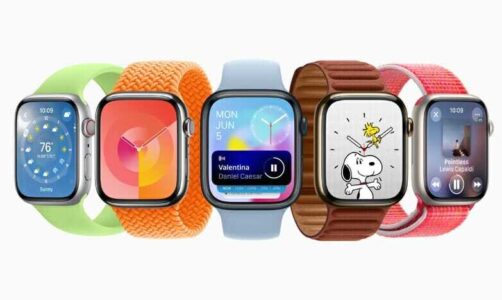
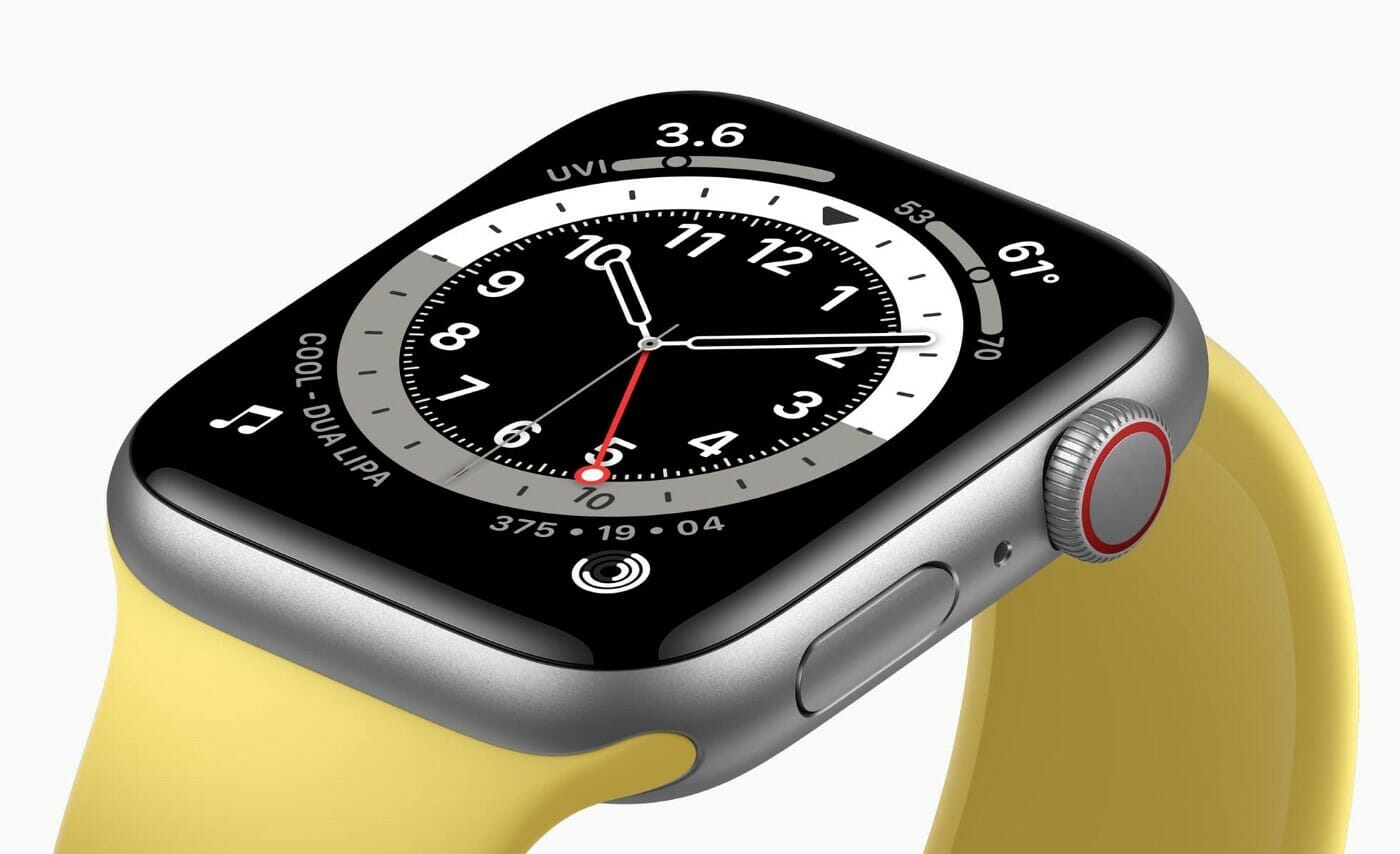
Have you purchased a brand new Apple Watch or you have an Apple Watch but wants to get most of it? Here are the Best Apple Watch tips and tricks that will help you to get the most out of your Apple Watch in 2020.

Apple Watch

The smartwatch did not dramatically change the lives of people when compared to the personal computer or smartphone. However, the smartwatch has optimised how we use technology in everyday life. Here are 36 tips and tricks to use your Apple Watch effectively.

Apple Watch

General tips

1. Wake to your last-used app

By default, when you flick your wrist, Apple Watch will wake and show the time. If you’d instead rather it go back to whatever you were doing before it going to sleep, you can change that setting by heading over to Settings > General > Wake Screen.

Now, scroll down to the section On Screen Raise Show Last. The available options include While in Sessions, Within two Minutes of Last Use, Within one Hour of Last Use, and Always.

2. Make the on-screen text larger

With such a small accessory, sometimes you want the option for bigger text at your disposal. Apple has included this feature in its accessibility settings; to change the text on your Apple Watch, simply head over to Settings > Brightness & Text Size, and adjust as per your preference.

In addition, you can choose a specialty Big Text watch face if you want to see the time in large numerals.

3. Mute alerts with your palm

If the sounds on your Apple Watch are enabled, you can keep it from annoying the people around you with notification sounds: If it goes off in a place, you’d rather it not, you can cover the screen with your palm for about 3 seconds to instantly mute any new sounds. To enable this setting, you’ll need to launch the Apple Watch app on your iPhone, then head over to My Watch > Sounds & Haptics > Cover to Mute.

4. Hide watch apps

To hide third-party apps from showing up on your Apple Watch, launch the Apple Watch app on your iPhone and ensure you’re in the My Watch section. Now, scroll down to the section called Installed on Apple Watch. Tap the apps you wish to delete by toggling to the off position. Although you’ve removed their Watch interfaces, those apps will remain installed on your iPhone unless you delete them from that device, too.

Apple Watch

5. Quickly access Zoom and VoiceOver

Want to set up shortcut for Zoom or VoiceOver on your Apple Watch? You can turn on the triple-click Accessibility shortcut to automatically activate either Zoom mode or VoiceOver. To enable this setting, launch the Apple Watch app on your iPhone, then head over to My Watch > General > Accessibility > Accessibility Shortcut. From here, you can choose which you’d like to automatically activate on triple-click.

Siri can also turn VoiceOver on or off with a verbal command — simply ask your Watch.

6. Take a screenshot

Want to memorialize that Digital Touch drawing or Activity achievement? You can take a screenshot on your Apple Watch by quickly pressing both the side button and Digital Crown at the same time.

7. Force Apple Watch to restart

Is your Watch acting up? you can turn it off by pressing and holding the side button until the Power Off slider appears, then drag it across the screen. If your Watch is completely frozen, you can perform a force reboot by holding down both the side button and Digital Crown until the Apple logo appears.

At home

8. Unlock your Mac with your Apple Watch

You made the right choice when you bought the Macbook Pro WITHOUT the touch bar. Now you envy your friend because he can unlock his Macbook with Touch ID. Relax! You can unlock your Mac when you’re wearing your unlocked watch and very close to your Mac.

9. Set up timers for laundry or cooking

Every time you do the laundry or prepare a quick meal, you either completely forgot your clothes in the laundry or your pasta is well overcooked because you end up watching a Netflix episode or a ‘short’ youtube video. The good news is that you can set up a timer on your Apple Watch and enjoy your favourite Netflix series without worrying about your chore.
Tip: Ask Siri on your Apple watch to set up a timer and your Apple Watch will notify you when the timer is over.

10. Find your iPhone

So, you are in a hurry to leave home and you can’t find your iPhone. In the good old days, you had to grab your land-line or ask someone to dial your number. With your Apple Watch, you can quickly ping your iPhone from the control centre. And there you go!
Tip: Sometimes the echoed-ping is not enough to find your iPhone. Tap and hold the Find iPhone button on your Apple Watch to flash the iPhone’s LED while pinging.

11. Check the weather before leaving home

It’s always good to check the weather forecast before leaving home. Thanks to the Apple Watch, you can quickly check the weather before leaving home.
Tip: I find it very useful to have a watch face with the weather complication (Complication is simply a fancy name for a face widget).

While commuting or exercising

12. View your notifications

Reaching for your iPhone to check a notification while driving or cycling is a bit risky. However, checking the notification on your watch is a safe alternative.

Tip: Some apps such as Messages, Whatsapp, Slack and Messenger offers you the ability to reply directly from your watch. This option comes in handy when you want to reply with an emoji or dictate a reply with Siri.

13. Take phone calls

Sometimes, you hurry to your favorite shop before it closes. Once you leave home, your spouse wants something else but she can’t reach you on the phone because you are running to the shop. Taking calls on the go is another useful feature of the Apple Watch.

14. Track your activity and exercise

Have you ever found yourself hooked on a Netflix series (say Money Heist…) and end up watching the whole series in a weekend? Maybe, the Apple Watch will make you guilty and you go for a walk or run instead of spending the whole weekend inside.

Tip: Every week, your Apple Watch will suggest a Smart Move Goal. Take the opportunity to exercise as much as you can!

While shopping at a store

15. Tick off a shopping list at the supermarket

After spending long time preparing a shopping list and arriving at the grocery store, you realise that you forgot to bring your to-do list. Naturally, you bought more stuff than planned but you still forgot to buy the carrots and tomatoes. Listing your shopping items on the reminders app on your iPhone and tracking them on your Apple Watch is a great way to become a smart shopper.

Tip: If your better-half is an iOS user as well, share the reminders list with them and don’t worry about the to-do list on your paper anymore.

16. Scan your loyalty cards at checkout

It is a good idea to use loyalty cards to get more from your shopping. It can be cumbersome to keep track of all physical loyalty cards. Stocard wallet is a super handy Apple Watch app to store your loyalty card and scan them at checkout.

Tip: Don’t worry if you forgot your wallet when shopping. Check out the next tip!

17. Pay with Apple Pay

OK, so you scanned your loyalty card with your watch. Should you reach for your bank card to pay? Absolute NOT! The best function of the Apple Watch is Apple Pay because you don’t have to take out phone or card from your pocket.

Tip: If you forgot your iPhone, don’t worry. Your Apple Pay on your watch will work like a magic, you don’t have to be connected to the Internet.

Timekeeping

18. Save custom watch faces

Besides customizing Apple’s default Watch faces by performing Force Touch on the Watch display, you can also save customized faces for future use. Simply force Touch on the Watch display once more, then swipe all the way to the left and tap the New button. From there, you can customize the new version of your watch face per your preference.

If you want to delete a custom watch face, simplyswipe up.

Apple Watch

19. Set your watch five minutes fast

Like being early for your appointments? You can manually set the watch face to show 5 minutes fast — it won’t affect your alarms, notifications, or clocks from other countries, but it’ll show Display the Watch face. Here’s how to do it: head over to Settings > Time > +0 min, then turn the Digital crown to advance the time ahead up to 59 minutes.

20. Turn off snooze for your alarms

Don’t trust yourself to wake up on time? You can easily disable the Snooze button on Apple Watch. To do so: head over to Alarm app on the device and tapp on the alarm time you’d like to change. Toggle so snooze isn’t an option.

Communication

21. Pre-compose custom Messages responses

It’s not possible to type directly on your Apple Watch, however, you can set up a few pre-composed responses through your iPhone that you can tap on during conversations to auto-send. Here is how to do it: Launch the Apple Watch app, then head over to My Watch > Messages > Default Replies. You can change this list and add/remove pre-composed responses any time you want.

22. Always send your dictated text as audio

When you reply to a message with your voice, your Apple Watch presents you with one of two choices: sending it as dictated text or sending your dictation as an audio clip. If you’d like your messages to always send as audio clips or always as dication, you can set up your preference by launching the Apple Watch app on your iPhone, then heading to My Watch > Messages > Audio Messages.

23. Share your location in Messages with Force Touch

Want to send your friend your current location while on the go? Within your Messages conversation, Force Touch the screen and tap Send Location.

24. Hold a call until you can find your iPhone

While answering phone calls on the Apple Watch is quite futuristic-feeling, it’s not always practical. If you receive a call on your Apple Watch that you want to answer, but your iPhone’s not in easy reach, and you don’t want to start it on your Watch, you can tap Answer on iPhone to place the call on hold until you can find your device. The caller will hear a short repeated sound until you can get to your iPhone.

25. Turn on Walkie-Talkie

You need to activate the Walkie-Talkie feature on Apple Watch to use it. Here is how to do it, head over to the Walkie-Talk app on the Apple Watch, and switch on the Available toggle. Otherwise, people won’t be able to reach you using the tool.

Productivity

26. Clear all your notifications with Force Touch

Although you can swipe left to delete an individual notification from the Notifications screen, you can also delete all the notifications on your Apple Watch in a single tap. First, swipe down on your watch to reveal Notifications, then Force Touch the display to show the Clear All option.

27. Flag Mail messages with Force Touch

It’s not possible to compose a new email on the Apple Watch owing to its relative impracticability as an email machine, however, Apple makes it easy to flag messages you want to reply to later. Simply Force Touch on a mail message, then tap Flag.

28. Choose what mailboxes show up on your Watch

Don’t want to be bombarded with notifications and info from all your mailboxes? Well, you can choose specific mailboxes to show up on the Watch from the iPhone app. Here is how to do it: head over to My Watch > Mail > Include Mail.

29. Switch between Day and List views in Calendar

Sometimes you may want to see what your day looks like — but also view items in a list. Well, you can jump between Day and List views in the Calendar by using a Force Touch gesture on the Display while in the app.

30. Build your leaving time into your Calendar alerts

If there’s a location added to your event, you can easily create an alert to notify you when to leave that factors in driving or walking distance along with traffic. To do this, ensure the individual event has the Travel Time switch turned on; you can set up this on your iPhone by heading over to the Calendar app, tapping the event in question, and going to Edit > Travel Time.

31. Use the Taptic Engine when you’re getting directions

Your Apple Watch offers a variety of beeps, buzzes, and movements to capture your attention, but it doesn’t stop with notifications. You can also use the Taptic Engine to help navigate you around a city. When you’re getting directions via the Watch, you’ll get a series of taps when you have to make a turn.

For a left turn, you’ll receive a series of two taps, played three times: tap-tap — tap-tap — tap-tap.

For a right turn, you’ll receive a steady beat of 12 taps: tap-tap-tap-tap-tap-tap-tap-tap-tap-tap-tap-tap.

You’ll also receive a long vibration when you’re on your last leg of the journey, and when you arrive at your destination.

32. Stop directions with Force Touch

Want your Watch to stop navigating? Simply use the Force Touch gesture at any given point on the Maps app to cease directions.

33. Review your iPhone photos from your watch

The Camera app on your Apple Watch allows you to use it as a remote display and shutter for photos, but you can also quickly review any recent shots. As such, you can make sure you’ve gotten the perfect group shot before retrieving your iPhone.

34. Set a default city for your weather

The Weather app on your Apple Watch can check a variety of cities, including your immediate location. To change the default location, launch the Apple Watch app on your iPhone, then head over to My Watch > Weather > Default City.

Stay active

35. How’s your ECG?

On the fourth-generation Apple Watch, Apple has added the ability to check your ECG straight from your watch. Here is how: tap on the ECG app on your watch, then hold your finger on the digital crown for 30 seconds while electrical signals are measured.

36. Concentrate

Lastly, you can use the Breathe app on your Apple Watch to relax. In the app, use the Digital Crown to set how many minutes of breaths you would like to keep track. Next, tap on the Start button and relax.

Bonus tip: Post-Corona

Board a flight with your watch

Many people like traveling but they hate the security and boarding drills. Yet, they flock to the check-in line with a printed boarding pass as soon as boarding is open. The good news is that the Apple Watch makes the airport drills a bit pleasant as you can pass through security and board the plane with just your watch. Sounds good, right?
Need more tips? Try our guide to
amazing iPhone tips and tricks
And that covers everything about Apple Watch tips and tricks 2020. Have we missed some Apple Watch tips and tricks here? let us know in the comments section below.
So… you’ve got that gorgeous iPhone and- if you followed the
previous fight
– a shiny new pair of AirPods 2 (unless you, like me, couldn’t decide and got both AirPods and BeatsX).
But… that colleague sitting besides you just went in on a pair of AirPods Pro… and you now have AirPod envy.
Are her Pro-labeled Pods better than your second-generation ear-toothbrushes?
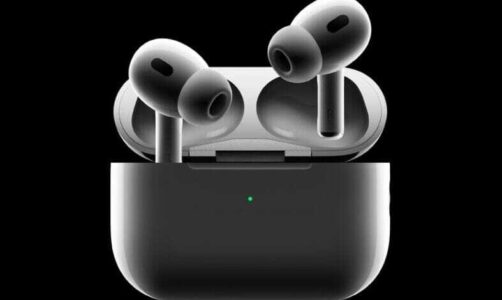
In this article, I’m comparing the
AirPods 2
and the
AirPods Pro
because… well, just because. It’s up to the contest to determine which are the better choice. Set?
3… 2… 1… Fight!

Price

As with my comparison of AirPods 2 Vs. BeatsX, we need to talk about how much these toys are going to cost you. And, like with my comparison of AirPods 2 Vs. BeatsX, I feel obliged to remind you that your gorgeous iPhone came with a beautiful , perfectly usable pair of wired EarPods, EarPods that I personally misplaced within a week of getting the new iPhone. EarPods which cost $29.99 to replace, should you choose to.

Right. Let’s tear the band-aid. AirPods Pro will set you back the “premium” price of $249.99. Yowza. For that amount, you could have bought both pairs of headphones from the previous fight. We’ll discuss what that sum of cash gets you in a moment.

The AirPods 2 comes in two price tags: $159 for the regular pair, and $199 if you want the wireless charger case.

In case you haven’t bought AirPods 2, the Pro model will cost you an additional $90 over the standard 2’s, and $50 over the wireless charging Pods. Or, if you, like me, have already bought AirPods 2, you will have to fork out additional $249.99, which, admittedly, is a tough pill to swallow.

Winner: Too soon to tell.

Battery Life and Connection

One good thing about battery life is that both the AirPods 2 and the AirPods Pro have more or less the same battery life.

Both sets will get you around 5 hours on a charge, and both charging cases carry a max of 24 hours of recharge when you put the Pods away.
That does not mean everything is the same; if you choose to use the AirPods Pro’s Transparency or Noise Cancelling features, you’ll shorten the battery life by about 30 minutes per charge.
Having said that, Apple estimates that in the case with both pairs, you will get about an hour of use after five minutes of charging.

As far as the connection is concern, both are bundled with the same H1 chip and therefore will pair instantly and seamlessly with your Apple devices, and can quickly switch between devices associated with your Apple ID.

Winner: The AirPods 2 have a half-an-hour lead over the AirPods Pro if you utilize the more advanced features (which honestly, you are, because why else would you purchase the AirPods Pro?), but with the similarly quick charge time in the case, I personally don’t think 30 minutes is enough to claim victory here. So, tie.

Sound and Features

Finally. This is where the differences start to emerge. Because I talked a lot about the features of the AirPods 2 in my last fight, I’ll mostly discuss what the Pro’s offers in comparison.

I’ll discuss fit in another category, but the first and most clear difference between the two sets of Pods is the Pods themselves. Not only do the Pro Pods come with a wireless charging case without having to fork out a few extra bucks, but the Pro’s have a complete different form factor. Of course you still have the stem that makes them appear like EarPods with the wires chopped off, but what you’ll notice is the way they go into your ear. While the traditional AirPods have maintained the same design of the EarPods, the AirPods Pro have adopted in-ear design complete with removable silicone tips.

Personally, , I’m not a fan of silicone tip headsets. But outside of Apple’s Ear and AirPod designs and over the ear headphones, most companies have adopted silicone tips. It’s all you ever see. For me personally, they give me a headache and make me feel as if I’m underwater.

One thing I didn’t know until I tested the AirPods Pro is that this is because this style of headset is putting pressure on your ears. Unlike AirPods (1 and 2) and EarPods, which are open enough to still let air in and out of your ears, the silicone tip design block everything up. Except for the AirPods Pro. Apple’s design includes vents that reduce the pressure, making them feel more comfortable than any other headphones of the same nature out there.

But the true magic happens when you pop them in your ears. After identifying the right tip size for your AirPods (via Settings, you can do a size test to find which tips fit the best; Thankfully, mine work with all three, but the smallest ones felt the most comfortable) and you pop them in, they sound… well, they sound almost the same as standard AirPods. However, they include two different modes you can activate.
The first is Transparency Mode, which uses the microphones to allow outside sounds to get in, making it feel almost like you aren’t wearing them at all. This mode allows you to keep abreast of your surroundings and even hold conversations with the Pods in (keep in mind, if music is playing, it’s a good idea to keep the volume low to avoid asking people to repeat themselves). Having said that, there’s a stigma with wearing headsets while trying to hold a conversation; even though you are pretty sure you can hear the other person with Transparency on, there’s a likelihood that the person you are conversing with may think you aren’t attentive because you didn’t take out your headsets.

While the Transparency mode is convenient, comparing them to the AirPods 2 and the original AirPods (which allows in ambient noise by design, whether intentional or not) there’s not much of a difference. Granted, you may not always want your AirPods to let in outside sound (and we’ll discuss that in a bit ), but if Transparency is the main reason you are considering the Pro’s over the 2’s, consider that you will hear ambient noise just as easily with either pair.

The second mode- and arguably the best- is Noise Cancellation. The Cupertino based brand states that with this mode, the Pro Pods play “anti-noise” which cancels out the outside sounds before they reach your ears. Now, I think calling it noise “cancelling” is a stretch; in real-life usage, it is more like noise dimming. As soon as you enable it, it feels as if someone turned the volume down on the external environment. You can still hear it- especially louder noises and voices- but it is definitely muted. Listening to music in this mode certainly enhanced sound and clarity over the regular Pods, and it is better for you, too; you don’t have to turn the volume up to unsafe levels to hear the music.

With Noise Cancellation enabled, the AirPods Pro certainly have better sound quality than the AirPods 2. In Transparency mode or with all modes turned off, the sound quality is, frankly, similar. I switched back and forth between the AirPods Pro and AirPods 2 and couldn’t notice a difference. At least, not enough of a difference to justify the extra bucks. Similarly, with the AirPods 2 in, I could still hear my surroundings about as well as I could with Transparency enabled with the Pros. If you are planning on utilizing Transparency mode at all time, the AirPods 2 are perhaps a better- at least a cheaper- option for you. However, if the Noise Cancellation feature sounds interesting, then definitely go for Pro.

Since both includes the H1 chip, they both can activate Siri with your voice. But the way you control them is totally different. If you are used to regular AirPods, the Pro design takes some getting used to. Instead of tapping your Pod, you are required to squeeze the stem. Each stem has a touch-capacitive button that produces a satisfying click sound in your ear (the click is played through whichever Pod you are interacting with). One squeeze plays or pauses the media, two squeezes plays the next track, three the previous track, and a long squeeze jumps between Noise Cancelling and Transparency.

While you can customize the tap settings for regular AirPods, you can only customize the long squeeze, selecting between mode switching and Siri summoning, the latter which is redundant because you can easily activate Siri with your voice. That said, you do get more controls with the squeezing than with tapping, as the regular AirPods can only have a maximum of one control per Pod.

There is no way to control volume outside of asking Siri to do it or using your iPhone or Apple Watch to do it.

Winner: I give it to AirPods Pro in this category. The Noise Cancellation mode alone is a big leap forward, but I also like that Apple found a solution for the pressure that makes it hard for me to use this style of an headphone. I’m not sure if Apple is the first company to vent the pressure, but they are the first one that I’ve tried.

Fit

Ah. Now, here’s where we come to it. If there’s Been one universal gripe about the original AirPods, is been that they are one size fits few. How then to the Pro Pods stack up?

They fit quite well at first; and unlike the regular AirPods design that is one-size-fits-a-few, the inclusion of different tip sizes means you will surely find the size that fits your ears perfectly.

Having said that, original AirPods have always fit my ears perfectly. But the AirPods Pro are a bit slippery, and that’s even before you pop them in your ears. I fumbled or dropped at least one of the Pro Pods while taking them out of the case around 50% more often than I ever had with the regular AirPods.

To make things worse, while they are in my ears, they have a tendency to slip out. Actually, I’ve tried all three tip sizes, and with each after a few minutes, I find myself pushing one of the pods (usually the left one) back in place. Granted, the regular AirPods and the EarPods have always had this issue, and I am one of the lucky few whose ears wonderfully fit the original design, but it just feels more prevalent with the AirPods Pro, or at least more noticeable; if you have activated the Noise Cancelling mode, the moment a pod begins to loosen its hold on your inner ear, sound begins to trickle in, a sound that otherwise the Pods would be actively cancelling.

I did a headache-inducing head-shake test, and the standard AirPods stayed in longer than the Pros. And I’m not the only one facing this issue; A lot of people online have talked about the AirPods Pro getting slicker over time and having challenge keeping them in.

Winner: Depends on your ears; I give this to the AirPods 2 because I just can’t keep a decent enough seal with the AirPods Pro to make the noise-cancelling feature worthwhile- or to shake the sensation that sooner or later I am going to lose one of the Pro Pods in the toilet or something. And that would be quite unfortunate. However, you may be lucky, particularly if the standard AirPods don’t fit your ears pretty well.

Everyday Usage

So here, sadly, is where AirPods Pro started to fall apart for me. Especially since I am upgrading from AirPods 2, which, frankly, are still pretty new to my headset collection. But this is possibly the most subjective category, so your experiences might differ from mine.

The first thing I noted about my usage of the AirPods Pro was that I wasn’t using them; they spent more time in my pocket than they did in my ears. However, that’s also the case about the AirPods 2. Although, I can use Transparency with the Pro’s and can hear my surroundings pretty well with the 2’s, if I’m not listening to something, I don’t like to have them in my ears. That, however, is mostly a personal preference.
My other usage issue is also of a personal nature, and this, dear reader, is where you will need to do your own homework to find out if this will be an issue for you. The AirPods Pro make my head hurt.

Here is the thing: apparently my ears are sensitive to the anti-noise that the Pods produce to cancel out the regular noise. This combination of noise and anti-noise brings about sensation of pressure in my ears. Even with Apple’s pressure vent, it simply feels like it is strengthening. It only takes minutes of listening in Noise Cancelling mode for the symptoms to manifest themselves, and while the sensation dispels the instant I switch to my AirPods 2 or my BeatsX headsets, a dull ache radiates through the back of my head for a few hours. It’s quite sad, but it is there. I’ve read online that some people are able to get over it, and others don’t experience it at all. But sadly, I’m not one of those people.

I also suffer from Tinnitus, which becomes much more noticeable with active noise cancellation. While music is playing there is no issue, but if my ears are ringing before I put the AirPods Pro in, it can get worse once they are blocking out the sound. On a possibly unrelated note, I’ve also noticed some disorientation while using them in Transparency mode, as if the pass-through effect is fidgeting with my equilibrium.

Again, perhaps my ears are just too sensitive to certain things; I’ve tried other styles of headsets that cause similar effects; both the ANC on Beats Studio 3 and the vibrations of Aftershockz Bone Conduction headphones give me headaches of the same nature, and the BeatsX definitely give me a similar feeling of pressure when they are inserted (though I attribute that more to the stuffing of silicone into my ear canal). There is no absolute best pair of headsets out there. However, I’m not about to part with $250 to have headaches all the time, no matter how charming the noise cancellation feature is.

Winner: Again, I give it to AirPods, for the simple reason that they don’t give me headaches that last for hours.

Bonus Round

I’ve explained in details on how the AirPods Pro stack up against the AirPods 2. But I want to take a moment now to compare them to other headphones I’ve got lying around.

For starters, the BeatsX headphones that I compared the AirPods to in my previous contest. While the BeatsX have a lot in common with AirPods Pro in the style of headphone, there are some pros and cons in each. Of course, the BeatsX have no active noise cancelling feature, however, if with the right size tips on them (and I wish Apple would extent the ear tip fit test in Settings to their other headphones), I couldn’t tell much of a difference between the active noise cancelling of the AirPods Pro and the passive noise cancelling of the BeatsX. Though with the AirPods, you don’t get that irritating rustling sound that persists with the BeatsX cable. But on the flip side, the around-the-neck design of the BeatsX means that even if one falls out of your ear, it isn’t going anywhere.

When looking at headphones with active noise cancelling, I also considered the Beats Studio3. It’s almost unfair to compare the massive over-the-ear Beats to the tiny in-ear AirPods, but since they both bundle this anti-noise feature, they are worth taking a look. While the Studio Beats do have the advantage of passive noise cancellation given their design, comparing the ANC head to head with the AirPods Pro is about equal. If I had to choose one, I think I would have chosen the AirPods, as the silence of the ANC is- I don’t want to say more noticeable, but maybe more apparent- however, with the Beats, the Active Noise Cancellation is optional and doesn’t affect the sound quality of the music (again, that passive noise cancellation does a good job in most cases ), whereas you get a noticeable increase in sound quality when you enable active noise cancellation with the AirPods Pro.

And while the AirPods Pro design minimizes noise and adds bass that the original design can’t compare to, it’s still no match against a proper pair of headphones. The Studio3 (and even the wired, on-ear Beats EP and the aforementioned BeatsX) deliver much more punch than the AirPods Pro can achieve. Granted, Beats are popular for being bass-heavy, but even compared to my fiance’s Skullcandy Hesh 3 headphones or JLab’s GoFlex sports headphones, the AirPods Pro are still lacking in delivering the oomph that other headphones in this price range can deliver.

And if the price is a key determiner, with $70, you can get JLab’s Air Sport or Air Executive, both of which will probably stay in your ears better than the AirPods Pro (particularly the Sport, which have an over-the-ear hook too hold them in place), fantastic passive noise cancellation (when I tried the Sports last year, I could hardly hear the lawnmower engine through the headphones), and a similar pass-through feature to Apple’s Transparency Mode called Be Aware Audio (although this admittedly sounds much more electronic than Apple’s version; you won’t be fooled out of knowing you are listening to a recording of the outside world).

I’m not going to pronounce a winner here, as this fight is exclusively between the AirPods Pro and the AirPods 2, but allow me to say that even for the charm of the AirPods Pro, there are better- and cheaper- options on the market.

Conclusion

Parting is such sweet sorrow. That’s what flashed through my mind as I drove to the Apple Store to return the AirPods Pro. I really wanted to love them. I really did.
But as you have seen, the AirPods 2 won this fight hands down, at least for me. Again, many of these categories are subjective and you may not find the issues I faced affect you at all. Take this less as a condemnation of the AirPods Pro and more of a personal experience that I am sharing with you.

But for shits and giggle’s, let’s run it down. The AirPods 2 are cheaper (especially if you already own them). Personally, they fit perfectly (and while they might not fit you well, many users have complained that the AirPods Pro are unnecessarily slick and that the silicone tips do very little to help them stay in), and they don’t cause headaches.

But even if those don’t hit you the same way they hit me, consider that the Active Noice Cancellation with the AirPods isn’t really that much better than the passive noise cancelling you get with the BeatsX, which costs $150 less; the Transparency mode feature, while a cool party trick, isn’t really any more transparent than the standard AirPods already were; and for the amount of $250, you can grab a much better headsets(albeit without the H1 chip and Apple’s magic pairing). Actually, with the same amount of money, you can get both pairs of headphones from the previous fight and have the best of both worlds (and more battery life between them).

It’s all, honestly, up to you. Personally, they didn’t work for me, but that isn’t saying that the AirPods Pro aren’t outstanding pieces of technology. I really loved the idea of having one pair of headsets that could do everything I needed them to while fitting inside the smallest pocket of my jeans. But alas, earwax*.

*Earwax is something significant to consider when wearing your headsets; particularly if your headsets are getting shoved into your ear canal. Be sure to clean your Headsets on a regular basis. And fun fact; Apple included a mesh filter inside the silicone ear tips of the AirPods Pro to trap earwax before it gets all over the headset grill. Sounds good, right. If I had done a category about earwax, the AirPods Pro would have taken the crown. Oh well.

Tag: AirPods

AirPods have changed my life, mostly for good, but in some ways, for bad.
Since I bought my first pair of AirPods at the end of 2018, they have been in my shirt pocket almost every day.
Not only have they been in my pocket, but one is usually in my ear most of the day as well. As soon as I get up, I often pop one in. Then when going to bed, I pop it out when I am falling asleep.

I have always longed for accessible technology that was small, really small. When Apple
introduced AirPods,
I fantasized about its potential. I longed for a beautiful new device that could rest gently and comfortably on my ear, something gorgeous that would tell me everything I wanted to hear.

In 2019 I probably listened to more podcasts, audiobooks, and music than any other year. You can tell from my usage in the past ten days that I have listened to over 50 hours of audio almost exclusively using my AirPods.
I listen to a lot of podcasts, and lately, a lot of YouTube in the background as well. Usually, all of the usage for YouTube would fall under podcasts, making podcasts around ~45 hours of listening but have been on a YouTube Premium trial to test it out.

Music is usually more and is also being taken up by YouTube usage, and I have also been taking a break on books after reading (and listening to) over 24 of them last year.
Still, a total of 50 hours of audio for a period of ten days is a lot. And I honestly don’t know if I would have managed without the convenience of AirPods.

So what possessed me to even consider buying Apple’s wireless AirPods? They are small, lightweight, easy to forget and always perch precariously from a tiny shelf of ear cartilage. I have learned two great facts about my AirPods over the last two years: They are easy to love and easy to lose.

My old
wired EarPods
were just fine for a long time. If I dropped an EarPod, I could simply trail the wire like bread crumbs to rediscover the treasure.
But, Apple cut my audio umbilicus with the new iPhone models by removing the dedicated headphone jack. I understand that wired EarPods are packaged with the
new iPhones,
but they use the Lightning port, which is also the way I fill my battery during the day. I decided I’d better get used to the wireless lifestyle as early as possible.

I took a deep breath and made the AirPods investment. Around the same time, I also bought the BeatsX wireless offering, as well as the BT Waves much less expensive headset. Nowadays, I almost never touch the BeatsX or BT Waves products. The AirPods are well-engineered, delightfully intuitive and much, much nicer. I love them to the core.

Still, AirPods have a weakness. Gravity. Since I work at home, I generally only use my AirPods in the house. This helps as they are more easily found when they fall off. Fortunately, they don’t shatter on impact. However, I remain fearful. Even after all these months, I still forget when my AirPods are dangling in place. On many occasions, I have lifted an arm to reach up into a kitchen cabinet, knocking an AirPod loose, immediately sending me into a frenzy. There is no dignity in my dropping to my knees on the tiled floor, hoping I do not land on the precious item, then sweeping the surface with my fingers, trying to recapture the elusive accessory.

My AirPods are even vulnerable when I sit in my living room comfy chair. My dog is frequently involved in displacing one or both AirPods as I unwind.
Tom has a couple of endearing traits that cause me minor grief. At least once a day, while I am sitting, Tom will stand on his two hind legs and drape his front paws over my shoulders. He really likes to wipe his nose on my shirt. I am his handkerchief. And, if those two front paws do not successfully fling my AirPods into the abyss, his other little habit certainly will. Tom thinks it is important to sniff my ears, just checking my identity to be sure that I am who I claim to be. That wet nose of his has launched many an AirPod.

Fortunately, I usually find the missing AirPods pretty easily, but I have occasionally needed to use the AirPod “Play Sound” option inside
the
“Find My” app.
The audible beacon it triggers is just loud enough for me to locate the missing accessory. Because I almost only wear my AirPods indoors, I have never had to go hunting outside where the ambient noise might drown out the emergency audio alert.

Of course, the fact that AirPods are so comfortable and easy to forget has left me susceptible to feeling a little foolish. Recently, I took my iPhone upstairs to the master bathroom. I set down my phone and AirPods case and stepped into the walk-in shower. I waited until the rest of me was clean before I started to shampoo my hair. And then I noticed my AirPods dangling from my ears. I’d been in the shower for about a half hour and was mortified. Rather than immediately step out of the shower with soapy hair, I carefully rinsed out the suds and toweled off. I stepped out, put the AirPods on a dry washcloth, and felt dumb as dirt. I patted them dry and decided to just see how permanent the damage was. I popped them back into my ears, started the Music app on my iPhone, and I immediately heard Justin Bieber singing, “love yourself.” Perfect! No damage at all. Somehow they survived a hot shower and shampoo. Do not try this at home. Your mileage may vary.

The previously water-logged pair still works like new. No effect on sound or battery life. What a delight! In fact, recently, I bought a new pair of
AirPods Pro
because I use them all day, every day. After about five hours, I hear the warning signal in the ear piece that the current set is down to 10% of their battery reserve. I immediately put the
first generation AirPods
back into their charging case and start using the AirPods Pro. Rather than wait fifteen minutes to get a decent charge on the depleted AirPods, I simply use the extra pair so that I have no loss in productivity. For me, purchasing a new set of AirPods Pro was very much worth the cost.

The ability to take one out of its case, knowing that it is fully charged, popping it in my ear, automatically connecting to my iPhone, then pressing play on whatever it is I was planning on listening to, has been such a subtle but outstanding life improvement that is hard to describe.
But this improvement has a downside, of course.
Being able to listen to audio comfortably for hours at a time at such a fantastic convenience means I am allowing a separation between myself and the world too easily.
I realized that when I am at home, I always have them in, or at least one, listening to a podcast, audiobook, or watching a video. It has made chores that much more enjoyable, which is a plus, but some chores that I share with my wife have now become cold and quiet. It has even caused my wife to listen to her headsets when we are cooking or cleaning since I am not available to talk.

At work, I am continually listening as well. Even when I get up to go to the bathroom, I make sure to have an AirPod in to listen to a podcast or a song on the way there and back. At our desks, at work, everyone is usually listening to something, but I can’t even walk from the parking lot to my office without popping in an AirPod.

My AirPods, and you can argue Podcasts and AudioBooks, have become my new Twitter or FaceBook when standing inline. Whenever I am at the bank or queuing for food at a restaurant, everyone has there phones out as they wait for their turn at the counter. I know longer stare at my iPhone in line as much anymore because I usually already have an AirPod in listening to my 30th podcast for the day.
Just like using your iPhone for boredom or a time-filler doesn’t always have to be a bad thing, no matter what some people say. But allowing yourself to get bored at times can help you in other ways, such as relieving any anxiety or allowing thoughts to come in organically instead of being forced through social media, authors, or podcasts.

So one thing I have learned in owning Airpods for over two years now is that, to me, audio has become my new boredom filler. Podcasts and AudioBooks are my new form of distraction being fed to me through two beautifully designed white wireless headsets.
Instead of scrolling through the infinity pool of Twitter or Facebook, I now get endless voices in my ear at all hours of the day. This has been a huge advantage in being able to consume so many audio books and podcasts, particularly those that provide tips on life and self-help.
But I am also realizing at the middle of 2020 that I gained a lot of self-help and new ways of living my life last year. The remainder of this year I hope to follow that trend and new knowledge instead of feeling like I need to continue to consume it so much.

There is no way I can cancel some of my favorite podcasts on these topics like The Tim Ferriss Show and Focused, but reading books I am taking a break from this year. I have a stack, digitally and physically, that I still need to read that I may take my time with, but I am not going to try and continuously listen to books throughout the year as I did before.

I have yet to do an actual AirPods review. It is not that I don’t want too, I think it is because when I first got them, there was no friction in becoming my new and, almost, only pair of headphones. I just started using them and never stopped.
Usually, when I write a review about a device, I try to stick to some narrative. Coming up with some pros and cons on the device I am reviewing then counter those pros and cons with reasons why they either don’t matter or should be a deal-breaker.

AirPods, unexpectedly, came into my life and just became an integral part of it promptly. There are cons, besides the ones I described above, causing me to disconnect with the world so easily, but others like them having a hard time to connect to my phone sometimes or them having a hard time switching inputs to another device like my MacBook or iPad.

It took almost a year for my ears to be comfortable with the design of the headphones, too, since I never really like the original EarPods Apple provides in the box with iPhones. They usually start to not last very long on a charge after a year and a half. Also, losing them can be very easy, and the Find My app on my iPhone doesn’t always work when trying to find one.
This is all to say I am never letting my AirPods go, and when these die as the last ones did, I will probably replace them pretty quickly. But I am learning from the habits that these headphones are creating and trying to be better when around my wife or coworkers and be present more.

The AirPod’s biggest pro is the fact that you can listen to anything fairly quickly without fail from your iPhone with comfort and hours at a time. I am most comfortable with them when working in my office, relaxing in the house, or riding in a car. That is most of my day. Even so, I still keep a set of my trusty old EarPods handy for times when walking outdoors or when lying in bed. My AirPods Pro are nice, and I’m glad I bought them, actually, I use them more when I travel by plane or train, when I am in a crowded venue or when I really want to block out the world.

Tag: AirPods

You probably use a laptop as a primary productivity tool, since it’s powerful and makes any task possible. And you probably think the iPad is a gorgeous tablet that is useful for people who don’t work with numbers, and who don’t multi-task between powerful apps to get work done. Which was the case until a few years ago. Since I replaced my laptop with an
iPad Pro
a few months ago, it was surprising to see how the iPad somehow managed, ten years later, to become a better productivity tool than a laptop.

1. The physical structure

The physical structure of the iPad Pro is a significant evolution from laptops. The iPad Pro is a tool that can be used in an array of contexts. First, the iPad Pro can have a similar setup to laptops, where it’s attached to the keyboard. The
Smart Keyboard Folio
resembles a toy, but is surprisingly fan to type on. The keyboard is narrow, so the hands can easily reach for the screen. The keyboard attaches magnetically to the back of the iPad Pro, making it easy so it’s practical to alternate between holding the iPad by hand, and attaching it to the keyboard. And that’s one aspect of the evolution. I use the keyboard to type, then hand hold the iPad to read and produce media. It’s no problem at all to keep alternating between the keyboard and the hands in one sitting. It might sound silly, but it’s very pleasant to sit back on a sofa, attach the keyboard, and edit a movie. This is particularly for the 12.9 inch screen, and might not hold true for the 11 inch. Since iPad OS uses the large Display size efficiently, I rarely think about a smaller Display. A nice side effect here is how portable this device is. Suddenly the train table is quite spacious. The backpack space needed for the iPad, keyboard and charger is negligible.
See also:
Why I Choose the Smart keyboard Folio for the iPad Pro!
The last physical piece of the evolution is the Applepencil. I thought it’s just for artists. Turns out it’s well integrated with iPad OS in helpful ways. Touching the pencil while iPad is turned off automatically presents you with a blank note you can sketch on. You can also use the pencil to annotate screenshots. Move the pencil from the side of the display to
take a screenshot,
then draw directly on it. If you do that in Safari, you can take a whole webpage screenshot, then save it as a PDF. You can also pull up any PDF, then use the pencil to highlight things or fill out a form just like you would on paper. Sketch an idea effectively in a Keynote presentation, or review a
Microsoft Word
document by using the pencil directly on text. In Adobe Lightroom, you can use the pencil to selectively edit parts of a photo, and move the sliders with more accuracy.

2. The internal hardware

The power that comes from such a small device is surprisingly impressive. This thing is a beast, even compared to MacBook Pros. Intensive apps like Lightroom and LumaFusion works quite smoothly, even as they are exporting videos and raw photos simultaneously. Even without a fan, the iPadPro hardly heats up.

The multiport adapter offers quite a number of opportunities too, because it has HDMI, USB-old-school, as well as USB-C ports. There’s the traditional things such as connecting an SD card and a hard disk. But more interestingly, by connecting the HDMI adapter, I can mix live audio and video from Algoriddim’s djay app, while at the same time previewing the next song on my headphones. Various apps make use of the multi-port adapter. For instants, Luma Fusion can play a 4K video preview on the TV, while keeping the editing interface on the iPad itself. And the USB ports can be connected to a hard disk and SD card, giving me the ability to import photos into Lightroom.

The battery power of an iPad Pro surpasses that of a Macbook by far. I don’t have to worry about forgetting to carry my charger. Apps like Google Hangouts, which generally drain macbook batteries, perform much more efficiently on the iPad Pro (by the way, screen sharing to a Hangouts call is so easy). Lastly, compared to a Macbook or Surface, the iPad’s cameras have better resolution, the speakers produce great sound, and the mic is more accurate. It’s funny that a Device smaller and thinner than a laptop performs better in every aspect when it comes to what needs space the most – hardware.

3. The operating system

It took ten years, but iPad OS is now an evolution of desktop-based systems. Especially for multi tasking. It always seemed that the way desktop systems do multi tasking is the right way. I never questioned the time it takes on desktop to setup apps side by side, dragging and resizing them until I see all the necessary content. And even then, there is so much wasted screen space left because of how apps organize content. content. Then I need to resize a window to reach an item in the toolbar. And even then I always ended up with wasted screen space. Or if not wasted, it would be another app on the back of the screen that adds clutter and makes it harder to navigate my way through the many windows. If i want to drag an image to an app, I have to align the finder and app so I can move things around.

I don’t know if the iPad engineers questioned these drawbacks, or if they were trying to come up with multitasking within the existing iPad operating system. But it looks like they hit the jackpot. The way multiple windows work together is an evolution in the efficiency of multitasking. Apps use all the properties of the screen and the system makes it easy to work with a few apps at a time. That is without ending with a stack of apps on top of each other that I eventually navigate like a maze. Two apps can be displayed simultaneously using drag and drop. I have control over which app takes up more space, and I don’t have to constantly resize each side of a window to display that last button in the toolbar. If I need a separate app for quick reference, as I often do with Google Keep or Slack, I can turn it into a slide over app, which I can slide in and out when I need it. And if you switch from Netflix to another app, the video will continue to play on the side, taking up only the space of a video. With all that said, it actually feels like a desktop system is completely unaware of how we all use multitasking these days.
The iPad system benefits significantly from drag-and-drop interactions, and not just for setting up multiple windows. It uses people’s ten fingers and that natural gesture to make moving things powerful. For instance, grab a file from the Files app. Or multiple files by keeping the first file handy and tapping the other files you need. You can even browse folders and choose files from different places, as long as the selected files are at hand. Then feel free to browse further to the desired folder, and have the files ready so that they all go there. Did you actually want to put these files in another app, for example to send them by email? You can keep the files in place, quit the files app, go to the Mail app, tap to create a new email and drop the files there.

The power to keep items on hand is not limited to files. I can grab an image in Safari with one finger, switch back to Google Docs with another finger, and drop the image into a document. Or grab some videos in Photos, switch to LumaFusion and drop the videos in the edited timeline. Or select a sketch I drew in Notability, grab it and straighten it in a Google Slides presentation.

Being a bit of a powerful user, the Shortcuts app is the last piece that really makes the iPad system powerful. My workflows often include small technical things, such as encoding an audio file to a different format, converting a PDF to images or combining 3 screenshots into just one image. There are apps and websites that accomplish these little technical things. But the experience of finding these services and having to go through ads is not productive or enjoyable.
Shortcuts
allow me to quickly save a series of powerful actions that complete many of these technical things. So far this is comparable to the Automator app on Mac OS. But Shortcuts goes further. You will find that installed apps can also add their own actions, making it easy to perform a series of actions involving multiple apps. And since shortcuts appear in the shared sheet and within Siri, it’s much easier to activate a shortcut.
So this is how the iPad redefined the main tool I use for learning and producing. Ten years after the launch of iPad, it now stands as the evolution

With the right tools and the right adjustments, the iPad Pro can become a productivity workhorse. In this article, i’ll show you exactly how to be more productive with iPad Pro.

We keep hearing stories that the iPad Pro can be even more capable than a laptop to get things done. It’s very tempting to switch from a computer to Apple’s top of the range tablet, as it’s often described as the best portable computing device. It has a stunning Display, fantastic processing power, all packaged in a small, light mobile design.
However, even if the device is marketed as a “Pro” machine, it can be heard to know if the iPad Pro will be sufficient to get your job done. Depending on the review and experiences you read about, people are either in love with the device or consider it as a toy only suited to play a few games and watch Netflix.
In this article, I’ll give you some of my favorite iPad pro productivity tips, as I’ve been using this device as my primary computing device for an array of tasks for the past six months.

The iPad Pro’s Design Limits Distractions

The first thing I loved about the iPad Pro was how it focuses on single tasks. Apps display fullscreen, the dock is hidden, and if you get rid of notifications (which you should do), you can’t be distracted by anything else than what you are currently doing.
Although The Cupertino based brand has been putting a lot of effort on the multitasking features of the iPad Pro, I think the split-screen features aren’t that easy and smooth to use. I find it quicker just to hit the command + tab shortcut on my keyboard to switch between to apps than having to place to windows side-by-side. While this may look like a drawback, I think it helps you concentrate on your tasks without being distracted ever. The amount of effort you have to put out to be able to multitask or switch apps is higher than on a laptop, which makes focusing on a single task in a single app a lot more practical to do.
Notification settings are also a lot more flexible than on a desktop device. You can choose just to disable banners but still see notifications in the notification center of your iPad Pro. This way, you eliminate the interruption of a banner at the top of the Display, while still being able to stay up to date with whatever app or conversation you are having.
The iPad Pro’s design makes it a lot easier to do deep work than a laptop experience. Distractions are easily expunged, and staying on one full-screen app is incredibly fantastic.

Getting the Best Keyboard and Mouse for the iPad Pro

You won’t manage to accomplish many tasks if you don’t have, at least, a hardware keyboard for your iPad Pro. Apple has improved the virtual keyboard of the iPad over the years and is now better than ever, but it’s not sufficient if you have to produce content, and it doesn’t allow you to use any keyboard shortcuts that simplifies and streamlines your workflow.
The good news is that there is an array of options out there now. Apple has the
Smart keyboard Folio
which is great and Super portable, but it doesn’t offer a great typing experience. They recently released the
Magic Keyboard
for iPad, which appears to be way much better but is quite heavy and very expensive. My personal preference goes to the
Canopy
by Studio Neat, which is a keyboard case for the Apple Magic Keyboard that opens up as a stand for the 12.9 iPad Pro. To me, it’s a way lighter, cheaper, and more portable option than the Magic Keyboard for iPad.
See also:
The Cheapest iPad Pro keyboard that Doesn’t Suck
As far as the mouse is concern, I have been using my Logitech MX Anywhere 2X for a while, and I’m fine with it. I don’t think the mouse is as necessary as a keyboard. If you know your keyboard shortcuts pretty well, you can navigate on the iPad Pro without having to touch the screen much. But having a mouse or a trackpad can help you with some tasks like formatting or editing.
If you are considering the iPad Pro to get work done, you need to have at least a keyboard and maybe a BlueTooth mouse to go with it. Spend a little extra time finding the right keyboard for you, you won’t ever use your iPad if you hate using it and typing on it.
See also:
Why I Choose the Smart keyboard Folio for the iPad Pro!

Using the Right Apps on the iPad Pro

This part will be the toughest to cover, as getting the appropriate iPad Pro productivity apps depends a lot on your current workflow and your personal preferences.
Actually, most apps on a Mac have a proper iPad version or an equivalent that will cover, at least, most of the basic features you need to get your work done. Depending on the tools you use, you will have to do some research to figure out if the iPad will be limiting you in any way or not.
In my case, I create content using the minimalistic writing app Bear. That’s where I take my notes, brainstorm, write my blog content. I edit my website using Squarespace on Safari, even if it is a bit limited. I edit my other sites directly on WordPress, and everything works pretty well. I edit my pictures in Lightroom and Photoshop. Photoshop isn’t as complete as on a Mac, but for Basic photo editing, it works just fine. I edit 4K videos in Lumafusion. It’s enough for short, not too ambitious, social media videos and stories, and it works incredibly well. I can also manage my Google Drive as well as on a Mac, manage my files directly in the Files app, and even do backups and file management on external hard drives.
The only job that I needed a desktop for, was to do some editing on my Squarespace website, which i trust will be possible sooner than later after a few updates and patches.
There are numerous resources online now about professionals going deep into details about their workflow since many people have fully transitioned to the iPad Pro already.
It’s worth noting that that your workflow will have to change a little bit from the one you are used to on desktop, but ultimately, you should be able to be as productive on the iPad Pro as you are on a laptop, but with even fewer distractions and unnecessary features.
The iPad Pro is a very powerful device if you commit to it, and if you spend some time adapting your workflow. If you don’t spend this time and effort, the iPad Pro will only appear like a little cool toy that won’t get you anything done. But with a good keyboard and mouse, with an adapted workflow, and with some smart notification setups, the iPad Pro can become the ultimate productivity machine.
It’s a very minimalistic Device. Push aside all the details and things that don’t matter. With the iPad Pro, you can totally focus on the 20% that contribute to 80% of your results.

Apple AirPods Pro 2 were released in September 2022, and it wasn’t long before scammers flooded the market with cheap knockoffs. With a hefty price tag of $249+ and talk of being Apple’s premium Samsung Buds contender, it’s no wonder fake AirPods Pro 2 became a hot counterfeit item so quickly.

The second-generation AirPods Pro and new charging case.

Now, it’s harder than ever to know the difference. Without a bit of know-how and background info, it’s easy to get duped into a scam. We’re here to help make sure that doesn’t happen.

Below, we’ll walk you through everything you need to know about fake AirPods Pro (2nd generation) so that you can avoid scams and find good deals on authentic earbuds.

What Are Fake AirPods Pro 2?

Fake AirPods Pro 2 are imitation earbuds built to look like Apples’s AirPods Pro 2, but they lack the sophisticated hardware and software to warrant the high price tag. Scammers use cheap materials that lack iOS compatibility and often break down much faster than the authentic AirPods.

Apple doesn’t create fake AirPods Pro 2, so you’ll get no customer support if (more likely when) your AirPods stop working. You’ll be on your own.

Unfortunately, there’s not one tell-tale sign of a fake pair of Apple AirPods Pro 2. Expert scammers have nailed the design, and some will even sell the AirPods Pro 2 at a premium to fend off any initial buyer suspicion. You’ll need to inspect the nitty-gritty details to find the counterfeit giveaways.

Where Are Fake AirPods Pro 2 Sold?

Scammers sell fake AirPods Pro 2 all across the internet and local listings. So unless you’re buying from Apple, Best Buy, or another credible tech store, you’ll have to deal with fake products to some extent.

Here are the most common places scammers are selling fake Apple AirPods Pro 2:

  • Craigslist
  • Amazon
  • Wish
  • eBay
  • Facebook Marketplace
  • Walmart
  • Alibaba

Scammers operate on other e-commerce platforms, too, but these are often the most prevalent. And that’s because these sites sometimes have mind-blowingly low legitimate discounts on high-quality tech items.

How to Identify Fake AirPods Pro 2

1. Check the Box

Apple is meticulous about its packaging, so if you still have the box your AirPods Pro 2 came in, check here first. The box may look legitimate at first glance, but there are a few areas to check.

The AirPods Pro 2 come in a very familiar, minimalist white square box. The earbuds are the only thing you’ll see on top of the box, printed beautifully, and even embossed.

Stickers on the side of the box, and the printing on the bottom reassure you that these are 2nd generation AirPods Pro with a MagSafe charging case (hard to tell otherwise, at least at first).

The box itself should fit quite snug. If the inner box and its lid come apart very easily or don’t line up correctly, this is a sign that something may be amiss.

The lettering used for the AirPods name and the Apple logo on the box are another area to check. If these are reflective and not flat gray, for example, you may be dealing with a counterfeit.

Getting to your new true wireless earbuds is the usual ordeal for Apple products – you hold the top of the retail box, with the bottom part sliding out slowly, so you can really savor the moment.

Inside the box you’re greeted with your new AirPods Pro 2 wrapped in protective plastic, a Lightning-to-USB Type-C charging cable, paperwork (no Apple sticker though), and not the usual three, but four pairs of ear tips.

Those are extra small, small, medium and large ear tips too choose from, with the medium ones already pre-applied to the earbuds.

Second-generation AirPods Pro’s ear tip sizes, including the new extra small ear tip.

2. Check Your Case

The original AirPods Pro 2 charging case has a few new things going for it, visible almost immediately. First, it now has a metal lanyard loop to the right, which is a nice little touch to see make a comeback in general. But perhaps even more noteworthy – the AirPods Pro 2 case now has its own speaker on the bottom, and thus, a little speaker grill next to its Lightning charging port. Yep, no USB Type-C, but fake models will sometimes have a USB-C port at the bottom instead.

Lanyard loop attached to a backpack on the all-new charging case of the second-generation AirPods Pro.

Besides that, the AirPods Pro 2 case is a familiar rounded rectangle, with a solid-feeling lid, and a metal hinge. On the front of the case, we still have a single LED light, and on the back of the case is the Bluetooth pairing button you’ll likely never need to use. If your case doesn’t have either of these features, it’s a fake.

3. Closely Inspect Your AirPods

For some reason, the very ends of the AirPods seem to be difficult for counterfeit manufacturers to match. On the original AirPods, the bottom should be an oval-shaped vent. If this is circular, it’s likely counterfeit.

The low-distortion audio driver and custom amplifier on the second-generation AirPods Pro.

Original airpods Pro 2 have the familiar straight stems, with touch-sensitive spots that serve as playback controls. We also have generally the same glossy plastic build as always. If the headsets lack any of these features, it’s a fake airpods Pro 2.

4. Check the color

Now let’s talk about the AirPods Pro 2’s color options – there are none. As you may have expected, the AirPods Pro 2 only come in glossy white, for both the case and the earbuds themselves. If you see a different color, it’s a fake airpods Pro 2.

5. Try pairing

Pairing genuine AirPods Pro 2 with an iPhone is as easy as ever – simply unbox your new earbuds, open their case close to your iPhone, and a pairing prompt will pop up on screen. It’s a very quick and easy process.

However, if you’re pairing them with an Android phone, you’ll have to go the longer route – navigating into the Bluetooth settings on your phone, then finding and tapping your new AirPods to pair them that way. If they’re not appearing, press and hold the circular button on the back of the AirPods Pro 2 case until the LED on the front starts flashing, which means they’re in pairing mode. If the airpods Pro 2 are not detected by your devices, they’re probably fake.

6. Check the Serial Number

The most definitive method of making sure your AirPods Pro 2 are the genuine item is checking the serial number with Apple. If the company has never heard of the serial number, you’ve probably got a fake.

To check, open the lid of your AirPods case and look on the underside of the lid. It’s on the section that is closest to the charging status LED when the case is closed.

You can also check on the underside of the right earbud, even though the type is smaller, and it’s more difficult to see here.

Once you’ve found your number, head to https://checkcoverage.apple.com and enter the serial number.

What to Do If You Purchase Fake AirPods Pro 2?

Mistakes happen. If you accidentally purchased fake AirPods Pro 2, not all is lost. Depending on when you bought the earbuds and where you bought them from, there’s still a lot you can do to recoup your money and right the wrong. The processes differ depending on the platform you purchased the product:

  • Wish: Contact Wish’s customer service to take advantage of their 30-day return policy. Check their list of exceptions to make sure your purchase qualifies. Wish is notorious for selling fake products, so always be cautious buying on the platform.
  • Craigslist: Craigslist won’t be able to protect you from scammers and counterfeits. You’ll need to do your due diligence to avoid getting scammed. However, if you believe you’ve been scammed, Craigslist still appreciates you reporting the fraud so that they can protect future buyers.
  • Facebook Marketplace: Facebook Marketplace doesn’t provide protections for sellers and buyers.
  • Walmart Marketplace: Request a refund via the Walmart Marketplace Promise to recover your funds.
  • Amazon: Contact Amazon customer support to file an A-to-Z Guarantee to start your refund process.
  • eBay: Contact eBay to ask for their money-back guarantee.

Contact the FBI’s digital division to submit a fraud report. They’ll provide additional advice, and this information will hopefully help them catch the bad guys.

Where to Buy original Apple AirPods Pro 2

You can find authentic AirPods Pro 2 at various in-store and online retailers. Here’s a shortlist of the most reliable places you can buy real AirPods Pro 2:

  • Apple
  • Best Buy
  • Walmart
  • Target
  • Verizon
  • Microsoft

You can find real pairs of AirPods Pro 2 on popular e-commerce sites like eBay and Amazon, but you’ll always run the slightest risk of getting scammed. That’s not the case with the authentic websites listed above.

Whether you use your Mac for work or just for your personal projects, you’ve likely found yourself wondering how to improve your productivity. There are only so many hours in a day, and so much mental stamina you can muster before you run out.

There are a number of tricks you can use to
improve productivity on your iPhone
but if you’re looking to do the same on
macOS,
the best thing to do is equip your Mac with productivity apps designed to help you do more in less time.

In this article, I will discusssome of the best productivity apps to help you get the most out of your Mac:

#1. Alfred

Free, with option to upgrade

Alfred is an amazingly powerful productivity app that essentially acts as the native macOS app Spotlight, but with a seemingly endless array of features. What separates Alfred from the park though, is the ability to create so-called “Workflows” which are chains of actions that can be triggered using a hotkey, a “snippet” (keyword that expands to longer text), a keyword, among others.
The Alfred app is free, and while the free version is incredibly fantastic, the Alfred Powerpack (£25 for a single license, £45 for a lifetime of free updates) adds a range of new and enhanced features to the already impressive array of features offered in the free version.

#2. Notion

Free for personal use
Notion is a very powerful app that can be used to perform a wide range of tasks. The app acts as a workspace that lets users integrate text, databases, Kanban-style boards, and many other forms of information.

Notion features an incredibly clean Interface that puts usability and function above anything.
My primary use for Notion has been note-taking during conferences. The ability to quickly drag photos into a note, create tables, and split pages into columns is essential for fast note-taking and clean final note. Moreover, being able to search the whole Notion catalog with the key command ⌘P comes in handy when you want to find specific pieces of information quickly.

What makes Notion to stand out from the park however, is ease of use and the ability to quickly navigate different pages which is extremely important for a smooth workflow.

#3. All-in-One Messenger

Free
All-in-One Messenger ties together the messaging platforms that you use the most into one single app. The app uses each messaging platform’s website to present them in a tab format. It just works.

The only real drawback that I’ve experienced while using All-in-One Messenger, is the absence of iMessage therefore you still have to use iMessage in its separate app when using your Mac.

#4. 1Password

$2.99 (billed annually)
The iCloud Keychain it’s not the most intuitive and user-friendly password manager out there. Thankfully, you can take advantage of1Password which is a super simple password manager that allows you to store all your passwords in one place, accessible with a master password. The beauty of 1Password really shows when using the 1Password Safari Extension, though.

1Password sits idly in your toolbar waiting for you to unlock it when you want a password to a given site, credit card information, or other sensitive information that you may need faster.
When you create a new login for a website, 1Password shows up and asks you if you would like to save the recently created login. If you allow it it’ll automatically save the login which saves you a huge amount of time if you sign up to so many services on a regular basis.

#5. Things 3

$50
Even though Things 3 has a high price point, after using it for a long period of time you won’t bat an eye at the price tag. With an extremely polished user interface Things 3 looks like it could be included in the inbuilt range of macOS apps. Things 3 integrates well with your iCloud calendar and allows you to easily arrange tasks in Projects and Areas.

Things 3 is easy to navigate and use. The simplicity of just being a to-do app makes it fantastic and is why you’ll most likely stick with it for years without switching.
You can simply dump any task that comes your way into the Inbox, and later on, sort them into the fitting categories. The status circle next to the project name is a nice feature that allows you to see an overview of your progress in that specific project. With a simple shortcut (⌥space for me) you can add tasks to a certain folder without launching the app.
And those are my best productivity apps for macOS. I hope you enjoyed these app recommendations. Feel free to leave a recommendation of some of your favorite Mac productivity apps in the comments!
See also:
How to Setup your iPhone for a Better, Less Stressful Life