Got a tip for us?

You can share health data stored in the Health app, such as health alerts and trends, with friends, family, and others caring for you.

The people you share with can also see the health notifications you get, like high heart rate and irregular rhythm notifications. You can review or change what you’re sharing, or stop sharing data with a contact or a provider. You can share health and fitness data with apps and devices, too.

Share health data with someone

The people you share health data with can also see the health notifications you get, including high heart rate and irregular rhythm notifications. Notifications for significant trends, like a steep decline in activity, can be shared, too.

Note: To share health data with someone, you need to include them in your contacts.

  1. Open the Health app on your iPhone.
  2. Tap Sharing, then do one of the following:
    • Set up sharing for the first time: Tap Share with Someone.
    • Share with an additional contact: Tap Add another person and then tap Next.
  3. Use the search field to find someone in your contacts list and tap their contact information to select them.
  4. Tap See Suggested Topics or Set Up Manually, then choose topics to share.
  5. Scroll down to see all topics on a screen, choose options, and then tap Next to see the next screen.
  6. Tap Share, then tap Done.

Once your invitation is accepted, you get a notification.

Review or change the data you’re sharing with others

  1. Open the Health app on your iPhone.
  2. Tap Sharing.
  3. Tap the name of a person or a healthcare provider.
  4. Scroll down, then tap View Shared Data.
  5. Make any changes, then tap Done.

Stop sharing data with a contact or a provider

  1. Open the Health app on your iPhone.
  2. Tap Sharing.
  3. Tap the name of a person or a healthcare provider.
  4. Tap Stop Sharing or Remove Account.

Note: If you start sharing data with someone, simply removing them from Contacts doesn’t stop the information from being shared.

Share health and fitness data with apps and devices

Other apps can share health and fitness data with Health if you give them permission. Install a workout app, for example, and its exercise data can show up in Health. The workout app can also read and use data shared by other devices and apps, such as your heart rate and weight. Didn’t give an app permission to share data with Health during setup? You can give permission later, or remove an app’s permission.

  1. Open the Health app on your iPhone.
  2. Tap Summary, then tap your picture or initials.
  3. Below Privacy, tap Apps or Devices.

The screen lists the items that requested access to Health data.

  1. To change the access for an item, tap it. Turn on or off permission to write data to—or read data from—Health.

Share your health and fitness data in XML format

Health can export all of your health and fitness data in XML format, a common format for sharing data between apps.

  1. Open the Health app on your iPhone.
  2. Tap Summary, then tap your picture or initials.
  3. Tap Export All Health Data. Then choose a method for sharing your data.
Tag: Health

The Health app securely stores your health information from iPhone, iPad, and Apple Watch, as well as from compatible third-party apps and connected devices. You can also manually enter data for body measurements, symptoms, menstrual cycle information, and more.

iPhone does a lot of the work on its own. It automatically stores and analyzes valuable health data, including steps, flights of stairs, walking speed, and mobility data. Apple Watch and other apps and devices can add more.

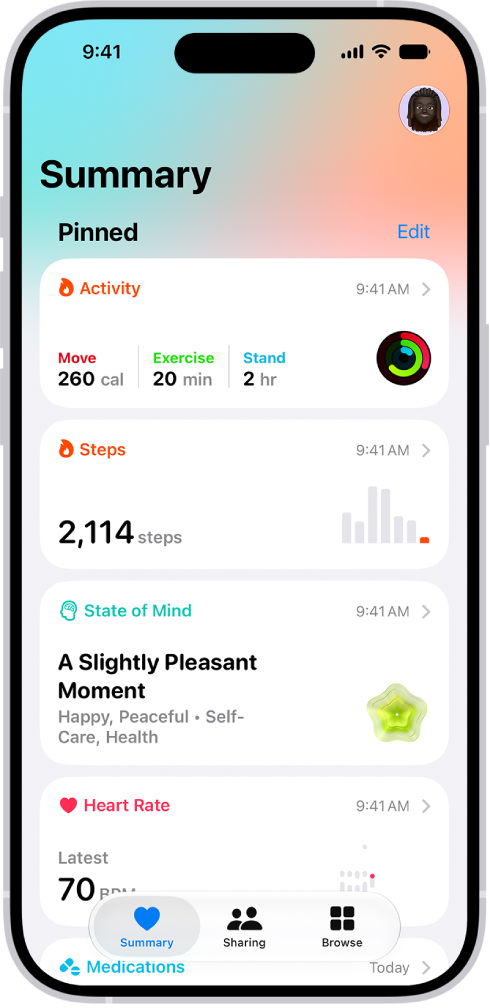
The Summary screen in Health. Information about activity, sleep score, state of mind, and medications appears below Pinned.

Health data from iPhone

Your iPhone stores and analyzes valuable health data automatically, including the following:

  • Steps, flights of stairs, and other walking data: Built-in sensors on your iPhone capture the number of steps you take, the number of flights of stairs you climb, your walking speed, and more. You can browse highlights, trends, and details about this data in the Activity category in Health.
  • Mobility data: iPhone stores important mobility metrics such as walking asymmetry, double support time, and more. Over time, as you walk with iPhone in your pocket or wear it near your waist, these metrics are used to calculate and record your walking steadiness. You can browse this data in the Mobility category. You can also receive a notification and share your notification with others if your steadiness becomes low enough to put you at increased risk of falling in the next 12 months.
  • Headphone audio levels: Audio level measurements from connected AirPods, EarPods, or other compatible headphones are automatically stored in Health. You can review this data in the Hearing category to help you understand your headphone listening habits.
  • Sleep history: If you set up a sleep schedule in Health, iPhone estimates the periods you’re lying in bed with the intention to sleep. You can review this data in the Sleep category to help you meet your sleep goals.
  • Health records from your healthcare providers: You can set up automatic downloads of health records of your allergies, medical conditions, medications, and more from supported healthcare organizations (not available in all countries or regions). You can browse these records in Health.

Health data from Apple Watch

After you pair iPhone with Apple Watch, periodic heart rate and blood oxygen measurements are automatically sent from Apple Watch to Health, where you can browse highlights, trends, and details in the Heart and Respiratory categories. You can also set up Apple Watch to send additional information to Health, including the following:

  • Exercise minutes and other activity metrics: You can view these metrics in the Activity category in Health on iPhone.
  • A history of time in daylight (Apple Watch SE 2nd generation, Apple Watch Series 6 or later, and all Apple Watch Ultra models): The ambient light sensor in Apple Watch estimates how much time you’ve spent in daylight. You can view details in the Other Data category in Health on iPhone.
  • Notifications about high or low heart rates, low cardio fitness (watchOS 7.2 or later), and irregular heart rhythms (not available in all countries or regions): You can view the details about these notifications in the Heart category.
  • Environmental noise levels and notifications about loud sounds: You can view the details about noise in your environment in the Hearing category.
  • Overnight health metrics in the Vitals app: You can view overnight health metrics—heart rate, respiratory rate, wrist temperature, blood oxygen, and sleep duration—to get a better understanding of your daily health status. If you wear your Apple Watch to sleep for multiple nights, the Vitals app establishes a typical range for each of your health metrics. If multiple metrics are outside your typical range, you’ll receive a notification along with context for factors that may be involved—like medications or illness, for example. You can view the details about your overnight vitals in the Vitals category.
  • A history of hard falls (Apple Watch SE and Apple Watch Series 4 and later): In the Other Data category, you can view details about the number of times fallen.
  • Sleep score in the Sleep app: You can view a sleep score—a score based on estimates of how long you slept, the consistency of when you fell asleep relative to your recent history, and the amount and duration of awake periods during sleep. Your sleep score appears around 15 minutes after you wake up. You can also view the amount of sleep you had the night before, the time spent in each sleep stage, and your sleep average over the last 14 days. You can view details about your sleep score in the Sleep category.
  • Notifications of possible hypertension (Apple Watch Series 9, Apple Watch Ultra 2 and later): You can wear Apple Watch to analyze your heart data, which can be used to detect signs of possible hypertension. If your Apple Watch detects patterns of hypertension, you receive a notification to discuss them with your healthcare provider. You are also prompted to use a third-party blood pressure cuff to take measurements over a 7-day period. You can view details about hypertension notifications in the Heart category.

Health data from other apps and devices

To let health and fitness apps from the App Store share data with Health, follow their onscreen instructions as you’re setting them up.

Follow the setup instructions for devices like blood pressure monitors and weight scales to store their data. Bluetooth® devices have to be paired with iPhone.

Note: At any time, you can change the health data permissions you’ve given apps and devices.

Data that you add manually

You can enter data about your medications, body measurements, menstrual cycles, and more manually.

  • Add information about your menstrual cycles: By logging menstrual cycle information, you can get period and fertile window predictions.
  • Add your medications, vitamins, and supplements: By adding these items, you can get reminders to take them and learn more about them.
  • Set up a sleep schedule: Scheduling regular times for getting to bed and waking up can help you meet your sleep goals.
  • Add information to a Medical ID: You can provide information about your medical conditions, medications, emergency contacts, and more in an emergency Medical ID. First responders and others can view this critical information directly on your iPhone, even while it’s locked.
  • Add information to other Health categories: Tap Browse, tap a category, tap the Details button for the data you want to update, then tap Add Data at the top right.

Important: iPhone, iPad, and Apple Watch aren’t medical devices.

Tag: Health

You can track and manage the medications, vitamins, and supplements you take. You can add and schedule a new medication, and choose the medication type, strength, shape, and colors.

If you set a medication schedule, the Health app reminds you to log the medication, and you can get follow-up reminders if it hasn’t been logged 30 minutes after the scheduled time. Critical Alerts show up on the Lock Screen with a sound, even when a Focus is on or iPhone is muted.

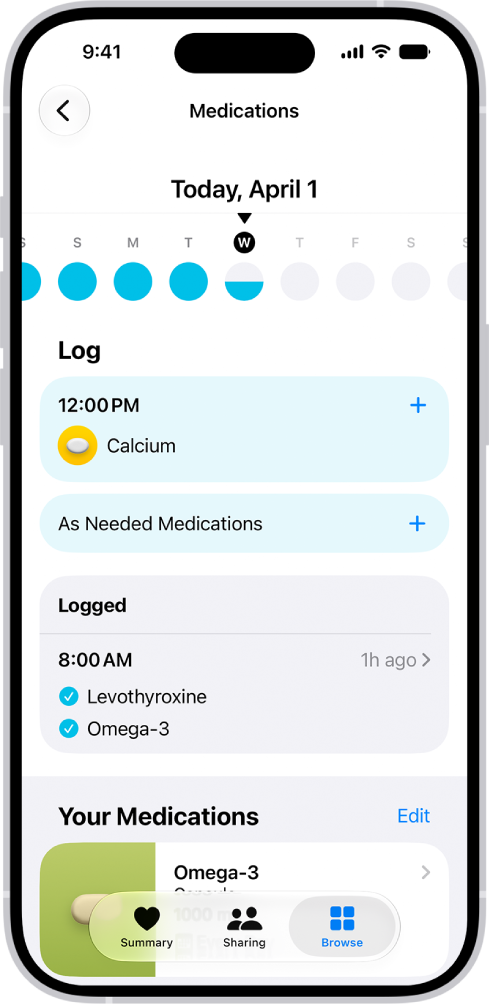
The Medications screen in Health showing the date and a log for medications.

Note: Some features are not available in all countries or regions. The Medications feature is not a substitute for professional medical judgment. Additional information is available on the labels of your medications. Consult your healthcare provider prior to making any decisions related to your health.

Add and schedule a new medication

  1. Start the Health app on your iPhone.
  2. Tap Browse and tap Medications.
  3. Tap Add a Medication (to start your list) or Add Medication (to add to your list).
  4. To identify the medication, do one of the following:

    • Type the name: Tap the text field and enter the name. Then tap Add.

      In the U.S. only, suggestions appear as you begin typing. You can select a suggestion, or finish typing the name, then tap Add.

    • Use the camera: (U.S. only) Tap the Camera button next to the text field. Then follow the onscreen instructions.

If a match isn’t found, tap Search by Name, then type the name (as described above).

  1. Do the following:

    • Choose the medication type: Tap an option and tap Next.
    • Choose the medication strength: Tap an option and tap Next.
    • Set a schedule: Follow the onscreen instructions to set the frequency and duration of your scheduled medication. Then tap Next.

      Tap Change under “When will you take this?” to choose a different schedule type, like On a Cyclical Schedule, or Every Few Days.

    • Choose the shape (optional): Tap an option and tap Next.
    • Choose the colors (optional): Tap an option and tap Next.
  2. When you’re finished, tap Done.

Turn on Follow Up Reminders and Critical Alerts

With a medication schedule set, the Health app sends notifications reminding you to log the medication. And if a medication still hasn’t been logged 30 minutes after the scheduled time, you can get follow-up reminders.

  1. Start the Health app on your iPhone.
  2. Tap Browse and tap Medications.
  3. Tap Options at the bottom of the screen and turn on Follow Up Reminders.

When you turn on Follow Up Reminders, you can also turn on Critical Alerts for each of your medications. Critical Alerts appear on the Lock Screen and play a sound (even if a Focus is on or iPhone is muted).

  1. Tap Critical Alerts and tap the button next to a medication. Tap Allow.

To turn off Critical Alerts, go to Settings > Apps > Health > Notifications, then tap the button next to Critical Alerts.

Change the schedule for a medication or update other information

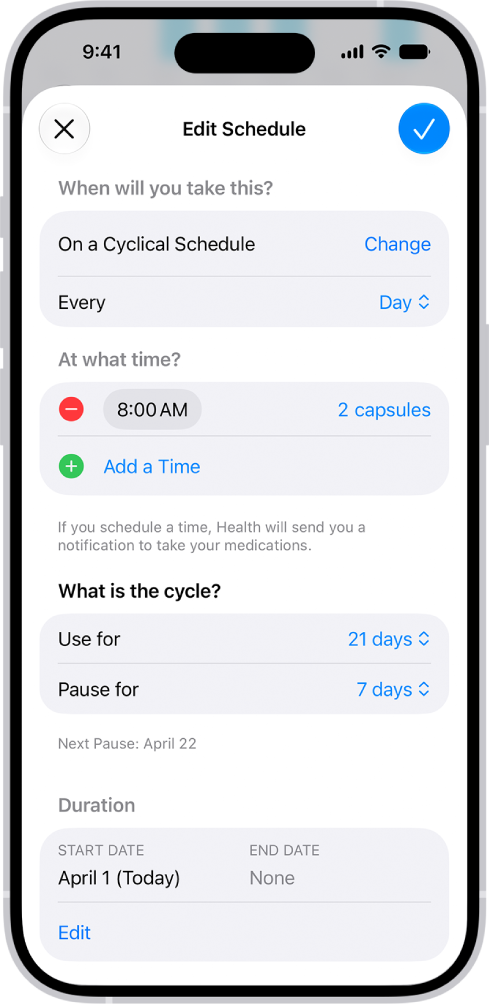
The Medications screen in Health showing options to change the schedule for a medication.

  1. Start the Health app on your iPhone.
  2. Tap Browse and tap Medications.
  3. Scroll down to Your Medications. Then do any of the following:
    • Change the schedule for a medication: Tap a medication, scroll down to Schedule, tap Edit, and tap a field to change it.
    • Change the icon, nickname, or notes for a medication: Tap a medication, scroll down to Details, tap Edit to change the icon or tap either of the text fields, and make your changes.
    • Reorder your list: Tap Edit above the list of your medications, touch and hold the Reorder button for a medication and drag it to a new position. Then tap the Done button.
    • Archive a medication: Swipe left on its name in the list of your medications. Then tap Archive.
    • Make an archived medication reappear in your list of medications: Tap Edit above the list of your medications and then tap the Add button next to the medication name, then tap the Done button. Any schedule you previously set is not preserved.
    • Delete a medication: Tap a medication, scroll down, and then tap Delete Medication.

Log when you take a medication

Whether it’s scheduled or unscheduled, you can log a medication at any time. By default, your iPhone follows the schedule you created in the Health app and reminds you when it’s time to log your medications.

Note: Check that your devices are signed in to the same Apple Account, connected to the internet, and updated to the latest OS version. Otherwise, your Health app data won’t sync across them.

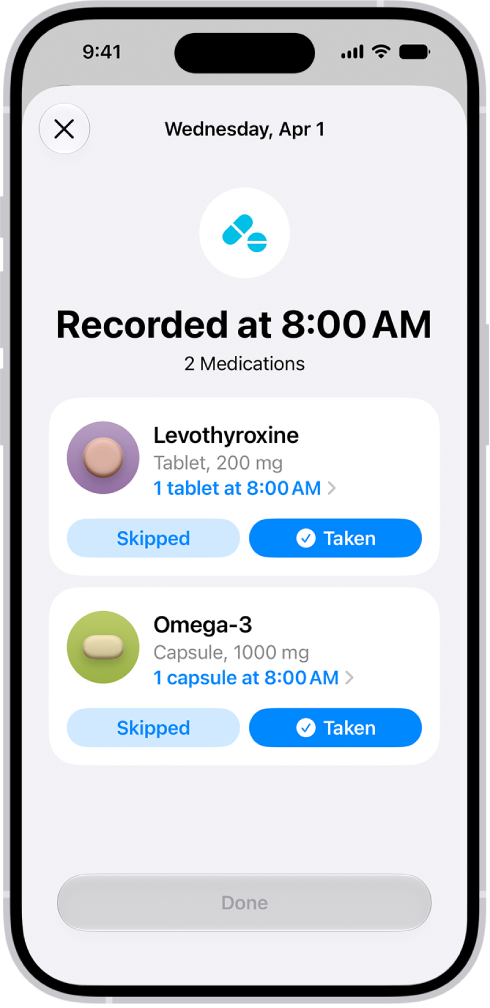
The Medications screen in Health showing a log of medications.

  1. Start the Health app on your iPhone.
  2. Tap Browse and tap Medications.
  3. Select a day and then do one of the following:
    • Log whether you took a scheduled medication: Tap the name of a medication in the list below Log. Below the medication, tap Taken or Skipped.
    • Log an unscheduled medication: Tap As Needed Medications in the list below Log. Below the medication, tap Taken.
  4. When you’re finished, tap Done.

Quick tip: When you receive a notification to log a scheduled medication, just press and hold it, then choose an option.

To review your history of taking the medication, tap Browse, tap Medications, then tap the medication (in the list of your medications).

Share your medication list

  1. Start the Health app on your iPhone.
  2. Do one of the following:

    • Share your list (or just specific medications) with a loved one: See Share your data in Health.

      Tip: If you add a new medication after you start sharing, add it to your shared list.

    • Share your list as a PDF: Tap Browse, tap Medications, scroll down, tap Export PDF, tap the Share button, and then choose an option.
Tag: Health

In iOS 27, Siri AI (Beta) is a conversational assistant with broad world knowledge and personal context, and your conversations are saved in a dedicated app. Extra-large widgets show more information from your favorite apps on the Home Screen, and a new slider lets you customize how Liquid Glass looks.

Here’s what’s new in iOS 27.

Siri AI (Beta)*. Siri AI is a conversational assistant with broad world knowledge and personal context understanding. Your conversations are saved in a dedicated app, so you can revisit or continue them. Siri can draw on your personal context to find what you need—like a specific photo, an email buried in your inbox, or a saved note—and take action across your apps, such as drafting an email or editing and sharing a set of photos. Siri writing tools help you generate first drafts, get feedback, and adjust the style and tone of your writing for the audience. Visual Intelligence comes to the Camera, so you can search, ask questions, and take action based on what’s in the frame. See Get started with Siri AI on iPhone and Siri AI (Beta): Use Siri mode in Camera.

Note: Siri AI is available in beta on iOS 27 or later on an Apple Intelligence-enabled iPhone 15 Pro, iPhone 15 Pro Max, or iPhone 16 model or later with Siri and device language set to a supported language. Available in English to start. Siri AI will not initially be available in the EU on iOS. Usage limits may apply.
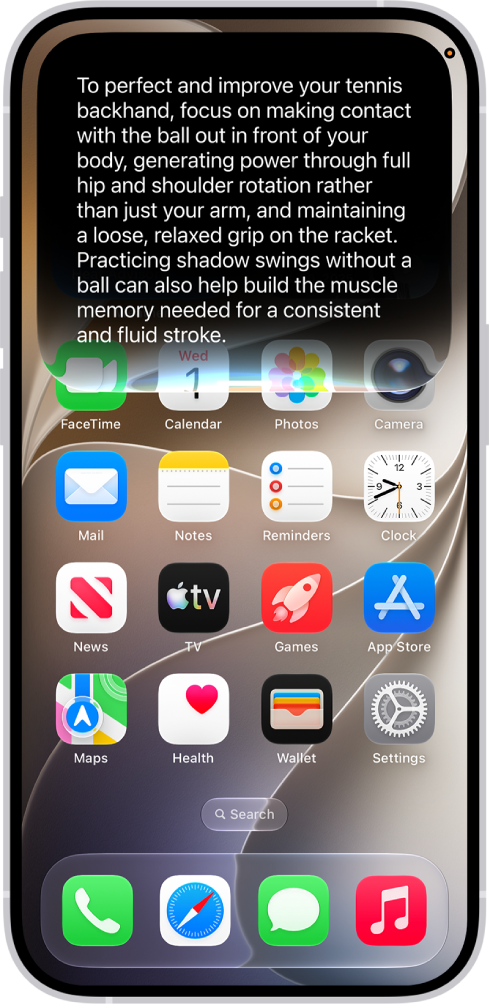
An iPhone showing Siri answering a request about how to improve a tennis backhand.

Family. New and expanded child safety features make it easier for parents and guardians to keep kids safe on iPhone. Setup Assistant lets you choose which apps kids can use. Ask to Browse lets you approve new websites on Safari that your child requests. Communication Safety helps protect children from viewing or sharing images and videos containing detected nudity or gore. See Set up Family Sharing and Apple Devices for Kids and Families.

Photos. Apple Intelligence* editing tools let you reframe a photo after it’s been taken, extend the borders of a photo, and remove distracting objects with more precision. iCloud Shared Albums support full-resolution sharing and new ways to filter and react to photos in a shared album. You can save any frame from a video as a photo. See Clean up, extend, and reframe photos, Create shared albums, and Save a video frame as a photo.
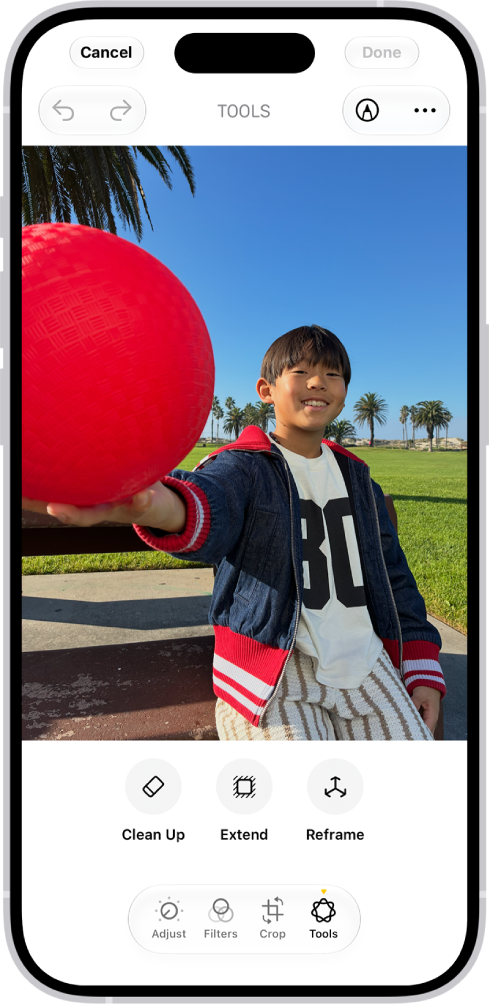
The Clean Up, Extend, and Reframe buttons below a photo being edited in the Photos app.

Camera. Pin the camera tools you use most often right above the camera frame for easy access when capturing photos and videos. See Use iPhone camera tools to set up your shot.
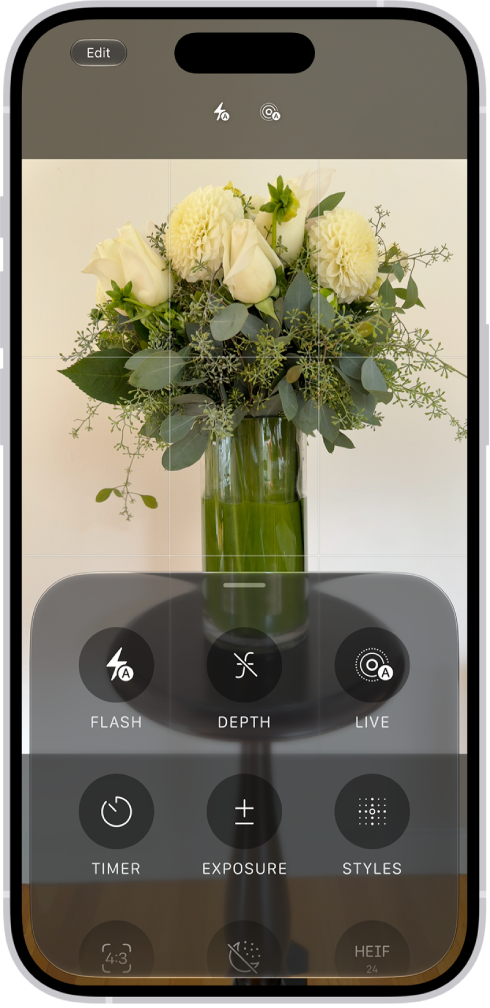
The Camera in Photo mode. At the bottom of the screen are buttons for the following camera controls: Flash, Live, Timer, Exposure, Styles, and Aspect.

Safari. With Apple Intelligence, your tabs can be automatically grouped into topics, so related pages are easier to find. Create your own extension with just a description to personalize your experience on any website you visit. Notify Me monitors pages for changes—for example, a price change or restock—and alerts you when it’s time to act. See Organize your tabs with Tab Groups, Create your own extension, and Get notified when a website changes.
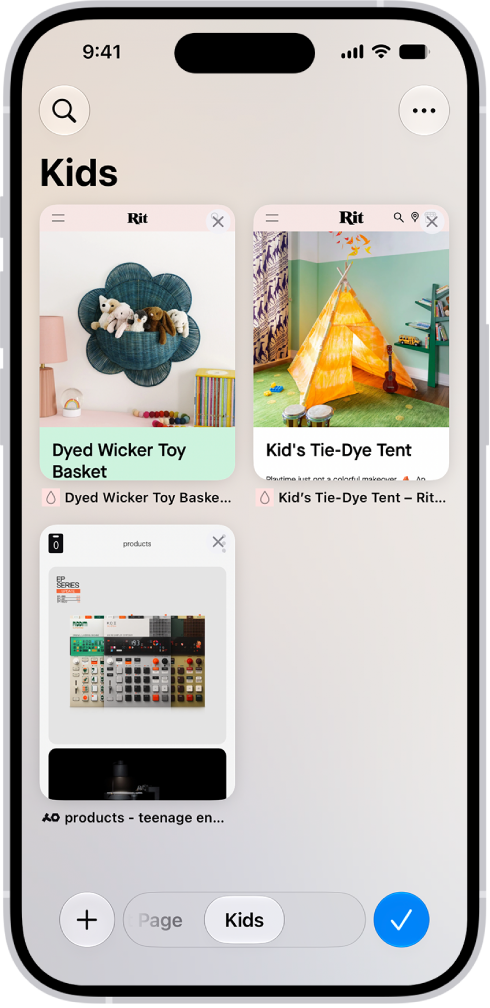
Previews of three open tabs in a Tab Group called Kids are visible on the screen.

Image Playground. Create unique images in a range of new styles with Image Playground, then update them with a description or using touch. See Create original images with Image Playground.
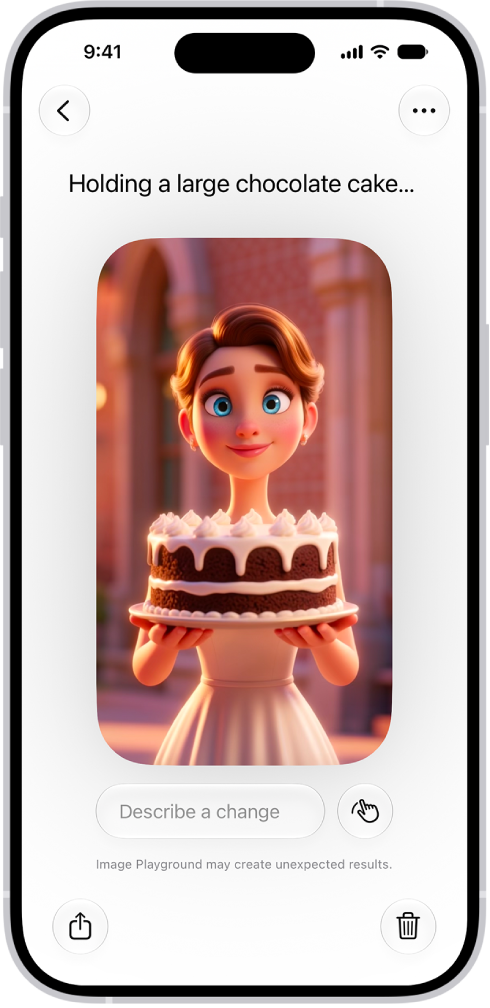
The Image Playground app window showing a created image of a woman holding a cake.

Genmoji. Get suggested images based on photos in your library and phrases you commonly type. See Create your own emoji with Genmoji.

Phone. With Apple Intelligence, Call Context can proactively surface relevant information when you place a call to a business or while you’re on a call—like a confirmation code you get in Mail when you call an airline. See View information when you make a call and View relevant information during a call.
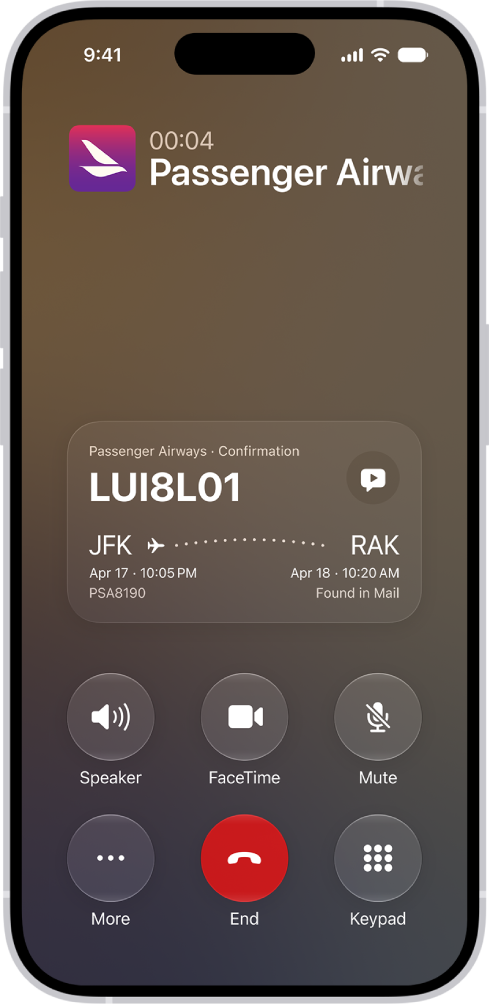
The call screen, showing a Call Context card with a flight confirmation.

Accessibility. With Apple Intelligence, use the captioning feature to automatically generate synced subtitles and translate existing captions into other languages. VoiceOver includes richer image descriptions and can be accessed using the Action button on supported models. See Display subtitles and captions and Get information about content on your iPhone and in your surroundings with VoiceOver.

Home. Apple Intelligence in the Home app combines and streamlines related activity notifications, describes what happened in video footage before you watch, and can search for a video clip based on what happened. See Use Apple Intelligence with Home cameras and notifications.

Liquid Glass. A new slider lets you easily customize how Liquid Glass looks, from ultraclear to fully tinted. See Choose your preferred look for Liquid Glass.
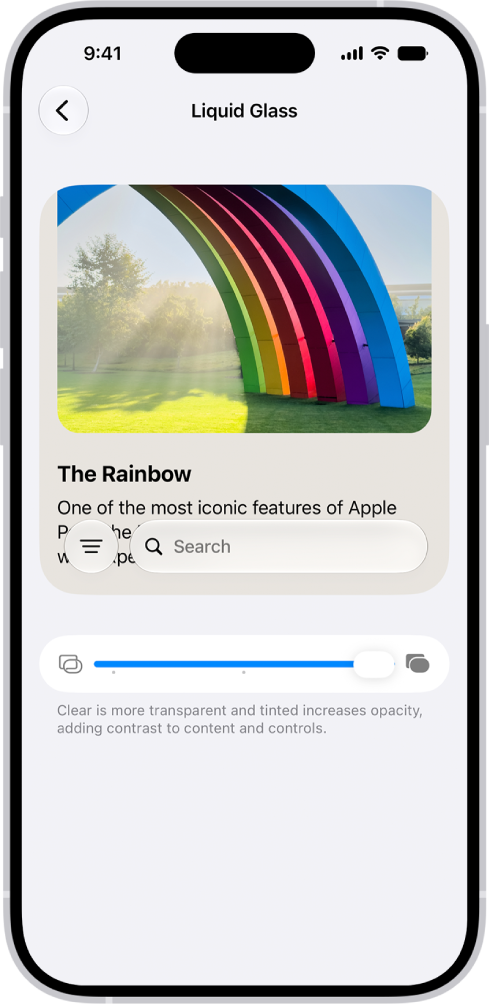
The Liquid Glass screen in Settings. In the middle of the screen is a slider to increase or decrease the level of Liquid Glass transparency.

Home Screen. Extra-large widgets let you see more information from your favorite apps right on the Home Screen. See Customize apps and widgets on the iPhone Home Screen.
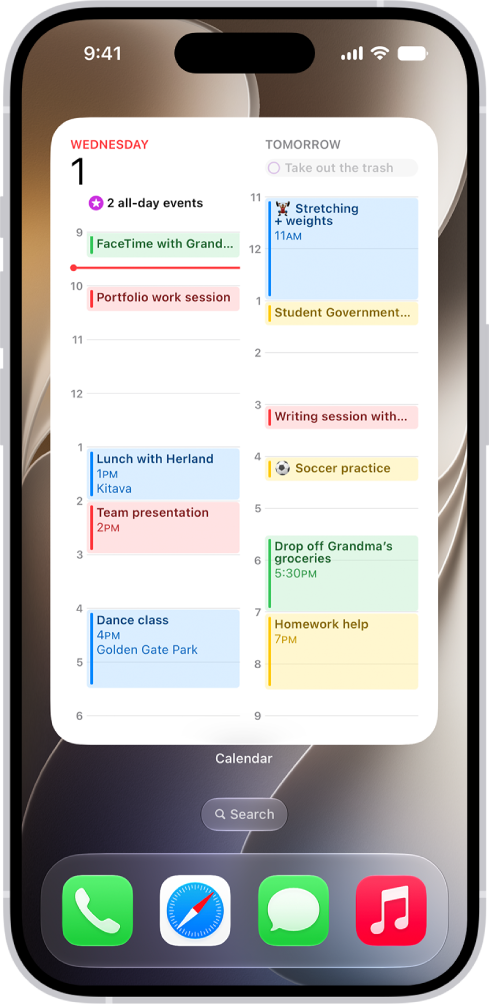
The iPhone Home Screen with an extra-large Calendar widget.

FaceTime. Dual Capture lets you share both your front and back camera views during a FaceTime call. With Apple Intelligence, while you’re on a FaceTime call with someone who speaks a different language, you can see translated captions in your preferred language. See Use camera controls during a FaceTime call and Use Live Captions and Live Translation in FaceTime.

Health. Log menopause and perimenopause symptoms in Cycle Tracking. The Health app can notify you when your logged cycle patterns are suggestive of perimenopause and provide educational resources. See Track menopause stages in Health.

Maps. Flyover view uses aerial imagery and Visual Intelligence models to render maps in stunning detail. Local Lists provide relevant collections of locations trending in your area (available in the U.S. only). See Explore maps with immersive views.

Learn tricks for iOS 27. The Tips app adds new suggestions regularly, so you can get the most from your iPhone. See Get tips.

Note: New features and apps may vary depending on your iPhone model, region, language, and carrier.

*Apple Intelligence is available with Siri and device language set to Chinese (Simplified), Chinese (Traditional), Danish, Dutch, English, French, German, Italian, Japanese, Korean, Norwegian, Portuguese, Spanish, Swedish, Turkish, or Vietnamese. Some features may not be available in all regions or languages. Some devices may not be available in all regions. Siri AI is available in beta in iOS 27, iPadOS 27, macOS 27, watchOS 27, and visionOS 27 and requires an Apple Intelligence–enabled device set to a supported language.

Available in English to start. Siri AI will not be initially available in the EU on iOS, iPadOS, and watchOS, according to Apple. Certain Apple Intelligence features that rely on server-side models are subject to daily usage limits, including but not limited to Siri AI, Intelligent Photo Editing Tools, Image Playground, and AFM 3 Cloud models in Shortcuts. Daily limits may vary by feature, request complexity, system demand, system policies, and other factors.

Expanded access to such features will be available for a fee in the future. Use of these features is subject to the Apple Intelligence Terms and Conditions.


Tag: iPhone

The Reminders app helps you remember anything you need to track. You can set reminders, make grocery lists, create checklists for projects, and organize tasks in to-do lists.

You can simply type, dictate, or ask Siri whenever you need to remember something. A grocery list automatically sorts items into categories, and you can invite people to collaborate on a list. You can also convert a regular list into a grocery list.

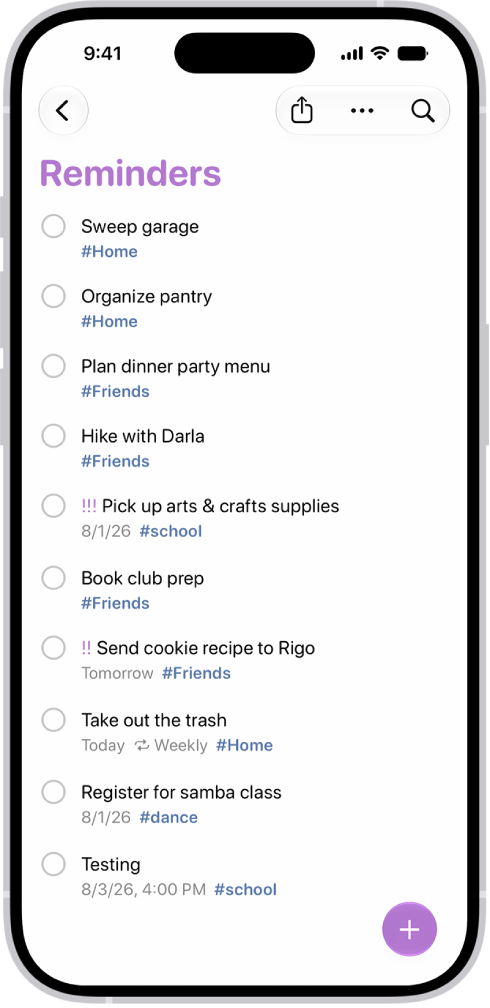
The Reminders app, showing a new task being added to the Reminders list.

Set a reminder

Whenever you need to remember something, type it, dictate it, or ask Siri.

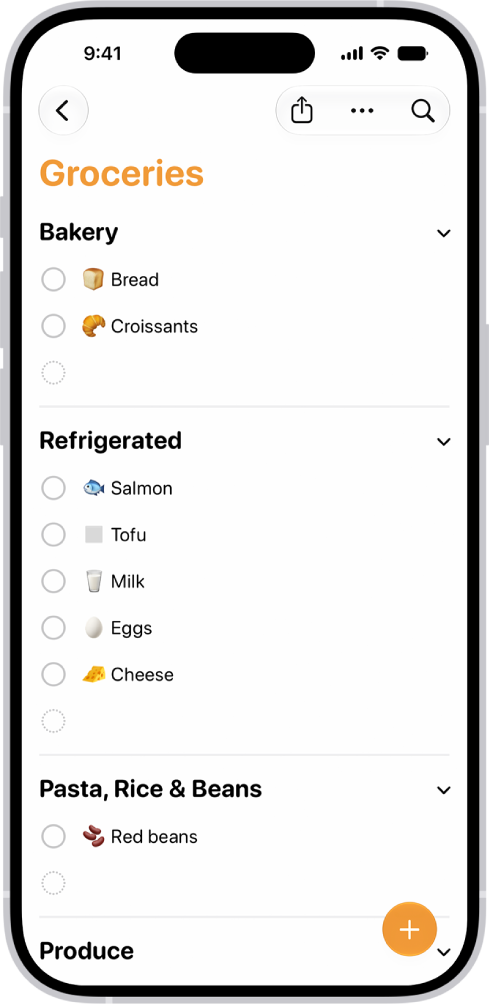
The Reminders app, showing a grocery list with items in categories such as Produce and Seafood.

Create a grocery list

Make your shopping easier with a grocery list that automatically sorts items into categories. To convert a regular list into a grocery list, tap the More button, tap Show List Info, tap List Type, then choose Groceries.

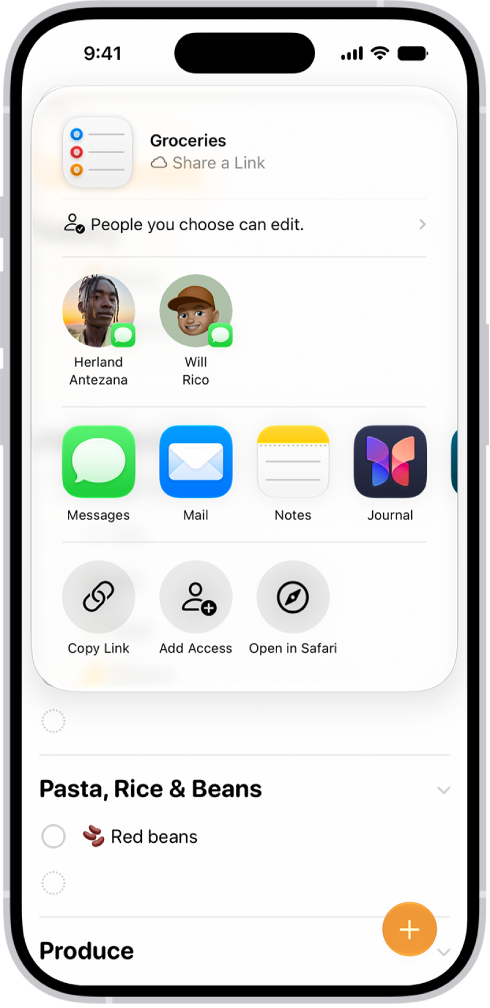
The Reminders app, showing a grocery list with options for sharing at the bottom.

Collaborate on a list

To invite people to work on a list, tap the Share button, then choose a sharing option.

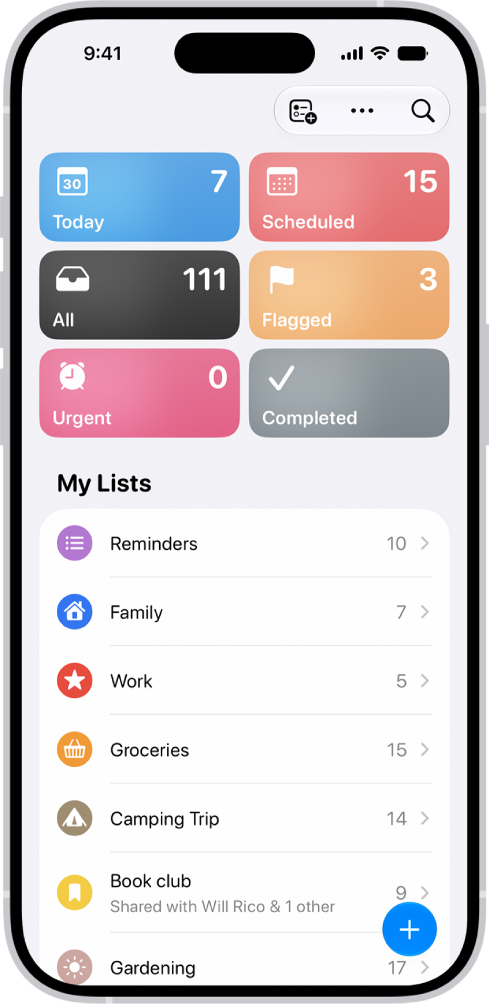
The Reminders app, showing multiple lists and the Tag Browser at the bottom.

Organize your reminders

Along with tags for categorizing, you can create new lists to suit your needs and manage your reminders with Smart Lists. Note: Using updated reminders in iCloud gives you all Reminders features described in this guide, but some features aren’t available with other accounts.

The Photos app sorts photos and videos of people, dogs, and cats in the People & Pets collection (or the People collection if no pets appear). You can name a person, dog, or cat directly from a photo or video in your photo library, or in the People & Pets collection.

When you name someone, they’re automatically added to People & Pets and named in other photos. A question mark appears next to anyone you haven’t named yet.

Name a person or pet in a photo or video

Naming a person or pet in a photo or video automatically adds them to the People & Pets collection, and they’re named in your other photos and videos, too.

  1. Start the Photos app on your iPhone.
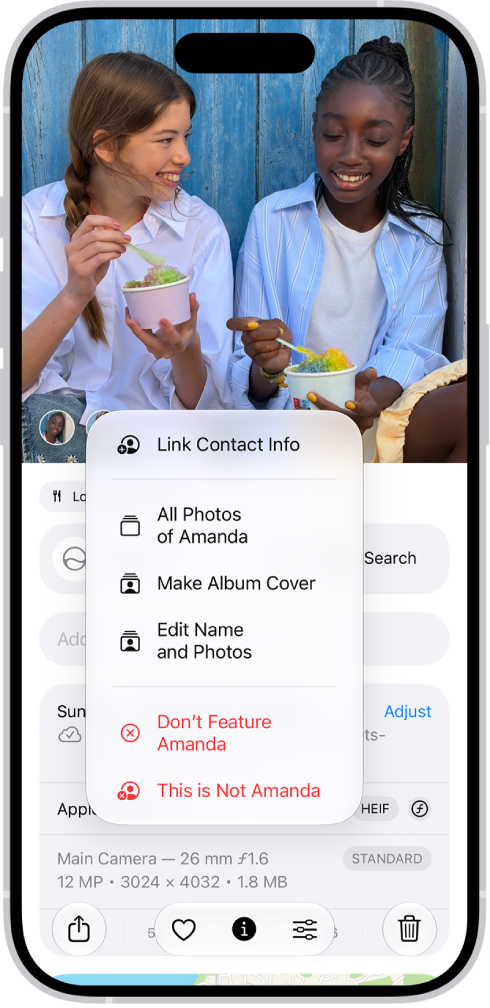
  2. Open a photo or video and then swipe up to see the details. People or pets in the photo or video appear in the bottom-left corner. A question mark appears next to those you haven’t named.
  3. Tap the person or pet with a question mark next to their picture. Tap Edit Name and Photos.

    The top half of the iPhone screen shows a photo open in the Photos app. In the bottom-left corner of the photo are the faces of the people that appear in the photo. One of the faces has a question mark next to it. A menu of options includes, from top to bottom, All Photos, Make Key Photo, Edit Name and Photos, and Don’t Feature This Person.

  4. Tap Name This Person or Name This Pet and enter their name. Tap the Done button.

Name a person or pet in the People & Pets collection

  1. Start the Photos app on your iPhone.
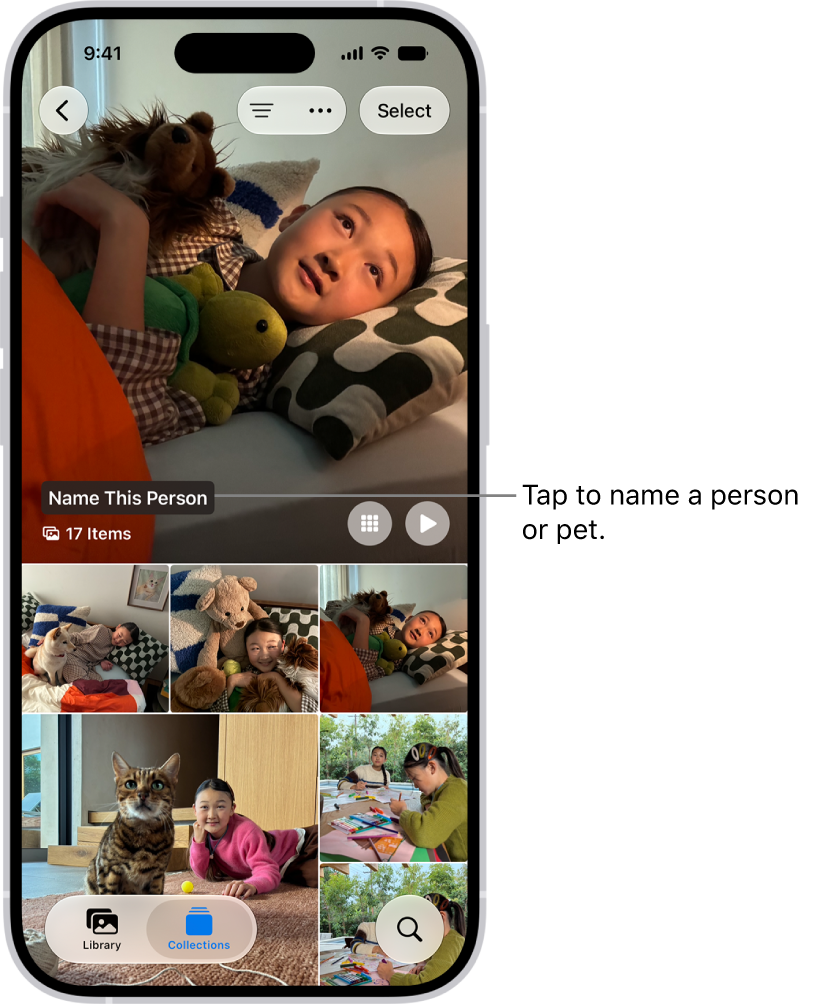
  2. Tap Collections and tap People & Pets. Then tap the person or pet you want to name.

    The People & Pets collection in the Photos app. Groups appear at the top, and people and pets are listed below.

  3. Tap Name This Person or Name This Pet. Then enter their name. If the person is listed in your contacts, you can tap their name below Results.
  4. Tap the Done button.

If the person or pet you want to name doesn’t appear, tap Add People at the bottom of the People & Pets collection to see more faces.

Change the key photo for a person or pet

In the People & Pets collection, you can change the key photo of a person or pet.

  1. Start the Photos app on your iPhone.
  2. Tap Collections and tap People & Pets. Then touch and hold the key photo you want to change.
  3. Tap Edit Name and Photos and tap the photo icon in the bottom-right corner of the current key photo.
  4. Select a new photo from the choices in the photo grid and tap the Done button.

Mark a person or pet as a favorite

To make the people or pets you interact with the most easier to find in the People & Pets collection, mark them as favorites.

  1. Start the Photos app on your iPhone.
  2. Tap Collections, then tap People & Pets.
  3. Touch and hold a person or pet’s key photo and tap Favorite.

To remove a person or pet from your favorites, touch and hold their key photo in the People & Pets collection, then tap Unfavorite.

Fix incorrect names

Found misidentifications in the People & Pets collection? You can fix them.

  1. Start the Photos app on your iPhone.
  2. Tap Collections, then tap People & Pets.
  3. Tap the misidentified person or pet. Tap the More button at the top of the screen.
  4. Tap the incorrect name at the top of the menu, tap the name again, enter the correct name, and then tap the Done button.

You can also fix misidentifications while viewing a photo or video in your library. Swipe up to see the photo or video information. Tap the misidentified person or pet in the circle at the bottom-left corner. Tap This is Not [name], then tap Rename This Person or Rename This Pet.

Sort the People & Pets collection alphabetically or manually

  1. Start the Photos app on your iPhone.
  2. Tap Collections, tap People & Pets, tap Sort, and then choose one of the following:
    • Sort alphabetically: Tap Sort by Name.
    • Sort manually: Tap Sort by Custom Order. Touch and hold a key photo and drag it to a new position.

Hide or don’t feature a person or pet

  1. Start the Photos app on your iPhone.
  2. Tap People & Pets and then touch and hold the person or pet’s key photo.
  3. Tap Hide [name] or Don’t Feature [name].

When you’re using iCloud Photos, People & Pets stays up to date on all your devices.

Tag: Photos

While you edit a photo or video, you can undo and redo changes. After saving, if you don’t like how your changes look, you can revert back to the original.

And when you use iCloud Photos, any edits you make to your photos and videos are saved across all your devices. As you edit, you can compare the edited version to the original, and undo and redo multiple edit steps.

Undo and redo as you edit

As you edit a photo or video, tap the Undo button and the Redo button at the top of the screen to undo and redo multiple edit steps.

Quick tip: Tap the photo or video, and you can compare the edited version to the original.

Revert an edited photo or video

To undo edits after you save, you can revert to the original.

  1. Start the Photos app on your iPhone.
  2. Open the edited photo or video and tap the More button.
  3. Tap Revert to Original.
Tag: Photos

When you search in the Photos app, you’ll see suggestions of dates, locations, and people you’ve named in your photo library. You can search within your Library or Collections tabs, or within a specific album or collection, and you can search by place, category, business names, events, text such as an email address or phone number, and people or pets you’ve named.

With Apple Intelligence, you can search for specific images by describing what you want to find, and search video clips for key moments.

Apple Intelligence on iOS 27 or later is available on an Apple Intelligence-enabled iPhone 15 Pro, iPhone 15 Pro Max, or iPhone 16 model or later. Apple Intelligence is not available in all languages or regions. Usage limits may apply.*

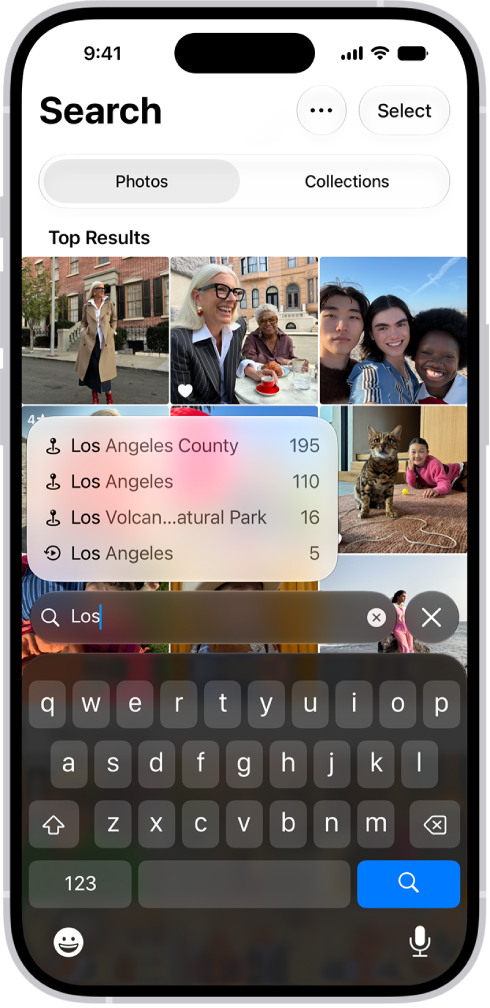
The Search screen in the Photos app showing search suggestions based on the text entered in the search field.

Search for photos and videos

  1. Open the Photos app on your iPhone.
  2. Tap the Search button in the bottom-right corner.
  3. Type what you’re looking for into the search field, such as:
    • Date (month or year)
    • Place (city or state)
    • Business names (museums, for example)
    • Category (beach or sunset, for example)
    • Events (sports games or concerts, for example)
    • People or pets you have named in your photo library
    • Text (an email address or phone number, for example)
    • Caption
    • If you’re using Apple Intelligence, enter a description using natural language—”Maya skateboarding in a tie-dye shirt,” or “Sadie cartwheeling on the grass,” for example.
  4. Tap one of the suggestions or tap the Search button.
  5. Swipe up to browse the complete search results, or do any of the following:
    • Select specific search results: Tap Select and select the photos and videos you want to share or add to an album.
    • View albums or memories that contain the search result: Tap Collections.
    • Sort search results: Tap the Sort and Filter button. Then tap Added to sort by the date added to your library, or tap Captured to sort by the date taken.
    • Filter search results: Tap the Sort and Filter button. Then tap an option, such as Favorites or Edited.
  6. Tap the Close button to exit search.

Quick tip: Narrow your search by including a media type, such as Video or Portrait, in the search field.

Search by shared library participant

As a participant in an iCloud Shared Photo Library, you can also search by who added a photo or video to the library.

  1. Open the Photos app on your iPhone.
  2. Tap the Search button, then enter “Shared by.”
  3. Tap a suggested name.

*Apple Intelligence is available with Siri and device language set to Chinese (Simplified), Chinese (Traditional), Danish, Dutch, English, French, German, Italian, Japanese, Korean, Norwegian, Portuguese, Spanish, Swedish, Turkish, or Vietnamese. Some features may not be available in all regions or languages. Some devices may not be available in all regions. Siri AI is available in beta in iOS 27, iPadOS 27, macOS 27, watchOS 27, and visionOS 27 and requires an Apple Intelligence–enabled device set to a supported language. Available in English to start. Siri AI will not be initially available in the EU on iOS, iPadOS, and watchOS. Certain Apple Intelligence features that rely on server-side models are subject to daily usage limits, including but not limited to Siri AI, Intelligent Photo Editing Tools, Image Playground, and AFM 3 Cloud models in Shortcuts. Daily limits may vary by feature, request complexity, system demand, system policies, and other factors. Expanded access to such features will be available for a fee in the future. Use of these features is subject to the Apple Intelligence Terms and Conditions.

When you update to the latest version of iOS, your data and settings remain unchanged. You can also automatically install system file updates to improve the features of your iPhone without updating iOS.

Before you update, set up iPhone to back up automatically, or back up your device manually. Then you can update iPhone automatically, manually, or using your computer. If you didn’t turn on automatic updates during setup, you can do it in Settings.

Update iPhone automatically

If you didn’t turn on automatic updates when you first set up your iPhone, do the following:

  1. Open the Settings app on your iPhone.
  2. Tap General and tap Software Update. Tap Automatic Updates.
  3. Turn on one of the following:
    • Automatically Install: When an update is available, iPhone downloads and installs it overnight while charging and connected to Wi-Fi. You’re notified before an update is installed.
    • Automatically Download: Downloads an update automatically when your iPhone is connected to Wi‑Fi, charging, and locked so you can install the update later. To see this option, first turn off Automatically Install.

Update iPhone manually

At any time, you can check for and install software updates.

  1. Open the Settings app on your iPhone.
  2. Tap General, then tap Software Update.

    The currently installed version of iOS is shown, and whether an update is available.

  3. If an update is available, tap Download and Install, then follow the onscreen instructions.

Update using your computer

  1. Connect iPhone and your computer with a cable.
  2. Do one of the following:
    • On a Mac (macOS 10.15 or later): In the Finder sidebar, select your iPhone. Click General at the top of the window.
    • On a Mac (macOS 10.14 or earlier) or a Windows device: Open the iTunes app, click the button resembling an iPhone near the top left of the iTunes window, and then click Summary.
  3. Click Check for Update.
  4. To install an available update, click Update.

Automatically update system files only

Without updating iOS, iPhone can automatically download and install system file updates that improve iPhone features.

  1. Open the Settings app on your iPhone.
  2. Tap General and tap Software Update. Tap Automatic Updates.
  3. Under iOS Updates, turn off Automatically Install.
  4. Under System Files, turn on Automatically Install.
Tag: iPhone

You can use a cable to directly connect your iPhone to a Mac with OS X 10.9 or later, or to a Windows device with Windows 7 or later. Once it’s connected, you can set up iPhone for the first time or share your iPhone internet connection. If the cable isn’t compatible with your computer’s port, you’ll need an adapter (sold separately). And the iPhone battery charges while it’s connected, as long as your computer is connected to power.

Using the charging cable for your iPhone, connect iPhone to the USB port on your computer. If the cable isn’t compatible with the port on your computer, you’ll need to use an adapter (sold separately).

Note: Your iPhone may ask whether to trust this computer. If that alert appears, select Trust.

Connect your iPhone to a computer with a cable, and you can do any of the following:

If your computer is connected to power, the iPhone battery charges while your iPhone is connected to it.

Tag: iPhone