Got a tip for us?

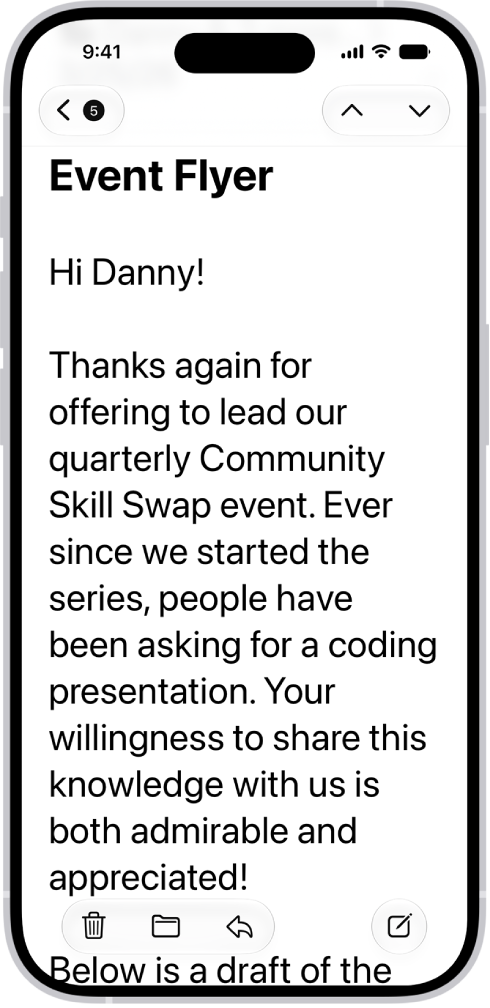
You can make it easier to read text on iPhone by increasing its size or making it bold. You can set a single preferred text size for supported apps, like Calendar, Mail, Messages, and Notes. For additional text sizes, there’s Larger Accessibility Sizes, too.

An iPhone with the Mail app open. An email is displayed with large, bold text.

Make text bigger and bolder

For all supported apps, including Settings, Notes, Messages, Mail, Calendar, and more, you can choose a single preferred text size and turn on bold text.

  1. Open Settings, tap Accessibility, and then tap Display & Text Size.
  2. Do any of the following:

    • Make text bigger: Tap Larger Text and drag the slider to adjust the text size.

      For additional text sizes, turn on Larger Accessibility Sizes.

    • Make text heavier: Turn on Bold Text.

Quick tip: You can change text size without leaving an app. Open Control Center and adjust the Text Size slider . If the slider isn’t there, tap the Add button in the top-left corner and tap Add a Control, then tap the Text Size control.

Turning on Display Zoom to increase the size of text also enlarges interface elements like icons and buttons.

You can also temporarily hover on text to see it larger, change display colors on iPhone to make it easier to see what’s onscreen or zoom in on the screen.

You can invite people to collaborate in Freeform boards and folders in iCloud, and everyone sees the latest changes when they’re online and signed in to their Apple Account. To make sure the board is accessible to all, you can add descriptions for visual items.

Boards are stored only in the owner’s iCloud, so the iCloud storage of the other participants isn’t affected. And as you work, you can see edits as others make them.

Here’s how to collaborate in Freeform boards and folders on iPhone.
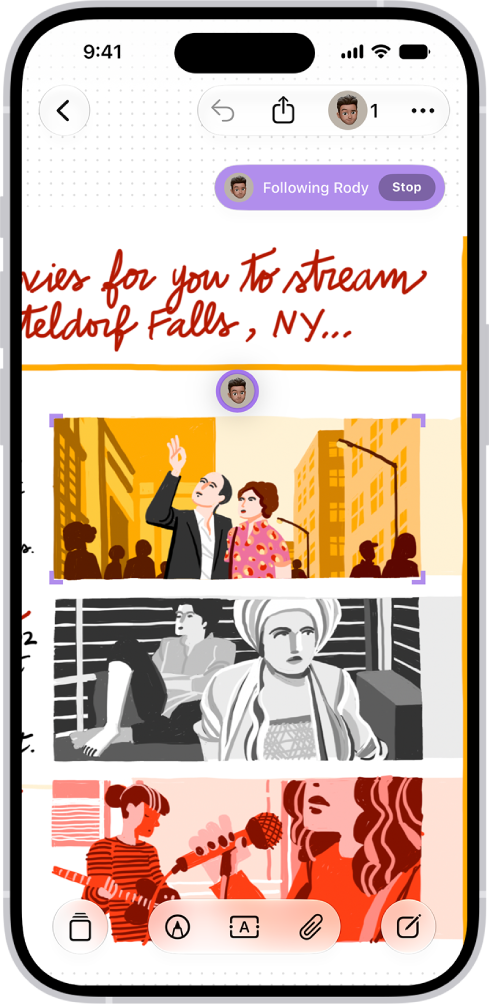
Someone is following another person’s Freeform board.

Invite others to collaborate on a board

As you collaborate with others on a shared Freeform board, their edits show up as they make them. Since changes are saved in iCloud, the latest version is there for everyone with access to the board whenever they open it.

Note: A board is stored only in the owner’s iCloud, so items in it don’t affect the iCloud storage of participants.

  1. Open the Freeform app on your iPhone.
  2. Do one of the following:
    • While browsing All Boards: Touch and hold the board you want to share and tap Share.
    • From inside a board: Open the board you want to share (or tap the New Board button to start a new one). Tap the Share Board button.
  3. The current sharing setting is described below the name of the board, such as People you choose can edit. Tap the setting to change it.
  4. Choose how you want to share the board—such as in Messages or Mail—or tap the icon of anyone you communicated with recently to share with them.

You can add people after you start sharing a board. Tap the Collaborate button, tap Manage Shared Board, then tap Share With More People. When you share with others in Messages, the Collaborate button may change to reflect who shares the board with you.

Note: To view or edit the board, the people you share it with need iOS 16.2, iPadOS 16.2, macOS 13.1, or later, and they must be signed in to their Apple Account. If you’re collaborating in Messages, you and anyone you invite must also turn on iMessage.

Share a folder

To work with others on a folder of Freeform boards, share it.

Note: You can only share a top-level folder.

  1. Open the Freeform app on your iPhone.
  2. Create a folder.
  3. Touch and hold the folder, then tap Share.
  4. In the share sheet, choose how to send the invitation, set permissions and then send. Anyone you invite gets access to all the boards and subfolders in the folder, including ones added later.
  5. To set permissions, do any of the following:
    • Let others add and edit boards in the folder: Choose Can Make Changes.
    • Let others open boards without editing or adding new ones: Choose View Only.
  6. To add participants, touch and hold the shared folder, tap Manage Shared Folder, and then tap Add People.

You won’t see Manage Shared Folder unless you’re the owner of the folder.

View others in a board

In real time, you can see where others are working on your board, or follow along as another participant moves in a board. Say someone is presenting their design proposal on a Freeform board: if you’re following them, you can see where they are on the board and what’s in their view.
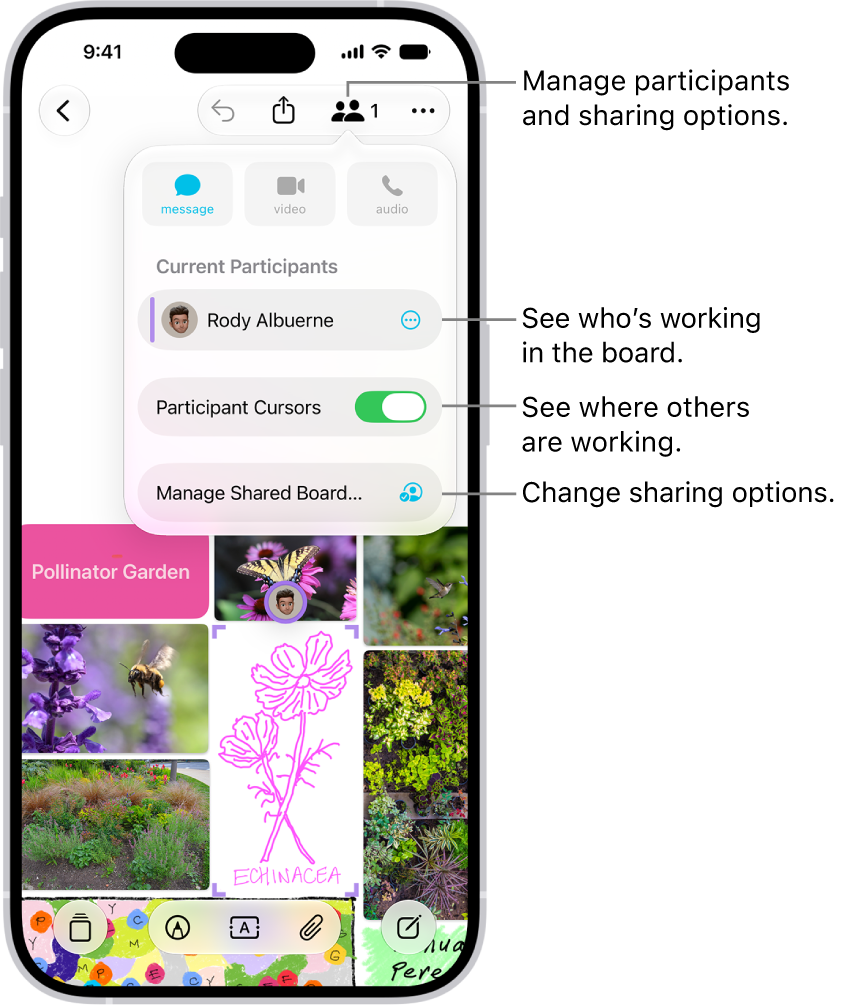
A shared Freeform board on iPhone with the collaboration menu open.

  1. Open the Freeform app on your iPhone.
  2. Open the shared board where you want to see others at work. Tap the Collaborate button.
  3. Turn on Participant Cursors if the setting is off.
  4. Do any of the following:

    • Jump to where they’re working: Tap the name of a participant.

      The color next to the participant’s name matches the color marking their place on the board.

    • Follow their board view as they work or present: Tap the More button next to the name of a participant. Tap Follow Along. Or you can just tap the person’s avatar wherever they are on the board. Tap Follow.

Entering the mode deselects anything you’d selected before, and a border frames what they see on the board, in a color matching the cursor of the person you’re following.

You and the presenter you’re following both need to be online.

While following along, you can’t select anything on the board, and your zoom level matches the other person’s view.

To stop following along, tap Stop in the top-right corner—or just scroll, zoom, or edit.

Note: People working with you on a board can undo and redo only their own changes, and only while the board is open. On your iPhone, the Undo button steps back through the changes you made. To redo, touch and hold Undo, then tap Redo.

Add accessibility descriptions

You can add a description of your visual content to any item on your board. That way, people who use assistive technology such as VoiceOver can hear the visual content described aloud. (Descriptions aren’t visible on the board itself.)

  1. Open the Freeform app on your iPhone.
  2. Open the board where you want to add accessibility descriptions.
  3. Tap to select the item you want to describe and tap the More button in the formatting tools at the bottom. Then tap Description.
  4. Enter a description of the visual content, then tap the Close button.
  5. To hear the description, turn on VoiceOver and then tap the item.

Stop sharing or collaborating

  1. Open the Freeform app on your iPhone.
  2. Touch and hold the shared board or folder. Then tap Manage Shared Folder.

    If you’re already in a board, tap the Collaborate button, then tap Manage Shared Board.

  3. Do any of the following:

    • Remove individuals: Tap the name of the participant you want to remove. Then tap Remove Access.
    • Remove yourself from someone else’s board or folder: Tap your name, then tap Remove Me.
    • Stop sharing with everyone: Tap Stop Sharing and then tap Stop Sharing.

      When you choose this option, the board no longer appears on the devices of the other participants, even though you still have access to it.

      When you stop sharing a folder, the people you shared with lose access to all the boards and subfolders inside it.

After you start sharing a board, you can change access and permissions for individuals or for everyone.

For the collaboration features to work fully, all participants must be online and signed in to their Apple Account. They also need Freeform turned on in iCloud and must have set up two-factor authentication.


The Maps app helps you navigate the world around you, whether you’re getting directions to a new destination, exploring unfamiliar areas, or discovering local businesses. You can save the locations you travel to and from most, like home, work, or school, to quickly access directions.

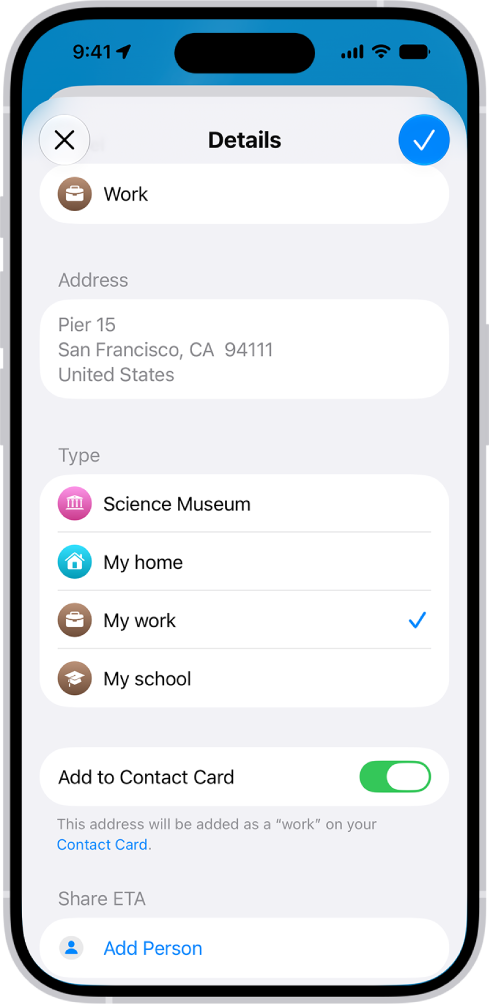
The Maps app showing the Details screen with options to set an address as home, work, or school.

Set your go-to addresses

By saving the locations you travel to and from most, you can access directions quickly.

  1. Below Places, tap the Add button.
  2. Tap the search field, enter an address, and then tap a result.

Assign it to a type—home, work, or school—then tap the Done button.

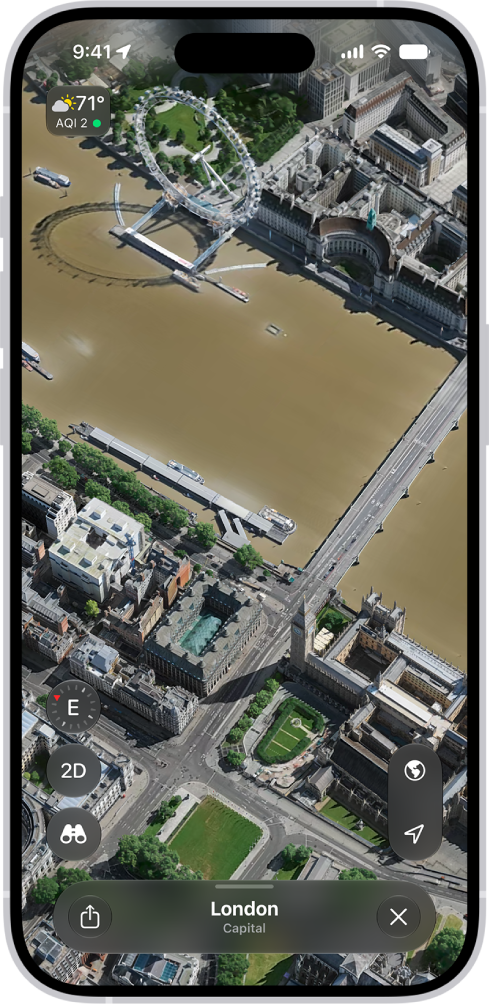
A 3D map in the Maps app, showing details of a city.

Immerse yourself in a place

Maps renders cities in sharp, true-to-life detail.

  1. Tap the Exploring Map Mode button and tap Satellite. Then tap the Close button.

Pinch open to zoom in, and swipe up with two fingers to see the map in 3D.

When you see the Look Around button near the bottom of a map, tap it to look around with a 360-degree panoramic view.

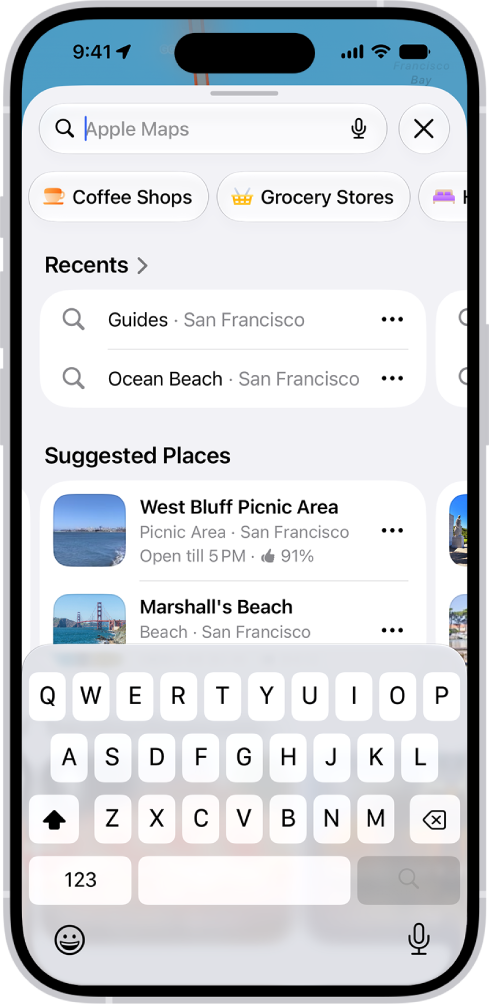
The Maps app showing the search field, categories for nearby services, and city guides. In the bottom part of the screen is the iPhone onscreen keyboard.

Discover what’s nearby

In an unfamiliar area? Find nearby places like restaurants, shops, or services.

  1. Tap the search field and simply start typing, or tap a category below it, like Restaurants or Grocery Stores.

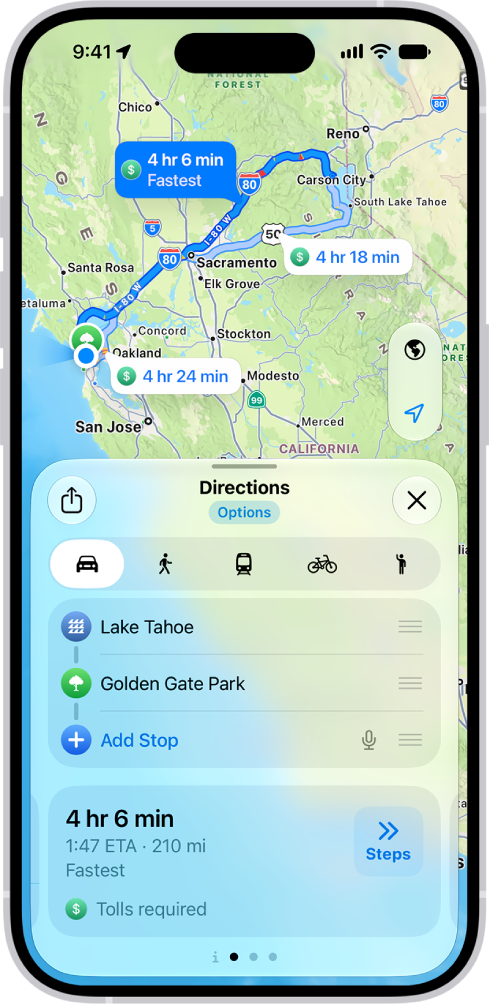
An iPhone showing a map with several driving route options to the same destination. Each route shows the estimated time and distance, and a Go button to start turn-by-turn directions. Color coding on each route indicates traffic conditions.

Navigate with ease

Wherever you’re headed, and however you want to get there, you can get step-by-step directions.

  1. Touch and hold anywhere on the map or enter a location in the search field.
  2. Tap Plan or Directions, tap your travel mode (the Driving button, the Walking button, the Transit button, or the Cycling button), and then tap Go.

Not all features are available in all countries or regions, according to Apple.

Tag: Maps

The Safari app brings the internet to your iPhone. You can browse the web, bookmark websites to revisit later, keep your browsing activity private, and much more.

Every new tab opens on the Safari start page, with easy access to your Favorites, Reading List, Bookmarks, and History. And when you want to keep your browsing activities to yourself, there’s Private Browsing.

Here’s how to get started with Safari on iPhone.

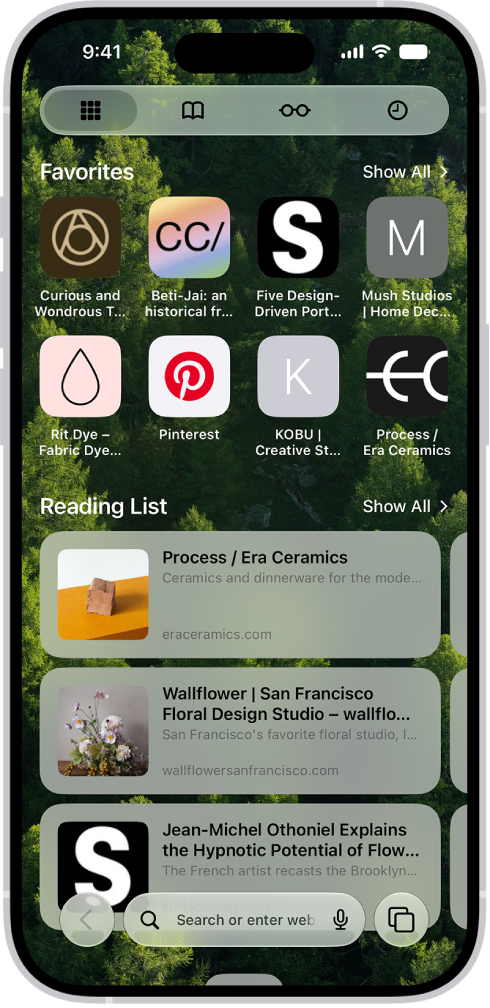
The Safari start page shown with selections for Favorites and the Reading List.

Start browsing here

The Safari start page is the place to start browsing and customize your preferences, with easy access to your Favorites, Reading List, Bookmarks, and History. Open the Safari app, or tap the Tabs button, then tap the Add button to open a new start page.

The Bookmarks and All Tabs screen in the Safari app, with options to Share, Add to a specific folder, Add to a folder of your choice, add a New Tab, and add a New Private Tab.

Bookmark a website

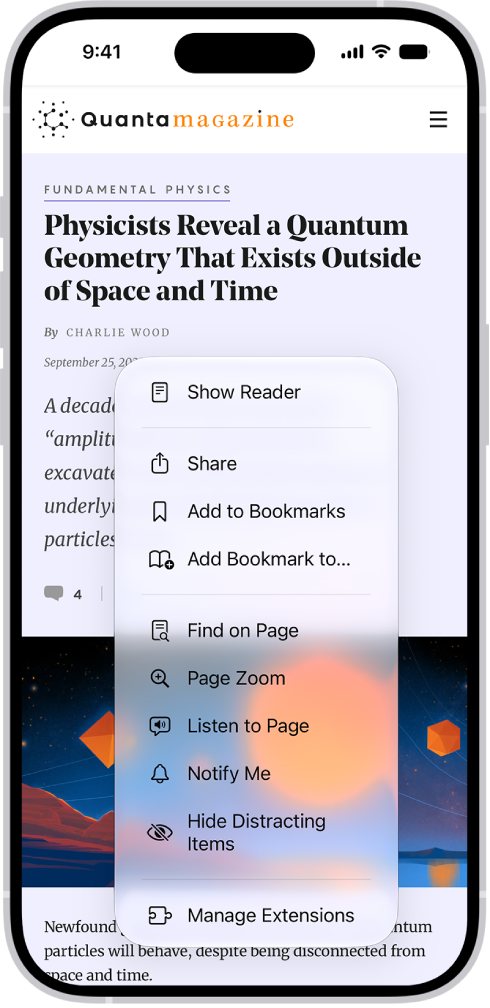
Save a website to revisit later. Tap the Page Menu button, then tap “Add Bookmark to.”

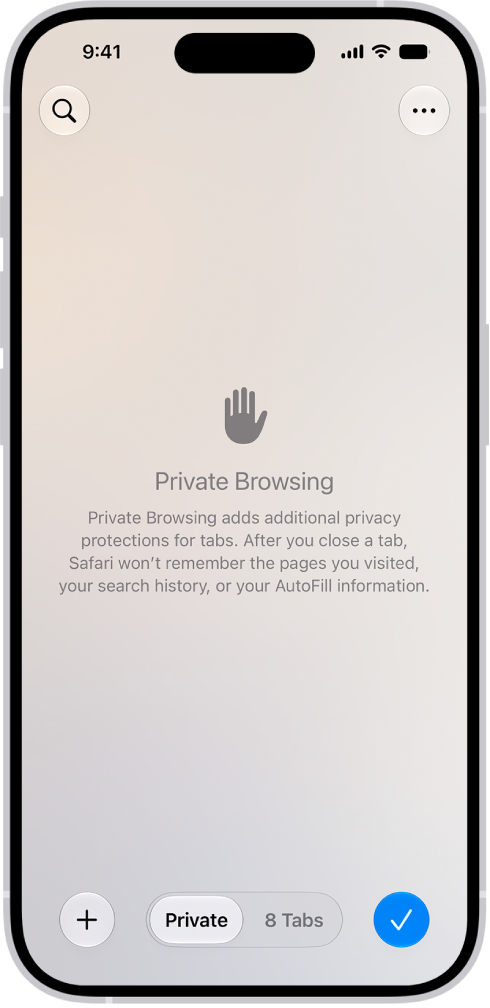
A Private Browsing screen in the Safari app. The word Private appears in the field at the bottom of the screen.

Browse privately

Keep your browsing activities to yourself. When you use Private Browsing, the tabs you open don’t appear in History on iPhone or in the list of tabs on your other devices. Tap the Tabs button, then swipe right on the tab bar until Private appears.

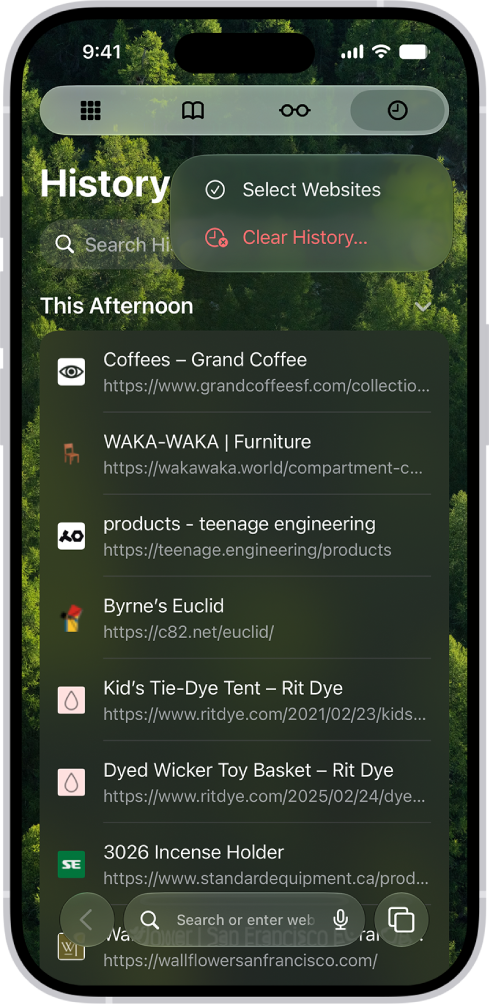
The Clear History menu in the Safari app with Clear History highlighted.

Remove cookies and clear your cache

Remove cookies and clear the cache on your iPhone to remove permissions you granted to websites to use your location (or send you notifications) and to erase your browsing history. Go to your start page (or tap the Tabs button, then tap the Add button to open a new one). Tap the History button, tap the More button, then tap Clear History. Note: Clearing your browsing history in Safari doesn’t clear any browsing histories kept independently by websites you visited, or your browsing history in other apps.

Tag: Safari

All photos and videos you take with your iPhone camera are saved in the Photos app. With iCloud Photos turned on, all new photos and videos are automatically uploaded and available in Photos on all your devices that are set up with iCloud Photos (with iOS 8.1, iPadOS 13, or later).

You can see the photos you’ve taken recently right from Camera. You can also share and print your photos.

Note: If Location Services is turned on in Settings > Privacy & Security > Location Services, photos and videos are tagged with location data that can be used by apps and photo-sharing websites.

View your photos

  1. Open Camera on your iPhone.
  2. Tap the thumbnail image in the lower-left corner.
  3. Swipe left or right to see the photos you’ve taken recently.
  4. Tap the screen to show or hide the controls.
  5. Tap All Photos to see all your photos and videos saved in the Photos app.

Share and print your photos

  1. While viewing a photo on your iPhone, tap the Share button.
  2. To share your photo, select an option such as AirDrop, Mail, or Messages.
  3. To print your photo, swipe up to select Print from the list of actions.

Upload photos and keep them up to date across devices

Use iCloud Photos to upload photos and videos from your iPhone to iCloud and then access them on other devices where you’re signed in to the same Apple Account. iCloud Photos is useful if you want to keep your photos up to date across multiple devices or save space on your iPhone. To turn on iCloud Photos, go to Settings > Apps > Photos, then turn on iCloud Photos.

Tags: iCloud, Photos

If you use VoiceOver on iPhone, and don’t need to see what’s on the screen, you can turn on the screen curtain. It improves battery life and helps maintain privacy. And even though the display is off, your iPhone stays active.

With VoiceOver on, triple-tap with three fingers to turn the screen curtain on or off. If both VoiceOver and the Zoom feature are turned on, quadruple-tap with three fingers.

You can remotely control your other Apple devices without adjusting any switch connections. With Platform Switching, you can navigate your iPad, Mac, or Apple TV 4K using the same switch that you use to control your iPhone.

All your devices need to be on the same Wi-Fi network and signed in with the same Apple Account, with Switch Control turned on for each one. And you can disconnect at any time from the Devices menu on the connected device.

  1. Connect your devices to the same Wi-Fi network.
  2. Sign in with the same Apple Account on all your devices.
  3. Set up and turn on Switch Control on iPhone. Turn on Switch Control for the others: iPad, Mac, or Apple TV 4K.
  4. Use the switch to open the Scanner menu.
  5. Choose Device, choose Use Other Device, and then choose Connect.

To remove control from your iPhone, choose Devices on the connected device, then choose Disconnect.

On iPhone, you can check how much storage space is available and increase the available space by removing items you no longer need. Photos and videos, messages, downloaded videos, and apps are common sources of storage use, and iPhone can automatically remove unused apps while keeping your data.

Check storage

  1. Open the Settings app on your iPhone.
  2. Tap General and tap iPhone Storage.

At the top of the screen, you’ll see the available storage.

Remove items to increase storage

These items are common sources of storage use, and you can do any of the following to increase available storage:

Offload unused apps automatically

When storage is low, iPhone can automatically remove unused apps while keeping your data. The app icon stays on your Home Screen with a cloud symbol—tap it to reinstall the app.

  1. Open the Settings app on your iPhone.
  2. Tap Apps, tap App Store, and then turn on Offload Unused Apps.
Tag: iPhone

You can use Switch Control on iPhone to select items, perform actions, and more. Once you set up and turn on Switch Control, you can use item mode to select items and perform actions, or use the gliding cursor, head tracking, or eye tracking to control the cursor on the screen.

  • Item mode: The cursor sequentially highlights items or groups of items. This is the default method when you first turn on Switch Control and whenever the Scanner menu appears.
  • Gliding cursor: You select a point on the screen using scanning crosshairs. This method is useful when you need to select a specific point, such as in Maps, or on a screen with many items.
  • Head tracking: You can move your head (detected by the front-facing camera) to control the cursor on the screen.
  • Eye tracking: You can move your eyes (detected by the front-facing camera) to control the cursor on the screen.

When the cursor is on the item you want, the Scanner menu opens to show the available actions such as tap, scroll, control the volume, and more.

Use item mode to select items and perform actions

  1. Depending on the scanning style you’re using, do one of the following:
    • If using Auto Scanning: Watch or listen as groups of items are sequentially highlighted.
    • If using Manual Scanning: Activate your Move to Next Item switch to navigate through the groups of items on the screen.
    • If using Single Switch Step Scanning: Activate your Move to Next Item switch to navigate through the groups of items on the screen.
  2. When the group you want is highlighted, do one of the following:
    • If using Auto Scanning: Activate your Select Item switch.
    • If using Manual Scanning: Activate your Select Item switch.
    • If using Single Switch Step Scanning: Wait until the current group is automatically selected.
  3. Repeat steps 1 and 2 to scan and select an item within the group.
  4. Repeat steps 1 and 2 to scan and choose an action in the Scanner menu. The dots at the bottom of the menu provide more options.

Once the original item is highlighted and every icon in the menu is dimmed, activating your Select Item switch closes the Scanner menu without choosing an action.

Use the Gliding Cursor to select a point

By default, Switch Control starts in item mode, though you can use the Gliding Cursor instead.

  1. Do either of the following:

    • Go to Settings > Accessibility > Switch Control > Switch Control Mode > then select Gliding Cursor.
    • Use item mode to select any item, then choose Gliding Cursor (in the Scanner menu).

    To position the vertical crosshair, activate your Select Item switch when the wide vertical band is over the item you want.

  2. Activate your Select Item switch again when the fine vertical line is over the item.
  3. To position the horizontal crosshair, activate your Select Item switch when the wide horizontal band is over the item you want.
  4. Activate your Select Item switch again when the fine horizontal line is over the item.
  5. In the Scanner menu, select the action you want and then activate your Select Item switch.

To return to item mode, open the Scanner menu, then choose Item Mode.

Set up Head Tracking

With Head Tracking, your head movements control a cursor on the screen, and you can assign actions to facial expressions, like a smile or raised eyebrows.

Here’s what to do if you want to set up Head Tracking:

  • Go to Settings > Accessibility > Switch Control > Switches, then make sure you’ve set up switches.
  • Go to Settings > Accessibility > Switch Control > Head Tracking, turn on Head Tracking, then set any of these options:
    • Assign actions to facial expressions: Each expression can perform a different action and require a different degree of expressiveness.
    • Choose how the pointer tracks your head movement: Tap Tracking Mode. Then choose With Face, When Facing Screen Edges, or Relative to Head.
    • Adjust the pointer speed: Tap the Decrement button or the Increment button.

Use Head Tracking

  1. Do either of the following:
    • Go to Settings > Accessibility > Switch Control > Switch Control Mode > then select Head Tracking.
    • Use item mode to select any item, then choose Head Tracking (in the Scanner menu).
  2. Move your head to position the cursor on the location you want and then activate it using your Select Item switch or facial expression.
  3. In the Scanner menu, select the action you want. Activate your Select Item switch or facial expression.

To return to item mode, open the Scanner menu, then choose Item Mode.

Set up Eye Tracking

With Eye Tracking, you move your eyes to control a cursor on the screen. And you can use Dwell Control to perform actions by holding your gaze for a set amount of time.

To set up Eye Tracking, work through these steps in order:

  • Go to Settings > Accessibility > Switch Control > Switches, then make sure you’ve set up switches.
  • Go to Settings > Accessibility > Switch Control > Eye Tracking, turn on Face Guidance.
  • Go to Settings > Accessibility > Switch Control > Eye Tracking > Dwell Control, choose a switch action, then set any of these Dwell Options:
    • Dwell Timeout: Tap the Decrement button or the Increment button.
    • Movement Tolerance: Drag the slider to set the distance you can move while dwelling on an item.

Use Eye Tracking

  1. Do either of the following:
    • Go to Settings > Accessibility > Switch Control > Switch Control Mode > then select Eye Tracking.
    • Use item mode to select any item, then choose Eye Tracking (in the Scanner menu).
  2. Move your eyes to position the cursor on the location you want. Activate it using your Select Item switch.
  3. In the Scanner menu, select the action you want and then activate your Select Item switch.

You can share health data stored in the Health app, such as health alerts and trends, with friends, family, and others caring for you.

The people you share with can also see the health notifications you get, like high heart rate and irregular rhythm notifications. You can review or change what you’re sharing, or stop sharing data with a contact or a provider. You can share health and fitness data with apps and devices, too.

Share health data with someone

The people you share health data with can also see the health notifications you get, including high heart rate and irregular rhythm notifications. Notifications for significant trends, like a steep decline in activity, can be shared, too.

Note: To share health data with someone, you need to include them in your contacts.

  1. Open the Health app on your iPhone.
  2. Tap Sharing, then do one of the following:
    • Set up sharing for the first time: Tap Share with Someone.
    • Share with an additional contact: Tap Add another person and then tap Next.
  3. Use the search field to find someone in your contacts list and tap their contact information to select them.
  4. Tap See Suggested Topics or Set Up Manually, then choose topics to share.
  5. Scroll down to see all topics on a screen, choose options, and then tap Next to see the next screen.
  6. Tap Share, then tap Done.

Once your invitation is accepted, you get a notification.

Review or change the data you’re sharing with others

  1. Open the Health app on your iPhone.
  2. Tap Sharing.
  3. Tap the name of a person or a healthcare provider.
  4. Scroll down, then tap View Shared Data.
  5. Make any changes, then tap Done.

Stop sharing data with a contact or a provider

  1. Open the Health app on your iPhone.
  2. Tap Sharing.
  3. Tap the name of a person or a healthcare provider.
  4. Tap Stop Sharing or Remove Account.

Note: If you start sharing data with someone, simply removing them from Contacts doesn’t stop the information from being shared.

Share health and fitness data with apps and devices

Other apps can share health and fitness data with Health if you give them permission. Install a workout app, for example, and its exercise data can show up in Health. The workout app can also read and use data shared by other devices and apps, such as your heart rate and weight. Didn’t give an app permission to share data with Health during setup? You can give permission later, or remove an app’s permission.

  1. Open the Health app on your iPhone.
  2. Tap Summary, then tap your picture or initials.
  3. Below Privacy, tap Apps or Devices.

The screen lists the items that requested access to Health data.

  1. To change the access for an item, tap it. Turn on or off permission to write data to—or read data from—Health.

Share your health and fitness data in XML format

Health can export all of your health and fitness data in XML format, a common format for sharing data between apps.

  1. Open the Health app on your iPhone.
  2. Tap Summary, then tap your picture or initials.
  3. Tap Export All Health Data. Then choose a method for sharing your data.
Tag: Health