Got a tip for us?

Cycle Tracking in the Health app on iPhone can provide notifications when your logged cycle patterns are suggestive of perimenopause. After logging perimenopause or menopause in the Health app, you can track related symptoms in the Cycle Tracking app.

It’s simple. You can log symptoms like hot flashes, night sweats, and sleep changes, and log bleeding after menopause, too, and if you do, you receive a notification recommending that you contact your doctor.

Important: Cycle Tracking in the Health app should not be used for birth control or to diagnose a health condition. Cycle deviation notifications are based solely on the user’s logged cycle history. Cycle deviation notifications inclusive of perimenopause are for ages 40 and above. These notifications are not intended to replace traditional methods of diagnosis, monitoring, or treatment of perimenopause or menopause.

Log stages of perimenopause or menopause

  1. Open the Health app on your iPhone.
  2. Tap Browse, then tap Cycle Tracking.
  3. Scroll down, then tap Menopause Stages.
  4. Tap the Add button and tap Next.
  5. Do one of the following:

    • Log perimenopause: Tap I’m in perimenopause.
    • Log menopause: Tap I’ve reached menopause.

    To learn more, tap “Learn About Perimenopause and Menopause.”

  6. Follow the onscreen instructions.

To track menopause after perimenopause, tap Menopause Stages, tap the Add button, then follow the onscreen instructions. Your perimenopause history is saved and all cycle deviation detection, predictions, and fertile window estimates are turned off.

With perimenopause or menopause logged, you can also log related symptoms such as hot flashes, sleep changes, night sweats, and more.

Log bleeding after menopause and other symptoms

  1. Open the Cycle Tracking app on your Apple Watch.
  2. Swipe to select a day and then tap Log.
  3. Tap Bleeding After Menopause, tap Had Bleeding and tap a bleeding level. Then tap the Done button.

Note: When you log bleeding after menopause, you receive a notification recommending that you contact your doctor.

Tag: Health

After you subscribe to Apple Music, you can pin your favorite music (including music videos) to the top of your library so it’s easily accessible.

You can pin a playlist, an artist, an album, or a song, and unpin an item whenever you like. You pin an item from its More button. You can even choose what happens when you tap a pinned item.

Here’s how to pin albums, songs, and more in Music on Apple Watch.

Pin music to the top of your library

  1. Open the Music app on your Apple Watch.
  2. Do any of the following:
    • Pin a playlist: Tap the More button when viewing a playlist and then tap Pin Playlist.
    • Pin an artist: Tap the More button then tap Pin Artist.
    • Pin an album: Tap an album and tap the More button. Tap Pin Album.
    • Pin a song: Tap the More button next to a song. Then tap Pin [item]. Or on the Now Playing screen, tap the More button. Then tap Pin [item].

Only content in your library can be pinned, so pinning an artist means having at least some content by that artist in your library. Items you pin sit at the top of your library.

Unpin an item in your library

  1. Open the Music app on your Apple Watch.
  2. From the Home screen, tap the Back button. Then tap Library.
  3. Touch and hold a pinned item and then tap Unpin [item].

Choose what happens when you tap a pinned item

When you tap a pinned item, you can customize what happens. For example, you can choose to open a pinned playlist page or play and shuffle songs for an artist.

  1. Open the Music app on your Apple Watch.
  2. From the Home screen, tap Tap Action and then choose an action.

When you choose Play or Shuffle, an icon for the action shows up next to the item name.

See also

Tag: Music

After 1 second of inactivity, the App Switcher can automatically open the focused app on your Apple Watch, thanks to an accessibility setting called Auto-Select Focused App. It’s optional, and you can still open an app from the App Switcher yourself.

Turn on or off Auto-Select Focused App

  1. Start the Settings app on your Apple Watch.
  2. Go to Accessibility and turn on or off Auto-Select Focused App.

See also

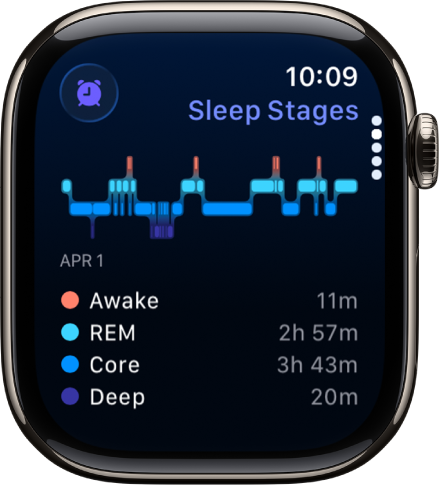
Wear your watch to bed, and Apple Watch can estimate the time you spent in each sleep stage—REM, Core, and Deep—as well as when you might have woken up.

When you wake up, open the Sleep app to learn how much sleep you got and see your sleep trends over the past 14 days, including your sleep score. You can also review your sleeping respiratory rate.

Here’s how to track your sleep on Apple Watch.

The Sleep app showing estimated time spent awake and in REM, Core, and Deep sleep.

View your recent sleep history

Go to the Sleep app on your Apple Watch to see your sleep score, the time you spent in each sleep stage, the amount of sleep you got the night before, and your sleep average over the last 14 days.

To see your sleep history and sleep score on iPhone, go to the Health app on iPhone, tap Browse, then tap Sleep. For more details, tap Sleep or Sleep Score.

Change sleep settings

  1. Start the Settings app on your Apple Watch.
  2. Tap Sleep and then adjust these settings:

    • Turn On at Wind Down: By default, the Sleep Focus begins at the wind down time you set in the Sleep app. If you’d prefer to control the Sleep Focus manually in Control Center, turn this option off.
    • Sleep Screen: Your Apple Watch display and iPhone Lock Screen are simplified to reduce distractions.
    • Show Time: Show the date and time on your iPhone and Apple Watch while the Sleep Focus is active.
  3. Turn Sleep Tracking and Charging Reminders on or off.

    When Sleep Tracking is on, your Apple Watch tracks your sleep and adds sleep data to the Health app on your iPhone.

    Turn on Charging Reminders to have your Apple Watch remind you to charge your watch before your wind down time and notify you when your watch is fully charged.

    You can also change these sleep options on your iPhone. Open the Apple Watch app on your iPhone, tap My Watch, then tap Sleep.

Review your sleeping respiratory rate

Your Apple Watch can help track your breathing rate as you sleep, which can give you greater insight into your overall health. After wearing your watch to bed, do the following:

  1. Start the Health app on your iPhone.
  2. Tap Browse, then tap Respiratory.
  3. Tap Respiratory Rate and tap Show More Respiratory Rate Data.

    The Sleep entry shows the range of your respiratory rate as you’ve slept.

Note: Apple Watch is not a medical device, and Respiratory Rate measurements are not intended for use in medical diagnosis, treatment, or for any other medical purpose.

Turn off respiratory rate measurements

  1. Start the Settings app on your Apple Watch.
  2. Tap Privacy & Security and tap Health.
  3. Tap Respiratory Rate, then turn off Respiratory Rate.

You can also open the Apple Watch app on your iPhone, tap My Watch, tap Privacy, then turn off Respiratory Rate.

See also

Tag: Health

Siri can read out incoming notifications from many apps without having to unlock your iPhone when you’re using supported AirPods and Beats headphones. Siri avoids interrupting you and listens after reading notifications so you can reply without saying “Hey Siri.”

You can choose the apps that are allowed to announce notifications, and temporarily turn the feature off. Siri can also read your unread notifications in Notification Center through the Apple Watch speaker.

Turn on Announce Notifications

  1. Put your paired headphones in or on your ears, depending on the kind of headphones you have.
  2. Pair them with Apple Watch.
  3. Open the Settings app on your Apple Watch.
  4. Go to Siri and tap Announce Notifications. Turn on Announce Notifications.

You can also go to the Settings app on your iPhone, go to Notifications > Announce Notifications, then turn on Announce Notifications.

Quick tip: To hear your unread notifications from Notification Center, just say “Read my notifications.” Siri reads them through the Apple Watch speaker or Bluetooth headphones.

Choose apps for notifications

You can choose the apps that are allowed to announce notifications.

  1. Put your paired headphones in or on your ears, depending on the kind of headphones you have.
  2. Open the Settings app on your Apple Watch.
  3. Go to Siri, tap Announce Notifications, scroll down, and then tap the apps you want audio notifications from.

Temporarily turn off Announce Notifications

  1. Press the side button to open Control Center.
  2. Tap the Announce Notifications button.

    Tap the Announce Notifications button again to turn it on.

Note: The Announce Notifications button is disabled when you remove AirPods.

Reply to a message

Say something like “Reply that’s great news.”

Siri repeats what you said, then asks for confirmation before sending your reply. (To send replies without waiting for confirmation, go to the Settings app on your Apple Watch, go to Siri > Announce Notifications, scroll to the bottom, then turn on Reply without Confirmation.)

Stop Siri from reading a notification

You can stop Siri from reading a notification in any of these ways:

  • Say something like “Stop” or “Cancel.”
  • Press the Digital Crown (AirPods Max).

    Note: While listening to a notification, you can turn the Digital Crown to change the volume.

  • Press either Force Sensor (AirPods Pro and AirPods 3).
  • Double-tap either of your AirPods 2.
  • Remove one of your AirPods (AirPods Pro, AirPods 2, and AirPods 3).

If you didn’t turn on Announce Notifications when you set up your AirPods, go to the Settings app on your Apple Watch, go to Siri > Announce Notifications, then turn on Announce Notifications.

See also

When you log your menstrual cycle, you can check the predicted date for your next period or fertile window, receive notifications about when your next period or fertile window is expected to be approaching, view details about your cycle history, and more.

A timeline at the top of Cycle Tracking shows predicted period days and more, and you can check the dates for your predicted next period and your reported last period.

Here’s how to view menstrual cycle predictions and history in Health on iPhone.

Note: Health can also use data from Apple Watch to improve the predictions for your period and fertile windows.

View your cycle timeline

Tap Browse, then tap Cycle Tracking.

At the top of the screen, a timeline shows the following icons.

Icon Description
A light red circle A predicted period day.
A light blue oval A predicted day of your fertile window.
A light purple oval A day you likely ovulated (requires Apple Watch Series 8 or later or any Apple Watch Ultra model to be paired with your iPhone; not available in all regions).
A solid red circle A day you logged a period.
A purple dot A day you added information (for example, noting a headache or cramping).

To select different days, swipe the timeline.

Check the dates for your predicted next period and for your reported last period
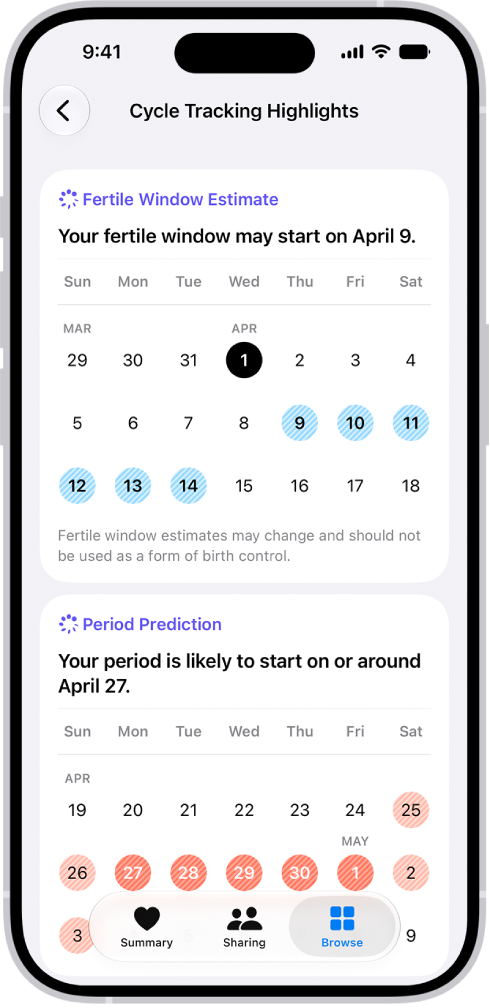
The Cycle Tracking highlights screen in Health showing calendars for fertile window estimates and period predictions.

  1. Start the Health app on your iPhone.
  2. Tap Browse, then tap Cycle Tracking.
  3. Scroll to Highlights to see when your next period is likely to start.

If you don’t see the estimate, tap Show All next to Highlights.

  1. Scroll to Summary to see the date of your last period and your typical cycle length.

If you don’t see a period prediction, make sure you have Period Predictions turned on in Options.

View your cycle history

  1. Start the Health app on your iPhone.
  2. Tap Browse, then tap Cycle Tracking.
  3. To see a summary of your last three cycles, scroll down to Your Cycles.
  4. To see summaries of all previous cycles, tap Cycle History.

To send or a save a PDF of your cycle history, tap Export PDF, tap the Share button, then choose an option.

  1. To see details about a cycle, tap it.

To change any details for the cycle, tap Edit.

To send or a save a PDF of the cycle details, tap Export PDF, tap the Share button, then choose an option.

If you receive a Cycle Deviation notification

If your logged cycle history shows a possible cycle deviation, you can get a notification. Common cycle deviations include irregular periods, infrequent periods, prolonged periods, and persistent spotting. They may indicate an underlying condition, or they may be due to other factors.

When you receive a notification, do the following to review your logged cycle history:

  1. Start the Health app on your iPhone.
  2. Tap Review Cycle History in the Possible Cycle Deviation notification.
  3. Follow the onscreen instructions to confirm, add, or edit the data in your cycle history.

If a cycle deviation is detected, a screen suggests what to do next.

View your cycle summary

A summary shows your last menstrual period, typical cycle length, typical period length, ongoing factors, and more.

  1. Start the Health app on your iPhone.
  2. Tap Browse, then tap Cycle Tracking.
  3. Scroll down then tap Summary.
  4. Scroll to view statistics of your last year of data.

Change cycle tracking notifications, cycle prediction displays, and other options

You can hide period and fertility predictions, turn off period, fertility, and cycle deviation notifications, and more, then turn any of these back on at any time.

  1. Start the Health app on your iPhone.
  2. Tap Browse, then tap Cycle Tracking.
  3. Scroll down, tap Options, and then turn options on or off.

About your health data and privacy

Per Apple, the information you add about yourself in Health is yours to use and share. You can decide what information is stored in Health as well as who can access your data.

When your iPhone is locked with Face ID, Touch ID, or a passcode, all of your health and fitness data in Health, other than your Medical ID, is encrypted. Any health data synced to iCloud is encrypted both in transit and on Apple servers. And if you have a version of iOS, iPadOS, and watchOS (if you’re using iPad and Apple Watch for cycle tracking) with default two-factor authentication and a passcode, your health and activity data is stored in a way that Apple can’t read it.

This means that when you use the Cycle Tracking feature and two-factor authentication, your health data synced to iCloud is encrypted end to end, and Apple doesn’t have the key to decrypt the data and therefore cannot read it.


Tag: Health

In the Mail app, Mail Privacy Protection makes it harder for senders to learn about your Mail activity. Mail Privacy Protection hides your IP address so senders can’t link it to your other online activity or determine your exact location. It also prevents senders from seeing if you’ve opened the email message they sent you.

It requires Limit IP Address Tracking. And with iCloud+, Hide My Email can keep your personal email address private, too.

Note: Mail Privacy Protection does not extend to links or email attachments such as PDF or other files.

  1. Open Settings, tap Apps, and then tap Mail.
  2. Tap Privacy Protection, then turn on Protect Mail Activity.

    Important: Mail Privacy Protection requires Limit IP Address Tracking to be enabled.

  3. To turn it on, open Settings, tap Wi-Fi and tap the Info button next to your network. Enable Limit IP Address Tracking.

    When you subscribe to iCloud+, you can also use Hide My Email to generate unique, random email addresses that forward to your personal email account, so you don’t have to share your personal email address when filling out forms on the web or signing up for newsletters.

Tag: Mail

You can plan trips that include stops for charging your electric vehicle (EV) and monitor changes in your charge while driving. You can set it up through CarPlay or a vehicle manufacturer’s app.

During directions, Maps keeps an eye on your vehicle’s charge and finds suitable charging stations along the route, and if your charge gets too low while you drive, it can offer a route to the nearest compatible charging station. You can choose a different vehicle when you get directions, too.

Important: EV routing is available on select vehicles and in select areas.

Features vary by country and region.

Your vehicle’s owner guide has compatibility information.

Maps can track your vehicle’s charge when you get driving directions.

Maps analyzes elevation changes along the route and other factors to identify appropriate charging stations along the way, and it shows real-time charging station availability for select charging providers and countries.

If you drive until your charge gets too low, Maps offers you a route to the nearest compatible charging station.

Set up EV routing through CarPlay

Set up EV routing in the Maps app with CarPlay if your compatible electric vehicle (EV) doesn’t require an app from its manufacturer.

Note: Your vehicle’s owner’s guide has the compatibility information.

  1. Connect iPhone to CarPlay.
  2. Open the Maps app on your iPhone.

Get driving directions.

  1. Tap Connect (above the list of routes) and then follow the onscreen instructions.

Set up EV routing using a vehicle manufacturer’s app

If your compatible vehicle requires an app from its manufacturer, you’ll set up EV routing in Maps with that app instead.

Note: For compatibility information, check the owner’s guide for your vehicle.

  1. Go to the App Store on your iPhone.
  2. Search for the manufacturer of your vehicle and then download the app that supports EV routing for it.
  3. Open the app, then follow its setup instructions.
  4. Go to the Maps app. Tap your picture or initials next to the search field.

If you don’t see your picture or initials, tap Cancel next to the search field, or tap the search field, then tap Cancel.

  1. Tap Vehicles, tap Connect Your Electric Vehicles, and then follow the onscreen instructions.

You can choose a preferred charging network for your vehicle.

Maps provides real-time availability for charging stations from select providers and countries, and you can filter your search by plug type and network.

Choose a different vehicle when you get directions

If you drive several vehicles, you can change which one Maps provides routing instructions for.

  1. Open the Maps app on your iPhone.

Get driving directions.

  1. Before you tap Go, scroll down in the route card.
  2. Choose another electric vehicle, or if you’re driving a vehicle that doesn’t have an EV routing app on your iPhone, tap Different Car.
Tag: Maps

Set up CarPlay by connecting your iPhone and your vehicle using your vehicle’s USB port or its wireless capability. How you connect depends on your car. If it supports CarPlay both wirelessly and with a USB cable, you’ll be able to connect wirelessly after the first time, and you’ll want to use an Apple USB Cable.

  1. Start your car, then make sure Siri is on.
  2. Connect your iPhone to your car:
    • If your car supports CarPlay with a USB cable: Plug your iPhone into the USB port in your car. The USB port might be labeled with a CarPlay icon or a smartphone icon. Be sure to use an Apple USB Cable.
    • If your car supports CarPlay both wirelessly and with a USB cable: Plug your iPhone into the USB port in your car. The next time you attempt to connect your iPhone to CarPlay, an alert on your iPhone allows you to connect wirelessly.
    • If your car supports only wireless CarPlay: Press and hold the voice command button on your steering wheel. Make sure that your stereo is in wireless or Bluetooth mode. Then on your iPhone, open Settings, tap Wi-Fi, and make sure that Wi-Fi is also turned on. Tap the CarPlay network, and check that Auto-Join is turned on. Then, open Settings, tap General, tap CarPlay, and select your car. Check your car manual for more information.

Note: On some electric vehicles, there is one more step after connecting to CarPlay: Use the Maps app to identify the vehicle for EV routing.

When you connect iPhone, some vehicle models show CarPlay Home automatically.

If CarPlay Home doesn’t appear, select the CarPlay logo on your vehicle’s display.

Tag: carplay

You can make it easier to read text on iPhone by increasing its size or making it bold. You can set a single preferred text size for supported apps, like Calendar, Mail, Messages, and Notes. For additional text sizes, there’s Larger Accessibility Sizes, too.

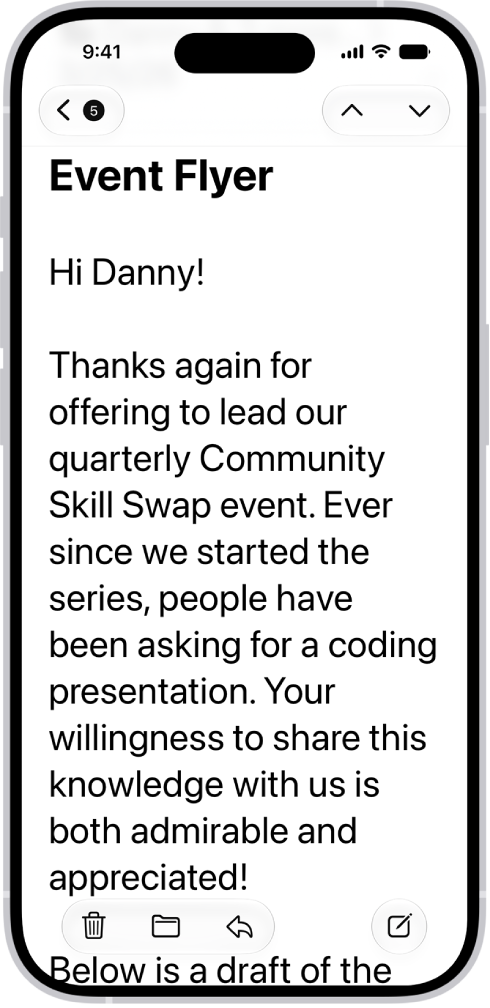
An iPhone with the Mail app open. An email is displayed with large, bold text.

Make text bigger and bolder

For all supported apps, including Settings, Notes, Messages, Mail, Calendar, and more, you can choose a single preferred text size and turn on bold text.

  1. Open Settings, tap Accessibility, and then tap Display & Text Size.
  2. Do any of the following:

    • Make text bigger: Tap Larger Text and drag the slider to adjust the text size.

      For additional text sizes, turn on Larger Accessibility Sizes.

    • Make text heavier: Turn on Bold Text.

Quick tip: You can change text size without leaving an app. Open Control Center and adjust the Text Size slider . If the slider isn’t there, tap the Add button in the top-left corner and tap Add a Control, then tap the Text Size control.

Turning on Display Zoom to increase the size of text also enlarges interface elements like icons and buttons.

You can also temporarily hover on text to see it larger, change display colors on iPhone to make it easier to see what’s onscreen or zoom in on the screen.