Got a tip for us?

The most rugged and capable Apple Watch yet, Apple Watch Ultra models can provide the information you need during a hike, run, or dive. They make interactions easy with a single press of the Action button, help maintain your night vision when you’re active after hours, and emit a loud pulsing sound if you need help.

With its corrosion-resistant titanium case, flat sapphire crystal face, raised Crown Guard, and 100-meter water resistance rating, Apple Watch Ultra models can stand up to your next backpacking trip, triathlon, or ocean free-dive. You can even match the Modular Ultra and Wayfinder watch faces to your activity.
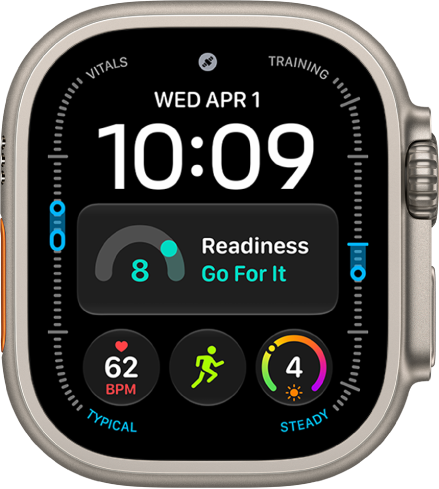
The Modular Ultra watch face showing elevation on the left and right (feet on the left and meters on the right), Music, Compass, and Compass Waypoints complications along the top, a digital clock below, a Compass Heading complication in the middle, and the Messages, Sunrise, and Workout complications near the bottom. At the very bottom is the current elevation.

Match the watch face to your activity

You can edit the Modular Ultra and Wayfinder watch faces on Apple Watch Ultra models to provide the information you need most. Open the Apple Watch app on your iPhone, tap Face Gallery, swipe up to the Modular Ultra or Wayfinder watch faces, then choose complications appropriate for your run, hike, or dive.
Change the watch face

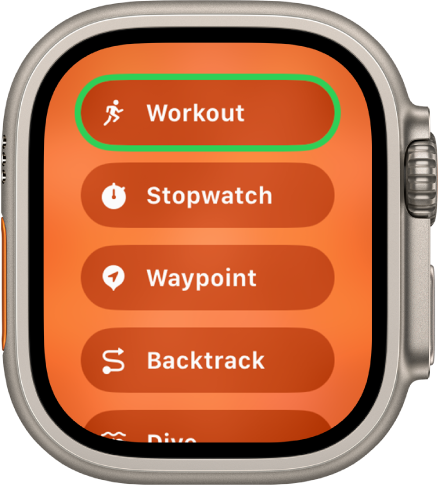
The Quick Switch screen showing the actions that can be assigned to the Action button, such as Workout, Stopwatch, Waypoint, and Backtrack.

Take action

Apple Watch Ultra models have a third button not found on other Apple Watch models. You can customize the Action button for a variety of tasks. Simply press and hold the Action button, then choose a different function for it.
Customize the Action button

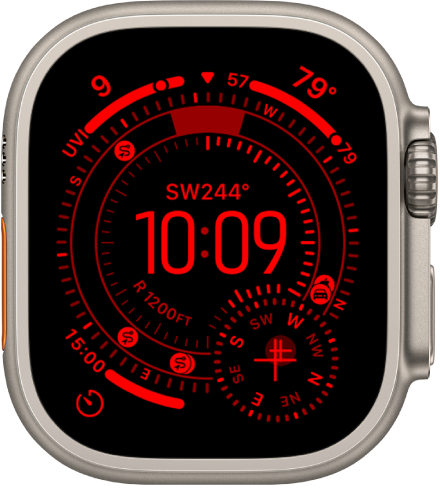
The Waypoint watch face with night vision display.

Maintain your night vision

To help preserve your night vision, the Modular Ultra and Wayfinder watch faces can automatically turn red after dark. Touch and hold either watch face, tap Edit, swipe to Night Mode, then choose Auto.

Apple Watch faces and their features
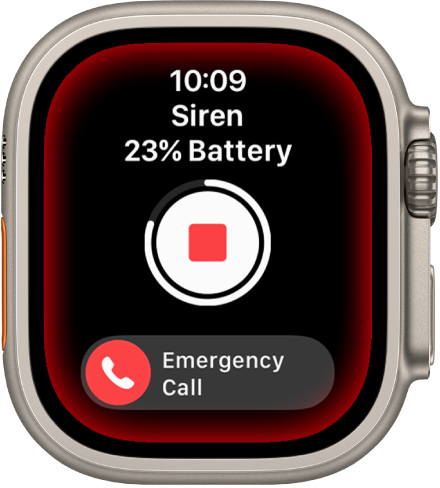
The Siren screen.

Signal for help

The siren on Apple Watch Ultra models can help alert those around you. If things get out of hand, press and hold the side button, then swipe the Siren slider to the right to sound the siren. You can also press and hold the Action button to turn on the siren.
Activate the siren

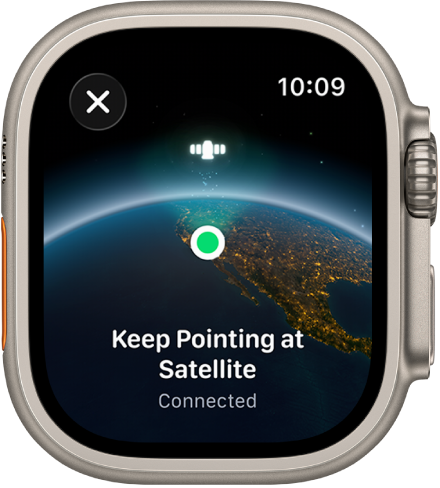
A screen showing a satellite icon over a curved view of Earth, a green connection indicator, and “Keep Pointing at Satellite” text.

Communicate off-grid via satellite

With Apple Watch Ultra 3, you can connect to a satellite to text emergency services, message friends and family, or share your location—all while you’re off the grid without cellular and Wi-Fi coverage. (Satellite features aren’t available in all countries or regions.)

Set up satellite communications on Apple Watch Ultra
Tag: watchOS

Mono Audio lets you hear a combined left+right audio signal out of both audio channels on speakers or headphones connected to your Apple Watch. You can also adjust the left-right balance of your Apple Watch audio, whether stereo or mono.

And you can change AirPods settings to be more accessible, show HomePod transcriptions, and get headphone notifications. You can also make these changes in the Apple Watch app on your iPhone.

Here’s how to change accessibility audio settings on Apple Watch.

Change mono audio and balance settings

Go to the Settings app on your Apple Watch, tap Accessibility, then, under Hearing, do any of the following:

  • Switch from stereo to mono audio: Turn on Mono Audio.
  • Adjust the audio balance: Tap the L or R button below Mono Audio.

You can also go to the Apple Watch app on your iPhone, tap My Watch, tap Accessibility, then turn on Mono Audio and adjust the audio balance.

Change AirPods settings

You can change press speed and press-and-hold duration settings for the AirPods you use with your Apple Watch. You can also turn on noise cancellation on AirPods Pro for when you have one of your AirPods in only one ear.

  1. Start the Settings app on your Apple Watch.
  2. Go to Accessibility, tap AirPods, select your AirPods, and choose settings.

You can also go to the Apple Watch app on your iPhone, tap My Watch, then go to Accessibility > AirPods.

Show HomePod transcriptions

When Apple Watch and HomePod are signed in to the same Apple Account, your watch can show transcriptions for any HomePod announcements.

  1. Start the Settings app on your Apple Watch.
  2. Go to Accessibility, then turn on Show Audio Transcriptions.

Turn on headphone notifications

If you’ve been listening to loud headphone audio long enough to affect your hearing, your Apple Watch can send a notification to help protect it.

  1. Start the Settings app on your Apple Watch.
  2. Go to Accessibility, then turn on Headphone Notifications.

See also

The Music app on Apple Watch does more than play songs. You can tell Music what you like, add music to your library or a playlist, and share songs. It’s also where you’ll view Made for You playlists, downloaded music, and recently added music, and choose cellular connection settings.

Tell Music what you like, add music to the library, and more

With the Music app on Apple Watch, you can share songs, browse an artist’s music, view the contents of albums and playlists, add music to your library or a playlist, and mark what you do and don’t like. To get started, do any of the following:

  • View options from the Now Playing screen: While playing music, tap the More Options button, then choose an option.
  • View options in Home: Tap the More Options button, then choose an option.
  • View options in Library: Tap Library; choose Playlists, Albums, or Songs; swipe left on an item; tap the More button; then choose an option.

View Made for You playlists, downloaded music, and recently added music

  1. Start the Music app on your Apple Watch.
  2. From the Home screen, tap the Back button and tap Library. Tap Made for You, Downloaded, or an album or playlist below Recently Added.

Choose cellular connection settings

To listen to music over cellular, you must be using Set up and use cellular service on Apple Watch.

  1. Start the Settings app on your iPhone.
  2. Tap Apps, tap Music, and turn on Cellular Data.
  3. Tap Audio Quality, tap Cellular Streaming, and then choose a quality.

    Note: Higher quality settings consume significantly more data.

Tag: Music

You can pair more than one Apple Watch with your iPhone and easily switch from one watch to another.

You pair another Apple Watch the same way you paired your first one. After that, your iPhone detects the paired Apple Watch you’re wearing and connects to it automatically, though you can choose a watch manually, too.

Set up another Apple Watch

You can pair another Apple Watch in the same way you paired your first one. Bring your iPhone near your Apple Watch, wait for the Apple Watch pairing screen to appear on your iPhone, then tap Pair. Or follow these steps:

  1. Start the Apple Watch app on your iPhone.
  2. Tap My Watch, then tap All Watches at the top of the screen.
  3. Tap Add Watch, then follow the onscreen instructions.

Quickly switch to a different Apple Watch

Raise your wrist after you put on a different Apple Watch. Your iPhone picks up the paired Apple Watch you’re wearing and connects to it on its own.

You can also choose an Apple Watch manually:

  1. Start the Apple Watch app on your iPhone.
  2. Tap My Watch, then tap All Watches at the top of the screen.
  3. Turn off Auto Switch and choose a different watch.

To see if your Apple Watch is connected to your iPhone, press the side button to open Control Center, then look for the Connected status icon at the top of the screen.

Control Center with the Connected status icon at the top showing that the Apple Watch is connected to iPhone.

See also

Tag: Setup

The Photos watch face cycles through photos you choose or through a synced album. You can also cycle through photos of specific people, places, pets, and cities from your photo library. A new photo appears every time you raise your wrist or tap the display.

You can shuffle your photo library or a collection, or manually add up to 24 photos. When you shuffle, sixteen photos are automatically selected to display each day.

The Photos watch face showing a photo from a synced photo album. The time appears on the left of the screen.

Create a Photos watch face

  1. Start the Apple Watch app on your iPhone.
  2. Tap Face Gallery and tap the Photos category. Choose a style.
  3. Do one of the following:

    • Shuffle your photo library: Tap Shuffle and tap Featured or People. Then tap Continue.
    • Shuffle a collection: Tap Shuffle, tap Collection, choose an album, and then tap Continue.
    • Manually add photos: Tap Choose Photos and select up to 24 photos. Tap the Done button.

    Note: When you shuffle your photo library or a collection, sixteen photos are automatically selected to display each day.

  4. Scroll down. Then choose any of the options to customize the layout of the watch face.
  5. When you’re finished, tap Add at the top of the screen.

Note: Not seeing photos? Check that they’re in your synced album. For help, read our guide, Choose a photo album and manage storage on Apple Watch.

Add a photo to your watch face

  1. Start the Photos app on your Apple Watch.
  2. Tap an album (like Featured or Favorites) and then tap a Photo.
  3. Tap the Action button and scroll down. Then tap Create Watch Face.
  4. Tap Photos.

See also

Siri can announce calls and notifications from apps like Messages on supported headphones. Announce Calls also works with supported third-party apps.

All it takes is one setting. Siri then identifies the caller when a call comes in and asks if you want to answer, letting you accept or decline the call with your voice. There’s more to learn about how to use Siri on Apple Watch, too.

  1. Start the Settings app on your Apple Watch.
  2. Tap Siri and then turn on Announce Calls.
  3. When a call comes in, the caller is identified and you’re asked if you want to answer the call. Say “yes” to accept the call or “no” to decline it.

See also

Tags: Phone, Siri

Apple Watch makes it easy to communicate with friends, family, and coworkers, even when your iPhone isn’t with you.

You can send a message right from your wrist with Siri, make a call, and share your live location with a friend you’re meeting. With Apple Intelligence, you can even communicate across languages in Messages.

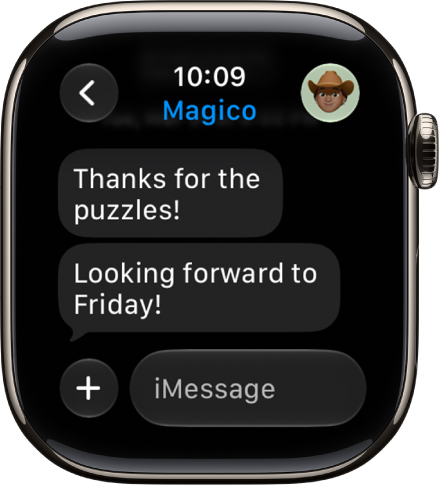
Apple Watch showing a conversation in the Messages app.

Send a message, right from your wrist

Quickly respond to a message with Siri. When Apple Watch is connected to Wi-Fi or cellular, just raise your wrist and say, “Tell Julie I’ll be there in five minutes.” Or touch and hold the message to give your friend a thumbs up with a Tapback reply.

Read and respond to messages >

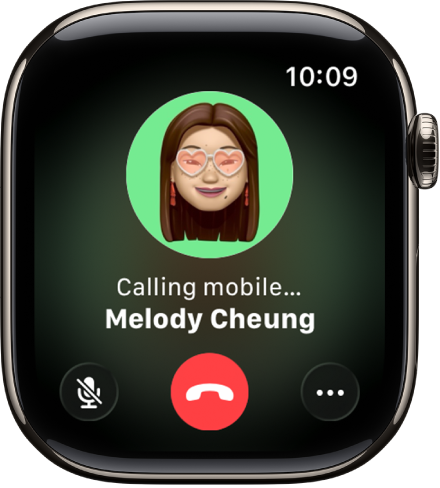
The Phone app showing a call in progress.

Make a call

Siri can help you make a quick call. If your Apple Watch has a cellular or Wi-Fi connection, raise your wrist and say “Call Mom.” With a Wi-Fi connection, a simple “FaceTime Mom” does the trick, and you can also join a Group FaceTime audio call.

Make phone calls

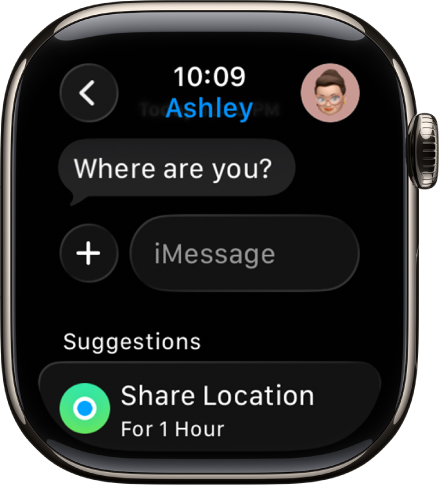
Apple Watch showing a conversation in the Messages app. A suggestion to share a location is at the bottom of the screen.

Share your live location

Meeting a friend? Apple Watch can let them know where you are and update your location automatically. Open the Messages app, start a new message or open a conversation, tap the Apps button, tap Location, then start sharing your location.

Send your location >

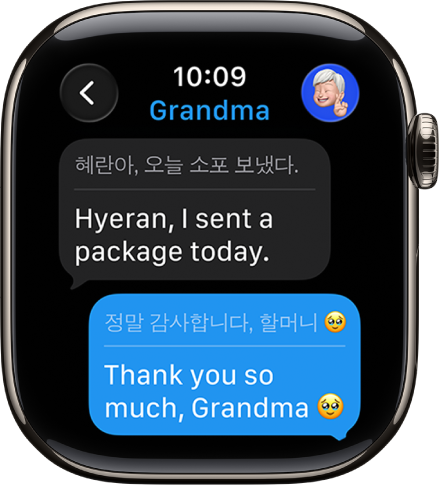
Apple Watch showing a conversation translated in the Messages app.

Communicate across languages

With Apple Intelligence,* you can automatically translate texts in Messages. Just open a conversation and send a message in a preferred language.

Use Live Translation in Messages

*Apple Intelligence is available with Siri and device language set to Chinese (Simplified), Chinese (Traditional), Danish, Dutch, English, French, German, Italian, Japanese, Korean, Norwegian, Portuguese, Spanish, Swedish, Turkish, or Vietnamese. Some features may not be available in all regions or languages. Some devices may not be available in all regions. Siri AI is available in beta in iOS 27, iPadOS 27, macOS 27, watchOS 27, and visionOS 27 and requires an Apple Intelligence–enabled device set to a supported language. Available in English to start. Siri AI will not be initially available in the EU on iOS, iPadOS, and watchOS. Certain Apple Intelligence features that rely on server-side models are subject to daily usage limits, including but not limited to Siri AI, Intelligent Photo Editing Tools, Image Playground, and AFM 3 Cloud models in Shortcuts. Daily limits may vary by feature, request complexity, system demand, system policies, and other factors. Expanded access to such features will be available for a fee in the future. Use of these features is subject to the Apple Intelligence Terms and Conditions.

It takes just a few minutes to get up and running with Apple Watch.

To set up your Apple Watch, you pair it with your iPhone, or prepare it for someone in your family who doesn’t have an iPhone. Your Apple Watch comes with both stylish and functional watch faces, too.

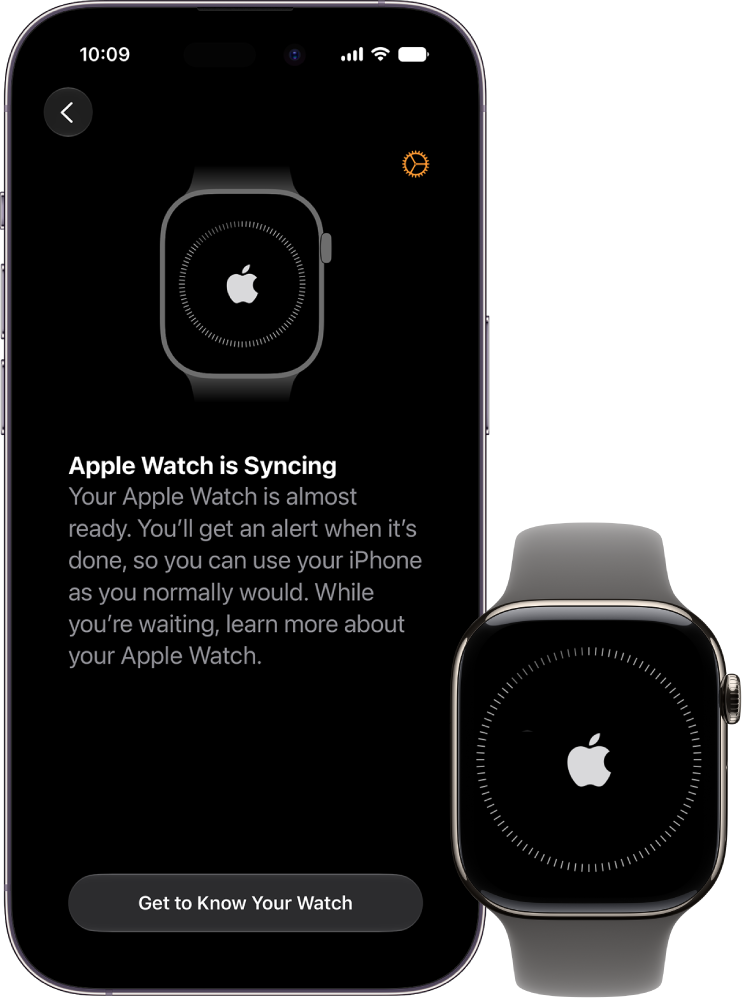
An iPhone and Apple Watch showing their syncing screens.

Pair Apple Watch with your iPhone

To set up your Apple Watch, put it on your wrist snugly, then press and hold the side button to turn it on. Bring your iPhone near your watch, then follow the onscreen instructions. To prepare an Apple Watch for a person in your family who doesn’t have an iPhone, tap Set Up for a Family Member.

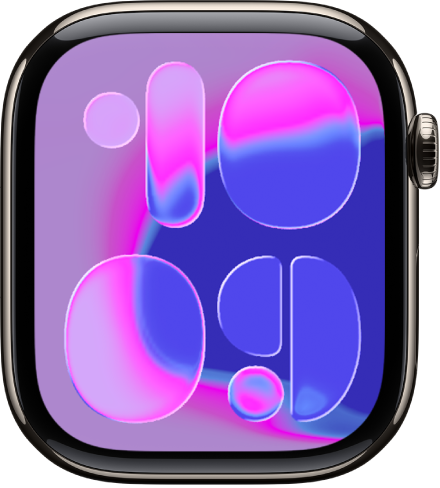
The Flow watch face showing the time in very large numbers.

Choose a watch face

Apple Watch comes with both stylish and functional watch faces. To switch to a different face, touch and hold the display, then swipe left or right across the screen. To see even more available faces, swipe left until you see the Add button, tap the button, then scroll through the faces. Tap Add, customize the watch face if you choose to, then press the Digital Crown to use it.

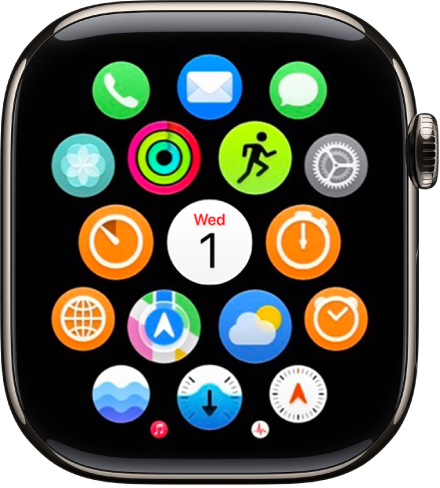
The Home Screen in grid view.

Open an app

Your Apple Watch comes with a variety of apps for staying on top of your health, working out, and keeping in touch. To open an app, press the Digital Crown, then tap the app. To return to the Home Screen, press the Digital Crown again. You can download more apps from the App Store on Apple Watch.

Control Center showing six buttons—Wi-Fi, Ping iPhone, Battery, Silent Mode, Theater Mode, and Do Not Disturb.

Quickly change settings

Control Center gives you instant access to Silent Mode, Do Not Disturb, Wi-Fi, flashlight, and more—just like on iPhone. To open Control Center, press the side button.

There’s a lot more to Apple Watch, and these guides are a good place to start:

Tag: Setup

You can wear Apple Watch to bed and track breathing disturbances while you’re sleeping. These measurements can be used in an algorithm to detect signs of moderate to severe sleep apnea (not available in all countries or regions).

Each day, you’re given an assessment of your breathing disturbances for the night before. If those disturbances come up more often over a 30-day period, you receive a notification of possible sleep apnea, along with a PDF to discuss with your healthcare provider.

Important: Your Apple Watch is not a medical device and is not intended to replace talking with your doctor for diagnosis, treatment, or monitoring of sleep apnea.

Note: Sleep apnea notifications are not intended for use if you have diagnosed sleep apnea, or are under 18 years old.

Set up sleep apnea notifications

  1. Open the Health app on your iPhone.
  2. Tap your picture or initials at the top right.
  3. Tap Health Checklist and tap Set Up below Sleep Apnea Notifications. Follow the onscreen instructions.

Review your breathing disturbances data

  1. Open the Health app on your iPhone.
  2. Tap Browse, tap Respiratory, and tap Breathing Disturbances.

Turn off sleep apnea notifications

  1. Open the Health app on your iPhone.
  2. Tap your picture or initials at the top right.
  3. Tap Health Checklist and tap Sleep Apnea Notifications. Then turn Sleep Apnea Notifications off.

See also

Tag: Health

On Apple Watch, you can change how Siri responds when you ask a question or make a request.

Siri can speak responses on your Apple Watch, even when it’s in Silent Mode, or only through headphones. You can also display captions and transcriptions of your Siri requests.

Here’s how to change how Siri responds on Apple Watch.

Choose how Siri responds

Siri can speak responses on your Apple Watch.

  1. Open the Settings app on your Apple Watch.
  2. Tap Siri, then tap Siri Responses.
  3. Choose from the following:
    • Always On: Siri speaks responses, even when your Apple Watch is in Silent Mode.
    • Control With Silent Mode: Siri responses are silenced when your Apple Watch is set to Silent Mode.
    • Headphones Only: Siri only speaks responses when your Apple Watch is connected to Bluetooth headphones.

To change the language and voice used for Siri, go to the Settings app on your Apple Watch, tap Siri, then tap Language or Siri Voice. When you tap Siri Voice you can choose a different variety or voice.

Note: The option to change Siri Voice is not available in all languages.

Display captions and transcriptions of your Siri requests

Siri captions, along with transcriptions of your Siri requests and Siri’s responses, can appear on your Apple Watch.

  1. Open the Settings app on your Apple Watch.
  2. Tap Siri, then tap Siri Responses.
  3. Scroll down, then turn Always Show Siri Captions and Always Show Speech on or off.

See also

Tag: Siri