Got a tip for us?

When you search in the Photos app, you’ll see suggestions of dates, locations, and people you’ve named in your photo library. You can search within your Library or Collections tabs, or within a specific album or collection, and you can search by place, category, business names, events, text such as an email address or phone number, and people or pets you’ve named.

With Apple Intelligence, you can search for specific images by describing what you want to find, and search video clips for key moments.

Apple Intelligence on iOS 27 or later is available on an Apple Intelligence-enabled iPhone 15 Pro, iPhone 15 Pro Max, or iPhone 16 model or later. Apple Intelligence is not available in all languages or regions. Usage limits may apply.*
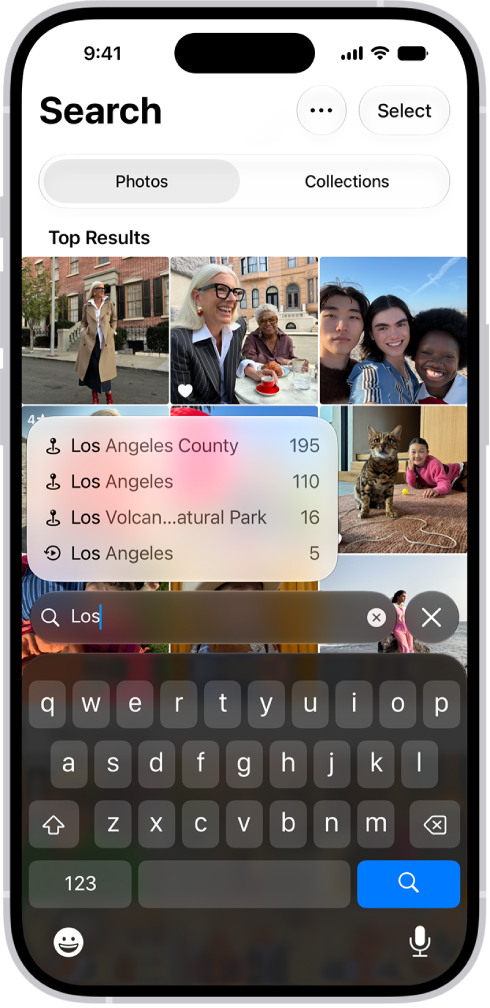
The Search screen in the Photos app showing search suggestions based on the text entered in the search field.

Search for photos and videos

  1. Open the Photos app on your iPhone.
  2. Tap the Search button in the bottom-right corner.
  3. Type what you’re looking for into the search field, such as:
    • Date (month or year)
    • Place (city or state)
    • Business names (museums, for example)
    • Category (beach or sunset, for example)
    • Events (sports games or concerts, for example)
    • People or pets you have named in your photo library
    • Text (an email address or phone number, for example)
    • Caption
    • If you’re using Apple Intelligence, enter a description using natural language—”Maya skateboarding in a tie-dye shirt,” or “Sadie cartwheeling on the grass,” for example.
  4. Tap one of the suggestions or tap the Search button.
  5. Swipe up to browse the complete search results, or do any of the following:
    • Select specific search results: Tap Select and select the photos and videos you want to share or add to an album.
    • View albums or memories that contain the search result: Tap Collections.
    • Sort search results: Tap the Sort and Filter button. Then tap Added to sort by the date added to your library, or tap Captured to sort by the date taken.
    • Filter search results: Tap the Sort and Filter button. Then tap an option, such as Favorites or Edited.
  6. Tap the Close button to exit search.

Quick tip: Narrow your search by including a media type, such as Video or Portrait, in the search field.

Search by shared library participant

As a participant in an iCloud Shared Photo Library, you can also search by who added a photo or video to the library.

  1. Open the Photos app on your iPhone.
  2. Tap the Search button, then enter “Shared by.”
  3. Tap a suggested name.

*Apple Intelligence is available with Siri and device language set to Chinese (Simplified), Chinese (Traditional), Danish, Dutch, English, French, German, Italian, Japanese, Korean, Norwegian, Portuguese, Spanish, Swedish, Turkish, or Vietnamese. Some features may not be available in all regions or languages. Some devices may not be available in all regions. Siri AI is available in beta in iOS 27, iPadOS 27, macOS 27, watchOS 27, and visionOS 27 and requires an Apple Intelligence–enabled device set to a supported language. Available in English to start. Siri AI will not be initially available in the EU on iOS, iPadOS, and watchOS. Certain Apple Intelligence features that rely on server-side models are subject to daily usage limits, including but not limited to Siri AI, Intelligent Photo Editing Tools, Image Playground, and AFM 3 Cloud models in Shortcuts. Daily limits may vary by feature, request complexity, system demand, system policies, and other factors. Expanded access to such features will be available for a fee in the future. Use of these features is subject to the Apple Intelligence Terms and Conditions.
When you update to the latest version of iOS, your data and settings remain unchanged. You can also automatically install system file updates to improve the features of your iPhone without updating iOS.

Before you update, set up iPhone to back up automatically, or back up your device manually. Then you can update iPhone automatically, manually, or using your computer. If you didn’t turn on automatic updates during setup, you can do it in Settings.

Update iPhone automatically

If you didn’t turn on automatic updates when you first set up your iPhone, do the following:

  1. Open the Settings app on your iPhone.
  2. Tap General and tap Software Update. Tap Automatic Updates.
  3. Turn on one of the following:
    • Automatically Install: When an update is available, iPhone downloads and installs it overnight while charging and connected to Wi-Fi. You’re notified before an update is installed.
    • Automatically Download: Downloads an update automatically when your iPhone is connected to Wi‑Fi, charging, and locked so you can install the update later. To see this option, first turn off Automatically Install.

Update iPhone manually

At any time, you can check for and install software updates.

  1. Open the Settings app on your iPhone.
  2. Tap General, then tap Software Update.

    The currently installed version of iOS is shown, and whether an update is available.

  3. If an update is available, tap Download and Install, then follow the onscreen instructions.

Update using your computer

  1. Connect iPhone and your computer with a cable.
  2. Do one of the following:
    • On a Mac (macOS 10.15 or later): In the Finder sidebar, select your iPhone. Click General at the top of the window.
    • On a Mac (macOS 10.14 or earlier) or a Windows device: Open the iTunes app, click the button resembling an iPhone near the top left of the iTunes window, and then click Summary.
  3. Click Check for Update.
  4. To install an available update, click Update.

Automatically update system files only

Without updating iOS, iPhone can automatically download and install system file updates that improve iPhone features.

  1. Open the Settings app on your iPhone.
  2. Tap General and tap Software Update. Tap Automatic Updates.
  3. Under iOS Updates, turn off Automatically Install.
  4. Under System Files, turn on Automatically Install.
Tag: iPhone

You can use a cable to directly connect your iPhone to a Mac with OS X 10.9 or later, or to a Windows device with Windows 7 or later. Once it’s connected, you can set up iPhone for the first time or share your iPhone internet connection. If the cable isn’t compatible with your computer’s port, you’ll need an adapter (sold separately). And the iPhone battery charges while it’s connected, as long as your computer is connected to power.

Using the charging cable for your iPhone, connect iPhone to the USB port on your computer. If the cable isn’t compatible with the port on your computer, you’ll need to use an adapter (sold separately).

Note: Your iPhone may ask whether to trust this computer. If that alert appears, select Trust.

Connect your iPhone to a computer with a cable, and you can do any of the following:

If your computer is connected to power, the iPhone battery charges while your iPhone is connected to it.

Tag: iPhone

You can turn on and set up your new iPhone with an internet connection. You can also set up iPhone by connecting it to your computer. If you have another iPhone, an iPad, or an Android device, you can transfer your data to your new iPhone.

Have a few items ready before you start, and setup goes as smoothly as possible.

Here’s how to turn on and set up iPhone.

Note: For an iPhone deployed or managed by a company or other organization, an administrator can give you setup instructions.

Prepare for setup

Have the following items available to make setup as smooth as possible:

  • An internet connection through a Wi-Fi network (you may need the name and password of the network) or cellular data service through a carrier (not required for iPhone 14 and later models)
  • Your Apple Account and password; if you don’t have an Apple Account, you can create one during setup
  • Your credit or debit card account information, if you want to add a card to Apple Pay during setup
  • Your previous iPhone or a backup of your device, if you’re transferring your data to your new device

    Tip: If you don’t have sufficient storage space to back up your device, iCloud will provide enough storage to complete a temporary backup, free of charge, for up to three weeks from the purchase of your iPhone. On your previous device, go to the Settings app , tap General, then tapTransfer or Reset [device]. Tap Get Started, then follow the onscreen instructions.

  • Your Android device, if you’re transferring your Android content

Turn on and set up your iPhone

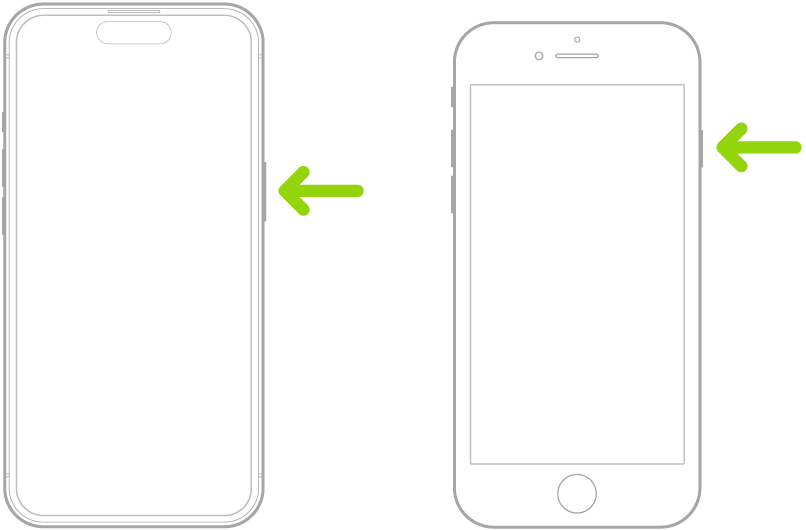
  1. Press and hold the side button until the Apple logo appears.

    A green arrow pointing to the button on the right side of iPhone.

    If iPhone doesn’t turn on, you might need to charge the battery.

    Tip: If you’re blind or have low vision, you can triple-click the side button (on an iPhone with Face ID) or triple-click the Home button (on other iPhone models) to turn on VoiceOver, the screen reader. You can also double-tap the screen with three fingers to turn on Zoom.

  2. Do one of the following:

    • Set up with another device: If you have another iPhone or iPad with iOS 11, iPadOS 13, or later, you can use it to automatically set up your new device. Bring the two devices close together and then follow the onscreen instructions to securely copy many of your settings, preferences, and iCloud Keychain. You can then restore the rest of your data and content to your new device from your iCloud backup.

      Or, if both devices have iOS 12.4, iPadOS 13, or later, you can transfer all your data wirelessly from your previous device to your new one. Keep your devices near each other and plugged into power until the migration process is complete.

    • Set Up Manually: If you don’t have another device, tap Set Up Without Another Device. Follow the onscreen setup instructions.

Move from an Android device to iPhone

Coming from an Android device? When you first set up your new iPhone, the Move to iOS app can transfer your data.

Note: Move to iOS only works during setup, so if you’ve already completed it, you must erase your iPhone and start over, or move your data manually.

  1. On your device with Android version 4.0 or later, download the Move to iOS app.
  2. On your iPhone, do the following:
    • Follow the setup assistant.
    • On the Transfer Your Apps & Data screen, tap From Android.
  3. On the Android device, do the following:
    • Turn on Wi-Fi.
    • Open the Move to iOS app.
    • Follow the onscreen instructions.

WARNING: To avoid injury, read Important safety information before using iPhone.

Tag: iPhone

You can back up iPhone using iCloud or your computer. iCloud backups store information and settings on your iPhone that don’t regularly sync to iCloud, including things like device settings, Home Screen layout, and app organization.

iCloud automatically backs up your iPhone daily when it’s connected to power, locked, and connected to Wi-Fi. You can also save a backup of your iPhone on your Mac or Windows device, and encrypt your backup data to protect it with a password.

Quick tip: If you replace your iPhone, you can use its backup to transfer your information to the new device.

Back up iPhone using iCloud

Things like device settings, Home Screen layout, and app organization don’t regularly sync to iCloud, so iCloud backups store that information.

  1. Start the Settings app on your iPhone.
  2. Tap [your name] and tap iCloud. Tap iCloud Backup.
  3. Turn on Back Up This iPhone.

    iCloud automatically backs up your iPhone daily when iPhone is connected to power, locked, and connected to Wi-Fi.

    Note: On models that support 5G, your carrier may give you the option to back up iPhone using your cellular network. Go to Settings > [your name] > iCloud > iCloud Backup, then turn Back Up Over Cellular on or off.

  4. To perform a manual backup, tap Back Up Now.

View available iCloud storage

  1. Start the Settings app on your iPhone.
  2. Tap [your name], then tap iCloud.

Both the amount of iCloud storage used and the amount available appear at the top of the screen.

Manage iCloud storage

For iCloud backups, you can view details such as the last backup, the apps included in the backup, and the next backup size.

  1. Start the Settings app on your iPhone.
  2. Tap [your name], then tap iCloud.
  3. Tap iCloud Backup, then tap your iPhone (This iPhone).
  4. To reduce the size of a backup, turn off the apps you don’t want to back up anymore; the apps’ existing backup data will also be deleted from iCloud.

Back up iPhone using your Mac

Your Mac can store a backup of your iPhone, too.

  1. Connect iPhone and your computer with a cable.
  2. In the Finder sidebar on your Mac, select your iPhone.

    To use the Finder to back up iPhone, macOS 10.15 or later is required. With earlier versions of macOS, use iTunes to back up iPhone.

  3. At the top of the Finder window, click General.
  4. Select Back up all of the data on your iPhone to this Mac.
  5. To encrypt your backup data and protect it with a password, select Encrypt local backup.
  6. Click Back Up Now.

    Note: You can also connect iPhone to your computer wirelessly.

Back up iPhone using your Windows device

  1. Connect iPhone and your computer with a cable.
  2. In the iTunes app on your Windows device, click the iPhone button near the top left of the iTunes window.
  3. Click Summary.
  4. Click Back Up Now (below Backups).
  5. To encrypt your backups, select “Encrypt local backup,” type a password and click Set Password.

To see the backups stored on your computer, choose Edit > Preferences, then click Devices. Encrypted backups have a lock icon in the list of backups.

Note: You can also connect iPhone to your computer wirelessly.

Tags: iCloud, iPhone

With Apple Intelligence, you can use Workout Buddy to get encouragement during your workouts based on real-time analysis of your fitness history and data from your current workout. It lets you know when you’ve hit a new milestone, like running your fastest 10K or crossing 500 miles, and gives insights on your pace, distance, and workout duration. Your Apple Watch needs to be paired with an Apple Intelligence-enabled iPhone and Bluetooth headphones, too. You can use Workout Buddy with the following workout types:

  • Outdoor and Indoor Run
  • Outdoor and Indoor Walk
  • Outdoor and Indoor Cycle
  • Hiking
  • Elliptical
  • Stair Stepper
  • High Intensity Interval Training (HIIT)
  • Functional and Traditional Strength Training

Note: Workout Buddy on watchOS 27 or later is an Apple Intelligence feature available when your Apple Watch is paired with an Apple Intelligence-enabled iPhone and Bluetooth headphones with device and Siri language set to English or Spanish. Apple Intelligence is not available in all regions or languages.*

Set Up Workout Buddy

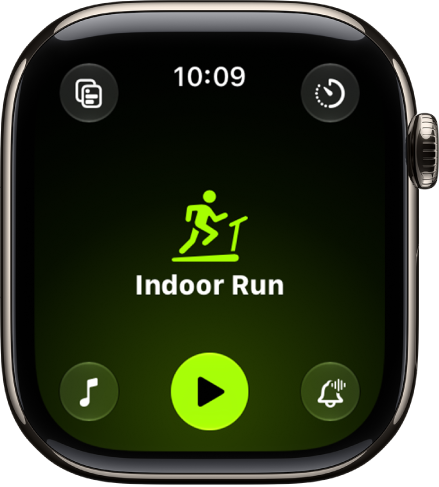
  1. Go to the Workout app on your Apple Watch.
  2. Turn the Digital Crown to the workout you want to do.

    To view all workouts, tap the Add button at the bottom of the screen.

  3. Tap the Alerts button and tap Workout Buddy. Then turn on Use Workout Buddy.
  4. Choose a voice, tap the Back button, and then tap the Back button again.
  5. When you’re ready to start your workout, tap the Start button.

To mute Workout Buddy during a workout, swipe right, then tap Mute.

Quick tip: Even without your paired iPhone nearby, you can use Workout Buddy on Apple Watch, but it requires a cellular or Wi-Fi connection.

Workout Buddy may give you audio motivation when you hit a milestone during your workout, such as closing all your Activity rings or reaching your 100th mile for the year. When you end the workout, Workout Buddy gives a summary that includes the total time, calories burned, and more.

*Apple Intelligence is available with Siri and device language set to Chinese (Simplified), Chinese (Traditional), Danish, Dutch, English, French, German, Italian, Japanese, Korean, Norwegian, Portuguese, Spanish, Swedish, Turkish, or Vietnamese. Some features may not be available in all regions or languages. Some devices may not be available in all regions. Siri AI is available in beta in iOS 27, iPadOS 27, macOS 27, watchOS 27, and visionOS 27 and requires an Apple Intelligence–enabled device set to a supported language. Available in English to start. Siri AI will not be initially available in the EU on iOS, iPadOS, and watchOS. Certain Apple Intelligence features that rely on server-side models are subject to daily usage limits, including but not limited to Siri AI, Intelligent Photo Editing Tools, Image Playground, and AFM 3 Cloud models in Shortcuts. Daily limits may vary by feature, request complexity, system demand, system policies, and other factors. Expanded access to such features will be available for a fee in the future. Use of these features is subject to the Apple Intelligence Terms and Conditions.
See also

Your Apple Watch can help you track your running workouts. When you start a running workout in the Workout app, you can use several different workout views, with metrics like heart rate, average pace, running power and more. You can include prebuilt workout views that focus on Heart Rate Zones, elevation, power, Activity rings, and more.

When you’re ready to go for a run, you can set a running pace, race your last or best time on a route, or get accurate lap times on a track. You can also create a custom workout that suits your fitness needs, and afterward, training load in the Activity app shows how the intensity of your workouts may affect your body over time. And with the Action button on Apple Watch Ultra models, you can quickly start a running workout and mark segments.

The Workout screen with the Outdoor Run workout highlighted.

Start a running workout

When you’re ready to start running, go to the Workout app on your Apple Watch, turn the Digital Crown to Outdoor Run or Indoor Run, then tap the Start button. After you complete your run, you can view completed workouts in the Activity app or in the Fitness app on iPhone.

Start a workout on Apple Watch

See your workout, meditation, and dive history

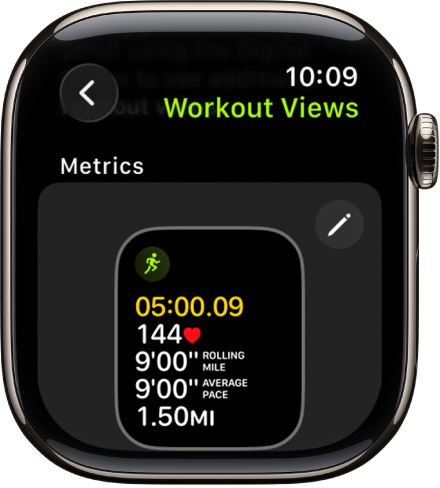
The Workout Views screen, showing the Metrics workout view for a Hiking workout.

Customize workout views

You can choose the workout views you want to see during your run (like Segment, Elevation, and Split) and then reorder them based on your preferences. Turn the Digital Crown to Outdoor or Indoor Run, then tap the Views button. Scroll through the workout views, then tap Include next to the workout views you want to appear during the workout.

Workout views feature metrics like heart rate, average pace, vertical oscillation, ground contact time, stride length, running power, and more. To edit the metrics you want to see in the Metrics workout views, tap the Edit button.

Customize workout views

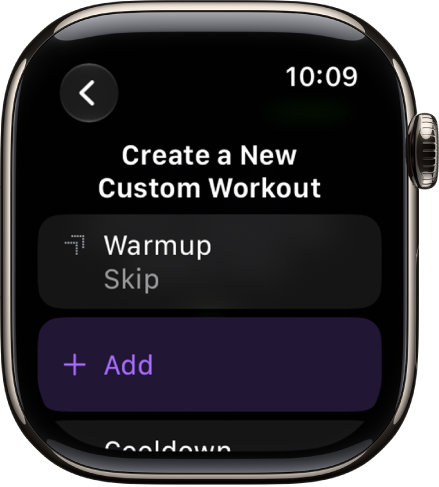
The Workout app showing a screen for creating a Custom Workout.

Run your way

You can set up the running workout that works best for you in the Workout app. Pacer helps you set a running pace and see if you’re ahead or behind, for example, while Race Route lets you race your last or best time on a route, and Track Detection gets you accurate lap times on a track.

If you want to customize your workout, turn the Digital Crown to Outdoor or Indoor Run, tap the Goals button, tap Custom, then tap the Add button. You can add warmup and cooldown times, set alerts, add work and recovery intervals, and more.

Start an outdoor run workout

Create a Custom Workout

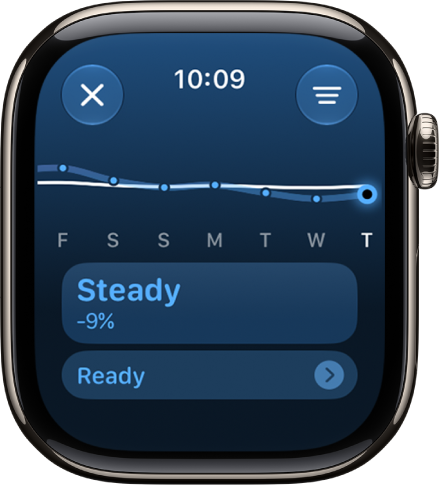
A screen in the Activity app showing a training load estimation.

Track your training load

Use training load on your Apple Watch to see how the intensity of your workouts may impact your body over time. Go to the Activity app, tap the Workload button, then turn the Digital Crown to view your training load over the last 7 days. You can also see your overnight vitals for additional insights.

Track your training load

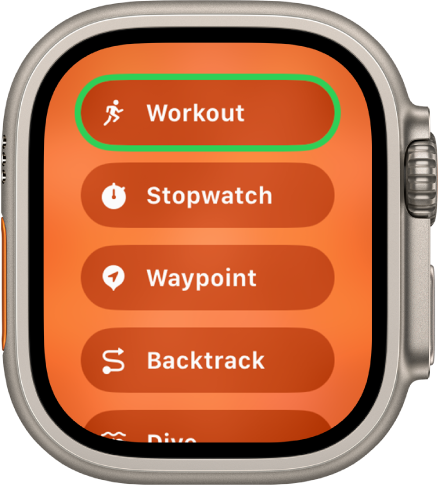
The Quick Switch screen showing the actions that can be assigned to the Action button, such as Workout, Stopwatch, and Waypoint.

Run with Apple Watch Ultra

The Action button on Apple Watch Ultra models can start a running workout and mark a segment.

You can also use Precision Start to start a workout without a countdown. After selecting a running workout, swipe left and tap Start (or press the Action button if you’ve set it to Workout).

Customize the Action button

Turn Precision Start on or off

And more…

  • Use a third-party app

    When you complete a running workout with a third-party app, you can view a summary in the Fitness app on iPhone. You can also view workouts you complete in the Workout app in a compatible third-party app.

  • Play audio

    During your workout, you can listen to music, podcasts, and audiobooks, and control playback on your Apple Watch.

    Play audio during a workout

  • Start a Check In

    You can use Check In to automatically notify a friend when a workout session is completed, after a specific period of time has passed, or when you arrive at your destination.

    Use Check In

  • Send messages

    Send and respond to messages while you’re out on a run.

    Read and respond to messages

  • Make phone calls

    Use the Phone app to make and answer phone calls while you’re running.

    Make phone calls

  • Purchase items

    You can use your Apple Watch to buy items like bottled water.

    Make purchases with Apple Pay

See also

Tag: Fitness

You can automatically connect to Bluetooth-enabled accessories to add cadence and power metrics to your cycling workout view. It’s automatic. You can also view estimates of your functional threshold power—the highest level of intensity you can maintain for an hour.

When you start a cycling workout, it automatically shows up as a Live Activity on your iPhone. On your iPhone, it can take over the entire display, making it easier to see your metrics while on a ride. You can also set up Power Zones, based on an estimate of your functional threshold power.

Start a cycling workout

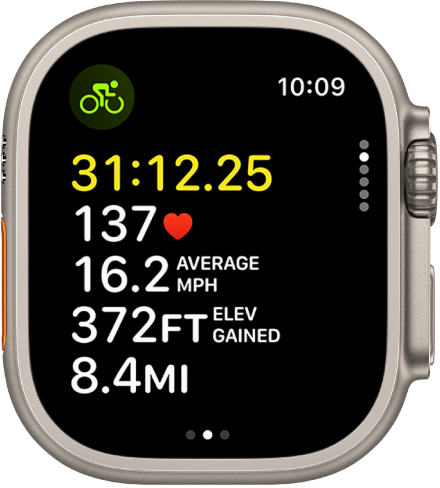
A cycling workout in progress shows the workout’s elapsed time, heart rate, average speed, elevation gained, and total distance.

  1. Go to the Workout app on your Apple Watch.
  2. Turn the Digital Crown to Outdoor Cycle or Indoor Cycle and tap the Start button.
  3. On your iPhone, tap the workout timer on the Lock Screen to see all of your metrics.

To stop viewing your metrics on your iPhone, swipe right on your Apple Watch, then tap Stop.

Connect to compatible Bluetooth accessories for cycling workouts

  1. Open the Settings app on your Apple Watch.
  2. Tap Bluetooth and then below Health Devices, tap the sensor you want to connect.
  3. Below Set Up Device, tap the Info button next to an option to change the wheel size or crank length.

When you begin a cycling workout, an accessory you’ve set up connects to your Apple Watch automatically.

Note: In Apple Fitness+ cycling workouts, compatible Bluetooth accessories connected to your Apple Watch track metrics like cadence or power automatically.

About Power Zones

To learn about the power of your cycling workouts, check the Power Zone information on your Apple Watch. Power Zones come from an estimate of your functional threshold power, or FTP, which you’ll have after you connect your Apple Watch to Bluetooth-enabled cycling accessories like power meters, speed sensors, and cadence sensors.

Apple Watch shows Power Zones in five to eight segments, which are estimated effort levels that range from easier to harder. Keeping an eye on your Power Zone can make your cycling workouts more efficient and challenge you to improve your fitness.

Note: Power Zones are calculated only if you’ve entered your date of birth, height, and weight in the Fitness app on your iPhone.

Set up Power Zones

  1. Open the Settings app on your Apple Watch.
  2. Go to Workout and tap Cycling Power.
  3. Tap Custom and enter an FTP.

    When you enter an FTP, your power zones will be automatically recalculated using the same percentages.

  4. Tap 6 Zones below Power Zones. Choose the total number of Power Zones.
  5. Tap a zone to enter lower and upper limits.

You can also open the Apple Watch app on your iPhone, tap My Watch, go to Workout > Cycling Power, tap Custom, enter an FTP, change the total number of Power Zones, then tap a zone to enter lower and upper limits.

See also

Apple Watch can track your activity and workouts, and encourage you to lead a more active life through gentle reminders and friendly competitions.

It’s how your watch keeps track of how much you move, how often you stand, and how long you exercise, and you can pause your rings if you need a break.

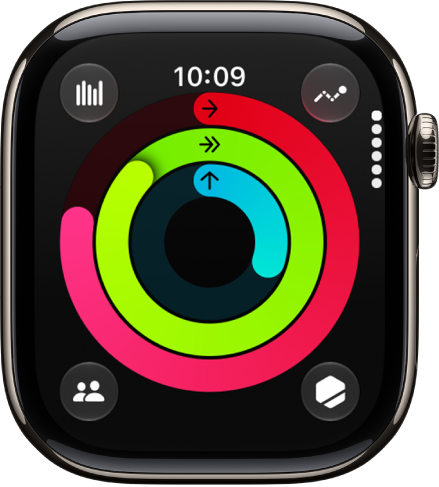
The Activity screen showing the three rings—Move, Exercise, and Stand.

Close each ring

Each day, your Apple Watch tracks how much you move, how long you exercise, and how often you stand up. You set goals in the Activity app and check your progress throughout the day, scrolling down for more details like your total steps and distance. When you’ve completed a goal, Apple Watch lets you know.

Track daily activity

The Workout screen showing the Outdoor Run workout.

Start a workout

In the Workout app, turn the Digital Crown to the workout you want, whether it’s a daily workout like a run or swim or a multisport workout for your next triathlon. You can customize your workout view to keep the metrics you want to track a glance away. And if you forget to start your workout on Apple Watch for some common types of workouts, you’ll get a reminder to record one and get credit for the exercise you’ve already done.

Start a workout

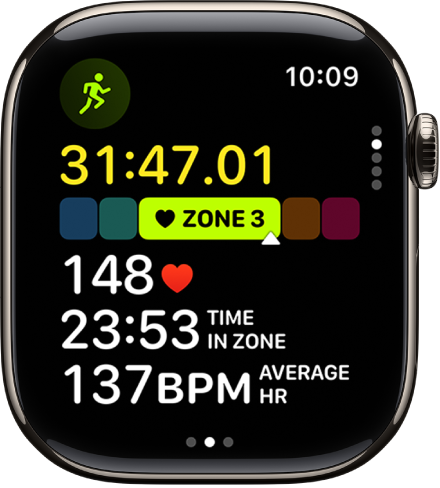
A running workout in progress shows the workout’s elapsed time, the zone you’re currently in, heart rate, time in zone, and average heart rate.

View metrics during a workout

To help you monitor your progress during a workout, Apple Watch displays metrics like active calories, heart rate, and distance. Raise your wrist to see how you’re doing.

Check your progress during a workout

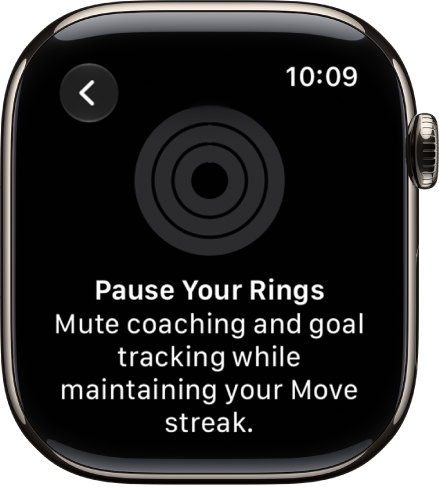
The Pause Your Rings screen.

Pause your rings

If you need to take a break, you can pause your Activity rings for a day, week, month, or more—without breaking your award streak. You can pause your rings for up to 90 days and resume at any time. Tap the Weekly Summary button, turn the Digital Crown to scroll to the bottom of the screen, then tap Pause Rings.

Pause your rings

Tag: Fitness

Choose a target pace for a running workout, and your watch shows if you’re ahead or behind that pace. You can also race against your last or best time on a route you do often. And for a track workout, your Apple Watch helps detect when you arrive at a track.

Start a running workout

  1. Go to the Workout app on your Apple Watch.
  2. Turn the Digital Crown to Outdoor Run.
  3. When you’re ready to go, tap the Start button.

Create a Pacer workout

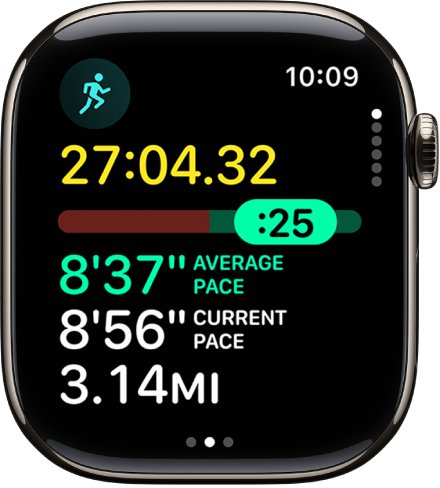
The Workout app on Apple Watch showing the Pacer view in an Outdoor Run workout. At the top is the duration of the run. Below is a slider indicating how far or behind you are in your pace. Average Pace, Current Pace, and distance are below.

If you choose a target pace for a running or outdoor cycle workout, your Apple Watch shows if you’re ahead or behind that pace.

  1. Start the Workout app on your Apple Watch.
  2. Turn the Digital Crown to Outdoor Run, Indoor Run, or Outdoor Cycle and then tap the Goals button.
  3. Tap Pacer and then tap the Add button.
  4. Adjust the distance—5 miles, for example—then tap Next.
  5. Adjust the target time for running or cycling that distance. Tap Done.

    During your workout, your Apple Watch shows your average pace and your current pace, and a graph shows whether you are ahead or behind your chosen pace.

Your Apple Watch remembers your target pace across workouts. To change it, swipe to Outdoor Run, tap the Goals button, tap Pacer, tap the Edit button in the Pacer tile, tap Distance • Time, then edit the distance and time.

Use Race Route to race your last or best time

On a route you run or cycle often, you can race against your last or best time. Routes generate automatically and become available after you’ve done the same route at least two or more times with little to no deviation.

  1. Start the Workout app on your Apple Watch.
  2. Tap the Goals button next to an Outdoor Run or Outdoor Cycle workout.
  3. Tap Race Route, then select Last or Personal Best.

    During the workout, your Apple Watch shows how far ahead or behind you are compared with the route you’re racing as well as the remaining distance. If you deviate from the route, Proceed To Route appears on the screen until you return to the original route.

Available Race Routes appear as a suggested workout when you’re close to the starting point of a route you’ve previously run. You can view all available routes by tapping Suggested, then selecting Route.

Run on a track

Your Apple Watch automatically helps detect when you’ve arrived at a track. Start an Outdoor Run workout there, and your watch offers to start a Track workout.

  1. Start the Workout app on your Apple Watch.
  2. Swipe to Outdoor Run.

    If your Apple Watch detects that you’re at a track, you’re prompted to choose a lane.

  3. Tap Choose Lane, use the plus or minus button to choose a lane and then tap Confirm.

    Note: If you change lanes while you’re working out, swipe right on the watch face, tap Lane, then enter your new lane.

  4. If this is the first time you’ve performed a Track workout, choose a measurement unit (Miles or Meters) and tap Confirm.

    To change the measurement unit later, go to the Settings app, go to Workout > Units of Measure, then choose a unit below Automatic Track Detection.

Note: Your Apple Watch alerts you if you leave a track during your workout.

To receive an alert that shows your distance, time, and pace when completing a lap around the track, swipe to Outdoor Run, tap the Alerts button, scroll down, tap Track Lap, then turn on Lap Alert.

See also

Tag: Fitness