Got a tip for us?

You can learn about the intensity level of your cardio-focused workout by viewing Heart Rate Zone information on your Apple Watch. Heart Rate Zones are a percentage of your maximum heart rate and are automatically calculated and personalized using your health data.

On Apple Watch, Heart Rate Zones are presented in five segments—estimated effort levels ranging from easier to harder. By monitoring your Heart Rate Zone, you can make your workout more efficient and challenge yourself to improve your fitness, and you can manually edit your zones, too.

Note: Heart Rate Zones are calculated only if you’ve entered your date of birth in the Health app on your iPhone.

View your Heart Rate Zone during a workout

  1. Open the Workout app on your Apple Watch.
  2. Start a cardio-focused workout—an outdoor run, for example.
  3. Turn the Digital Crown to the Heart Rate Zone workout view.

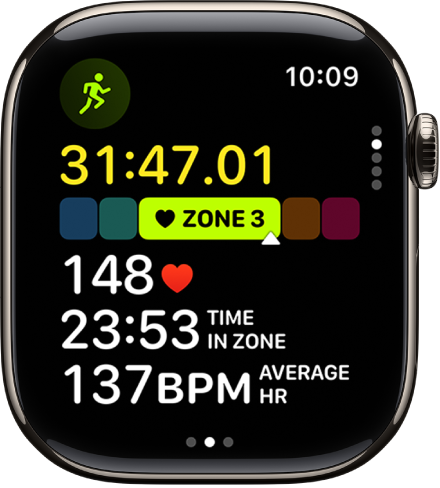
    The screen shows your Heart Rate Zone, heart rate, time in the current zone, and your average heart rate.

A running workout in progress shows the workout’s elapsed time, the zone you’re currently in, heart rate, time in zone, and average heart rate.

Review Heart Rate Zone data

  1. Open the Fitness app on your iPhone.
  2. Tap Sessions and tap a workout. Tap Show More next to Heart Rate.

    A graph details the estimated time spent in each zone.

Edit Heart Rate Zones

You can manually edit your Heart Rate Zones, which are calculated for you from your health data by default.

  1. Open the Settings app on your Apple Watch.
  2. Go to Workout and tap Heart Rate Zones.
  3. Tap Manual and tap zone 2, 3, or 4. Then enter lower and upper limits.

You can also open the Apple Watch app on your iPhone, tap My Watch, go to Workout > Heart Rate Zones, tap Manual, tap zone 2, 3, or 4, then enter lower and upper limits.

See also

The Workout app includes workout views and metrics designed specifically for outdoor runners. It’s a lot of data. The Outdoor Run workout views include metrics like current heart rate, rolling mile, average pace, and distance, plus running cadence, stride length, ground contact time, and vertical oscillation. You can learn about running form and running power, too.

Workout views and running metrics for Outdoor Run workouts

These metrics appear in the Outdoor Run workout views:

  • Metrics: Current heart rate, rolling mile, average pace, distance
  • Metrics 2: Running cadence, stride length, ground contact time, vertical oscillation
  • Heart Rate Zones: Current heart rate, time in zone, heart rate average
  • Segment: Segment number, segment pace, segment distance, current heart rate
  • Split: Split number, split pace, split distance, current heart rate
  • Elevation: Elevation profile over the last 30 minutes, elevation gained, current elevation
  • Power: Power profile over the last 30 minutes, current power, running cadence
  • Activity Rings: Move, exercise, stand

About running form and running power

Apple Watch can help measure elements of your running form and display them, including the following:

  • Vertical oscillation: The amount your torso moves vertically with each step while running, measured in centimeters (cm).
  • Ground contact time: The length of time your foot is in contact with the ground when running, measured in milliseconds (ms).
  • Stride length: The distance covered per running step, measured in meters (m).

During an Outdoor Run workout, Apple Watch can also help measure your running power. This is a measure, in watts, of the output of the work you’re doing when you run.

See also

Tag: Fitness

Your Apple Watch can pair and sync data with compatible cardio equipment such as treadmills, ellipticals, indoor bikes, and more, providing you with more accurate information about your workout. Look for “Connects to Apple Watch” on the equipment, and you’re set.

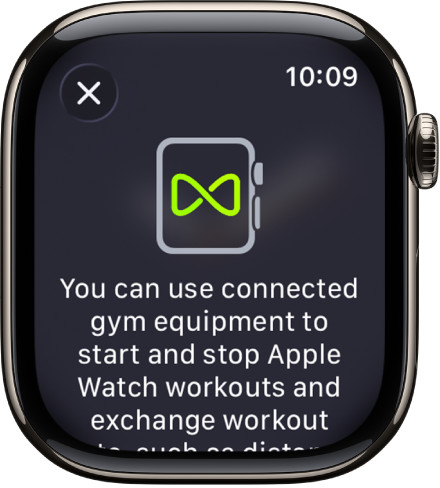
A pairing screen that appears when you pair your Apple Watch with gym equipment.

  1. Check if the equipment is compatible—you’ll see Connects to Apple Watch or Connect to Apple Watch on the equipment.
  2. Make sure your watch is set to detect gym equipment—open the Settings app on your Apple Watch and tap Workout. Turn on Detect Gym Equipment.
  3. Hold your Apple Watch within a few centimeters of the contactless reader on the gym equipment, with the display facing the reader.

    A gentle tap and beep confirm that your Apple Watch is paired.

  4. Press Start on the gym equipment to begin. Press Stop on the equipment to end the workout.

If Detect Gym Equipment is off in Settings on your Apple Watch, go to the Workout app, then hold your Apple Watch near the contactless reader on the gym equipment, with the display facing the reader.

See also

Tag: Fitness

Welcome to Apple Watch, the versatile wrist-worn companion that can help motivate you to be more active, track important health information, stay in touch with those who matter most to you, and so much more—with or without your iPhone. Each model below is shown front and back. watchOS 27 is compatible with the following models:

  • Apple Watch Series 12
  • Apple Watch Ultra 4
  • Apple Watch Series 11
  • Apple Watch Ultra 3
  • Apple Watch SE 3
  • Apple Watch Series 10
  • Apple Watch Ultra 2
  • Apple Watch Series 9

Apple Watch Series 12

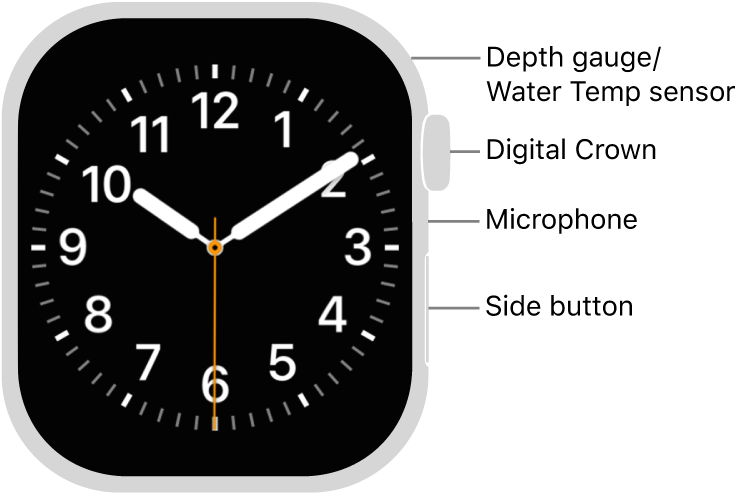
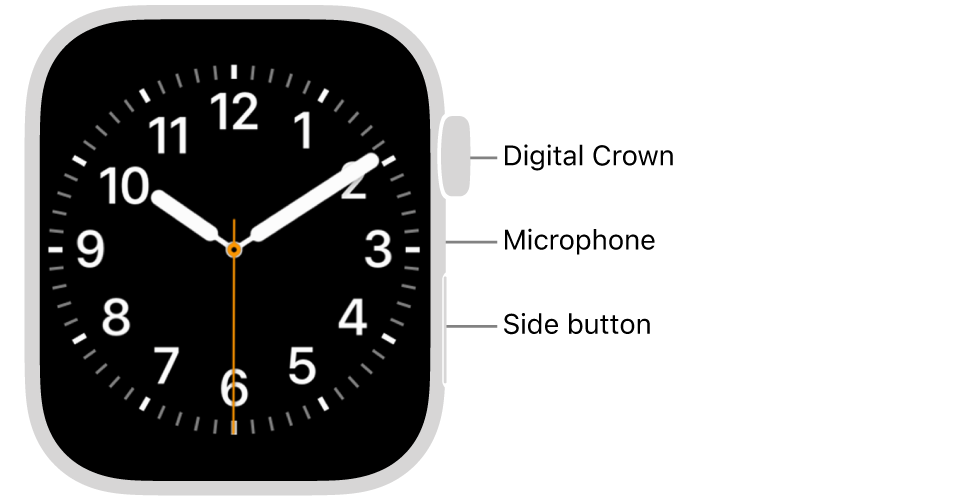
The front of Apple Watch Series 12, with the display showing the watch face, and the Digital Crown, microphone, and side button from top to bottom on the side of the watch.

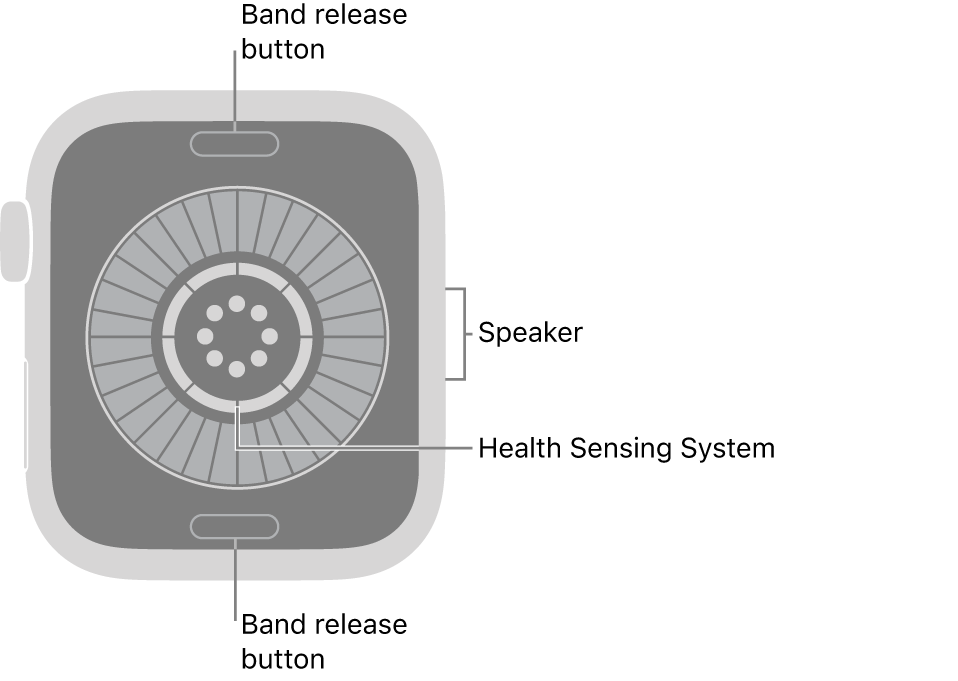
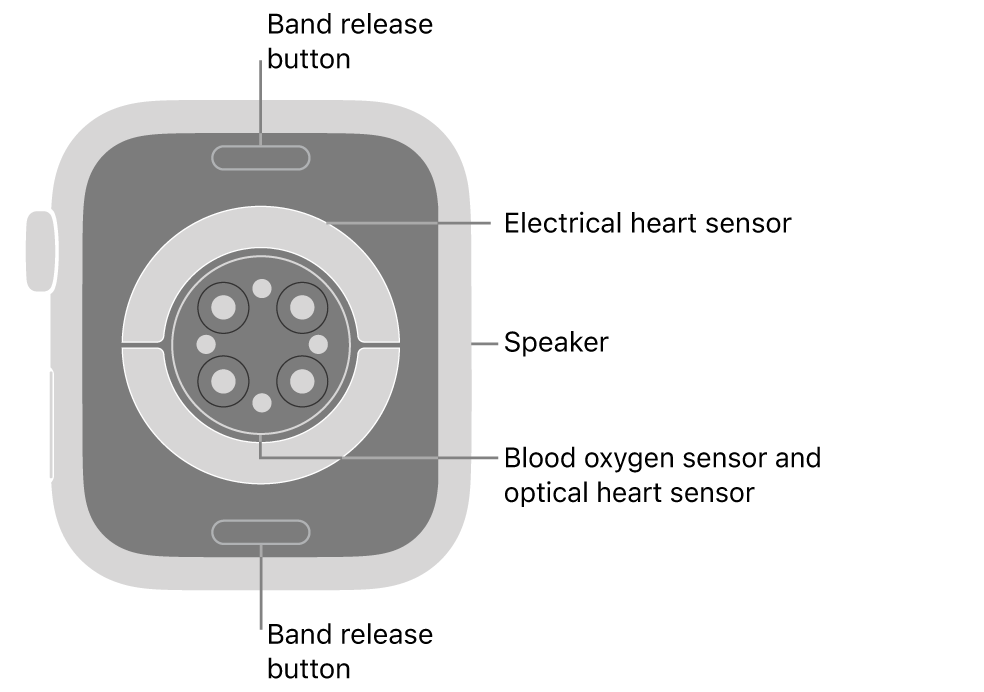
The back of Apple Watch Series 12, with the band release buttons at top and bottom, the health sensing system in the middle, and the speaker on the side.

Note: Blood Oxygen app measurements are not intended for medical use. For models of Apple Watch purchased in the United States on or after January 18, 2024 with part numbers ending in LW/A or LS/A, the Blood Oxygen data analysis is performed on iPhone, and results can be viewed in the Health app.

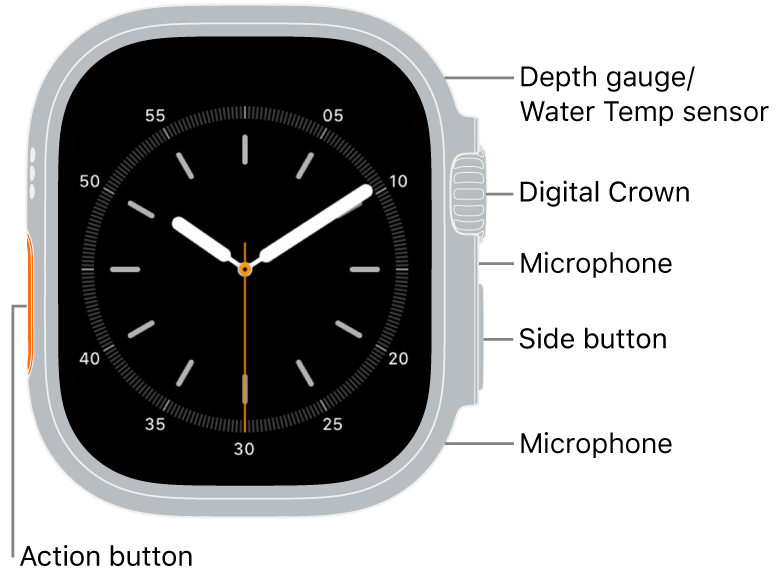
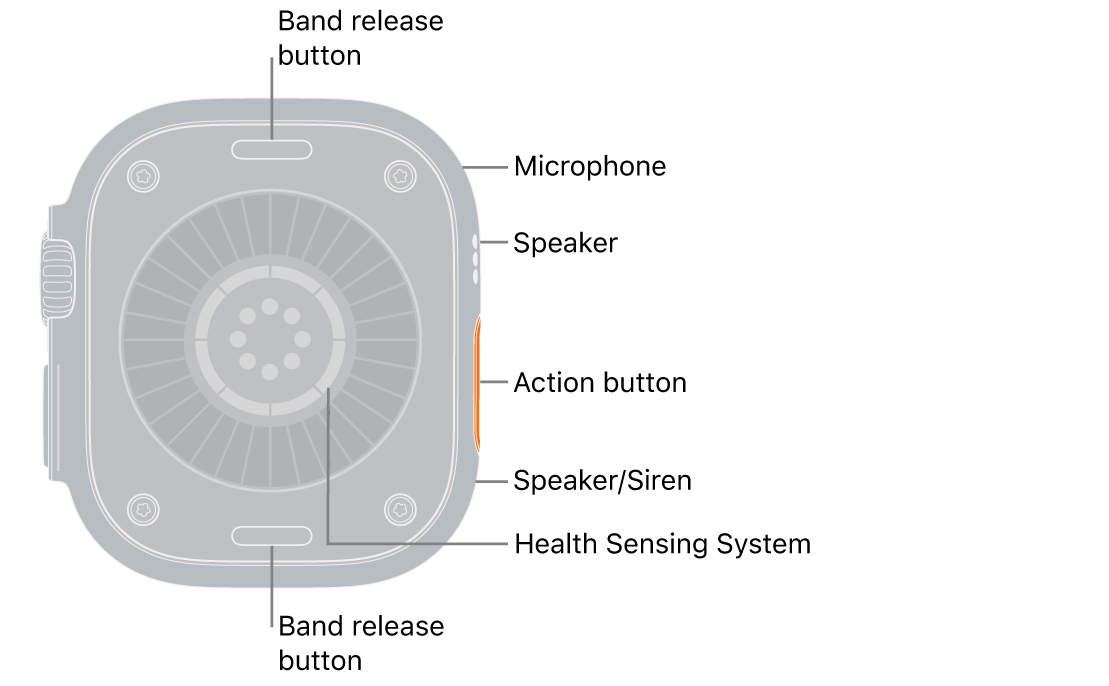
Apple Watch Ultra 4

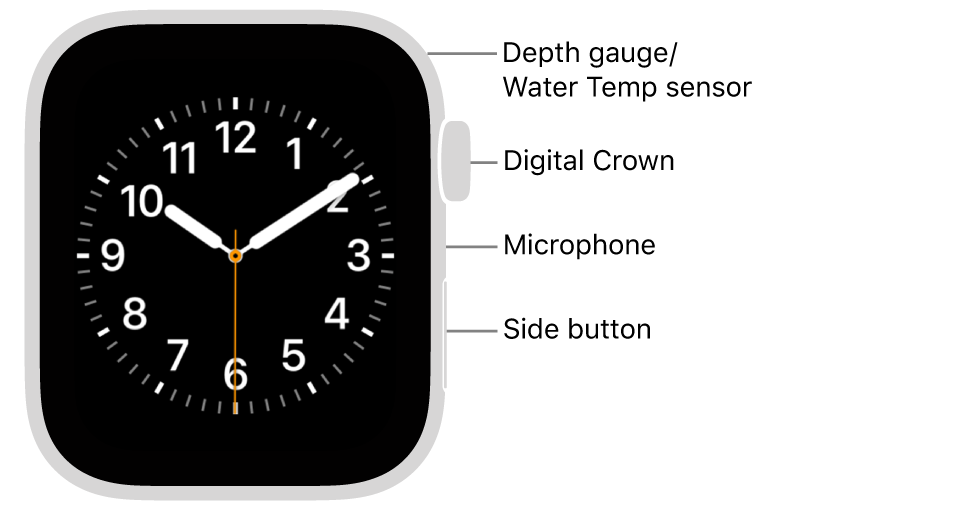
The front of Apple Watch Ultra 4, with the display showing the watch face, and the Depth gauge/Water Temperature sensor, Digital Crown, microphone, side button, and another microphone from top to bottom on the side of the watch.

The back of Apple Watch Ultra 4, with the band release buttons at top and bottom. On the side are a microphone, a speaker, the health sensing system, the Action button, and a speaker port from which the siren emits.

Note: Blood Oxygen app measurements are not intended for medical use. For models of Apple Watch purchased in the United States on or after January 18, 2024 with part numbers ending in LW/A or LS/A, the Blood Oxygen data analysis is performed on iPhone, and results can be viewed in the Health app.

Apple Watch Series 11

The front of Apple Watch Series 11, with the display showing the watch face, and the Digital Crown, microphone, and side button from top to bottom on the side of the watch.

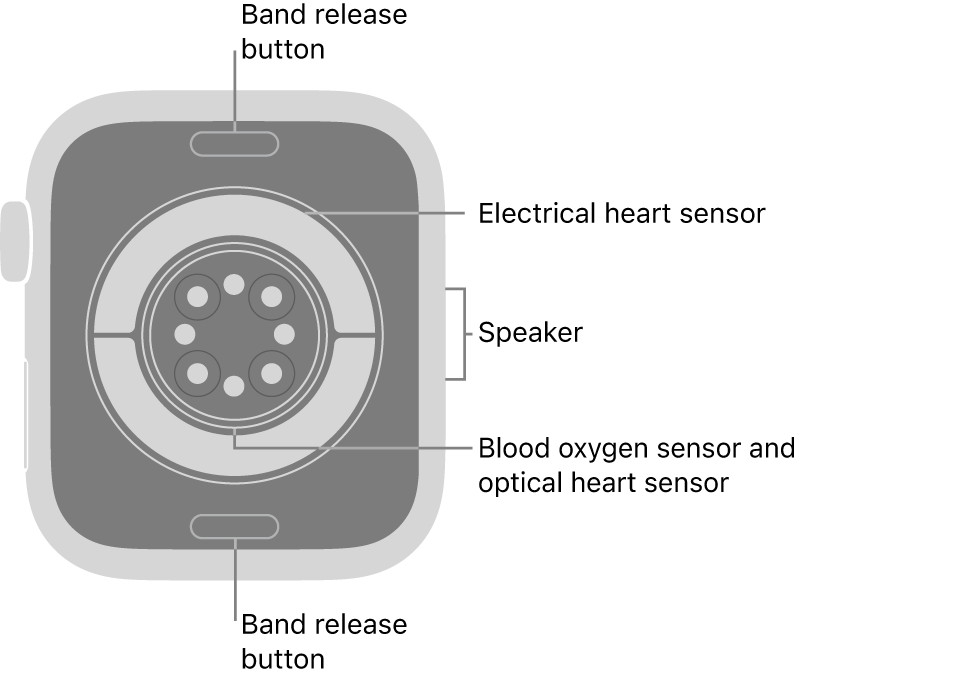
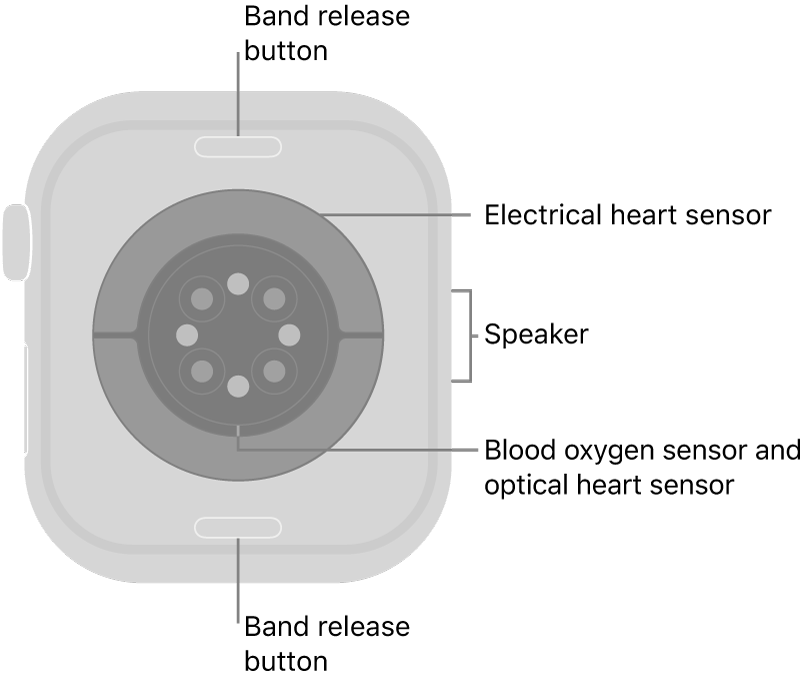
The back of Apple Watch Series 11, with the band release buttons at top and bottom, the electrical heart sensors, optical heart sensors, and blood oxygen sensors in the middle, and the speaker on the side.

Note: Blood Oxygen app measurements are not intended for medical use. For models of Apple Watch purchased in the United States on or after January 18, 2024 with part numbers ending in LW/A or LS/A, the Blood Oxygen data analysis is performed on iPhone, and results can be viewed in the Health app.

Apple Watch Ultra 3

The front of Apple Watch Ultra 3, with the display showing the watch face, and the Depth gauge/Water Temperature sensor, Digital Crown, microphone, side button, and another microphone from top to bottom on the side of the watch.

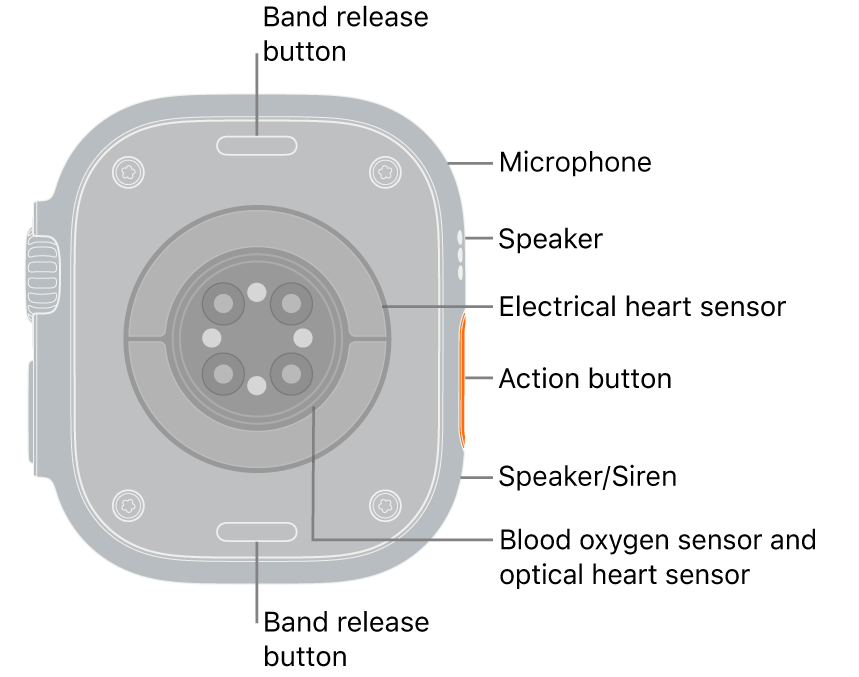
The back of Apple Watch Ultra 3, with the band release buttons at top and bottom. On the side are a microphone, a speaker, the electrical heart sensor, the Action button, a speaker port from which the siren emits, blood oxygen sensors, and optical heart sensors.

Note: Blood Oxygen app measurements are not intended for medical use. For models of Apple Watch purchased in the United States on or after January 18, 2024 with part numbers ending in LW/A or LS/A, the Blood Oxygen data analysis is performed on iPhone, and results can be viewed in the Health app.

Apple Watch SE 3

The front of Apple Watch SE 3, with the display showing the watch face, and the Digital Crown, microphone, and side button from top to bottom on the side of the watch.

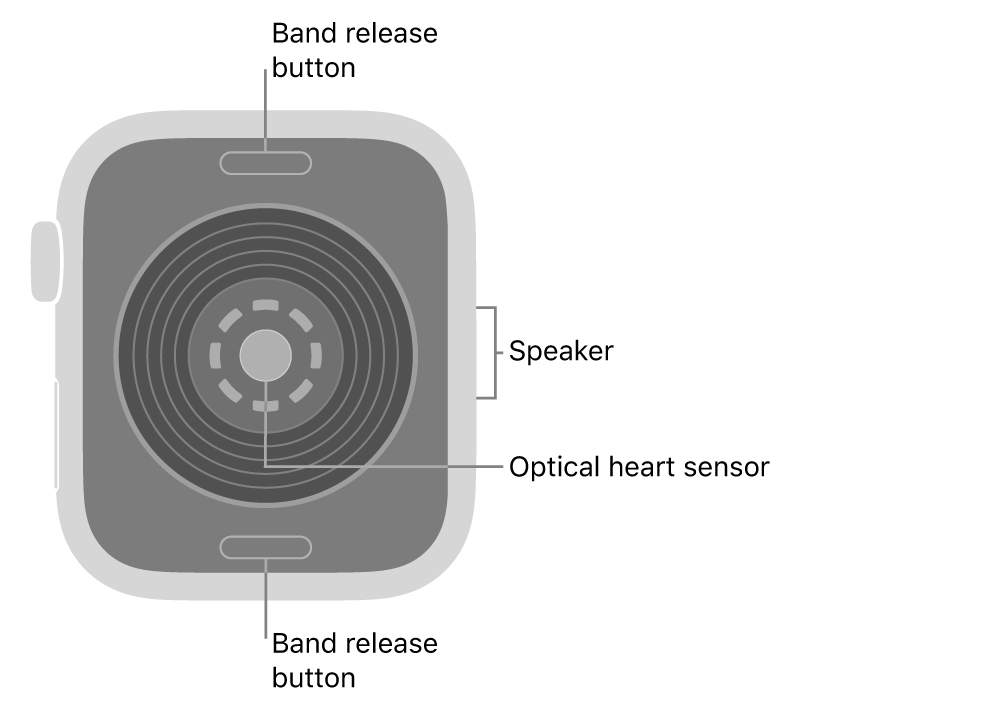
The back of Apple Watch SE 3, with the band release buttons at top and bottom, the optical heart sensor in the middle, and the speaker on the side.

Apple Watch Series 10

The front of Apple Watch Series 10, with the display showing the watch face, and the Digital Crown, microphone, and side button from top to bottom on the side of the watch.

The back of Apple Watch Series 10, with the band release buttons at top and bottom, the electrical heart sensors, optical heart sensors, and blood oxygen sensors in the middle, and the speaker on the side.

Note: Blood Oxygen app measurements are not intended for medical use. For models of Apple Watch purchased in the United States on or after January 18, 2024 with part numbers ending in LW/A or LS/A, the Blood Oxygen data analysis is performed on iPhone, and results can be viewed in the Health app.

Apple Watch Ultra 2

The front of Apple Watch Ultra 2, with the display showing the watch face, and the Depth gauge/Water Temperature sensor, Digital Crown, microphone, side button, and another microphone from top to bottom on the side of the watch.

The back of Apple Watch Ultra 2, with the band release buttons at top and bottom. On the side are a microphone, a speaker, the electrical heart sensor, the Action button, a speaker port from which the siren emits, blood oxygen sensors, and optical heart sensors.

Note: Blood Oxygen app measurements are not intended for medical use. For models of Apple Watch purchased in the United States on or after January 18, 2024 with part numbers ending in LW/A or LS/A, the Blood Oxygen data analysis is performed on iPhone, and results can be viewed in the Health app.

Apple Watch Series 9

The front of Apple Watch Series 9, with the display showing the watch face, and the Digital Crown, microphone, and side button from top to bottom on the side of the watch.

The back of Apple Watch Series 9, with the band release buttons at top and bottom, the electrical heart sensors, optical heart sensors, and blood oxygen sensors in the middle, and the speaker on the side.

See also

Tag: watchOS

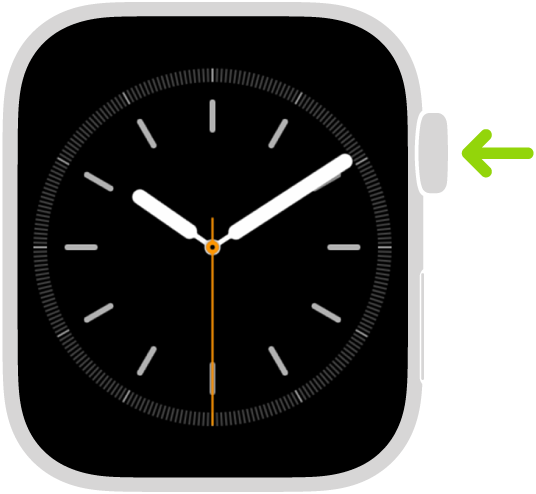
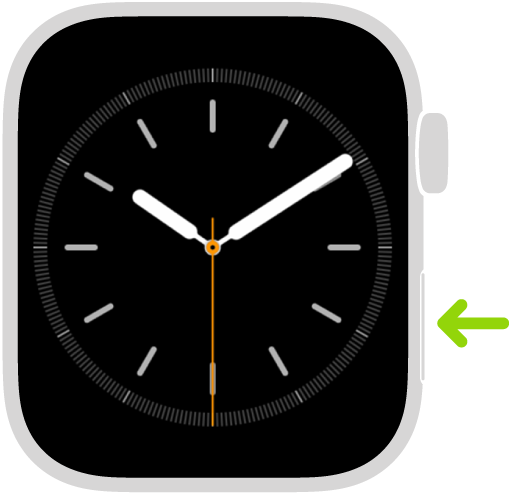
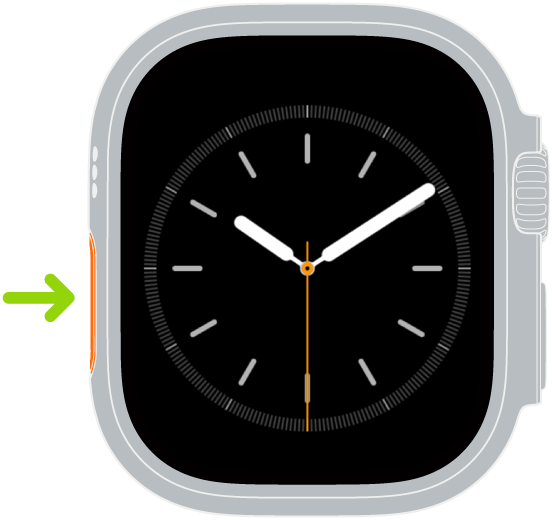
You can interact with Apple Watch using the Digital Crown, side button, Action button, and gestures. The Digital Crown lets you see the watch face or Home Screen, open the App Switcher, and use Siri, and the side button lets you use Control Center, use Emergency SOS, and use Apple Pay. Gestures include cover to mute, wrist flick, and double tap.

You can also practice these gestures in the Tips app. See Use the Tips app.

Press or turn the Digital Crown

Illustration of Apple Watch with an arrow pointing to the Digital Crown at upper right.

Press the side button

Illustration of Apple Watch with an arrow pointing to the side button at lower right.

Press the Action button (Apple Watch Ultra models)

Illustration of Apple Watch Ultra with an arrow pointing to the Action button on the left side.

Use gestures

See also

Tag: Setup

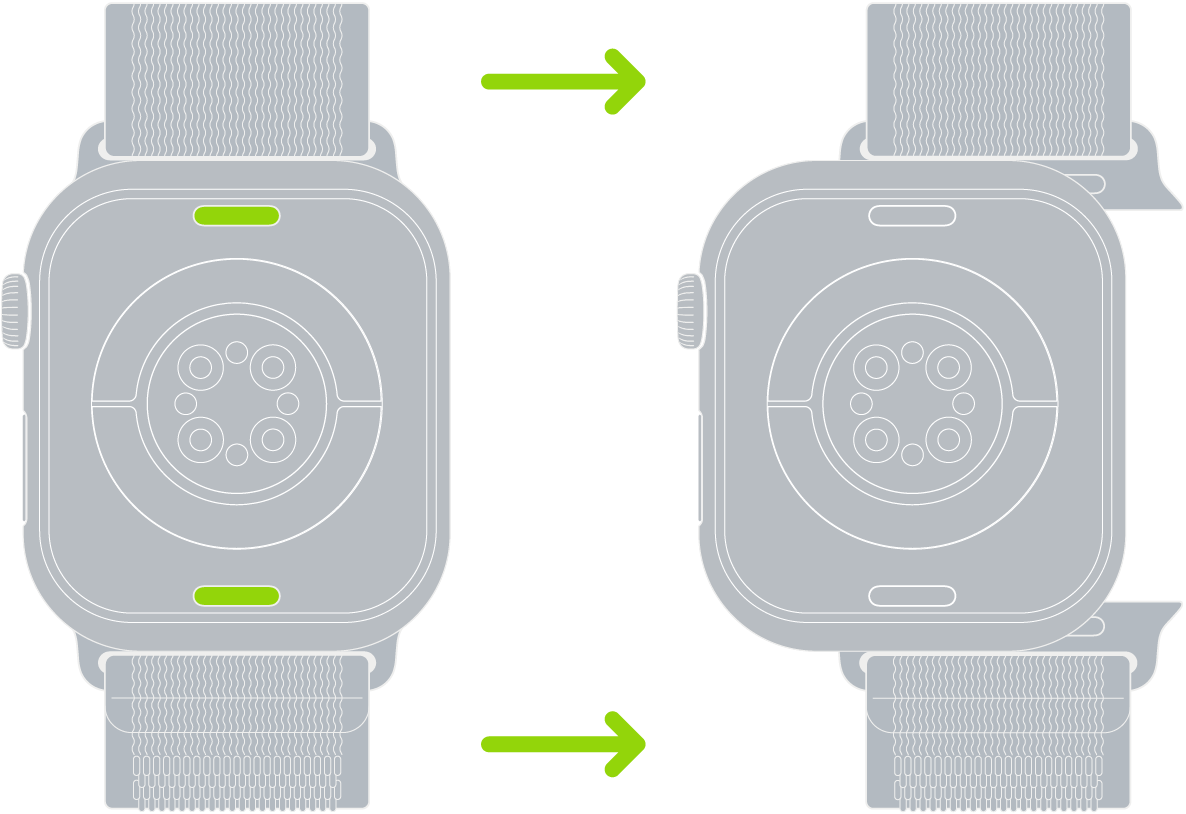
Different Apple Watch bands use the same release mechanism, so follow these general steps to remove and attach a band. It’s simple. Never force a band into the slot, though, and if you’re having trouble removing or inserting a band, the steps cover that, too. You can also see the Apple Watch models.

Remove and change a watch band

  1. Hold down the band release button on your Apple Watch.
  2. Slide the band across to remove it. Then slide the new band in.

    Never force a band into the slot. If you’re having trouble removing or inserting a band, hold down the band release button again.

    Two images of Apple Watch. The image on the left shows the band release button. The image on the right shows a watch band partially inserted into the band slot.

See also

Tag: Setup

In Workout on Apple Watch, combine multiple activities into a single workout on your Apple Watch. You can also create a multisport workout with running, cycling, and swimming legs.

Your Apple Watch automatically recognizes when you’ve switched legs in a multisport workout. You can begin with an outdoor run, for example, and add an outdoor bike ride when you’re ready to start a different activity. For an outdoor workout, you can even leave your iPhone at home, since the built-in GPS gives you accurate distance measurements.

Combine multiple activities in a single workout

  1. Go to the Workout app on your Apple Watch.
  2. Begin your first workout—an outdoor run, for example.
  3. When you’re ready to start a different activity—like an outdoor bike ride—swipe right, tap New and choose the workout.
  4. When you finish all your activities, swipe right, tap End, and then tap End Workout.
  5. Turn the Digital Crown to scroll through the results summary.
  6. Scroll to the bottom and tap Done to save the workout.

Quick tip: The built-in GPS gives you accurate distance measurements, so you can leave your iPhone at home for an outdoor workout.

Create a Multisport workout

A Multisport workout combines swimming, cycling, and running workouts, and your Apple Watch recognizes on its own when you’ve switched between them.

  1. Open the Workout app on your Apple Watch.
  2. Do one of the following:

    • If this is your first multisport workout: Swipe to Multisport, then tap the Add button
    • If you’ve done a multisport workout previously: Tap the More Options button, then tap the Add button.
  3. Tap the Add button, tap Add, and tap an activity—Outdoor Run, for example.
  4. Continue adding activities by tapping Add for each activity.

    You can also touch and hold activities to reorder them.

  5. Tap Untitled below Custom Title and enter a name for your workout.
  6. When you’ve added all the activities, tap Create Workout to save the workout.
  7. When you’re ready to start a multisport workout you’ve created, swipe to Multisport and then tap the Start button.

To delete a Multisport workout, tap the Goals button in the Multisport workout tile, swipe left on the workout, then tap the Delete button.

See also

Tag: Fitness

On Apple Watch, the workout views you see depend on the kind of workout you’re doing. Cardio-focused workouts have more workout views by default, but you can edit some of them to suit your workout style.

You can also reorder workout views. On Apple Watch Ultra models, you can even add a fifth metric to Metrics and Metrics 2, which show four by default.

Here’s how to customize workout views on Apple Watch.

Customize workout views

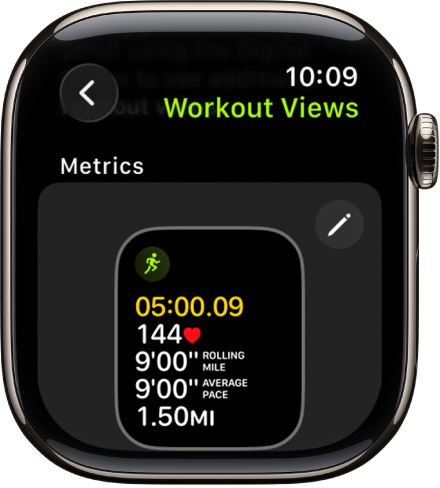
The Workout Views screen, showing the Metrics workout view for a Hiking workout.

  1. Go to the Workout app on your Apple Watch.
  2. Turn the Digital Crown to the workout you want.
  3. Tap the Views button, scroll through the workout views, and tap Include next to the workout views you want to appear during the workout.
  4. To select the metrics that appear in the first two workout views, tap the Edit button in the Metrics or Metrics 2 set and tap a metric. Then choose a different metric.

Quick tip: Metrics and Metrics 2 show four metrics by default on Apple Watch Ultra models, and you can add a fifth. Choose a workout, tap Preferences, and then tap [workout] Workout Views. Next, tap the Edit button in the Metrics or Metrics 2 tile and tap the empty field at the bottom of the list, and then choose another metric.

Reorder workout views

  1. Open the Workout app on your Apple Watch.
  2. Turn the Digital Crown to the workout you want to do.
  3. Tap the Views button, scroll down, and then tap Reorder.
  4. Touch and hold a workout view. Drag it to change the order.

See also

Tag: Fitness

Calibrating your Apple Watch improves the accuracy of your distance, pace, and calorie measurements, and it can help your watch learn your fitness level and stride. That improves accuracy when GPS is limited or unavailable. And if you prefer meters to yards or kilojoules to calories, the Workout app can use different measurement units.

Calibrate your Apple Watch

To improve the accuracy of your distance, pace, and calorie measurements, you can calibrate your Apple Watch. Doing so also helps your watch learn your fitness level and stride, for better accuracy when GPS is limited or unavailable.

  1. While wearing your Apple Watch, go to a flat, open outdoor area that offers good GPS reception and clear skies.
  2. Go to the Workout app, swipe to Outdoor Walk or Outdoor Run, and then tap the Start button.

    To set a goal before starting, see Add a workout goal.

  3. Walk or run at your normal pace for about 20 minutes.

The 20 minutes don’t have to happen in one workout, since you can complete them over multiple outdoor Workout sessions. For workouts at different speeds, calibrate for 20 minutes at each of the speeds you walk or run, too.

Change measurement units

The measurement units the Workout app uses can switch to meters instead of yards or kilojoules instead of calories, if you prefer.

  1. Open the Settings app on your Apple Watch.
  2. Tap Workout and scroll down. Then tap Units of Measure.

Units for walking and running workouts, cycling workouts, pool length, and energy are all adjustable.

Turn Precision Start on or off (Apple Watch Ultra models)

Precision Start, on Apple Watch Ultra models, starts a workout without a countdown.

  1. Open the Settings app on your Apple Watch.
  2. Tap Workout and turn on Precision Start.

After selecting a workout, swipe left and tap Start (or press the Action button if you’ve set it to Workout).

Pause running and cycling workouts automatically

  1. Open the Settings app on your Apple Watch.
  2. Tap Workout, tap Auto-Pause, and turn on Auto-Pause.

Your Apple Watch automatically pauses and resumes your outdoor running and cycling workouts—for example, if you stop to cross the street or get a drink of water. You can manually pause your workouts by pressing the side button and Digital Crown at the same time.

Turn End Workout Confirmation on or off

When you’re finished working out, a confirmation can let you know you’re ready to end your workout.

  1. Open the Settings app on your Apple Watch.
  2. Tap Workout, then turn on End Workout Confirmation.

Turn workout reminders on or off

Your Apple Watch senses when you’re moving during walking, running, swimming, and other workouts, and alerts you to start the Workout app, even giving you credit for the exercise you’ve already done. In case you get distracted when you’re cooling down, it also reminds you to end your workout, or to resume one you’ve paused.

  1. Open the Settings app on your Apple Watch.
  2. Tap Workout and then change the Start Workout, Resume Workout, and End Workout reminder settings. (Workout reminders are on by default.)

You can also open the Apple Watch app on your iPhone, tap My Watch, tap Workout, then change the workout reminder settings.

Avoid accidental taps

If the exercise you’re doing or the gear you’re wearing causes accidental taps on your Apple Watch, you can turn on the water lock so your workout isn’t interrupted.

  1. Press the side button to open Control Center on Apple Watch.
  2. Tap the Water Lock button.

You can browse and open apps from the Home Screen. Your Apple Watch comes with a collection of helpful apps designed to keep you connected right from your wrist, and these built-in apps work with your iPhone to help you stay active, communicate with others, and access important information.

The dynamic app grid shows the apps you use most and the ones you’ve used recently. And if an app isn’t responding, you can quit and reopen it.

Open apps from the Home Screen

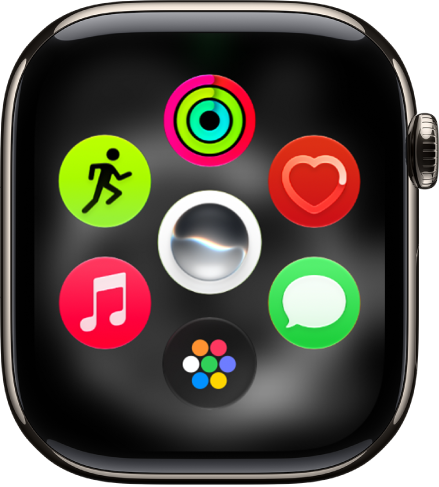
  1. From the watch face, press the Digital Crown to see the dynamic app grid, which shows the apps you use most and have used most recently.

    The dynamic app grid shows the apps you use most.

  2. Tap an app to open it.
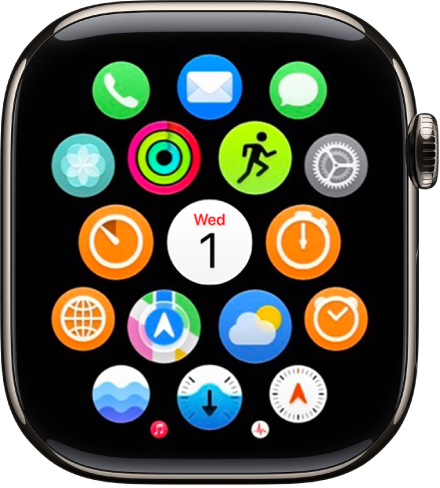
  3. To see more apps, turn the Digital Crown.

    The Home Screen showing all your apps.

To return to the Home Screen from an app, press the Digital Crown once, then press it again to switch to the watch face.

Apps included with Apple Watch

App icon App name For more information
Activity icon Activity Track daily activity
Alarm icon Alarms Add an alarm
App Store icon App Store Get apps
Audiobooks icon Audiobooks Listen to audiobooks
Blood Oxygen icon Blood Oxygen

(not available on Apple Watch SE; not available in all countries or regions)

Measure blood oxygen levels
Calculator icon Calculator Use Calculator
Calendar icon Calendar Check and update your calendar
Camera Remote icon Camera Remote Use Camera Remote
Compass icon Compass Use the compass
Contacts icon Contacts See contact information
Cycle Tracking icon Cycle Tracking Use Cycle Tracking
Depth icon Depth Measure underwater temperature, duration, and depth
ECG icon ECG Record an electrocardiogram
Find My icon Find My Set up Find My
Heart Rate icon Heart Rate Check your heart rate
Home icon Home Control your home
Mail icon Mail Read and write mail
Maps icon Maps Get directions
Medications icon Medications Track your medications
Memoji icon Memoji Use Memoji
Messages icon Messages Read and respond to messages
Mindfulness icon Mindfulness Practice mindfulness
Music icon Music Add and play music
Music Recognition icon Music Recognition Identify songs with Shazam
News icon News

(not available in all countries or regions)

Read news stories
Noise icon Noise Measure noise levels
Notes icon Notes Take notes
Now Playing icon Now Playing Use Now Playing
Phone icon Phone Answer and make phone calls
Photos icon Photos View photos and Memories
Podcasts icon Podcasts Play podcasts
Readiness

(available on Apple Watch Series 12 and Apple Watch Ultra 4)

Use the Readiness app
Reminders icon Reminders Use reminders
Remote icon Remote Control Apple TV 4K
Settings icon Settings Change the settings
Shortcuts icon Shortcuts Use shortcuts
Siren icon Siren

(available on Apple Watch Ultra models)

Activate the siren
Siri icon Siri

(Siri AI is available in beta on watchOS 27 or later on Apple Watch Series 9 and later, Apple Watch Ultra 2 and later, and Apple Watch SE 3 when paired with an Apple Intelligence-enabled iPhone 15 Pro, iPhone 15 Pro Max, or iPhone 16 model or later with Siri and device language set to a supported language. Available in English to start. Siri AI will not initially be available in the EU on iOS and watchOS. Usage limits may apply.)*

Use the Siri app
Sleep icon Sleep Track your sleep
Stocks Track stocks
Stopwatch Use a stopwatch
Tides Tides
Timers Set timers
Tips View tips
Translate Translate text and voice
Vitals Track your vitals
Voice Memos Record and play voice memos
Wallet Set up cards and passes
Weather Check the weather
Workout Start a workout
World Clock Check the time in other locations

Quit an app

If an app isn’t responding, you can quit and reopen it to try to resolve the issue. (Typically, there’s no reason to quit an app; quitting it doesn’t save battery power, for example.)

  1. From the app you want to quit, press and hold the side button until the sliders appear.
  2. Press and hold the Digital Crown until the watch face appears.

*Apple Intelligence is available with Siri and device language set to Chinese (Simplified), Chinese (Traditional), Danish, Dutch, English, French, German, Italian, Japanese, Korean, Norwegian, Portuguese, Spanish, Swedish, Turkish, or Vietnamese. Some features may not be available in all regions or languages. Some devices may not be available in all regions. Siri AI is available in beta in iOS 27, iPadOS 27, macOS 27, watchOS 27, and visionOS 27 and requires an Apple Intelligence–enabled device set to a supported language. Available in English to start. Siri AI will not be initially available in the EU on iOS, iPadOS, and watchOS. Certain Apple Intelligence features that rely on server-side models are subject to daily usage limits, including but not limited to Siri AI, Intelligent Photo Editing Tools, Image Playground, and AFM 3 Cloud models in Shortcuts. Daily limits may vary by feature, request complexity, system demand, system policies, and other factors. Expanded access to such features will be available for a fee in the future. Use of these features is subject to the Apple Intelligence Terms and Conditions.

See also