Got a tip for us?

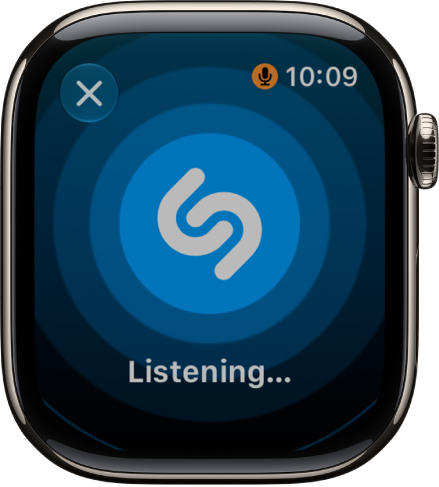
Use Shazam in the Music Recognition app or via the Smart Stack to identify a song playing around you, see it in Apple Music, add it to a playlist, and revisit your Shazam history.

If the song is identified, you’ll see the title and artist, plus details like the album, release date, and genre. You can add it to your library, too.

Here’s how to identify songs with Shazam on Apple Watch.

Recognize music with Shazam

  1. Open the Music Recognition app on your Apple Watch.
  2. Tap the Tap to Recognize button.

    A screen showing the title and artist of a song identified by Music Recognition. The play button is at the bottom right.

    If the song is identified by Shazam, the title and artist are displayed.

  3. Do any of the following:

    • See the song in Apple Music: Tap Apple Music.
    • Add it to your library or a playlist: Tap More and then tap Add to Apple Music Library or Add to Playlist.
    • See details about the song: Scroll down to see the album, release date, and genre.

Quick tip: You can customize the Action button on Apple Watch Ultra models to start Shazam.

Use Shazam in the Smart Stack

Before you begin, make sure you’ve turned on Music Detection in Settings. Go to the Settings app, tap Smart Stack, then turn on Music Detection. You can also tap Enable Music Detection when it appears in the Smart Stack.

  1. From the watch face, turn the Digital Crown upward or swipe up from the bottom of the screen.

    When music is detected, the Music Recognition widget appears in the Smart Stack.

  2. Tap Shazam. If the song is identified, the title and artist are displayed.

    On Apple Watch Series 12 and Apple Watch Ultra 4, the widget recognizes music automatically and shows the title and artist even faster, without having to tap. (Automatic recognition requires the Always On processor.)

  3. Tap the Add button to save the song to your Shazam history.

See songs identified previously

  1. Open the Music Recognition app on your Apple Watch.
  2. Scroll down to see the history.

See also
Tags: Music, Shazam

The News app on your Apple Watch helps keep you up to date with current events, presenting stories selected with your interests in mind.

You can browse and save news stories, then read the saved stories on your iPhone, iPad, or Mac. On iPad and Mac, they’re in Saved Stories in the sidebar, and on iPhone, they’re under Following. You can share a news story, too.

Here’s how to read news stories on Apple Watch.

Note: The News app isn’t available in all countries or regions.

Browse and save news stories

  1. Start the News app on your Apple Watch.
  2. Turn the Digital Crown to scroll through the list and tap a story to preview it.
  3. To save a story to read later, scroll to the bottom of the story and tap the Bookmark button.
  4. To go to the saved stories on your iPhone, iPad, or Mac, do one of the following:
    • iPhone: Go to the News app, tap Following, and then tap Saved Stories.
    • iPad: Go to the News app and then tap Saved Stories in the sidebar.
    • Mac: Go to the News app and click Saved Stories in the sidebar.

Share a news story

  1. Start the News app on your Apple Watch.
  2. Scroll to a story and then tap it.
  3. Scroll to the bottom of the story and tap the Share button. Then choose a sharing option.

See also

Tag: News

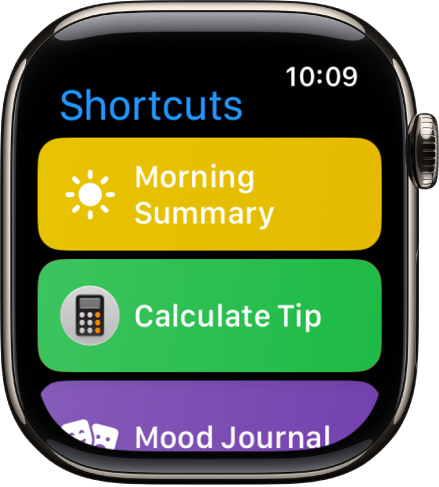
The Shortcuts app lets you automate tasks you do often with just a tap or by asking Siri. With the shortcuts you create on your iPhone, you can quickly get directions home, create a top 25 playlist, and more.

When you add a new shortcut on your iPhone, it also appears on your Apple Watch, as long as it’s compatible. Not every iPhone shortcut works on your watch, though.

Here’s how to use shortcuts on Apple Watch.

Note: Not all shortcuts on iPhone are compatible with Apple Watch.

The Shortcuts app on showing three shortcuts: Break Timer, Compass, and Record Backtrack.

Run a shortcut

  1. Open the Shortcuts app on your Apple Watch.
  2. Tap a shortcut.

Add more shortcuts to Apple Watch

A new shortcut you add on your iPhone also appears on Apple Watch, as long as it’s compatible.

Quickly access your shortcuts

To quickly access your shortcuts, do any of the following:

See also

Apple Watch uses Bluetooth® wireless technology to connect to its paired iPhone and uses the iPhone for many wireless functions.

When your iPhone is turned off or isn’t nearby, Apple Watch can connect to a Wi-Fi network instead. It’s flexible. And with a cellular plan, your Apple Watch can stay connected even when you’re away from your iPhone. Even without either, you can still use alarms, timers, and the stopwatch, and the built-in GPS tracks distance during outdoor workouts.

If Apple Watch is connected to Wi-Fi

Even with your iPhone turned off, you can still do the following when Apple Watch is connected to a Wi-Fi network:

Use Apple Watch without your iPhone nearby

You can stay connected away from your iPhone if your Apple Watch has a cellular plan. On all other models of Apple Watch, you can still do things while you’re away from your iPhone and not connected to Wi-Fi.

Thanks to a built-in GPS, Apple Watch can give you more accurate distance and speed information during an outdoor workout, even without your paired iPhone. There’s also a built-in barometric altimeter in Apple Watch, which provides accurate elevation gain/descent information along with your current elevation in real time.

See also

Tag: watchOS

Use the Voice Memos app on Apple Watch to record personal notes. It’s simple. Recordings on your Apple Watch automatically sync to your iPhone, iPad, and Mac where you’re signed in with your Apple Account.

That means your watch recordings play back on your paired iPhone and on other devices signed in to your Apple Account, through iCloud. You can play a voice memo right on your watch, too.

Here’s how to record and play voice memos on Apple Watch.

Record a voice memo

  1. Start the Voice Memos app on your Apple Watch.
  2. Tap the Record button.
  3. Tap the Stop Recording button to end the recording.

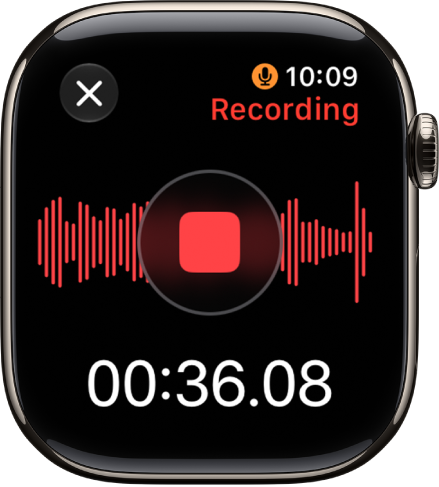
    The Voice Memos app in the midst of recording a memo. A red Stop button is in the middle. Below is the recording’s elapsed time. The word Recording appears at the top right.

Play a voice memo

  1. Start the Voice Memos app on your Apple Watch.
  2. Tap a recording on the Voice Memos screen and tap the Play button to play it.
  3. Tap the Skip Ahead button or the Skip Back button to skip ahead or back, respectively.

Access your voice memos on other devices

With iCloud, your watch recordings can play on your paired iPhone, along with other devices where you’re signed in to your Apple Account.

  1. Go to the Voice Memos app on your iPhone, iPad, or Mac.
  2. Tap or click Watch Recordings.

See also

Use the Weather app to track current and upcoming weather conditions, locally or in locations around the globe. You can easily check on current weather details such as clear or cloudy skies, temperature, precipitation, wind, ultraviolet (UV) conditions, visibility, humidity, and air quality.

You can also see severe weather alerts, view the weather in other locations, and get rain alerts for remote locations. Your Apple Watch keeps its list of locations synced with the list on your iPhone.

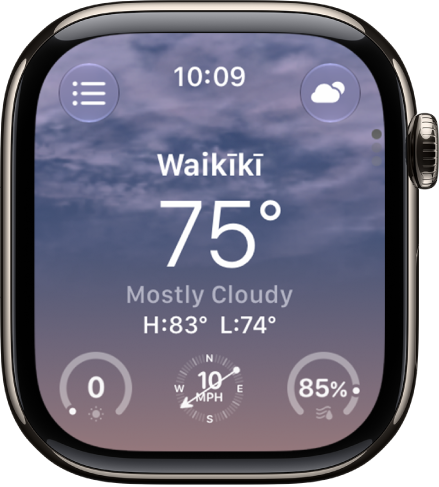
The Weather app showing an overview of the current weather. The location  appears above the current temperature.

Check the weather

You can see current conditions and hourly views for humidity, visibility, UV index, wind speed, precipitation, temperature, and air quality, though air quality isn’t available for all locations.

  1. Start the Weather app on your Apple Watch.
  2. View the current conditions.

    If the local weather doesn’t appear on your Apple Watch when you open the Weather app, make sure that Location Services is turned on.

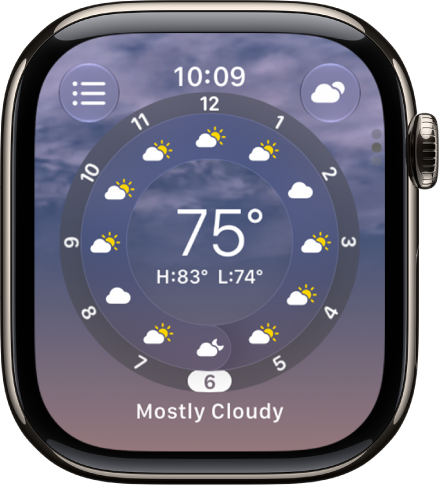
  3. Tap the display to cycle through the views.

    The Weather app showing the hourly temperature forecast.

See severe weather alerts

When a significant weather event is predicted, an alert may appear at the top of the Weather app. Tap the alert for more information.

Note: Severe weather alerts aren’t available in all locations.

View the weather in other locations

Your Apple Watch keeps its list of locations in sync with the list on your iPhone.

  1. Start the Weather app on your Apple Watch.
  2. Do any of the following:
    • Add a location: Tap the Add button, then enter a city.
    • Remove a location: Swipe left on the location you want to remove and tap the Delete button.

Get rain alerts for remote locations

Apple Watch can notify you about rain at the locations of appointments within 150 miles, so you can plan accordingly.

  1. Go to the Calendar app on your Apple Watch.
  2. Add an appointment and include the location address.

    If precipitation is forecast at this location as the appointment time nears, the Precipitation widget appears in the Smart Stack.

  3. Tap the Precipitation widget to see detailed weather information, including hourly forecasts.

See the weather forecast for a trip

If you add trips to Calendar with location details, the Smart Stack shows a 5-day weather forecast for your destination automatically.

  1. Start the Calendar app on your Apple Watch.
  2. Add an event and include the destination location.

    As your trip approaches, the Trip widget appears in the Smart Stack.

  3. Open the Smart Stack and scroll to the 5-day weather forecast for your destination.
  4. Tap the Trip widget to see detailed weather information, including hourly forecasts.

See also

Tag: Weather

Use Calendar to check your schedule, add or update events, and see scheduled reminders. You can also respond to invitations, get directions to an event, and choose which calendars appear on your watch.

There’s a list view, a day view, and a month view. Each event shows details like time, location, invitee status, and notes, and you can even open Calendar right from the watch face.

Here’s how to check and update your calendar on Apple Watch.

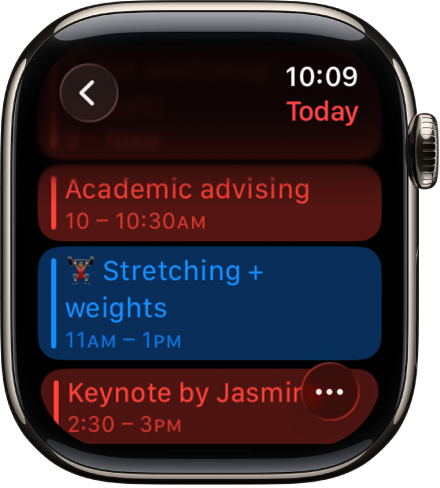
Calendar screen showing a list of the day’s events. Events are color coded to match the calendar they belong to.

View your calendar

See what’s coming up next in a list, day, or month view.

  1. Open the Calendar app on your Apple Watch.

    Tip: From the watch face, you can also tap the date or a calendar event.

  2. Turn the Digital Crown to scroll through upcoming events.
  3. To change the view, tap the More Options button and then choose an option.
  4. Tap an event to see details about it, including time, location, invitee status, and notes.

    Tip: If the event includes a location, tap the address to get directions. See Get directions in Maps on Apple Watch.

Add an event

Events you add to the Calendar app on your Apple Watch sync to your iPhone by default, and the other way around. Each event can include details like location and “leave now” alerts.

  1. Open the Calendar app on your Apple Watch.
  2. Tap the More Options button. Tap the Add button
  3. Enter event details, then choose the calendar you want to add the event to.

Edit or delete an event

  1. Open the Calendar app on your Apple Watch.
  2. Tap an event, then tap Edit or Delete.

View scheduled reminders

In Day or List view, Calendar puts scheduled reminders from the Reminders app alongside your events.

  1. Open the Calendar app on your Apple Watch.
  2. While using Day or List view, tap the reminder and tap Open in Reminders.

Change calendar settings and manage alerts

You can change the kind of calendar notifications you receive and pick which calendars appear on Apple Watch.

  1. Open the Apple Watch app on your iPhone.
  2. Tap My Watch and tap Apps. Then tap Calendar.

See also

The Noise app measures the ambient sound levels in your environment using the microphone and duration of exposure. When Apple Watch detects that the decibel level has risen to a point where hearing could be affected, it can notify you with a tap on the wrist.

You can choose a threshold for those notifications and monitor your exposure to noise over time in the Health app. You can see noise levels on the watch face, too.

Note: The Noise app uses the microphone to sample and measure the sound levels in your environment. Your Apple Watch doesn’t record or save any sounds to measure these levels.

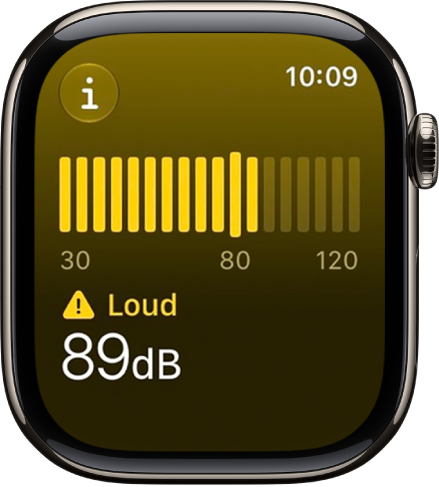
The Noise app showing a sound level of 89 decibels with the word “Loud” above.

Monitor the noise level

  1. Open the Noise app on your Apple Watch.
  2. Tap the More Info button for details about sound levels.

Quick tip: For environmental noise levels on the watch face, add the noise complication.

Choose a threshold for noise notifications

  1. Open the Settings app on your Apple Watch.
  2. Tap Noise, tap Noise Threshold, and then choose a threshold.

You can also go to the Apple Watch app on your iPhone, tap My Watch, tap Apps, tap Noise, then tap Noise Threshold.

Monitor your exposure to noise over time

The Health app shows your high, low, and average sound levels over different periods of time.

  1. Go to the Health app on your iPhone or iPad.
  2. In the Hearing category, tap Environmental Sound Levels.

Turn off noise measuring

  1. Open the Settings app on your Apple Watch.
  2. Tap Noise, then tap Environmental Sound Measurements.
  3. Turn off Measure Sounds.

You can also go to the Apple Watch app on your iPhone, tap My Watch, tap Apps, tap Noise, then turn off Environmental Sound Measurements.

See also

Tag: Health

In the Maps app on your iPhone, you can save a map area or a hiking route, then view it on your paired Apple Watch even when you can’t access Wi-Fi or cellular service. With downloaded maps, you can view information like hours and ratings on place cards, get turn-by-turn directions for hiking, driving, walking, cycling, or riding transit, and see your estimated time of arrival.

Offline maps are automatically available on your Apple Watch when your iPhone is on and within Bluetooth range (about 33 feet or 10 meters). And if you sync them, they’re available on your Apple Watch even when your iPhone isn’t nearby.

Note: Offline maps are available only in select regions, and a downloaded map works only in its specific region. Maps features vary by country and region.

Get offline maps on iPhone and sync with Apple Watch

Synced offline maps stay available on Apple Watch even when your paired iPhone isn’t nearby.

  1. Start the Maps app on your iPhone.
  2. Tap your picture or initials next to the search field and tap Offline Maps. Then turn on Sync with Apple Watch.
  3. Do any of the following:

Use offline maps on Apple Watch

  1. Start the Maps app on your Apple Watch.
  2. Tap the Search button and tap your picture or initials at the top-right corner. Then tap Offline Maps.
  3. Tap an offline map.

    Maps below “On This Watch” are available even when your iPhone isn’t nearby. Maps below “On Your iPhone” are available only when your iPhone is nearby.

See also

Tag: Maps

Use Maps to explore points of interest around you, search for a nearby place or service, find hiking trails, see recent locations, and browse curated guides.

The map displays a circle that shows the area you can walk within a few minutes, and you change the radius by turning the Digital Crown. You can search by name, too, and change the radius unit to time or distance.

Here’s how to find places in Maps on Apple Watch.

Note: Location services have to be on before you can use Maps. On Apple Watch, go to Settings, then tap Privacy & Security, tap Location Services, and turn on location services.

Explore the surroundings within your walking radius

  1. Open the Maps app on your Apple Watch.

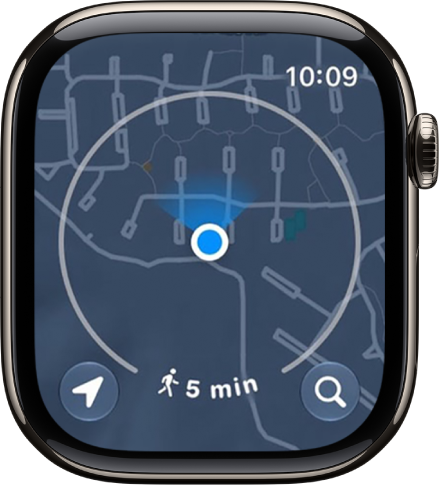
    The map displays a circle that encompasses the area you can walk within a few minutes.

    The Maps app with a circle around the current location, representing a five-minute walking radius.

  2. Do any of the following:

    • Change the radius: Turn the Digital Crown.
    • Change the radius unit: Touch and hold the map and scroll down. Choose Time or Distance.

Search the map or find a nearby service

  1. Open the Maps app on your Apple Watch.
  2. Tap the Search button and then do one of the following:

    • Search by name: Tap Search and then enter what you’re looking for.

      The Search screen in the Maps app, with the search field near the top. A list of Recent searches appears at the bottom.

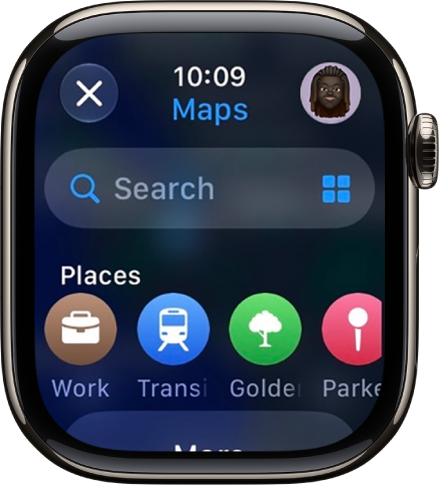
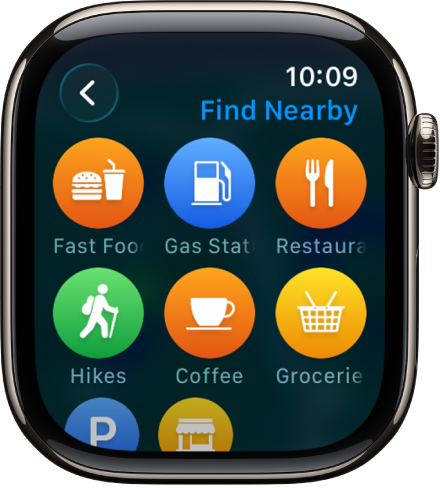
    • Browse by category: Tap the Search Places button, then tap a category such as Restaurants or Parking.

      A Maps screen showing categories of locations.

Find hiking trails

You can find trails in the U.S. and check each one’s length, elevation, and distance from your current location.

  1. Open the Maps app on your Apple Watch.
  2. Tap the Search button. Enter “trails” to find trails near you or near another spot on the map. Trailheads appear as green dots.
  3. Turn the Digital Crown to browse trails, then tap a result for details.

See recent locations

  1. Open the Maps app on your Apple Watch.
  2. Tap the Search button and scroll down to Recents. Then tap a location.

View a guide

Guides help you discover someplace new. They’re curated collections of hidden gems, restaurants, and attractions in cities around the world.

Note: Guides aren’t available in all countries or regions.

  1. Set up and save a guide on your iPhone.
  2. Go to the Maps app on your Apple Watch, tap the Search button, and scroll down to the guide you added.
Tag: Maps