Got a tip for us?

Use Maps to get directions and navigate when driving, walking, cycling, and taking transit. You can even mark a location with a pin to revisit later.

It’s simple. You can choose how you want to get there, browse suggested routes, and see route details, and along the way, turn alerts help you follow the route. Location services must be turned on to use Maps, though.

Here’s how to get directions in Maps on Apple Watch.

Note: Not all transportation options are available in all locations. Location services must be turned on to use maps. On Apple Watch, go to Settings, tap Privacy & Security, tap Location Services, then turn on location services.

WARNING: For important information about avoiding distractions that could lead to dangerous situations, see Important safety information for Apple Watch.

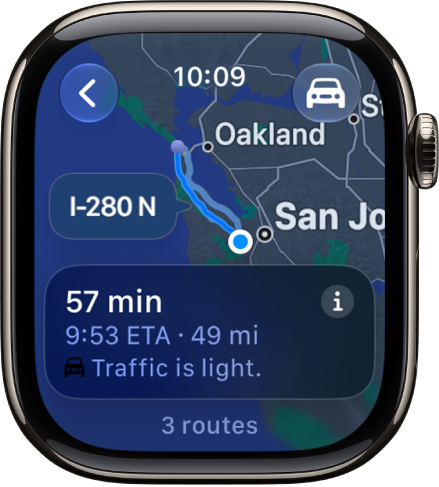
The Maps app showing an overview of driving directions. The first leg of the trip is shown at the bottom.

Get directions

  1. Open the Maps app on your Apple Watch.
  2. Tap the Search button, tap Search, and enter what you’re looking for—or choose from Favorites, Recents, Find Nearby, or Guides.
  3. Do any of the following:
    • Choose how you want to get there: Tap the button at the top right, then tap driving, walking, cycling, or transit.
    • Browse suggested routes: Turn the Digital Crown.
    • See route details: Tap the More Info button.
    • Start navigating: Choose a route or tap Go.

Following turn alerts

With driving, cycling, or walking directions, your Apple Watch uses sounds and haptics to tell you when to turn after you head off on your first leg. When you hear a low tone and then a high tone (tock tick, tock tick), turn right at the intersection you’re approaching. A high tone and then a low tone (tick tock, tick tock) means turn left. On the last leg, you’ll feel a vibration, and you’ll feel another when you arrive.

Note: Sounds don’t play when Apple Watch is in Silent Mode.

Mark a location with a pin

A location marker, or pin, saves an important spot on the map so it’s easy to revisit later. You can use one to remember where you parked or mark a scenic viewpoint.

Note: A new location marker replaces a previous location marker.

  1. Open the Maps app on your Apple Watch.
  2. Touch and hold the map where you want to position the pin. Tap Mark Location.

See also

Tag: Maps

Use the Blood Oxygen app on supported Apple Watch models to measure the percentage of oxygen your red blood cells carry from your lungs to the rest of the body. Knowing how well oxygenated your blood is can help you understand your overall health and wellness.

The app measures your blood oxygen level periodically throughout the day if background measurements are turned on, and you can also take an on-demand measurement. It’s not available for use by people under 18.

Note: Blood Oxygen app measurements are not intended for medical use. For models of Apple Watch purchased in the United States on or after January 18, 2024 with part numbers ending in LW/A or LS/A, the Blood Oxygen data analysis is performed on iPhone, and results can be viewed in the Health app.

What you need

  • Make sure the Blood Oxygen app is available in your country or region.
  • Update your iPhone XS or later to the latest version of iOS.
  • Update your supported Apple Watch to the latest version of watchOS.

Note: The Blood Oxygen app is not available for use by people under 18 years old. You can confirm or set up your age in your Medical ID.

Set up Blood Oxygen

  1. Start the Settings app on your Apple Watch.
  2. Tap Blood Oxygen, then turn on Blood Oxygen Recordings.

Measure your blood oxygen level

With background measurements turned on, the Blood Oxygen app measures your blood oxygen level periodically throughout the day. You can take an on-demand measurement anytime, too.

  1. Start the Blood Oxygen app on your Apple Watch.
  2. Rest your arm on a table or in your lap, and make sure your wrist is flat, with the Apple Watch display facing up.
  3. Tap Start and then hold your arm very still during the 15-second countdown.
  4. At the end of the measurement, you receive the results. For models of Apple Watch purchased in the United States on or after January 18, 2024 with part numbers ending in LW/A or LS/A, results cannot be viewed on Apple Watch, and are exclusively available in the Health app on iPhone. Tap Done.

Note: To get the best results, the back of your Apple Watch needs skin contact. Wearing your Apple Watch not too tight or too loose, with room for your skin to breathe, and flush with the top of your wrist, helps ensure successful Blood Oxygen measurements.

Turn off background measurements when the Sleep Focus or Theater Mode is active

Because blood oxygen measurements use a bright red light shining against your wrist, they may be more visible in dark places. If you find the light distracting, you can turn off measurements.

  1. Start the Settings app on your Apple Watch.
  2. Tap Blood Oxygen. Turn off In Sleep Focus and In Theater Mode.

View your Blood Oxygen measurements history

  1. Start the Health app on your iPhone.
  2. Tap Browse and tap Respiratory. Then tap Blood Oxygen.
Tag: Health

Certain Apple Watch models can track the water temperature, time, and depth during underwater activities like snorkeling, underwater pool swims, and shallow free-diving. (Not available on Apple Watch SE 3 and Apple Watch Series 9.)

There are depth limits, though. Apple Watch Series 10 and later can go to 6 meters (20 feet), and Apple Watch Ultra models to 40 meters (130 feet). You can also use a compatible third-party dive app.

WARNING: Underwater activities are risky. The Depth app is not a dive computer and does not provide decompression stop information, gas analysis, or other recreational scuba diving functionality. In situations where the failure of the device could lead to death, personal injury, or severe environmental damage, always use a secondary depth gauge and timer/watch.

Depth app overview

The Depth app provides basic information that’s easy to view during recreational underwater activities like snorkeling, underwater pool swims, and shallow free-diving.

Important: When using the Depth app, do not exceed the following maximum depth limits:

  • Apple Watch Series 10 and later: 6 meters (20 feet)
  • Apple Watch Ultra models: 40 meters (130 feet)

The Depth app is not a substitute for a dive computer. Before going on a dive, be sure your watch is free of cracks or other damage.

Check that the depth gauge and seals on your Apple Watch are working properly.

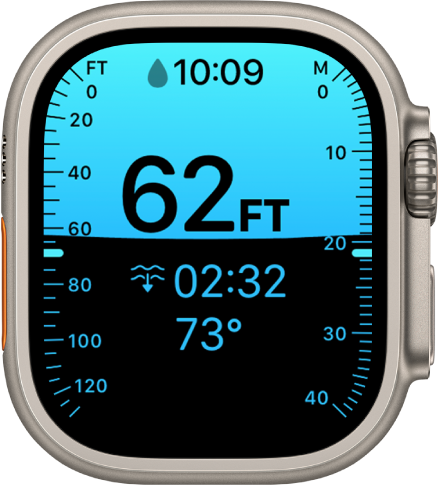
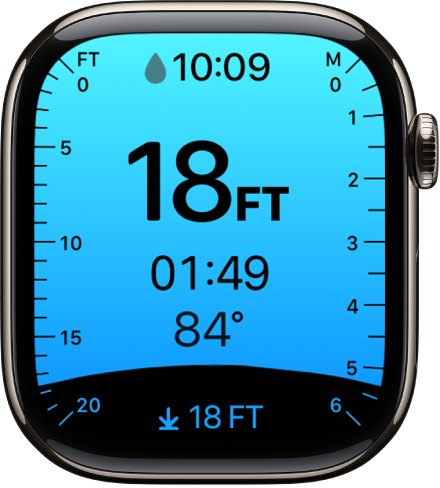
The Depth app shows all of the following on a single screen:

  • Current time
  • Current depth and maximum depth
  • Time you’ve been underwater
  • Water temperature

Diving specifications for Apple Watch Ultra models

  • Maximum depth of operation: 40 meters (130 feet)

    Note: Apple Watch Ultra models are designed to comply with EN 13319. Beyond 40 meters in depth, some functions may stop working or work intermittently.

  • Depth when dive time counting starts and stops: 1 meter (3 feet)
  • Underwater operating temperature range: 0 to 40 °C (32 to 104 °F)
  • Accuracy of depth sensor: ±1 meter
  • Usability above sea level: The Depth feature is functional above sea level and dynamically compensates for altitude before dives.
  • Non-operational storage temperature: –20 to 45 °C (–4 to 113 °F)
  • Inspection interval: Depth and dive time accuracy don’t require rechecking at fixed intervals. However, if Apple Watch is damaged or malfunctions, contact Apple or an Apple Authorized Service Provider.

Begin and end your dive

  1. Begin the dive with one of the following methods:

    • Manually: Before you go into the water, open the Depth app.
    • Action button: (supported on Apple Watch Ultra models) If you’ve set the Action button to Dive, press the Action button to start the dive.
    • Automatically: If you turned on Auto-Launch, the Depth app starts tracking a dive when your depth exceeds 1 meter and you’re submerged for more than 5 seconds.

    When submerged, the screen locks and Water Lock is turned on. In the Depth app, screen taps and Digital Crown presses don’t register. Third-party diving apps may allow you to interact with Apple Watch Ultra while underwater by turning the Digital Crown or pressing the Action button.

  2. After you surface, end the dive session and turn off Water Lock (which clears water from the speaker) with one of the following methods:

    • Manually: Press and hold the Digital Crown.
    • Action button: (supported on Apple Watch Ultra models) If you’ve set the Action button to Dive, press the Action button to end the dive.
    • Automatically: The dive ends when Apple Watch has been out of the water for 10 minutes.

    If you descend again within 10 minutes without ending the dive, your time underwater is added to the previous time you were submerged and is logged as a single dive.

WARNING: Don’t switch to a different diving app within 48 hours of your last dive. Different diving apps, including the Depth app, may not share dive data and thereby may miscalculate critical parameters like tissue load. Failure to follow the warning may result in decompression sickness.

Third-party dive apps

You can install a compatible third-party app that can function as a dive computer at depths of 6 meters or less for Apple Watch Series 10 and later (excluding Apple Watch SE 3), and 40 meters or less for Apple Watch Ultra models. Refer to the third-party app documentation to understand how to use the app and the warnings associated with the app.

WARNING: Underwater activities are risky. To reduce the risk of serious or fatal injury, read and follow all instructions and warnings in this guide and those provided by any third-party dive apps you’re using, and when recreational scuba diving, always follow all guidelines associated with the certifications and training you have received.

WARNING: Always use a secondary depth gauge and timer/watch, as well as decompression tables.

Magnets in all Apple Watch models can affect the accuracy of an external compass. If you’re using another compass during activities such as diving, hiking, or navigating, keep it separated from Apple Watch when reading the external compass.

WARNING: Apple Watch Ultra models should only be used by trained divers for recreational dives of 130 feet (40 meters) or less. Always follow diving safety protocols and dive with a buddy. Check functionality regularly during a dive, and ascend safely if there is any apparent malfunction. There is always a risk of decompression sickness (DCS) with any dive. Seek immediate medical treatment if you think you may be experiencing DCS.

See also

Tag: Depth

You can customize your preferences for the Depth app in Settings. (Supported on all Apple Watch Ultra models, Apple Watch Series 10, and later—excluding Apple Watch SE 3.)

You can choose depth and temperature units, set the Depth app to open automatically or manually, and configure the Action button to start a dive. You can also make these changes in the Apple Watch app on your iPhone.

Here’s how to configure the Depth app on Apple Watch.

Choose depth and temperature units

  1. Start the Settings app on your Apple Watch.
  2. Tap Depth, then choose depth units (Meters or Feet) and temperature units (Celsius or Fahrenheit).

You can also go to the Apple Watch app on your iPhone, tap My Watch, tap Apps, then tap Depth.

Set the Depth app to open automatically or manually

  1. Start the Settings app on your Apple Watch.
  2. Tap General, then tap Auto-Launch.
  3. Below When Submerged, choose one of the following:
    • Off: Start a dive manually by opening the Depth app or pressing the Action button (available on Apple Watch Ultra models).
    • Selected App: Automatically opens the Depth app. (To open a compatible third-party app instead, tap App, then choose the app.)
    • Remain on Watch Face: Monitor your dive by adding complications to the watch face.

You can also go to the Apple Watch app on your iPhone, tap My Watch, tap General, tap Auto-Launch, then choose an option below When Submerged.

Configure the Action button to start a dive (available on Apple Watch Ultra models)

  1. Go to the Settings app on your Apple Watch Ultra.
  2. Press Action Button, tap Action, and then choose Dive.
  3. Tap the Back button and tap App. Then choose the Depth app or a compatible third-party app.

See also

Tag: Depth

On certain Apple Watch models, you can see summaries of your underwater activities in the Depth app. You can also review the summaries in the Fitness app on your iPhone.

You can log almost any underwater activity, from swimming below the surface at the local pool to going on a scuba adventure, as long as you go deeper than 1 meter for more than 5 seconds. The Depth app is supported on the following:

  • Apple Watch Ultra models to a maximum depth of 40 meters (130 feet)
  • Apple Watch Series 10 and later (excluding Apple Watch SE 3) to a maximum depth of 6 meters (20 feet)

WARNING: The Depth app is not a dive computer and does not provide decompression stop information, gas analysis, or other recreational scuba diving functionality.

Apple Watch Ultra models Apple Watch Series 10 and later
On Apple Watch Ultra, the Depth app showing the current depth, time underwater, water temperature, and the maximum depth of the dive. Markers along the left side indicate the depth in feet from 0 to 130. Markers along the right side indicate the depth in meters from 0 to 40. On an Apple Watch Series model, the Depth app showing the current depth, time underwater, water temperature, and the maximum depth of the dive. Markers along the left side indicate the depth in feet from 0 to 20. Markers along the right side indicate the depth in meters from 0 to 6.

What counts as a dive?

You can log almost any underwater activity. That includes swimming below the surface at the local pool, snorkeling and diving down to explore a reef, or going on a scuba adventure.

Your dive is tracked under the following conditions:

  • You use the Depth app or a third-party app that supports underwater activity tracking.
  • Your depth exceeds 1 meter and you’re submerged for more than 5 seconds.

A logged dive can be a single dive, like a scuba dive, or a series of dives aggregated together. That happens, for example, when you’ve submerged multiple times at the pool to work on your breath control.

Begin your dive

Use one of the following methods:

  • Manually: Before you go into the water, open the Depth app.
  • Action button: (supported on Apple Watch Ultra models) If you’ve set the Action button to Dive, press the Action button.
  • Automatically: If you turned on Auto-Launch, the Depth app starts tracking a dive when your depth exceeds 1 meter and you’re submerged for more than 5 seconds.

When submerged, the screen locks and Water Lock is turned on. In the Depth app, screen taps and Digital Crown presses don’t register. Third-party diving apps may allow you to interact with Apple Watch Ultra while underwater by turning the Digital Crown or pressing the Action button.

End a dive

After you surface, end the dive session and turn off Water Lock (which clears water from the speaker) with one of the following methods:

  • Manually: Press and hold the Digital Crown.
  • Action button: (available on Apple Watch Ultra models for dives longer than 3 minutes) If you’ve set the Action button to Dive, press the Action button to end the dive.
  • Automatically: The dive ends when Apple Watch has been out of the water for 10 minutes.

    Note: If you descend again within 10 minutes, your time underwater is added to the previous time you were submerged and is logged as a single dive.

View your recent dives on your Apple Watch

Apple Watch stores a dive summary for 7 days before automatically deleting it.

  1. Start the Depth app on your Apple Watch.
  2. Tap View Recent Dives.
  3. To see more details, tap a dive.

    You can see the date and time the dive started, the maximum depth, and the amount of time underwater.

View your dive history in the Fitness app on iPhone

Your dive summaries from the Depth app appear alongside those created by third-party dive apps, so you can see them all.

  1. Start the Fitness app on your iPhone.
  2. In the Summary tab, tap Sessions, then tap Dives.
  3. Tap a dive to see such details as maximum depth, underwater time, water temperature, and more.

To delete a dive, swipe left on the dive, then tap Delete.

See also

Tag: Depth

Your iPhone can help you recover Apple Watch. It’s quick: you place your iPhone near your Apple Watch, put your watch on its charger, and follow the steps that appear on the iPhone. If your Apple Watch displays an animation showing a watch and iPhone being brought close together, follow these steps:

  1. Place your iPhone near your Apple Watch.

    Your iPhone needs to have iOS 15.4 or later, be connected to Wi-Fi with Bluetooth turned on, and be unlocked.

  2. Put your Apple Watch on its charger.
  3. Double-click the side button on your Apple Watch. Then follow the steps that appear on the iPhone.

See also

Tag: watchOS

If something isn’t working right, try restarting your Apple Watch and its paired iPhone.

Restarting your Apple Watch means turning it off and on with the side button, but you can’t restart your Apple Watch while it’s charging. You can also force Apple Watch to restart, and restart the paired iPhone.

Restart Apple Watch

  • Turn off your Apple Watch: Press and hold the side button until the sliders appear, tap the Power button, then drag the Power Off slider to the right.
  • Turn on your Apple Watch: Hold down the side button until the Apple logo appears.

The front of Apple Watch, with the Digital Crown shown at the top on the right side of the watch and the side button shown at the bottom right.

Note: You can’t restart your Apple Watch while it’s charging.

Restart the paired iPhone

  • Turn off your iPhone: For models with Face ID, press and hold the side button and a volume button, then drag the slider to the right. For models without Face ID, press and hold the side or top button until the slider appears, then drag the slider to the right. With any model, you can also go to the Settings app, tap General, then tap Shut Down.
  • Turn on your iPhone: Hold down the side or top button until the Apple logo appears.

Force Apple Watch to restart

When you can’t turn off your Apple Watch, or the problem continues, you might need to force your Apple Watch to restart. Only do this if you’re unable to restart your Apple Watch.

To force restart, hold down the side button and the Digital Crown at the same time for at least 10 seconds, until the Apple logo appears.

See also

Tag: watchOS

Change or turn off your passcode, and choose whether to use a simple four-digit passcode. For added security, you can also set Apple Watch to erase its data after 10 failed unlock attempts.

Your Apple Watch passcode can be different from your iPhone passcode, and it’s better to use different passcodes. There’s a catch, though. If you turn off your passcode on your watch, some features won’t be available, such as Apple Pay.

Note: You may be prevented from using a simple passcode or turning off your passcode if your synced iPhone is managed by an organization, such as a company or school. Check with your organization’s administrator.

Change your passcode

  1. Open the Settings app on your Apple Watch.
  2. Tap Passcode, tap Change Passcode, and then follow the onscreen prompts.

    Tip: Your Apple Watch passcode can be different from your iPhone passcode—in fact, it’s better to use different passcodes.

You can also go to the Apple Watch app on your iPhone, tap My Watch, tap Passcode, then tap Change Passcode and follow the onscreen prompts.

Use a four-digit passcode

  1. Open the Settings app on your Apple Watch.
  2. Tap Passcode, then turn on Simple Passcode.

You can also go to the Apple Watch app on your iPhone, tap My Watch, tap Passcode, then turn on Simple Passcode.

Turn off the passcode

Note: If you turn off your passcode, some features won’t be available. For example, you can’t use Apple Pay or unlock your Mac with Apple Watch.

  1. Open the Settings app on your Apple Watch.
  2. Tap Passcode, then tap Turn Passcode Off.

You can also go to the Apple Watch app on your iPhone, tap My Watch, tap Passcode, then tap Turn Passcode Off.

Erase Apple Watch after 10 unlock attempts

If Apple Watch is lost or stolen, you can protect your information by having Apple Watch erase its data after 10 consecutive attempts to unlock it with the wrong passcode.

  1. Open the Settings app on your Apple Watch.
  2. Tap Passcode, then turn on Erase Data.

See also

If your Apple Watch is disabled because you forgot your passcode or entered an incorrect passcode too many times, you can reset it from either your Apple Watch or iPhone and set it up again.

If it has a cellular plan, you can keep your plan to pair again, or remove it to pair with another iPhone. And after you erase it, Activation Lock is enabled, so your Apple Account and password are required to unpair it.

Important: If Erase Data is turned on, the data on your Apple Watch is erased after 10 failed passcode attempts.

Reset your Apple Watch

  1. Put your Apple Watch on its charger and press and hold the side button until the sliders appear.
  2. Press and hold the Digital Crown to show the Erase all content and settings screen.
  3. Tap Reset, then tap Reset again to confirm.
  4. When the process finishes, set up your watch again. When asked, restore from a backup.

Reset your Apple Watch using your paired iPhone

  1. Open the Apple Watch app on your iPhone and then tap My Watch.
  2. Tap General, swipe down, and then tap Reset.
  3. Tap Erase Apple Watch Content and Settings and tap Erase All Content and Settings again to confirm.
  4. If you have an Apple Watch with cellular, choose to keep or remove your cellular plan.
    • Keep your plan if you want to pair your Apple Watch and iPhone again.
    • Remove your plan if you want to pair your Apple Watch with another iPhone or intend to cancel your cellular subscription. (Contact your carrier to cancel your subscription.)
  5. When the process finishes, set up your watch again. When asked, restore from a backup.

When you erase Apple Watch this way, Activation Lock is enabled. With Activation Lock, your Apple Account and password are required before anyone can:

  • Unpair your Apple Watch from your iPhone
  • Pair and use your Apple Watch with a new iPhone
  • Turn off Find My on your device

See also

You can start fresh in more than one way. If you plan to sell or give away your Apple Watch, unpair it from your iPhone; if you plan to keep it and only need to reset it, erase it. Here are the two ways to clear the contents and settings of your Apple Watch:

  • Unpair your Apple Watch from your iPhone. This erases the contents and removes Activation Lock, preventing someone else from activating it. Do this if you plan to sell or give away your Apple Watch.
  • Erase your Apple Watch. This erases all content and settings from Apple Watch, but leaves it paired with your iPhone. Do this if you plan to keep your Apple Watch, and just need to reset it.

Unpair Apple Watch and remove Activation Lock

  1. Open the Apple Watch app on your iPhone.
  2. Tap My Watch, then tap All Watches.
  3. Tap the Info button next to your watch and tap Unpair Apple Watch.

Your Apple Watch is erased and removed from your Apple account, Activation Lock is removed, and your watch is ready to be set up again.

Erase Apple Watch and settings

To erase your Apple Watch without unpairing it, follow these steps.

  1. Open the Settings app on your Apple Watch.
  2. Tap General, then tap Reset.
  3. Tap Erase All Content and Settings. Then enter your passcode.
  4. If you have an Apple Watch with cellular, choose to keep or remove your cellular plan.
    • Keep your plan if you want to pair your Apple Watch and iPhone again.
    • Remove your plan if you want to pair your Apple Watch with another iPhone or intend to cancel your cellular subscription. (Contact your carrier to cancel your subscription.)
  5. When the process finishes, set up your watch again. When asked, restore from a backup.

You can also go to the Apple Watch app on your iPhone, tap My Watch, tap General, tap Reset, then tap Erase Apple Watch Content and Settings.

Note: If you can’t access the Settings app on your Apple Watch because you’ve forgotten your passcode, you must reset it.

Remove your cellular plan

You can remove the cellular plan at any time on an Apple Watch with cellular.

  1. Open the Apple Watch app on your iPhone.
  2. Tap My Watch, tap Cellular, and tap the Info button next to your cellular plan.
  3. Tap Remove [carrier] Plan, then confirm your choice.

    You may need to contact your carrier to remove this Apple Watch from your cellular plan.

See also