Got a tip for us?

Some makers’ locks let you unlock your door with a home key in Apple Wallet, with an access code, or both. While pairing a supported lock in the Home app, a home key is automatically added to Apple Wallet on your iPhone.

There’s more than one way in. You can also set up an access code for a guest, so they can get in without a home key.

Here’s how to unlock your door with a home key on iPhone or Apple Watch.

Note: Both Apple Home and Matter-compatible locks work with the Home app.

Set up a home key

  1. Open the Home app on your iPhone.
  2. Add a supported lock.
  3. Choose an unlocking option.
    • Express Mode: Unlock the door without authenticating with Face ID or Touch ID.
    • Require Face ID or Passcode: Hold your device near the lock and then use Face ID or Touch ID to unlock it.
  4. Choose automations such as Lock After Door Closes and Lock When Leaving Home.

All residents of your household receive the home key automatically if the lock works with a home key.

Note: Not all Home app-compatible locks support home key.

Unlock your door with a home key

Got a home key on your iPhone or Apple Watch with Express Mode turned on? Place your device near the lock to unlock it. You can also share access with other people using the Home app.

Set up an access code for a guest

For people who need temporary access to your home, you can set up an access code in the Home app.

  1. Open the Home app on your iPhone.
  2. On the Home tab, touch and hold the lock, tap Accessory Settings, tap Manage Access, and tap Add Guest.
  3. Give the guest a name—Dog Walker, for example—then turn on the locks you want them to have access to.
  4. Tap Change Access Code and enter an access code. Then tap Done.
  5. Touch and hold the access code, tap Share, choose a sharing option, and then share the access code with the guest.

You can come back to this screen any time you want to change the access code, remove the guest, or turn off access to some or all of the locks.

Note: Not all Home app-compatible locks support access codes.
You can use Safety Check on iPhone to quickly stop sharing your device access and personal information with others. It’s built for an emergency.

Safety Check helps you quickly change your passcode and Apple Account password, stop sharing your location with Find My, restrict Messages and FaceTime to the device in your hand, and more, all from Emergency Reset. And beyond emergencies, Safety Check lets you periodically review and update what you share with people, apps, and devices.

  1. Open Settings, tap Privacy & Security, and then tap Safety Check on your iPhone.
  2. Tap Emergency Reset and tap Start Emergency Reset. Follow the onscreen instructions.

You can also use Safety Check to review the information you share with people, apps, and devices, and update it periodically.

Important: You might also be sharing information that Safety Check can’t review or change—for example, accounts and passwords, social media sharing, and information shared from another device.

You can use the onscreen keyboard to enter and edit text.

You can type one key at a time, or use QuickPath to glide from one letter to the next without lifting your finger, though it isn’t available for all languages. You can also enter accents and other special characters, type with one hand, and hear clicks or feel taps as you type. You can change keyboard settings, too.

Here’s how to type with the onscreen keyboard on iPhone.

Note: Magic Keyboard and Dictation are other ways to enter text on iPhone.

Enter text using the onscreen keyboard

You can tap individual keys to type, or slide from one letter to the next without lifting your finger (QuickPath isn’t available for all languages).

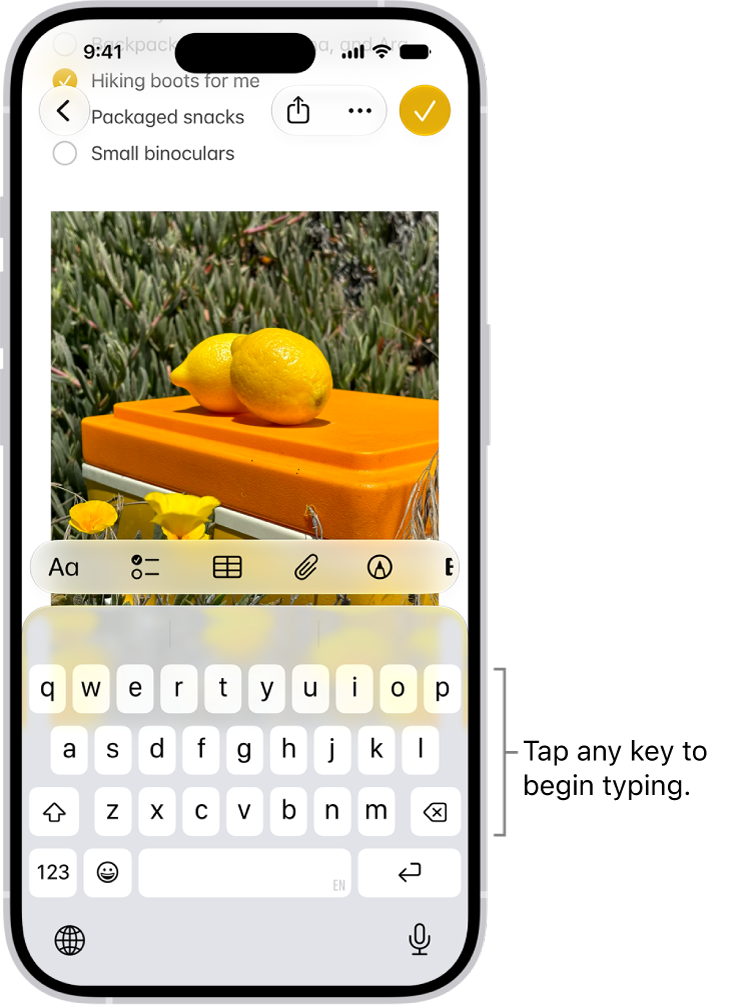
A document is open in the Notes app. The onscreen keyboard is in the bottom half of the screen.

  1. In any app where you can enter text, tap a text field. The onscreen keyboard opens.
  2. Tap individual keys to type, or touch and hold the first letter, slide to the next letters. Lift your finger at the end of a word. You can use either method as you type, and even switch in the middle of a sentence.
  3. While entering text, you can do any of the following:
    • Type an uppercase letter: Tap the Shift key, or touch the Shift key. Then slide to a letter.
    • Turn on Caps Lock: Double-tap the Shift key.
    • Quickly end a sentence with a period and a space: Double-tap the Space bar.
    • Enter numbers, punctuation, or symbols: Tap the Numbers key or the Symbols key.

Hear clicks or feel taps as you type

You can turn keyboard sounds and haptic feedback on or off in keyboard settings.

  1. Open the Settings app on your iPhone.
  2. Tap Sounds & Haptics, then tap Keyboard Feedback.
  3. Turn on Sound or Haptic

Enter accents, diacritics, and other special characters

While using the keyboard, touch and hold the letter, number, or symbol related to the character.

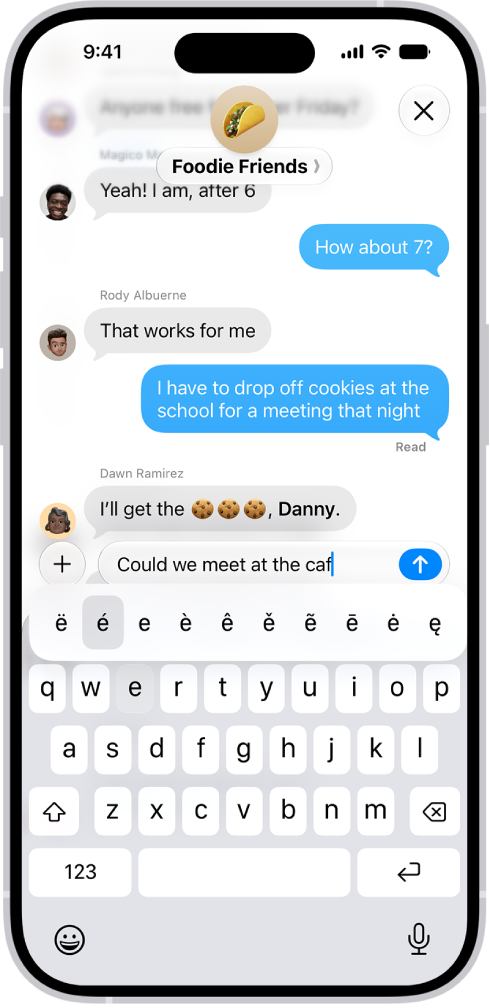
For example, to enter é, touch and hold the e key, then slide your finger and release it on the option you want.

The onscreen keyboard showing the alternate accented characters that appear when you touch and hold the E key.

On a keyboard for another language, you can also do any of the following:

  • On a Thai keyboard: To choose native numbers, touch and hold the related Arabic number.
  • On a Chinese, Japanese, or Arabic keyboard: Tap a suggested character or candidate at the top of the keyboard to enter it, or swipe left to see more candidates.

Note: Tap the up arrow on the right to view the full candidate list, and tap the down arrow to return to the short list.

You can add other characters using the emoji keyboard.

Type with one hand

Moving the keys closer to your thumb makes it easier to type with one hand.

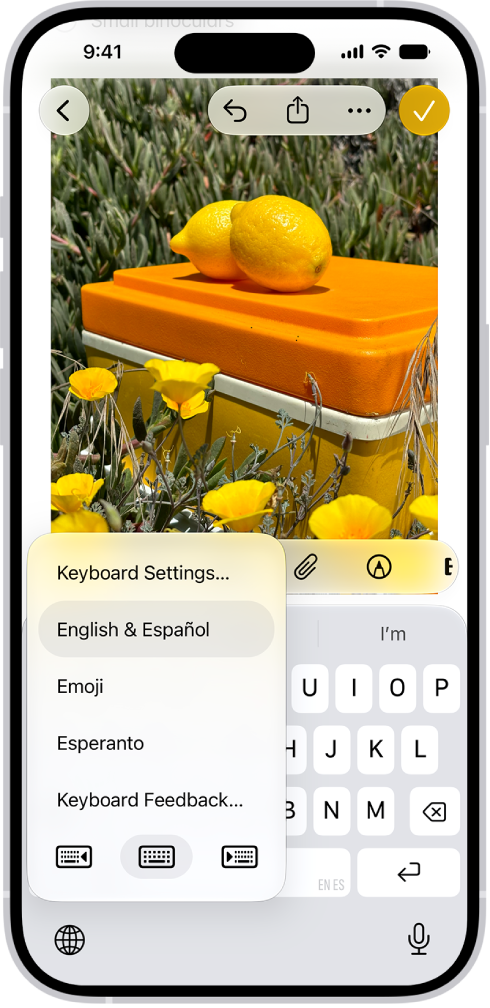
The Keyboard Settings menu is open, and shows three options: English (US), Emoji, and Keyboard Feedback. At the bottom of the menu, from left to right, are buttons for left-handed layout, default layout, and right-handed layout. The default layout button is selected.

  1. Touch and hold the Emoji button or the Switch Keyboard key.
  2. Tap one of the keyboard layouts. (For example, choose the Right-Handed Layout button to move the keyboard to the right side of the screen.)

To center the keyboard again, tap the right or left edge of the keyboard.

Change keyboard settings

You can turn special typing features—such as predictive text and auto-correction—off and on.

  1. Open the Settings app on your iPhone.
  2. Tap General, then tap Keyboard.
  3. Turn the typing features (below All Keyboards) on or off.

Quick tip: To change your keyboard settings without leaving the onscreen keyboard, you can touch and hold the Emoji button or the Switch Keyboard key, and then tap Keyboard Settings.

If you subscribe to Apple Music, you can add music you’ve saved and playlists you’ve created in third-party music services to your Apple Music library.

There’s some setup first, like iOS 18.4 or later and Sync Library turned on in Music settings. The transfer itself is provided by a third party, and once it’s done, you can review the transfer.

Here’s how to transfer music from other music services to Apple Music on iPhone.

Note: Transferring music to Apple Music is provided by a third party. Apple Music and transferring music from third-party music services aren’t available in all countries or regions.

Before you begin

Before you start a transfer, confirm that all of the following are true:

  • You’re using iOS 18.4 or later and are signed in to your Apple Account.
  • Sync Library is turned on in Settings to transfer music. Go to Settings > Apps > Music, then turn on Sync Library if it’s not already on.

Transfer music from third-party music services

  1. Open the Music app on your iPhone.
  2. Tap your profile.
  3. Tap Transfer Music from Other Services.

    If you don’t see this option, you need to sign in to your Apple Account.

  4. Select a music service. Sign in to the service.
  5. Select what you want to transfer (all or selected items) and then tap Add to Library.

    Note: Depending on the third-party music service, you may be able to transfer all music or only certain items (for example, only playlists you’ve created).

  6. When the transfer finishes, one of the following messages appears at the top of the screen:

    • Transfer Complete: The transfer finished successfully and you see a summary of the music that’s been added to your library. Tap OK.
    • Some Music Needs Review: The transfer finished, but some music wasn’t transferred. You can review and choose alternate versions, if available (for example, a live version of a song from the third-party music service wasn’t found in the Apple Music catalog, but a deluxe version was). See Review the transfer.

Review the transfer

During the transfer, music from the third-party music service is matched with the same music offered in the Apple Music catalog. (Nothing is removed from the other music service.)

A song, album, or music video from the third-party music service won’t always have a match in the Apple Music catalog. As you review matches, you can pick from the alternates provided or ignore suggestions.

  1. On your iPhone, do one of the following:

    • Go to the Music app , then at the top of the Library tab, tap Review Now in the Some Music Needs Review message.
    • Go to Settings > Apps > Music, then tap Review Current Transfer.
  2. In the Review Alternates screen, do any of the following for each of the items that need review:

    • Choose an alternate version: Select one of the items shown as a potential match with the original song from the third-party music service. To preview the song, tap the Play button on the album cover.
    • Don’t transfer the item: Tap Ignore [item] if you don’t want to transfer an alternate version into your Apple Music library. You can also tap Ignore All to finalize the transfer and start a new transfer.

    Music that doesn’t have alternate suggestions is listed in the Not Available section at the bottom of the Review Alternates screen.

  3. Repeat step 2 until you’ve reviewed all the alternates for each item and tap Add [items] to Library.

Note: If you can’t review all your alternate matches in one session, tap Add [items] to Library to accept the matches you’ve selected so far. The initial transfer stays open for 30 days, so you can come back and complete it, but a new transfer can’t start until you finish reviewing all alternates in that one. And if Review Current Transfer shows up in Music settings, there’s music from an earlier transfer that you still need to review.

Tag: Music

If you subscribe to Apple Music and someone invites you to collaborate on a playlist, you can join it from the link you received. Then you can add, remove, or reorder music in the collaborative playlist, react to songs with emoji, and invite others with a link.

Note: Apple Music isn’t available in all countries or regions.

  1. On your iPhone, tap the link you received. Tap Join or Request to Join (if the owner of the collaborative playlist must approve you first).
  2. Do any of the following:

Note: You can share the link if you own the collaborative playlist, or if its owner hasn’t turned on Approve Collaborators.

Tag: Music

You can make changes to your wake up alarm if you’ve set up a sleep schedule in the Health app.

You can change just your wake up time, or shift your whole sleep schedule, so your bedtime and wake up time move together and your sleep duration stays the same. In Alarm Options, you can also choose a vibration or ringtone, set the alarm volume, and turn on Snooze to see a Snooze button with your alarm.

Here’s how to change your wake up alarm in Clock on iPhone.

Change your wake up alarm

  1. Start the Clock app on your iPhone.
  2. Tap Alarms, then tap Change.
  3. Do any of the following:

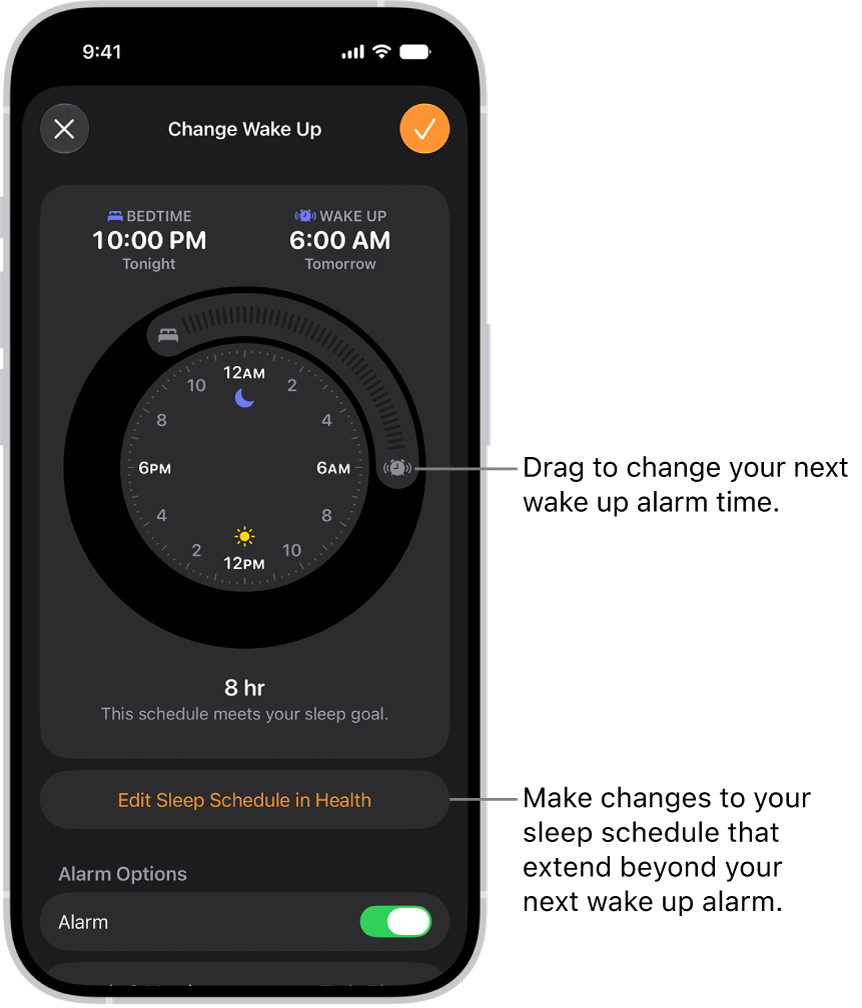
    • Change only your wake up time: Drag the Ringing Alarm button.
    • Shift your sleep schedule: Drag to rotate the arc between the Bedtime button and the Ringing Alarm button. (Your bedtime and wake up time change simultaneously, and the sleep duration remains unchanged.)

    A screen for changing the next wake up alarm. The position of the ringing alarm button sets the time of the alarm.

  4. Scroll down to Alarm Options, turn the alarm on, and then change any of the following options:

    • Sounds & Haptics: Tap to choose a vibration or ringtone.
    • Alarm volume: Drag the slider.
    • Snooze: Turn on to see a Snooze button with your alarm.
    • Snooze Duration: Choose how long to pause the alarm.
  5. Tap the Done button, then tap Change Next Alarm Only.

Note: Tap Change This Schedule, and it updates your recurring wake up alarm in your sleep schedule too.

To make changes to your sleep schedule that extend beyond your next wake up alarm, tap Edit Sleep Schedule in Health.

Turn off your next wake up alarm

  1. Start the Clock app on your iPhone.
  2. Tap Alarms, then tap Change.
  3. Scroll down to Alarm Options, then turn off Alarm.
  4. Tap the Done button, then tap Change Next Alarm Only.

Note: Your recurring wake up alarm in your sleep schedule changes too when you tap Change This Schedule.

Remove the wake up alarm

  1. Start the Clock app on your iPhone.
  2. Tap Alarms, then tap Change.
  3. Tap Edit Sleep Schedule in Health and then turn off Sleep Schedule.

You can also delete a sleep schedule or turn off all sleep schedules in the Health app.

Tag: Clock

Some long video files are too large to send in a standard text message. You can use AirDrop, iCloud, or Mail Drop to send long videos that you record with your iPhone camera.

AirDrop is the simplest way to send a large video to someone nearby on an iPhone, iPad, Mac, or Apple Vision Pro, since it sends information using Wi-Fi and Bluetooth.

Here’s how to share long videos on iPhone.

Send a video using AirDrop

AirDrop is the simplest way to send a large video to a nearby Mac, iPhone, iPad, or Apple Vision Pro. It sends information using Wi-Fi and Bluetooth®, so before you send anything, check that both you and the recipient have these controls turned on in Control Center.

  1. If the person you’re sending the video to isn’t in your contacts, have them do one of the following:

    • On iPhone or iPad: Open Settings, tap General, tap AirDrop, and tap Everyone for 10 Minutes.
    • On a Mac: Choose Apple menu > System Settings. Then click General in the sidebar. Click AirDrop & Handoff. Then click the pop-up menu next to AirDrop and choose Everyone.
  2. Start the Photos app on your iPhone.
  3. Tap the video you want to send. Tap the Share button.

    If you want to send the video in its original format, including metadata, location, and any associated edit history or captions, tap Options, then turn on All Photos Data.

  4. Tap AirDrop and then tap the contact or device you want to share with.

After you share, the recipient gets an alert asking them to accept or decline the AirDrop transfer.

Send a video using Mail Drop

With Mail Drop, you can send a large video as an attachment in Mail.

  1. Start the Photos app on your iPhone.
  2. Tap the video you want to send, tap the Share button, and then tap Mail.
  3. Tap the To field and then enter the name or email of the recipient.

    If you want to add a subject or message, tap the Subject field or email body.

  4. Tap the Send button to send.

Recipients have 30 days to download Mail Drop attachments.

Tag: Photos

If members of your home use HomePod for Intercom messages, iPhone can transcribe the messages for you. It’s two settings. One shows audio transcriptions, and the other, in the Home app, sets when you receive notifications for Intercom messages from HomePod.

  1. Open Settings, tap Accessibility, tap Subtitles & Captioning, and turn on Show Audio Transcriptions.
  2. In the Home app, tap the More button and tap Home Settings.
  3. Tap Intercom, then choose when you receive notifications.

In Apple News, you can set up a local news feed to stay up to date on news, events, and weather in the places that matter to you most. You can follow your preferred locations and customize them to prioritize news from a specific city, town, or neighborhood.

Stories from the primary location you follow also appear in your Today feed, and you can use your current location to find a news feed. You can also search for a news feed by state or country.

Note: Apple News isn’t available in all countries or regions. The Local News feed is available in the U.S. only.

Set up a local news feed

  1. Open the News app on your iPhone.
  2. From the Today feed, tap Local. Then do either of the following:
    • If you don’t follow any locations: Tap Get Started.
    • If you follow one or more locations in Local News: Tap Locations and tap Manage Locations.
  3. Do any of the following:
    • Search for a news feed using your current location: If you’re getting started with local news, tap Current Location. If you follow one or more locations, tap the search field and tap Current Location.
    • Search for a location: Tap the search field and enter a city, town, or zip code. Then select a location from the search results.
    • Search by state or country: Scroll down and select a state or country. A list of locations in that state or country appears.
  4. Tap the Add button next to the location you want to follow. Tap the Close button or the Back button to go back to the list of locations.
  5. Tap the Close button to go back to the local news feed.

The Following tab lists the locations you follow under Local News.

Read local news

  1. Open the News app on your iPhone.
  2. From the Today feed, tap Local and tap a story to read it.

Customize the news feed for a location

When you follow a location, you can prioritize a specific city, town, or neighborhood for news and weather.

  1. Open the News app on your iPhone.
  2. From the Today feed, tap Local and then tap Locations.
  3. Tap Manage Locations.
  4. Tap Customize under the name of a location you follow. If you already added a specific location, tap the location’s name to change it.
  5. Tap the search field and enter a city, town, or zip code. Then select a location from the search results.

Change locations in your local news feed

  1. Open the News app on your iPhone.
  2. From the Today feed, tap Local, tap Locations, and then select the location you want to read news about.

Follow local publishers

Search for local news feeds by state or country, and you can follow their local publishers directly.

  1. Open the News app on your iPhone.
  2. From the Today feed, tap Local and then tap Locations.
  3. Tap Manage Locations and then scroll down and select a state or country.
  4. Scroll down to Local Publishers and tap the Add button next to the publishers you want to follow.
Tag: News

You can answer, silence, or decline an incoming call on iPhone. If you decline a call, it goes to voicemail, and you can also respond to a call with a text.

You can still answer a silenced call, too, until it goes to voicemail. Before deciding whether to answer, you can even ask the caller for more information, and their reply will appear on your screen as text. In some countries or regions, though, declined calls are disconnected without being sent to voicemail.

Answer a call

Pick up the call in one of these ways:

  • Tap the Answer Call button.
  • If your iPhone is locked, drag the slider.

Silence a call

Press the side button or either volume button when a call is coming in. You can still answer a silenced call until it goes to voicemail.

Note: It’s also possible to automatically screen and silence calls from unknown numbers.

Decline a call and send it directly to voicemail

If you’d rather not answer, decline the call in one of these ways:

  • Press the side button twice quickly.
  • Tap the Decline Call button.
  • Swipe up on the call banner.

You can also tap the call banner for more options. Do any of the following:

  • Tap Voicemail to send the call to voicemail.
  • Tap Message, then choose a default reply or tap Custom.

To create your own default replies, go to Settings > Apps > Phone > Respond with Text, tap any field below Respond With, then type your own reply.

Note: In some countries or regions, declined calls are disconnected without being sent to voicemail.

Ask a caller for more information without answering a call

When you receive a call, you can type a message asking the caller for more information before deciding whether to answer. Tap Type to Reply, then type the message you want your iPhone to say to the caller. Their reply will appear on your screen as text. iPhone can help you avoid unwanted calls by identifying callers, blocking certain people, screening unknown callers, or sending spam callers directly to voicemail. You can also filter out unknown callers so they don’t appear in your recent and missed calls.

Tag: Phone