Got a tip for us?

You can add, delete, rotate, reorder, or crop pages in a PDF in the Preview app on your iPhone.

You can insert a blank page, insert a PDF or image, or insert a scanned document, and you can delete the selected page, too. And if you make a change you don’t want, you can undo it.

Here’s how to add, delete, rotate, move, or crop PDF pages in Preview on iPhone.

Add or delete pages

  1. Start the Preview app on your iPhone.
  2. Open a PDF.
  3. Tap the page count to show thumbnails. (If the page count doesn’t appear, tap the PDF.)
  4. Touch and hold a thumbnail and then do any of the following:
    • Insert a blank page: Tap Insert Blank Page.
    • Insert a PDF or image: Tap Insert from File.
    • Insert a scanned document: Tap Scan Pages, scan the document, then tap the Done button.
    • Delete the selected page: Tap Delete Page.

Rotate a page

  1. Start the Preview app on your iPhone.
  2. Open a PDF.
  3. Tap the More button. Tap Rotate Left or Rotate Right.

Move a page

  1. Start the Preview app on your iPhone.
  2. Open a PDF.
  3. Touch and hold a thumbnail until menu options appear. Then drag the page thumbnail above or below another one. (If you don’t see thumbnails, tap the screen to show the page count, then tap the page count.)

Crop a page

  1. Start the Preview app on your iPhone.
  2. Open a PDF.
  3. Scroll to the page you want to crop. Then tap the Crop button.
  4. Drag the blue handles to select an area and then tap Crop. (If Crop doesn’t appear, tap within the selected area.)

To undo a change, tap the More button, then tap Undo.

Tag: Preview

When you find a show you like in the Podcasts app, follow it to add it to your library so you can get notified about new episodes, change the playback order, and more.

Podcasts you follow are on your other Apple devices and the Apple Podcasts website, too. You can follow a show from search results, show information, or Now Playing, and unfollow it later.

Here’s how to follow your favorite podcasts on iPhone.

Follow a podcast

Following a podcast adds it to your library, and you can access the podcasts you follow on your other Apple devices or the Apple Podcasts website.

  1. Start the Podcasts app on your iPhone.
  2. Search or browse for a show.
  3. Do any of the following:
    • From search results: Tap the Follow button.
    • While viewing show information: Tap the Follow button. You can also tap the More button and then tap Follow.
    • While viewing episode information, or from Now Playing: Tap the More button and then tap Follow Show.

Unfollow a podcast

  1. Start the Podcasts app on your iPhone.
  2. Tap Library, then tap Shows.
  3. Tap a show you follow, tap the Unfollow button, and then tap Unfollow Show.

You can also tap the More button, then tap Unfollow.

Get notifications for new episodes

For podcasts you follow, you can get notified when new episodes are available.

  1. Start the Podcasts app on your iPhone.
  2. Tap Home.
  3. Tap the My Account button or your profile picture.
  4. Tap Notifications and turn on notifications for the shows you want. If Allow Notifications on This iPhone appears at the top of the screen, notifications are turned off for Podcasts. Tap Allow Notifications on This iPhone and tap Allow.

Quick tip: Each show has its own settings page, where you can also control its notifications. Open the show and tap the More button, then tap Settings and turn Notifications on or off.

Customize playback speed and Enhance Dialogue settings for a show you follow

  1. Start the Podcasts app on your iPhone.
  2. Tap Library, tap Shows, and then select a show. (You can also search or browse for a show you follow.)
  3. Tap the More button, tap Settings, and then scroll down to Speed & Audio Adjustments.
  4. Choose Custom for This Show. Select a playback speed and turn Enhance Dialogue on or off.

You can create rules to automatically move, delete, forward, or mark new or already-received emails as read based on specific criteria. For example, you can create a rule that sorts emails from a particular sender into a specific folder.

You can edit and delete these rules at any time, and reorder them, too.

Here’s how to use iCloud Mail rules to automatically apply actions to emails in Mail on iPhone.

Note: New or changed rules can take up to 15 minutes before they’re applied to incoming emails.

Create a rule

  1. Open the Settings app on your iPhone.
  2. Tap your name, then tap iCloud.

    Below Saved to iCloud, tap Mail, tap iCloud Mail Rules, then tap Add Rule.

  3. Enter a name for the new rule.
  4. Use the pop-up menu next to Message and the text field to specify the type of emails you want to manage.
  5. Use the pop-up menu next to Action to specify an action for the rule.
  6. Tap the Add button.

    Important: If you apply rules to a folder and then delete the folder or change its name, make sure to update the rules for that folder accordingly.

    For example, you can’t forward emails to a deleted folder.

Change a rule

  1. Open the Settings app on your iPhone.
  2. Tap your name, then tap iCloud.

    Below Saved to iCloud, tap Mail, then tap iCloud Mail Rules.

  3. Tap a rule and then specify new conditions in the pop-up menus and text fields.
  4. Tap the Done button.

Reorder rules

Multiple rules are applied in the order they appear in the list.

  1. Open the Settings app on your iPhone.
  2. Tap your name, then tap iCloud.

    Below Saved to iCloud, tap Mail, then tap iCloud Mail Rules.

  3. Tap Edit.
  4. Press and hold the Grab button and drag a rule up or down in the list.
  5. Tap the Done button.

Delete a rule

  1. Open the Settings app on your iPhone.
  2. Tap your name, then tap iCloud.

    Below Saved to iCloud, tap Mail, then tap iCloud Mail Rules.

  3. Tap Edit, tap the Delete button next to the rule you want to delete, and then tap the Trash button.
  4. Tap the Done button.
Tags: iCloud, Mail

The Photos app creates collections of your photos and videos based on where they were taken. You can use the Map view to see photos taken in a specific location, look for photos taken nearby, and see collections of photos on a map.

Only photos and videos with embedded location information, or GPS data, show up on the map. You can also check where any single photo or video was taken from its info.

View your photo library on a map

A map lets you browse your photo library by location.

  1. Start the Photos app on your iPhone.
  2. Tap Library, tap the Sort and Filter button, and tap Show Map. Only pictures and videos that have embedded location information (GPS data) are included. Tip: Pinch the map to zoom in and out, or drag to see more locations.
  3. Tap a photo thumbnail to see all of the photos and videos taken in that location.

Check where a photo or video was taken

To see where a photo or video was taken, check its location while you’re viewing it.

  1. Start the Photos app on your iPhone.
  2. Open a photo and swipe up or tap the Info button.
  3. Tap the map or address link to see more details.

Quick tip: Tap Show Nearby Photos for more photos or videos from this location.

View a collection on a map

On a map, you can also browse a collection’s photos and videos by location.

  1. Start the Photos app on your iPhone.
  2. Tap Collections and then tap a collection such as a trip or a recent day.
  3. Tap the More button and then tap Show Map. Tip: Pinch the map to zoom in and out, or tap Show Nearby Photos to view more photos taken in the area.
  4. Tap the Close button to close the map.
Tag: Photos

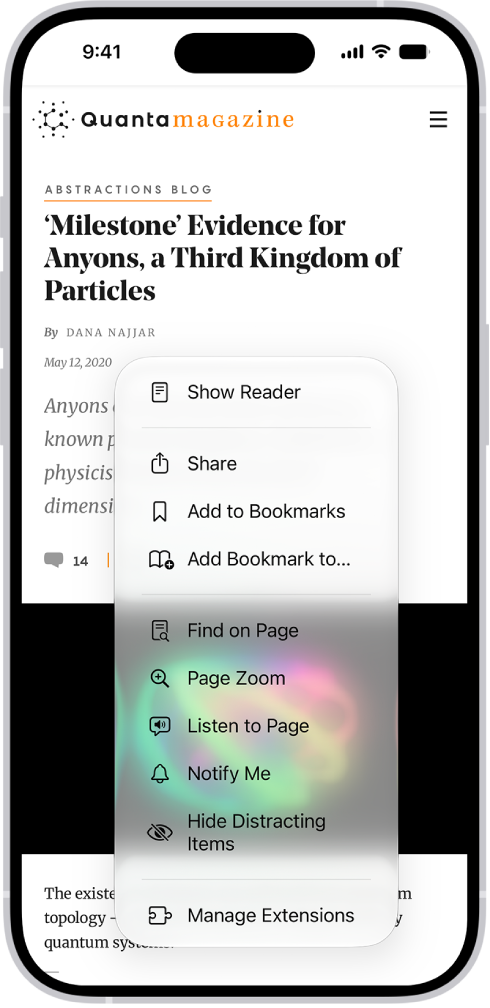
You can have supported webpages read aloud in the Safari app on your iPhone. Listen to Page is in the Page Menu, and while you’re listening to a webpage, you can pause listening, then start listening again from the same menu.

A website is open in Safari. The Page Menu button is selected and listening controls are displayed.

Listen to a webpage

  1. Start the Safari app on your iPhone.
  2. Open the page you want to listen to.
  3. Tap the Page Menu button. Then tap Listen to Page.

Pause listening

While listening to a webpage, tap the Page Menu button, then tap the Pause button. To start listening again, tap the Page Menu button, then tap the Play button.

Tag: Safari

As soon as you subscribe to Apple Music, you can make selections so that you see playlists, albums, and songs based on your preferences. If you don’t want Music to make recommendations, you can also turn off your listening history.

Apple Music asks you what you like at first, and uses those preferences when recommending music. Turning off your listening history also hides the music you play from your followers on Apple Music.

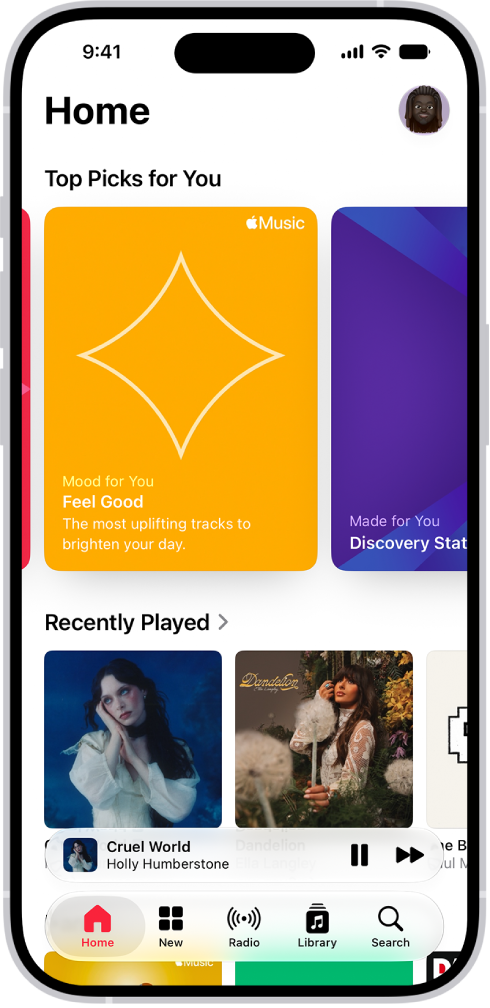
The Home tab in the Music app showing Top Picks at the top. You can swipe left or right to view more music chosen just for you. Recently Played appears below.

Select your favorite genres and artists

When you first tap Home, you’re asked to tell Apple Music what you like. Apple Music uses these preferences when recommending music.

  1. Open the Music app on your iPhone.
  2. Tap the genres you like (double-tap those you love, and touch and hold the genres you don’t care for).
  3. Tap Next. Then do the same with the artists that appear.

Tell Apple Music to ignore your listening habits

If you turn off your listening history, Apple Music ignores your listening habits, adjusting the contents of Replay playlists and new music recommendations.

  1. Open the Settings app on your iPhone.
  2. Tap Apps and tap Music.
  3. Turn off Use Listening History.

All the music you play is also hidden from your followers on Apple Music.

Quick tip: You can create a custom Focus to turn off Use Listening History. For example, if you’re a parent listening to your favorite songs and your child wants to listen to something they like, you can turn on that Focus so their songs don’t influence your recommendations.

Tag: Music

With CarPlay accessibility features for vision, you can make it easier to read text and differentiate colors on the CarPlay touchscreen in your car.

You can apply filters for color vision deficiencies, change the text size, or view the entire screen in grayscale. You can also make the text bold so it’s easier to read. And with Voice Control, the microphone of your iPhone lets you control CarPlay with voice commands.

Note: CarPlay isn’t available in all countries or regions.

Filter display colors

Colors on the CarPlay touchscreen are easier to differentiate when you view the entire screen in grayscale or apply filters for color vision deficiencies.

  1. In CarPlay, open the Settings app.
  2. Tap Accessibility, then tap Color Filters.
  3. Turn on Color Filters.
  4. Tap a filter. To change the intensity of the filter, tap Low, Medium, or High.

Change the text size

  1. In CarPlay, open the Settings app.
  2. Tap Accessibility, then tap Text Size.
  3. Tap a text size. You can see a preview of the text size below each number.

Make text bold

To make what’s on the CarPlay touchscreen easier to read, turn on bold text.

  1. In CarPlay, open the Settings app.
  2. Tap Accessibility and turn on Bold Text.

Control CarPlay with voice commands

With the microphone of your iPhone, you can control CarPlay with voice commands.

  1. In CarPlay, open the Settings app.
  2. Tap Accessibility and turn on Voice Control.
Tag: carplay

With Apple Intelligence, Visual Intelligence helps you learn more about what you’re viewing on your iPhone screen, across your apps.

It starts the same way as when you take a screenshot, and then you can search visually, ask questions, and take action, like turning a flyer or invite into a calendar event. The tools you see vary depending on your screenshot. And if you’re using Siri AI (Beta), you can use Siri AI to learn about what’s on your iPhone screen.

Note: Siri AI is available in beta on iOS 27 or later on an Apple Intelligence-enabled iPhone 15 Pro, iPhone 15 Pro Max, or iPhone 16 model or later with Siri and device language set to a supported language. Available in English to start. Siri AI will not initially be available in the EU on iOS. Usage limits may apply.
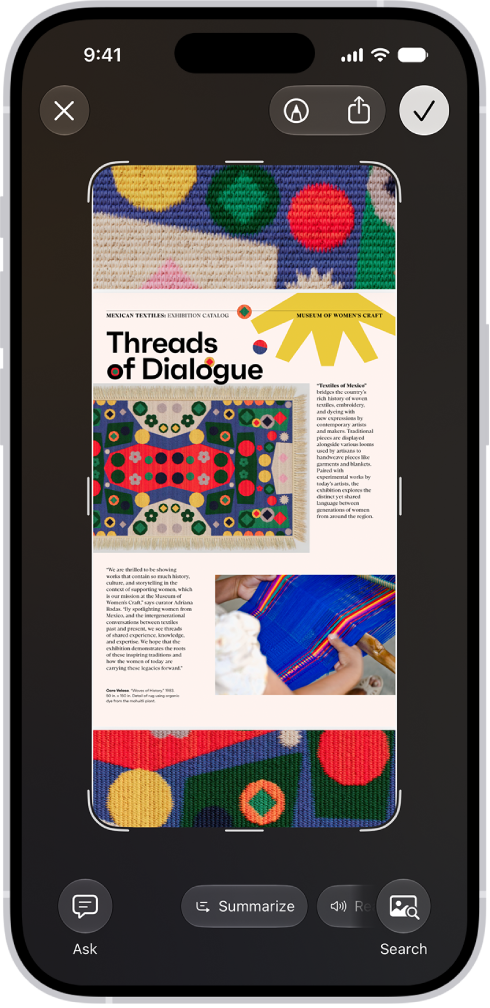
A document from the Preview app open in Visual Intelligence. A button to summarize the document appears at the bottom of the screen.

Note: Apple Intelligence on iOS 27 or later is available on an Apple Intelligence-enabled iPhone 15 Pro, iPhone 15 Pro Max, or iPhone 16 model or later. Apple Intelligence is not available in all languages or regions. Usage limits may apply.*

Learn more about the content on your iPhone screen

Visual Intelligence can tell you more about whatever you’re viewing on your iPhone. From there, search across apps, add an event to your calendar, go straight to relevant websites, and more.

  1. Quickly press and release the side button and the volume up button at the same time to take a screenshot.

    The Visual Intelligence tools at the bottom of the screen vary depending on your screenshot.

  2. Depending on the tools you see, do any of the following:

    • Tap the Search button to search the web for similar items.
    • Swipe your finger on a specific item to highlight it and search for that particular item.
    • Tap the Ask button to ask a question about what’s onscreen.
    • Tap Add to Calendar to create a calendar event.
    • Tap the website to go to the relevant website.
    • Tap Summarize for a short summary of the text.
    • Tap Read Aloud to play audio of the text.
    • Tap the plant or animal identified to learn more about it.
  3. Tap the Close button to delete the screenshot or tap the Selected button to save it.

*Apple Intelligence is available with Siri and device language set to Chinese (Simplified), Chinese (Traditional), Danish, Dutch, English, French, German, Italian, Japanese, Korean, Norwegian, Portuguese, Spanish, Swedish, Turkish, or Vietnamese. Some features may not be available in all regions or languages. Some devices may not be available in all regions. Siri AI is available in beta in iOS 27, iPadOS 27, macOS 27, watchOS 27, and visionOS 27 and requires an Apple Intelligence–enabled device set to a supported language. Available in English to start. Siri AI will not be initially available in the EU on iOS, iPadOS, and watchOS. Certain Apple Intelligence features that rely on server-side models are subject to daily usage limits, including but not limited to Siri AI, Intelligent Photo Editing Tools, Image Playground, and AFM 3 Cloud models in Shortcuts. Daily limits may vary by feature, request complexity, system demand, system policies, and other factors. Expanded access to such features will be available for a fee in the future. Use of these features is subject to the Apple Intelligence Terms and Conditions.


Freeform contains hundreds of shapes in a variety of categories, like animals, food, symbols, and ornaments. After you add shapes to a board, you can customize them in a number of ways, including combining them, splitting them, or changing their size or the way they look.

Lines are in the same place as shapes: the Add Shape button in the Content Hub. Here’s how to add shapes, lines, and arrows to a Freeform board on iPhone.

Add and format shapes, lines, and arrows

  1. Open the Freeform app on your iPhone.
  2. Open a board, or tap the New Board button to start a new one.
  3. Tap the Content Hub button, tap the Add Shape button, and then select a shape or line.
  4. To change your object’s properties, tap to select the object. Then do any of the following:
    • Change the size or proportions: Drag a blue dot.
    • Adjust the form, curve, number of points, and other aspects particular to your object: Drag any green dot. If it’s part of a diagram, you can also change its connection points.
    • Change the type of shape: Tap the More button and tap Change Shape. Then choose another shape.
Tool Description
the Set Fill button Change the color of a shape. Note: The button changes to the shape’s current color.
the Set Stroke button Change the type of border, border thickness, and border color of a shape or line. Note: The appearance of the button changes to reflect its current state.
Change the formatting for all text in a shape including font, color, size, alignment, and list style.
the Set Line Ends button Add an arrowhead or other endpoint to a line.
Change the type of connection line: straight, angled, or curved. (Available when you add a connection line between two items.)
  1. Tap the Done button when you’re finished.

You can also add shapes and lines by drawing them on your board, then smoothing or straightening the strokes.

Combine or split shapes

Removing the overlapping area between two shapes, combining one shape with another, and more can create a new shape. Multipart shapes work the other way: once they’re on a Freeform board, you can divide them into their parts and edit each part individually. Divide the map of the United States in the Places category, for example, and you can change the color of each state.

When you’ve added shapes to your Freeform board, you can do one of the following:

  • Combine shapes: Select multiple items, tap the Arrange button, then below Combine Shapes, tap an option to unite, intersect, subtract, or exclude.
  • Split a multipart shape apart: Tap the More button in the formatting tools, then tap Break Apart.

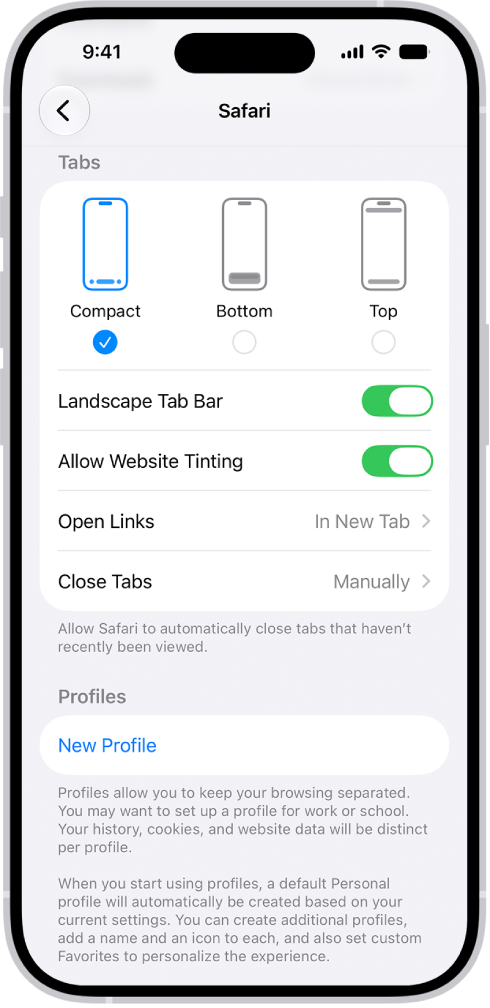
You can choose the tab bar layout that works best for you in the Safari app. There are three: Compact, Bottom, and Top. Compact keeps the tab bar small and below webpages, Bottom expands it below webpages, and Top expands it above webpages, and both show additional controls at the bottom of the screen.

  1. Open the Settings app on your iPhone.
  2. Tap Apps, then tap Safari.
  3. Scroll down to Tabs, then choose one of the following:

    • Compact: Select this option to compress the tab bar, show it below webpages, and show additional controls on both sides of the tab bar.
    • Bottom: Select this option to expand the tab bar, show it below webpages, and show additional controls at the bottom of the screen.
    • Top: Select this option to expand the tab bar, show it above webpages, and show additional controls at the bottom of the screen.

    A screen showing three Safari layout options: Compact, Bottom, and Top.

Tag: Safari