Got a tip for us?

You can import data into Safari that you exported from another browser. Browser data can include bookmarks, history, extensions, credit cards, and passwords.

The data can come as a ZIP file, and there might be individual files for each piece of browsing data, like bookmarks or history. After you import it, a description of the browser data appears, and any passwords go into the Passwords app. For security, you’ll want to delete the file or folder you imported, since it may include unencrypted data.
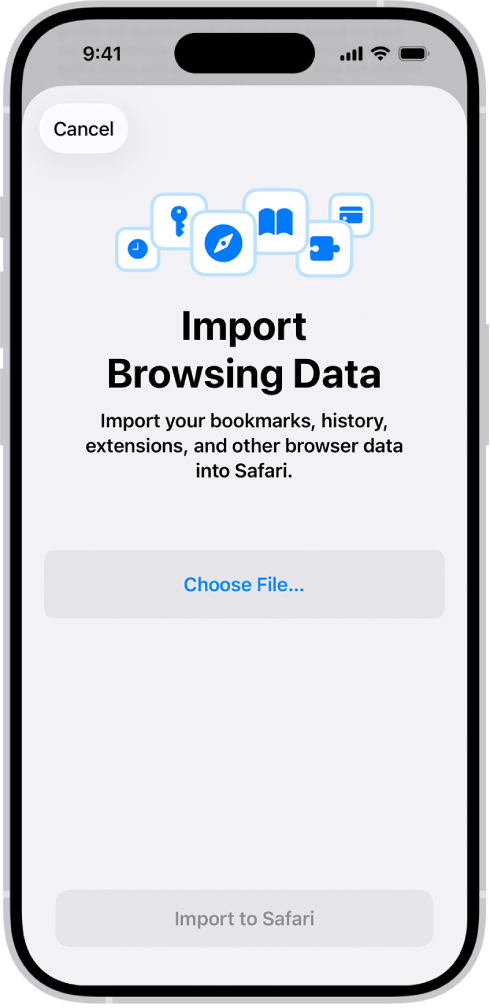
The Import Browsing Data screen, prompting you to choose a file to import.

  1. Start the Settings app on your iPhone.
  2. Tap Apps, then tap Safari.
  3. Below History and Website Data, tap Import.
  4. Tap Choose File and then choose a file (or a ZIP file of files) to import.

    Individual files might be available for each piece of browsing data, such as bookmarks or history.

  5. Tap Import to Safari.

    A description of the browser data you imported appears.

    Note: Any passwords you import go into the Passwords app.

  6. Tap Done.

WARNING: For security, delete the file or folder you imported. It may include unencrypted data and could be visible to anyone who can access it.
Tag: Safari

With math in the Notes app, you can draw diagrams, solve equations, assign variables, and plot graphs. Mathematical expressions are solved inline when you write or type an equal sign.

You can type a math expression and include an equal sign, or write one with Markup. You can even write a stack of numbers and draw a horizontal line below them to add them, and you can create a graph.

Note: The Notes app supports math you write using Western Arabic numerals and common mathematical symbols, or math you type using Arabic (Eastern & Western) and Devanagari numerals and common mathematical symbols.

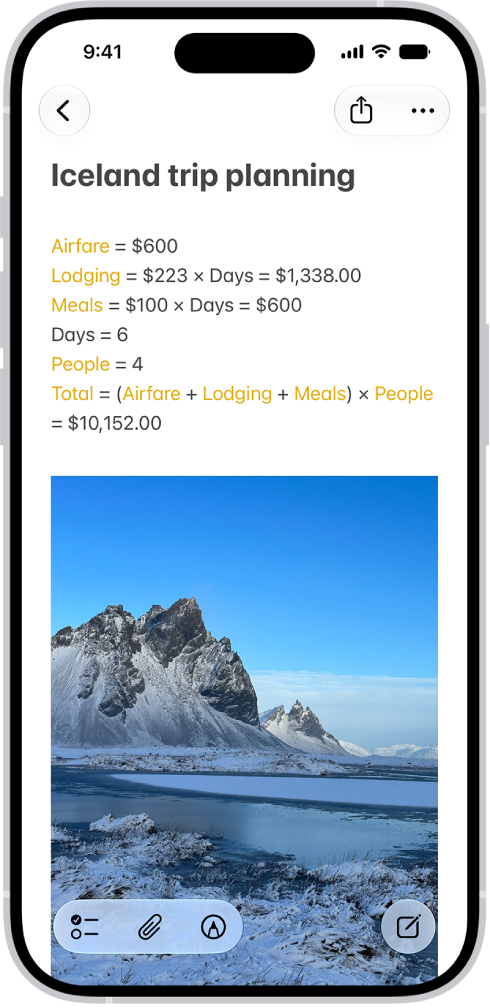
A note for planning a trip, with a calculation of the travel expenses and a photo.

Add mathematical expressions to a note

  1. Start the Notes app on your iPhone.
  2. Open a note, or tap the New Note button to start a new note.
  3. Do any of the following:
    • Type a math expression, then include an equal sign.
    • Tap the Markup button, write a math expression horizontally, then include an equal sign.
    • Tap the Markup button, write a stack of numbers, then draw a horizontal line below the numbers to add the numbers in the stack. Write a different symbol to the left of each digit if you want a different operation.
  4. Tap the equal sign to see what Notes understood in what you wrote and tap Solve.
  5. To correct mistakes, you can fix any of the following:
    • Unrecognized math and unsolvable expressions: Tap any dotted red lines to see details about the error.
    • Ambiguous characters: Tap any dotted blue lines to clarify what you wrote.

Create a graph

  1. Start the Notes app on your iPhone.
  2. Open a note, or tap the New Note button to start a new note.
  3. Type or write an equation with x and y variables, with the y variable on the left side of the equation. For example, y = 5x + 3. You can also tap the equal sign in an equation you already wrote.
  4. When you finish the equation, a menu appears. Tap Insert Graph.
  5. The y variable is represented on the vertical axis, and the x variable is represented on the horizontal axis.
  6. To add another equation to the same graph, type or write a new equation and then tap Add to Existing Graph.

Access Math Notes created in the Calculator app

  1. Start the Notes app on your iPhone.
  2. In the Folders list, tap Math Notes. You may have to tap the Back button to see your folders.
Tag: Notes

While using Messages on an iPhone that meets minimum system requirements, you can share your screen or ask to see someone else’s screen. In supported apps, you can also use SharePlay to get together with friends while you watch the latest episode of your favorite show or listen to a new song in real time.

To share your screen, you jump from Messages to FaceTime, bringing apps, webpages, and more into the conversation.

Show someone else what’s on your screen

To share your screen and bring apps, webpages, and more into the conversation, you can jump from Messages to FaceTime.

  1. Start the Messages app on your iPhone.
  2. In a conversation with just one other person, tap the FaceTime button.
  3. Tap Share My Screen.

See another person’s screen

From Messages, you can also jump to FaceTime to see another person’s screen, or even remotely control it.

  1. Start the Messages app on your iPhone.
  2. In a conversation with just one other person, tap the FaceTime button.
  3. Tap Ask to Share Screen.

Use SharePlay to enjoy content together

Right from a supported app like Apple TV or Music, you can start a Messages conversation.

You and your recipients must all be using iMessage to use SharePlay in Messages, and shared playback controls keep everyone in sync.

  1. In a supported app, find a show, movie, song, album, or other content you want to share. Tap the item to see its details.
  2. Do one of the following:
    • Tap the Share button, then tap SharePlay.
    • Tap the More button, tap the Share button, then tap SharePlay.
    • Tap the More button next to the content, then tap SharePlay.
  3. In the To field, enter the contacts you want to share with and tap Messages.
  4. Tap Start or Play to begin using SharePlay.

To begin viewing or listening, recipients tap the content’s title at the top of the conversation, then tap Open. For everyone who has access to the content, the video starts playing at the same time.

Note: If the shared content requires a subscription, the service may ask those who don’t have access to subscribe, make a transaction, or sign up for a free trial, if available.

When you select content to share and tap the Play button, you can also select Play for Everyone (if it appears) to begin it for everyone in the conversation. (Others on the thread may have to tap Join SharePlay to see the video.) Each person in the conversation can use the playback controls to play, pause, rewind, or fast-forward for everyone, but settings like closed-captioning and volume are controlled separately by each person.

Use Messages when you want no interruptions to the sound of the movie, show, song, or podcast, or tap the FaceTime button to switch to FaceTime when you want to see and hear other people as you chat.

Quick tip: The video can also stream to Apple TV 4K after it starts playing.

iPhone makes it easy to reach the people important to you, so you can catch up with phone or video calls and quickly text your group of friends. It starts with a smarter address book, where phone numbers, email addresses, and birthdays are there when you need them, from Messages to FaceTime to Mail.

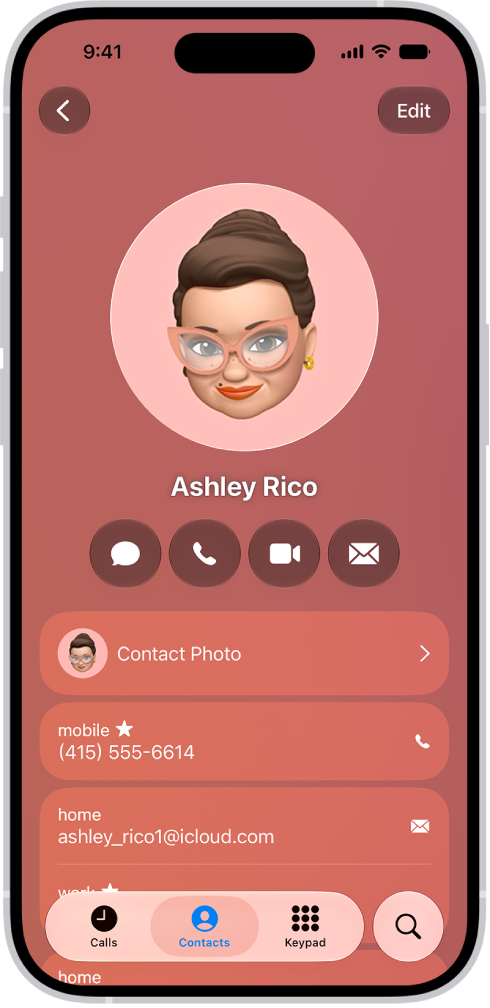
A contact card in the Contacts app.

A smarter address book

In the Contacts app, enter phone numbers, email addresses, birthdays, and more once, and you’ll have them anywhere you need them, from Messages to FaceTime to Mail.

You can also add contact information from another account (like Google or Yahoo). Go to the Settings app , tap Apps, tap Contacts, tap Contacts Accounts, then tap Add Account.

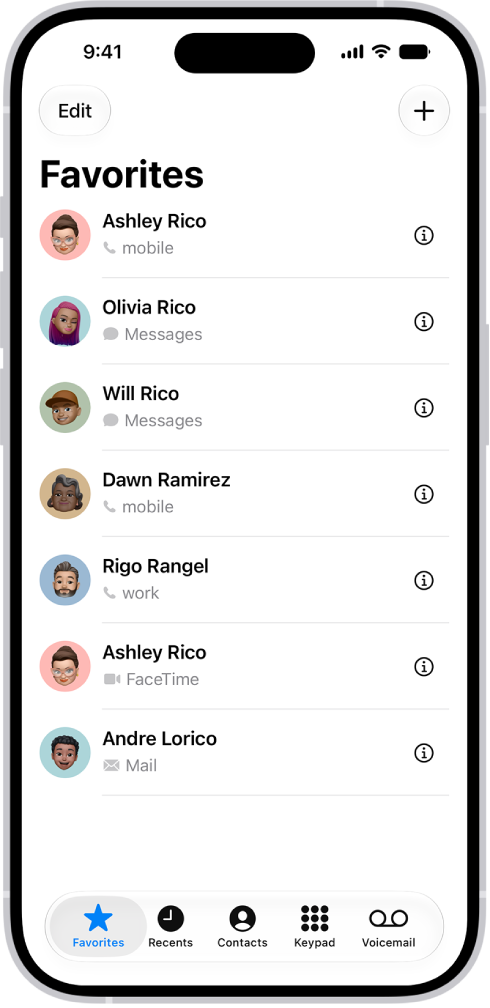
The Favorites screen in the Contacts app; six contacts are listed as favorites.

Find your favorites

Add the people you talk to frequently to your Favorites list in the Phone app to make them easier to reach. In Unified view, your favorites appear in a grid. In Classic view, tap Favorites to view your favorites in a list.

Note: To switch between Unified and Classic views, tap the Filter button.

In the Phone app, tap Contacts, select a contact, then tap Add to Favorites.

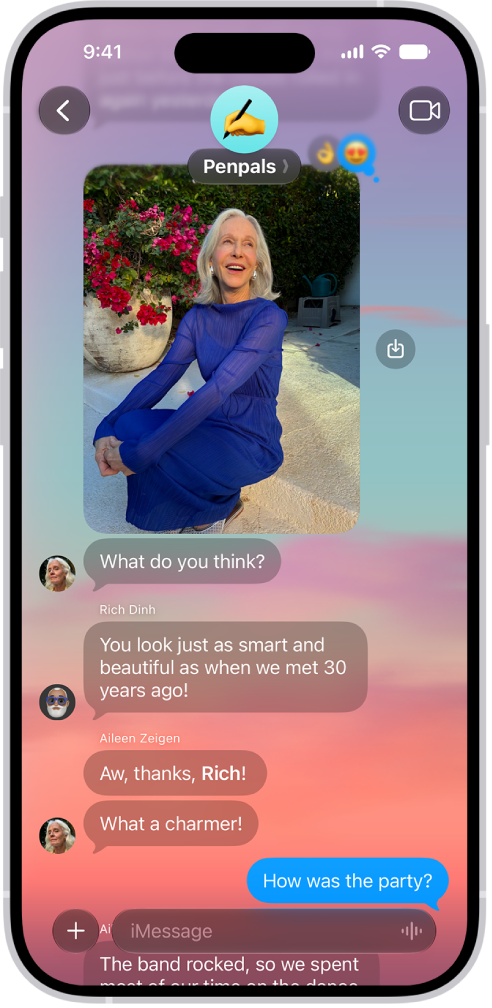
A Messages conversation with a dynamic background.

Start a group conversation

To talk to a group of people all at the same time, like members of your family, you can send them messages.

In the Messages app, tap the Compose button, enter the contacts you want to start a conversation with, then send the first message.

In group conversations, you can make payments with Apple Cash, send photos or videos, or create a poll to help make decisions like what to make for dinner or where to take your next family outing.

A FaceTime call on iPhone.

Make a video call

With FaceTime, you can make video calls to your friends and family.

In the FaceTime app , tap New Call, select the contact you want to call, then tap FaceTime.

A Group FaceTime call with five participants. Each participant appears in a separate tile. The FaceTime controls are at the bottom-right side of the screen.

Add people to a FaceTime call

You can add more people to a FaceTime call—friends and family can join at any time. Tap the screen to show the controls, tap the More button, then tap Add People.

For more ways to keep in touch, check out these guides:

Not all features, Apple says, are available in all countries or regions.

You can use the flashlight on iPhone to light your way in the dark or get a more detailed look at something.

You can turn it on or off in Control Center, with Siri, from the Lock Screen, or with the Action button.

Here’s how to turn the iPhone flashlight on or off.

Use Control Center to turn the flashlight on or off

  1. Open Control Center.
  2. Tap the Flashlight button to turn the flashlight on; tap it again to turn it off.

Use Siri to turn the flashlight on or off

You can use Siri to turn the flashlight on or off.

Siri: Ask Siri something like, “Siri, turn on the flashlight.”

Turn on the flashlight from the Lock Screen

If your iPhone has the Flashlight button on the Lock Screen, you can press it to turn the flashlight on or off.

Turn the flashlight on or off with the Action button

You can customize the Action button, if your iPhone has one, to turn the flashlight on or off.

Change the brightness of the flashlight

Once the flashlight is on, an image of the flashlight appears on the screen. Dragging the Brightness button up or down on the flashlight image changes the brightness.

Tag: iPhone

You can keep your audio recordings up to date automatically on your iPhone, iPad, and Mac. There are two conditions. You need to be signed in to the same Apple Account on each device, and Voice Memos must be turned on in iCloud settings, with macOS 15 or later on a Mac.

To turn on Voice Memos in iCloud on your devices, follow these steps:

  • iOS or iPadOS: Go to Settings > [your name] > iCloud > See All, then scroll down and turn on Voice Memos.
  • macOS 15 or later: Choose Apple menu > System Settings, then click your name in the sidebar. If you don’t see your name, click “Sign in” to sign in to your Apple Account or create one. Click iCloud, click See All, then scroll down and turn on Voice Memos.

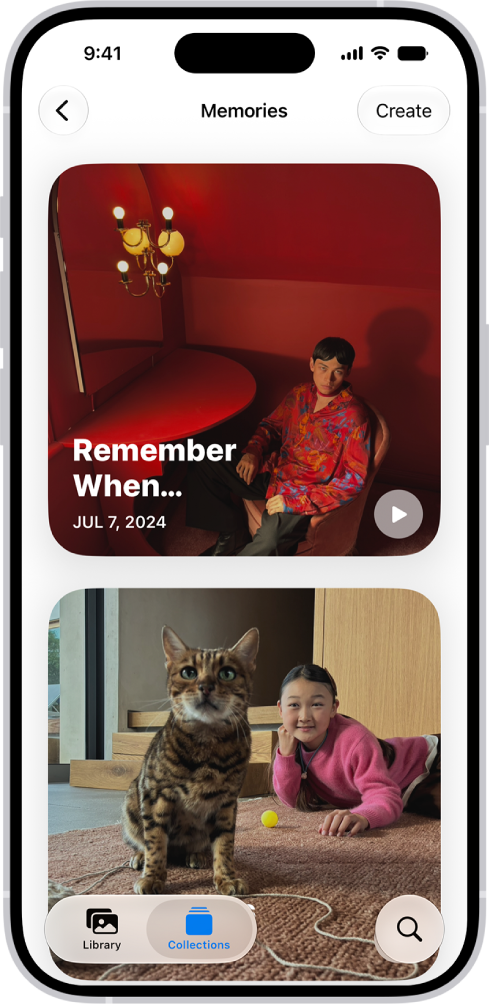
The Memories collection in the Photos app includes personalized collections of photos and videos that feature a significant person, pet, place, activity, or event from your photo library.

In a memory, you can filter and sort the photos and videos, view all of them, or search for photos and videos. You can share a memory, delete it, show its location on a map, or play the memory movie, and you can add a memory to Favorites to make your favorite memories easier to find.

The Photos app is open to the Memories collection.

View your memories

  1. Open the Photos app on your iPhone.
  2. Tap Collections.
  3. Swipe left under Memories to scroll through a selection of your memories, or tap Memories to view them all.
  4. Select a memory to view all the photos and videos included in that memory.
  5. As you view a memory, you can do any of the following:
    • Filter and sort the photos videos in the memory: Tap the Sort and Filter button.
    • View all the photos and videos in the memory: Tap Show All
    • Search for photos and videos in the memory: Tap the Search button.
    • Share the memory, delete the memory, or show the memory location on a map: Tap the More button.
    • Share specific photos and videos in the memory: Tap Select, tap the photos and videos you want to share, then tap the Share button.
    • Play the memory movie: Tap the Play button.
  6. Tap the Back button to close the memory and return to Collections.

Add a memory to Favorites

Identify your favorite memories to make them easier to find.

  1. Open the Photos app on your iPhone.
  2. Tap Collections.
  3. Swipe left under Memories to scroll through a selection of your memories, or tap Memories to view them all.
  4. Touch and hold a memory and tap Add to Favorite Memories.

To view your favorite memories, go to the Collections tab, tap Memories, then tap Favorites.

Tag: Photos

You can hide the recent searches that appear when the search field is empty in the Safari app. It’s one setting, Show Recent Searches, in Safari’s settings on your iPhone. When you turn it off, recent searches no longer appear in the empty search field.

  1. Open the Settings app on your iPhone.
  2. Tap Apps, then tap Safari.
  3. Below Search, turn off Show Recent Searches.
Tag: Safari

You can use your iPhone camera to measure nearby objects, automatically detect the dimensions of rectangular objects, or manually set the start and end points of a measurement.

On supported models, Edge guides help you measure the height and the straight edges of furniture, countertops, and other objects, and Ruler view shows more detail. While you’re measuring, a green dot appears to show that your iPhone camera is in use.

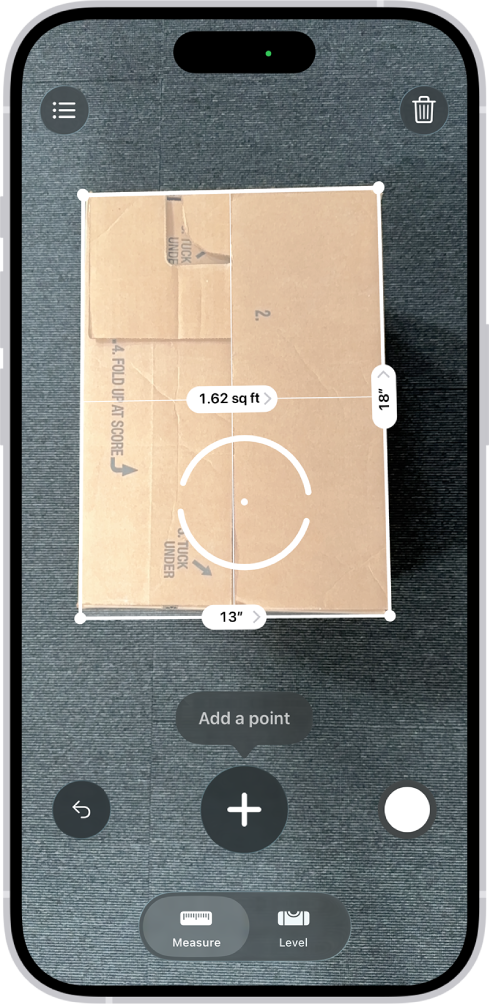
A screen showing the measurement of the dimensions of a box in the Measure app. The area of the box is calculated from the measurements of the dimensions.

For best results, use Measure on well-defined objects located 0.5 to 3 meters (2 to 10 feet) from iPhone. (Measurements are approximate.)

Note: Measure works on external displays without turning on Screen Mirroring in Control Center.

Start a measurement

  1. Open the Measure app (in the Utilities folder) on your iPhone.
  2. Use the iPhone camera to slowly scan nearby objects.
  3. Position iPhone so that the object you want to measure appears on the screen.

Note: For your privacy, when you use Measure to take measurements, a green dot appears to indicate your camera is in use.

Take an automatic rectangle measurement

  1. Open the Measure app (in the Utilities folder) on your iPhone.
  2. Use the iPhone camera to slowly scan nearby objects.
  3. When iPhone detects the edges of a rectangular object, a white box frames the object; tap the white box or the Add button to see the dimensions.
  4. To take a photo of your measurement, tap the Take Picture button.

Take a manual measurement

  1. Open the Measure app (in the Utilities folder) on your iPhone.
  2. Align the dot at the center of the screen with the point where you want to start measuring. Tap the Add button.
  3. Slowly pan iPhone to the end point and then tap the Add button to see the measured length.
  4. To take a photo of your measurement, tap the Take Picture button.
  5. Take another measurement, or tap Clear to start over.

Use edge guides

On supported models, guide lines appear automatically, making it easy to measure the straight edges and height of furniture, countertops, and other objects.

  1. Open the Measure app (in the Utilities folder) on your iPhone.
  2. Position the dot at the center of the screen along the straight edge of an object until a guide line appears.
  3. Tap the Add button where you want to begin measuring.
  4. Slowly pan along the guide line. Tap the Add button at the endpoint to see the measured length.
  5. To take a photo of your measurement, tap the Take Picture button.

Use Ruler view

Ruler view shows more detail in your measurements on supported models.

  1. Open the Measure app (in the Utilities folder) on your iPhone.
  2. After measuring the distance between two points, move iPhone closer to the measurement line until it transforms into a ruler, showing incremental units of length.
  3. To take a photo of your measurement, tap the Take Picture button.
Tag: Measure

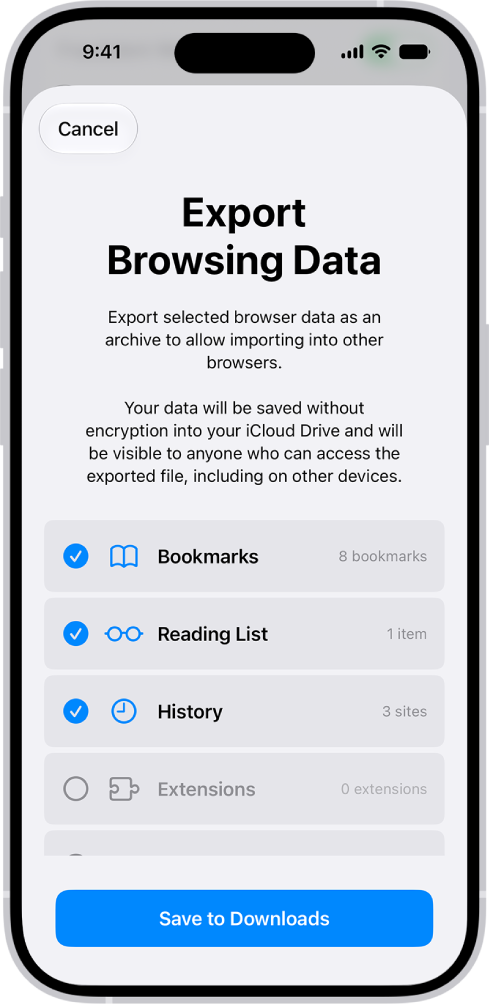
You can export your passwords for websites and accounts to a CSV file, and then import them into another password manager. But not every password goes with you. You can’t export Wi-Fi passwords, passwords you shared with a group you didn’t create, or Sign in with Apple account passwords. The exported file isn’t encrypted, either, so after you import the passwords into another password manager, it’s best to delete the file you exported.

WARNING: Your exported passwords are not encrypted and are visible to anyone who can access the file. After you import the passwords into another password manager, delete the file you exported.

The Export Browsing Data screen, with the Passwords option selected for export to another password manager.

  1. Start the Settings app on your iPhone.
  2. Tap Apps, then tap Safari.
  3. Below History and Website Data, tap Export.
  4. Select Passwords.
  5. Deselect the other choices.
  6. Tap Save to Downloads.
  7. Tap Done.

Note: Wi-Fi passwords, passwords you shared with a group (unless you created the group), and Sign in with Apple account passwords can’t be exported.