Got a tip for us?

With Head Tracking, you can control iPhone using just your head. An onscreen pointer follows the movement of your head, and when you look at an item and hold your head steady, or dwell, you perform an action, such as a tap.

Head Tracking uses the front-facing camera, so iPhone should sit on a stable surface about 18 inches from your face, with your face adequately lit. When your head points toward an item, an outline appears around it.

Note: Head Tracking is available on iOS 26 and later.

Before you begin

Head Tracking works with the built-in, front-facing camera on iPhone. To get the best results, the camera needs a clear view of your face, and your face should be adequately lit. Set iPhone on a stable surface, about 18 inches from your face.

Turn on Head Tracking

  1. Start the Settings app on your iPhone.
  2. Tap Accessibility, tap Head Tracking, and turn on Head Tracking.

Use Head Tracking

Once Head Tracking is on, an onscreen pointer follows the movement of your head, and an outline appears around any item on the screen your head is pointed toward. Wherever you face, the pointer always moves with your head, and the faster you move, the faster it goes.

When you hold your head steady at a location on the screen, the dwell pointer appears where you’re looking and the dwell timer begins (the dwell pointer circle starts to fill). When the dwell timer finishes, an action—tap, by default—is performed.

For additional onscreen gestures or physical button presses, there’s the AssistiveTouch menu.

Set options for Head Tracking

You can customize actions like a Single-Tap or Double Tap to different facial movements, like smiling, blinking, or scrunching your nose. You can also set options for how the Head Tracking pointer responds to your head’s movement.

  1. Start the Settings app on your iPhone.
  2. Do any of the following:

    • Actions: Select a facial expression (like Raise Eyebrows or Open Mouth). Then choose an action from the list (like Open Menu or Single-Tap).
      Sensitivity: Choose the amount of expressiveness needed to perform the expression.

    • Pointer: Select an option to have the pointer move with face movements, when facing screen edges, or based on head position.
    • Pointer Speed: Select the Increment button or Decrement button to adjust how quickly the pointer moves with head movement.
    • Snap to Item: Have the pointer automatically move to the item on the screen that’s closest to where your head is pointing.
    • Dwell Control: Turn Dwell Control on or off.

The time zone on your iPhone is set automatically, but if you don’t have Location Services turned on or you don’t have service, you can change it manually.

You can choose a city or a time zone offset, set the date and time yourself, and turn 24-Hour Time on or off. It’s all in the Date & Time section of General settings, so there’s no need to hunt for it.

Change the clock format

  1. Start the Settings app on your iPhone.
  2. Tap General, then tap Date & Time.
  3. Turn 24-Hour Time on or off to choose how to display the time.

Change the time zone

  1. Start the Settings app on your iPhone.
  2. Turn off Set Time Zone Automatically. Then do one of the following:
    • Choose a city: Tap Time Zone City, then search for a city.
    • Select a time zone offset: Tap Set By and tap Time Zone Offset. Then tap + or -.

Change the date and time

  1. Start the Settings app on your iPhone.
  2. Tap General, then tap Date & Time.
  3. Turn off Set Time Automatically and then set the date and time.
Tag: Clock

With AirPods 3 or later, AirPods Pro, or AirPods Max, you can adjust the accessibility settings to suit your mobility or hearing needs. You can change the press speed and how long you press and hold, and with AirPods Pro, even use noise cancellation with one AirPod.

  1. Open Settings, tap Accessibility, and then tap AirPods.
  2. If you have multiple AirPods, select one.
  3. Set any of the following options:
    • Press Speed: Adjust how quickly you must press two or three times before an action occurs.
    • Press and Hold Duration: Adjust the duration required to press and hold on your AirPods.
    • Noise Cancellation with One AirPod: With AirPods Pro, turn on noise cancellation even when you’re using only one of your AirPods.
    • Spatial Audio Head Tracking: When you turn on Follow iPhone, Spatial Audio sounds like it’s coming from your iPhone instead of following the movement of your head (for supported audio and video content).
    • Tone Volume: Adjust the volume of the sound effects that are played by your AirPods, such as low battery alerts.

If you have AirPods Pro 2, your iPhone can give you a hearing test. And the Hearing Aid feature offers hearing assistance if you have perceived mild to moderate hearing loss.

Tag: AirPods

Impersonation Risk Detection can help protect you from scams by detecting suspicious activity in real time. When it’s on and suspicious activity is detected in a third-party app, you may see a warning message, or be asked to verify your identity before you continue. It’s only available in third-party apps that support it.

Note: This feature is only available in third-party apps that support Impersonation Risk Detection.

Turn Impersonation Risk Detection on or off

  1. Open the Settings app on your iPhone.
  2. Tap Privacy & Security, then tap Impersonation Risk Detection. (You may need to scroll down.)
  3. Turn Share with App Developers on or off.

In the Mail app, you can reply to or forward emails yourself, or use Apple Intelligence to draft quick, personalized responses.

You can reply to just the sender or reply to everyone, quote some text when you reply, and forward an email. You can also follow up on emails and set up an automatic reply in Mail. Smart Reply can help, too.

Here’s how to reply to and forward emails in Mail on iPhone.

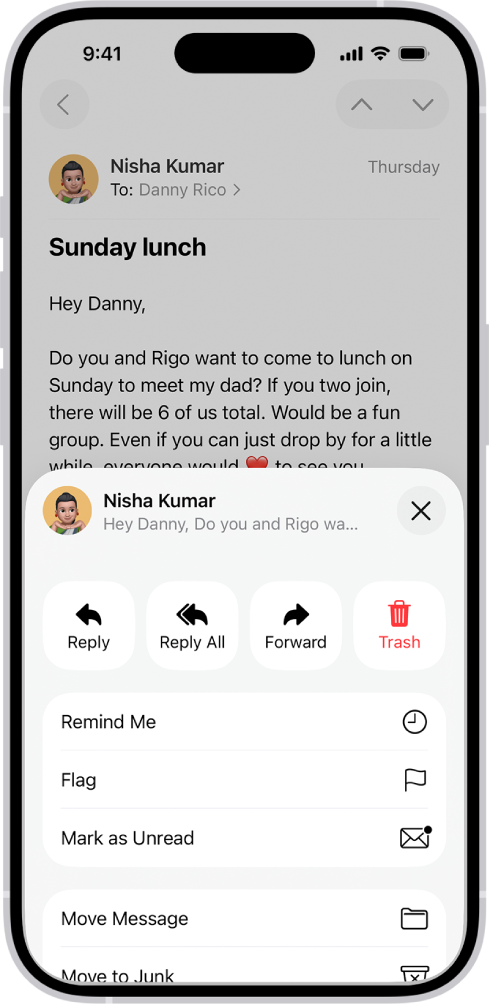
An email showing reply options. Across the middle of the screen, from left to right, are Reply, Reply All, Forward, and Trash.

Reply to an email

  1. Open the Mail app on your iPhone.
  2. Tap the message, tap the Reply button, and do one of the following: Reply to just the sender: Tap Reply.

    • Reply to the sender and the other recipients: Tap Reply All.

    Type your response, then tap the Send button to send.

Quote some text when you reply to an email

To make clear what you’re responding to, you can include text from the sender in your reply.

  1. Open the Mail app on your iPhone.
  2. In the sender’s message, touch and hold the first word of the text and drag to the last word.
  3. Tap the Reply button, tap Reply, and type your message.

    Note: To turn off the indentation of quoted text, go to Settings > Apps > Mail > Increase Quote Level (below Composing), then turn off Increase Quote Level.

Forward an email

You can send an email message forward to new recipients.

  1. Open the Mail app on your iPhone.
  2. Tap the message, tap the Reply button, and then tap Forward.

    If there are attachments in the original message—like photos or documents—you can decide whether to include them in the forwarded message.

  3. Choose Include or Don’t Include.
  4. Enter the email addresses of the new recipients.
  5. Tap in the message, then type your response.

    The forwarded message appears below.

Follow up on emails

Sent an email message and haven’t heard back for several days? The message automatically returns to the top of your inbox, so you remember to follow up.

  1. To turn off Follow Up Suggestions, open Settings, tap Apps and tap Mail. Then turn off Follow Up Suggestions.

Set up an automatic reply in Mail

You can set up an automatic reply on iCloud.com that responds to incoming email messages, or have messages forwarded automatically to another inbox.

Use Smart Reply

If you have Apple Intelligence, Smart Reply can quickly draft an email response in your personalized writing style.

Note: Apple Intelligence on iOS 27 or later is available on an Apple Intelligence-enabled iPhone 15 Pro, iPhone 15 Pro Max, or iPhone 16 model or later.

Apple Intelligence is not available in all languages or regions, according to Apple.

Usage limits may apply.* Go to the Mail app on your iPhone.

  1. Tap an email, tap the Reply button, and then tap Reply.

    In the keyboard, tap a suggested reply.

    Apple Intelligence drafts a reply in the email.

    When you’re ready to send your reply, tap the Send button.

    *Apple Intelligence is available with Siri and device language set to Chinese (Simplified), Chinese (Traditional), Danish, Dutch, English, French, German, Italian, Japanese, Korean, Norwegian, Portuguese, Spanish, Swedish, Turkish, or Vietnamese.

    Some features may not be available in all regions or languages.

    Some devices may not be available in all regions.

    Siri AI is available in beta in iOS 27, iPadOS 27, macOS 27, watchOS 27, and visionOS 27 and requires an Apple Intelligence–enabled device set to a supported language.

    Available in English to start.

    Siri AI will not be initially available in the EU on iOS, iPadOS, and watchOS.

    Certain Apple Intelligence features that rely on server-side models are subject to daily usage limits, including but not limited to Siri AI, Intelligent Photo Editing Tools, Image Playground, and AFM 3 Cloud models in Shortcuts.

    Daily limits may vary by feature, request complexity, system demand, system policies, and other factors.

    Expanded access to such features will be available for a fee in the future.

  2. Use of these features is subject to the Apple Intelligence Terms and Conditions.

With your personal information saved on iPhone, you can automatically fill in contact information, user names, and passwords. You can also automatically fill in payment information.

Saving your details on your iPhone speeds up filling in online forms, and you can even use AutoFill to enter another person’s information from your contact list, like a friend’s address when you ship a gift. You set up AutoFill first, and you can fill in your passwords the same way.

Here’s how to fill in personal information in Safari on iPhone.

Set up AutoFill

To speed up filling in online forms, you can save your personal information on your iPhone.

  1. Open the Settings app on your iPhone.
  2. Tap Apps, then tap Safari.
  3. Tap AutoFill, then turn on Use Contact Info.
  4. Tap My Info, then choose your contact card.

The contact information from that card is entered when you tap AutoFill on webpages in Safari.

Fill in your contact information automatically

AutoFill can quickly add your personal information to online forms.

  1. Open the Safari app on your iPhone.
  2. In a form on a website that supports AutoFill, tap a blank field.
  3. Tap AutoFill Contact above the keyboard, then select a contact.
  4. Tap any field to make changes.

Note: AutoFill also works with another person’s information from your contact list. Say you’re buying a gift and shipping it to a friend: AutoFill can enter their address for you. Tap AutoFill Contact, tap Other Contact, and then choose their contact card.

Fill in your passwords automatically

For many of your accounts, iPhone can create and save strong passwords when you sign up for services on websites and in apps. Important: Never enter a password on a site with a “Not Secure” warning.

Turn off AutoFill

Turning off AutoFill for your contact information and for passwords is helpful when you don’t want your contact information to be readily available, such as if you share a device with others.

  • Turn off AutoFill for your contact information: Go to Settings > Apps > Safari > AutoFill, then turn off Use Contact Info.
  • Turn off AutoFill for passwords: Go to Settings > General > AutoFill & Passwords, then turn off AutoFill Passwords.
Tag: Safari

You can set notifications to help you reach your daily activity goals. You can also update your health details, change goals, set unit of measurement preferences, and change settings for your workouts.

In your workout settings, you can have Siri read your workout alerts, automatically pause workouts when you stop moving, and receive a confirmation when you’re ready to end your workout. All of these settings start from your picture or initials in the Fitness app’s Summary tab.

Change Fitness notifications

  1. Open the Fitness app on your iPhone.
  2. Tap Summary, then tap your picture or initials.
  3. Tap Notifications, then turn off the notifications you no longer want to see.

Update your health details

Update your height, weight, or wheelchair status, or add a pregnancy in Health.

  1. Open the Fitness app on your iPhone.
  2. Tap Summary, then tap your picture or initials.
  3. Tap Health Details and then make any changes.

Set unit of measurement preferences

  1. Open the Fitness app on your iPhone.
  2. Tap Summary, then tap your picture or initials.
  3. Tap Units of Measure, then make any changes.

Change settings for your workouts

  1. Open the Fitness app on your iPhone.
  2. Tap Summary, then tap your picture or initials.
  3. Tap Workout, then do any of the following:
    • Have Siri read your workout alerts: Turn Voice Feedback on or off.
    • Get a reminder to send a Workout Check In: Turn Check In Reminders on or off.
    • Automatically pause workouts when you stop moving: Tap Auto-Pause, then turn Auto-Pause on or off.
    • Receive a confirmation when you’re ready to end your workout: Turn End Workout Confirmation on or off.
    • Choose units of measurement: Tap Units of Measure, then make any changes.
Tag: Fitness

Crash Detection works on iPhone 14 or later. If your iPhone detects a severe car crash, it can help you reach emergency services, and it can notify your emergency contacts. Your iPhone then displays an alert, and unless you cancel, it’ll automatically initiate an emergency phone call after 20 seconds.

What is Crash Detection?

If your iPhone 14 or later (any model) detects a severe car crash, it can help connect you to emergency services and notify your emergency contacts.

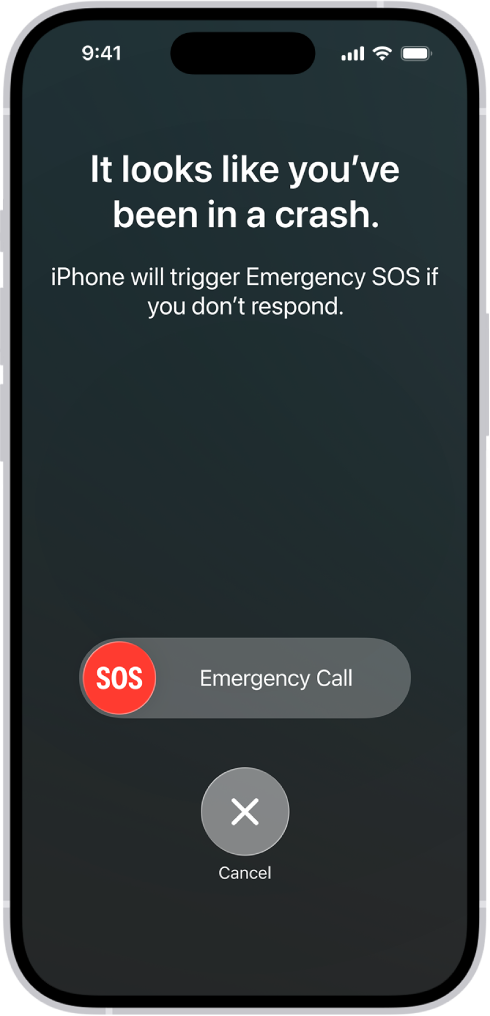
The Crash Detection screen showing a notification you’ve been in a crash, below it is an Emergency Call SOS slider with a cancel button.

How Crash Detection works

When your iPhone detects a severe car crash, it will display an alert and will automatically initiate an emergency phone call after 20 seconds unless you cancel. If you are unresponsive, your iPhone will play an audio message for emergency services, which informs them that you’ve been in a severe crash and gives them your latitudinal and longitudinal coordinates with an approximate search radius.

When a crash is detected, Crash Detection won’t override any existing emergency calls placed by other means.

If you’re in a severe car crash and unresponsive in a location without a cellular or Wi-Fi connection, iPhone will attempt to contact emergency services using Emergency SOS via satellite, where available.

Turn Crash Detection on or off

Crash Detection is on by default. You can turn off alerts and automatic emergency calls from Apple after a severe car crash in Settings > Emergency SOS, then turn off Call After Severe Crash. If you have third-party apps registered to detect crashes on your device, they will still be notified.

If you have CarPlay or Apple Watch

If your iPhone has Crash Detection turned on and is connected to your vehicle through CarPlay, the Crash Detection features (dialing emergency services) will go through your iPhone.

If you’re wearing your Apple Watch at the time of the event, dialing emergency services will be placed by iPhone but Crash Detection features will be routed through Apple Watch.

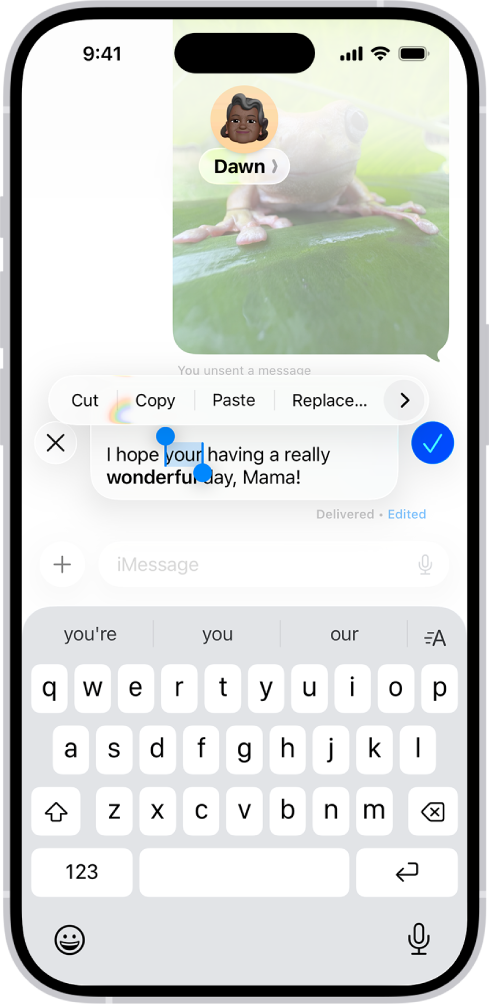
You can unsend and edit recent text messages, giving you the opportunity to fix a typo or pull back a message that you accidentally sent to the wrong person. You can undo a message for up to 2 minutes after sending it, and edit it up to five times within 15 minutes.

A conversation in Messages showing the last message being edited. The rest of the conversation is lighter, except for the specific text message that’s being edited. The conversation shows that a previous message was unsent, and this message was edited before this current edit.

Note: You need iMessage on iOS 16, iPadOS 16.1, macOS 13, visionOS 1, or later to unsend or edit text messages, and also to see when others unsend or edit messages you receive. If the person you unsend a message to is using an earlier operating system, the original message stays in the conversation, and you get a notice that the recipient may still see it.

Edit a message to someone using an earlier operating system, and they get follow-up messages showing your new message in quotation marks, prefaced with “Edited to”. Editing and unsending don’t work for SMS, MMS, or RCS text messages. And in a group conversation, only iMessage users see your edits to a text message.

Unsend a message

You can undo a recently sent message for up to 2 minutes after sending it.

  1. Open the Messages app on your iPhone.
  2. Touch and hold the message bubble and tap Undo Send.

Both conversation transcripts, yours and your recipient’s, show a note confirming that you unsent the message.

Unsending removes the message from your recipient’s device.

Edit a sent message

You can edit a recently sent message up to five times within 15 minutes of sending it.

  1. Open the Messages app on your iPhone.
  2. Select a conversation with the message you want to edit.
  3. Touch and hold the message bubble, then tap Edit.
  4. Make any changes. Tap the Send Edit button to resend with edits or the Cancel Edit button to revert.

Note: The message is marked as Edited in the conversation transcript.

The message bubble updates to reflect your edits on both your iPhone and your recipient’s device, and both of you can tap Edited to see previous versions of your message.

On supported models, you can text friends and family via satellite when you’re outside of cellular and Wi-Fi coverage. It’s available in the U.S., Canada, and Japan with iOS 18 or later, and in Mexico with iOS 18.4 or later.

There’s some setup to do before you leave coverage, and you can use either iMessage or SMS via satellite.

Here’s how to send a text message via satellite on iPhone.

Important: To connect with emergency services, use Emergency SOS via satellite.

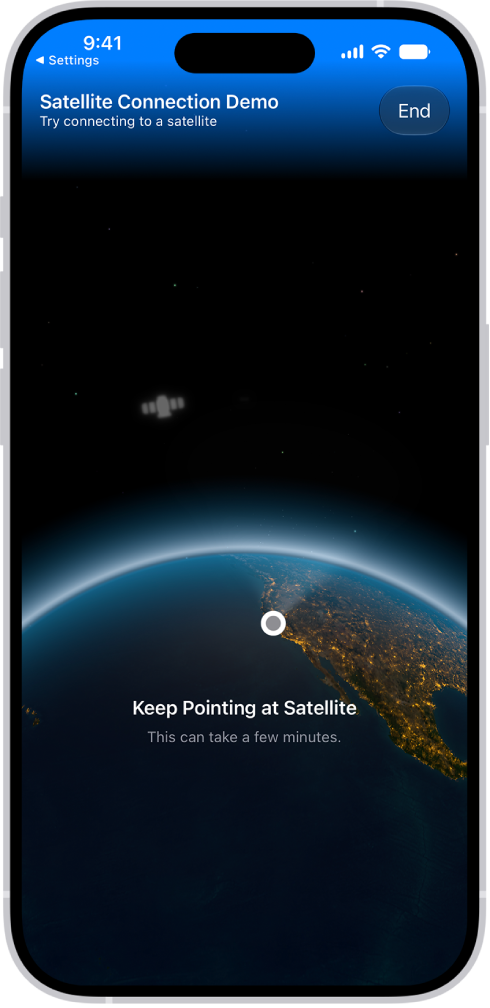
The satellite connection demo, available in the Settings app, provides a preview of what you see when you open the Messages app on an iPhone 14 or later and don’t have cellular or Wi-Fi coverage.

Before you begin

Before you head outside of cellular or Wi-Fi coverage, do the following so your iPhone can use either iMessage or SMS via satellite:

  • Turn on iMessage.
  • Check that your SIM is active.
  • If you want someone to be able to initiate an SMS conversation via satellite, add them to your Family Sharing group or emergency contacts. Anyone else must first get an SMS message from you (via satellite) before they can reply.

Send and receive messages via satellite

If you try to send a text message while you’re outside of cellular and Wi-Fi coverage, an alert prompts you to connect to your nearest satellite. From there, texts, Tapbacks, and emoji can go back and forth over iMessage and SMS.

  1. Open the Messages app on your iPhone.
  2. If you see an alert that you’re outside of cellular and Wi-Fi coverage, tap Use Messages via Satellite.
  3. Follow the instructions to connect to a satellite, while remaining aware of your surroundings. You don’t need to raise your phone—just hold it as you normally would, and make sure that you’re outside with a clear view of the sky and the horizon. Heavy foliage or other obstructions may block your connection to a satellite.

    Other satellite-enabled services also become available, including Emergency SOS via satellite, Roadside Assistance, and Find My.

  4. Enter your message and then tap the Send button. (The Send button is green instead of blue when sending with SMS.)

    Sending your message via satellite may take longer than other methods.

    When you connect, a green dot and a satellite icon appear on your screen. If your connection weakens, the green dot turns orange, and a left arrow and a right arrow tell you where to find the signal.

    If you have cellular or Wi-Fi coverage and use iMessage via satellite to communicate with someone who doesn’t have either, an alert tells you if your contact is accepting messages via satellite. Tap the Send button, then tap Send via Satellite (below the message bubble) to send your message.

How messages via satellite works

To people in your contact list, iPhone sends and receives texts via satellite using iMessage when possible.

If iMessage isn’t available, iPhone falls back on SMS messaging via satellite to reach any mobile phone number. That can happen when any of the following is true of the person you’re texting:

  • They don’t have iMessage.
  • They’re not in your contacts.
  • They haven’t updated their device to iOS 18, iPadOS 18, macOS 15, watchOS 11, visionOS 2, or later.
  • You haven’t been in contact with them over iMessage recently (in the last month or so).

When you use iMessage outside of cellular and Wi-Fi coverage, contacts with a cellular or Wi-Fi connection see a status saying you’re receiving messages via satellite, if they’ve recently updated their iOS.

Messages via satellite is free for 2 years after activation, Apple says.

To preview how the feature works, go to Settings > Apps > Messages, then tap Satellite Connection Demo.

Note: Not all carriers support SMS messaging via satellite, and some features may vary. Third parties and affiliates provide the network for satellite connection features.