Got a tip for us?

You can change the password you use to sign in to a website or app on your iPhone. In the Passwords app, you can even upgrade to Sign in with Apple. That only works if the website or app allows it, though, and if you aren’t given the upgrade option, many accounts let iPhone automatically create a strong password.

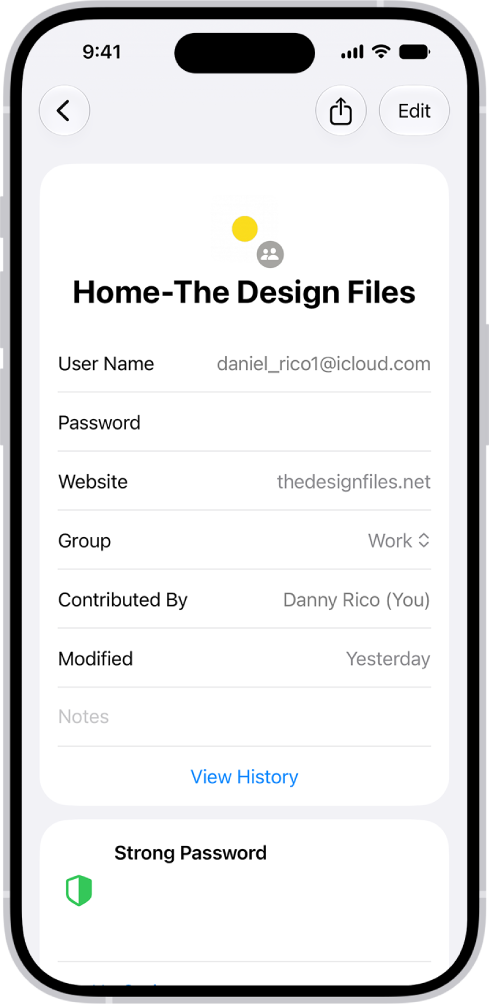
The Passwords app showing details for an account, including User Name, Password, and Website.

  1. Start the Passwords app on your iPhone.
  2. Tap All. Then locate the account for the website or app.
  3. Tap the account.
  4. Tap Edit, tap Change Password, and change your password on the website or in the app.

If the website or app allows you to upgrade to Sign in with Apple, you can take advantage of the security and convenience of that feature. If you aren’t given the upgrade option when you change your password, many accounts allow iPhone to automatically create a strong password that you don’t have to remember. Note: If you get a warning on your iPhone about a password for a website or app that’s no longer available, you can remove its account from your iPhone and iCloud Keychain. Go to the Passwords app on your iPhone, tap All, swipe left on the account, then tap Delete.

Tag: Safari

You can move, rotate, or resize items on your Freeform board. You can align, distribute, or group them, and move them to the background or foreground. You can also lock items when you want to prevent any further changes.

And it’s not one item at a time. You can select, align, and group multiple items on a board at once, and lock them in place when you want to prevent any further changes.

Here’s how to position items on a Freeform board on iPhone.

Move, rotate, or resize an item

  1. Open the Freeform app on your iPhone.
  2. Open a board, select an item you want to position by tapping it, and then do any of the following:

    • Reposition it: Drag from the center of the item.
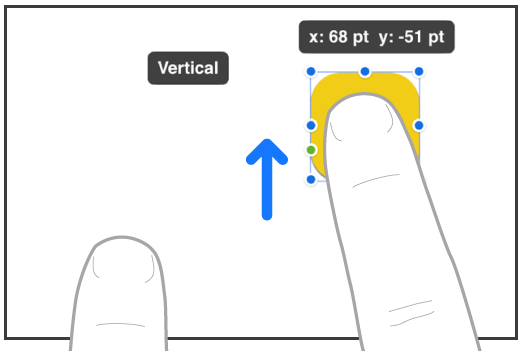
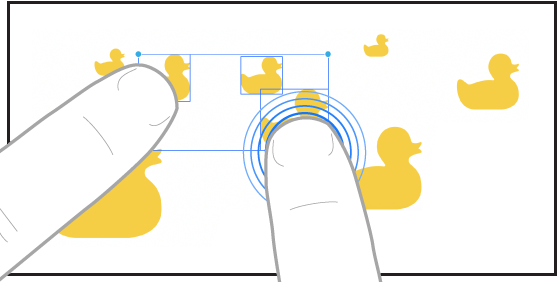
    • Move it in a straight line: To constrain an item’s movement horizontally, vertically, or diagonally, drag the item with one finger while you use another finger to touch and hold anywhere on the board.

    Two fingers of a hand moving an item in a straight line in Freeform.

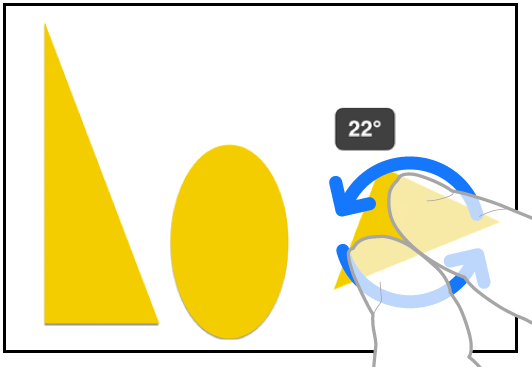
    • Rotate it: Place two fingers on the item and turn your hand in the direction you want to rotate it.

    Two fingers of a hand selecting and rotating an item in Freeform.

    • Put it in the background or foreground: Tap the More button in the formatting tools and tap Back or Front.
    • Resize it: Drag a blue dot.

      In text boxes, drag a green dot to resize both the box and the text within it.

    • Match its size to another item: Start resizing and then use a second finger to touch and hold the item whose size you want to match. When the words Match Size appear, lift both your fingers at the same time.

    Two fingers on two hands selecting and matching the sizes of two items in Freeform.

Select, align, and group multiple items on a board

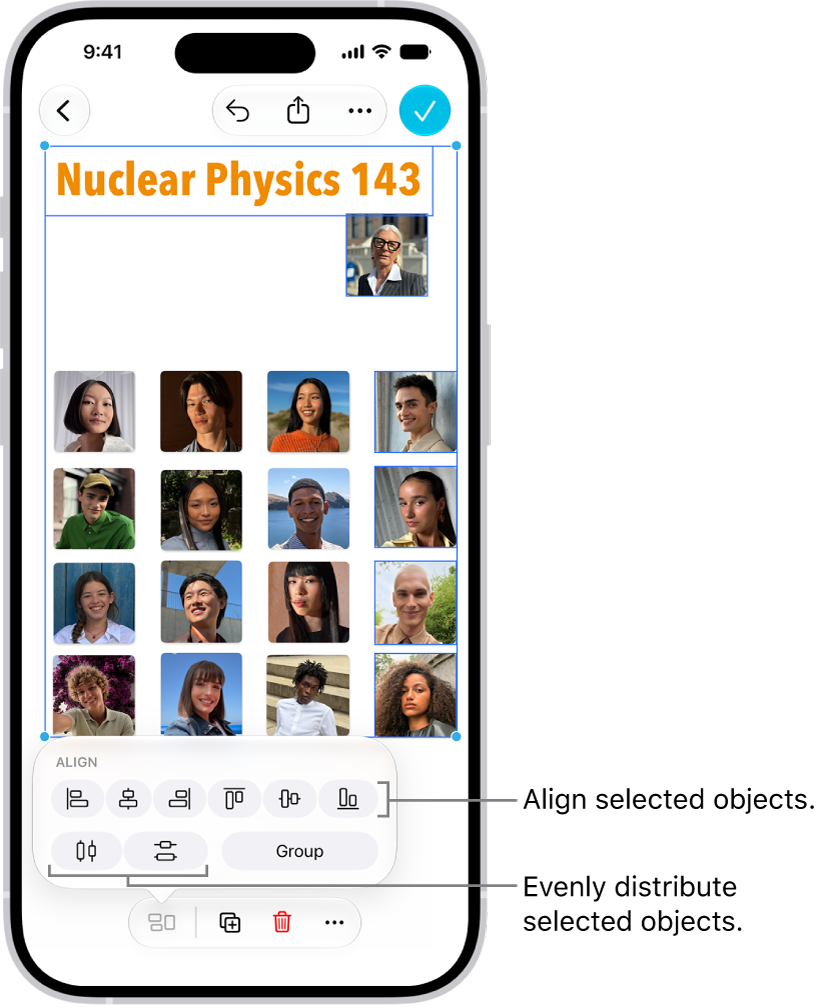
Once you’ve added items to a Freeform board, you can select multiple items and align them relative to one another. Grouping several items also makes it easier to move, rotate, or resize them as a single unit.

A Freeform board filled with a grid of photos. Several photos are selected, and the alignment and grouping tools appear above them.

  1. Open the Freeform app on your iPhone.
  2. Open a board and then select multiple items by doing one of the following:

    • Touch and hold an item on your board, then, with another finger, tap other items.

    Two fingers selecting items in Freeform.

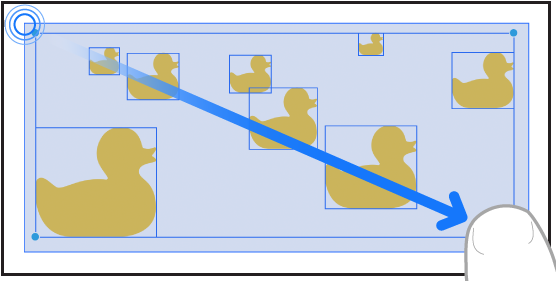
    • Touch and hold the canvas, then drag the box that appears around the items you want to select.

    A finger dragging to select items in Freeform.

    • Tap an empty space on the canvas, then tap Select Objects. Tap each item you want to select. To deselect an item, tap it again.
  3. Move, rotate, or resize the selected items, or tap the Arrange button. Tap an alignment option or Group.

Some items—such as 3D objects—can’t be grouped.

To align items more easily, you can also use a dot grid background and guides.

Lock an item on a board

To avoid inadvertently moving, modifying, or deleting an item on a Freeform board, you can lock it after you add it. Locking one or more text boxes to serve as headings, for example, could set off areas on a board where participants can share items.

  1. Open the Freeform app on your iPhone.
  2. Open a board. Then tap a drawing, shape, text box, or other item on your board to select it.
  3. Tap the More button in the formatting tools and tap Lock.

Quick tip: A large rectangle shape makes a handy workspace for your participants, so they aren’t facing a wide open canvas. Select the shape, tap the More button in the formatting tools, and tap Back, then lock it.

Use the Find My app on iPhone models that support Precision Finding to meet up with a friend. When you get close enough, an arrow points toward your friend, along with an estimate of the distance, and the screen turns green when you’re walking in the right direction.

Note: Precision Finding isn’t available in all countries or regions, and both you and the friend you’re looking for must have a supported iPhone model.

  1. Start the Find My app on your iPhone.
  2. Tap People and tap the name of the friend you want to meet.

    If you aren’t following each other, you may have to share your location or ask for their location.

  3. Do one of the following:

    • See your friend in Maps: If you aren’t nearby, tap Directions to get closer to their location.
    • Find your friend nearby: If you’re near one another, tap Find to notify your friend that you’re trying to locate them and then follow the onscreen instructions to get directions to them.

    When you get close enough to each other, an arrow points in their direction with an estimate of how far away they are.

  4. When you locate the person you’re looking for, tap the Close button.

If you receive a notification that a friend is trying to find you, you can tap Share so they can find their way to you more easily. If you’ve already shared your location with them, they see where you are relative to their location. You can stop sharing your location at any time.

Tag: Find My

In the Translate app, you can type or simply speak to see translated text in chat bubbles while talking to someone in a different language. In the face-to-face view, each person can see the conversation from their own side.

Conversations work for downloaded languages even without an internet connection, and words are translated as you type or speak. You can also play the audio translation, and with Auto Translate, iPhone can tell when you start and stop speaking.

Translate an in-person conversation

Translated text bubbles from both sides of the conversation appear on iPhone. If you don’t have an internet connection, or you’re using on-device translation, conversations still work for downloaded languages.

  1. Open the Translate app on your iPhone.
  2. Tap Conversation.
  3. Do one of the following:

    • Type: Tap “Enter text,” type a phrase (or paste text), then tap the Done button.
    • Speak: Tap the Listen button and then say a phrase.

    Note: Words are translated as you type or speak.

  4. To play the audio translation, tap the Play button. To adjust the playback speed, touch and hold the Play button, then choose a speed.

Quick tip: Tap the More Options button for extra convenience, then choose any of the following:

  • Play translations: Automatically play the audio translations.
  • Auto Translate: Translate the conversation without tapping the microphone button. iPhone automatically detects when you start speaking and when you stop.
  • Detect Language: The languages spoken are automatically detected.

Switch to the face-to-face conversation view

When chatting face-to-face, each person can see the conversation from their own side.

  1. Open the Translate app on your iPhone.
  2. Tap View, then tap Face to Face.

Hear translations for in-person conversations using AirPods

Live Translation with AirPods, enabled by Apple Intelligence, can help when someone nearby speaks to you in a different language. You hear their words translated into your preferred language in real time, and the translated dialogue shows up on your iPhone, too.

Note: Live Translation with AirPods is supported on AirPods 4 (ANC), AirPods Pro 2, or AirPods Pro 3 paired with an Apple Intelligence-enabled iPhone. AirPods must have the latest firmware. Live Translation isn’t available in all languages or regions; this feature isn’t available in the EU.*

*Apple Intelligence is available with Siri and device language set to Chinese (Simplified), Chinese (Traditional), Danish, Dutch, English, French, German, Italian, Japanese, Korean, Norwegian, Portuguese, Spanish, Swedish, Turkish, or Vietnamese. Some features may not be available in all regions or languages. Some devices may not be available in all regions. Siri AI is available in beta in iOS 27, iPadOS 27, macOS 27, watchOS 27, and visionOS 27 and requires an Apple Intelligence–enabled device set to a supported language. Available in English to start. Siri AI will not be initially available in the EU on iOS, iPadOS, and watchOS. Certain Apple Intelligence features that rely on server-side models are subject to daily usage limits, including but not limited to Siri AI, Intelligent Photo Editing Tools, Image Playground, and AFM 3 Cloud models in Shortcuts. Daily limits may vary by feature, request complexity, system demand, system policies, and other factors. Expanded access to such features will be available for a fee in the future. Use of these features is subject to the Apple Intelligence Terms and Conditions.


Assign a photo to a contact, add a pronunciation and pronouns, change a label, add a birthday, and more. On models with Dual SIM, iPhone uses the same line you used for your previous conversation when you call or text a contact. But you can choose a preferred line instead.

  1. Open the Contacts app on your iPhone.
  2. Tap a contact, then tap Edit.
  3. Enter or update the contact’s information.
  4. When you’re finished, tap the Done button.

On models with Dual SIM, when you call or text a contact, iPhone uses the same line you used for your previous communication with this contact by default. To choose a preferred line for phone calls and SMS/MMS message conversations, select the contact, tap default (below the contact’s name), then choose a line.

To change how your contacts are sorted and displayed, go to Settings > Apps > Contacts.

With Sound Recognition in CarPlay, you can have iPhone continuously listen for car horns, sirens, or baby crying, and recognize them using on-device intelligence. When these sounds are detected, a notification appears on the CarPlay touchscreen. It’s available with supported iPhone models, though you shouldn’t rely on it in high-risk or emergency situations.

Note: Sound Recognition in CarPlay is available with supported iPhone models. Don’t rely on Sound Recognition in circumstances where you may be harmed or injured, in high-risk or emergency situations, or for navigation. CarPlay isn’t available in all countries or regions.

  1. In CarPlay, open Settings and then tap Accessibility.
  2. Select Sound Recognition and turn on Sound Recognition.
  3. Turn on the sounds you want to be notified about.
Tag: carplay

Apple Music is an ad-free streaming music service that lets you play millions of songs and your music library. As a subscriber, you can listen any time, online or off, and create your own playlists, stream and download lossless and Dolby Atmos music, get personalized recommendations, follow artists, and more.

You can subscribe to Apple Music or to Apple One, which includes Apple Music and other services. You can also share Apple Music with family members, and change or cancel your subscription.

Note: Apple Music, Apple One, lossless, and Dolby Atmos aren’t available in all countries or regions.

Subscribe to Apple Music

  1. Start the Music app on your iPhone.
  2. Follow the onscreen instructions to subscribe to Apple Music.

If you don’t subscribe to Apple Music when you first open the Music app, you can subscribe later—go to Settings > Apps > Music, then tap Join Apple Music.

As a new subscriber, you can start a trial and cancel at any time. End your Apple Music subscription, though, and you can no longer stream Apple Music songs or play the Apple Music songs you downloaded.

Qualified students can purchase a student subscription at a discounted price.

Share Apple Music with family members

Subscribe to Apple Music, or to Apple One Family or Apple One Premier, and Family Sharing lets you share Apple Music with up to five other family members. Once your family is set up, its members don’t have to do anything. They’ll find Apple Music available the first time they open the Music app after your subscription starts.

When you already subscribe and then join a family group that has Apple Music, Apple One Family, or Apple One Premier, your subscription isn’t renewed on your next billing date. You use the group’s subscription instead. Join a family group that doesn’t subscribe, and the group uses yours.

Note: If you want to stop sharing Apple Music with a family group, either cancel the subscription, leave a Family Sharing group, or remove a member from the Family Sharing group.

Change or cancel your Apple Music subscription

  1. Start the Music app on your iPhone.
  2. Tap the My Account button or your profile picture.
  3. Tap Your Name and tap Subscriptions. Then follow the onscreen instructions.

Apple Music subscribers can also use the Ambient Music widget to play music from a playlist.

Tag: Music

VoiceOver changes how you use the onscreen keyboard when you activate an editable text field. You can enter, select, and delete text, change the keyboard language, and more.

Once a text field is active, the insertion point and the onscreen keyboard appear. Standard typing is one way to enter text, and you can also edit text and change the keyboard settings.

Here’s how to use the onscreen keyboard with VoiceOver on iPhone.

Enter text with the onscreen keyboard

  1. Select a text field, then double-tap.

    The insertion point and the onscreen keyboard appear.

  2. To enter text, do one of the following:

    • Standard typing: Select a key by swiping left or right on the keyboard and then double-tap to enter the character. Or move your finger around the keyboard to select a key and, while continuing to touch the key with one finger, tap the screen with another finger. VoiceOver speaks the key when it’s selected, and again when the character is entered.
    • Touch typing: Touch a key on the keyboard to select it and then lift your finger to enter the character. If you touch the wrong key, slide your finger to the key you want. VoiceOver speaks the character for each key as you touch it, but doesn’t enter a character until you lift your finger.
    • Direct Touch typing: VoiceOver is disabled for the keyboard only, so you can type just as you do when VoiceOver is off.
    • Dictation: Use a two-finger double tap on the keyboard to start and stop dictation.

To enter an accented character, do one of the following:

  • Standard typing: Select the plain character, then double-tap and hold until you hear a tone indicating alternate characters have appeared. Drag left or right to select and hear the choices. Release your finger to enter the current selection.
  • Touch typing: Touch and hold a character until the alternate characters appear.

Edit text with the onscreen keyboard

  • Move the insertion point: Use the rotor to choose whether you want to move the insertion point by character, by word, or by line. Swipe up or down to move the insertion point forward or backward in the text. To jump to the beginning or end, double-tap the text. VoiceOver makes a sound when the insertion point moves, and speaks the character, word, or line that the insertion point moves across. When moving forward by words, the insertion point is placed at the end of each word, after the space or punctuation that follows. When moving backward, the insertion point is placed before the first character of the word.
  • Move the insertion point past the punctuation at the end of a word or sentence: Use the rotor to switch back to character mode. When moving the insertion point by line, VoiceOver speaks each line as you move across it. When moving forward, the insertion point is placed at the end of the next line. When moving backward, the insertion point is placed at the beginning of the line that’s spoken.
  • Delete a character: Use the Delete key.
  • Select text: Do any of the following:
    • Set the rotor to Text Selection, swipe up or down to choose Character, Word, Line, or Sentence, then swipe left or right to move backward or forward. (You may need to enable Text Selection—go to Settings > Accessibility > VoiceOver > Rotor.)
    • Set the rotor to Edit, swipe up or down to choose Select or Select All, then double-tap. If you choose Select, the word closest to the insertion point is selected when you double-tap. To increase or decrease the selection, do a two-finger scrub (move two fingers back and forth three times quickly, making a “z”) to dismiss the pop-up menu, then pinch.
  • Cut, copy, or paste: Set the rotor to Edit, select the text, swipe up or down to choose Cut, Copy, or Paste, then double-tap.
  • Fix misspelled words: Set the rotor to Misspelled Words, then swipe up or down to jump to the previous or next misspelled word. Swipe left or right to choose a suggested replacement, then double-tap to use the replacement.
  • Undo: Shake iPhone, swipe left or right to choose the action to undo, then double-tap.

Change the keyboard settings

  1. Open Settings, tap Accessibility, and then tap VoiceOver.
  2. Tap any of the following:
    • Typing Style: You can choose a new style. Or, set the rotor to Typing Mode and then swipe up or down.
    • Phonetic Feedback: Speak text character by character. VoiceOver first speaks the character, then its phonetic equivalent—for example, “f” and then “foxtrot.
    • Typing Feedback: Choose to speak characters, words, both, or nothing.
    • Verbosity: Tap Deleting Text. To have VoiceOver speak deleted characters in a lower pitch, tap Change Pitch.

In the Mail app, you can annotate email attachments to give feedback on a draft, decorate a photo, and more. You can draw and write on a photo, video, or PDF attachment, then save or send it back.

Markup’s drawing tools let you draw with just your finger. When you’re finished, you can reply to the sender, start a new message, or discard your edited attachment, and you can save the annotated attachment to your files.

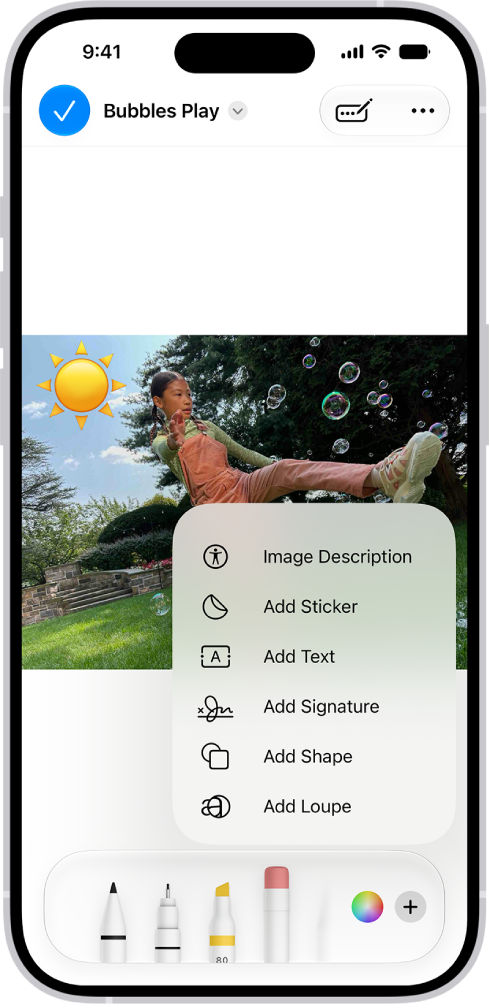
In Mail, a PDF of an attachment has a sticker of an emoji. Below the webpage are the markup tools.

  1. Open the Mail app on your iPhone.
  2. In the message, tap the attachment. Tap the Markup button.

    Using the drawing tools, draw with your finger.

    When you’re finished, tap the Done button, then choose to reply to the attachment sender, start a new message, save the annotated attachment to your files, or discard your edited attachment.

Tag: Mail

In the Apple Games app, you can subscribe to Apple Arcade to enjoy unlimited access to a curated collection of games on iPhone, iPad, Mac, and Apple TV 4K.

You can subscribe to Apple Arcade or to Apple One, which includes Apple Arcade and other services. You can also share Apple Arcade with family members, and change or cancel your Apple Arcade subscription. And you can play Apple Arcade games on your other Apple devices.

Note: Apple Arcade and Apple One aren’t available in all countries or regions. The availability of Apple Arcade games across devices varies based on hardware and software compatibility. Not all Apple Arcade games are available on Mac and Apple TV 4K. Some content may not be available in all areas.

Subscribe to Apple Arcade

  1. Start the Apple Games app on your iPhone.
  2. Tap Arcade and tap the subscription button.
  3. Follow the onscreen instructions.

Share Apple Arcade with family members

When you subscribe to Apple Arcade or Apple One, you can share Apple Arcade with up to five other family members through Family Sharing.

Members of your family group don’t have to do anything. Once your subscription begins, Apple Arcade shows up for them the first time they open the Apple Games app.

Already subscribed and joining a family group that subscribes to Apple Arcade or Apple One? Your subscription isn’t renewed on your next billing date, and you use the group’s subscription instead. If the family group you join doesn’t subscribe, it uses your subscription.

Note: To stop sharing Apple Arcade with a family group, you have three options. You can cancel the subscription or leave the family group, and if you’re the family group organizer, you can stop using Family Sharing.

Play Apple Arcade games on your Apple devices

If you subscribe to Apple Arcade, you can access your game progress and play on every compatible device that’s signed in to the same Apple Account.

Change or cancel your Apple Arcade subscription

  1. Start the Settings app on your iPhone.
  2. Tap your name and then tap Subscriptions.
  3. Tap Apple Arcade or Apple One and then follow the onscreen instructions.

Cancel your subscription, and you can’t play any Apple Arcade games, even ones you downloaded to your device.

If you want to play Apple Arcade games again and get your gameplay data back, you can resubscribe. Wait too long, though, and some gameplay data may not be supported once you resubscribe.