Got a tip for us?

Use Burst mode with your iPhone camera to capture photos of a moving subject, or when you want to take multiple high-speed photos so that you have a range of photos to choose from. You can take Burst photos with the rear and front-facing cameras.

iPhone suggests which shots to keep, and you save only the ones you want as individual photos. You can also take Burst shots with the volume up button, once that option is on.

  1. Open Camera on your iPhone.
  2. Swipe the Shutter button to the left to begin taking photos in rapid succession.
  3. Lift your finger to stop.
  4. To select the photos you want to keep, tap the Burst thumbnail. Tap Burst (number).

Gray dots below the thumbnails mark the suggested photos to keep.

  1. Tap the circle in the lower-right corner of each photo you want to save as an individual photo. Tap Done.

To delete the entire Burst, tap the thumbnail, then tap the Delete button.

Quick tip: You can press and hold the volume up button for Burst shots, too. To set it up, go to Settings > Camera and turn on Use Volume Up for Burst.

Tag: camera

You can customize the notifications that let you know about upcoming calendar events, invitations, and more. You can also make sure your events and other calendar information are kept up to date on all your devices.

You can choose whether notifications appear for specific occasions, like upcoming events, and turn on customized notifications for specific calendars. iCloud keeps your calendar current on all your devices. If you don’t want to use iCloud for your calendar, you’ll sync your calendar information between your iPhone and your computer instead.

Customize Calendar notifications

  1. Open the Settings app on your iPhone.
  2. Tap Notifications and tap Calendar.
  3. Turn on Allow Notifications.
  4. Choose how and where you want the notifications to appear—for example, on the Lock Screen, in Notification Center, as banners at the top of the screen, with an alert sound, and so on.

Turn on customized notifications for specific calendar events

When you’ve customized Calendar notifications, you can choose whether they appear for specific occasions, like upcoming events or invitee responses.

  1. Open the Settings app on your iPhone.
  2. Tap Notifications and tap Calendar.
  3. Scroll down and tap Customize Notifications.
  4. Turn the specific customized notifications on or off.

Keep your calendar up to date across your devices

If you’re signed in to the same Apple Account on all your devices, iCloud can keep your calendar information up to date on each one.

  1. Open the Settings app on your iPhone.
  2. Tap your name, then tap iCloud.
  3. Tap See All next to Saved to iCloud.
  4. Tap iCloud Calendar and turn on Use on this iPhone.

Rather not use iCloud for your calendar? Sync your calendar information between your iPhone and your computer instead.

On iPhone, you can log workouts you previously completed. You can also delete completed workouts.

You can add distance, workout duration, and an estimate of active calories burned, and choose a start date and time for the workout. With an Apple Watch, you can even rate your effort. The workout data is then added to the Sessions card in your Activity summary.

Here’s how to log a workout in Fitness on iPhone.

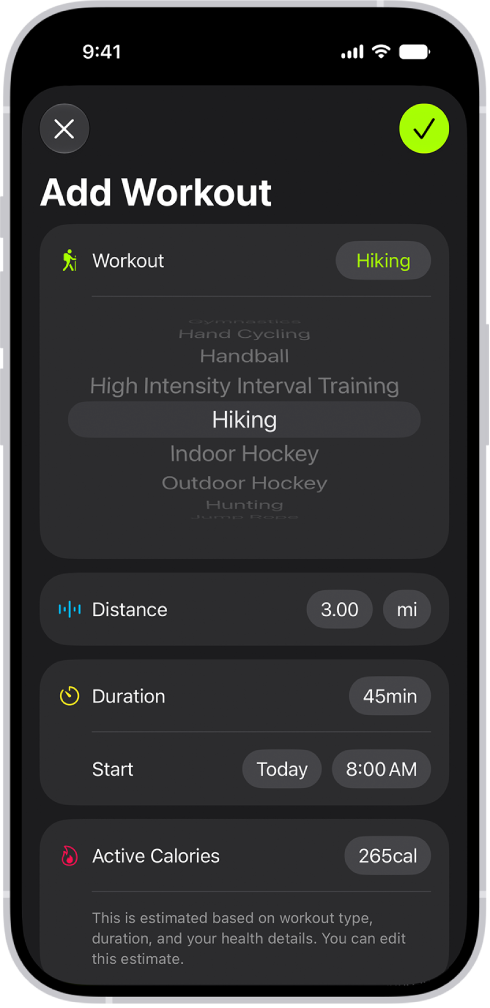
A screen in the Fitness app showing a logged workout. Metrics for the distance traveled, duration, date, and active calories burned appear below the list of workouts.

Log a completed workout

Workouts you previously completed can be logged, with metrics like an estimate of active calories burned, workout duration, and distance.

  1. Open the Fitness app on your iPhone.
  2. Tap Workout, then tap the Compose button.
  3. Tap Select, scroll to a workout type, and then do any of the following to edit the details of your workout:
    • Choose the duration of the workout: Next to Duration, tap the time.
    • Choose a start date and time: Next to Start, tap the date and time.
    • Enter an estimate of active calories: Tap Active Calories and choose an option.
    • Rate your effort (Apple Watch required): Tap Effort, move the slider to a number. Tap the Done button.
  4. When you’re finished, tap the Selected button.

You’ll find the workout data in the Sessions card in your Activity summary.

Delete a workout

  1. Open the Fitness app on your iPhone.
  2. Tap Summary and then tap Sessions.

    Note: You may need to add the Sessions card to your activity summary.

  3. Swipe left on a workout and then tap the Delete button.
  4. Do one of the following:

    • Delete the workout and health data: Tap Delete Workout & Data.
    • Delete the workout: Tap Delete Workout Only.
Tag: Fitness

You can double-tap or triple-tap the back of iPhone to perform actions such as taking a screenshot, turning on an accessibility feature, running a shortcut, and more. It’s called Back Tap, and you can choose an action for Double Tap and Triple Tap.

  1. Open Settings, tap Accessibility, tap Touch, and then tap Back Tap.
  2. Choose Double Tap or Triple Tap. Then choose an action.
  3. To perform the action you set, double-tap or triple-tap the back of iPhone.

To turn off Back tap, go to Settings > Accessibility > Touch > Back Tap, choose Double Tap or Triple Tap, then tap None.

The Photos app identifies duplicate photos and videos in your photo library in the Duplicates collection. You can merge duplicate photos and videos to save space and clean up your library. It’s in Utilities. Got no duplicates? Then the Duplicates collection doesn’t appear.

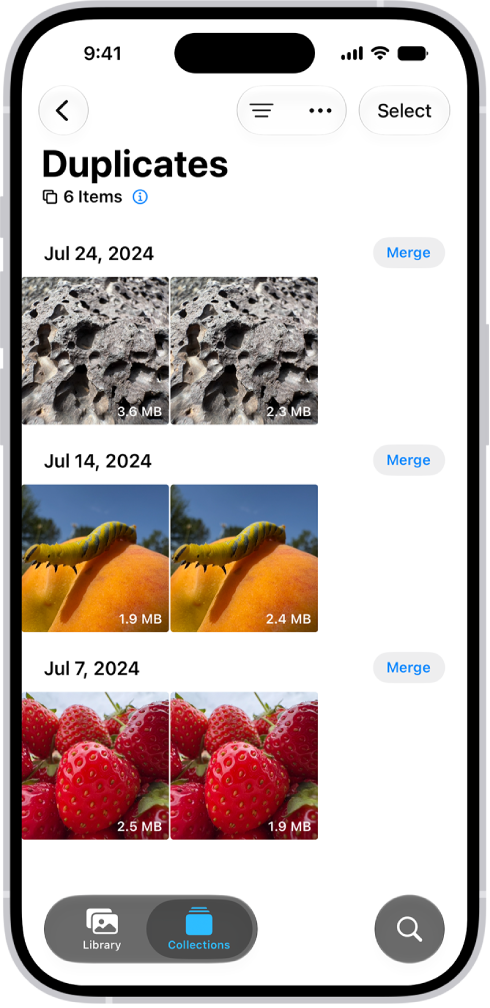
The Duplicates screen, showing duplicate photos next to each other. On the right side of the screen are Merge buttons to merge each pair of duplicate photos.

  1. Start the Photos app on your iPhone.
  2. Tap Collections.
  3. Tap Utilities and tap Duplicates.
  4. Tap Merge to combine a set of duplicates and tap Merge [number] Items.

The Duplicates collection doesn’t appear if there aren’t any duplicate photos or videos in your library.

Tag: Photos

Before taking a photo, you can use the camera tools on your iPhone to customize and improve your shot.

Flash and Live Photo sit above the camera frame for quick access, and you can add or edit the tools there, too. You can also manually adjust focus and exposure, track a moving subject, and lock the exposure setting.

Here’s how to use iPhone camera tools to set up your shot.

Customize the camera tools

For quick access, the Flash and Live Photo tools sit above the camera frame. Add or edit the tools that show up there, and the ones you use most are always available.
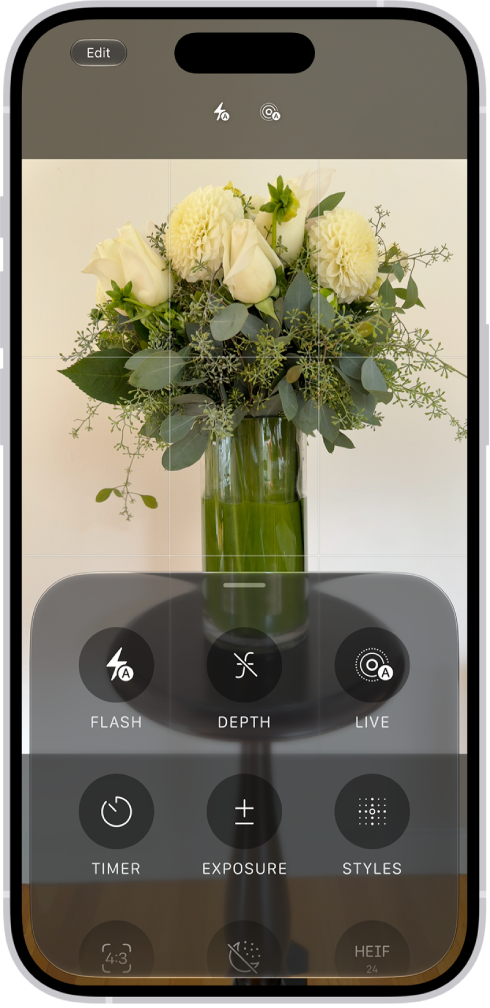
Camera is open in Photo mode. At the bottom of the screen are buttons for the following camera controls: Flash, Depth, Live, Timer, Exposure, and Styles.

  1. Open Camera on your iPhone.
  2. Tap the Camera Controls button, then tap Edit to reveal the tools.
  3. Tap a tool in the menu to add it above the camera frame, or tap the Minus button next to a tool above the camera frame to remove it.

Quick tip: Tap Reset to Essentials to return to the default tools.

  1. Tap Done, then swipe down on the tool menu to close it.

Manually adjust focus and exposure

Before you take a photo, the iPhone camera automatically sets the focus and exposure, and face detection balances the exposure across many faces. If you want to manually adjust the focus and exposure, do the following:

  1. Open Camera on your iPhone.
  2. Tap the screen where you want to move the focus area.
  3. Next to the focus area, drag the Adjust Exposure button up or down to adjust the exposure.
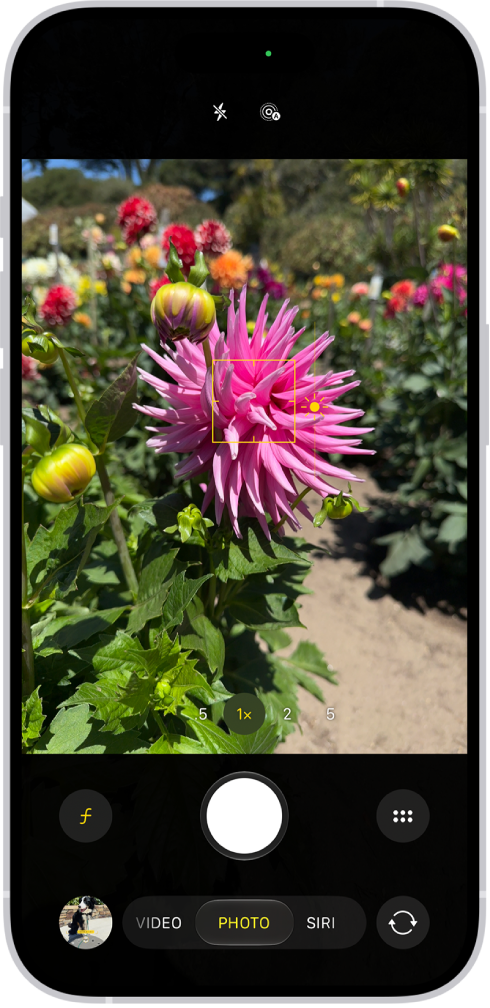
Camera is open in Photo mode. In the viewfinder, focus is locked on a subject and a slider to adjust the brightness level is next to the subject.

Quick tip: Touch and hold the focus area until AE/AF Lock appears to lock your manual focus and exposure settings for upcoming shots. Tap the screen to undo it.

On supported models, lightly double-press the Camera Control to open an overlay that shows the available camera settings. Slide your finger on the Camera Control to the Exposure setting, then lightly press to select it. Slide your finger to adjust the exposure.

Manually adjust focus on iPhone 18 Pro models

iPhone 18 Pro models let you manually adjust the focus to a specific point, and you can even lock which camera is used.

Note: The Focus tool isnʼt available in all camera modes.

  1. Open Camera on your iPhone.
  2. Do either of the following:

    • Tap the Camera Controls button, then tap Focus.
    • Optionally, add the Focus control to the camera tools above the camera frame, then tap it.
  3. If you want to use a specific camera, tap Ultra Wide, Main, or Telephoto.

    The camera you choose stays selected for your next shots.

  4. Drag the slider to set the focus distance.
  5. Areas that are in focus are outlined.

    To return to automatic focus, tap A.

Track a moving subject

The camera on iPhone 18 Pro models can keep a moving subject in focus, tracking it even as the distance to the subject changes.

  1. Open Camera on your iPhone.
  2. Tap a subject to show a yellow frame around it.
  3. Double-tap the frame to start tracking.

The frame follows the subject as it moves.

To stop tracking, tap Focus Tracking .

Lock the exposure setting

You can adjust and lock the exposure setting for upcoming photos.

  1. Open Camera on your iPhone.
  2. Tap the Camera Controls button or swipe up from the camera modes at the bottom of the screen.
  3. Tap Exposure and drag the slider to adjust the level.

The exposure locks until the next time you open Camera. To save the exposure control so it’s not reset when you open Camera, go to Settings > Camera > Preserve Settings, then turn on Exposure Adjustment.

Quick tip: Tap the Undo button to reset the exposure.

  1. Tap the Back button and swipe down on the camera tools menu to close it.

Turn the flash on or off

Your iPhone camera is set to automatically use the flash when needed. To manually control the flash before you take a photo, tap the Flash control above the camera frame to switch between Auto, On, or Off. Or, do the following:

  1. Open Camera on your iPhone.
  2. Tap the Camera Controls button or swipe up from the camera modes at the bottom of the screen.
  3. Tap Flash, then tap to switch between Auto, On, or Off.
  4. Tap the screen to close it.

Quick tip: The Flash button can always show on the camera screen. To set that up, go to Settings > Camera > Indicators and turn on Flash.

Take a photo with a filter or Photographic Style

Before you take photos, you can change how they look with a filter or a Photographic Style, depending on your iPhone model.

  1. Open Camera on your iPhone.

    Make sure Camera is in Photo or Portrait mode.

  2. Tap the Camera Controls button or swipe up from the camera modes at the bottom of the screen.
  3. Do one of the following:

    • On iPhone 12 models or earlier: Tap Filter and swipe left or right to preview the options.
    • On models that support Photographic Styles: Tap Styles and then swipe left or right to preview the styles.
  4. Tap the Shutter button to take your shot.
  5. Tap the Close button to close the menu.

To stop using a filter, follow the steps above, then in step 3, select Original. You can remove or change a photo’s filter in the Photos app.

A Photographic Style applies to every photo you take until you change it or close Camera. To keep using the same style the next time you open Camera, go to the Settings app , tap Camera, tap Preserve Settings, then turn on Photographic Style. You can fine-tune its tone, color, and intensity. On iPhone 18 Pro models, you can also change the texture and add film grain.

Use the timer

Setting a timer on your iPhone camera gives you time to get in the shot.

  1. Open Camera on your iPhone.
  2. Tap the Camera Controls button or swipe up from the camera modes at the bottom of the screen.
  3. Tap Timer, then tap 3, 5, or 10.
  4. Tap the Shutter button to start the timer and get in the frame.
  5. To stop using the timer, tap the Camera Controls button and tap Timer. Then tap the timer icon to turn it off.
  6. Tap the screen to close it.

Change the aspect ratio

You can choose between 1:1, 4:3, and 16:9 aspect ratios.

  1. Open Camera on your iPhone.
  2. Tap the Camera Controls button or swipe up from the camera modes at the bottom of the screen.
  3. Tap Aspect and then tap a ratio.
  4. Tap the screen to close it.

Use a grid and level to straighten your shot

A grid or level on the camera screen can help you straighten and compose your shot.

  1. Open the Settings app on your iPhone.
  2. Tap Camera, then turn on Grid and Level.

Once you’ve taken a photo, the editing tools in the Photos app can further align shots and adjust horizontal and vertical perspective.


Tag: camera

With Family Sharing, you can share your location with members of your Family Sharing group and help them find lost devices.

When the family organizer sets up location sharing, the organizer’s location is automatically shared with everyone in the family, including new members added later. Each family member decides whether to share their location, and you can stop sharing with anyone at any time. You can even get notified if a child leaves school during school hours. You can also ask a family member to share an AirTag with you.

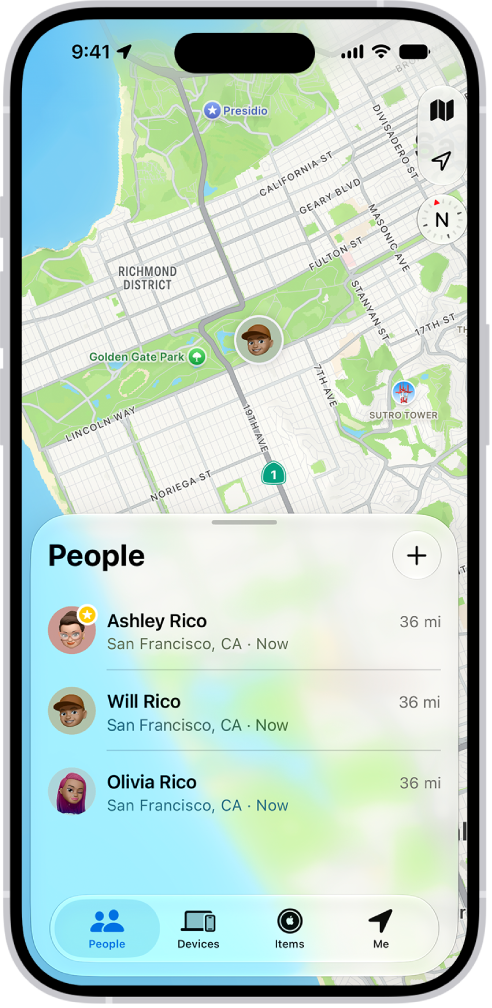
The Find My app showing locations of family members on a map.

Share your location with family members

When you share locations with your family, your location shows up for them in Find My. You can also get notified when family members’ locations change, say, if a child leaves school during school hours.

  1. Open Settings, tap Family, and then tap Location Sharing.
  2. Turn on Location Sharing for the family member you want to share your location with.

    You can repeat this step for each family member you want to share your location with. Each family member receives a message that you’re sharing your location and can choose to share their location with you.

    You can stop sharing your location with any family member at any time.

  3. If you want to share your location with new members that join later, turn on Automatically Share Location.

    When Automatically Share Location is turned on for a child, only parents and guardians in the family group can see the child’s location, including parents and guardians that are added to the group later.

Note: Children and teens with Screen Time turned on may not be able to change their own location sharing settings.

To share your location, you must have Location Services turned on in Settings > Privacy & Security.

Locate a family member’s device

After members of your Family Sharing group have your location, they can help track down a missing device that’s been added to the Find My app.

Your devices sit at the top of the list, with your family members’ devices below them.

Ask a family member to share an AirTag with you

If you receive a notification in the Find My app that says AirTag Detected Near You or Unknown AirTag, you can ask the family member who owns it to share the AirTag with you.

  1. In the notification, tap Ask Owner to Share AirTag.
  2. Tap Ask Owner.
Tag: Find My

In the Photos app, you can trim a video you recorded on your iPhone to change where it starts and stops. You can also adjust the playback speed, and change the portion of a video that appears in slow motion when you record in Slo-mo mode.

And when you record a video with Spatial Audio, you can use Audio Mix to edit the sound in the Photos app, on supported models.

Here’s how to trim video length, adjust speed, and edit audio on iPhone.

Trim a video

  1. Open the Photos app on your iPhone.
  2. Open a video and then tap the Edit button.
  3. Drag either end of the frame viewer below the video to adjust the start and stop times. Then tap Done.
  4. Tap Save Video to save only the trimmed video, or Save Video as New Clip to save both versions of the video.

To undo edits after you save, open the video, tap the Edit button, then tap Revert.

Note: A video saved as a new clip can’t go back to the original.

Edit the video playback speed

For a dramatic effect, you can slow down videos captured at a high frame rate.

  1. Open the Photos app on your iPhone.
  2. Open a video, tap the Edit button, and then tap Video.
  3. Tap the Playback Speed button and then tap a playback speed.

Note: The format of the video you captured determines which playback options are available. The larger the format you capture, the more options you get.

Edit the slow-motion section of a video shot in Slo-mo mode

  1. Open the Photos app on your iPhone.
  2. Open a video shot in Slo-mo mode and then tap the Edit button.
  3. Drag the black vertical bars beneath the frame viewer to set where the video is played in slow motion.

Edit sound with Audio Mix

Recording a video with iPhone 16 or later gives you three recording options to choose from: Spatial Audio, Studio, and Mono. If you pick Spatial Audio, you can customize your video’s sound with Audio Mix. And on iPhone 18 Pro models, Audio Mix can isolate music as well as voices.

  1. Open the Photos app on your iPhone.
  2. Open a video and then tap the Edit button.
  3. Tap Audio Mix and then choose one of the following:
    • Standard: Play the original audio you recorded.
    • In-Frame: Reduce sounds and voices from sources not visible in the video frame.
    • Studio: Reduce background sounds and reverb, to make it sound more like you’re recording in a professional studio.
    • Cinematic: Put all the voices onto a front-facing track and leave environmental noises in surround, like the audio in movies.
  4. Drag the slider below the mix options to increase or decrease the effect and background noise levels.
  5. Tap Done.
Tag: Photos

Use the tools in the Photos app to crop, rotate, flip, straighten, or adjust the size of a photo or video. When you use iCloud Photos, any edits you make are saved across all your devices.

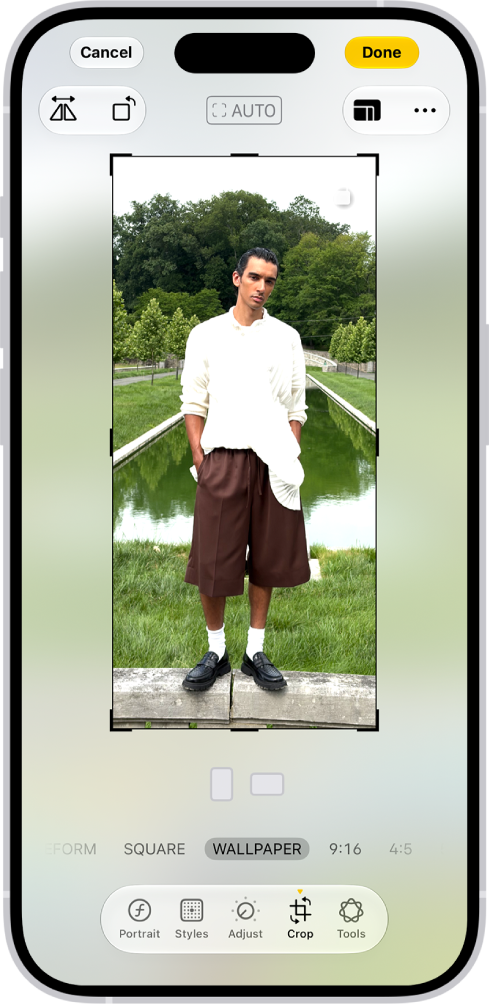
You can crop manually or to a standard preset ratio, such as Square, Wallpaper, 9:16, or 5:7, and rotate an image 90 degrees or flip it horizontally. The crop tool keeps the original aspect ratio of the photo unless you unlock it.

Here’s how to crop, rotate, flip, or straighten photos and videos on iPhone.

Crop, rotate, or flip a photo or video

  1. Open the Photos app on your iPhone.
  2. Tap a photo or video to open it, then tap the Edit button.
  3. Tap the Crop button. Do any of the following:

    • Crop manually: Drag the rectangle corners to enclose the area you want to keep in the image, or pinch open or closed.

      Note: When you drag a corner, the crop tool keeps the original aspect ratio of the photo. To change the aspect ratio, tap the lock at the top-right corner of the photo to unlock the aspect ratio.

    • Crop to a standard preset ratio: Tap the Aspect Ratio Freeform button. Then choose an option such as Square, Wallpaper, 9:16, or 5:7.
    • Rotate: Tap the Rotate button to rotate the image 90 degrees.
    • Flip: Tap the Flip button to flip the image horizontally.

    The Edit screen with a photo in the center. At the bottom of the screen, from left to right, are the Portrait, Adjust, Filters, Crop, and Clean Up buttons. The Crop button is selected and there is a slider to adjust the geometry enhancements.

  4. Tap Done to save your edits, or if you don’t like your changes, tap Cancel, and then tap Discard Changes.

Quick tip: There’s a faster way to crop a photo you’re viewing: Pinch it to zoom in, and when it looks right, tap Crop in the top-right corner. Then make any further adjustments with the crop tools and tap Done.

Straighten or tilt a photo or video

Along with straightening a photo or video, you can tilt it vertically or horizontally.

  1. Open the Photos app on your iPhone.
  2. Tap a photo or video to open it, then tap the Edit button.
  3. Tap the Crop button.
  4. Tap a button below the frame to straighten, tilt vertically, or tilt horizontally.
  5. Drag the slider to make adjustments.

    The level of adjustment you make is displayed by the slider. Tap the straighten or tilt button to switch between the adjusted version and the original.

  6. Tap Done to save your edits or tap Reset to revert to the original.

Quick tip: You can undo edits even after you save. Open the photo or video and tap the Edit button, then tap Revert.

Tag: Photos

In the Notes app, you can open a note in the Pages app and continue working. You can also export the note as a PDF or print the note.

Not everything carries over to Pages. You can’t edit drawings there, scanned documents and PDFs appear as thumbnail images, and tags, mentions, checklists, and links to notes aren’t active items. A locked note also has to be unlocked first.

Here’s how to export or print notes on iPhone.

Open a note in Pages

  1. Make sure your iPhone has the latest version of Pages.
  2. Open the Notes app on your iPhone.
  3. Open the note you want to export.
  4. Tap the Share button and then tap Open in Pages. Note: If the note is locked, you must unlock it before exporting the contents of the note to Pages. You can’t edit drawings in Pages. Content such as scanned documents and PDFs appear as thumbnail images in Pages. Tags, mentions, checklists, and links to notes aren’t active items in Pages. If a note is shared, the resulting Pages document isn’t shared.

Export a note as a PDF

When you create a PDF of a note, it uses the note’s current view settings for its attachments. If the note has a multipage PDF or scanned document, though, the exported PDF contains only the first page of the original.

  1. Open the Notes app on your iPhone.
  2. Open the note you want to export.
  3. Tap the Share button, then tap Markup.
  4. If you don’t see the Markup option, first tap the View More button.
  5. Mark up the pages in the exported PDF as needed and tap the Done button to save the PDF.

Export a note as a Markdown file

You can export your notes as Markdown files to use them in writing, content, and other workflows that support Markdown.

  1. Open the Notes app on your iPhone.
  2. Open the note you want to export.
  3. Tap the Share button and then tap Export as Markdown.
  4. If you don’t see the Markdown option, first tap the View More button.
  5. Choose how to send or save your note.

Print a note

  1. Open the Notes app on your iPhone.
  2. Open the note you want to print.
  3. Tap the Share button, then tap Print.
  4. If you don’t see the Print option, first tap the View More button.
  5. Choose the printer and other options, then tap Print.
Tag: Notes