Got a tip for us?

Use Siri or open Music in CarPlay, either on CarPlay Dashboard or from the Home button, to play music that’s available on your iPhone, including songs, artists, albums, playlists, and Radio.

Once it’s playing, you’re not limited to the screen. You can also use the controls on your vehicle’s steering wheel, buttons on the Now Playing screen, and CarPlay Dashboard to control music playback. And you can even play music together using SharePlay.

Note: Viewing CarPlay Dashboard? Tap the Home button, and Music is on the pages of all of your CarPlay apps.

Button Description
the Pause button Pause playback.
the Play button Play the current song.
the Next button Skip to the next song. When pressed and held, fast forward through the current song.
the Previous button Return to the song’s beginning. When pressed again, return to the previous song. When pressed and held, rewind through the current song.
the Shuffle button Play songs in random order.
the Repeat button Continually repeat the current song.
the More button Display controls to create a custom station based on the current song and to rate the current song.
Up Next Display a list of songs queued for playback. (You can select a song from the list to skip the songs that proceed it.)

On some systems, Now Playing displays only a partial list of choices while you’re driving. To choose among options not in the list, select More at the bottom of the screen, or use Siri by pressing and holding the voice command button on your steering wheel.

Tag: carplay

Spatial Audio in the FaceTime app makes it sound like your friends are in the room with you. Their voices are spread out and sound like they’re coming from the direction in which each person is positioned on the screen.

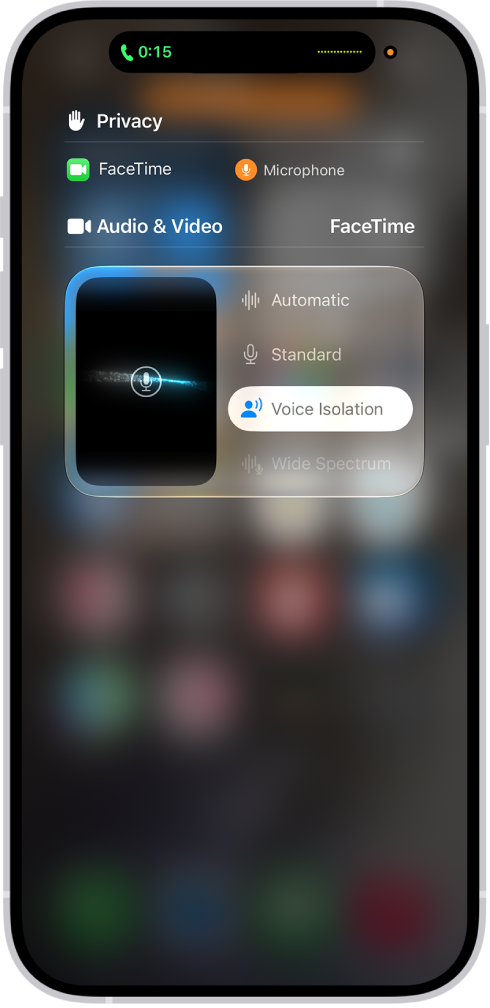
You can adjust other audio settings during a FaceTime call. Voice Isolation prioritizes your voice and blocks out the ambient noise, while Wide Spectrum lets your voice and all the sounds around you be heard. And if your mic is muted, you’re notified when you start speaking.

Note: You can also use Spatial Audio with AirPods 3, AirPods Pro (all models), and AirPods Max.

The Control Center settings for FaceTime calls, showing the audio settings Automatic, Standard, Voice Isolation, and Wide Spectrum.

Filter out background sounds

For your voice to be heard clearly in a FaceTime call with other sounds filtered out, turn on Voice Isolation. It prioritizes your voice and blocks out the ambient noise.

  1. During a call in the FaceTime app on your iPhone, open Control Center.
  2. Tap FaceTime and select Voice Isolation.

Include the sounds around you

Turn on Wide Spectrum when you want all the sounds around you, along with your voice, to be heard in a FaceTime call.

  1. During a call in the FaceTime app on your iPhone, open Control Center.
  2. Tap Mic Mode, then select Wide Spectrum.

Adjust audio automatically

  1. During a call in the FaceTime app on your iPhone, open Control Center.
  2. Tap FaceTime, then select Automatic.

Mute the mic

  1. During a call in the FaceTime app on your iPhone, tap the screen to show the FaceTime controls (if they aren’t visible).
  2. Tap the Microphone Switch button to turn off the sound.

Tap the Microphone Switch button to turn the mic back on.

When your sound is turned off, your mic detects whether you’re speaking, and you’re notified that your mic is muted and that you can tap the Microphone Switch button to unmute it.

In some countries and regions, you can record a FaceTime audio call when you’re talking to one other person, and view the transcript of the call in the Notes app. You can also use Hold Assist to get a notification when a live agent becomes available while you’re placed on hold.

You’ll both hear an audio notice when recording starts, and the recording lands in a Call Recordings folder in Notes. You can turn off Call Recording, too.

Use Hold Assist

Stuck on hold during a FaceTime audio call? Hold Assist can let you know when a live agent is available.

Note: Hold Assist isn’t available in all countries or regions.

Record an audio call

Before you begin, check the iOS and iPadOS Feature Availability website to see if call recording is available in your language and region, and make sure the other call participant is willing to be recorded.

  1. During a one-to-one audio call in the FaceTime app, tap the More button and then tap Call Recording.

    Both call participants hear a notice that the call is being recorded.

  2. To stop recording, tap the Stop button.

    If the Stop button doesn’t appear, tap the More button, then tap Stop next to Call Recording. Call recording also stops when you end the call.

    Call recordings are automatically saved to a Call Recordings folder in the Notes app.

Play a call recording

  1. Open the Notes app on your iPhone.
  2. Select a note in the Call Recordings folder and then tap the Play button.

View a call transcript

In select regions and languages, the Notes app shows the transcript of a recorded call. It might not be ready right away, though. You may see a message that the transcription is in progress.

Note: Before relying on a transcription, check its accuracy, since it might not be a perfect representation of the conversation.

  1. Open the Notes app on your iPhone.
  2. Select a note in the Call Recordings folder. Tap the Transcript button.

    Note: Spoken words in supported languages are automatically transcribed. If you don’t see Transcript, your iPhone doesn’t meet the minimum requirements or detect a supported language.

    In the transcript, the speaker of each statement is identified.

  3. While viewing the transcript, you can do any of the following:

    • Play the audio from a specific point: Select the text you want to hear.
    • Search the transcript: Tap the More button and then tap Find in Transcript.
    • Copy the transcript: Tap the More button and choose Add Transcript to Note or Copy Transcript.
    • Save or delete the audio recording: Tap the More button. Choose Save Audio to Files or Delete.

      Note: Deleting the audio recording also deletes the transcript.

    • View the waveform of the recording: Tap the Hide Transcript button.

With Apple Intelligence*, you can summarize a recorded FaceTime call.

Turn off Call Recording

Call Recording is turned on by default, but you can turn it off.

  1. Open the Settings app on your iPhone.
  2. Tap Apps, then tap Phone.
  3. Tap Audio Call Recording and turn off Audio Call Recording.

*Apple Intelligence is available with Siri and device language set to Chinese (Simplified), Chinese (Traditional), Danish, Dutch, English, French, German, Italian, Japanese, Korean, Norwegian, Portuguese, Spanish, Swedish, Turkish, or Vietnamese. Some features may not be available in all regions or languages. Some devices may not be available in all regions.

Siri AI is available in beta in iOS 27, iPadOS 27, macOS 27, watchOS 27, and visionOS 27 and requires an Apple Intelligence–enabled device set to a supported language. Available in English to start. Siri AI will not be initially available in the EU on iOS, iPadOS, and watchOS. Certain Apple Intelligence features that rely on server-side models are subject to daily usage limits, including but not limited to Siri AI, Intelligent Photo Editing Tools, Image Playground, and AFM 3 Cloud models in Shortcuts.

Daily limits may vary by feature, request complexity, system demand, system policies, and other factors. Expanded access to such features will be available for a fee in the future. Use of these features is subject to the Apple Intelligence Terms and Conditions.


If you have hearing or speech difficulties, you can communicate by telephone on iPhone using Teletype (TTY) or real-time text (RTT), protocols that transmit text as you type and allow the recipient to read the message right away. RTT is the more advanced protocol that transmits audio as you type text.

You don’t need extra equipment. Software RTT and TTY are built right into the Phone app, and the RTT protocol is used by default whenever your carrier supports it. iPhone also supports Hardware TTY, so you can even connect iPhone to an external TTY device with the iPhone TTY Adapter, sold separately in many regions.

Important: RTT and TTY aren’t supported by all carriers or in all countries or regions. RTT and TTY functionality depends on your carrier and network environment. When making an emergency call in the U.S., iPhone sends special characters or tones to alert the operator. The operator’s ability to receive or respond to these tones can vary depending on your location. Apple doesn’t guarantee that the operator will be able to receive or respond to an RTT or TTY call.

Set up RTT and TTY

  1. Open Settings, tap Accessibility, and then tap RTT/TTY.

    Note: Depending on your carrier, you might see RTT, TTY, or RTT/TTY.

  2. Turn on Software RTT and then do any of the following:

    • If your iPhone has Dual SIM, choose a line.
    • Tap Relay Number, then enter the phone number to use for relay calls using Software RTT.
    • Turn on Send Immediately to send each character as you type. Turn it off to complete messages before sending.
    • Turn on Answer All Calls as RTT/TTY.
  3. If you want to answer and make TTY calls from an external TTY device instead of from your iPhone, turn on Hardware TTY.

When RTT or TTY is turned on, you’ll see the TTY icon in the status bar at the top of the screen.

Connect iPhone to an external TTY device

If you turned on Hardware TTY in Settings > Accessibility > RTT/TTY, connect your iPhone to your TTY device using a compatible third-party TTY adapter. If Software TTY is also turned on, incoming calls default to Hardware TTY. For information about using a particular TTY device, see the documentation that came with it.

Start an RTT or TTY call

  1. Open the Phone app on your iPhone.
  2. Tap Contacts, then choose a contact.
  3. Tap Call and then choose RTT/TTY Call or RTT/TTY Relay Call.
  4. Wait for the call to connect and then tap the RTT button.

Whenever the carrier supports it, iPhone defaults to the RTT protocol.

If you haven’t turned RTT on and you receive an incoming RTT call, tap the RTT button to answer the call with RTT.

Type text during an RTT or TTY call

  1. When you accept or start an RTT or TTY call, tap Use RTT. Tap the RTT button.
  2. Enter your message in the text field.

If you turned on Send Immediately in Settings, your recipient sees each character as you type. Otherwise, tap the Send button to send the message.

  1. To also transmit audio, tap the Microphone Off Muted button in the top-right corner.

Note: Continuity features aren’t available for RTT and TTY support. Standard voice call rates apply for both Software RTT/TTY and Hardware TTY calls.

You can find saved metadata information about a photo or video in the Photos app. You can also change certain stored data such as the date, time, and location.

Depending on the photo or video, you see details like the people identified in it and a caption field that makes it easier to find in Search, along with when and where it was taken.

Here’s how to see photo and video information on iPhone.

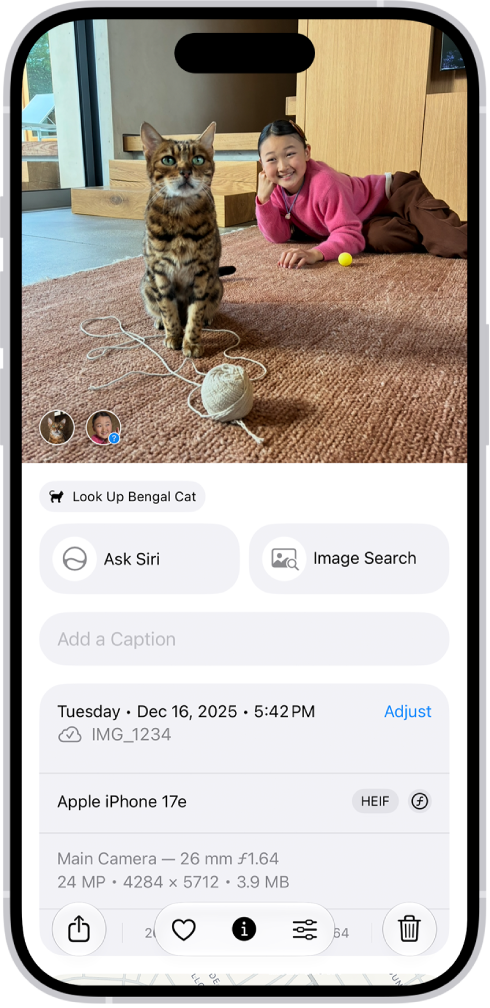
A photo is open in the Photos app. The bottom half of the screen shows photo information including, the date and time the photo was taken, the filename, and the iPhone model and camera settings.

View photo and video metadata

  1. Open the Photos app on your iPhone.
  2. Tap the photo or video whose metadata you want to see. Swipe up or tap the Info button. Depending on the photo or video, you see the following details:
    • People and pets identified in the photo
    • A caption field to describe the photo or video, and make it easier to find in Search
    • Items detected by Visual Look Up
    • Event information for photos and videos taken at concerts or sporting events
    • What device captured the photo or video
    • The date and time the photo or video was taken (tap Adjust to edit the date and time)
    • Camera metadata such as lens, shutter speed, file size, and more
    • Where the photo or video was taken (tap the link to view the location in Maps; tap Adjust to edit the location; tap “Add a location” to enter a location)
    • Who shared the photo or video with you, if it was shared
    • What albums the photo is in (tap to open the album)
  3. Swipe down or tap the Info button to close.

Change the date, time, or location of a photo or video

  1. Open the Photos app on your iPhone.
  2. Tap a photo or video to open it and then tap the More button.
  3. Tap Adjust Info and tap Adjust Date & Time or Adjust Location.
    • For date and time changes, use the calendar and clock to update, then tap Adjust.
    • For location changes, enter where the photo was taken in the text field, then tap the location when it appears under Map Locations.

To change the date, time, or location of a batch of photos in your photo library, tap Select, tap the thumbnails you want to change, then follow the steps above. To revert a photo or video to its original date, time, or location, follow the instructions above, then in step 3, tap Revert.

Tag: Photos

On supported iPhone models, Cinematic mode in Camera applies a depth-of-field effect that keeps the subject of your video sharp while blurring the foreground and background. After capturing the video, you can adjust or remove the Cinematic mode effects in the Photos app on iPhone.

Camera identifies where to focus while you record and can change focus automatically, and you can change the focus subject later. You can even adjust the depth of field or turn off the Cinematic effect.

Add a Cinematic effect to a video you recorded

If you recorded a video in Video mode with the Main camera on an iPhone 18 Pro model, you can apply the Cinematic effect to it.

  1. Start the Photos app on your iPhone.
  2. Open a video you recorded in Video mode. Then tap the Edit button.
  3. Tap Cinematic. Tap the Depth Control button at the top of the screen.

    A slider appears below the video.

  4. Drag the slider left or right to adjust the depth of field effect. Then tap Done.

Quick tip: To apply the effect quickly, open the video, tap Cinematic, and then tap Cinematic On.

To undo your edits after you save, open the video, then tap Revert.

Turn off the Cinematic effect

  1. Start the Photos app on your iPhone.
  2. Open a video you recorded in Cinematic mode and tap Cinematic. Tap Cinematic Off.

You can also tap the Edit button, tap Cinematic, then tap Done (or the Done button).

To quickly turn Cinematic mode back on, tap Cinematic, then tap Cinematic On.

Change the focus subject in a Cinematic mode video

While you record in Cinematic mode, Camera automatically identifies where to focus, and if it identifies a new subject, it can change focus automatically. Or you can change the focus subject manually.

  1. Start the Photos app on your iPhone.
  2. Open a video you recorded in Cinematic mode. Tap the Edit button.

    White dots under the frame viewer indicate where Camera automatically changed the focus while recording. Yellow dots indicate where the focus was manually changed.

  3. Play the video, or slide the white vertical bar in the frame viewer, to the point where you want to change the focus.
  4. Tap a subject, outlined in yellow, to change the focus; double-tap to set automatic focus tracking on the subject.

    A yellow dot appears under the frame viewer to indicate the focus was changed.

    Note: You can also touch and hold the screen to lock the focus at a specific distance from the camera.

  5. Repeat the steps above to change focus points throughout the video.

    To remove a manual focus change, tap the yellow dot under the frame viewer, then tap the Delete button.

  6. Tap Done to save your changes.

Tap the Manual Tracking button to switch between automatic focus tracking and your manually selected focus points.

After you save your changes, you can revert a Cinematic mode video to the original version if you don’t like your edits. Open the video, then tap Revert.

Adjust the depth of field in a Cinematic mode video

  1. Start the Photos app on your iPhone.
  2. Open a video you recorded in Cinematic mode. Tap the Edit button.
  3. Tap the Depth Control button at the top of the screen.

    A slider appears below the video.

  4. Drag the slider left or right to adjust the depth of field effect. Then tap Done.

To undo your edits after you save, open the video, then tap Revert.

Export Cinematic mode videos to your Mac

To edit Cinematic mode videos in other apps on your Mac, you can use AirDrop to transfer them from your iPhone, along with their depth and focus metadata.

Note: To edit Cinematic mode videos shot on an iPhone with iOS 16 or later, your Mac needs macOS 13 or later.

  1. Start the Photos app on your iPhone.
  2. Open the Cinematic mode video and then tap the Share button.
  3. Tap Options at the top of the screen and turn on All Photos Data. Then tap the Done button.
  4. Tap AirDrop and tap the device you want to share with (make sure the device you’re sharing with has AirDrop turned on).

Export Cinematic mode videos to an external storage device

You can export Cinematic mode videos straight to an external drive, a memory card, or another storage device.

Note: Edited photos and videos export as the unmodified original version.

  1. Connect your iPhone to the storage device using the Lightning or USB-C connector.
  2. Start the Photos app on your iPhone.
  3. Select the video you want to export.
  4. Tap the Share button and then tap Export Unmodified Original.
  5. Tap Browse, tap your storage device (below Locations), and then tap the Done button.
Tag: Photos

The Maps app uses information about your significant locations from Location Services to provide you with personalized services like predictive traffic routing. Your significant locations are end-to-end encrypted and can’t be read by Apple.

You can delete your significant locations at any time, for example, to reset predictive traffic routing and similar personalized services. It’s a clean sweep: the history is cleared on every device signed in to your Apple Account.

  1. Start the Settings app on your iPhone.
  2. Tap Privacy & Security and then tap Location Services.
  3. Tap System Services and tap Significant Locations & Routes.
  4. Tap Clear History.

Everywhere you’re signed in to the same Apple Account, this action clears all your significant locations.

Tag: Maps

On supported models, you can take spatial photos and record spatial videos, and then relive the memories in three dimensions in the Photos app with Apple Vision Pro. It’s a separate mode in Camera, called Spatial, and you rotate your iPhone to landscape orientation to use it.

Take spatial photos and record spatial videos

  1. Open Camera on your iPhone.
  2. Swipe right on the screen to select Spatial mode.
  3. Rotate your iPhone to landscape orientation.
  4. Tap the Spatial Photo button or the Spatial Video button to take a spatial photo or record a spatial video.
  5. For best results, do the following:
    • Keep your iPhone steady and level.
    • Frame your subjects 3 to 8 feet from the camera.
    • Use lighting that is even and bright.
  6. Tap the Shutter button or Record button to take a photo or begin recording a video.

After you take a spatial photo or video, the Photos app on your Apple Vision Pro shows it in three dimensions. On any of your other Apple devices, you can view and share spatial photos and videos the same way you would regular photos and videos. If you’re signed in to the same Apple Account with iCloud Photos turned on, spatial photos and videos sync to all your devices.

Tag: Photos

In the Preview app on your iPhone, you can fill out and sign PDF forms. You can enter information in a field, or use the AutoFill suggestion above the onscreen keyboard to add that information. You can also add a signature or a text form box.

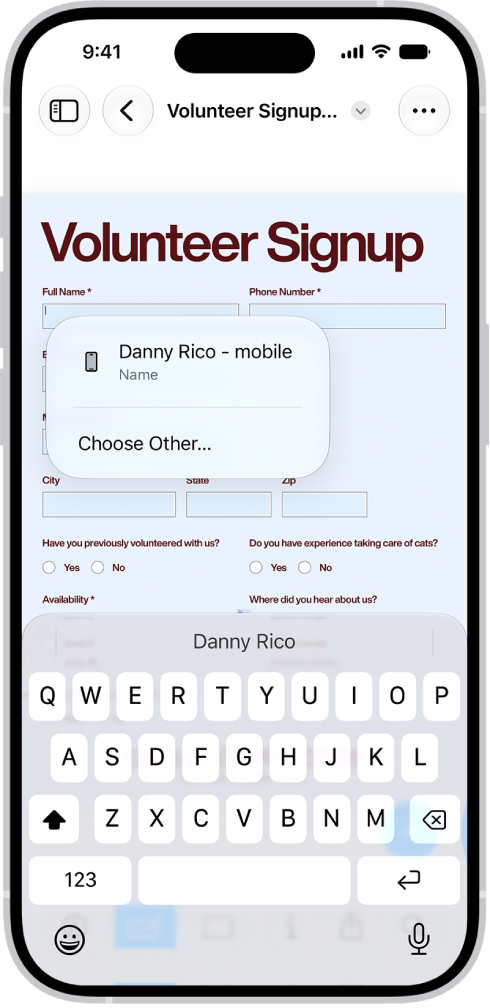
A fillable PDF form showing an AutoFill suggestion for the name and phone fields.

  1. Start the Preview app on your iPhone.
  2. Open a PDF form.
  3. Tap the Form Filling button.
  4. Tap a field and enter information (or tap the AutoFill suggestion above the onscreen keyboard to add that information).
  5. To add a signature or a text form box, tap the Add button.
Tag: Preview

Learn how to take photos with your iPhone camera. Choose from camera modes such as Photo, Video, Cinematic, Pano, and Portrait, and zoom in or out to frame your shot.

To open your iPhone camera, you can use the Camera app on the iPhone Home Screen, the iPhone Lock Screen, or Control Center. On models with an Action button or the Camera Control, those open Camera, too. And with an Apple Watch, the Camera Remote lets you take a photo from your wrist.

Here’s a look at the iPhone camera basics.

Open Camera

There are a few quick ways to open your iPhone camera:

  • Tap the Camera app on the iPhone Home Screen.
  • Swipe left on the iPhone Lock Screen.
  • Touch and hold the Camera button on the iPhone Lock Screen.
  • Open Control Center, then tap the Camera button.
  • On models with an Action button, you can assign the Action button to open Camera.
  • On models with the Camera Control, click the Camera Control to open Camera.
  • Siri: Ask Siri something like, “Open Camera.”

Note: For your security, you’ll see a green dot in the top-right corner of the screen whenever Camera is in use.

Take a photo

  1. Open Camera on your iPhone.
  2. Tap the Shutter button or press either volume button to take a photo.

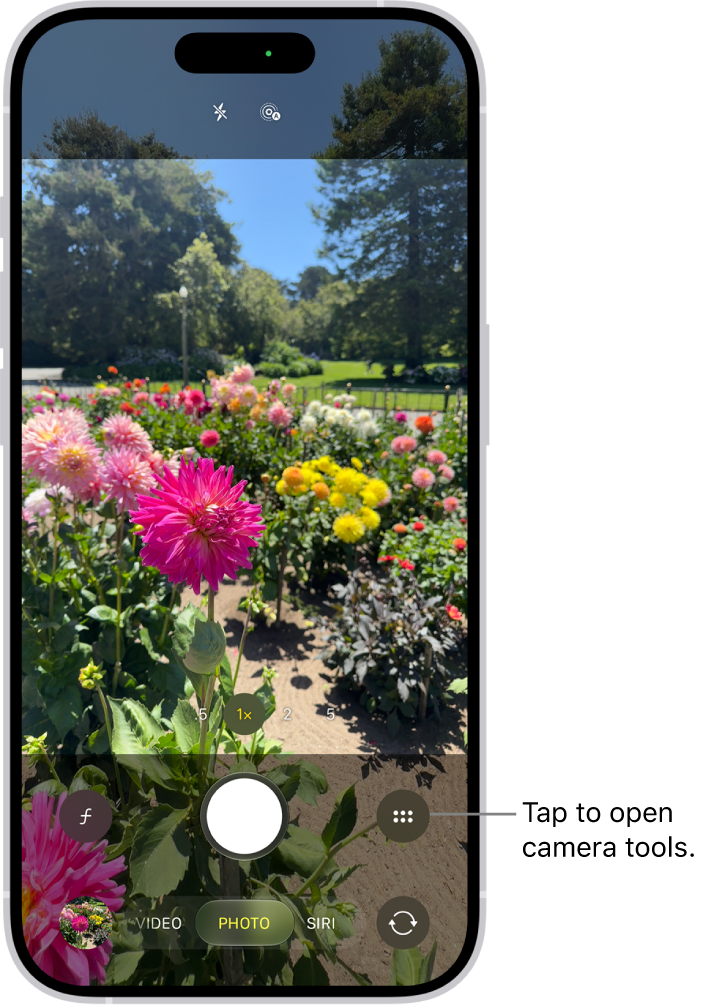
Camera is open in Photo mode. The Camera Controls button is in the top-right corner. The Photo and Video Viewer button is in the bottom-left corner. The Take Picture button is at the bottom center, and the Camera Chooser Back-Facing button is in the bottom-right corner.

On supported models, click the Camera Control to open Camera, then click it again to take a photo.

With supported models of AirPods and AirPods Pro, you can press the AirPod stem to take a photo.

If you have an Apple Watch, you can use the Camera Remote to take a photo.

Switch between camera modes

When you first open Camera , Photo mode is selected, swipe left or right to choose other modes.

Which modes you can select from depends on your iPhone model:

  • Photo: Take still photos, Live Photos, and portraits.
  • Video: Record a video.
  • Time-lapse: Create a time‑lapse video of motion over a period of time.
  • Slo-mo: Record a video with a slow-motion effect.
  • Cinematic: Apply a depth-of-field effect to your videos.
  • Portrait: Apply a depth-of-field effect to your photos.
  • Spatial: Take spatial photos and videos to relive in 3D on Apple Vision Pro.
  • Pano: Capture a panoramic landscape or other scene.
  • Siri: Search, ask questions, and take action based on what’s in the frame when using Siri AI (Beta)*.
  • Reference: On iPhone 18 Pro models, capture a reference image from the Main camera sensor alongside your photo, so you can verify whether it’s been edited or altered.

Zoom in or out

  1. Open Camera on your iPhone.
  2. Do one of the following:
    • Pinch the screen to zoom in or out.
    • Touch and hold the zoom control at the bottom of the frame, then drag the slider left or right.
    • On supported models, tap 0.5x, 1x, 2.5x, 3x, 4x, 5x, or 8x to quickly zoom in or out (depending on your model).
    • On supported models, lightly double-press the Camera Control to open an overlay that shows the available camera settings. Slide your finger to select the Zoom setting, then lightly press it. Slide your finger again to zoom in and out.

*Apple Intelligence is available with Siri and device language set to Chinese (Simplified), Chinese (Traditional), Danish, Dutch, English, French, German, Italian, Japanese, Korean, Norwegian, Portuguese, Spanish, Swedish, Turkish, or Vietnamese. Some features may not be available in all regions or languages. Some devices may not be available in all regions. Siri AI is available in beta in iOS 27, iPadOS 27, macOS 27, watchOS 27, and visionOS 27 and requires an Apple Intelligence–enabled device set to a supported language. Available in English to start. Siri AI will not be initially available in the EU on iOS, iPadOS, and watchOS. Certain Apple Intelligence features that rely on server-side models are subject to daily usage limits, including but not limited to Siri AI, Intelligent Photo Editing Tools, Image Playground, and AFM 3 Cloud models in Shortcuts. Daily limits may vary by feature, request complexity, system demand, system policies, and other factors. Expanded access to such features will be available for a fee in the future. Use of these features is subject to the Apple Intelligence Terms and Conditions.

Tag: camera