Got a tip for us?

For better security, set a passcode that needs to be entered to unlock iPhone when you turn it on or wake it. Setting a passcode also turns on data protection, which encrypts your iPhone data with 256-bit AES encryption, though some apps may opt out of using data protection.

You can also change when iPhone automatically locks, and even have it erase data after 10 failed passcodes. You can also reset the passcode, or turn it off.

Set or change the passcode

  1. Open Settings and then depending on your model, do one of the following:
    • On an iPhone with Face ID: Tap Face ID & Passcode.
    • On an iPhone with a Home button: Tap Touch ID & Passcode.
  2. Tap Turn Passcode On or Change Passcode.

To view options for creating a passcode, tap Passcode Options. The most secure options are Custom Alphanumeric Code and Custom Numeric Code.

After you set a passcode, on supported models you can use Face ID or Touch ID to unlock iPhone (depending on your model). For additional security, however, you must always enter your passcode to unlock your iPhone under the following conditions:

  • You turn on or restart your iPhone.
  • You haven’t unlocked your iPhone for more than 48 hours.
  • You haven’t unlocked your iPhone with the passcode in the last 6.5 days, and you haven’t unlocked it with Face ID or Touch ID in the last 4 hours.
  • Your iPhone receives a remote lock command.
  • There are five unsuccessful attempts to unlock your iPhone with Face ID or Touch ID.
  • An attempt to use Emergency SOS is initiated.
  • An attempt to view your Medical ID is initiated.

Change when iPhone automatically locks

Go to Settings > Display & Brightness > Auto-Lock, then set a length of time.

Note: Your Auto-Lock time is cut in half if you leave your iPhone on the Home Screen without taking any action.

Erase data after 10 failed passcodes

Set iPhone to erase all information, media, and personal settings after 10 consecutive failed passcode attempts.

  1. Open Settings and then do one of the following:
    • On an iPhone with Face ID: Tap Face ID & Passcode.
    • On an iPhone with a Home button: Tap Touch ID & Passcode.
  2. Scroll to the bottom and turn on Erase Data.

After all data is erased, you must restore your device from a backup. If you didn’t back up your iPhone, you need to set it up again as new.

Turn off the passcode

  1. Open Settings and then do one of the following:
    • On an iPhone with Face ID: Tap Face ID & Passcode.
    • On an iPhone with a Home button: Tap Touch ID & Passcode.
  2. Tap Turn Passcode Off.

Reset the passcode

If you enter the wrong passcode four times in a row, you’ll be locked out of your device, and you’ll receive a message that says iPhone is disabled. If you can’t remember your passcode, you can erase your iPhone with a computer or with recovery mode, then set a new passcode.

Note: An iCloud or computer backup made before you forgot your passcode can restore your data and settings.

In the Journal app on iPhone, you can edit your entries, modify the entry date, delete or recover entries, and more.

You can also add the same entry to more than one journal, or remove or add a title. Mistakes aren’t permanent, either. If you delete an entry you wanted to keep, you can recover deleted entries for up to 30 days from Recently Deleted.

Here’s how to edit or delete a journal entry on iPhone.

Edit a journal entry

  1. Start the Journal app on your iPhone.
  2. Choose a journal or tap All Entries.
  3. Swipe left on an entry and tap the Edit button.

Add the same entry to multiple journals

  1. Start the Journal app on your iPhone.
  2. Choose a journal or tap All Entries.
  3. Tap the More button below the entry, then tap Choose Journals.

Remove or add a title

  1. Start the Journal app on your iPhone.
  2. While composing an entry, tap the More button. Then tap Remove Title or Add Title.

Edit the entry date

  1. Start the Journal app on your iPhone.
  2. While composing an entry, swipe down to show the entry date and tap the date to edit it.

Delete journal entries

  1. Start the Journal app on your iPhone.
  2. Choose a journal or tap All Entries.
  3. Swipe left on an entry and tap the Delete button.

Deleted entries are saved for 30 days.

  1. To delete multiple entries, tap the More button, tap Select Entries, select the entries you want to delete, and tap the Delete button.

Recover journal entries

For up to 30 days, you can recover entries you’ve deleted.

  1. Start the Journal app on your iPhone.
  2. Tap Recently Deleted. You may need to tap the Return to Journals button first.
  3. Tap the More button below the entry and then tap Recover.
  4. To recover multiple entries, tap Select, tap the entries you want to recover, and tap the Recover button.
Tag: Journal

You can add any photo or video to a Freeform board, generate an image, or take a new photo with your iPhone camera. You can also add different types of files to your board by scanning, linking, or inserting them.

You can create original images with Image Playground and paste items from your Clipboard, too. Anyone can use premium Content Hub images. With a subscription to Apple Creator Studio, though, you’ll be able to remove their watermarks.

Available with subscription: Some features require a subscription to Apple Creator Studio.

Add a photo, video, sticker, link, or other file

  1. Open the Freeform app on your iPhone.
  2. Open a board, or tap the New Board button to start a new one.
  3. Do one of the following:
    • Tap the Media button, tap an option, then tap the Done button when you’re finished.
    • Copy the item to your Clipboard, tap an empty space, then, when a menu appears, tap Paste.
    • To add premium images from the Content Hub to your board, tap the Content Hub button in the toolbar, tap an object category at the top of the dialog, then tap a premium image to add it to the board. Anyone can use premium Content Hub images, but you need to subscribe to Apple Creator Studio to remove their watermarks.

Important: Premium images from Content Hub are subject to usage restrictions.

Double-tap any media item—photo, video, or other file—to preview it.

Note: Files saved on your iPhone or in iCloud Drive can be inserted, and for most file types, Freeform makes a copy. Links work differently when they point to a collaborative Keynote presentation, Numbers spreadsheet, or Pages document. In that case, participants in your Freeform board can tap the card and jump straight to the shared file in iCloud. Remember to save the file in iCloud if you want others to collaborate on it.

Create original images with Image Playground

With Apple Intelligence, you can create one-of-a-kind illustrations from a mix of photos of people from your photo library, text descriptions, and more.

Note: Apple Intelligence on iOS 27 or later is available on an Apple Intelligence-enabled iPhone 15 Pro, iPhone 15 Pro Max, or iPhone 16 model or later. Apple Intelligence is not available in all languages or regions. Usage limits may apply.*

  1. Open the Freeform app on your iPhone.
  2. Open a board, or tap the New Board button to start a new one.
  3. Do one of the following:
    • Create a new image: Tap the Insert Media button in the toolbar, tap Image Playground, and then follow instructions to create an image.
    • Replace an existing image with an image created in Image Playground: Select an image, then tap the Modify Image button. Tap Replace and tap Image Playground. Then follow instructions to create an image.
    • Use elements from your board: Select up to six images, drawings, text boxes, sticky notes, or shapes that you want to use, tap the More button in the formatting tools, tap Add to Playground, and follow the onscreen instructions to create an image.
  4. Tap the Done button or Insert to add the image to your board.

Screen Time settings let you block access to image creation features, like Image Playground.

Generate new images with Apple Creator Studio

If you subscribe to Apple Creator Studio, generative models can transform your existing images, and advanced tools let you create and edit high-quality ones.

Note: This feature is not available in all countries and regions.

  1. Open the Freeform app on your iPhone.
  2. Open a board, or tap the New Board button to start a new one.
  3. Tap the Content Hub button in the toolbar.

    Note: If this is your first time using Image Generation in Freeform, follow the onscreen instructions to share your age range with the app. Image Generation is not available for all ages, so a parent or guardian must enable this feature for children and teens in their family group.

  4. Tap Generate Image, then follow the onscreen instructions.

    If you’re asked to send an image, select Allow Once or Always Allow. To reset this option, tap the More button, tap Intelligence Features, then tap Reset Permissions.

  5. Tap Insert to add the image to your board.

    Important: Image Generation is subject to usage limitations. To check your usage status, tap the More button, tap Intelligence Features, then tap Show Usage Status.

Scan and add a document

Without leaving Freeform, a paper document you scan can go straight onto your board as a PDF.

  1. Open the Freeform app on your iPhone.
  2. Open a board, or tap the New Board button to start a new one.
  3. Tap the Media button and then tap Scan Documents.
  4. Position the iPhone camera so the document appears on the screen.

    iPhone automatically captures the page. To capture the scan manually, tap the Auto Shutter button, tap the Take Picture button or press a volume button, drag the corners to select the area you want in the scanned document, then tap Keep.

  5. Scan additional pages, then tap the Done button when you’re done.

Your board then shows a card with an image of your scan’s first page.

Quick tip: You can save your scan to iCloud Drive or keep it on your iPhone. Select the card and tap the Preview button, then tap the Share button and tap Save to Files.

Format a photo or video

  1. Open the Freeform app on your iPhone.
  2. Open a board with a photo or video in it.
  3. Tap a photo or video to open its formatting tools and then do any of the following:
    • Crop or mask the photo: Tap the Crop Mask button.
    • Remove the photo’s background: Tap the Modify Image button and then tap Remove Background. If the background of the photo can’t be made transparent, Remove Background isn’t available.
    • Tip: You can also paste an image without a background.
    • Add a shadow, round the corners, add a description, and more: Tap the More button and then choose an option.
    • Replace the photo or video: Select the photo or video, tap the Modify Image button or the Modify Movie button, tap Replace, and then select a replacement.
    • Preview the photo or video: Tap the Preview button, or double-tap the photo or video.

To preview a movie in full screen, double-tap it.

Auto Crop a photo

Subscribe to Apple Creator Studio, and Auto Crop can intelligently generate suggestions that improve image composition.

  1. Open the Freeform app on your iPhone.
  2. Open a board with an image, double-tap the image to view the mask controls. Tap Auto Crop to preview cropping suggestions.
  3. Tap a suggestion to update your image and tap Done.

Increase resolution with Super Resolution

You can also use Super Resolution to increase the resolution of photos and make them clearer, if you subscribe to Apple Creator Studio.

  1. Open the Freeform app on your iPhone.
  2. Open a board with an image, tap the image, and tap the Image Inspector button.
  3. Tap Super Resolution.

Put an image inside a shape

A shape can work as a mask or frame for an image, so you can put your photo inside a circle, for example.

  1. Open the Freeform app on your iPhone.
  2. Open a board, or tap the New Board button to start a new one.
  3. Add a photo or other image to the board.
  4. Tap the Content Hub button and tap the Add Shape button. Then choose a shape.
  5. Position the shape over the image. Select both it and the image.
  6. Tap the More button in the formatting tools and tap Mask with Shape.

Or drag an image onto a shape to use it as a frame.

To remove it from the shape, select the masked image, tap the More button in the formatting tools, then tap Reset Mask.

Quick tip: You can also send a photo, video, file, or link to a Freeform board straight from supported apps such as Notes, Photos, and Safari. In the other app, select the item and tap the Share button. Tap the Freeform app icon, then either tap New Board or the name of a board you already have. If you want others to add items to your board, save it in iCloud.

*Apple Intelligence is available with Siri and device language set to Chinese (Simplified), Chinese (Traditional), Danish, Dutch, English, French, German, Italian, Japanese, Korean, Norwegian, Portuguese, Spanish, Swedish, Turkish, or Vietnamese. Some features may not be available in all regions or languages. Some devices may not be available in all regions. Siri AI is available in beta in iOS 27, iPadOS 27, macOS 27, watchOS 27, and visionOS 27 and requires an Apple Intelligence–enabled device set to a supported language. Available in English to start. Siri AI will not be initially available in the EU on iOS, iPadOS, and watchOS. Certain Apple Intelligence features that rely on server-side models are subject to daily usage limits, including but not limited to Siri AI, Intelligent Photo Editing Tools, Image Playground, and AFM 3 Cloud models in Shortcuts. Daily limits may vary by feature, request complexity, system demand, system policies, and other factors. Expanded access to such features will be available for a fee in the future. Use of these features is subject to the Apple Intelligence Terms and Conditions.


You can adjust the sound of the camera shutter, or mute it using the Ring/Silent switch on the side of your iPhone, or the Action button on models that have one. The shutter doesn’t make a sound when Live Photos is on, though in some countries and regions, it can’t be muted.

Change the volume of the shutter sound in Photo mode

  1. Open Camera on your iPhone.
  2. Open Control Center and drag the volume slider up or down.
  3. Swipe up from the bottom of the screen to go back to Camera.

Note: The shutter doesn’t make a sound when Live Photos is turned on (except in some countries and regions).

Mute the shutter sound

The Ring/Silent switch on the side of your iPhone can mute the shutter sound. When the switch shows orange, iPhone’s in Silent mode, and setting the switch back turns Silent mode off.

Some iPhone models have an Action button instead of a Ring/Silent switch. Press the Action button to turn Silent mode on or off.

Note: In some countries and regions, you can’t mute the shutter sound.

Tag: camera

Change the way music sounds in the Music app with EQ and Sound Check. You can choose an equalization (EQ) setting, or turn on Sound Check to normalize the volume level of your audio. Sound Check is handy when songs from different albums play at different volumes.

WARNING: For important information about avoiding hearing loss, see Important safety information.

  1. Start the Settings app on your iPhone.
  2. Tap Apps and tap Music.
  3. Tap one of the following:
    • EQ: Choose an equalization (EQ) setting.
    • Sound Check: Normalize the volume level of your audio.
Tag: Music

Use Face ID (on supported models) to securely and conveniently unlock iPhone, authorize purchases and payments, and sign in to many third-party apps by simply glancing at your iPhone. Face ID data is encrypted, isn’t saved to iCloud, and doesn’t leave your iPhone.

You can also add an alternate appearance, use Face ID while wearing a face mask, or temporarily disable Face ID. And you can choose when to use Face ID.

To use Face ID, you must also set a passcode on your iPhone.

Set up Face ID or add an alternate appearance

  • If you didn’t set up Face ID when you first set up your iPhone, go to Settings > Face ID & Passcode > Set up Face ID, then follow the onscreen instructions.
  • To set up an additional appearance for Face ID to recognize, go to Settings > Face ID & Passcode > Set Up an Alternate Appearance, then follow the onscreen instructions.

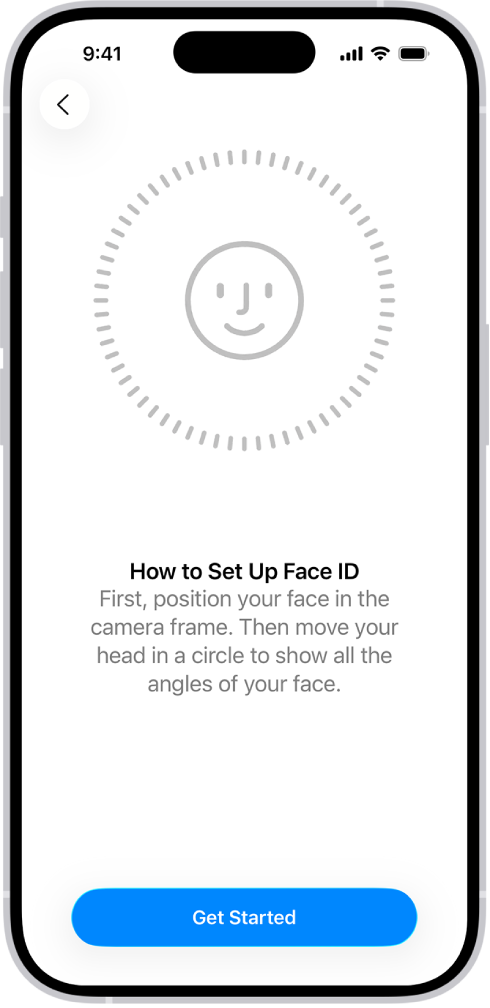
The Face ID recognition setup screen. A smiley face is showing on the screen, enclosed in a circle. Text below instructs the user to move their head slowly to complete the circle. A button for Get Started appears near the bottom of the screen.

Choose when to use Face ID

To authorize payments, unlock your iPhone, open password-protected apps, and automatically fill in passwords, you can use Face ID.

Go to Settings > Face ID & Passcode, then turn on options below Use Face ID For.

Use Face ID while wearing a face mask

On iPhone 12 models or later, Face ID can unlock your phone even while you’re wearing a face mask or another covering that blocks your mouth and nose.

When you turn on Face ID with a Mask, Face ID analyzes the unique characteristics around your eyes, and it works with all of the Face ID options you turn on in Settings > Face ID & Passcode.

Note: Set up Face ID for full-face recognition only, and it’s most accurate.

Go to Settings > Face ID & Passcode, then do any of the following:

  • Allow Face ID to work while you wear a face mask: Turn on Face ID with a Mask, then follow the onscreen instructions.

    Important: If you usually wear glasses, you can improve the accuracy of Face ID by wearing a pair of transparent glasses (not sunglasses) when you turn on Face ID with a Mask.

  • Add a pair of transparent glasses (not sunglasses) to your appearance: Tap Add Glasses, then follow the onscreen instructions.
  • Don’t allow Face ID to work while you wear a face mask: Turn off Face ID with a Mask.

On any iPhone model that supports Face ID, you can also use Apple Watch to unlock iPhone while you wear a face mask.

Temporarily disable Face ID

You can temporarily stop Face ID from unlocking your iPhone.

  1. Press and hold the side button and either volume button for 2 seconds.
  2. After the sliders appear, press the side button to immediately lock iPhone.

If you don’t touch the screen for a minute or so, iPhone locks automatically.

Face ID is enabled again the next time you unlock iPhone with your passcode.

Turn off Face ID

  1. Open Settings and then tap Face ID & Passcode.
  2. Do one of the following:
    • Turn off Face ID for specific items only: Turn off one or more of the options, such as Password AutoFill.
    • Turn off Face ID for face masks: Turn off Face ID with a Mask.
    • Turn off Face ID: Tap Reset Face ID.

If your device is lost or stolen, Find My iPhone Lost Mode can prevent Face ID from being used to unlock it.

Tag: face id

You can use the Find My app to remove an AirTag or third-party item from your Apple Account so someone else can register it. You start by bringing the item near your iPhone. If it isn’t nearby, you can still remove it, but the item must be reset before anyone can register it.

  1. Start the Find My app on your iPhone.
  2. Tap Items and tap the item you want to remove. Tap the more button.
  3. Bring the item near your iPhone.

    If the item isn’t near your device, you can still remove it from your account. However, the item must be reset before anyone can register it to their Apple Account.

  4. Tap Remove and then follow the onscreen instructions.

Note: Follow the manufacturer’s instructions to reset an item.

Tag: Find My

Use the Notes app to quickly capture your thoughts. You can add images and sketches, solve equations, make checklists, or even scan documents. And with iCloud, your notes stay up to date on all your devices wherever you go.

With Quick Notes, you can jot down information from any app or screen, then add images, links, and more. You can also sketch your thoughts and invite others to collaborate.

Here’s how to get started with Notes on iPhone.

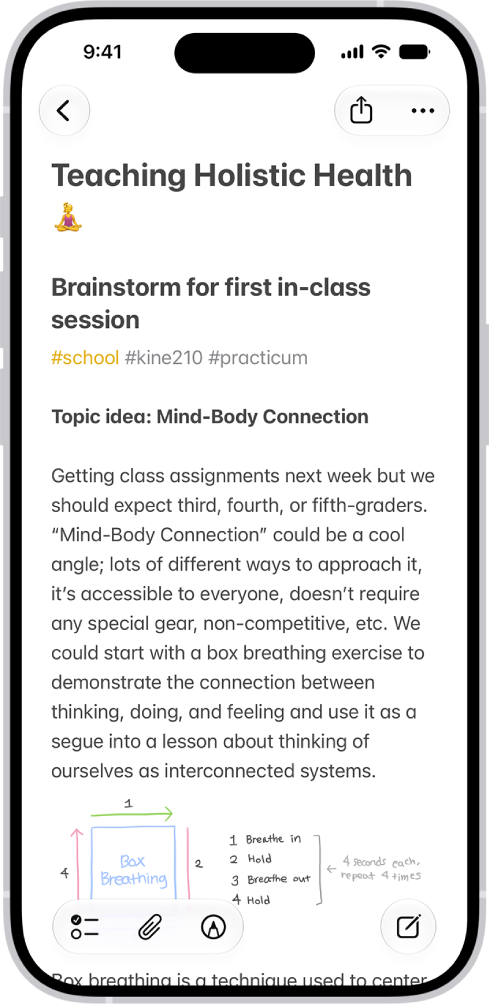
A note for a class brainstorm with tags such as #school and #kine210. The note features a hand-drawn diagram of a box breathing exercise, which illustrates a four-step breathing cycle.

Jot it down

Tap the New Note button, then enter your text.

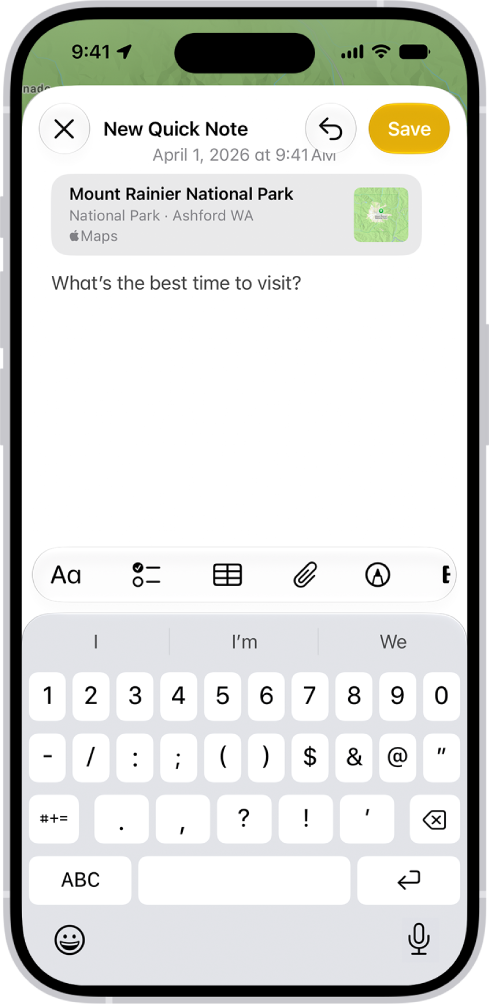
A Quick Note in a window overlay over a map of Mount Rainier National Park. The note has a link to the map, a photo, and text.

Make quick notes anywhere

Use Quick Notes to jot down information from any app or screen. Tap the Quick Note button, then tap New Quick Note. Add images, links, and more.

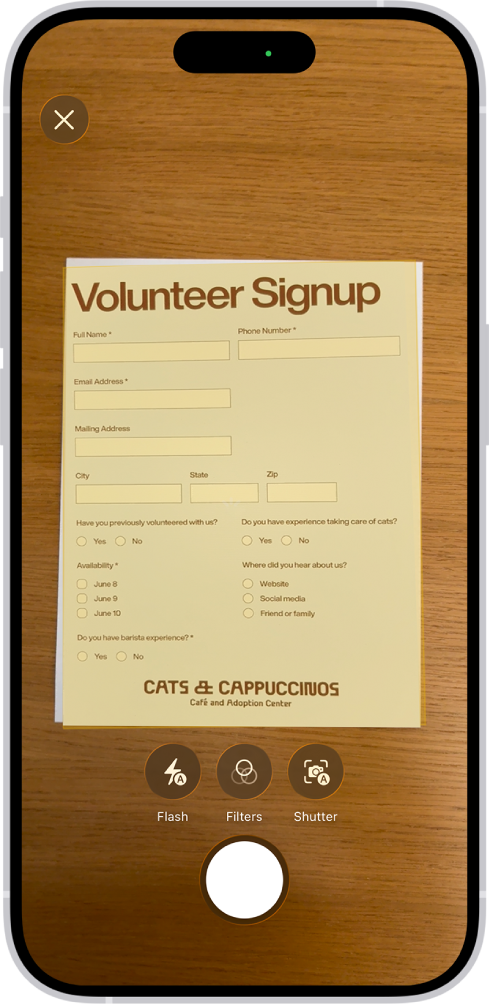
A screen showing a document being scanned. The Take Picture button is at the bottom center.

Add almost anything

You can scan documents, record audio, take photos, and more. Tap the Attachments button, then choose an option.

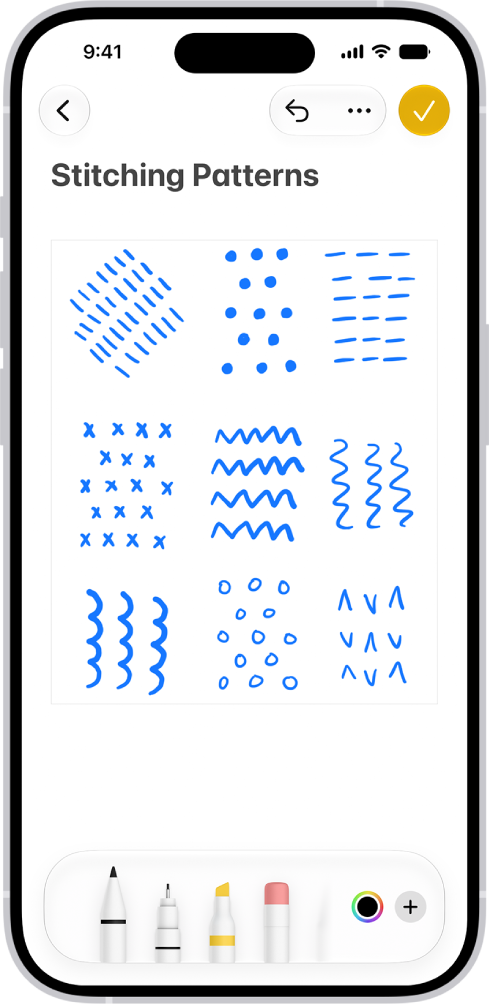
A note showing a drawing and Markup tools along the bottom of the screen.

Sketch your thoughts

Tap the Handwriting Tools button, then draw or write with your finger. You can choose from a variety of Markup tools and colors and draw straight lines with the ruler.

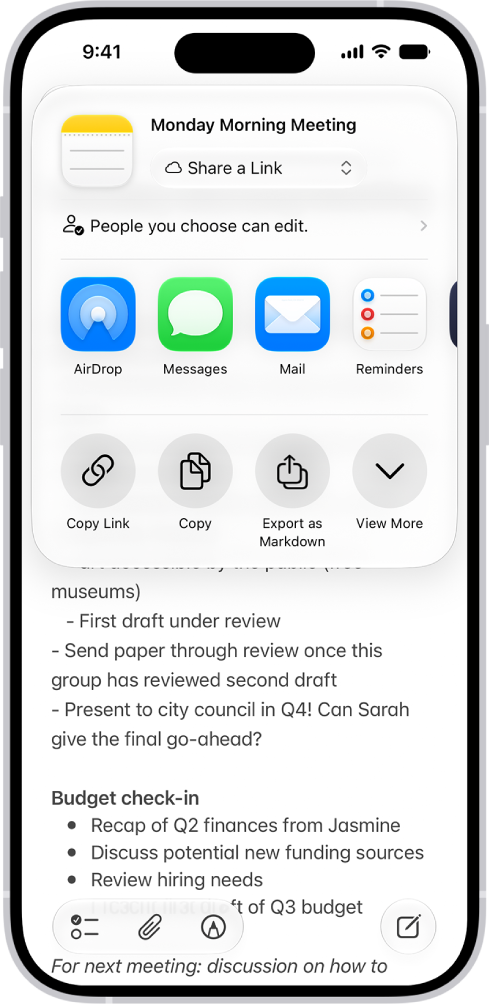
A note with an overlay showing sharing options.

Invite others to collaborate

Tap the Share button, then choose a sharing option. The people you share with can view or make changes to a note. The availability of Notes features may vary depending on your language and country or region.

Tag: Notes

If you don’t want your iPhone to vibrate, you can turn vibration off for specific uses or all alerts. It’s your call. You can set vibration options for specific alerts in Sounds & Haptics, or turn off all vibrations at once in Touch settings.

  • Set vibration options for specific alerts: Go to Settings > Sounds & Haptics.
  • Turn off all vibrations: Go to Settings > Accessibility > Touch, then turn off Vibration.

Note: This setting turns off vibrations for earthquake, tsunami, and other emergency alerts.

You can have your iPhone, or your family member’s iPhone, check for sensitive images and warn you before you view them. Once Sensitive Content Warning is on, a warning appears before sensitive images are received or sent. It’s in Privacy & Security settings.

Turn on Sensitive Content Warning

  1. Open Settings and then tap Privacy & Security.
  2. Scroll down and tap Sensitive Content Warning and then turn on Sensitive Content Warning.

Before sending or receiving sensitive images, you or your family member will get a warning.

Note: Sensitive Content Warning is turned on automatically if you set up Screen Time and turn on Communication Safety.

Screen Time is also where you can block inappropriate content and set restrictions on purchases.