Got a tip for us?

On an iPhone, you can crop, rotate, or flip an image in Preview. You can also remove the background or adjust the image size.

To rotate the image, you can choose Rotate Left or Rotate Right, and to flip the image, there’s Flip Horizontally or Flip Vertically. The Remove Background option appears only when Preview finds a subject, such as a person, animal, or object. You can also undo a change if you make one you don’t want.

Crop an image

  1. Open the Preview app on your iPhone.
  2. Open an image.
  3. Tap the Crop button.
  4. Drag the blue handles to select an area and then tap Crop. (If Crop doesn’t appear, tap within the selected area.)

Rotate or flip an image

  1. Open the Preview app on your iPhone.
  2. Open an image.
  3. Do any of the following:
    • Rotate the image: Tap the More button. Choose Rotate Left or Rotate Right.
    • Flip the image: Tap the More button and then choose Flip Horizontally or Flip Vertically.

Remove the background from an image

  1. Open the Preview app on your iPhone.
  2. Open an image.
  3. Tap the More button, then tap Remove Background.

Note: You’ll only see the Remove Background option if Preview detects a subject in the image, such as a person, animal, or object.

Adjust the size of an image

  1. Open the Preview app on your iPhone.
  2. Open an image.
  3. Tap the More button, then tap Adjust Size. Choose options, then tap Done.

To undo a change, tap the More button, then tap Undo.

Tag: Preview

On your iPhone, you can change whether or not you’re notified about text messages you receive, and how the notifications appear or sound. For example, you can turn off message notifications so you aren’t distracted when you’re in a meeting, or assign a special sound for certain contacts so you know when you get a message from them.

With notifications off, you still receive messages, and senders see a note that you have notifications silenced. You can also stop sharing your Focus status with one person, and mute the sounds for sent and received messages.

Here’s how to stop, mute, and change message notifications on iPhone.
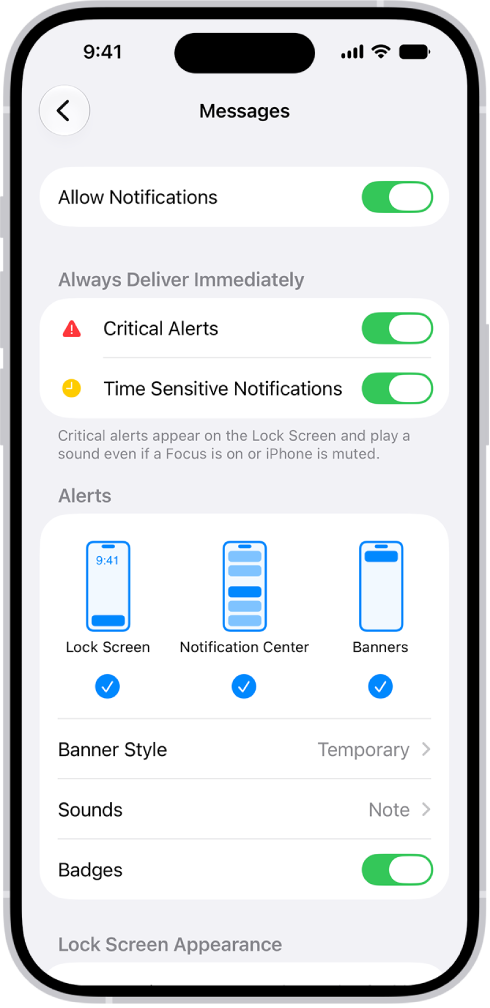
Messages Notification settings in Settings.

Stop all notifications

You can turn off notifications for activity in the Messages app and still receive messages. When you’re ready to read them, open Messages to catch up on the texts that came in while notifications were off.

  1. Start the Settings app on your iPhone.
  2. Tap Notifications, then tap Messages.
  3. Turn off Allow Notifications.

Note: Senders receive a note indicating that you have notifications silenced.

Turn on read receipts to let people know you’ve read their messages.

To get notified again, turn on Allow Notifications. And to hear them, too, check that your volume is audible and the Ring/Silent switch isn’t in Silent mode.

Notifications from other Apple apps and third-party apps can be stopped, too.

Stop sharing your Focus Status with one person

If your Focus or sleep schedule is pausing notifications, your status appears in the Messages app so people know you’re not receiving messages, though you can turn this off in one-to-one conversations.

  1. Start the Messages app on your iPhone.
  2. Tap a conversation, then tap the contact icon at the top of the conversation.
  3. Turn off Share Focus Status.

Change sounds or vibrations for sent and received messages

For alerts, you can mute them or set the sound volume, choose between a tone or sound, or change the notification vibration pattern when the phone is silenced.

  1. Start the Settings app on your iPhone.
  2. Tap Notifications, then tap Messages.
  3. Tap Sounds and then do any of the following:
    • Mute sounds: Tap None. This setting turns off the swoosh sound for sent messages and the tone for messages you receive.
    • Turn off vibrations: Tap Haptics (near the top), then tap None.
    • Choose a tone or sound: Tap Text Tone and tap a sound (or tap Tone Store to download one).
    • Choose a vibration pattern: Tap Text Tone, tap Haptics, and choose an option (or tap Create New Vibration to make your own).
  4. To set how many times a notification repeats, tap Customize Notifications and tap Repeat Alerts. Then choose an option. Alerts repeat at two-minute intervals.

You can also put the Ring/Silent switch in Silent mode.

To adjust the volume to be quieter or louder, go to the Settings app, tap Sounds & Haptics, then use the slider.

Note: Both the None and the Ring/Silent switch setting affect incoming and outgoing sounds, and you can’t mute only one of them.

Change the notification sound for certain people

Choose a specific sound or vibration pattern to play when a particular contact messages you.

  1. Start the Messages app on your iPhone.
  2. In a conversation with one person, tap the contact icon at the top of the conversation.
  3. Tap Info, tap Edit and tap Edit Contact Info. Then tap Text Tone.
    If you don’t see Edit, tap Create New Contact or Add to Existing Contact.
  4. Do any of the following:

    • Specify a tone or sound: Tap a sound below Alert Tones (or tap Tone Store to download one).
    • Specify a vibration pattern: Tap Haptics and then choose an option (or tap Create New Vibration to make your own).
    • Mute notifications for this conversation: Tap None below both Haptics and Alert Tones.

Turn on Emergency Bypass to give this contact the option to override a Focus, so their important messages can get through. You might do this for a family member, caretaker, or colleague, for example.

Mute one conversation

You can stop getting a conversation’s notifications while you still receive its messages.

  1. Start the Messages app on your iPhone.
  2. In the conversation list, do one of the following:
    • Swipe left on a conversation, then tap the Mute button.
    • Tap a conversation, tap the contact or icon at the top of the conversation, then turn on Hide Alerts.

Note: Senders receive a note indicating that you have notifications silenced.

To stop getting messages for one conversation completely, block a specific person or number or leave a group conversation.

Announce messages

Siri can announce messages on your iPhone speaker, supported headphones, and when using CarPlay.

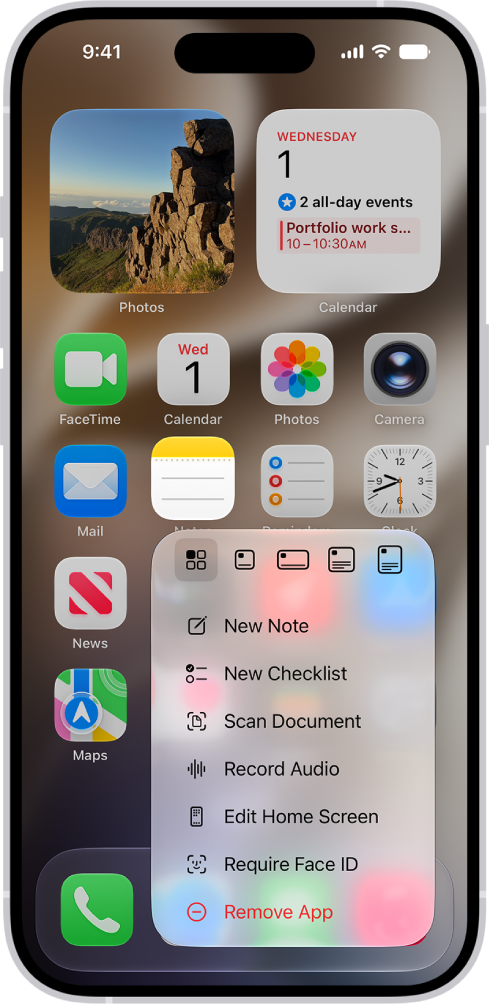
On the Home Screen, in App Library, in Control Center, and in apps, you can use Quick Actions menus, see previews, and more. In Photos, you can preview an image and see a list of options. In Mail, there’s a preview of the message contents and a list of options, too.

Perform quick actions from Control Center, the Home Screen, and App Library

On the Home Screen and in Control Center and App Library, touch and hold apps to open Quick Actions menus.

A blurred Home Screen, with the Camera Quick Actions menu showing below the Camera app icon.

Here are a few examples:

  • Touch and hold Camera, then choose Selfie.
  • Touch and hold Maps, then choose Send My Location.
  • Touch and hold Notes, then choose New Note.

Note: Touch and hold an app too long before choosing a quick action, and all of the apps start to jiggle. If that happens, tap Done on an iPhone with Face ID, or on other iPhone models, press the Home button, and then try again.

See previews and other Quick Actions menus

  • In Photos, touch and hold an image to preview it and see a list of options.
  • In Mail, touch and hold a message in a mailbox to preview the message contents and see a list of options.
  • Open Control Center, then touch and hold an item like Camera or the brightness control to see options.
  • On the Lock Screen, touch and hold a notification to respond to it.
  • When typing, touch and hold the Space bar with one finger to move the insertion point.

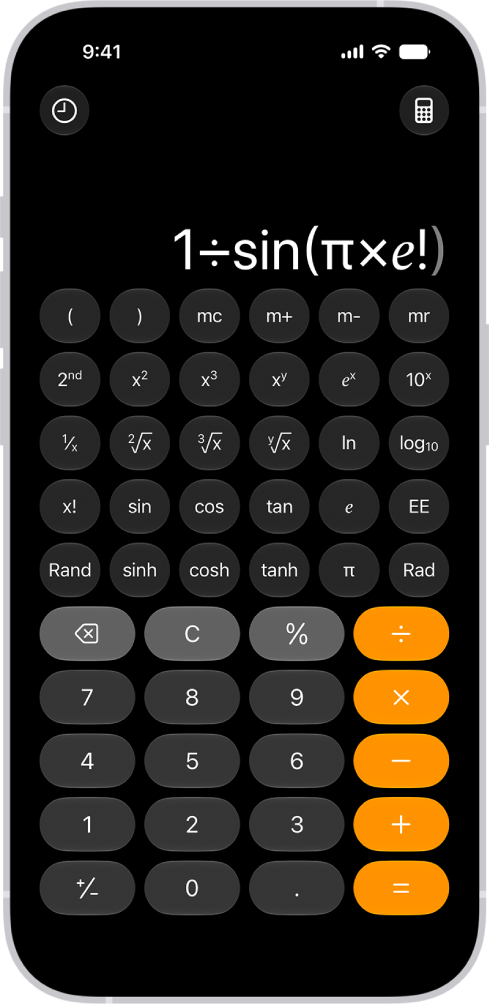
You can use the scientific calculator for exponential, logarithmic, and trigonometric functions. You can also view complete expressions with parentheses, trigonometry, and multiple operations before you get the final answer.

You can work with stored values, use trigonometric and hyperbolic functions, choose radians or degrees, and use mathematical constants. You can even generate a random number between 0 and 1. It follows the standard order of operations, too, so multiplication is completed before addition and subtraction.

Note: The Calculator app uses the standard order of operations. For example, multiplication is completed before addition and subtraction. Add parentheses around expressions that you want calculated first.

iPhone showing the scientific calculator with memory, exponential, logarithmic, and trigonometric functions.

Switch to the scientific calculator

  1. Open the Calculator app on your iPhone.
  2. Tap the Change Mode button and tap Scientific.

Work with stored values

  1. Open the Calculator app on your iPhone.
  2. Tap the Change Mode button and tap Scientific.
  3. As you calculate, you can do any of the following:
    • Add the value on the screen to memory: Tap m+.
    • Subtract the value on the screen from memory: Tap m-.
    • Recall the stored value in memory: Tap mr.
    • Clear the stored value from memory: Tap mc.

Use exponential and logarithmic functions or notation

  1. Open the Calculator app on your iPhone.
  2. Tap the Change Mode button and tap Scientific.
  3. Do any of the following:
    • Square a value: Enter a number and tap x2. Then tap =.
    • Cube a value: Enter a number, tap x3, and tap =.
    • Raise a value to the power of y: Enter a base number, tap xy and enter the value of y. Then tap =.
    • Raise e to the power of x: Enter the value of x, tap ex, and then tap =.
    • Raise 10 to the power of x: Enter the value of x, tap 10x then tap =.
    • Calculate a factorial: Enter a number and tap x!. Tap =.
    • Calculate a reciprocal: Enter a number, tap 1/x, and tap =.

Quick tip: Instead of tapping the × and 10x keys, tap EE as a shortcut for scientific notation.

Use the keys just below those keys to get the inverse functions: the square root, cube root, yth root, natural logarithm, and logarithm.

To access additional functions (such as yx or powers of 2), tap the “2nd” key near the left.

Use trigonometric and hyperbolic functions

  1. Open the Calculator app on your iPhone.
  2. Tap the Change Mode button and tap Scientific.
  3. Find any of the following:
    • Sine: Tap sin and enter a number. Tap =.
    • Cosine: Tap cos, enter a number, and then tap =.
    • Tangent: Tap tan and enter a number. Then tap =.
    • Hyperbolic sine: Tap sinh, enter a number, and then tap =.
    • Hyperbolic cosine: Tap cosh, enter a number, and tap =.
    • Hyperbolic tangent: Tap tanh, enter a number, and then tap =.

To access the inverse of these functions (such as arcsine or arctangent), tap the “2nd” key near the left.

Use radians or degrees

The scientific calculator uses degrees by default.

  1. Open the Calculator app on your iPhone.
  2. Tap the Change Mode button and tap Scientific.
  3. Tap Rad to switch to radians.

When you’re using radians instead of degrees, the label Rad appears, and the Rad key becomes Deg.

To switch back to degrees, tap the Deg key.

In portrait orientation (with your iPhone held vertically), you’ll find the Rad/Deg key just above the ÷ key. In landscape orientation (held horizontally), it’s near the bottom center.

Use mathematical constants

  1. Open the Calculator app on your iPhone.
  2. Tap the Change Mode button and tap Scientific.
  3. Do any of the following:
    • Insert pi: Tap π.
    • Insert Euler’s number: Tap ℯ.

Generate a random number between 0 and 1

  1. Open the Calculator app on your iPhone.
  2. Tap the Change Mode button and tap Scientific.
  3. Tap Rand.

Hold your iPhone vertically (in portrait orientation), and the Rand key sits just above the Delete key. Turn it horizontally (in landscape orientation), and the Rand key is in the bottom left.

With SharePlay, you can instantly stream supported content, listen to music, play games, and more in sync with a friend by holding your iPhone close to your friend’s iPhone. It works in apps that support SharePlay, where you pick the content you want to share.

Start SharePlay

  1. On your iPhone, in an app that supports SharePlay, tap the content you want to share.
  2. Hold your iPhone next to the iPhone of the person you want to share with.

    If they’re not in your contacts (or vice versa), you first need to share your contact information with them.

  3. Tap SharePlay.

The person you’re sharing with can accept or decline your SharePlay invitation.

Note: iOS 17 or later is required on both iPhone devices. AirDrop must be turned on, and the sender and recipient must be included in each other’s contacts. Some apps that support SharePlay require a subscription. To watch a movie or TV show together, each participant must have access to the content on their own device, through either a subscription or purchase, on a device that meets the minimum system requirements.

SharePlay might not support sharing some TV shows or movies across different regions or countries.

Turning on the Driving Focus helps you stay focused on the road. When you turn it on, text messages and other notifications are silenced or limited.

Calls are limited, too. Incoming calls are allowed only when iPhone is connected to CarPlay, a car Bluetooth® system, or a hands-free accessory. You can set it to turn on automatically when you’re in a moving car.

Here’s how to stay focused while driving with iPhone.

WARNING: The Driving Focus is not a substitute for following all the rules that prohibit distracted driving.

Set up the Driving Focus

You can set up the Driving Focus to turn on automatically when you’re in a moving car. (You can also turn it on manually in Control Center.)

  1. Open the Settings app on your iPhone.
  2. Tap Focus, then tap Driving.

If you don’t see the Driving Focus, tap the Add button, then tap Driving.

  1. Tap Auto-Reply and choose if you want certain people to receive an auto-reply if they try to contact you when the Driving Focus is on

    You can also edit your auto-reply message to customize it.

    Then tap the Back button.

  2. Tap While Driving (below Turn On Automatically), then select when to activate Driving:

    • Automatically: When iPhone detects you might be driving.
    • When Connected to Car Bluetooth: When your iPhone is connected to a car’s Bluetooth system.
    • Manually: When you turn it on in Control Center.
    • Activate With CarPlay: Automatically when iPhone is connected to CarPlay.
Tag: Focus

In the Files app, you can search for and view your documents, images, and other files.

You can focus your search on Recents or a location or tag, and start a new search at any time, too. You can also select an app to open a file, and choose a default app for a type of file.

Here’s how to find and view files and folders in Files on iPhone.

Find a specific file or folder

  1. Open the Files app on your iPhone.
  2. Enter a filename, folder name, or document type in the search field.

When you search, you have these options:

  • Focus the scope of your search: Below the search field, tap Recents or the name of the location or tag.
  • Hide the keyboard and see more results on the screen: Tap Search.
  • Start a new search: Tap the Clear Text button in the search field.
  • Open a result: Tap it.

Select an app to open a file

When you open a file, you can specify which app to open it with.

  1. Open the Files app on your iPhone.
  2. Touch and hold the file you want to open.
  3. Choose Open With from the menu. Choose an option.

Choose a default app for opening a file

You can specify a default app to open a file with, so that the file always opens in that app when you tap it.

  1. Open the Files app on your iPhone.
  2. Touch and hold the file, then choose Get Info.
  3. Below the Preview, tap the pop-up menu next to Always Open With. Then select an app.

If you choose a new default app for opening the file, a prompt asks you to confirm whether the default app should change for that file or file type.

Open a file in Quick Look

In Quick Look, you can preview an image file or a PDF.

  1. Open the Files app on your iPhone.
  2. Touch and hold the file, tap Open With, and choose Preview with Quick Look.

Browse files and folders

  1. Open the Files app on your iPhone.
  2. Tap Browse. Tap a document on the Browse screen.
  3. If you don’t see the Browse screen, tap Browse again.
  4. To view recently opened files, tap Recents.
  5. To open a file, location, or folder, tap it.

Note: A file created by an app you haven’t installed still opens, as a preview in Quick Look.

Change how files and folders are sorted

  1. Open the Files app on your iPhone.
  2. From an open location or folder, tap the More button.
  3. Choose an option: Name, Kind, Date, Size, or Tags.
Tag: Files

In the Notes app, you can record audio and have the spoken words transcribed to text. You can search the transcript, add the text to the note, or copy the text to other documents.

The transcript appears live as you record. You can also view a summary of an audio recording, and see transcripts of phone and FaceTime audio calls. You can take notes while recording, too, and pause or resume a recording.

Here’s how to record and transcribe audio in Notes on iPhone.

Note: Audio transcription works on iPhone 12 and later if your device language is English, Spanish, Portuguese, Italian, French, German, Japanese, Korean, Simplified Chinese, or Traditional Chinese.

Record audio and see the live transcript

Record audio in a note and have the spoken words transcribed.

  1. Start the Notes app on your iPhone.
  2. In a note, tap the Attachments button. Tap Record Audio.
  3. To start the recording, tap the Record button. Tip: To take notes while recording, swipe down from the top of the screen.
  4. Do any of the following:

    • Pause recording: Tap the Pause button.
    • Resume recording: Tap the Resume button.
    • See the live transcript: Tap the Transcription button.

    Note: Spoken words in supported languages are automatically transcribed. If you don’t see the Transcription button, your iPhone either doesn’t meet the minimum requirements or doesn’t detect a supported language.

  5. When you’re finished recording, tap the Pause button. Then tap the Done button.

Play an audio recording and review the transcript

  1. Start the Notes app on your iPhone.
  2. In a note with an audio recording, tap the Play button to play it.
  3. To review the transcript, tap the audio recording. Tap the Transcription button. Note: Spoken words in supported languages are automatically transcribed. If you don’t see the Transcription button, your iPhone doesn’t meet the minimum requirements or doesn’t detect a supported language. While viewing the transcript, you can do any of the following:

    • Play the audio at a specific point: Tap the text you want to hear.
    • Search the transcript: Tap the More button and then tap Find in Transcript.
    • Copy the transcript: Tap the More button and choose Add Transcript to Note or Copy Transcript.
    • Name your recording: Tap the boldfaced title, type a name for your recording, then tap Save.
    • Save or delete the audio recording: Tap the More button and then choose an option.

    Note: Deleting the audio recording also deletes the transcript.

View a summary of an audio recording

You can use Apple Intelligence to generate a summary of the transcript, so you can get to the most important information at a glance. You can also copy and share summaries. Note: Apple Intelligence on iOS 27 or later is available on an Apple Intelligence-enabled iPhone 15 Pro, iPhone 15 Pro Max, or iPhone 16 model or later. Apple Intelligence is not available in all languages or regions. Usage limits may apply.* Some languages that support Apple Intelligence summaries are not available for audio transcription.

  1. Start the Notes app on your iPhone.
  2. Open a note with a recording.
  3. Tap the recording, then tap Summary. Tip: You can copy or share a summary. Tap the More button at the top of the summary, then choose an option.

View transcripts of phone and FaceTime audio calls

You can record a call in the Phone or FaceTime app and view the spoken words transcribed in the Notes app (requires iOS 18.1 or later). *Apple Intelligence is available with Siri and device language set to Chinese (Simplified), Chinese (Traditional), Danish, Dutch, English, French, German, Italian, Japanese, Korean, Norwegian, Portuguese, Spanish, Swedish, Turkish, or Vietnamese. Some features may not be available in all regions or languages. Some devices may not be available in all regions. Siri AI is available in beta in iOS 27, iPadOS 27, macOS 27, watchOS 27, and visionOS 27 and requires an Apple Intelligence–enabled device set to a supported language. Available in English to start. Siri AI will not be initially available in the EU on iOS, iPadOS, and watchOS. Certain Apple Intelligence features that rely on server-side models are subject to daily usage limits, including but not limited to Siri AI, Intelligent Photo Editing Tools, Image Playground, and AFM 3 Cloud models in Shortcuts. Daily limits may vary by feature, request complexity, system demand, system policies, and other factors. Expanded access to such features will be available for a fee in the future. Use of these features is subject to the Apple Intelligence Terms and Conditions.

You can wirelessly charge iPhone using a Qi-certified charger (sold separately). You can also use a Qi-certified charger to charge AirPods.

It works with the power adapter that came with your charger, or one the manufacturer recommends, and when iPhone is lined up properly on the charger, you’ll see the Battery Charging icon in the status bar.

Charge iPhone or AirPods with a Qi-certified charger

  1. Connect the charger to power. Use the power adapter that came with your charger or a power adapter recommended by the manufacturer.
  2. Do one of the following:
    • iPhone: Place iPhone face up on the center of the charger. When iPhone is aligned properly with the charger, the Battery Charging icon appears in the status bar.
    • AirPods 2 (with Wireless Charging Case), AirPods 3, AirPods 4 (with Active Noise Cancellation), and AirPods Pro: Place your AirPods in the charging case, close the lid. Place the case with the status light facing up on the center of the charger. When the case is aligned properly with the charger, the status light turns on for several seconds. Turns off while continuing to charge.
Tag: Battery

In the Notes app, you can send a copy of a note to a friend. You can also share a link to invite people to collaborate in real time on a note or on a folder of notes in iCloud, and everyone will see the latest changes.

You can view activity in a note or a folder, and change sharing settings whenever you need to.

Here’s how to share notes and collaborate on iPhone.

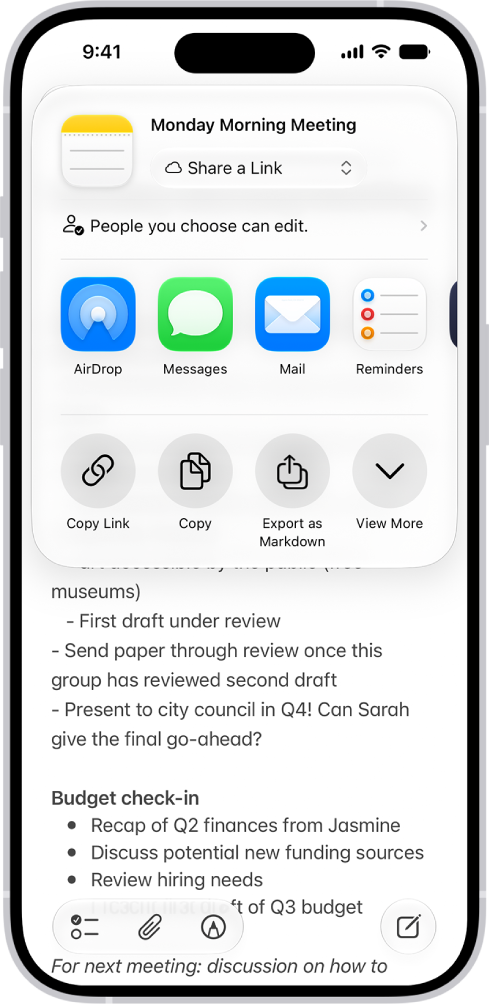
A note with an overlay showing sharing options.

Share a copy of a note

  1. Start the Notes app on your iPhone.
  2. Open the note you want to share.
  3. Tap the Share button, tap the menu under the note title, and then tap Send a Copy.
  4. Choose how to send your note.

Collaborate on a note or folder of notes using iCloud

To collaborate with others, you can share a link to a note or a folder of notes in iCloud. You can set who can access what you share and set editing permissions. All participants see changes in real time. The participants must be signed in to their Apple Account and have Notes turned on in iCloud settings. Note: You can’t collaborate on a locked note or on a folder with locked notes.

  1. Start the Notes app on your iPhone.
  2. Do one of the following:

    • Collaborate on a note: Open the note you want to share, tap the Share button, tap the menu under the note title, and then tap Share a Link.
    • Collaborate on a folder: Open the folder you want to share. Then tap the Folder Actions button.
  3. To change the access and permissions, tap People you choose can edit and then set any of the following:

    • Who can access: Choose People you choose or Anyone with the link. With People you choose, you can turn on Access Requests. Note: Requesting access to a note sends an email to the address associated with the owner’s Apple Account.
    • Permissions: Choose Edit or View and Download Only.

    Tip: If you send the invitation in Messages, you get activity updates in the Messages conversation when someone makes changes in the shared note. Tap the updates to go to the shared note.

View activity in a note

Notes that have changed since you last looked at them get an orange dot to the left of their title in the notes list.

  1. Start the Notes app on your iPhone.
  2. Open the note and then swipe right on the note or swipe up on the Activity card to see who made changes and when.
  3. To adjust how the activity is shown, tap the Collaborate button. Choose any of the following:

    • Show Updates: Shows changes made since you last opened the note.
    • Show All Activity: Shows all activity in the note.
    • Show Highlights: Shows names, dates, and changes made by each participant.

    Tip: To mention a participant and notify them of important updates, type an @ sign followed by their name.

View activity in a folder

  1. Start the Notes app on your iPhone.
  2. Touch and hold the folder. Then tap Show Folder Activity.

Change sharing settings

  1. Start the Notes app on your iPhone.
  2. The owner of a shared note or folder can change the sharing settings by doing one of the following:
    • Manage a shared note: Tap the Collaborate button, then tap Manage Shared Note.
    • Manage a shared folder: Tap the Folder Actions button. Then tap Manage Shared Folder.
  3. Do any of the following:
    • Remove participants or cancel invitations: Tap the participant you want to remove, then tap Remove Participant or Cancel Invitation.
    • Change access and permission settings: To change the settings for one person, tap their name. To change the settings for all participants, tap Sharing Options. Making a participant a Co-Owner allows them to manage participants and permissions for everyone except the owner.
    • Stop sharing: When you choose this option, the shared note or folder is deleted from the devices of the other participants.
Tags: iCloud, Notes