Got a tip for us?

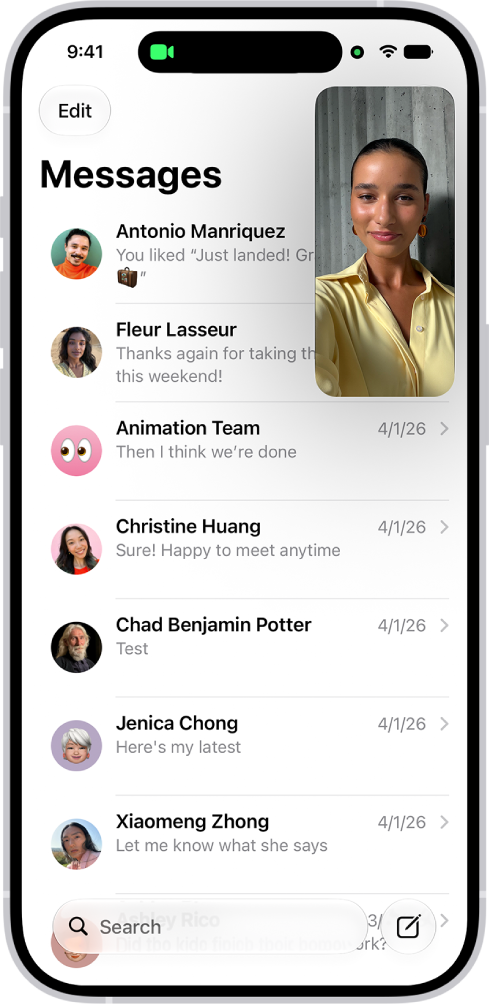
With Picture in Picture, you can watch a video or use FaceTime while you use other apps. The video window scales down to a corner of your screen, and you can resize it, move it to a different corner, hide it off the edge of the screen, or return to a full video screen.

Note: Picture in Picture only works with supported apps and videos, so if you don’t see the option, the app or video may not support it.

A FaceTime conversation taking place, while a note about kitchen decorating fills the rest of the screen.

Start Picture in Picture

While watching a video, tap the Minimize Video button in the video window.

With the video window scaled down to a corner of your screen, you can see the Home Screen and open other apps.

Manage the Picture in Picture window

When you see the video window, you can do any of the following:

  • Resize the video window: To make the small video window larger, pinch open. To shrink it again, pinch closed.
  • Show and hide controls: Tap the video window.
  • Move the video window: Drag it to a different corner of the screen.
  • Hide the video window: Drag it off the left or right edge of the screen.
  • Close the video window: Tap the Close button.
  • Return to a full video screen: Tap the Restore Full Screen button in the small video window.
Tag: iPhone

While exploring any location on a map, you can rotate the map to see an area with extra dimensions. In some locations, you can zoom in to see a detailed, 3D satellite view.

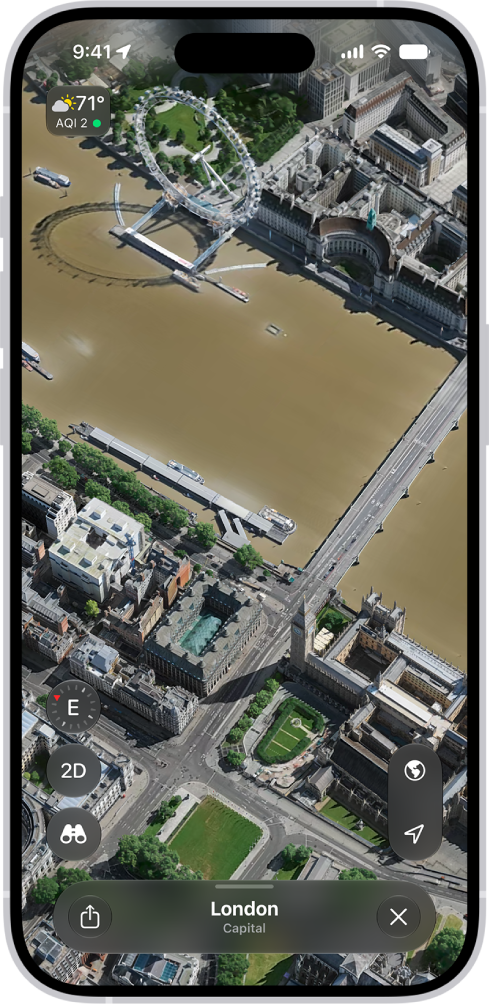
Maps uses aerial imagery to render cities in true-to-life detail. To see sharp details, such as architectural fixtures or the shapes of individual trees, zoom into a 3D satellite map. Or with Look Around, move through a 360-degree panoramic view.

Here’s how to explore maps with immersive views on iPhone.

Note: Not all features are available in all countries or regions.

Explore a city in 3D detail

  1. Open the Maps app on your iPhone.
  2. In most cities, tap the Exploring Map Mode button and tap Satellite. Tap the Close button.
  3. Pinch open to zoom in. Then swipe up with two fingers to see the map in 3D.

A 3D map in the Maps app, showing details of a city.

Look around locations

Some locations have 360-degree panoramic views you can look around.

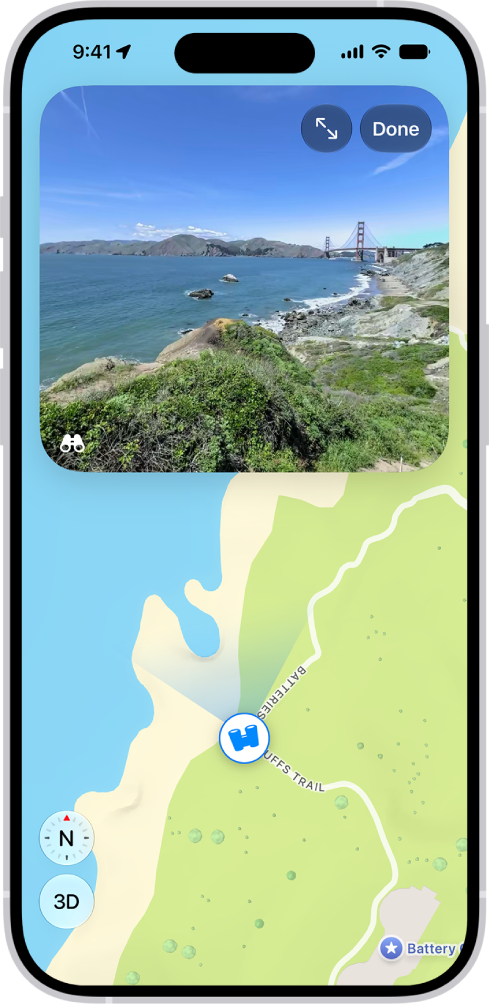
A moveable, 360-degree panoramic view appears above a map of the area marked in the Maps app. The Look Around icon overlaid on the map points in the direction of the view.

  1. Open the Maps app on your iPhone.
  2. In select cities, tap the Look Around button near the bottom of a map.
  3. To change the view, do any of the following:
    • Pan: Drag a finger left or right on the scene.
    • Move forward: Tap the scene.
    • Zoom in or out: Pinch open or closed.
    • View another point of interest: Switch from full-screen view and then tap elsewhere on the map, or drag the map.
    • Switch to or from full-screen view: Tap the Enter Full Screen Mode button or the Exit Full Screen Mode button.
    • Remove labels in full-screen view: Swipe up from the place name near the bottom of the screen and tap Hide Labels.
  4. When finished, tap Done.

Move, zoom, or rotate a map or globe

  1. Open the Maps app on your iPhone.
  2. Do any of the following:

    • Move around in a map: Drag the map.
    • Zoom in or out: Double-tap. Then drag up to zoom in or drag down to zoom out.

      Or pinch open or closed on the map.

    • Rotate the map: Touch and hold the map with two fingers and then rotate your fingers.

      To show north after you rotate the map, tap the Compass button.

View a 3D map

  1. Open the Maps app on your iPhone.
  2. To turn a 2D map into a 3D map, do one of the following:

    • Drag two fingers up.
    • Tap 3D.
  3. While looking at a 3D map, you can do any of the following:

    • Adjust the angle: Drag two fingers up or down.
    • See buildings and other spatial details: Zoom in.
    • View the Earth: Zoom out until the map changes to a globe.

      Drag the globe to rotate it, or zoom in or out.

    • Return to a flat map: Tap 2D.
Tag: Maps

On supported models, Photographic Styles intelligently adjust specific colors in different parts of your photos to create a customized look. The style you select applies automatically to all photos you take, but you can make adjustments in Camera or edits later in the Photos app.

On iPhone 18 Pro models, you can also adjust the texture of a photo, for example, to soften skin or add film grain. Before you take a photo, you can also fine-tune a style’s tone, color, texture, and intensity. And you can remove or reset a Photographic Style.

Note: On models that support latest generation Photographic Styles, you can only edit Photographic Styles later in Photos if Camera captures photos with High Efficiency image capture. If you need to turn on High Efficiency, go to Settings > Camera > Formats and tap High Efficiency.

Select a Photographic Style

Selecting a Photographic Style before you take a photo changes its overall mood. You can fine-tune the style’s tone, color, texture, and intensity as well.

  1. Open Camera on your iPhone.
  2. Tap the Camera Controls button or swipe up from the camera modes at the bottom of the screen.
  3. Tap Styles and then swipe left or right to preview the available styles.
  4. On models that support Photographic Styles 2 and Photographic Styles 3, tap Customize and then do any of the following:
    • Adjust the tone and color: Drag your finger on Camera Control Status. On iPhone 18 Pro models, tap Palette first.
    • Control the intensity of the style: Drag the slider.
    • Change the texture: Tap Texture. Then choose a texture such as Soft Skin, Glow, or Film. Drag the slider to adjust the intensity, or choose Standard to apply no texture. Tap Grain to add film grain to any texture. (Available on iPhone 18 Pro and iPhone 18 Pro Max).
  5. On other iPhone models, drag the Tone and Warmth sliders to fine-tune the look of the style.
  6. Tap the Reset button to return to the default value, or tap the Dismiss Styles Control button to close the Style menu.

To reset or change the style you selected, follow the instructions above, then select Standard, or choose a different style.

In the Photos app, you can further refine the Photographic Style values after you take a photo.

Remove or reset a Photographic Style

You can remove your Photographic Style or set a new one.

  1. Open the Settings app on your iPhone.
  2. Tap Camera, tap Photographic Styles, and then select Use Standard or choose a different style.
Tag: camera

You can change the name of your iPhone, which is used by iCloud, AirDrop, Bluetooth®, your Personal Hotspot, and your computer, so it’s the name you’ll see in all those places. You can enter a new name whenever you like.

  1. Open the Settings app on your iPhone.
  2. Tap General, tap About, and then tap Name.
  3. Tap the Clear Text button and enter a new name.
Tags: iCloud, iPhone

With Screen Time, you can use Time Allowances to set how long you use your apps each day, and Schedules to set when during the day you can use them.

For example, you can create schedules for weekdays and weekends with time windows for things like work, dinner, and the evening. You can also create Time Allowances for different categories like Entertainment, Games, or Social Media, and choose apps and contacts to allow at all times. You’ll need iOS 27 or later on all your Apple devices to use them.

Note: Screen Time Schedules and Time Allowances need iOS 27, iPadOS 27, macOS 27, watchOS 27, or visionOS 27 or later on all your Apple devices. And in a Family Sharing group, every device needs to be upgraded to iOS 27, iPadOS 27, macOS 27, watchOS 27, or visionOS 27 or later before you set these features up.

Set up a Screen Time Schedule for device use

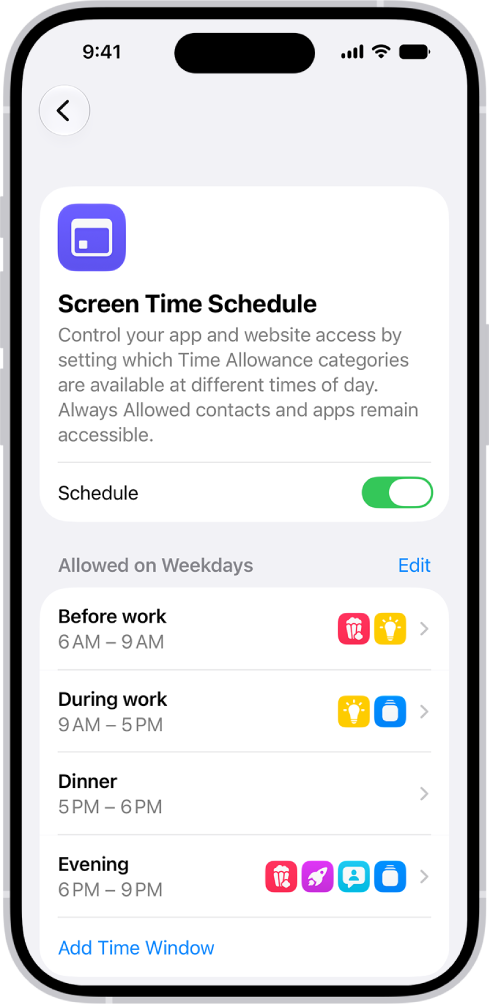
With a custom schedule for your iPhone, you can control which apps you can use at different times of day. Icons in each time window show which Time Allowance categories are available, so at a glance, you’ll know what types of apps you can use at that point in your day.

The Screen Time Schedule screen showing an overview of a schedule, including Before work, During work, Dinner, and Evening.

  1. Open the Settings app on your iPhone.
  2. Tap Screen Time, tap Screen Time Schedule, and then turn on Schedule.
  3. Tap Add Schedule, tap the days of the week you want to create a schedule for, and tap the Done button.
  4. Tap the Time Window and then do any of the following:
    • Create a new name: Tap the current name and then enter the new name.
    • Change the start or stop time: Tap the time, then select a new value.
    • Select Time Allowance categories: Tap a category. If you don’t see any categories, you can create some.
    • View the apps and contacts that are always allowed: Tap Always Allowed.
    • Delete the time window: Tap Delete this Time Window.

Set how long you can use apps and websites

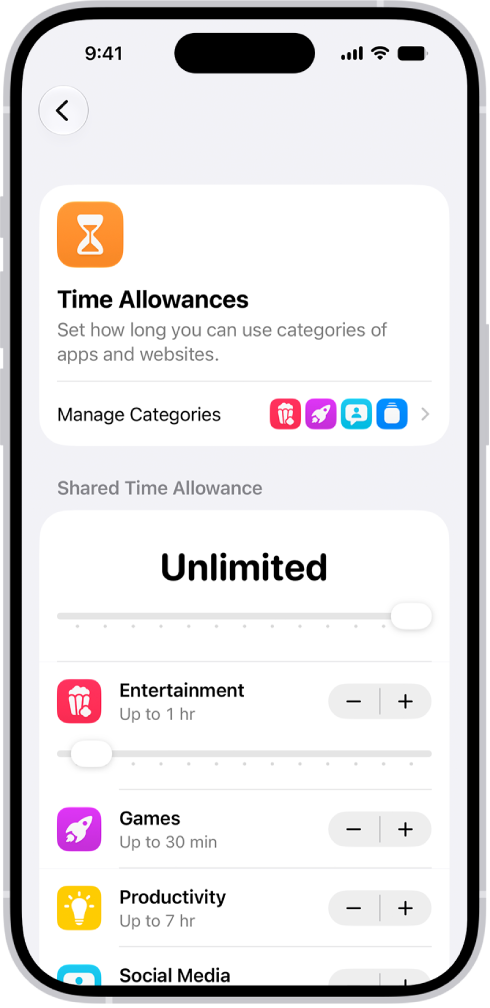
Time Allowances make it easier to manage the time you spend in apps across categories like Entertainment, Games, and Social Media. Apps in each category stay usable until they’ve reached either the category’s allowance or the daily total. And if an app declares an associated website, the Time Allowance applies to both.

A Time Allowances screen in Screen Time settings showing time allowed for categories like Games, Entertainment, and Productivity.

  1. Open the Settings app on your iPhone.
  2. Tap Screen Time, then tap Time Allowances.
  3. Do any of the following:
    • Use Time Allowances during certain times in your schedule: Turn on Match Screen Time Schedule.
    • View the Time Allowances you’ve set for different time windows: If you’ve added Time Allowances to windows in your Screen Time schedule, you can view them by tapping the name of the Time Window.
    • Increase or decrease the amount of time you can spend on your device: Drag the slider left or right or tap the Minus button or the Plus button.
    • Increase or decrease the amount of time you can spend in an app category: Under Time Allowances, tap a category and then drag the slider left or right or tap the Minus button or the Plus button.
    • Create a new Time Allowance category: Tap Manage Categories and tap the Add button, then select a category. If you have a Screen Time schedule, you can add the category to a time window.
    • View your average daily use of a category: Tap Manage Categories, then tap a category.
    • View your average daily use of apps within a category: Tap Manage Categories, tap a category, and then tap an app.

Choose apps and contacts to allow at all times

Apps and contacts you pick can stay available at all times, no matter which Screen Time schedules or Time Allowances you’ve set. You might add the Health app or family members to Always Allowed for emergencies, for example.

  1. Open the Settings app on your iPhone.
  2. Tap Screen Time, then tap Always Allowed.
  3. Do any of the following:
    • Add contacts or apps: Tap Add People or Add Apps.
    • Remove contacts or apps: Tap Edit. Tap the Remove button on the app or contact you want to remove.

Use Siri to control your Apple Watch and other Apple devices with just your voice—like opening apps, adjusting settings, and locating your other Apple devices or items with AirTags. You can also control smart home accessories that you set up in the Home app.

On your watch, Siri can open apps and settings, adjust utility and accessibility settings, and contact emergency services. At home, you can ask Siri to turn on lights or adjust the thermostat, even when you’re not there, and make an announcement.

Control your Apple Watch

Siri: On your Apple Watch, activate Siri, then see the ideas below for requests you can make.

  • Open apps and settings

    • “Open the Sleep app”
    • “Open Settings”
    • “Read my notifications”
  • Adjust utility settings

    • “Turn on Airplane Mode”
  • Adjust accessibility settings

    • “Turn on VoiceOver”
  • Contact emergency services

    • “Hey Siri, call 911”
    • “Start the siren” (Apple Watch Ultra Models only)

Control your home

Siri can turn on lights, adjust the thermostat, and control the products you use in your home, even when you’re away.

Siri: On your Apple Watch, activate Siri, then see the ideas below for requests you can make.

  • Control accessories

    • “Turn on the lights”
    • “Set the temperature to 72 degrees”
  • Adjust an accessory

    • “Siri, make it cooler”
    • “Set my reading scene”
  • Control a room or zone

    • “Turn off the lights in the office.”
  • Check your home’s status

    • “Siri, is the front door locked?”
    • “Hey Siri, are the upstairs lights on?”
  • Make an announcement

    • “Hey Siri, announce upstairs ‘I’m going to the store.'”
    • “Hey Siri, tell the office ‘The movie is starting'”
    • “Siri, intercom, ‘Time for school'”
    • “Siri, it’s movie night”

See also

Tags: Home, Siri

You can keep your audio recordings up to date automatically on your iPhone, iPad, and Mac where you’re signed in to the same Apple Account and Voice Memos is turned on in iCloud settings. You’ll turn it on separately on each device.

Do the following to turn on Voice Memos in iCloud on your devices:

  • iOS or iPadOS: Go to Settings > [your name] > iCloud > See All, then scroll down and turn on Voice Memos.
  • macOS 15 or later: Choose Apple menu > System Settings, then click your name in the sidebar. If you don’t see your name, click “Sign in” to sign in to your Apple Account or create one. Click iCloud, click See All, then scroll down and turn on Voice Memos.

You can change how quickly or when Siri responds, have Siri listen for atypical speech patterns, have Siri audibly share notifications, and more.

You can give yourself more time to finish speaking by setting a longer Siri Pause Time, change how fast Siri speaks, and choose whether Siri responds aloud or in text. Depending on your iPhone model, you may also be able to type to Siri instead of speaking.

Here’s how to change Siri accessibility settings on iPhone.

Tell Siri when and how to respond to requests

  1. Start the Settings app on your iPhone.
  2. Tap Accessibility, tap Siri, and do any of the following:
    • Set how long Siri waits for you to finish speaking: Below Siri Pause Time, choose Default, Longer, or Longest.
    • Change how fast Siri speaks: Adjust the slider below Speaking Rate.
    • Decide when Siri responds aloud or in text: Choose an option below Spoken Responses.
    • Use Siri even when iPhone is covered or facing down: When you set up Siri, Hey Siri or Siri activates Siri only when your iPhone faces up. To change this, turn on Always Listen for Siri.
    • Require “Siri” or “Hey Siri” in order to interrupt Siri: Turn on Require “Siri” for Interruptions. This can be useful if you use VoiceOver or Voice Control and don’t want VoiceOver speech or Voice Control commands to interrupt Siri.

Type instead of speak to Siri

Typing to Siri may be an option, depending on your iPhone model.

  1. Start the Settings app on your iPhone.
  2. Tap Accessibility and tap Siri. Turn on Type to Siri.

If you have an iPhone model that supports Apple Intelligence,* this option may not be shown.

  1. To make a request, activate Siri. Then interact with Siri using the keyboard and text field.

Have Siri recognize a wider range of speech patterns

If your primary language is set to English (U.S.), Siri can listen for atypical speech. That may help with an acquired or progressive condition that affects speech, like stroke, cerebral palsy, or amyotrophic lateral sclerosis (ALS).

Go to Settings > Accessibility > Siri, then turn on Listen for Atypical Speech.

If you speak a word or make a sound of your choosing, iPhone can perform an action you teach it.

Announce calls and notifications for specific apps

Siri can announce notifications and calls from apps like Messages through your iPhone speaker, on supported headphones and MFi hearing devices, and when you’re using CarPlay.

  1. Open Settings, tap Accessibility and tap Siri. Then turn on Announce Notifications on Speaker.
  2. Tap Announce Notifications and then for each app, choose whether to announce all notifications or only time-sensitive notifications.

*Apple Intelligence is available with Siri and device language set to Chinese (Simplified), Chinese (Traditional), Danish, Dutch, English, French, German, Italian, Japanese, Korean, Norwegian, Portuguese, Spanish, Swedish, Turkish, or Vietnamese. Some features may not be available in all regions or languages. Some devices may not be available in all regions. Siri AI is available in beta in iOS 27, iPadOS 27, macOS 27, watchOS 27, and visionOS 27 and requires an Apple Intelligence–enabled device set to a supported language. Available in English to start. Siri AI will not be initially available in the EU on iOS, iPadOS, and watchOS. Certain Apple Intelligence features that rely on server-side models are subject to daily usage limits, including but not limited to Siri AI, Intelligent Photo Editing Tools, Image Playground, and AFM 3 Cloud models in Shortcuts. Daily limits may vary by feature, request complexity, system demand, system policies, and other factors. Expanded access to such features will be available for a fee in the future. Use of these features is subject to the Apple Intelligence Terms and Conditions.


Tag: Siri

If you can’t see your screen and your content includes audio descriptions, you can listen to an audio description, a separate audio track that narrates or describes the visual content of a clip, show, or movie. You turn on Audio Descriptions in Accessibility settings.

  1. Open Settings, tap Accessibility, and then tap Audio Descriptions.
  2. Turn on Audio Descriptions.