Got a tip for us?

Apple released the iPhone 11 and iPhone 11 Pro in September 2019 for the usual fanfare. These devices are solid upgrades from the previous models and introduce many desirable features, such as a newthree-camera setup, amazing battery life and better displays.

However, these changes feel step by step and leave us longing for more. Many important features are missing from the 2019 iPhone models that we would like to see in iPhone 12. Below are the main new features we want to see in Apple’s iPhone 12 lineup.

1. A smaller notch

In 2017, Apple introduced the iPhone X, an almost full screen phone with minimal bezels and no home button. To make up for the absence of the home button, the iPhone needed a new form of biometric security. That’s how Face ID was born.

The components required for Face ID are located at the top of the phone, resulting in a black bar interrupting the design on the entire screen. That bar is called the ‘notch’ and caused annoyance to many users.
Wouldn’t it be great if Apple found a way to reduce this notch? Maybe the company could use a perforated design similar to Samsung’s? A camera under the screen would also be welcome.

See also
Apple iPhone 11 Pro cameras explained: Why three What does Each Do? And What is Deep Fusion?

2. 5G support

5G is the next step in mobile network technology after 4G LTE and offers blazing fast speeds. Some Android flagships, such as the Samsung Galaxy S10, offer a 5G compatible model. None of Apple’s offerings have 5G capabilities yet.

This makes sense, because 5G is not quite ready yet. Still, it would be great to see iPhone 12 models come with breathtaking next-generation speeds.

3. A new (or old) design

Every iPhone model since the iPhone 6 has a very similar design, with rounded edges and paper-thin builds. Wouldn’t it be nice to see a change? A return to the iPhone 5’s classic, thicker, square design, but with a full screen would be smart.

Better yet, that design would allow for larger batteries and cameras in the back of the device. This wish is not too far-fetched, as Apple’s latest iPad Pro design somewhat subscribes to this philosophy.

4. ProMotion screens

Another iPad Pro feature that Apple should bring to its iPhone lineup is ProMotion. This is not a ‘promotion’ like at cheaper prices, although it would be appreciated.

ProMotion is Apple’s name for a display technology that allows variable refresh rates up to 120 Hz. If you’re not familiar, the refresh rate is how many frames appear on the screen per second. The higher the refresh rate of a screen, the smoother the images.

The standard on most mobile phones is 60 Hz or 60 frames per second. With ProMotion, compatible devices can display at 120 Hz if needed, but they drop down to save power when not much is on the screen.

A smoother iPhone screen would make everything you do on the device look better.

5. A USB-C port

This is a good idea. Most newer Apple devices use a USB-C port, so why not the iPhone?

USB-C is more compatible with other devices, carries more power, and can deliver superfast data rates. When you’re traveling, you don’t need more than one charger for your devices, either. The future is clearly USB-C and the iPhone 12 has to adapt to this by removing the aging Lightning port.

6. Reverse wireless charging

Samsung’s flagship smartphones can serve as a charging mat for other devices through built-in wireless charging. So when your friend’sAirPods are running low, you can give a little power with the back of your Samsung phone, albeit a little slow. Sounds great right?

This form of wireless charging reportedly went as an inclusion in the iPhone 11, but was reportedly dropped at the last minute because it was too inefficient for Apple’s standards. We would like to see a sophisticated, power-efficient version of wireless reverse charging in iPhone 12.

7. Bigger and smaller sizes

Every iPhone since the iPhone X has adopted the same size standards, so we think it’s time for more variety.

Apple fans need a small compact phone that is easy to maneuver with one hand. On the other end of the spectrum, a larger screen would be much welcome for users who want something similar to the cinematic screen of the 6.8-inch Galaxy Note 10 Plus.

Of course there would still be a middle ground with the medium standard model. Choice is really a win-win situation for everyone.

8. Better basic storage

TheiPhone 11 and iPhone 11 Pro start at 64 GB storage. For a smartphone in 2020, this is simply unforgivable given the competition. This meager storage size is simply no longer enough.

With all those 4K ultra-enhanced photos and videos to store, 64 GB will only last for a short time. 128 GB of space should be the norm, and we really hope Apple realizes this in time for the coming releases.

9. The return of Touch ID

Face ID is great, don’t get us wrong. But it just hasn’t reached the breakneck speeds of Touch ID in its heyday.

Touch ID is much better for practical people who want a sense of satisfaction when unlocking their phone. It’s also safer now than it was when removed, thanks to ultrasonic sensors that detect blood flow (like the Galaxy S10 has).

Knowing this, we feel that Touch ID should come back through in-display technology. That said, Face ID should stick around too; the new iPhone can have both. With Touch ID and Face ID on the same device, users would again have more choice. With both implemented, your iPhone would become a secure virtual passport.

See also Touch ID Vs. face ID: what are the differences and similarities?

High expectations for the iPhone 12 models

It’s safe to say that expectations for iPhone 12 models are sky high. After the somewhat tame year of the iPhone 11, many are curious about what Apple has planned next. There is a lot of potential for this year iteration of the iPhone to change the game.

Updating your Mac
to the latest version of the macOS software is pretty easy and straightforward. However, you may experience
Mac update issues.
The most common macOS installation error message that a lot of users are getting is as follows:

“An error occurred while preparing the installation. Try running this application again.”

You may see Mac installation error message when you want to install or reinstall an update or upgrade. In this article, I’ll tell you exactly how you can fix macOS installation error.

An Error Occurred while preparing the installation. Try running this application again, fix

Here is how you can fix macOS installation error:

Please try the following troubleshooting tips in order. After trying each step, check to see if your problem is fixed.

1. Restart your Mac.

Try restarting your Mac to see if this fixes your problem.

2. Check the date and time.

Ensure that the date and time on your Mac are correct. Simply follow these steps:

  • On your Mac, go to System Preferences and then select Date & Time. If your date and time are incorrect, update them. Also, consider checking the “set date
    and time automatically” box to enable the option to set date and time automatically.

However, it might not be possible to access the above options as you may not access System Preferences if your Mac stuck in the middle of a macOS update. Thankfully, you can

use Terminal
 (Applications /
Utilities)
to update your date and time settings. Simply follow these steps:

  • Start by shutting down your Mac, to do this, press and hold down the power button.
  • Power your Mac back on and immediately press and hold down the Command (⌘)-R keys together. Hold these keys until the Apple logo or a spinning globe appears on the screen.
  • Your Mac will start up from macOS Recovery. The process may take time so be patient.
  • If asked, type in your password.
  • A “macOS Utilities” window will appear.
  • From the top menu, click Utilities and Terminal. This will launch the Terminal window.
  • In Terminal, type in the command below and press enter:
  • date
  • This will reveal your Mac date and time setting. Are they set correctly? If not, update:
  • If your Mac is connected to the internet, type in the command below and press enter:
  • ntpdate -u time.apple.com
  • Now, the settings will be updated automatically. If you have no Internet connection, then consider updating this setting manually:
  • Type in the current date using this format: date mmddHHMMyy”. (mm = two-digit month, dd = two-digit day, HH = 24 hour, MM = minute, yy = 2 digit year)
    So if it is currently 11:46am, June 03, 2020, the command would look like: “date 0603114620”. So enter something like this:
  • date 0603114620
  • Again let’s confirm, type in the date command again to check if your Mac has the correct setting.
  • Finally, exit Terminal and check to see if macOS installation error has been fixed.

3. Try installing in Safe Mode.

Please follow these steps to install in safe mode:

  • Start by shutting down your Mac.
  • Turn your Mac back on and immediately press and hold down the Shift key.
  • Hold down the Shift key until the Apple logo appears on the screen.
  • Log in, you may have to log in a couple of times.
  • Your mac is now in Safe Mode.
  • Now, try updating your Mac. Is it working?
  • To
    exit Safe Mode,
    simply restart your Mac normally.

4. Use macOS Recovery.

Please follow these steps

  • Start by shutting down your Mac.
  • Turn your Mac back on and immediately press one of the following keyboard combinations:
    • Command (⌘)-R: This reinstalls the most recent macOS version that was installed on your Mac.
    • Option-⌘-R: This will update your Mac to the latest compatible macOS version.
    • Shift-Option-⌘-R: This will install the macOS version that came with your Mac.
  • Click Reinstall macOS and then Continue.

5. Use a combo update.

  • It’s worth noting that you can use this method to update your Mac from a previous version of macOS within the same major release. For instance, the macOS 10.15.4
    combo update requires that macOS 10.15.0 or later is installed.
  • Download the essential macOS combo update on
    the Apple website.
  • They are dmg files. Please note that they are pretty huge files.
  • Now, double click the install the file. And then follow the onscreen prompts.

In this article, I’ll show you exactly how you can zip and unzip files and folders on your Mac.

macOS features a built-in compression system, called Archive Utility, which
can help you do the job.

Zip files are also known as compressed. These files do not take up
large storage space.
Also, a zip file is pretty easy to send or receive over the Internet. For instance, you can send a whole heap of documents in a zip file through email, instead of attaching
each file individually. It’s easy to create zip file on MacBook. In the same token, it’s easy to open Zip file on Mac.

How to zip files on MacBook)

Here’s how to compress files on Mac:

  • Select file(s) and /or folder(s). You can command-click (press and hold down the Command key and then select files or folders) to select multiple files or
    folders.
  • Next, control-click or right-click.
    Compress items
  • You will see a shortcut menu. From the menu, simply click Compress.

It’s worth noting:

  • If you zip multiple files or folders, the name of the zip file will be Archive.zip. You can change this if you want. To do this, Select the Archive.zip file,
    and click Return and type in a new name.
  • If you zip a single file or folder, the name will be its name with .zip extension like GeeksModo.zip.

How to zip files on Mac using Terminal

TheTerminal app on Mac also allows users to create zip files. Here is how:

  • On your Mac, launch Terminal (Applications >
    Utilities).
  • You can type in the following command:
    • zip archive.zip file.txt
  • Alternatively, you can type zip and then drag and drop the files you want to compress into the Terminal window.

How to unzip (uncompress)

Here’s how to open compressed zip file on Mac:

  • Locate the zip file.
  • Double-click it. Alternatively, you can right-click it, then choose Open With > Archive Utility.

It’s worth noting:

  • Your unzip file will remain in the same folder/location that zip file stored in. For instance, if you’re extracting an archive named “GeeksModo.zip” on
    your desktop, the extracted folder, named GeeksModo, will be created on the desktop.

How to open Zip files on Mac with Terminal

You can also use Terminal to unzip your files. Here is how to use terminal to unzip files on Mac:

  • On your Mac, launch Terminal.
  • And type in the following command:
    unzip archive.zip

Activity monitor not working on Mac? Well, in this article, i’ll show you exactly how you can fix if
Activity Monitor
is not working properly on your Mac. The troubleshooting tips below will help you fix the following problems:

  • Mac activity monitor crashes.
  • Mac activity monitor won’t open.
  • Mac activity monitor not responding.
  • Mac activity monitor shows nothing.
  • Not working as expected.

Activity Monitor is a utility app included with macOS. It monitors Mac activity, what your Mac is doing. This app is important as it can help you identify
Apps and processes that are not working properly, and shut them down if necessary.
You can open Activity Monitor from your
Utilities
folder of the Applications folder.

If you are facing problems using Activity Monitor, please try the troubleshooting steps below. After every step, check your Mac to see if your issue was fixed.

1. Force quit and restart

Try force quitting the app and then launch again. This may resolve activity monitor issues on your Mac. Please follow these steps:

  • Hold down the Option, Command, and Esc (Escape) keys together (or click the Apple menu and Force Quit).
  • Now, you’ll see the force quit window.
  • Next, choose Activity Monitor.
  • Next on, click Force Quit.
  • Finally, launch the Activity Monitor.

2. Restart your Mac

Restarting your Mac may resolve Activity Monitor issues. To restart your Mac, select the Restart option from the Apple menu in the upper-left-hand corner of
your display.

3. Update your Mac

Ensure that your Mac is running the
latest version of the macOS software.
Follow these steps to update your Mac:

  • To update macOS Mojave or higher, head over to System Preferences and then Software Update.
  • To update macOS High Sierra or older, launch the App Store on your Mac and then click the Updates tab.

4. Safe Mode

Starting your
Mac in Safe Mode
may resolve your problem. You need to start your Mac in Safe Mode, then while in Safe Mode try to launch Activity Monitor. Then restart your Mac normally to exit Safe
Mode. Follow these steps:

  • Shut down your Mac by going to Apple menu > Shut down.
  • Power your Mac back on and immediately press and hold the Shift key.
  • Hold down the Shift key until you see the login screen.
  • After the login screen appears, release the Shift key.
  • Now, login.
  • Your Mac is now running in Safe Mode. Your Mac will run slower, don’t worry, it’s normal. Now launch Activity Monitor. Is it opening and working?
  • Whatever the case,
    exit Safe Mode.
    Simply restart your Mac normally without pressing any keys.

5. Delete Activity Monitor plist file

A plist is a “preference” file for apps. This file stores app preference settings. Sometimes this file might get corrupted and lead to problems like this. Deleting
may fix Mac activity monitor not working issues.

When this file is deleted, a new plist file with the default settings Is automatically created by macOS.

Follow these steps:

  • Exit Activity Monitor if it’s active.
  • Launch Finder.
  • Now, press and hold down the Option (alt) key.
  • While holding down the Option key, click Go and Library.
  • Go to the Preferences folder.
  • Next, find the com.apple.ActivityMonitor.plist file.
  • Next on, erase this file by dragging it to the Trash.
  • Finally, empty the Trash.
  • Now, open Activity Monitor to see if it works.

6. Use Console

If you are still experiencing problems, you may need to use the Console app to identify and then fix the problem. The Console app allows you to view debug messages and log
files on your Mac. Please follow these steps:

  • Launch Console. You can launch it from the Utilities folder in your Applications directory. Alternatively, you can use Spotlight.
  • Next, try to launch Activity Monitor.
  • Next on, monitor Console for Activity Monitor log messages. These log entries may offer you hints.

Finally, if a third party app is causing problems, you can
contact its developer
or
remove it.

Mac features a built-in Voice Memos recorder app that allows users to easily record their voice, a conference, a lecture, a note, a meeting, or any
other audio. Apple has made it really easy to create these voice memos with your Macs built-in microphone, a wired or Bluetooth headphones, or a supported microphone (see this article
your
microphone is not working: fix).
You can also edit (like trimming) or share your recordings. In this article, I’ll show you exactly how to use the macOS Voice Memos app.

You can also use
iCloud
to sync all of your voice memos across all your Apple devices.

All MacBooks that supports macOS Mojave and higher features a built-in Voice Memos app.

How to record voice memos on MacBook

Please follow these steps:

  1. On your Mac, launch the Voice Memos app. You can open the app in several ways:
    • You can use Launchpad.
    • You can
      use Spotlight.
    • You can launch the Applications folder and click the Voice Memos app.
    • Or ask
      Siri.
  2. If you are opening this app for the first time, you will see a Welcome screen that says “Welcome to Voice Memos”. This screen gives an introduction.
    Click Continue.
    You might also see the following two popups:

    • One indicating “Voice Memos” would like to use your current location. You can click OK if you want to allow this. When you OK this, your recordings will be
      named alongside the location where they are recorded. Do not worry It’s easy to change this setting by heading over to System Preferences > Security & Privacy
      > Privacy > Location Services. Also, you can disable location-based naming by heading over to Voice Memos > Preferences and then uncheck the “Location-based Naming”
      Box.
    • Also, you might see a popup stating “iCloud Syncing”. You can turn on this if you want to access your recordings across all of your Apple devices. Again,
      you can change this later by heading over to System Preferences > Apple ID > iCloud.
      Voice Memos iCloud.
  3. To start a voice memo recording, click the Record button. And recording will start.
  4. You will see a new screen. This is your recording screen.
    When you are done recording, simply hit Done. If you want to pause your recording, then you can click the pause icon.

Your audio recording will be named with your location, if you enabled this setting. If not, your recording will be named as a “New Recording X”. To rename
your recordings, simply click their names.

Edit a memo

Apple provides multiple editing options:

Trim from the beginning or end

  1. To edit an existingvoice memo, click a recording and then edit.
  2. If you want to edit as you record, simply pause your video.
  3. You can click the trim button.
  4. Now, yellow handles will appear. Drag the yellow arrow. Then click Trim.

Delete a voice memo

  1. Locate and click the voice memo you wish to erase.
  2. Now, click Delete or right-click (control-click) and select Delete.

The deleted voice and audio files will be stored in the Recently Deleted folder for 30 days. You can change this setting by heading over to Voice Memos > Preferences.
Apple offers you multiple options to choose from:

  • After every thirty days.
  • After every seven days.
  • After one day.
  • Immediately.
  • Never.

Replace part of a voice memo

  1. . Identify the recording you want to edit and hit Edit.
  2. Now, click on the red Replace button.
  3. After clicking the Replace button, your recording will be re-recorded.

Share a memo

Here’s how to share your memos:

  • Locate the memo you wish to share.
  • Now, click the Share button.
  • Now, you can share via mail,
    AirDrop,
    etc.

See also:
How to Use AirDrop on your iPhone, iPad, or Mac: Guide

AirPods wont connect with MacBook and you don’t know why. You’ve tried everything but AirPods won’t pair with MacBook. Well, in this article, I’m going to tell you exactly how you can fix if your AirPods won’t connect to your Mac. It seems that connection problems are not common but still the vast majority of
users seem to experience them every now and then. Your AirPods connect to other devices, such as your Mac, using Bluetooth. And Bluetooth devices can undergo
numerous pairing failures. This problem is prevalent inAirPods, AirPods 2, andAirPods Pro.

It only take a few steps to fix the issue if Mac cannot connect to one or both of your AirPods.

I suggest that you try these troubleshooting steps in order. After trying every step, check your Airpods again to see if they are now working.

AirPods not connecting to Mac: Fix

If you can’t connect AirPods to Mac, follow these steps to fix the issue:

1. Restart your Mac

This is a simple but effective tip. Simply restarting your Mac may resolve your problem. On your Mac, choose Apple menu > Restart.
Check your Airpods to see if they are now working. If AirPods won’t connect to MacBook, try the next step.

2. Bluetooth and charge

After restarting, ensure that Bluetooth is switched on on your Mac. You can click the Bluetooth status icon in the menu bar to switch it on. If you do not
see the Bluetooth icon, head over to System Preferences > Bluetooth and choose the “Show Bluetooth in menu bar” box.

Now, try to turn off Bluetooth on your Mac, wait for about ten seconds and then turn it back on.

In addition, put your AirPods in their charging case. Make sure that they are charging. Keep in mind, your AirPods will appear only when they’re
Close to your Mac and ready to use.
After trying the above step, check your Airpods to see if they are now working. AirPods not connecting to Mac? Try the next solution.

3. Update your Mac

If you have the second-generation of AirPods or newer, ensure that your Mac is running macOS Mojave 10.14.4 or higher. If you have the
Ensure that your Mac is running macOS Sierra or higher. And if you haveAirPods Pro, ensure your Mac is running macOS Catalina 10.15.1 or higher.

If you are not sure, follow these steps to identify which generation of AirPods you have:

  • check its model number. If they are connected to your iPhone or iPad, you can check your AirPod’s model number by heading over to Settings > General > About > your
    AirPods.
  • You can also check the number on either of your AirPods. The numbers are quite small so, you may need to use a a magnifying glass.
  • First-generation AirPods model numbers are: A1523/A1722.
  • Second-generation AirPods model numbers are: A2032/A2031.

Ensure that your Mac is running the latest version of macOS. Follow these steps to
update your Mac:

  • If your Mac is currently running macOS Mojave or higher: Go to the System Preferences from the Apple menu and then click Software Update. If there is an update
    available, follow the onscreen prompts to update your Mac.
  • If your Mac is currently running macOS High Sierra or higher: Launch the App Store on your Mac and go to the Updates tab. Click the Update button if there is
    an update.
  • Now check if AirPods are working. If AirPods cannot connect to MacBook, try the next solution.

    4. Remove your AirPods from Mac’s list of Bluetooth devices

    Please follow the steps below. Doing this will remove your AirPods from the list of Bluetooth devices and then reconnect.

  1. From the Apple menu, go to System Preferences.
  2. Now, click on Bluetooth.
  3. A list of your Bluetooth devices will appear.
  4. Does your AirPods appear on the list? If your AirPods is not listed here, you may need to set up your AirPods with your Mac. Check the next tip.
  5. if your AirPods appear in the list of devices (as Not Connected), click to select it.
  6. You will see a delete (X) icon.
  7. Simply click the X to remove your AirPods.

Now, let’s reconnect again:

  1. Place the AirPods in their charging case.
  2. Ensure that your charging case is near your Mac so that they are within range.
  3. Flip open the charging case lid.
  4. On your Mac, head over to System Preferences and click on Bluetooth.
  5. Now, does your AirPods appear in the devices list?
  6. Simply select your Airpods and hit Connect.

5. Set up AirPods

If your AirPods does not appear in the list of devices, set up your AirPods. Simply follow these steps to pair your Airpods with your Mac:

  1. On your Mac, head over to System Preferences and then click on Bluetooth.
  2. Now, switch on Bluetooth if it’s off
  3. Next, put the AirPods in their charging case.
  4. Next on, flip open the charging case lid.
  5. Press and hold the small button (rear of the charging case). Don’t release the button until you see the status light flash white. Then let go off the button.
  6. On your Mac, your AirPods will appear in the devices list of Bluetooth devices, simply hit Connect.

In case AirPods cannot connect to Mac after performing the above steps, try the next solution.

6. Reset your AirPods

If your AirPods won’t pair with MacBook still, consider resetting your AirPods. Simply follow these steps:

  1. Put the AirPods in their charging case. Ensure both AirPods and the charging case have sufficient charge. Ensure that the lid is open.
  2. Next, close the lid, wait for about thirty seconds, and then open the lid.
  3. Next on, while the lid is open, locate the round button on the rear of the accessory and then press and hold the button for about 15 seconds until you see the status light
    flash white and then amber).
  4. Now, you have reset your AirPods.
  5. Now, connect your AirPods to your Mac. Follow the “Set up AirPods” steps above.

7. Reset your Mac’s Bluetooth module

If your AirPods wont connect with MacBook after performing the above steps, try to reset your Mac’s Bluetooth module. Before you dive into it, Ensure that the Bluetooth status menu is visible in the menu bar. If not, on your
Mac, head over to System Preferences, click Bluetooth, then click on the “Show Bluetooth in menu bar” option. Simply follow these steps:

  1. On your keyboard, press and hold the Shift + Option (Alt) keys at the same time.
  2. While holding down the keys, click the Bluetooth status icon in the menu bar.
  3. A new menu will appear. Choose Debug.
  4. Now, click Reset the Bluetooth module.
  5. finally, restart your Mac.

Most Mac models include built-in cameras. In fact, all Mac laptops, namely MacBook Air and MacBook Pro, come with a built-in iSight, FaceTime, or FaceTime
HD camera. Cameras are an integral part of computers. For example, using your camera, you can record videos,make group FaceTime calls or record lectures.
For instance, if your Mac camera is not working on Skype, you may not be able to use the video feature. This means, also for example, that you may run into
FaceTime problems
and get “
No Video
” error messages if your Mac camera is not working properly.

In this article, I’ll tell you exactly how you can fix Mac camera not working issue. Sometimes, your camera may not work at all and sometimes you may
get a “camera not connected” message. Please try the fixes below before
submitting your camera for service.

See also:
Microphone is not working on Mac.

How to get your camera working again

Follow these instructions in order. Test your camera after performing each step to see if your problem is fixed.

1. Restart your Mac

Before trying the possible solutions described below, consider restarting your Mac. Try to restart your Mac to see if that fixes your
problem. To restart your Mac, simply select Restart from the Apple menu.

2. Update your Mac.

Ensure that your Mac is running the latest version of macOS software. Simply follow these steps:

  • If your Mac is running macOS Mojave or Higher: Click the System Preferences from the Apple menu and then click Software Update. If
    there is an update available, simply click Update Now and follow the onscreen prompts. (note: you may also want to check the “automatically keep my Mac up
    to date” box).
  • To update macOS High Sierra or Sierra, simply open the App Store on your Mac and
    then click the Updates tab.

3. Allow app permission

Is your problem is app-specific. For example, your camera works in Zoom but does not work with Skype? Are you experiencing this issue with specific
apps that require video connections like Skype, Adobe Connect, WhatsApp, Google Meet, etc? You may have a permission problem. Consider giving your apps
permission. On your Mac, go to Apple menu and System Preferences, Security & Privacy, then click the Privacy tab. You will see camera in the left side, select it
and then allow apps to access your camera. Tick the checkbox next to the app to turn on camera access. Now, you’ve given apps permission to use the camera.
Test again.

App specific camera problems

Another possible solution if your Mac camera is not working, consider uninstalling the problematic app
(in the app that camera does not work) and then try to download a fresh.

4. If you are getting the “There is no connected camera.” error message then try the following steps:

  • Launch
    Terminal
    (Applications /
    Utilities).
  • Type in the following command and hit enter:
    sudo killall VDCAssistant
  • Next, type in the following command and hit enter:
    sudo killall AppleCameraAssistant
  • If asked, type in your admin password.
  • Now, restart your computer and check if your camera is working.

5. Reset NVRAM or PRAM and SMC on your Mac

Simply follow these steps to reset NVRAM or PRAM and SMC on your Mac:

  1. Power off your Mac.
  2. Power on your Mac and immediately press and hold the Option, Command, P, and R.
  3. Hold down these keys for about 20 seconds.
  4. Your Mac will seem to restart.
  5. The NVRAM or PRAM will be reset.

To reset the SMC, please check out this article for steps to
reset the SMC.

6. Restart your Mac in Safe Mode

Safe Mode may fix Mac camera not working problem. Simply follow these steps:

  1. Shut down your Mac.
  2. Power on your Mac and immediately press and hold down the Shift key.
  3. Hold down the Shift key until the login screen appears. Then let go off the Shift key.
  4. Login. (You may need to log in a couple of times).
  5. Now, your Mac is
    running in Safe Mode.
  6. Check if your camera is working.
  7. Now, restart your Mac normally. This will
    exit Safe Mode.
    And then check if your camera is working as expected.

7. Check if your Mac can recognize your camera

Simply follow these steps to check if your camera is recognized on Mac:

  1. Launch the
    System Information
    app on your Mac. You can find this in the
    Utilities folder
     inside the Applications folder. Alternatively, you can access the System Information by clicking the Apple menu > About This Mac > Overview > System Report.
  2. Look for the Hardware (or USB) header.
  3. Check if your camera is detected

8. Allow camera access for browsers

If Mac camera is not working online in a browser such as
Safari,
Chrome, Fire fox, Edge, consider checking if there are browser camera settings. For instance, if Mac camera is not working in Safari, follow these steps to allow camera access:

  1. Launch the Safari app.
  2. Now, click Safari and Preferences.
  3. Next, click the Websites tab.
  4. Next on, click Camera.
  5. You will see the websites (like Twitter) that are running, look for the drop-down menu and choose Ask, Deny, Allow.

9. standalone camera fixe

If you are experiencing camera problems with your standalone camera (not built-in), then please check the following tips:

  1. Ensure that your camera is plugged in properly.
  2. Shut down your Mac and then switch off your camera. Wait for about ten seconds. Disconnect the camera and then plug it back in. Now, restart your Mac. Check if your
    camera is working.
  3. Unplug your camera and plug it to a different port.
  4. Ensure that your camera cable is not damaged, you can try using a different cable.

If your Mac camera is still not working properly, considercontacting Apple. The following are available
Apple’s support
options:

Your Apple ID is greyed out and you don’t know what to do. This means that when you open the Settings app on your iPhone, iPad or iPod touch, your Apple
ID shows up as greyed out, making it inaccessible. And when the Apple ID is tapped, it does not do anything because the setting is untappable. Sometimes A greyed out Apple ID may seem to be stuck on ‘Verifying’.

If you are experiencing this problem, you can no longer use your Apple ID on your iPhone or iPad. When an Apple ID is greyed out on an iPhone or iPad, it
most likely is due to an error that occurred when updating the iOS or when you change your Apple ID and password.

This is an important problem. if you are experiencing this issue, you cannot use various Apple services that require an Apple ID, like the App Store, iTunes,
FaceTime,iCloud,iMessage, etc.

You can fix also if your
Apple ID is disabled

In this article, I’ll show you exactly how to fix greyed out Apple ID on iPad and iPhone.

Check Apple system status page

Apple has a dedicated page with real-time status information for its services, like Apple ID. You can check if Apple ID services are working normally or experiencing
problems. Follow these steps:

  • Head over to
    Apple’s system status page:
    https://www.apple.com/support/systemstatus/ 
  • Find “Apple ID”.
  • If it is green, everything is working. if not, just wait, Apple will fix the problem from their end.

Restart your iPhone or iPad

Restarting your device may fix your Apple ID problem. Follow these steps to restart your device.

  • To restart iPhone X, 11 or newer and Face ID iPad models: Press and hold down the side and the volume up (or) down buttons together until the power off slider appears.
    Then drag the slider. Wait for one minute and then press and hold down the side button until you see the Apple logo.
  • To restart other iPhone and iPad models and all iPod touch models: Press and hold the top or side button until you see the power off slider and then drag the slider.
    Wait for one minute. Then press and hold the side or top button until the Apple logo appears.

Check your connections

There is a likelihood that you are having a connection problem. Make sure that your iPhone or iPad is connected to the Internet. You may connect to the
Internet using cellular service or Wi-Fi. Launch Safari and try to visit
geeksmodo.com
if you can not access our website, try the following solutions:

  • On your iPhone or iPad, turn on Airplane Mode and then wait one minute and then turn it off: Go to Settings > Airplane Mode).
  • Restart your Wi-Fi router.
  • If possible, try connecting your device to a different Wi-Fi network.
  • See also:
    Cellular not working on iPhone? Fix
  • Also, you may need to reset your network settings by going to Settings > General > Reset > Reset Network Settings. Before you do this, make sure you have your Wi-Fi password handy as doing so will remove
    all of your network settings such as your saved Wi-Fi passwords etc.

Check if restrictions are turned on on your iPhone, iPad, or iPod

There is a likelihood that Restrictions are enabled on your device. Ensure that the ability to make changes to accounts is allowed. Follow these steps:

  • Start the settings app on your iPhone, iPad or iPod touch.
  • Go to Screen Time. If asked, enter your
    Screen Time passcode.
  • Tap on content & Privacy Restrictions.
  • Scroll down until you see the Allow Changes section and tap Account Changes. Here, ensure that this setting is “Allow”.
  • If Apple iD is greyed out still, you may need to turn off Screen Time. To do this, head over to Settings > Screen Time. Then tap the red “Turn Off Screen Time”
    button.

Software update

Update your device to the latest software version. To update your iPhone or iPad, head over to Settings > General > Software Update. This will check for updates. If there is an update available,
follow the onscreen prompts to update your device.

Also, consider turning on Automatic Updates on your iPhone or iPad. To do so, head over to Settings > General > Software Update > Automatic Updates.

Alternatively, you can update your device using your computer by connecting your device to a Mac or PC.

Profiles

Sometimes, employers or schools install configuration profile on iPhone or iPad that contains settings to restrict or limit and manage
employees’ or learners devices.  On your iPhone or iPad, head over to Settings > General > Profiles, are there any profile installed? if there is, you can tap it to
see what restrictions are set. If you want, you may remove profiles by heading over to Settings > General > Profiles > Remove Profile or Delete Profile.

See also:
How To set and use iPhone without an Apple ID

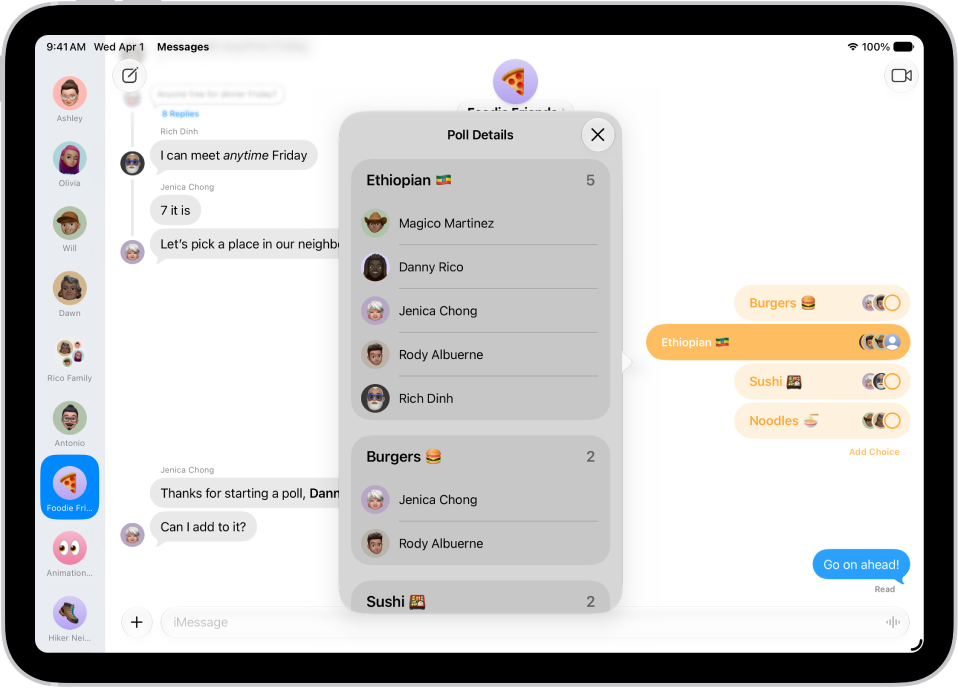
In this article, I’m going to tell you exactly what iMessage is, how it
works and what you can do when it’s not working.

What is an iMessage?

iMessage is a free, secure encrypted messaging service for Mac, iPhone, iPad, and Apple Watch.iMessage
is Apple’s own messaging service. The Cupertino based brand introduced iMessage in 2011.

iMessage can be called an “Over The Top” (OTT) service that does not require a cellular data connection. Your messages can either be sent over cellular data or Wi-Fi connection
. If your device is not connected to a Wi-Fi network, your message will be sent over cellular data. If you use Wi-Fi to send or receive iMessages, it’s free of charge. As
such, iMessage may use your
cellular data
 which will be deducted from your cellular data plan. And iMessage may consume huge amount of data particularly if you are sending photos, audio, or videos via iMessage.
Conversely, iMessages you send over cellular are not part of your monthly text message allowance if your cellular data plan sets a limit.

Regular text messages (SMS or MMS) require a cellular data plan with text-message abilities. Wireless carriers usually offers three types of text message plans as listed below:

  1. Unlimited text plan. As the title says, you can send unlimited text messages.
  2. Limited text plan. In this type of plan, you have a messaging allowance, usually monthly, that means, you can send a certain number of text messages.
  3. And pay per message. Meaning your carrier will charge you for every message you send or receive.

Irrespective of your data plan, you can send unlimited number of iMessages.

How to send an iMessage

To be able to send and receive iMessage, you need to have Apple’s Messages app on your device running iOS 5 or higher, watchOS 1 or higher or OS X Mountain Lion or higher.
You and your recipient need to have a compatible Mac, iPhone, iPad, iPod touch, or Apple Watch to use iMessage.

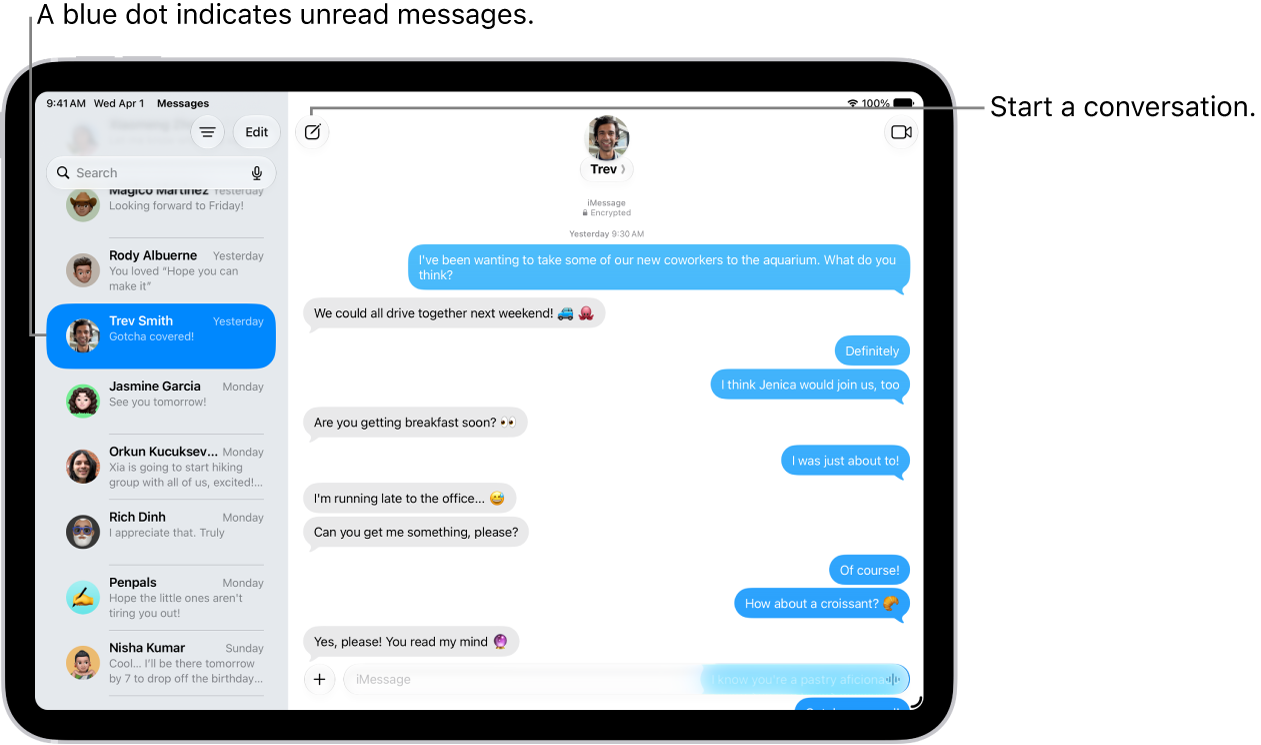
Everything is automatic. Both the sender and the recipient just need a device that supports iMessage. On your apple device, simply launch the Messages app and type and
then send your message. Then Messages will check with Apple servers if your recipient is set up for iMessage. If yes, your message will automatically be
delivered as an iMessage. Otherwise, your message will be sent as a regular text message (SMS/MMS). Please note, iMessages appears in blue bubbles while regular text messages appears in green bubbles.

To turn on or off iMessage on your device, please follow these steps:

  • On your iPhone, iPad or iPod touch, Start the Settings app and go to Messages and iMessage.
  • On your Mac, to
    turn off iMessage,
    start the Messages app and then click Messages > Preferences, then click Accounts and select your iMessage account.

iMessage features

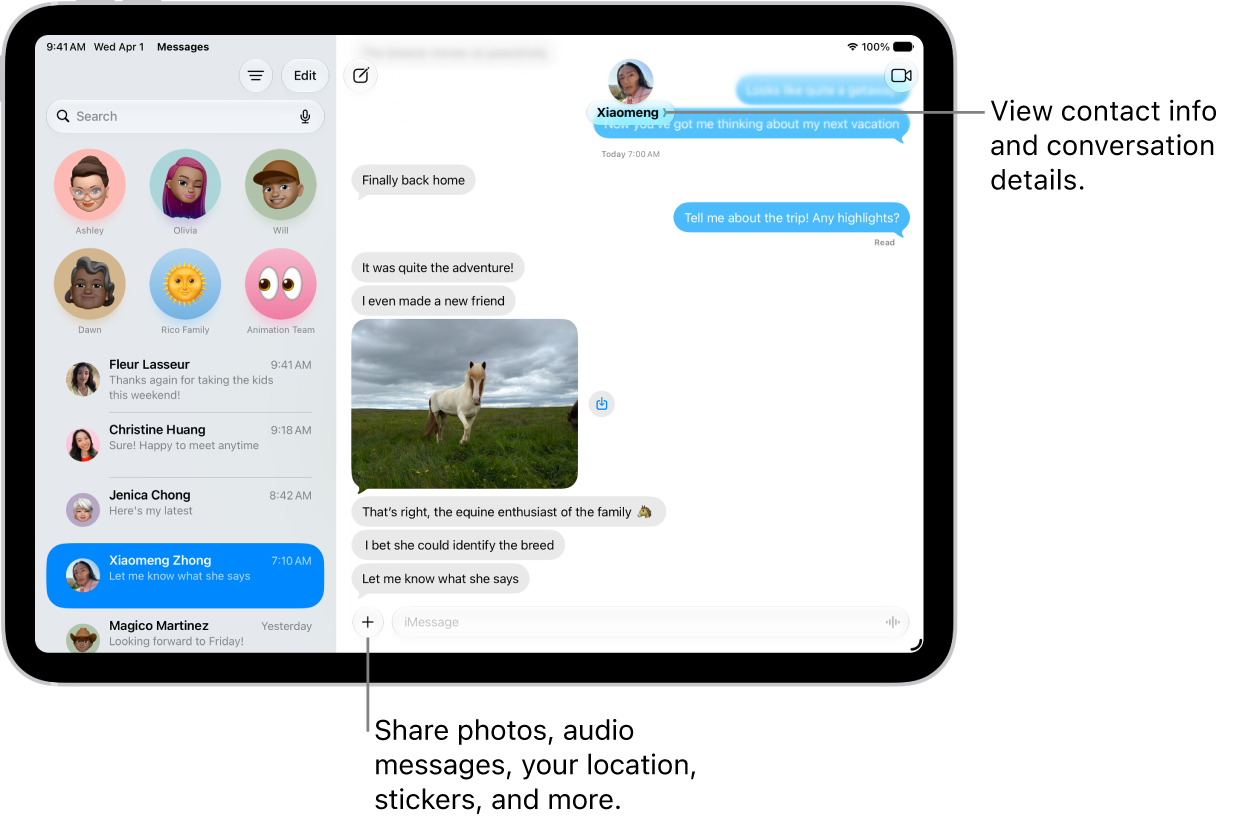
iMessage has numerous awesome features. You can send and receive text, photos, audios, video , voice messages, location, money, heartbeats etc. The following are some iMessage
features:

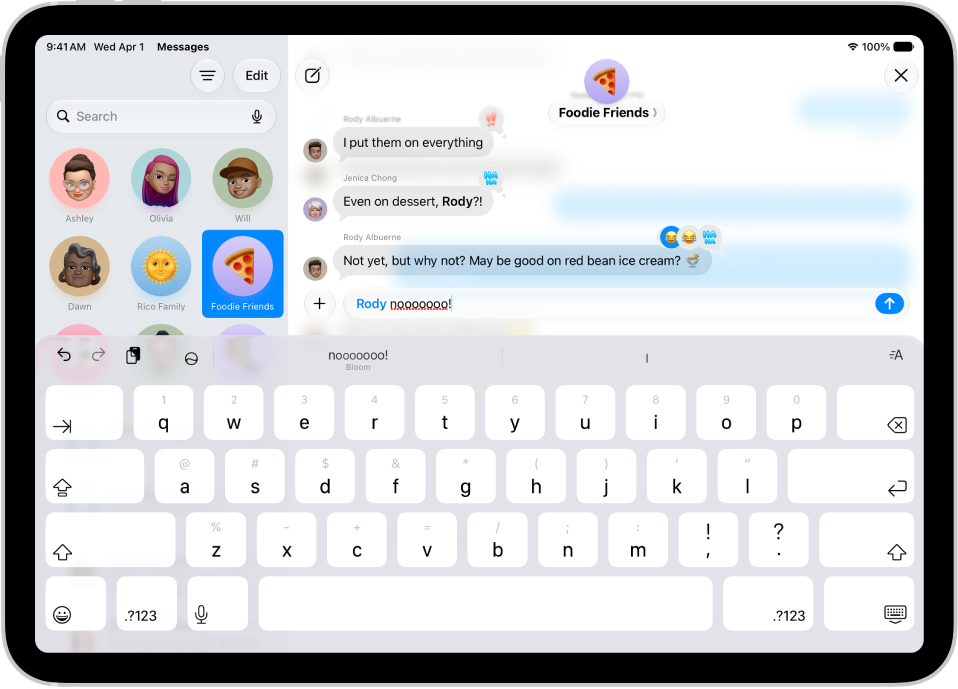
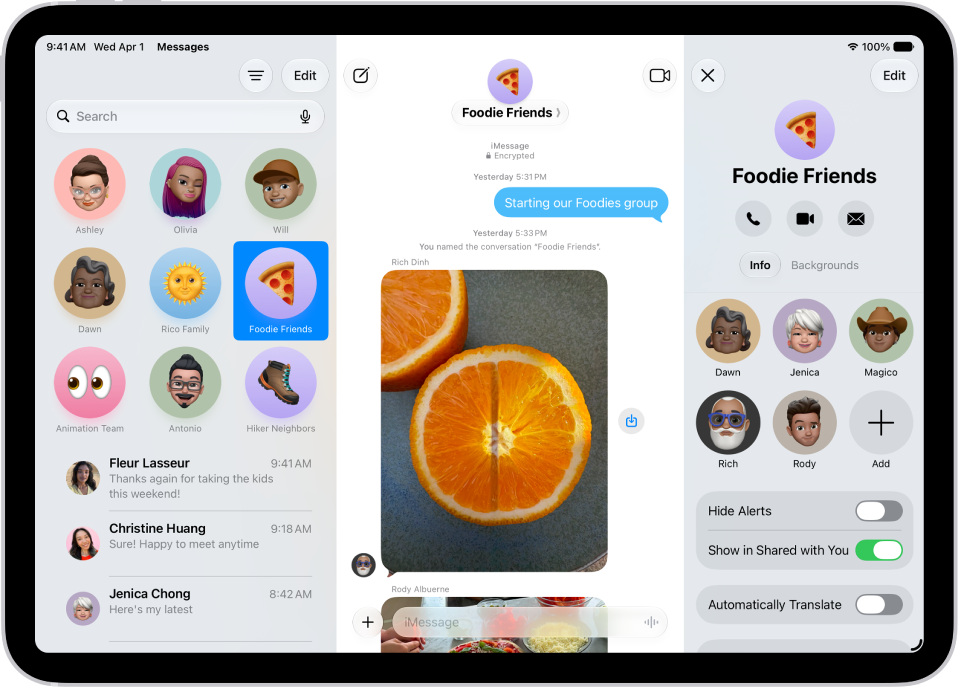
  • You can participate in group iMessage chats.
  • iMessage shows
    read receipts.
  • You can
    send pictures, audio or videos via iMessage.
  • You can send or receive cash with Apple Pay.
  • You can
    send your location via iMessage.
  • You can apply
    message effects.
  • You can use iMessage apps.
  • You can send a sketch, tap, or heartbeat using Digital Touch.
  • You can send GIFs using
    #images.
  • You can use Messages in Cloud to sync your entire message history across all your apple devices.

How to troubleshoot iMessage problems

If iMessage is not working on your iPhone, iPad or Mac, please try the following fixes:

  • Make sure that your Apple device is running the latest version of iOS, iPadOS, macOS or watchOS.
    • To update your iPhone, iPad or iPod touch, go to Settings > General > Software Update.
    • To update macOS Mojave or higher, head over to System Preferences and then Software Update.
    • To update macOS High Sierra or older, launch the App Store on your Mac and then click the Updates tab.
  • Turn off iMessage (check the section above to turn on/off iMessage), then restart your device and then turn iMessage back on.
  • Sign out and sign in:
    • On your Mac: Launch Messages, select Messages > Preferences, then click Accounts and select your iMessage account. Click Sign Out. Then restart your Mac
      and sign back in.
    • On your iPad, iPhone or iPod touch: Go to Settings > Messages > Send & Receive. Tap your Apple ID, then tap Sign Out. Then restart your device and sign back in.
    • Ensure that your device is connected to the Internet (a cellular data or Wi-Fi network).
    • Make sure that your time zone is correct:
      • macOS: Click Apple menu > System Preferences, then click Date & Time. Also, you may need to tick the ”Set date and time automatically” box.
      • iOS or iPadOS: Head over to Settings > General > Date & Time. You may also want to enable the “Set Automatically” option.
    • Check the
      Apple System Status website.
      Maybe Apple is having iMessage outages.

Are you getting No Video, FaceTime Has Not Received Any Video From Connected Camera error? worry not! here is the fix.

A number of Mac users have stated that they are unable touse FaceTime because the built-in Mac camera is not working. To be specific, users are reporting
Black FaceTime
screens and users are getting the following error message:

No Video. FaceTime has not received any video from the connected camera. restarting your computer may fix the issue. 

Almost all Mac models include a built-in iSight, FaceTime, or FaceTime HD camera. This camera automatically turns on and off when youmake a FaceTime call.
Most of the time, the camera works as expected. However, you may experience issues from time to time.

Apparently, these Mac camera issues affected all Mac models including MacBooks, MacBook Airs and MacBook Pros.

Please try these fixes below in order. After performing each step, check FaceTime again to see if your issue has been fixed.

Check out this article if
Mac microphone is not working.

Quit and restart

Quit FaceTime and then restart. Simply follow these steps:

  1. In FaceTime, click FaceTime.
  2. Now, hit Quit FaceTime.
  3. Next, launch the FaceTime app and try again.

Camera selection

If you have several cameras connected to your Mac, ensure that the correct camera is selected. Simply follow these steps:

  1. Launch the FaceTime app.
  2. Now, click Video inside the facetime app.
  3. Lastly, check to see if the correct camera is selected.

Restart your Mac

As the error message indicates, restarting your Mac may fix your “no video” error. Simply follow these steps to restart your Mac:

  1. Click the Apple menu.
  2. Now, click Restart.

Update your Mac

Make sure that your Mac is running the latest version of MacOS. Updating your Mac also updates FaceTime. Simply follow these steps to
update your Mac:

  • To update MacOS Mojave or higher: Click the Apple menu, go to System Preferences and then Software Update. This will check for updates. And if there is an update available, click
    the Update Now button and follow the on-screen instructions to update your Mac.
  • To check for update in earlier macOS versions: On your Mac, Go to the App Store and click Updates.

Safe Mode

Restarting your
Mac in Safe Mode
may fix camera issues on Mac. Simply follow these steps to restart your Mac in safe mode:

  1. Shut down your Mac.
  2. Power on your Mac and immediately press and enter the Shift key.
  3. Hold down the Shift key until the login screen appears and then release it.
  4. Log in to your Mac. You may have to log in a couple of times.
  5. Now, your Mac is in Safe Mode. (This is how you can know
    if your Mac has started in Safe mode).

    • Your Mac will be slower than normal. Don’t worry.
  6. Now, restart your Mac normally to
    exit Safe Mode.

Now check your FaceTime video issue. Mac facetime camera not working? Try the next solution.

Reset SMC and NVRAM or PRAM

Simply follow these steps to reset SMC and NVRAM or PRAM on your Mac:
Reset NVRAM or PRAM:

  1. Shut down your Mac.
  2. Power on your Mac and immediately press and hold down the Option, Command, P, and R keys at the same time for about 20 seconds.

Reset SMC:

  • Please check out this article to
    reset the SMC (System Management Controller) on your Mac

Terminal

Please follow these steps:

  1. Quit all apps that may actively use your camera. (
  2. Now, launch Terminal.
    (Applications /
    Utilities).
  3. Next, type in the command below and hit enter:
    sudo killall VDCAssistant
  4. Next on, type in the command below and press enter:
    sudo killall AppleCameraAssistant
  5. If asked, type in your password.

After this, check if FaceTime is working as expected. Mac Facetime camera dark? Try the next solution.

If the above fixes did not fix your problem, then it is time to
contact Apple.