Got a tip for us?

Notifications help you keep track of what’s new—they let you know if you missed a call, if the date of an event moved, and more. You can customize your notifications so you see only what’s important to you.

Unless you have notifications silenced with a Focus, iPad displays them as they arrive, and they roll in from the bottom of the screen to minimize distraction. On the Lock Screen, you can view them in an expanded list view, stacked view, or count view. You can also respond to notifications, and view, dismiss, clear, or mute them.

Note: While you use an app, it might ask how you want to receive its notifications: immediately, not at all, or in a scheduled summary. To change this setting later, open the Settings app and tap Notifications.

Find your notifications in Notification Center

Do any of the following to see your notifications in Notification Center:

  • On the Lock Screen: Swipe up from the middle of the screen.
  • On other screens: Swipe down from the top-left corner. Then you can scroll up to see older notifications, if there are any.

To close Notification Center, swipe up from the bottom with one finger, or press the Home button (on supported models).

Respond to notifications

Multiple notifications in Notification Center or on the Lock Screen are grouped by app, making them easier to view and manage, and some apps may also group notifications by organizing features within the app, like topic or thread. Each group appears as a small stack, with the most recent notification on top.

With notifications grouped, you can do any of the following:

  • To expand a group of notifications to see them individually: Tap the group. To close the group, tap Show Less.
  • To view a notification and perform quick actions if the app offers them: Touch and hold the notification.
  • To open a notification’s app: Tap the notification, then tap Open.
  • To respond to a notification when iPad is locked: Touch and hold the notification.

View, dismiss, clear, and mute notifications

You can do any of the following when notifications appear on your iPad:

  • Handle a notification you receive while using another app: Pull it down to view it, then swipe up to dismiss it.
  • Clear notifications: Swipe left on a notification or group of notifications, then tap Clear or Clear All.
  • Mute notifications for an app: Swipe left on the notification or group of notifications, tap Options, then tap an option to mute the app’s notifications for an hour or a day. This sends them directly to Notification Center and prevents them from appearing on the Lock Screen, playing a sound, lighting up the screen, or presenting a banner.

    To see and hear these notifications again, swipe left on a notification in Notification Center, tap Options, then tap Unmute.

  • Turn off notifications for an app or notification group: Swipe left on a notification or group of notifications, tap Options, then tap Turn Off.
  • Change how an app displays notifications: Swipe left on a notification, tap Options, then tap View Settings. See Change notification settings to learn about the settings you can change.
  • Clear all your notifications in Notification Center: Go to Notification Center, tap the Clear Notifications button, then tap Clear.

When an app hasn’t been used for a while, you may get a suggestion to turn off notifications for that app.

Show recent notifications on the Lock Screen

You can allow access to Notification Center on the Lock Screen.

  1. Open the Settings app on your iPad.
  2. Depending on your model, tap one of the following:
    • Face ID & Passcode
    • Touch ID & Passcode
    • Passcode
  3. Enter your passcode.
  4. Turn on Notification Center (below Allow Access When Locked).

See also
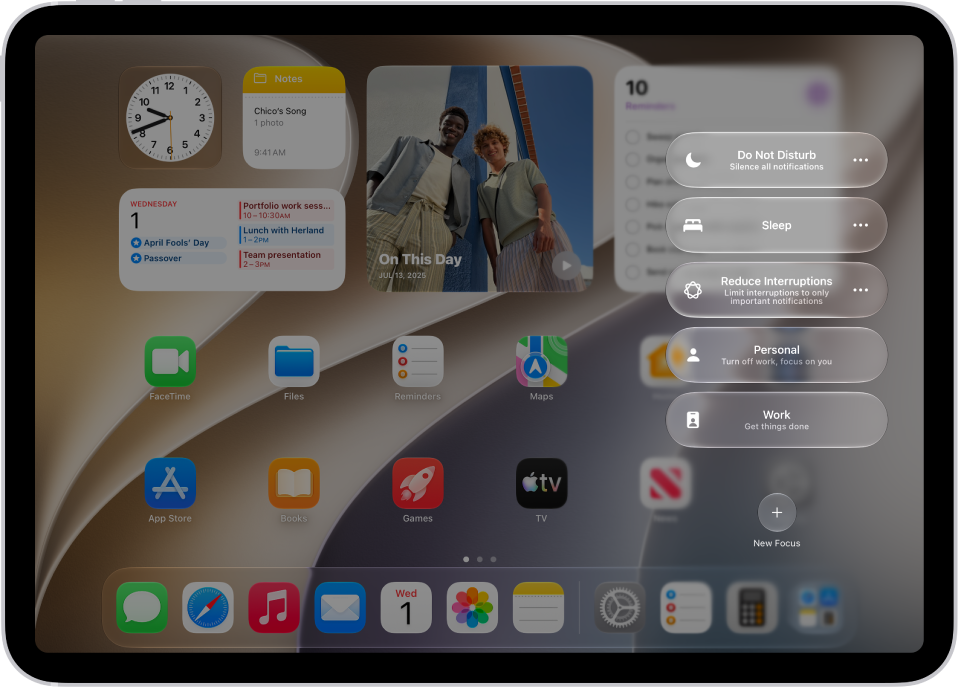
To use a Focus, you can turn it on directly in Control Center, or schedule it to turn on automatically.

When a Focus is on, you’ll see its icon in the status bar and on the Lock Screen, and Messages shows your status automatically. Anyone who messages you sees that you’ve silenced notifications, though they can still get through if something is urgent. You can schedule a Focus to turn on at certain times, at a particular location, or when you open a specific app.

Turn on a Focus in Control Center

  1. Open Control Center and tap Focus. Tap the Focus you want to turn on (for example, Do Not Disturb).

    Note: If another Focus is already on, it turns off when you tap the new one.

    Control Center showing the Focus options, with buttons for setting the duration of the Focus options.

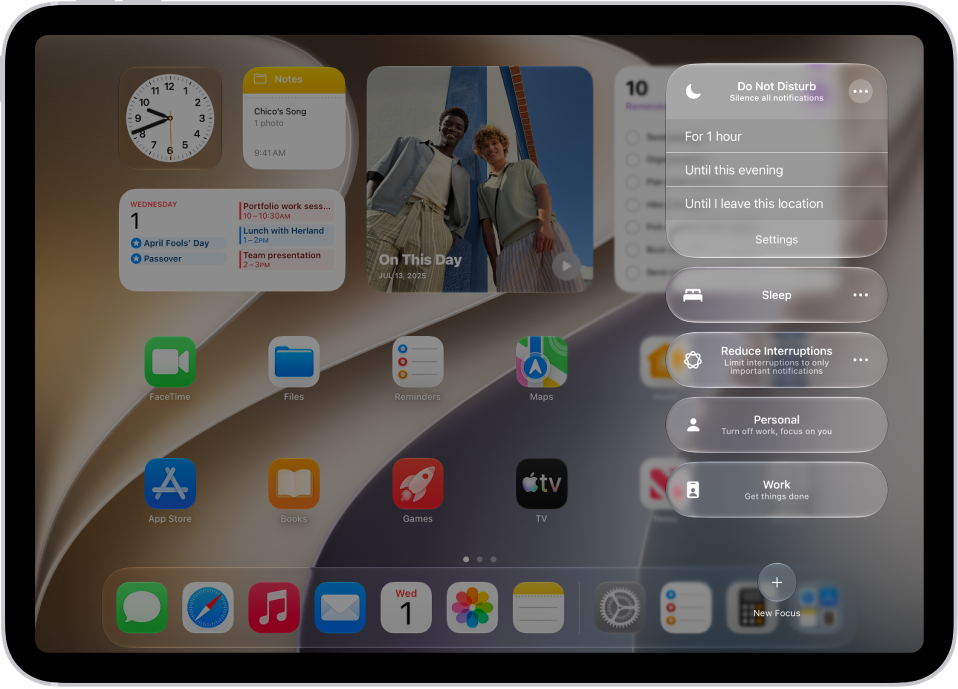
  2. To choose an ending point for the Focus, tap the Do Not Disturb button next to the Focus, select an option (such as For 1 hour or Until I leave this location), and then tap the Do Not Disturb button again.

    Control Center showing options for how long to leave on Do Not Disturb—the options are “For 1 hour,” “Until this evening,” “Until I leave this location,” and “Until the end of this event.”

With a Focus on, its icon appears in the status bar and on the Lock Screen, such as the Do Not Disturb button for Do Not Disturb, and the Messages app automatically displays your status. Anyone who tries to send you a message sees that you’ve silenced notifications, though they can still notify you if something is urgent.

Note: You can also turn a Focus on or off in the Settings app, by tapping Focus and then the Focus, and turning it on.

Schedule a Focus to turn on or off

You can schedule a Focus so it turns on at certain times, when you open a specific app, or when you’re at a particular location.

  1. Open the Settings app on your iPad.
  2. Tap Focus and then tap the Focus you want to schedule.

    If a time appears below Set a Schedule, you can tap it to set a schedule for turning the Focus on and off.

  3. To have the Focus turn on automatically at a certain time based on cues like your location or app usage, tap Add Schedule or Smart Activation, turn on Smart Activation, and then tap the Back button at the top of the screen.
  4. Tap Add Schedule and then set the times, a location, or an app you want to activate this Focus.

Note: A Sleep Focus follows the sleep schedule set in the Health app on iPhone. You can add or edit a sleep schedule in the Health app on iPhone: Open it, tap Browse, and tap Sleep.

Turn a Focus on or off using Siri

You can use Siri to turn a Focus on or off.

Siri: Ask Siri something like, “Turn on the Work Focus.” Learn how to use Siri.

Turn off a Focus

Turning off a Focus when you’re finished using it allows notifications again, and it still appears in Control Center so you can reuse it.

  1. Do any of the following:
    • Touch and hold the Focus icon on the Lock Screen.
    • Open Control Center, then tap Focus.
  2. Tap the Focus that’s on to turn it off.

Delete a Focus

You can delete any Focus you set up that you no longer need.

  1. Open the Settings app on your iPad.
  2. Tap Focus, tap the Focus, scroll to the bottom of the screen, and then tap Delete Focus.

If you delete a provided Focus, you need to set it up again by going to the Settings app, tapping Focus, then tapping the Add button.

See also

Tag: Focus

Focus is a feature that helps you concentrate on a task by minimizing distractions. You can customize one of the provided Focus options, like Work, Personal, or Sleep, or create a Custom Focus.

A Focus can temporarily silence all notifications, or allow only the ones that apply to your task, and let other people and apps know you’re busy. You choose which people and apps can still notify you, and you can add Focus filters, too. You can turn a Focus on or off in Control Center, or schedule it to turn on automatically.

Quick tip: Open Control Center, tap Focus, and turn on Do Not Disturb to quickly silence all notifications.

The Reduce Interruptions Focus is another option, using Apple Intelligence to show you only the most important notifications. See our article, Use the Reduce Interruptions Focus.

Note: Apple Intelligence on iPadOS 27 or later is available on an Apple Intelligence-enabled iPad mini (A17 Pro) and iPad models with M1 or later. Apple Intelligence is not available in all languages or regions. Usage limits may apply.

Set up a Focus

  1. Start the Settings app on your iPad.
  2. Tap Focus. Then tap a Focus—for example, Do Not Disturb, Personal, or Work.

    For your Focus, you can set up the options described in the steps below, but you don’t have to set up all of them.

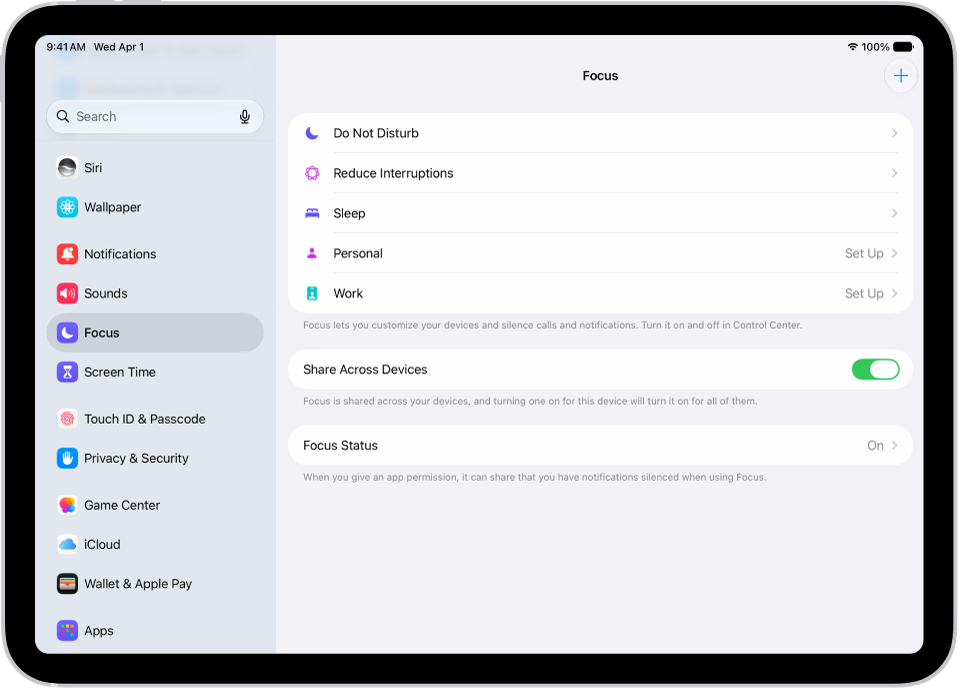
    A screen showing six provided Focus options—Do Not Disturb, Driving, No messages during calls, Sleep, Personal, and Work. The Share Across Devices button is on, which allows the same Focus settings to be used across your Apple devices.

  3. Specify which people and apps to allow notifications from during your Focus:

    • People: Tap People, then tap Allow Notifications From. Tap the Add People button, select contacts, tap Done, and tap the Back button at the top of the screen. You can also silence specific people by tapping Silence Notifications From instead.
    • Apps: Tap Apps, then tap Allow Notifications From. Tap the Add Apps button, select apps, tap Done, and tap the Back button at the top of the screen. You can also silence specific apps by tapping Silence Notification From instead.
  4. Tap Options and then do any of the following:

    • Show silenced notifications in Notification Center instead of on the Lock Screen: Turn off Show On Lock Screen.
    • Darken the Lock Screen during this Focus: Turn on Dim Lock Screen.
    • Hide notification badges on Home Screen apps: Turn on Hide Notification Badges.
    • Dim the Lock Screen during this Focus: Turn on Dim Lock Screen.
    • Use Apple Intelligence to allow important notifications to interrupt you: Turn on Intelligent Breakthrough & Silencing. Any notifications specifically allowed or silenced will always be allowed or silenced.
  5. When you’re finished selecting options, tap the Back button at the top of the screen.
  6. Specify the Lock Screen and Home Screen options:

    • Choose the Lock Screen for this Focus: Tap the Lock Screen preview below Choose a Lock Screen, select a Lock Screen, and tap the Done button.
    • Choose the Home Screen for this Focus: Tap the Home Screen preview below Choose a Home Screen Page, select a Home Screen page, tap Done, and then tap the Back button at the top of the screen.

      Note: To make changes to the Home Screen to customize it further for your Focus, see Move apps and widgets on the Home Screen.

After setting up your Focus, you can go back to the Settings app, tap Focus, then change any of the options you chose earlier.

Turn a Focus on or off

You can turn a Focus on or off manually in Control Center or schedule the Focus to turn on automatically.

Add Focus filters

When you set up a Focus, any app filters you add determine what information apps will show during the Focus, such as which mail account or which calendar to use.

  1. Start the Settings app on your iPad.
  2. Tap Focus. Then tap the Focus you want to add filters to.
  3. Tap Customize Focus and then tap Add Filter (below Focus Filters).
  4. Tap an app, tap Choose, and select the information from that app you want to see during the Focus:
    • Calendar: Choose which calendar you want to show during the Focus.
    • Mail: Choose which mail accounts you want to use during the Focus.
    • Messages: Choose which message conversations you want to see during the Focus—for example, only conversations from people you’ve allowed notifications from during this Focus.
    • Safari: Choose which Tab Group you want to use during the Focus.
  5. Tap Add to add the filter to the Focus.

Note: When Share Across Devices is on, Focus filters don’t sync across devices. To turn it off, go to the Settings app and tap Focus.

Create a custom Focus

Create a custom Focus if the activity you want to focus on is different from any of the provided Focus options.

  1. Start the Settings app on your iPad.
  2. Tap Focus and tap the Add button at the top right. Then tap Custom.

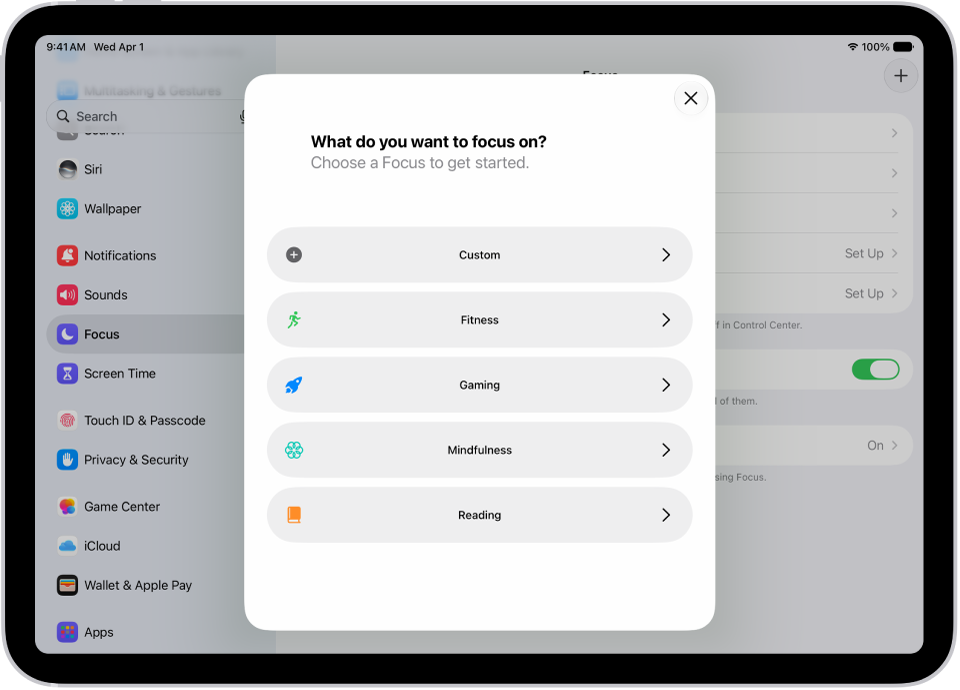
    A Focus setup screen for the additional provided Focus options, including Custom, Fitness, Gaming, Mindfulness, and Reading.

  3. Enter a name for your Focus and tap Return.
  4. Choose a color and an icon to represent your Focus. Tap Next.
  5. Tap Customize Focus. Then set up the options for your custom Focus, following the instructions in Set up a Focus.

Keep your Focus settings up to date across all your Apple devices

The same Focus settings can apply on all your Apple devices that are signed in to the same Apple Account.

  1. Start the Settings app on your iPad.
  2. Tap Focus and then turn on Share Across Devices.

    Note: When you turn on Share Across Devices and turn on Share Focus Status, your Focus can show that you have notifications silenced. For example, if you silence notifications when you set up a Focus, people who text you will see that your notifications are silenced. You can change this setting for specific people on their contact card.

*Apple Intelligence is available with Siri and device language set to Chinese (Simplified), Chinese (Traditional), Danish, Dutch, English, French, German, Italian, Japanese, Korean, Norwegian, Portuguese, Spanish, Swedish, Turkish, or Vietnamese. Some features may not be available in all regions or languages. Some devices may not be available in all regions. Siri AI is available in beta in iOS 27, iPadOS 27, macOS 27, watchOS 27, and visionOS 27 and requires an Apple Intelligence–enabled device set to a supported language. Available in English to start. Siri AI will not be initially available in the EU on iOS, iPadOS, and watchOS. Certain Apple Intelligence features that rely on server-side models are subject to daily usage limits, including but not limited to Siri AI, Intelligent Photo Editing Tools, Image Playground, and AFM 3 Cloud models in Shortcuts. Daily limits may vary by feature, request complexity, system demand, system policies, and other factors. Expanded access to such features will be available for a fee in the future. Use of these features is subject to the Apple Intelligence Terms and Conditions.

See also

Tag: Focus

On iPad, choose an image or photo as wallpaper for the Lock Screen or Home Screen. You can choose from dynamic and still images.

You can design your wallpaper with Photos, Astronomy, or Weather, or choose a wallpaper option from one of the featured sets, like Nature or Isle of Skye. You can use it on both the Lock Screen and Home Screen, or change the wallpaper color and blur it so the apps stand out. And you can set your wallpaper to change automatically when you switch to a particular Focus.

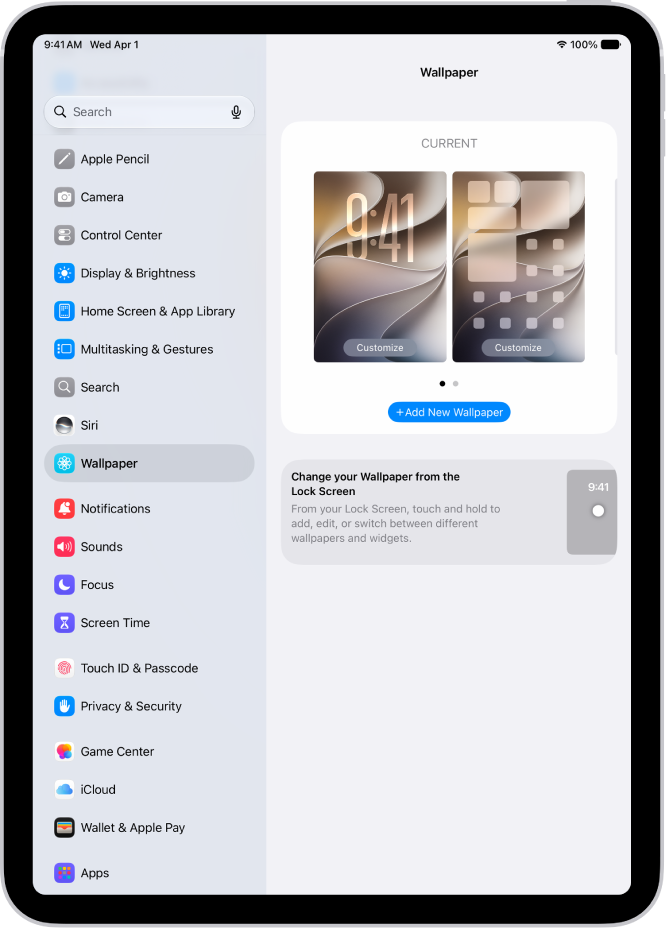
The Wallpaper Settings screen, with the button for choosing a new wallpaper at the top and images of the Lock Screen and Home Screen with the current wallpaper.

  1. Start the Settings app on your iPad.
  2. Tap Wallpaper, tap Add New Wallpaper, and then do any of the following:

    • Tap a button at the top of the wallpaper gallery—for example, Photos, Astronomy, or Weather—to design your wallpaper.
    • Choose a wallpaper option from one of the featured sets (Nature, Isle of Skye, and so on).

      Note: If you don’t see wallpaper options you want to use (for example, Weather or Astronomy), scroll down to see more options, then tap Get below the one you like.

  3. Tap Add, then choose one of the following:

    • Choose whether to use the wallpaper on both the Lock Screen and Home Screen: Tap Set as Wallpaper Pair.
    • Make further changes to the Home Screen: Tap Customize Home Screen. Tap a color to change the wallpaper color, tap the Select a Photo button to use a custom photo, or select Blur to blur the wallpaper so the apps stand out.

Quick tip: Link your Lock Screen to a particular Focus, and your wallpaper can change automatically. (See our guide, Link a Focus to your Lock Screen.) When you switch to that Focus, your wallpaper switches, too.

See also

Widgets show you information from an app at a glance, like today’s headlines, weather, reminders, and battery levels. You can add them to your Home Screen, and turn an app icon into a widget. A Smart Stack, a widget with dots next to it, shows the most relevant widget based on the time and your location.

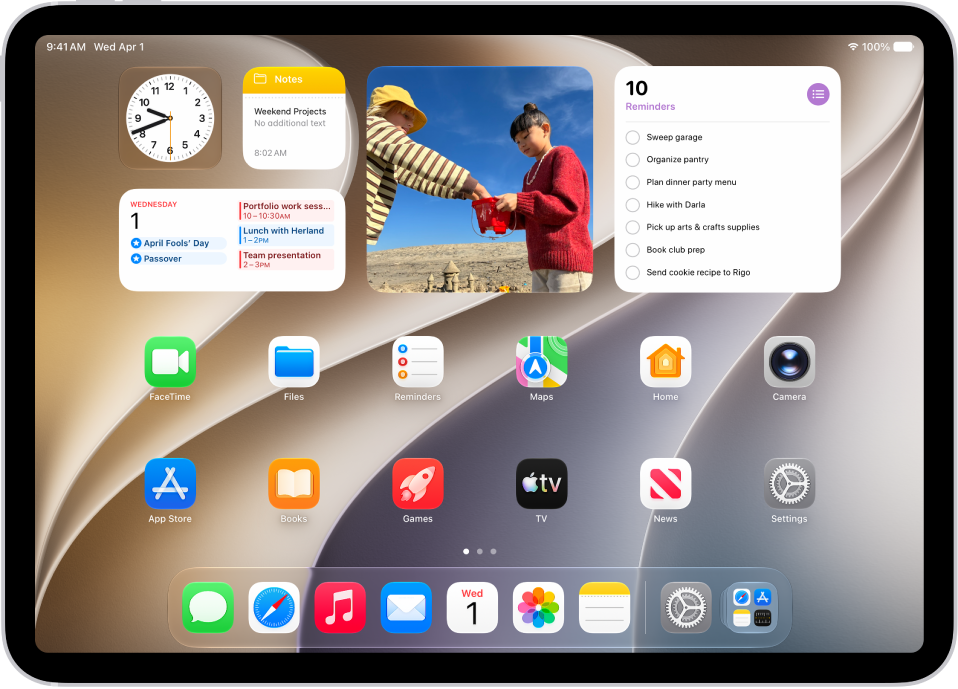
The iPad Home Screen. At the top of the screen are customized widgets for Clock, Journal, Photos, Reminders, and Calendar.

What are widgets?

Widgets show you information from an app at a glance, such as battery levels, weather, reminders, today’s headlines, and more. You’ll find them in Today View. You can also add them to your Home Screen or Lock Screen to keep that information at your fingertips.

Quick tip: Look for a widget with dots next to it, which is a Smart Stack. It combines a set of widgets and uses information such as the time, your location, and activity to show the most relevant one at the appropriate time in your day. You can put one on the Home Screen from the widget gallery and swipe up and down through it to see what’s inside.

Add a widget to your Home Screen

  1. Go to the Home Screen and then find the Home Screen page where you want to add the widget.
  2. Touch and hold the background until the apps begin to jiggle, tap the Edit button at the top of the screen, and then tap Add Widget.
  3. Scroll or search to find the widget you want and tap it. Then swipe left and right through the style and size options.
  4. When you see the size you want, tap Add Widget.
  5. While the apps are still jiggling, move the widget where you want it. Then tap the Done button.

Adding a widget to your Lock Screen works differently, so check out our guide, Edit your Lock Screen or create a new one.

Turn an app icon into a widget

You can quickly create a widget from an app icon.

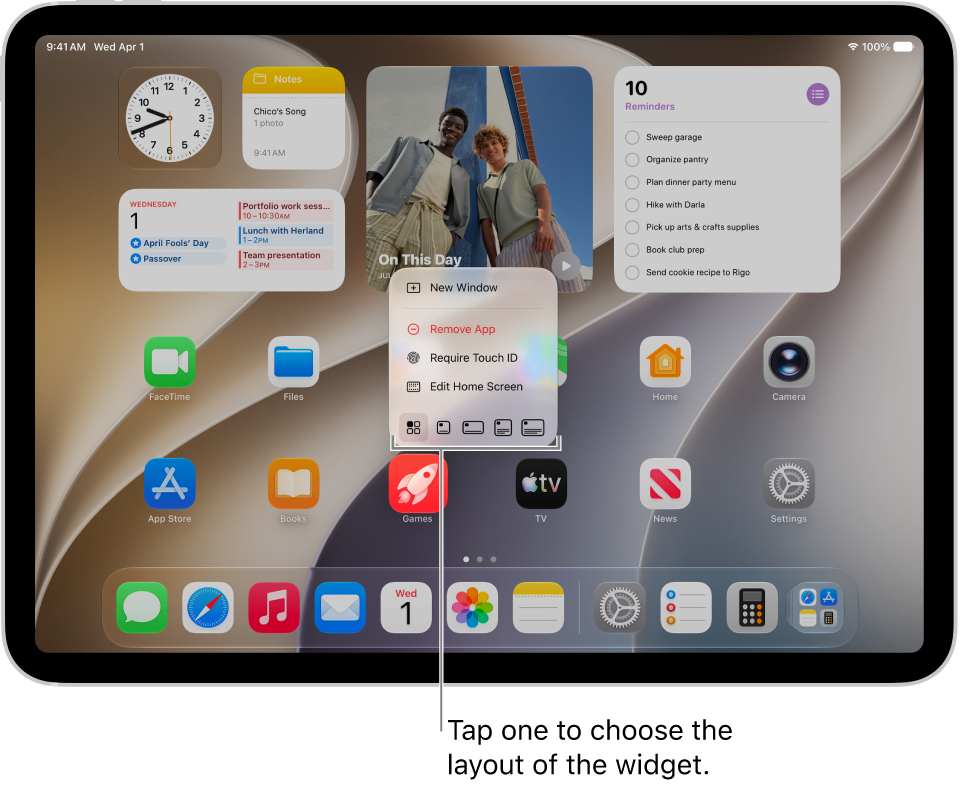
  1. Touch and hold the app icon on your Home screen.
  2. To choose the size of the widget, tap one of the icons at the top of the pop-up menu.

    A Home Screen showing an app pop-up menu being used to transform an app icon into a widget for the app.

To change the widget back to an app icon, touch and hold it, then tap the App Icon button.

Interact with widgets

You can perform tasks by tapping widgets on your Home Screen or Lock Screen. Tap an item in the Reminders widget to check it off, tap the Play button in the Podcasts widget to play an episode, or tap the Home widget to turn on your living room lights—all without opening an app.

Edit a widget on your Home Screen

To show the information you want to see, you can customize most widgets right from your Home Screen. A Weather widget, for example, can display the forecast for your location or a different area. A Smart Stack can rotate automatically through its widgets based on the time of day, your location, your activity, and so on.

  1. Touch and hold a widget.
  2. Tap Edit Widget (or Edit Stack, if it’s a Smart Stack). Choose options.

    For a Smart Stack, you can turn Smart Rotate or Widget Suggestions (below the widget) off or on, drag a widget from the Smart Stack to the Home Screen, or remove a widget by tapping the Remove button in its upper-left corner.

    When you turn on Widget Suggestions, widgets for apps you already use automatically appear in your Smart Stack at the right time based on your past activity. An option lets you add the widget to your stack so it’s always there when you need it.

  3. Tap Done.

View widgets in Today View

To view widgets in Today View, swipe right from the left edge of the Home Screen, then scroll up and down.

View widgets in Today View when iPad is locked

  1. Open the Settings app on your iPad.
  2. Tap Face ID & Passcode (on an iPad with Face ID) or Touch ID & Passcode (on other iPad models).
  3. Make sure Today View and Search is turned on (below Allow Access When Locked).

See also
You can change the layout of your Home Screen—move apps and widgets anywhere on the screen to frame your wallpaper, or move them to other Home Screen pages. If you have multiple Home Screen pages, each one can have a unique layout.

You can even make a new page, and the dots above the Dock show how many pages you have. You can also temporarily hide Home Screen pages, remove a widget, and change where new apps get downloaded.

Quick tip: Put all your apps and widgets related to a particular Focus, like your Work Focus, on one Home Screen page, and you can make that page accessible during that Focus.

Move apps and widgets around on your Home Screen

  1. Go to the Home Screen.
  2. Touch and hold the Home Screen background until the items begin to jiggle.
  3. Drag the app or widget to one of the following locations:

    • Another location on the same page—including the top, bottom, or side of the screen
    • Another Home Screen page

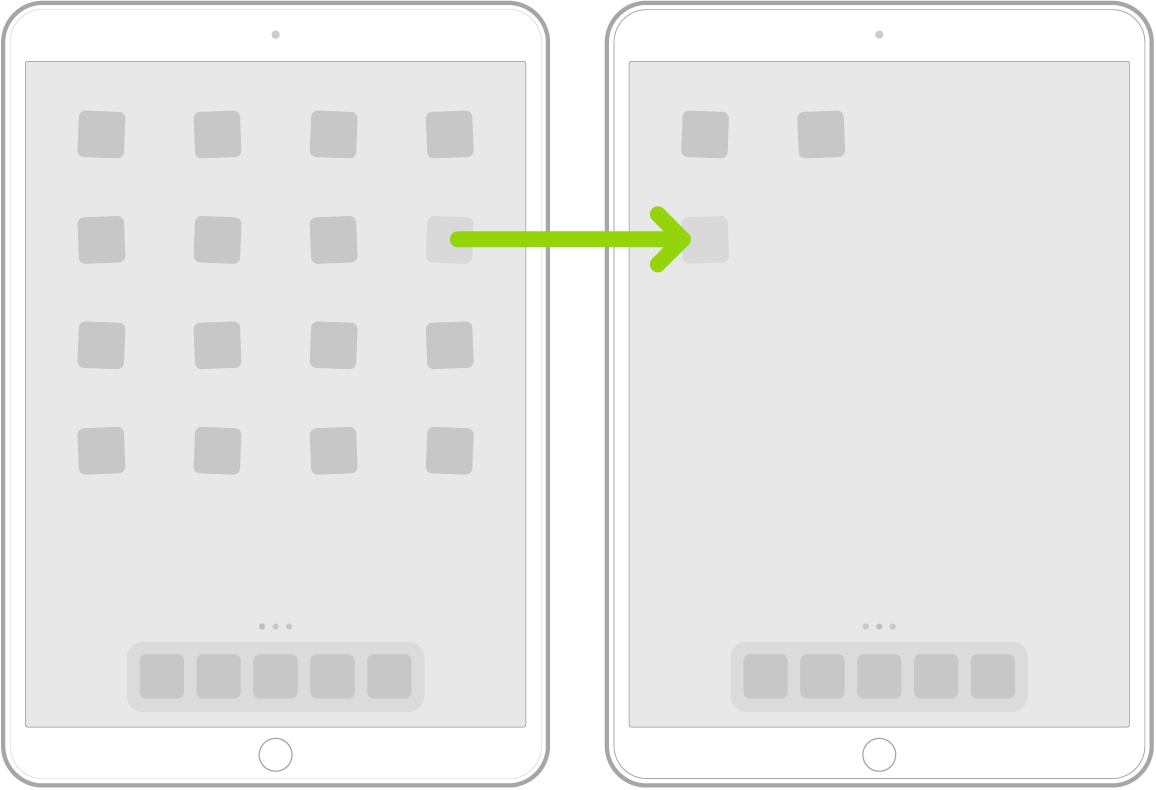
      Drag the app or widget to the right edge of the screen. You might need to wait a moment for the new page to appear. The dots above the Dock show how many pages you have and which one you’re viewing.

      Jiggling apps on the Home Screen with an arrow showing one app being dragged to the next page.

      Tip: You can also drag an app to the Dock at the bottom of the screen.

  4. When you’re finished, tap Done at the top right.

Remove a widget from your Home Screen

  1. Go to the Home Screen.
  2. Touch and hold the widget to open the Quick Actions menu.
  3. Do one of the following:
    • To remove a widget: Tap Remove Widget.
    • To remove a Smart Stack: Tap Remove Stack.

Reset the Home Screen and apps to their original layout

  1. Start the Settings app on your iPad.
  2. Tap General, then tap Transfer or Reset iPad.
  3. Tap Reset and tap Reset Home Screen Layout.

    Any folders you created are removed, and apps you downloaded are arranged alphabetically after apps that came with your iPad.

See also

You can organize your apps into folders to make them easier to find on your Home Screen pages.

Each folder can contain multiple pages of apps. You can move an app from a folder back to a Home Screen page, where it’s easier to find and open, and when a folder is empty, it’s deleted automatically. Organizing your apps on the Home Screen, though, doesn’t affect the organization of apps in App Library.

Here’s how to organize your apps in folders on iPad.

Create a folder

  1. Go to the Home Screen.
  2. Touch and hold the Home Screen background until the apps begin to jiggle.
  3. To create a folder, drag an app onto another app. Drag any other apps you want into the folder.

    A folder can contain multiple pages of apps.

  4. To rename the folder, touch and hold it, tap Rename, and then enter a new name.

    If the apps begin to jiggle, tap the Home Screen background and try again.

  5. When you’re finished, tap Done.

Note: The organization of apps in App Library isn’t affected by organizing your apps on the Home Screen.

Delete a folder from your Home Screen

  1. Go to the Home Screen.
  2. Touch and hold the Home Screen background until the apps begin to jiggle.
  3. Tap the folder to open it. Then drag all the apps out of it onto the Home Screen.

    When the folder is empty, it’s deleted automatically.

Move an app from a folder to the Home Screen

It’s easier to find and open an app if you move it from a folder to a Home Screen page.

  1. Go to the Home Screen.
  2. Locate the folder that contains the app. Tap the folder to open it.
  3. Touch and hold the app until the apps begin to jiggle.
  4. Drag the app from the folder to the Home Screen.

See also

You can remove or delete some built-in apps from your iPad. If you remove an app from your Home Screen, it moves to App Library—it isn’t deleted—and you can still use it from there.

Deleting an app removes it and its data from your iPad, though any data stored in iCloud, like photos or documents, isn’t deleted. You can recover a deleted app later, too.

Here’s how to remove or delete apps from iPad.

To block an app to prevent its use, you can use Screen Time settings. See Block apps, app downloads, websites, and purchases.

If you want to limit access to an app without deleting it, see Lock or hide an app.

Remove an app from the Home Screen

  1. Go to the Home Screen.
  2. Touch and hold an app, tap Remove app, and tap Remove from Home Screen.

The app moves to App Library, where you can still use it. Read our article, Find and use your apps in App Library.

Delete an app from iPad

Deleting an app from your iPad removes both the app and its data.

  1. Touch and hold the app on the Home Screen or in App Library.
  2. Tap Remove App, then tap Delete App.
  3. Tap Delete to confirm.

If an app stores data in iCloud, like photos or documents you’ve saved through it, that data isn’t deleted when you delete the app. Available storage on your iPad may also take a moment to update afterward.

Note: Some Apple apps can be removed from the Home Screen but can’t be deleted from iPad. In the European Union, there may be other built-in apps you can delete.

Recover a deleted app

If it’s still available, you can reinstall any app you’ve previously downloaded from the App Store.

  1. Start the App Store app on your iPad.
  2. Tap the My Account button or your picture at the top right and tap Apps & Purchase History. Then tap Your Apps.
  3. If you’re part of a Family Sharing group, tap My Apps or choose a family member.
  4. Find the app you want to download (if it’s still available in the App Store) and tap the Redownload button.

See also

You can turn on cellular data service, turn cellular service on or off, manage roaming and network options, and control which apps and services use cellular data. With some carriers, you can also change your data plan.

With cellular data off, email, web browsing, notifications, and other data services use Wi-Fi only. You can see how much data each app has used, too, and your wireless service provider can help with cellular network services and billing.

Note: Wi-Fi + Cellular models only support cellular data, not cellular phone service. For making and receiving phone calls on iPad, you can use Wi-Fi Calling and an iPhone.

Add an additional cellular plan to your iPad

If you already have a cellular plan set up and want to add another:

  1. Start the Settings app on your iPad.
  2. Tap Cellular Data, tap Add a New Plan, and follow the onscreen instructions.

Haven’t set up a plan yet? Read our guide, Set up cellular service on iPad (Wi-Fi + Cellular models).

Turn cellular data on or off

When you turn off cellular data, all data services, email, web browsing, and notifications included, run over Wi-Fi only. With cellular data on, carrier charges may apply.

  1. Start the Settings app on your iPad.
  2. Tap Cellular Data and turn Cellular Data on or off.

Manage roaming and network options

When you’re traveling internationally, or want to manage how iPad uses your carrier’s network, you’re able to adjust roaming and network settings.

  1. Start the Settings app on your iPad.
  2. Tap Cellular Data, then tap Cellular Data Options.
  3. Do any of the following:
    • Reduce cellular usage: Turn on Low Data Mode, or tap Data Mode and choose Low Data Mode (depending on your iPad model). This mode pauses automatic updates and background tasks when iPad isn’t connected to Wi-Fi.
    • Avoid roaming charges: Turn off Data Roaming. When you’re in a region not covered by your carrier’s network, Data Roaming permits internet access over a cellular data network. When you’re traveling, turn off Data Roaming to avoid roaming charges.

Depending on your iPad model, carrier, and region, the following option may be available:

  • Turn LTE on or off: Turning on LTE loads data faster.

You can do the following on models that support 5G:

  • Enable Smart Data mode to optimize battery life: Tap Voice & Data, then choose 5G Auto. In this mode, your iPad automatically switches to LTE when 5G speeds don’t provide noticeably better performance.
  • Use higher-quality video and FaceTime HD on 5G networks: Tap Data Mode, then choose Allow More Data on 5G.

View or change your cellular data

Along with seeing how much data each app has used, you can turn off cellular data for individual apps and manage your account.

  1. Start the Settings app on your iPad.
  2. Tap Cellular Data, then do any of the following:
    • Turn cellular data on or off for an app or service: Scroll down to the list of apps and services. Turn an app or service on or off. When cellular data is off for an app, iPad uses only Wi-Fi for that service.
    • See how much data each app is using: Scroll down to your list of apps. The amount of cellular data used appears below each app.
    • Reset usage statistics: Scroll to the bottom, then tap Reset Statistics.
    • Manage your cellular account: Tap Manage [account name] or Carrier Services.

For the most accurate cellular data usage in a current period, contact your carrier.

See also

If you have a Wi-Fi + Cellular model, you can sign up for a cellular data plan, which keeps you connected to the internet when you’re away from a Wi-Fi network. On models that support eSIM, you can activate cellular service right from your iPad.

You may also be able to use a local carrier’s cellular service when you travel abroad. And you can add another cellular plan, or scan a QR code from your carrier.

The cellular connection requires a SIM and a wireless data plan from a carrier. iPad supports the following types of SIM:

  • eSIM (on supported models; not available from all carriers or in all countries and regions)
  • Physical SIM (on supported models; not available from all carriers or in all countries and regions)

Some iPad models can connect to 5G networks.

Set up eSIM

If your iPad model supports eSIM, you can activate the cellular service from your iPad. When you travel abroad with iPad, you may also be able to get cellular service from a local carrier in the country or region you’re visiting.

Note: eSIM isn’t available in all countries and regions, and not all carriers are supported.

  1. Start the Settings app on your iPad.
  2. Tap Cellular Data, then do one of the following:
    • Set up the first cellular plan on your iPad: Select a carrier and then follow the onscreen instructions.
    • Add another cellular plan: Tap Add a New Plan.
    • Scan a QR code provided by a carrier: Tap Other. Then position iPad so that the QR code provided by your carrier appears in the frame, or enter the details manually. You may be asked to enter a confirmation code provided by your carrier.
  3. To change or check the status of your plan, open the Settings app and tap Cellular Data.

Alternatively, you can activate your cellular plan through your carrier’s app (if supported). Go to the App Store, download your carrier’s app, then use the app to purchase a cellular plan.

You can store more than one eSIM on your iPad, but you can use only one eSIM at a time. To switch to another eSIM, go to the Settings app, tap Cellular Data, then tap the plan you want to use (below SIMs).

Install a physical SIM

On models that support physical SIM, you’ll get a nano-SIM card from a carrier.

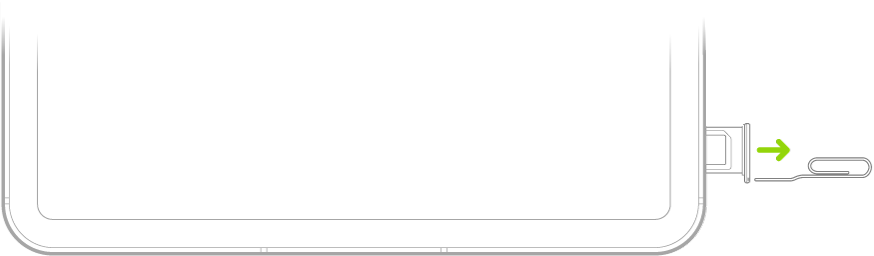
  1. Insert a paper clip or SIM eject tool (not included) into the small hole of the SIM tray. Push in toward iPad to eject the tray.

    A paper clip or SIM eject tool is inserted into the small hole of the SIM tray on the left side of iPad to eject and remove the tray.

    Note: The shape and orientation of the SIM tray depend on the iPad model and your country or region.

  2. Remove the tray from iPad.
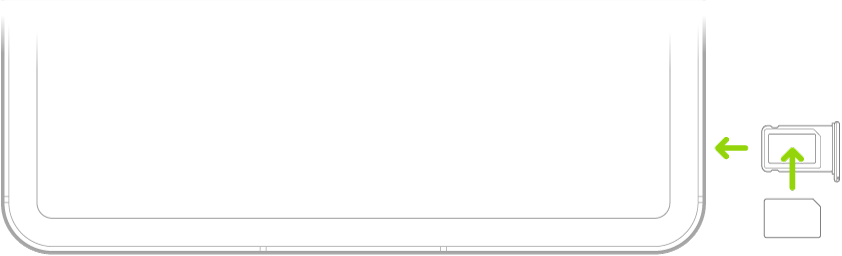
  3. Place the SIM in the tray. The angled corner determines the correct orientation.

    A paper clip or SIM eject tool is inserted into the small hole of the SIM tray on the left side of iPad to eject and remove the tray.

  4. Insert the tray back into iPad.
  5. If you previously set up a PIN on the SIM, carefully enter the PIN when prompted.

    WARNING: Never try to guess a SIM PIN. An incorrect guess can permanently lock your SIM, and you won’t be able to use cellular data through your carrier until you get a new SIM.

Lock your SIM card

To prevent others from using the SIM card your device uses for cellular data, lock the card with a personal identification number, or PIN. After that, your card locks automatically every time you restart your device or remove the SIM card, and you’ll have to enter your PIN.

Important: When using cellular services through GSM networks, you need an eSIM or third-party SIM. When using cellular services through CDMA networks, you need a third-party SIM. Your iPad is subject to your wireless service provider’s policies, which may include restrictions on switching service providers and roaming, even after the conclusion of any required minimum service contract. Contact your wireless service provider for more details. The availability of cellular capabilities depends on the wireless network, your iPad model, and your location.

See also