Got a tip for us?

If you have a Wi-Fi + Cellular model, you can sign up for a cellular data plan, which keeps you connected to the internet when you’re away from a Wi-Fi network. On models that support eSIM, you can activate cellular service right from your iPad.

You may also be able to use a local carrier’s cellular service when you travel abroad. And you can add another cellular plan, or scan a QR code from your carrier.

The cellular connection requires a SIM and a wireless data plan from a carrier. iPad supports the following types of SIM:

  • eSIM (on supported models; not available from all carriers or in all countries and regions)
  • Physical SIM (on supported models; not available from all carriers or in all countries and regions)

Some iPad models can connect to 5G networks.

Set up eSIM

If your iPad model supports eSIM, you can activate the cellular service from your iPad. When you travel abroad with iPad, you may also be able to get cellular service from a local carrier in the country or region you’re visiting.

Note: eSIM isn’t available in all countries and regions, and not all carriers are supported.

  1. Start the Settings app on your iPad.
  2. Tap Cellular Data, then do one of the following:
    • Set up the first cellular plan on your iPad: Select a carrier and then follow the onscreen instructions.
    • Add another cellular plan: Tap Add a New Plan.
    • Scan a QR code provided by a carrier: Tap Other. Then position iPad so that the QR code provided by your carrier appears in the frame, or enter the details manually. You may be asked to enter a confirmation code provided by your carrier.
  3. To change or check the status of your plan, open the Settings app and tap Cellular Data.

Alternatively, you can activate your cellular plan through your carrier’s app (if supported). Go to the App Store, download your carrier’s app, then use the app to purchase a cellular plan.

You can store more than one eSIM on your iPad, but you can use only one eSIM at a time. To switch to another eSIM, go to the Settings app, tap Cellular Data, then tap the plan you want to use (below SIMs).

Install a physical SIM

On models that support physical SIM, you’ll get a nano-SIM card from a carrier.

  1. Insert a paper clip or SIM eject tool (not included) into the small hole of the SIM tray. Push in toward iPad to eject the tray.
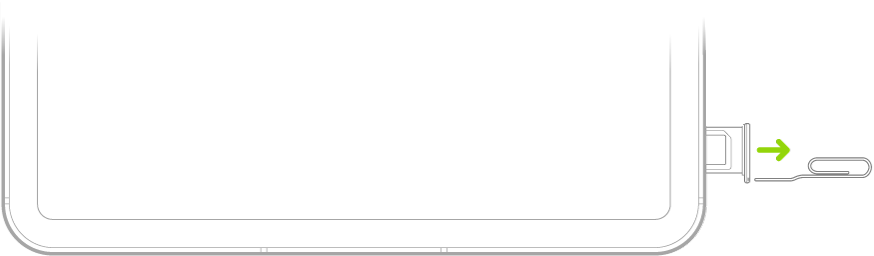
    A paper clip or SIM eject tool is inserted into the small hole of the SIM tray on the left side of iPad to eject and remove the tray.

    Note: The shape and orientation of the SIM tray depend on the iPad model and your country or region.

  2. Remove the tray from iPad.
  3. Place the SIM in the tray. The angled corner determines the correct orientation.
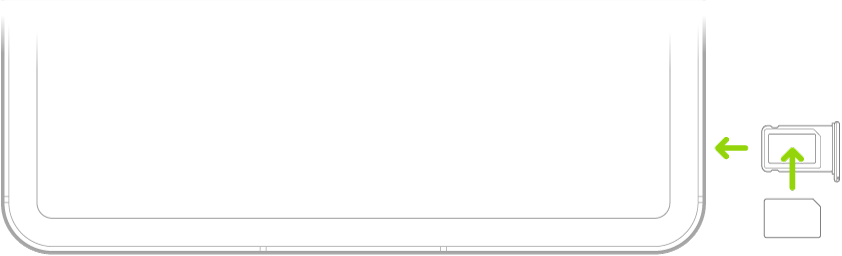
    A paper clip or SIM eject tool is inserted into the small hole of the SIM tray on the left side of iPad to eject and remove the tray.

  4. Insert the tray back into iPad.
  5. If you previously set up a PIN on the SIM, carefully enter the PIN when prompted.

    WARNING: Never try to guess a SIM PIN. An incorrect guess can permanently lock your SIM, and you won’t be able to use cellular data through your carrier until you get a new SIM.

Lock your SIM card

To prevent others from using the SIM card your device uses for cellular data, lock the card with a personal identification number, or PIN. After that, your card locks automatically every time you restart your device or remove the SIM card, and you’ll have to enter your PIN.

Important: When using cellular services through GSM networks, you need an eSIM or third-party SIM. When using cellular services through CDMA networks, you need a third-party SIM. Your iPad is subject to your wireless service provider’s policies, which may include restrictions on switching service providers and roaming, even after the conclusion of any required minimum service contract. Contact your wireless service provider for more details. The availability of cellular capabilities depends on the wireless network, your iPad model, and your location.

See also
On the Home Screen, in Control Center, and in apps, you can see previews, open Quick Actions menus, and more. You can preview an image in Photos and see a list of options, preview the message contents in Mail, and respond to a notification on the Lock Screen. Control Center has options for items like Camera, too.

  • In Photos, touch and hold an image to preview it and see a list of options.
  • In Mail, touch and hold a message in a mailbox to preview the message contents and see a list of options.
  • On the Home Screen, touch and hold an app icon briefly to open a Quick Actions menu. If the icons start to jiggle, tap Done at the top right or press the Home button (on an iPad with a Home button), then try again.
  • Open Control Center, then touch and hold an item like Camera or the brightness control to see options.
  • On the Lock Screen, touch and hold a notification briefly to respond to it.
  • When typing, touch and hold the Space bar with one finger to move the insertion point.

See also

On iPad, you can make your screen dimmer or brighter (dimming the screen extends battery life). You can also adjust the screen color and brightness manually or automatically with Dark Mode, True Tone, and Night Shift.

You can change it in Control Center or in Settings. iPad can also adjust brightness for current light conditions using its ambient light sensor.

Here’s how to adjust the screen brightness and color on iPad.

Adjust the screen brightness manually

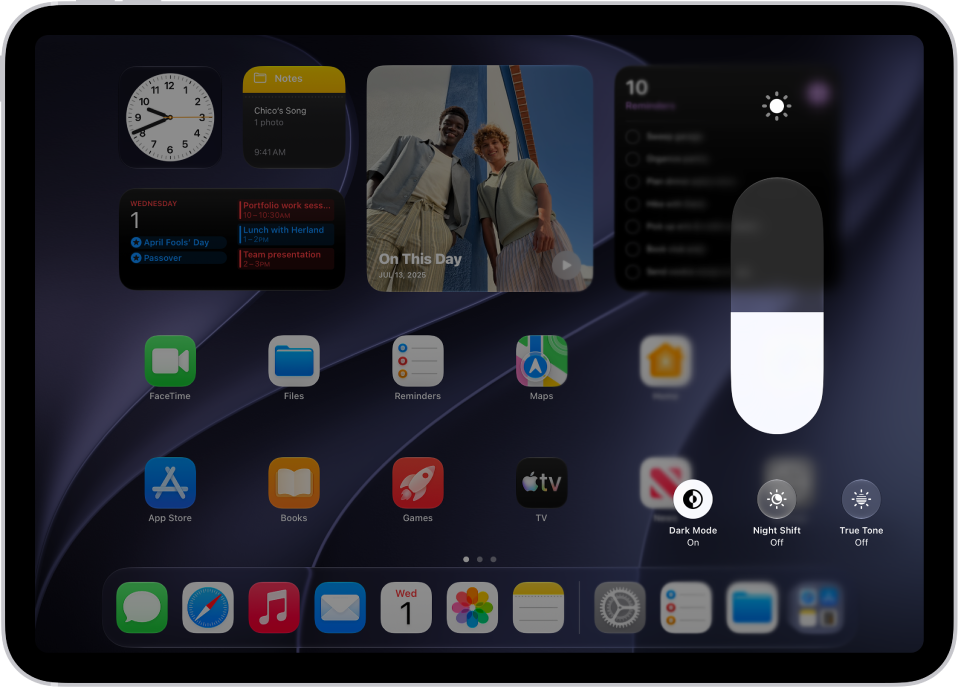
The iPad Home Screen with Dark Mode on.

To make your iPad screen dimmer or brighter, use either of the following:

  • Open Control Center, then drag the Brightness button up or down.
  • Go to the Settings app, tap Display & Brightness, then drag the slider.

Adjust the screen brightness automatically

The built-in ambient light sensor lets iPad adjust the screen brightness for current light conditions.

  1. Start the Settings app on your iPad.
  2. Tap Accessibility, then tap Display & Text Size.
  3. Turn on Auto-Brightness.

    Turning off Auto-Brightness may increase power consumption.

Turn Dark Mode on or off

Dark Mode switches the entire iPad experience to a dark color scheme, which is perfect for low-light environments. Say you’re reading in bed. With Dark Mode on, you can use your iPad without disturbing the person next to you.

You can turn Dark Mode on or off from either of these places:

  • Open Control Center, touch and hold the Brightness button, then tap the Appearance button to turn Dark Mode on or off.
  • Go to the Settings app, tap Display & Brightness, then select Dark to turn on Dark Mode or select Light to turn it off.

Schedule Dark Mode to turn on and off automatically

You can set Dark Mode to turn on automatically at night (or on a custom schedule) in Settings.

  1. Start the Settings app on your iPad.
  2. Tap Display & Brightness, turn on Automatic, and tap Options.
  3. Select either Sunset to Sunrise or Custom Schedule.

    If you choose Custom Schedule, tap the options to schedule the times you want Dark Mode to turn on and off.

    If you select Sunset to Sunrise, iPad uses the data from your clock and geolocation to determine when it’s nighttime for you.

Turn Night Shift on or off

In a darkened room during the day, it can help to turn on Night Shift manually.

Open Control Center, touch and hold the Brightness button, then tap the Night Shift button.

Schedule Night Shift to turn on and off automatically

With a Night Shift schedule, the colors in your display shift to the warmer end of the spectrum at night, making the screen easier on your eyes.

  1. Go to the Settings on your iPad.
  2. Tap Display & Brightness, tap Night Shift, and then turn on Scheduled.
  3. To adjust the color balance for Night Shift, drag the slider below Color Temperature toward the warmer or cooler end of the spectrum.
  4. Tap From and select either Sunset to Sunrise or Custom Schedule.

    If you choose Custom Schedule, tap the options to schedule the times you want Night Shift to turn on and off.

    If you select Sunset to Sunrise, iPad uses the data from your clock and geolocation to determine when it’s nighttime for you.

    Note: The Sunset to Sunrise option isn’t available if you turned off Location Services or Setting Time Zone. To turn on Location Services, go to the Settings app, tap Privacy & Security, then tap Location Services. Setting Time Zone is in System Services on that screen.

Turn True Tone on or off

To keep the display looking consistent across different environments, True Tone on supported models uses ambient light sensors, letting it adjust the screen color based on the lighting around you.

To turn True Tone on or off, use either of the following:

  • Open Control Center, touch and hold the Brightness button, then tap the True Tone button to turn True Tone on or off.
  • Go to the Settings app, tap Display & Brightness, then turn True Tone on or off.

Use Reference Mode on iPad Pro

Reference Mode tunes the display to common color standards, which helps when you’re reviewing photo and video work. It’s available on iPad Pro 11-inch (M4 and later) and iPad Pro 12.9-inch (M1 and later) models.

  1. Start the Settings app on your iPad.
  2. Tap Display & Brightness, then tap Advanced.
  3. Turn on Reference Mode.

See also

Before apps use the camera or microphone on your iPad, they’re required to request your permission and explain why they’re asking. Apps also need your permission for other hardware features, like Bluetooth® connectivity, motion and fitness sensors, and devices on your local network.

A social networking app, for example, may ask to use your camera so that you can take and upload pictures. You can review which apps have asked and change their access whenever you like, and whenever an app uses the camera, a green indicator appears.

Review or change access to the camera, microphone, and other hardware features

  1. Open Settings and then tap Privacy & Security.
  2. Tap a hardware feature, such as Camera, Bluetooth, Local Network, or Microphone.

The list shows the apps that requested access. You can turn access on or off for any app on the list.

Note: Whenever an app uses the camera (including when the camera and microphone are used together), a green indicator appears. An orange indicator appears at the top of the screen whenever an app uses the microphone without the camera. Also, a message appears at the top of Control Center to inform you when an app has recently used either.

See also

Control Center on iPad gives you instant access to useful controls—including Airplane Mode, Do Not Disturb, volume, screen brightness, and more.

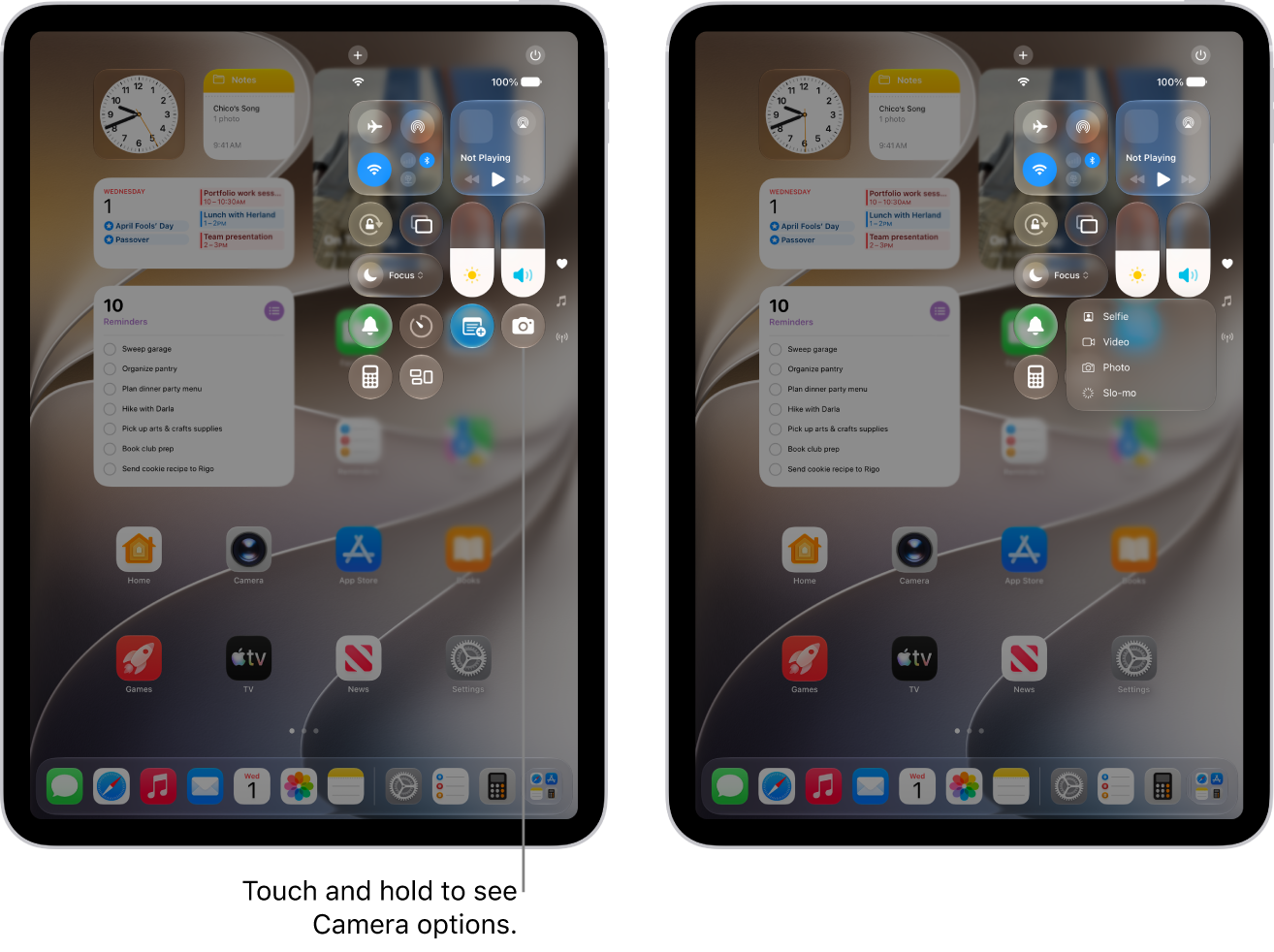
Many controls offer additional options. The Camera control, for example, can take a selfie, record a video, or take a photo, and the Power button can power off your iPad. You can rearrange, add, or remove controls, or add a custom group, and you’re able to temporarily disconnect from a Wi-Fi network or Bluetooth devices.

The iPad Control Center. Controls for Airplane Mode, cellular data, Wi-Fi, and Bluetooth are in the top-left group in Control Center for Wi-Fi + Cellular iPad models. The Camera control is at the bottom right of Control Center. The screen on the right shows the quick menu of options that appear when you touch and hold the Camera control.

Open Control Center

Swipe down from the top-right edge. You can jump to specific groups of controls by swiping down through the icons on the right edge of the screen. Swipe up through the icons to go back to the first group.

To close Control Center, swipe up from the bottom center of the screen.

Access more controls in Control Center

Many controls offer additional options. To see available options, touch and hold a control. For example, you can do the following in Control Center:

  • Touch and hold the top-left group of controls, then tap the AirDrop button to open the AirDrop options.
  • Touch and hold the Camera button to take a selfie, record a video, or take a photo.
  • Touch and hold the Control Center Power button at the top right of the screen (while Control Center is open). Then drag the slider to power off the iPad.

Customize controls

You can rearrange, add, or remove Control Center controls.

  1. Open Control Center.
  2. Tap the Add button at the top left of Control Center to begin editing the controls.
  3. Do any of the following:

    • Rearrange controls: Drag a control to a new position.
    • Remove a control or a set of controls: Tap the Remove button at the upper left of the control.
    • Resize a control: Drag the handle at the lower right edge of the control.
    • Create a new section of controls: Tap the bottommost icon (the little circle) along the right edge of the screen. Then tap Add a Control, and choose which controls to add to your custom group. Or you can drag a control off the bottom of the page to create a new section.
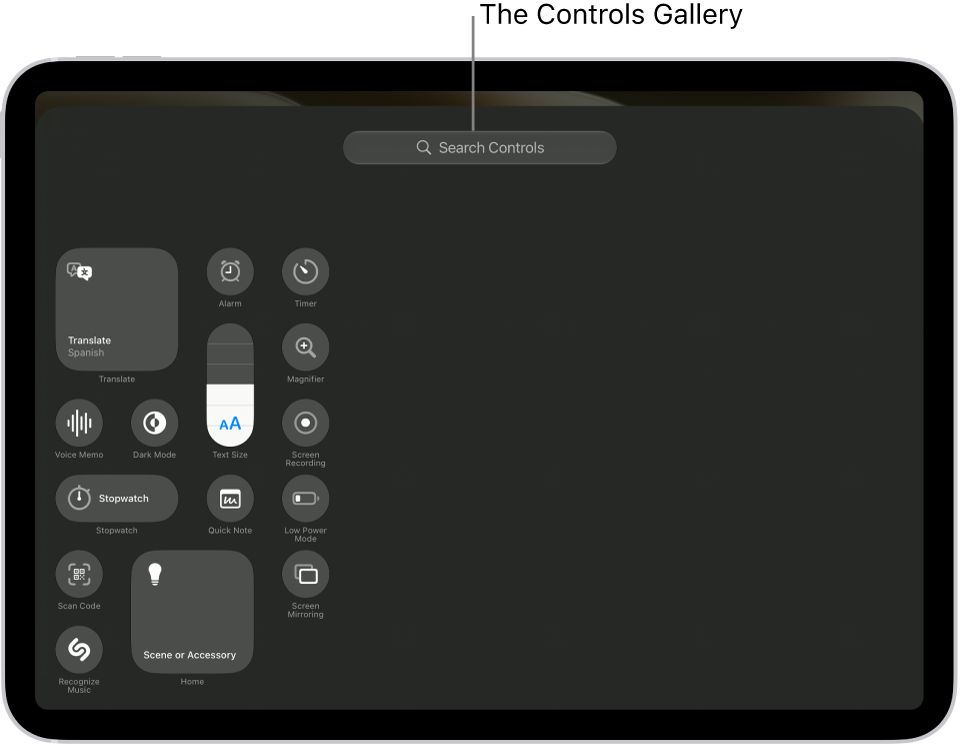
    • Add more controls: Tap Add a Control to open the controls gallery. Tap a control to add it to Control Center.

      Control Center in edit mode, with the controls gallery open, showing all the available controls.

  4. When you finish customizing, close Control Center by swiping up from the bottom center of the screen.

Add a custom group of controls

You can even add a whole new group of controls to Control Center.

  1. Open Control Center.
  2. Tap the Add button at the top left of Control Center. Then tap the bottommost icon (the little circle) along the right edge of the screen.
  3. Tap Add a Control at the bottom of Control Center to open the controls gallery. Then tap a control in the controls gallery to add it to the group.
  4. To further customize the new group of controls, do any of the following:

    • Rearrange controls: Drag a control to a new position.
    • Remove a control or a set of controls: Tap the Remove button at the upper left of the control.
    • Resize a control: Drag the handle at the lower right of the control.
    • Add more controls: Tap Add a Control at the bottom of Control Center. Then tap a control to add it to the group.

      Note: If you don’t see the control you want to add, type its name in the search field at the top.

  5. When you’re finished, close Control Center by swiping up from the bottom center of the screen.

Temporarily disconnect from a Wi-Fi network

In Control Center, tap the Wi-Fi Switch button; to reconnect, tap it again.

To see the name of the connected Wi-Fi network, touch and hold the Wi-Fi Switch button.

Because Wi-Fi isn’t turned off when you disconnect from a network, AirPlay and AirDrop still work, and iPad joins known networks when you change locations or restart iPad. To turn off Wi-Fi, go to the Settings app, then tap Wi-Fi. (To turn on Wi-Fi again in Control Center, tap the Wi-Fi Switch button.) For information about turning Wi-Fi on or off in Control Center while in Airplane Mode, see Choose iPad settings for travel.

Temporarily disconnect from Bluetooth devices

In Control Center, tap the Bluetooth Switch button; to allow connections, tap the button again.

Because Bluetooth® isn’t turned off when you disconnect from devices, location accuracy and other services are still enabled. To turn off Bluetooth, go to the Settings app, tap Bluetooth, then turn it off. To turn on Bluetooth again in Control Center, tap the Bluetooth Switch button. For information about turning Bluetooth on or off in Control Center while in Airplane Mode, see Choose iPad settings for travel.

Turn off access to Control Center in apps

Go to the Settings app, tap Control Center, then turn off Access Within Apps.

See also

You can have iPad continuously listen for your name and notify you when it’s detected. You can also record how you or someone else says your name to help iPad recognize it.

If you go by more than one name, iPad can recognize multiple names. And to quickly turn Name Recognition on or off, you can add it to Control Center.

Here’s how to have iPad notify you when your name is called.

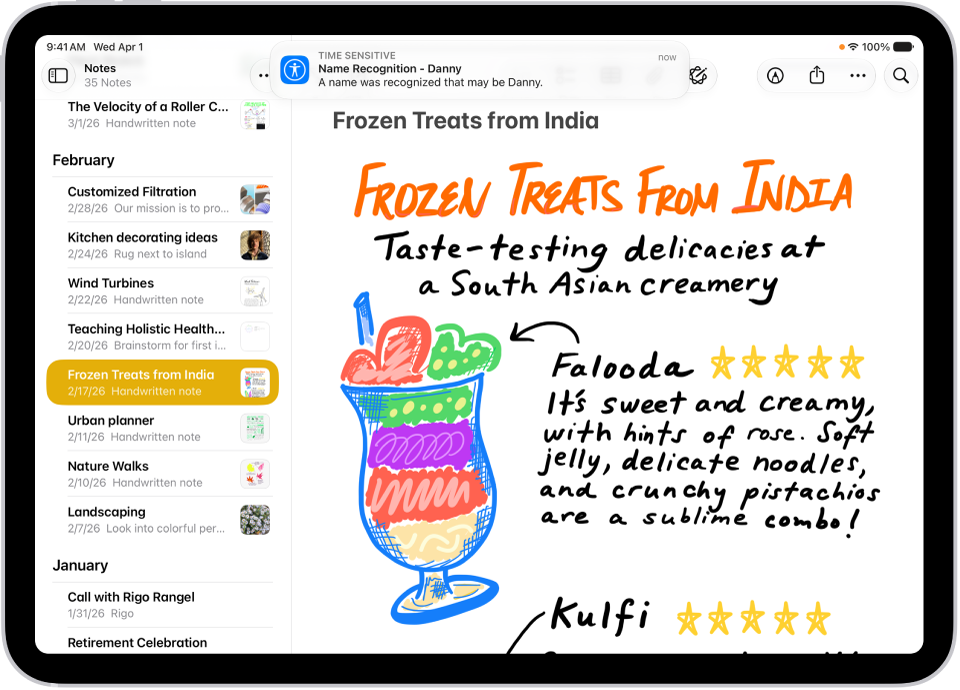
Note: Name Recognition is available on iPadOS 26 and later. Name Recognition is only available in select languages. Don’t rely on your iPad to recognize your name in circumstances where you may be harmed or injured or in high-risk or emergency situations.

A notification is shown on iPad that Name Recognition recognized a sound that may be a name.

Set up Name Recognition

  1. Start the Settings app on your iPad.
  2. Tap Accessibility, tap Sound & Name Recognition, tap Name Recognition, and then tap Set Up Name Recognition.
  3. Follow the onscreen instructions.

Add more than one name to Name Recognition

If you identify yourself by more than one name, you can have iPad recognize multiple names.

  1. Start the Settings app on your iPad.
  2. Tap Accessibility, tap Sound & Name Recognition and tap Name Recognition. Then tap Add Name.
  3. Follow the onscreen instructions.

Quick tip: To turn Name Recognition on or off quickly, add it to Control Center.

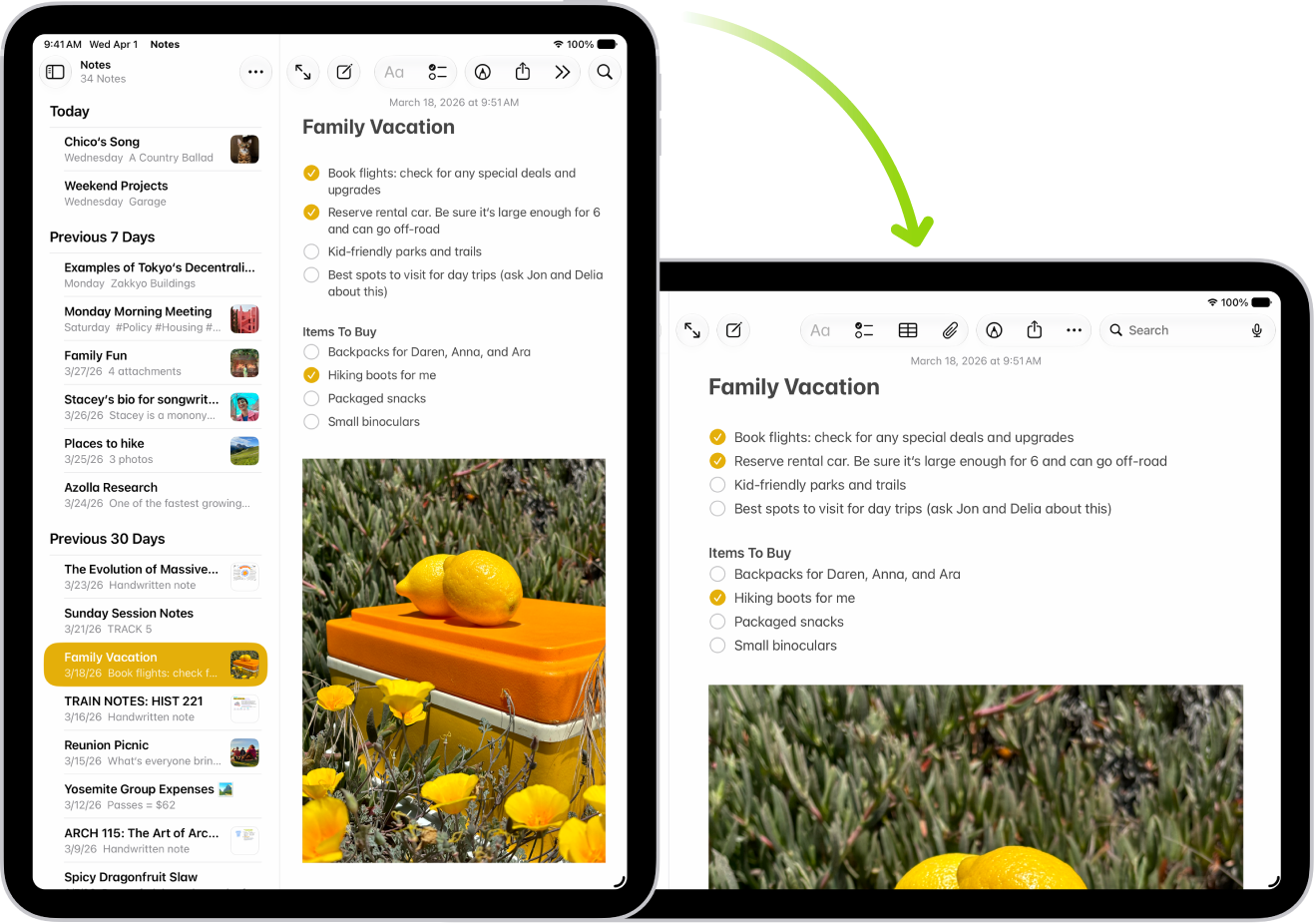
Many apps give you a different view when you rotate iPad, as long as the rotation lock is off. You can also lock the screen orientation so it doesn’t change when you rotate iPad, and while it’s locked, the Lock Rotation icon appears in the status bar.

Rotate the screen

  1. To make sure the rotation lock is off, open Control Center and tap the Lock Rotation button if it’s red.

    Note: If you don’t see the Lock Rotation button, add it to Control Center. See Customize controls.

  2. Turn your iPad sideways.

    In the background, iPad displays a Notes screen in portrait orientation; in the foreground, iPad is rotated and shows the Notes screen in landscape orientation.

Lock or unlock the screen orientation

The screen orientation can be locked so it won’t change when you rotate iPad.

Open Control Center, then tap the Lock Rotation button. The button is red when the orientation is locked, and gray when it isn’t.

Note: If you don’t see the Lock Rotation button, add it to Control Center. See Customize controls.

With the screen orientation locked, you’ll see the Lock Rotation icon in the status bar.

See also

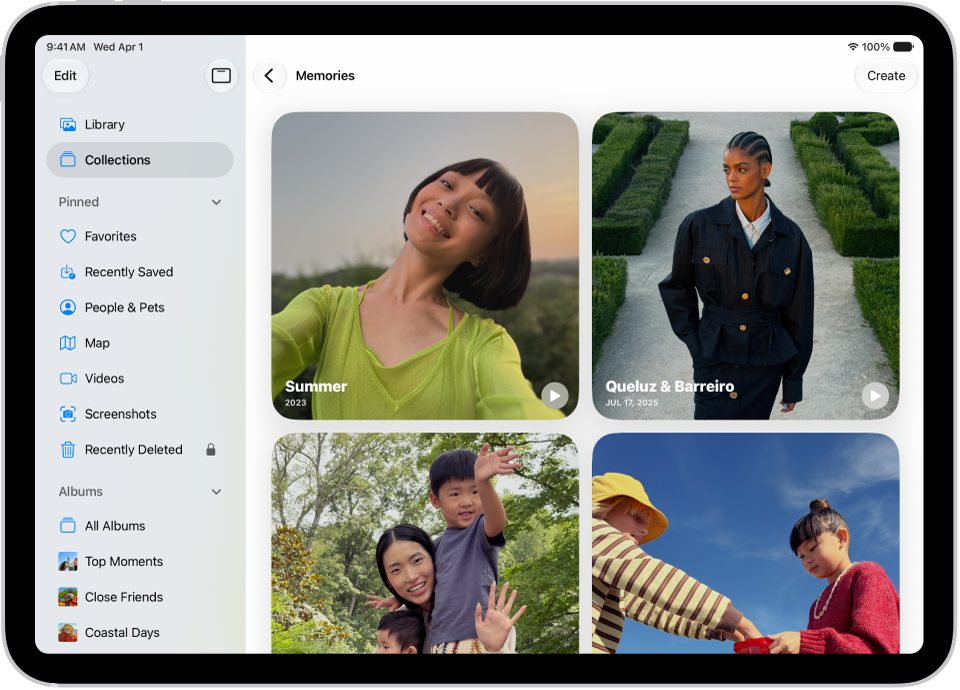
The Memories collection in the Photos app includes personalized collections of photos and videos that feature a significant person, pet, place, activity, or event from your photo library.

In a memory, you can filter and sort the photos and videos, view all of them, or search for photos and videos. You can share a memory, delete it, show its location on a map, or play the memory movie, and you can add a memory to Favorites to make your favorite memories easier to find.

The Photos app is open to the Memories collection. The All tab is selected, with a list of memories below.

View your memories

  1. Open the Photos app on your iPad.
  2. Tap Collections.
  3. Swipe left under Memories to scroll through a selection of your memories, or tap Memories to view them all.
  4. Select a memory to view all the photos and videos included in that memory.
  5. As you view a memory, you can do any of the following:
    • Filter and sort the photos and videos in the memory: Tap the Sort and Filter button.
    • View all the photos and videos in the memory: Tap Show All.
    • Search for photos and videos in the memory: Tap the Search button.
    • Share the memory, delete the memory, or show the memory location on a map: Tap the More button.
    • Share specific photos and videos in the memory: Tap Select, tap the photos and videos you want to share, and then tap the Share button.
    • Play the memory movie: Tap the Play button.
  6. Tap the Back button to close the memory and return to Collections.

Add a memory to Favorites

Identify your favorite memories to make them easier to find.

  1. Open the Photos app on your iPad.
  2. Tap Collections.
  3. Touch and hold a memory and tap Add to Favorite Memories.

To view your favorite memories, tap Collections, tap Memories, then tap Favorites.

See also

Tag: Photos

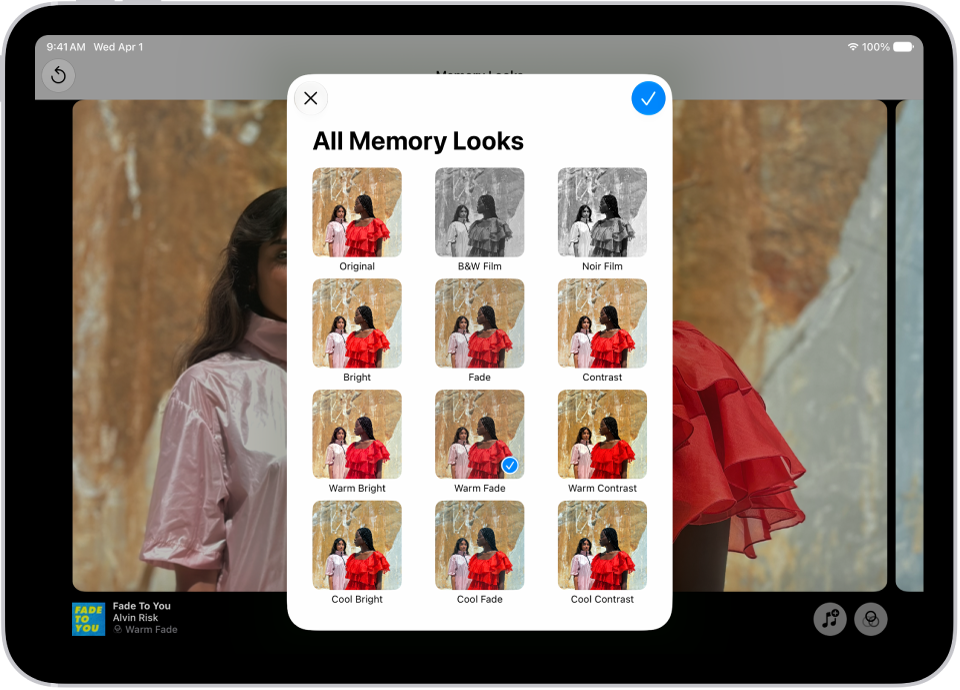
In the Photos app, you can edit your memory movies to make them even more personal. Try Memory Looks, which pair different songs with a matching photographic style. Memory Looks are curated combinations of different songs, pacing, and styles.

You can also choose new songs, edit the title, change the length, and add or remove photos. And Apple Music subscribers can add songs from the millions of songs in the Apple Music catalog.

Here’s how to personalize your memory movies in Photos on iPad.

A memory movie is playing and in the middle of the screen are the options for applying a Memory Look.

Change the look of a memory movie

Memory Looks, curated combinations of different songs, pacing, and styles, change the look and feel of a memory movie.

  1. Open the Photos app on your iPad.
  2. Tap Collections.
  3. Swipe left under Memories to scroll through a selection of your memories, or tap Memories to view them all.
  4. Tap the Play button in the bottom-right corner of a memory to play it.
  5. Tap the screen, then tap Customize.
  6. Tap Customize Look, then swipe left to view different Memory mixes. You can also do the following:
    • Tap the Filters button to view all of the Memory Looks at the same time.
    • Tap the Music button to change the song.
  7. Tap the screen to apply the Memory Look.

Change the music of a memory movie

A memory movie’s music can come from memory soundtracks or suggested songs in Apple Music. If you subscribe to Apple Music, you can also access your Apple Music library and get suggested songs based on your musical preferences or what’s in the memory.

  1. Open the Photos app on your iPad.
  2. Tap Collections.
  3. Swipe left under Memories to scroll through a selection of your memories, or tap Memories to view them all.
  4. Tap the Play button in the bottom-right corner of a memory to play it.
  5. Tap the screen, then tap Customize.
  6. Tap Music, then tap Change Song.

    Apple Music subscribers can tap Browse to search for songs in the Apple Music library.

Add or remove photos in a memory movie

It’s up to you which photos appear in a memory movie: you can add or remove suggested featured photos, or pick photos and videos directly from your library.

  1. Open the Photos app on your iPad.
  2. Tap Collections.
  3. Swipe left under Memories to scroll through a selection of your memories, or tap Memories to view them all.
  4. Tap the Play button in the bottom-right corner of a memory to play it.
  5. Tap the screen, tap the Browse button, and do any of the following:
    • Add a photo: Tap the photos you want to add (tap All to see your entire library) and tap the Done button.
    • Remove a photo: Deselect a photo to remove it from the memory. Tap the Done button.
    • Search for photos in your library: Tap All and tap the Search button. Then type what you’re looking for. Tap the photos you want to add. Then tap the Done button.
  6. Tap the Back button to return to the memory movie.

Reorder photos in a memory movie

  1. Open the Photos app on your iPad.
  2. Tap Collections.
  3. Swipe left under Memories to scroll through a selection of your memories, or tap Memories to view them all.
  4. Tap the Play button in the bottom-right corner of a memory to play it.
  5. Tap the screen, then tap the Browse button.
  6. Touch and hold a photo, then drag it to a new position in the grid.
  7. Tap the Back button to return to the memory movie.

Change the length and transitions of a memory movie

A memory movie’s length can be short, medium, or long, depending on the number of photos in it, and whichever you choose automatically adjusts the number of photos included. The transition between photos can change as well, to crossfade or rotate, for example.

  1. Open the Photos app on your iPad.
  2. Tap Collections.
  3. Swipe left under Memories to scroll through a selection of your memories, or tap Memories to view them all.
  4. Tap the Play button in the bottom-right corner of a memory to play it.
  5. Tap the screen and tap Customize. Tap Transition and Duration.
  6. Make your selections, then tap the Done button.

Edit the title, subtitle, and key photo

You can edit a memory’s title or subtitle, and you can also swap the key photo that appears with the title of the memory.

  1. Open the Photos app on your iPad.
  2. Tap Collections.
  3. Swipe left under Memories to scroll through a selection of your memories, or tap Memories to view them all.
  4. Tap the screen and then tap the More button.
  5. Tap the current title and then do any of the following:
    • Edit the memory title or subtitle: Enter a new title or subtitle in the text fields.
    • Change the key photo: Tap the photo icon in the bottom-right corner of the current key photo. Then select a new photo in the photo grid.
  6. Tap the Done button.

See also

Tag: Photos

You can delete the password you use to sign in to a website or app on your iPad. You just find the account for the password you want to delete in the Passwords app and delete it. That doesn’t remove your password from the website or app where you created it, though.

  1. Go to the Passwords app on your iPad.
  2. Tap All, then tap the account for the password you want to delete.
  3. Tap Edit.
  4. Tap Delete and then tap Delete Password to confirm.

Note: The password stays on the website or app where you created it.

See also